Windows Server 2008 is done, embraces PHP

Microsoft says that Windows Server 2008 has been released to manufacturing.

Organizations will be naturally cautious about upgrading their servers. Nevertheless, I suspect that Server 2008 will get an easier ride than Windows Vista. IIS 7.0 is a major upgrade for Microsoft’s web server. Built-in Hyper-V virtualization lets you run multiple operating systems on a single server, Linux included. Server Core is a minimalist install that comes close to answering those critics who have always said, “Why do I need a GUI on a server?”

Here’s the most interesting part of the announcement, especially bearing in mind the Yahoo bid:

With Windows Server 2008, Microsoft is also embracing PHP hosting on Windows via the FastCGI module for IIS 7.0. PHP is a popular open-source scripting language used to build dynamic web applications. This allows IT Professionals to host PHP and ASP.net applications side by side. As a result, the PHP community will be able to take advantage of the increased reliability of PHP on Windows and simplified administration available on the Windows platform.

Quick way to deploy all those PHP applications, eh?

I’m surprised at Microsoft’s choice of language here. Microsoft is not really embracing PHP, as far as I am aware. Its web development platform remains ASP.NET. This is about compatibility and easing migration. Note that Mainsoft can do a fair job of getting your ASP.NET application running on Java, and there is also Mono, so portability between the Microsoft and *nix platforms is improving.

PS I first blogged about IIS 7.0 in July 2005. Nobody can accuse Microsoft of rushing this one.
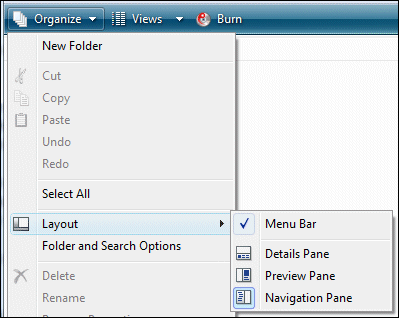
Finding the preview pane in Vista’s Explorer

I recently came across this (old but interesting) article on creating preview handlers for Vista.

If you have the preview pane showing, you can select a file in Explorer and see a preview of the contents. It is also used for email attachments in Outlook 2007.

This article explains how to use it to create a fast PDF preview based on Foxit, and another for previewing C# source with pretty formatting.

It occurred to me that I rarely see the preview pane in Explorer. It’s not enabled by default. So how do you enable it?

Explorer in Vista has a curious user interface. There are some handy features like favorite links, but adding links to this list is not particularly intuitive. Try drag-and-drop, or right-click the Favorite Links panel and choose Open Favorite Links folder. No, it’s not under Organize, where you would expect.

But I digress. In its default state, Explorer has a toolbar with two menus, Organize and Views. Other menus appear on a semi-random basis according to some broken algorithm which is meant to respond to the context.

If you dislike the capricious toolbar, you can show an old-fashioned menu bar, with top-level entries for File, Edit, View, Tools and Help. That is what I normally use.

Now you might expect that the option to show a preview would be under the Views option on the toolbar, and on the View menu on the menu bar. It’s part of the view, right?

Wrong. To get the preview pane to show, you need to select it under Organize and then the Layout sub-menu. It’s not in the menu bar at all.

Since it is on a sub-menu, it is not surprising that people don’t find it.

Further, I don’t get what concept Organize is meant to represent. It’s helpful to distinguish between things that change the view, like the preview pane or folder options, and things that change the files, like New Folder or Cut. So why is stuff in both categories on this single menu? Who would click Organize to find Delete? Alternatively, if Organize is about modifying files, what is Layout doing there?

Once you have found the preview pane, it’s probably best to turn it off most of the time. The problem is that when you select a Word document, for example, most of Word has to load in the background before it displays…slow. Still, if you have a bunch of Word documents with obscure names, and want to find out quickly what they contain, then the preview pane is really useful.

I hope a faster, more logical and more intuitive Explorer is high on the to-do list for Windows 7.