Category Archives: microsoft

Changing the motherboard or storage controller underneath Windows XP and Vista

Can you change your motherboard without reinstalling your operating system? Sometimes you can, sometimes you can’t. Last week I decided it was time to upgrade the desktop PC on which I do much of my work. The old motherboard was nearly three years old – an Intel 915PBL, which I purchased in order to run 64-bit Windows XP. At the time I was indignant because the BIOS swallowed a full 1GB of my RAM.

Technology has moved on, so I purchased an Intel DP35DP board (I still have a high regard for Intel’s manufacturing quality) and a core 2 quad Q6600 processor. I appreciate that this is now not quite leading edge, but it has been out long enough to be a reasonable price. So I backed up my files, performed the motherboard surgery, and switched on.

For sure I was not depending on being able to continue without reinstalling the operating system. This is not a supported procedure. On the other hand, I figured it would be interesting to try; and so it proved. After all, I’ve had enough trouble installing things like Visual Studio 6 and Adobe Creative Suite 3, not to want to repeat the experience.

My desktop PC is a little complex. There are three SATA drives and three Windows installations. One is Window XP x64 (the original installation); one is Windows XP Pro 32-bit; and one is Windows Vista Pro 32-bit. I work mostly in Vista. Initially, none of these worked with my new motherboard. Attempting to boot Vista caused an immediate restart, and both XP installations blue screened.

The key problem is the storage controller. Typically, you will get a STOP 0x0000007B if your new motherboard has a different storage controller than the old one. The above link is to a Microsoft knowledgebase article for Windows XP, and you will see that it suggests two solutions. One is to perform an in-place upgrade, also known as a repair install. This is where you reinstall Windows to the same location, and it sorts out the device drivers and other critical problems without blowing away your documents or applications. The other is to do a new clean install – not really a fix, more an admission of failure.

Vista no longer supports repair installs. More on this later.

Note that the main issue is getting Windows to boot. Once it does boot, you will likely get all sorts of device errors, but these can usually be fixed. Fixing stuff if you cannot boot at all is more challenging.

Health warning

Since you are still reading, I assume you are in one of two categories. Either you are inquisitive about the innards of Windows; or you have a problem because Windows will not boot. Here’s my disclaimer. The steps I describe below are not supported, guaranteed ways to rescue Windows; and if you experiment with a working Windows installation, you could break it. If you try any of them, it’s at your own risk.

The AHCI problem

Intel’s new boards usually have three settings for the SATA controller. One is IDE, which is best for legacy compatibility. One is AHCI (Advanced Host Controller Interface), which is best for features. The third is RAID, which combines AHCI and a sort of hardware RAID (sometimes known as fakeRAID because it isn’t really hardware RAID, but never mind). Intel boards used to default to IDE, but this one defaulted to RAID which is now Intel’s recommendation. Even if you only have one drive, you can easily set up RAID later if you start with that setting. If you plan to install Linux, you might be better off with plain AHCI.

Repair Install on XP x64

For my first experiment, I tried a repair install on XP x64. It did not go well. There was some minor awkwardness. Intel supplies the crucial RAID drivers on antiquated media called floppy disk. You need this during Windows setup (press F6). However, the motherboard has no Floppy Disk connector; you have to use USB. Luckily I have a USB external floppy which came with a laptop some years ago, so that bit worked. Unfortunately, the repair install seemed to hang on a screen which said “Installing Devices” and promised to complete in 35 minutes. I left it overnight and it said the same thing in the morning, though it had not technically crashed and who knows, perhaps it would have completed one day.

If you ever hit this issue, read this thread. What you have to do is to restart the machine and press F8 to get the advanced startup options. Timing this may be tricky, since setup configures itself for immediate startup. If you get really stuck, find some way to edit boot.ini to insert a delay. Once you have pressed F8, choose the Debugging mode. The repair install will now complete within a sane time. There’s another solution discussed in the thread I’ve referenced above, which involves identifying which device is causing the hang and then preventing setup from attempting to install it; but the Debugging option worked fine for me.

As it happens, I didn’t discover this fix until later. I got diverted by 32-bit XP.

Fixing 32-bit Windows

After getting stuck on XP x64, I took a look at 32-bit XP. The X64 repair install had mucked up the boot menu; but that’s easy to fix from a recovery console. Being a little discouraged, I decided to try the legacy IDE settings for the SATA controller. Good old XP Pro then started, no hassle, no need for a repair install. It detected various new devices, and I ran the Intel driver utility from the CD that came with the motherboard. I also had to reinstall the NVidia graphics driver. My first success.

First attempt with Vista

Vista on the other hand still would not work. It is less amenable than XP to controller changes; I gather this may be something to do with speeding up the boot process by disabling “unnecessary” drivers. Anyway, it blue-screened irrespective of the setting for the SATA controller. It was then I discovered that Vista has removed the option for a repair install. What you do instead is to boot from the setup CD or DVD and choose the option to “Repair your computer”. Then it runs a Startup Repair wizard which tries to fix your Vista. I tried this on all the SATA settings, and it failed. On the first try it thought it might have succeeded and invited me to restart Windows, but it still blue-screened. On subsequent attempts the wizard made some lengthy disk-checking efforts only to inform me that I had a corrupt volume and should give up.

I’m not impressed with Startup Repair. I think XP’s Repair Install is brilliant, and Vista’s Startup Repair is brain dead. I’ll explain shortly.

You can do a sort-of repair install with Vista by “upgrading” an existing install – but you can only start an upgrade from within the instance of Windows that you want to upgrade. In other words, if you can’t boot then this is not an option. Do NOT do an over-the-top clean install. You will lose all your settings.

At this point I nearly gave up and did a clean install of Vista. I still had the nagging thought that if only I could get Vista to load the right storage controller driver, it would probably start up. So I left it for the moment and went back to 32-bit XP, my success story. I wanted to discover if I could switch to the SATA RAID option without breaking it.

Switching an installed Windows OS to AHCI or RAID

This thought led me to an illuminating discussion. This explains that if you want to switch Windows to use a different storage controller, for which the driver is not installed, you do so by manually copying the driver to system32\drivers; and editing the registry so that Windows can use the new driver when booting. For this to work, you need to know the hardware ID of your controller. This is something like:

PCI\VEN_8086&DEV_2822&CC_0104

One way to find this ID is to clean install a second copy of Windows to a temporary location, and then look at the storage controller properties in device manager. Alternatively you can experiment with some likely values, or try several at once. The discussion I’ve linked provides some reg files which show the critical entries.

This looked interesting, so I followed the steps in the first post of the thread, shut down, then restarted with the BIOS setting changed to AHCI. Success – XP Pro started, and I was able to run Intel’s driver setup to clean up the installation.

Getting more confident now, I found the hardware ID for the RAID controller (the hardware ID changes when you change the BIOS setting) and added that to the registry. The actual driver is the same. Success again – XP now started using the Intel Matrix Storage RAID.

XP was done now, especially as I also discovered the fix for x64 described above. But Vista, the one that mattered to me most, was still broken. Nevertheless, I now had a much better idea of how to fix it.

Offline registry editing

Now is the moment to mention a little-known feature of the Windows registry editor. 99% of the time, you edit the Windows registry from within a running instance of Windows. However, the registry editor has an entry in the File menu called Load Hive. The way this works is not particularly intuitive. You select the root of HKEY_LOCAL_MACHINE, then choose Load Hive and navigate to a registry database file that is not part of the active registry. In my case, the hive I needed to load was SYSTEM, located in System32\Config. You may possibly know this if you have ever had to recover Windows when it will not boot because of registry corruption. When you click OK to load the hive, the registry editor prompts you for a key name. Enter something like “Vista Repair”. The loaded hive then appears as a sub-folder under HKEY_LOCAL_MACHINE.
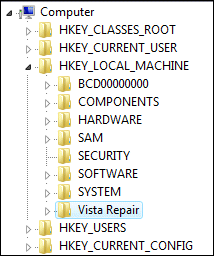
There is no Save; simply make the edits you want, then select the top level of the loaded hive – eg. “Vista Repair” – and choose File – Unload Hive.

This had to be worth a try. I booted my poorly machine into Windows XP, then went to another machine on the network running Vista. I copied the SYSTEM hive from the broken Vista across the network, made a backup, then loaded it into registry editor. Finally, I manually made the changes pretty much as in the reg file used to migrate XP to a new storage controller, though what I actually did was to pattern the changes on an existing storage controller entry in the working Vista registry. Note that an offline registry has no “Current Control Set” hive. This is actually a runtime link to ControlSet01. So, for offline editing, you edit ControlSet01.

I also made the normal registry fix for enabling AHCI on Vista. Then I unloaded the hive and copied it back to my broken Vista. I also added the actual driver to system32\drivers, of course. In my case the driver is called iastor.sys, from Intel’s floppy disk.

Vista boots

The result was amazing. I restarted the PC with the new motherboard, and instead of a blue screen I got:

Press CTRL+ALT+DELETE to log on

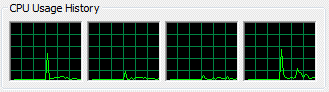
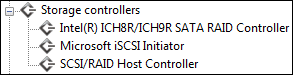
Nothing much to add now. I logged  on, installed various drivers, and everything works. I have a quad core CPU:
and an Intel RAID storage controller:
Vista itself seems fine. It is solid and significantly faster than before, as you would expect.

Thoughts on Vista Startup Repair

Despite my success, I’m not impressed with the Vista Startup Repair. First, why couldn’t Microsoft’s wizard do what I did manually? Second, why has the excellent Repair Install option disappeared from Vista? Vista’s repair and restore options seem to presume that the hardware has not changed; yet I’d have thought a replaced motherboard would be one of the more common scenarios where you would want to repair a Vista installation.

The whole business of changed hardware is something of a dark secret in Windows backup and restore. In an enterprise environment it is not so bad, because you have redundancy, and a single failed machine (server or workstation) should not be a problem. Something like Small Business Server is different, because typically this is a single, business-critical machine. If your 2-year old Small Business Server box disappears in the night, and you purchase a new box and stuff in your backup tapes, it will not necessarily be easy to restore.

Still, I must also credit Windows with considerable resilience once it can find a working storage controller driver. It pretty much sorts itself out after that.

Coming next: a clean install of 64-bit Vista. It makes sense.

PostScript:

Anyone interested in this esoteric topic is also advised to read this article on ArsTechnica and this related thread. Note the advice on removing non-present devices from device manager. There’s also this Microsoft article (non-Vista) which is a variant on the Repair Install. Let me also note the main area of uncertainty regarding repair installs: it may not be safe with regard to recovering a fully patched system. In principle you can re-apply service packs or hotfixes, but what if Windows Update thinks a hotfix has already been applied when in fact it has been undone? It’s a good question and I’m not sure at the moment what the answer is.

The Microsoft article above also makes an interesting point about OEM licenses. If you replace the motherboard with something other than the same model, it is considered a new computer and OEM licenses cannot be transferred.

Sun gets a database manager, but Oracle owns its InnoDB engine

Sun now has a database manager. It’s been a long time coming. Oracle has … Oracle, IBM has DB2, Microsoft has SQL Server; it’s been obvious for years that Sun had a gap to fill. Now Sun has MySQL.

This is interesting to me as I was a relatively early user of the product. I didn’t much like it. It was missing important features like transactions, stored procedures and triggers. I still used it though because of a few appealing characteristics:

  • It was free
  • It was very fast
  • It was lightweight
  • It was the M in LAMP

I should expand slightly on the last of these. The great thing about MySQL was that you did not need to think about installation, PHP drivers, or anything like that. It all came pretty much by default. If you decided that you could not bear MySQL’s limitations, you could use Postgres instead, but it was more effort and less quick.

The ascent of MySQL is a sort of software development parable. Like PHP, MySQL came about from one person’s desire to fix a problem. That person was Michael “Monty” Widenius. He wanted something a little better than mSQL, a popular small database engine at the time:

We once started off with the intention to use mSQL to connect to our own fast low level (ISAM) tables. However, after some testing we came to the conclusion that mSQL was not fast or flexible enough for our needs. This resulted in a new SQL interface to our database but with almost the same API interface as mSQL. This API was chosen to ease porting of third-party code.

Why did MySQL take off when there were better database engines already out there? It was partly to do with the nature of many LAMP applications in the early days. They were often not mission-critical (mine certainly were not), and they were typically weighted towards reading rather than writing data. If you are building a web site, you want pages served as quickly as possible. MySQL did that, and without consuming too many resources. Many database engines were better, but not many were faster.

MySQL today has grown up in many ways, though transactions are still an issue. To use them you need to use an alternate back-end storage engine, either InnoDB or BDB. BDB is deprecated, and InnoDB is included by default in current releases of MySQL. InnoDB is owned by Oracle, which could prove interesting given how this deal changes the dynamics of Sun’s relationship with Oracle, though both MySQL and InnoDB are open source and published under the GPL. Will Sun try to find an alternative to InnoDB?

While I agree with most commentators that this is a good move for Sun, it’s worth noting that MySQL was not originally designed to meet Enterprise needs, which is where most of the money is.

Update: as Barry Carr comments below, there is a planned replacement for InnoDB called Falcon.

How to debug into .NET Framework source code

Shawn Burke has posted the steps needed to step through the .NET Framework source when debugging your application.

Good news for a couple of reasons. The first is the most obvious: if you are getting surprising or perplexing behaviour, you now have a better chance of working out why.

Second, and perhaps more important, this makes it easier to submit bug reports or feature requests to Microsoft along the lines of “why does your code do this when it could or should do that“?

All going well, this should improve quality. For example, the .NET Framework library code is huge, and I’ve heard it muttered that there is considerable duplication within it. Separate teams working on different parts of the library may solve the same problem with different code, causing bloat and possibly inconsistency. Opening up the library to public scrutiny makes it more likely that issues like this will get fixed.

Daniel Moth has a screencast.

Burton Group slams ODF, praises OOXML

Fighting talk from Burton Group on ODF vs OOXML:

ODF is insufficient for complex real-world enterprise requirements, and it is indirectly controlled by Sun Microsystems, despite also being an ISO standard. It’s possible that IBM, Novell, and other vendors may be able to put ODF on a more customer-oriented trajectory in the future and more completely integrate it with the W3C content model, but for now ODF should be seen as more of an anti-Microsoft political statement than an objective technology selection.

You can download the free report here, though I found I had to exaggerate my annual revenue to get past the compulsory fields on the registration form.

Wonder what Becta thinks about this?

Technorati tags: , , ,

Becta’s report on Vista and Office 2007: wise advice, or mere polemic?

I read Becta’s report on Vista and Office. Becta is a UK government agency supporting IT in education. The report is a ponderous affair and tells us that XP still works, so why bother with Vista; and that Office 2007 saves by default in a tiresome new format that few other applications can open; and that free office suites like Open Office work well so why pay for something else?

All this is fair enough; but I’m surprised that Becta didn’t spot a couple of other things. One is that Office 2007 can easily be set to save by default in the old Office binary formats that pretty much everything can read. The other is that while ODF is indeed an ISO standard, it is also pretty awkward from a compatibility point of view.* So I’m surprised by this recommendation:

When specifying new systems, schools and colleges should normally insist on the desktop having access to office productivity software that is capable of opening, editing and saving documents in the international standard ODF, and setting it as the default file format.

I suppose the idea is that if kids come home with their homework on a USB key and find that their documents will not open on the home PC running Microsoft Office, that they just download and install Open Office. Fair enough I suppose; but why not just use .doc and .xls?

The report adds:

Becta did not conduct technical assessments of the merits of either the existing international document standard (ODF) or the proposed second international document standard (OOXML).

There is however a lengthy discussion of the inadequacies of the half-baked ODF converter add-in which Microsoft has sponsored. I agree; but I’m not sure why it merits so much space.

I would have found it interesting to see a bit more examination of the merits or otherwise of the ribbon UI in Office 2007; better, worse, or indifferent for education? What about overall usability and functionality versus Open Office? It would also have been good if Becta had considered the large market share Microsoft Office enjoys, especially in business. Like it or not, it is relevant to this discussion.

I didn’t see much attention given to security, which is perhaps the biggest single reason for adopting Vista versus XP (it could also be a reason not to use Windows at all). This is not only a matter of Vista being more secure, if it is, but also that it aims to fix the insecurity of Windows long-term by fostering well-behaved applications that will enable future versions of Windows to be more tightly locked-down. Not interesting in education? I’m surprised, since when I talk to IT people in education, security is one of their chief concerns.

I find myself wondering whether this is really a document aiming to offer wise and objective guidance to schools, or a more polemical report promoting ODF and open source in education.

I reckon there is a good case for promoting open source in education. However, considered as a report on Vista and Office 2007 this is a poor effort.

*PS: It is interesting to see what Asus has done with its Eee PC, which  actually gets an oblique mention in Becta’s report:

We have also noted the emergence of low-cost innovative ‘mini-notebooks’ that have been brought to the market running a version of Linux and a range of Linux-based applications including OpenOffice.org.

On my review Eee, which was supplied by RM for the education market, Open Office is set to save in the Microsoft formats by default. I imagine that Asus wanted to make the Eee fit seamlessly into a Microsoft environment if necessary. It must have been a conscious decision, since an untweaked Open Office install uses the Open Document formats by default.

Technorati tags: , , , , ,

8GB Asus Eee PC from April 2008, Windows or Linux

RM has announced an upgraded version of its popular miniBook, also known as the Asus Eee PC. The details:

  • 1GB RAM (up from 512MB in the current version)
  • 8GB solid state drive (up from 4GB)
  • Same 7″ screen, webcam and built-in mic, speakers
  • Prices “in the region of” £229 + VAT for Linux, £259 + VAT for Windows XP Home
  • Available from April 2008

I would assume that the same machine will also be available from other vendors, with small price variations.

The Eee is already a great machine and having more space is nice, though it’s a shame that the biggest weakness of the Eee is not yet being addressed: the limited 480 pixels vertical resolution of the screen. This makes some applications and web sites hard to use, since few are designed for this size of screen. In some cases dialogs appear with no buttons; in other cases there is little working area left because of the space taken up by toolbars or header and footer panels.

Why Windows? RM says:

The introduction of the Windows based miniBook means that schools that already have curriculum software which is Windows based can add this to the miniBook. Also, schools with Microsoft Volume License agreements have a route to upgrade to XP Pro and enable network connection using Windows.

I can see that there is demand for this. On the other hand, Windows needs some tweaking in order to work at its best on the Eee. One of the issues is that frequent writes to the solid state drive are reckoned to reduce its life, so it makes sense to configure Windows without a swap file as well as cutting out unnecessary components.

Will the Windows Eee, which costs £30.00 more (plus VAT), come with an equally generous suite of bundled open-source applications, such as Open Office, as found on the Linux version? It will be interesting to see, though I doubt it.

It will be fascinating to see how take-up of the Linux and Windows versions compares, both in the education market, and more widely. I’d suggest that Linux is better suited to the device, but Windows has familiarity, compatibility, and arguably ease of use advantages. It will be a shame if Windows ends up dominating on the Eee, as it has given a boost to the visibility and adoption of Linux on the desktop.

Finding obscure commands in Office 2007

I was intrigued to see an article on CNET called Word 2007 loses the ability to export outlines to Powerpoint. It says:

There’s a great little feature in Microsoft Word 2003 and earlier versions of the word-processing program that lets you export to Powerpoint an outline of any Word file formatted with headings … I was all set to tell you how to use the feature in Word 2007 when I realized it has been removed.

I wondered if perhaps the feature was still there, but the author missed it, so I used my usual technique for finding obscure commands in Office 2007. Go to Customize Quick Access Toolbar, then choose More Commands, then All Commands. Hey, there it is:

This is a great place to look if you cannot find a feature you used in earlier versions of Office.

SharePoint’s secret sauce

Just before Christmas I spoke to Daz Wilkin, Microsoft Developer Platform Evangelist, about Office development and Sharepoint. I’ve wanted to catch up on Sharepoint for some time, since it is achieving significant usage. Here’s a recent study which claims that:

the number of SharePoint applications in place today will quadruple over the next 12 months

Wilkin says that:

SharePoint is approaching becoming a billion dollar business for Microsoft. It’s vastly exceeded all of our estimates.

I suspect that journalists, myself included, have given Sharepoint insufficient attention. One reason is that it is a slippery product to describe and seems to straddle several categories, such as portal server, smart file store, and workflow platform. “I don’t think Microsoft has done a bang-up job in being able to articulate it. It is many things to many people,” says Wilkin.

Another problem is the confusion over SharePoint Portal Server (paid for) and SharePoint Services (free add-on for Windows server). You can find a point-by-point comparison here. The free SharePoint Services, on which Portal Server is built, are surprisingly rich. Once you have them installed, which can be a little painful, you get instant wikis and blogs, shared documents with versioning, permissions, and the ability to open and save directly from Office applications, shared calendars and tasks, and online forums. Here’s the settings panel for a shared document store:

Site options including content approval,versioning,permissions and check out 

It’s a shame that document versioning is off by default, but there is plenty of value in these features. Note we are mainly talking intranet rather than internet, though hosting SharePoint is a growing industry and it is also core to Microsoft’s own hosted service efforts.

Why is installation painful? Well, you need Windows Server, and if you want to use ASP.NET for something other than SharePoint on the same box, it needs a bit of tweaking. For example, if you run Exchange and install SharePoint Services, it breaks Outlook Web Access. On my server I got round this by adding a second host name in local DNS, pointing to the same machine, and using this for the SharePoint site using IIS host headers. Real-world businesses either install SharePoint on a separate server, or have Small Business Server which builds it in, so this is mainly an issue for journalists and the like. Perhaps this is a small factor in why SharePoint gets less coverage than it should; it is not something we can just pick up and use like Office itself.

So why is SharePoint taking off? According to Wilkin, it is about “group productivity”. He talks about how SharePoint deals with the classic document review process. Emailing documents around a company and getting numerous edited versions back is a hassle. Apparently Microsoft itself is now using SharePoint more intensively, and users just check-out a document, make changes, and check it back in. He adds,

…If you then combine that with the ease with which you can check that document into a workflow, and then have it automatically routed around the organization, and then very naturally combine that with data going in and out of backend systems whatever they are, that to me is the magic. Customers tend to get the value more quickly than some of the ISVs.

Visual Studio 2008 has support for SharePoint projects and this is something I plan to write about soon. If anyone has been doing SharePoint and/or Workflow Foundation development, I’d be interested to know how you found it.

Why I haven’t seen the best of Bill Gates

I’ve been covering Microsoft for enough years to have seen and heard Bill Gates on numerous occasions. But I’ve not done so for enough years to have seen the best of him. I gather from other journalist friends that until maybe the early nineties, Gates was excellent value for the IT press, showing his technical side and chatting in-depth about some of the details of his products. Note this comment from Joel Spolsky:

Bill Gates was amazingly technical. He understood Variants, and COM objects, and IDispatch and why Automation is different than vtables and why this might lead to dual interfaces. He worried about date functions. He didn’t meddle in software if he trusted the people who were working on it, but you couldn’t bullshit him for a minute because he was a programmer. A real, actual, programmer.

Sadly I was a little too late to see this side of Gates. Microsoft grew too big; Microsoft execs grew too distant. In the keynotes I’ve heard, he talks about the company vision and the state of computing and leaves the technical details to others to explain. He occasionally takes questions, to which he typically gives long, circuitous answers, a favourite technique used by senior execs with, I suspect, the goal of reducing the number of questions that can be asked and answered in the time available. Nonetheless I respect him for steering the company through its path from the early days of DOS through to having its products installed on nearly every desktop and in nearly every home.

What prompts this post? billg is retiring in July and confirmed this at CES:

It’s the middle of this year, in July, that I’ll move from being a full-time employee at Microsoft to working full-time at the foundation.

This isn’t news; it’s in line with a previous announcement in June 2006; even the date, July 2008, was announced then.

Technorati tags: , ,