Category Archives: microsoft

How Outlook 2007 deletes your messages without asking

A puzzled Outlook 2007 user asked me why his Outlook 2007 archive folders were empty. Investigation led me to this dialog, found at Tools – Options – Other – AutoArchive:
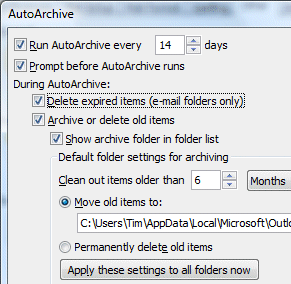
This is actually from my own Outlook; but as you can see, it is set to move old items to an archive folder. Note that the option to Move rather than delete is set by default.

However, I was puzzled by the option to Delete expired items (e-mail folders only). What does this mean? In particular, why does it refer to expired items when the rest of the dialog refers to old items? The word expired suggests some kind of non-validity, like an expired subscription, or password, or credit card.

Pressing F1 did not yield anything helpful; but this article explains:

Delete expired items (e-mail folders only)   This option is not selected by default. You can choose to have e-mail messages deleted when their aging period has expired. The default period for your Draft and Inbox items is six months, and three months for your Sent Items, but you can change these periods using the Clean out items older than option.

As I understand it, this means that items are deleted after as little as three months if the option is checked; and expired means exactly the same as old. But that’s OK; it isn’t checked by default.

Or is it? For sure, I have never checked that option, nor did my contact, but it is checked on all my Outlook installations, and on his. Take a look: is your Outlook set up like this? I’d be interested to know.

The consequence is that old emails simply disappear. The only dialog the user will see is that auto-archive wants to run. By the way, most people would not imagine that an archive process will delete items. Archive means long-term storage. Words like prune or purge imply deletion, but not archive.

Now, I happen to think that archiving in Outlook is a mess anyway. If you have several machines on the go (which is one of the reasons for using Exchange and Outlook), then you usually end up with several archives, buried deep in hidden folders where nobody is likely to find them without help. It is easy to miss these archive files when migrating to a new machine.

Still, I hadn’t realised that Outlook actually deletes old emails without asking – that is, if I am right and this is (incorrectly) the default.

It may seem a small matter; but there are times when finding that old email, sent or received, is critically important. It is another reason why I am fed up with Outlook 2007: its amusingly obscure dialogs, its broken RSS support, and its disgracefully slow performance.

Update: Duncan Smart below suggests that the “Expired items” refers to emails that have an expiry date set in message options. I must say that makes more sense to me. On the other hand, it isn’t what the help document says, and it doesn’t explain why why my contact had no messages in his archive folder, until I changed the setting. I’ll try some experiments … [slightly later] … if I archive a folder with File – Archive, it does not delete old messages (good); on the other hand this dialog is different because you specify the archive date so it is not a perfect test.

I suspect it is not as bad as I first thought, that the help document is incorrect, and that some other factor must have messed up my contact’s archiving. I hope that is the case.

See also this official help document:

Choosing an option to have items deleted permanently deletes the items automatically when they expire. They are not archived. For instance, if you click Delete expired items (e-mail folders only), this option deletes all messages in all your e-mail folders, such as Inbox, Sent, or Drafts, when they reach the end of their aging periods. The messages are not archived.

So … either Outlook really is deleting messages without asking; or I’m not the only one confused.

Substantial .NET, Visual Studio 2008 update in Service Pack 1

Microsoft’s Scott Guthrie has announced .NET 3.5 SP1 and Visual Studio 2008 SP1 beta. Some of the things which caught my eye:

  • Performance: up to 40% faster startup for desktop .NET apps, up to 10% faster ASP.NET.
  • Smaller runtime in .NET “Client profile”. There is a new cut-down runtime for Windows Forms or WPF client apps, bringing the setup down to “only” 26MB. The key point here is the size of the file a user must download and run if she does not already have .NET installed in the right version. Tim Sneath has more details about the new client profile.

A bit of context: the .NET 2.0 runtime is only 22.4MB. This ballooned to 50.3MB for .NET 3.0, and 197MB for .NET 3.5 (check the size of the full package, not the 2.7MB bootstrapper which launches further downloads) – though there are ways to reduce the size of the 197MB monster, which actually includes several versions of the .NET Framework.

  • New vector shape, Printing, and DataRepeater controls for Windows Forms – echoes of old VB controls.
  • A datagrid for WPF – not actually in SP1, but promised shortly afterwards.
  • WPF interop with Direct3D
  • ADO.NET Data Services (formerly Astoria) and Entity Framework

The new SP offers compatibility with SQL Server 2008, and the database product itself is still expected “third quarter” as far as I’m aware. I guess it may go final at the same moment as SP1 for .NET and Visual Studio.

The smaller runtime for .NET desktop apps is welcome, but those in search of a lightweight .NET runtime should look at Silverlight 2.0, which is currently 4.38MB.

Xobni: Outlook users should try this now

Yes, Xobni is brilliant.

Have you ever tried sorting an Outlook inbox by conversation? Of course Outlook goes into a thrash while it prepares the view. Then when it has finished, it does not work right. It has a limited view of what a conversation is, based on the email title. It does not show your sent items, unless you sort them into the same folder. In fact, it is more frustrating than useful, which is why I never use it.

Xobni (the name is inbox reversed) does this right. When you select an email, a panel shows your previous emails from that person, with your replies, which you can read without changing the focus from the message you are attending to. It is based on an index together with some simple analytics. Who else has appeared in the cc list on emails from this person? Where are their messages? What is the sender’s phone number? All of this information is shown automatically; no need to hit confusing menus like Arrange By or Current View.

There’s also a search box; it’s smoother and quicker than Microsoft’s desktop search, also used by Outlook in the latest version. Under the covers lies my favourite desktop database engine: sqlite. I’ve turned off the official Outlook search; anything to speed performance.

Xobni is free right now (it is a beta), so what’s the business model? Still up in the air, apparently. However, given the number of Outlook users, I expect it will be possible to monetize it. Apparently Microsoft tried to buy the company and was refused.

Technorati tags: , , ,

Microsoft to Yahoo: Forget it, then

Microsoft is walking away. The right thing to do in my opinion.

Could Microsoft have bought Yahoo? Clearly, it could have done – for more money:

In our conversations this week, we conveyed our willingness to raise our offer to $33.00 per share, reflecting again our belief in this collective opportunity. This increase would have added approximately another $5 billion of value to your shareholders, compared to the current value of our initial offer. It also would have reflected a premium of over 70 percent compared to the price at which your stock closed on January 31. Yet it has proven insufficient, as your final position insisted on Microsoft paying yet another $5 billion or more, or at least another $4 per share above our $33.00 offer.

It follows that the withdrawal of the offer is a strategic decision, not just a victory for Yahoo, its insistence on a higher price, and its dalliance with Google.

I suspect many voices within Microsoft were saying that the deal would not deliver the benefits the company sought – namely, to pull closer to Google in the search market.

We are also seeing some interesting internal developments, from Silverlight to Popfly to Live Mesh – that suggest Microsoft does have an internet story, albeit still an uncertain one.

I wonder how this saga will look twelve months from now?

Live Mesh: Hailstorm take 2?

So says Spolsky, in a rant about both unwanted mega-architectures, and the way big companies snaffle up all the best coders.

Is he right? Well, I attended the Hailstorm PDC in 2001 and I still have the book that we were given: .NET My Services specification. There are definitely parallels, not least in the marketing pitch (from page 3):

.NET My Services will enable the end user to gain access to key information and receive alerts about important events anywhere, on any device, at any time. This technology will put users in total control of their data and make them more productive.

Swap “.NET My Services” for “Live Mesh” and you wouldn’t know the difference.

But is it really the same? Spolsky deliberately intermingles several points in his piece. He says it is the same stuff reheated. One implication is that because Hailstorm failed, Live Mesh will fail. Another point is that Live Mesh is based on synchronization, which he says is not a killer feature. A third point is that the thing is too large and overbearing; it is not based on what anyone wants.

Before going further, I think we should ask ourselves why Hailstorm failed. Let’s look at what some of the people involved think. We should look at this post by Mark Lucovsky, chief software architect for Hailstorm and now at Google, who says:

I believe that there are systems out there today that are based in large part on a similar set of core concepts. My feeling is that the various RSS/Atom based systems share these core concepts and are therefore very similar, and more importantly, that a vibrant, open and accessible, developer friendly eco-system is forming around these systems.

Joshua Allen, an engineer still at Microsoft, disagrees:

All of these technologies predate Hailstorm by a long shot.  There is a reason they succeeded where Hailstorm failed.  It’s because Hailstorm failed to adopt their essence; not because they adopted Hailstorm’s essence …. the “principles” Mark’s blog post cites are actually principles of the technologies Hailstorm aimed to replace.

but as Allen shows in the latter part of his post, the technology was incidental to the main reasons Hailstorm failed:

  1. Hailstorm intended to be a complete, comprehensive set of APIs and services ala Win32.  Everything — state management, identity, payments, provisioning, transactions — was to be handled by Hailstorm.
  2. Hailstorm was to be based on proprietary, patented schemas developed by a single entity (Microsoft).
  3. All your data belonged to Microsoft.  ISVs could build on top of the platform (after jumping through all sorts of licensing hoops), but we controlled all the access.  If we want to charge for alerts, we charge for alerts.  If we want to charge a fee for payment clearing, we charge a fee.  Once an ISV wrote on top of Hailstorm, they were locked in to our platform.  Unless we licensed a third party to implement the platform as well, kind of like if we licensed Apple to implement Win32.

Hailstorm’s technology was SOAP plus Passport authentication. There were some technical issues. I recall that Passport in those days was suspect. Some smart people worked out that it was not as secure as it should be, and there was a general feeling that it was OK for logging into Hotmail but not something you would want to use for online banking. As for SOAP, it gets a bad rap these days but it can work. That said, these problems were merely incidental compared to the political aspect. Hailstorm failed for lack of industry partners and public trust.

Right, so is Live Mesh any different? It could be. Let me quickly lay out a few differences.

  1. Live Mesh is built on XML feeds, not SOAP messaging. I think that is a better place to start.
  2. Synchronization is a big feature of Mesh, that wasn’t in Hailstorm. I don’t agree with Spolsky; I think this is a killer feature, if it works right.
  3. Live Mesh is an application platform, whereas Hailstorm was not. Mesh plus Silverlight strikes me as appealing.

Still, even if the technology is better, what about the trust aspect? Will Mesh fail for the same reasons?

It is too soon to say. We do not yet know the whole story. In principle, it could be different. Mesh is currently Passport (now Live ID) only. Will it be easy to use alternative authentication providers? If the company listens to its own Kim Cameron, you would think so.

Currently Mesh cloud data resides only on Microsoft’s servers, though it can also apparently do peer-to-peer synch. Will we be able to run Mesh entirely from our own servers? That is not yet known. What about one user having multiple meshs, say one for work, one personal, and one for some other role? Again, I’m not sure if this is possible. If there is only One True Mesh and it lives on Live.com, then some Hailstorm spectres will rise again.

Finally, the world has changed in the last 7 years. Google is feared today in the way that Microsoft was feared in 2001: the entity that wants to have all our information. But Google has softened us up to be more accepting of something like Live Mesh or even Hailstorm. Google already has our search history, perhaps our email, perhaps our online documents, perhaps an index of our local documents. Google already runs on many desktops; Google Checkout has our credit card details. What boundary can Live Mesh cross, that Google has not already crossed?

Hailstorm revisited is an easy jibe, but I’m keeping an open mind.

What is Microsoft’s new language?

From Douglas Purdy’s blog:

It is not very often that you get to be part of a team that is developing a programming language that aspires to be used by every developer on the Microsoft platform.

In addition, it is not very often that you can be part of a team that aspires to radically change the dynamics of building a new language, to the extent that a developer can write their own model-driven language in a straightforward way while getting all the language services (Intellisense, colorization, etc.) for “free”.

I am lucky enough to be on such a team – and if you are interested you could be as well.

Something to do with Oslo I guess. And Live Mesh?

All will be revealed at PDC.

Technorati tags: , , , ,

Microsoft Live Mesh is AIR++

This post on the Microsoft Live Dev blog reminded me to view some of the Live Mesh videos Microsoft has put out for developers – this quick tour is a good place to start; this video with Ori Amiga has more details with examples.

A few comments. First, it seems to me that Live Mesh is at heart a feed aggregrator. It is interesting to me because I had high hopes for Microsoft’s plans to integrate RSS into the operating system, and wrote about it in 2005. Sadly, Microsoft messed up its common feed platform – though I am perhaps one of the few who uses it outside IE7 or Outlook, with a custom feed reader thrown together in VB.

Live Mesh takes the feed aggregation concept and adds a few things. These include a REST API for posts and updates; a synchronization engine; an identity system so that you can control access; and a local feed server that works entirely offline when needed. Hence MOE (Mesh Operating Environment), also known as the Service Composition Runtime.

By the way, Mesh can synch peer to peer as well as with the cloud hub. Interesting for Intranet usage.

So what’s an application? A feed of course, one that contains stuff you can execute. The local runtime could be just HTML and Javascript engine; but you can see how nicely Silverlight fits into this scheme of things. It’s a neat deployment model. Buying an application becomes similar to subscribing to a web site, except you get an executable that works offline as well as online. As Amiga explains in the video above, this is about performance as well as convenience. The speed of the Net cannot match a local store.

Another aspect of this is that you can use Mesh services in your non-Mesh application, essentially as a data source that is automatically synchronized across everywhere.

If I’m anywhere close to grasping this, then it is not inherently Windows-centric. It also strikes me that this is AIR++, where the ++ is services and synchronization; Adobe should worry – except that Adobe has AIR out already and is no doubt working on great things for version 2.0.

A question though: what’s the business model? Commercial MESHable services? Tools and hosting? Premium MESH? MESH with ads? Right now, I guess Microsoft will do anything to buy mind share and market share for cloud services; but that will not do long-term.

Office 2007: what do you lose by setting binary formats as default?

I wrote a piece for IT Week about document format defaults in Office 2007. The problem is that users with Office 2007 start emailing documents to others who do not have the suite. It is not too bad for other Microsoft Office users, who can download a compatibility pack, but for users of other operating systems it is problematic, though there are online services like zamzar.com.

Someone who read it pointed out that with the binary formats Office 2007 works in “compatibility mode”. Doesn’t this lose most of the benefits of upgrading to Office 2007?

My suggestion: try it, and let me know what features you miss.

As far as I can tell, the two biggest issues in Word are with the equation editor, and themes. The equation editor is disabled after you save a documents in .doc format, and themes are converted to styles. Personally I prefer styles to themes, and I rarely use the equation editor, so it is no loss to me. Further, it is not a problem doing Save As if you want to use some special feature like the equation editor. For sure, it beats getting that phone call when you are out of the office the next day, “That document you sent, it won’t open.”

What about Excel? Help says, “any new or enhanced Excel 2007 features are not available” in compatibility mode. I presume that would include the new larger sheet size. However, I’ve not bothered to convert any of my existing workbooks because I don’t actually notice any difference.

The ribbon, which is is the big new feature in Office 2007, works the same whatever format you use.

Still, it is a fair point. If you find it easy to do a Save As for documents that need to be shared with users not using Office 2007, then there is no problem using the new formats.

But how do you enforce that across an enterprise? Not easy; and of course Windows Explorer hides the extension by default. Documents in the old format are described as:

Microsoft Office Word 97-2003 Document

instead of

Microsoft Office Word Document

though unless you have a wide column size you might well see them both as “Microsoft Offi”, thanks to a particularly user-hostile naming convention.

However, you can set the default save format across an enterprise, with group policy. To my mind, that’s better than sending out stuff that is unreadable.

Vista SP1 vs Server 2008 as a desktop OS: more comparisons

I’ve been intrigued by reports that Server 2008, suitably configured, makes a better desktop OS than Windows Vista. In my previous post on the subject, I reported some observations by others, suggesting that Server 2008 performs better than Vista with Service Pack 1, even though it is meant to have the same core components. I though it was time I took a look myself.

I have some free space on my usual desktop box, so I created two new partitions and installed Vista 32-bit with Service Pack 1 on the first, and Server 2008 32-bit on the other.

Aside: Both installs were smooth. The integrated Vista SP1 install works nicely, and few updates were required after the first boot. It is remarkable how much more pleasant it is to install Vista from scratch, instead of dealing with an OEM pre-install. Surely it should be the other way round?

I tried to make both installs usable desktops. On both operating systems, I installed the driver for my Terratec soundcard, along with Intel’s .INF installer for the motherboard, Management Engine Interface, and storage driver. I also installed a recent NVidia driver. The result was that all devices were enabled in device manager.

On Server 2008 I also installed the Desktop Experience and .NET Framework 3.0. I enabled the network, the audio engine, the Themes service, Windows Update, and Aero graphics. I created a new user account and logged in as that user, so that UAC (User Account Control) was active. I set it to optimize performance for programs rather than background services.

Next I ran the PassMark performance tests I’ve used before. Advantage Server 08 – but not by much. It scored 1118.3 vs Vista’s 1102.3. I doubt this is significant; there is also small variation between different runs, which could account for a difference like this.

Looking at the detailed results shows something intriguing though. On the Graphics 2D GUI test, which exercises Windows controls like listboxes, checkboxes and dropdowns, Server 2008 scored 149.8 operations per second, vs 119.2 on Vista – more than 25% faster. I hesitate to attach much significance to my simple tests, but that might account for a snappier feel in the user interface. I repeated this particular test several times; Vista never scored higher than 123, and Server 2008 was consistent too.

There was also a notable difference in the “Memory – Large RAM” test. Vista 32-bit performed 802 operations per second, Server 08 1074: just over 33% faster.

On most tests, Vista was slightly slower, though on the disk tests it was fractionally faster. There were no other differences as big as the above.

I thought it would be interested to compare the list of running services on the two machines, after the changes mentioned above. Here are the services I spotted running on Vista but not Server 2008:

  • Computer Browser
  • Offline Files
  • Portable Device Enumerator
  • Program Compatibility Assistant
  • ReadyBoost
  • Security Center
  • SSDP Discovery
  • Superfetch
  • UPNP Device Host
  • Windows Connect
  • Windows Image Acquisition
  • Windows Search

and on Server 2008 but not Vista:

  • Remote registry
  • SL UI Notification
  • Windows Remote Management

So how would it be if Vista did not have the burden of these additional services? I stopped them. Result: no significant difference; the overall score was 1102.

Tentative conclusions

Benchmarks are not always a good measure of real-world performance. There are aspects of performance which the benchmark does not measure. In addition, some of the perceived advantage of Server 2008 is likely to be the effect of a new clean installation – never forget Windows Cruft.

Even so, on my particular system (Intel board, Core 2 Quad Q6600 CPU, NVidia 6800 graphics) Server 2008 does measure better. I’m particularly intrigued by the Graphics 2D GUI results. I do not know why Server 2008 is faster; but look forward to the same improvement appearing in desktop Windows in due course.

Update – 2D performance difference solved

I’ve worked out the reason for the difference in Graphics 2D GUI performance. It is because Server 2008 defaults to different settings for visual effects. You can see these by right-clicking Computer in the Start menu, choosing Properties, Advanced System Settings, Advanced tab, Settings, Performance options. I am sure there are other routes to the same dialog, some of which may be less arduous.

If I set these to Adjust for Best Performance on both systems, Vista actually goes ahead of Server 2008, with a score of 180 vs 172 on Graphics 2D GUI. That’s not much to worry about.

I’m satisfied that the performance differences between Server 2008 and Vista are mainly about configuration, rather than core components. If you want to speed up your own desktop, these settings are a good candidate for experimentation.

Technorati tags: , ,