How do you monitor a Windows server over the internet? This one is not in Azure but an actual server, running Hyper-V of course, and the requirement is to monitor both the Hyper-V host and the VMs for things like free memory, disk space and CPU usage.
There is a nice solution called Cacti which does this, using SNMP. You just have to enable SNMP in Windows Server, install Cacti on some other server, and make sure the two can communicate on UDP port 161 (or you can configure another port).
The target server is behind a Linux firewall which has a VPN endpoint, so a good solution is to have a VPN connection between Cacti on-premises and the firewall to enable SNMP traffic over a secure tunnel. This VPN endpoint is already in use using the excellent Shrew soft VPN client, so it was just a matter of finding a suitable Linux VPN client for the VM on which I installed Cacti.
I had installed Debian Linux on a VM to run Cacti, without any GUI (I mean, who needs a GUI on a server?) so looked for a suitable command-line VPN client. I soon gathered that the usual choice used to be Racoon but is now strongSwan – though note that both of these are more often used to set up a VPN endpoint on a server rather than as clients, though they work fine in either role.
I am sure that someone with more experience than myself in Linux VPNs and networking would have had this up and running in no time, but for me it was somewhat arduous. There are two aspects to a VPN tunnel, one of which is creating the secure tunnel and the second being the networking. StrongSwan will do most of this on your behalf, but you do need to get the configuration right in /etc/ipsec.conf and I chased down several false trails before getting it working.
One issue was that I am using XAuth authentication, and despite strongSwan supporting this I thought by default, got the error “no XAuth method found.” What worked for me was to install libstrongswan-extra-plugins and then make sure that xauth-generic.conf is set to load the xauth-generic plugin.
Next, it was not obvious to me what to put in the strongSwan left and leftsubnet key pairs. I thought the left subnet should be the subnet of my local network (192.168.255.0/24) but in fact I needed the subnet that was configured for VPN clients, in my case 192.168.40.0/24. Until I figured this out I was getting “no matching CHILD_SA config found” and “HASH N(INVAL_ID)” errors when trying to connect.
I fixed that but it still did not work. After trying various things I hit upon left=%any in ipsec.conf and got a successful connection at last.
I had a tunnel, but traffic did not pass. Now, there are two things I did to get this working. One was to put auto=route in ipsec.conf. The docs say “route loads a connection and installs kernel traps.” Note that the networking configuration is done not by modifying iptables rules, but through xfrm policy, and to see the current policy you type:
ip xfrm policy
in the shell. It was still not quite right.
The final step was to change left=%any to left=%defaultroute in ipsec.conf. With this last piece of magic in place, everything works.
It was not (for me) quick and easy to configure, but the result is excellent. Just type:
ipsec up [connectionname]
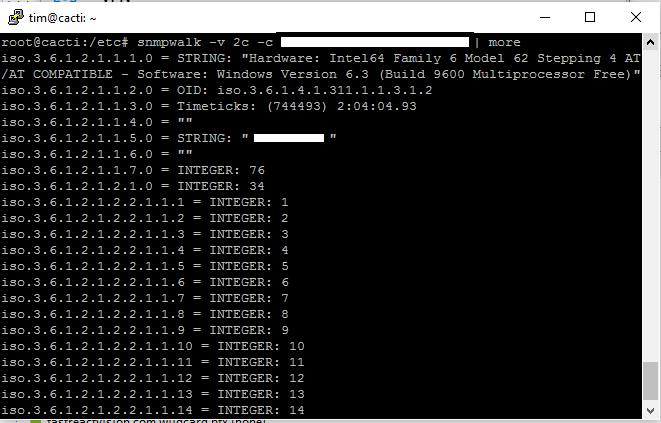
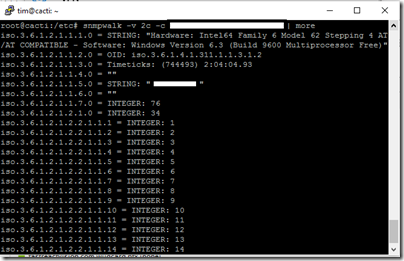
and the tunnel comes up almost instantly. Using snmpwalk I can verify that that traffic is flowing:
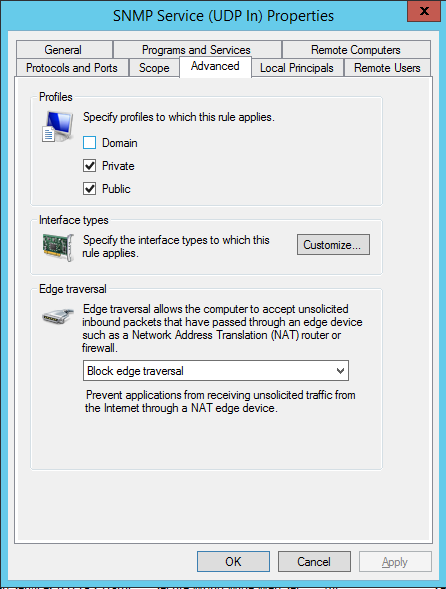
That said, now is the time to mention a little gotcha with the Windows Firewall for SNMP. When you install the service, Windows creates a firewall rule that opens the SNMP port (normally UDP 161) for incoming traffic, for both private and public profiles.
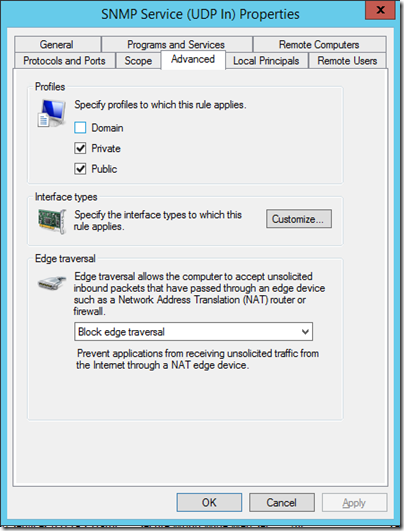
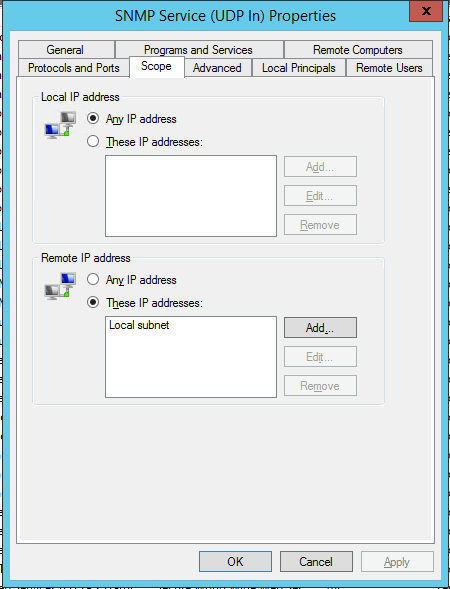
Note there is a separate rule for Domain profiles, which is a clue that something is different. That difference is the scope of the rule. By default, the rule for private and public profiles is scoped only to the local subnet, making it in effect disabled.
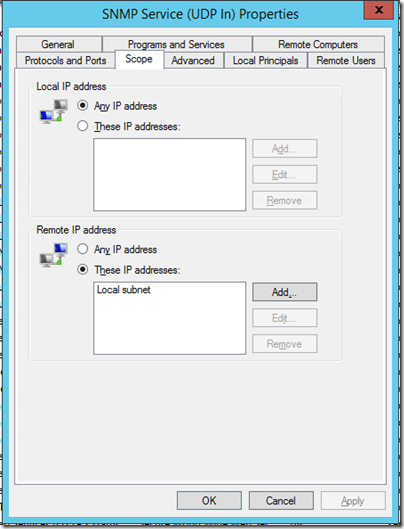
The idea I guess is to encourage you to restrict traffic to specified IPs if you access the SNMP service from outside the domain, which is good security advice. You can also configure this on the SNMP service properties. But if you are wondering why the service is no responding, this is one thing to check.