Category Archives: microsoft

Fixing the Exchange 2007 quarantine – most obscure Outlook operation ever

I’ve been testing Exchange 2007 recently and overall I’m impressed. Smooth and powerful; and the built-in anti-spam is a great improvement on what is in Exchange 2003. One of the features lets you redirect spam to a quarantine mailbox. You know the kind of thing: it’s a junk bucket, and someone gets the job of sifting through it looking for false positives, like lotteries you really have won (still looking).

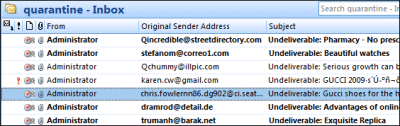
Sounds a nice feature, but apparently Microsoft did not quite finish it. The quarantine is a standard Exchange mailbox, which means you have to add a quarantine user. To view the quarantine, you log onto that mailbox. A bit of a nuisance, but not too bad once you have figured out the somewhat obscure means of opening another user’s mailbox within your own Outlook. You’ll notice a little usability issue. All the entries are non-delivery reports from the administrator. You cannot see who they are from without reading the report, making it harder to scan them for genuine messages.

Another issue is when you find an email you want to pluck out of the bucket. My guess is that you will need to Google this one, or call support. The trick is to open the message, and click Send Again. It is counter-intuitive, because the message you are sending again is not the one you can see – that’s the Administrator’s report – but the original message which is otherwise hidden.

So you hit Send Again. As if by magic, the lost message appears. Great; but there’s another little issue. If you hit Send, the message will be sent from you, not from the original sender.

Both issues can be fixed. The fix for Send Again is to log on as the quarantine user – opening the mailbox is not enough. Since it is not particularly easy to switch user in Outlook, the obvious solution is Outlook Web Access; or you could use Switch User in Vista to log on with Outlook as the quarantine user. Send Again will then use the original sender by default.

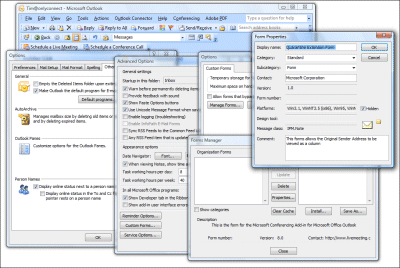
How about being able to see the original sender in Outlook? No problem – just follow the instructions here. I won’t bore you by repeating them; but they form, I believe, a new winner in the Outlook obscurity hall of shame. After using Notepad to create and save a form config file, you use the UI to install it, and here’s a screenshot showing how deeply the required dialog is buried:

A few more steps involving a field picker dialog reminiscent of Windows 95, and now you can see all those faked sender email addresses:

The mitigating factor is that the anti-spam rules themselves are pretty good, and I’ve not found many false positives.

SharePoint 2007 tip: use Explorer not the browser to upload documents

I am testing SharePoint on my local network. MOSS (Microsoft Office SharePoint Server) 2007 is installed, on Hyper-V of course. I go to the default site and create a new document library. Navigate to the new library, and select multiple upload. Select all the file in an existing network share that contains just over 1000 documents. Hit upload. Files upload at impressive speed. Nice. But … the library remains empty. No error reported, just a nil result.

I suspect the speed only seems impressive because it is not really uploading the documents; it is uploading a list of documents to upload later.

I try multiple upload of just three documents. Works fine.

I go to the site administration, and look at the general settings. This looks like it – a 50Mb limit:

I change it to 1000Mb. Retry the upload. Same result. Restart SharePoint. Same result.

Hmm, maybe this post has the answer:

Yes there is problem with WSS 3.0 and MOSS 2007 while uploading a multiple file at a time given the fact both supports the multifile uploading. [sic]

You can upload multiple file by using Explorer View not the default view (All Documents). In this way you can use the windows like functionality of dragging and dropping a file from your folders without encountering any error and added advantage will be the speed of uploading a file. This is the best way of uploading a file to a document library in WSS 3.0 or MOSS.

I try the multiple copy in Explorer view, and indeed it works perfectly. Another advantage: in Explorer view, all the uploaded documents retain the date of the file, whereas Multiple Upload gives them all today’s date.

Conclusion: use the Explorer view, not the web browser, to copy files to and from SharePoint. On Vista, you can make a SharePoint library a “favourite link” which simplifies navigation.

Why not just use a shared folder? That’s the big question. I’ve never had this kind of problem with simple network shares. In what circumstances is the performance overhead and hassle of SharePoint justified by the extra features it offers? I’m hoping hands-on experience will help me make judgement.

Technorati tags: ,

The Exchange VSS plug-in for Server 2008 that isn’t (yet)

If you install Exchange 2007 on Server 2008, one problem to consider is that the built-in backup is not Exchange-aware. You have to use a third-party backup, or hack in the old ntbackup from Server 2003. Otherwise, Exchange might not be restorable, and won’t truncate its logs after a backup.

In June 2008 Scott Schnoll, Principal Technical Writer on the Exchange Server product team, announced that:

As a result of the large amount of feedback we received on this issue, we have decided to ship a plug-in for WSB created by Windows and the Small Business Server (SBS) team that enables VSS-based backups of Exchange.

He is making reference to the fact that Small Business Server 2008 does include a VSS (Volume Shadow Copy Service) plug-in for Exchange, so that the built-in backup works as you would expect. This was also announced at the 2008 TechEd, shipping later that summer was mentioned, and the decision was generally applauded. But SBS 2008 shipped last year. So where is the plug-in?

This became the subject of a thread on TechNet, started in August 2008, in which the participants refused to accept a series of meaningless “we’re working on it” responses:

This is becoming more than a little absurd.  I understand that these things can take time, and that unexpected delays can occur, but I rather expect that more information might be provided than “we’re working on it”, because I know that already and knew it months ago.  What sort of timeframe are we looking at, broadly?  What is the most that you are able to tell us?

Then someone spotted a comment by Group Program Manager Kurt Phillips in this thread:

We’re planning on starting work on a backup solution in December – more to follow on that.

Phillips then said in the first thread mentioned above:

The SBS team did implement a plug-in for this.  In fact, we met with them to discuss some of the early design work and when we postponed doing it in late summer, they went ahead with their own plans, as it is clearly more targeted toward their customer segment (small businesses) than the overall Exchange market.

We are certainly evaluating their work in our plan.

For those anxiously awaiting the plug-in, because they either mistrust or don’t want to pay for a third-party solution, the story has changed quite a bit from the June announcement. Apparently no work was done on the plug-in for six months or so; and rather than implementing the SBS plug-in it now seems that the Exchange team is doing its own. Not good communication; and here comes Mr Fed-Up:

Like most things from this company, we can expect a beta quality “solution” by sometime in 2010. We have a few hundred small business clients that we do outsourced IT for, and as it’s come time to replace machines, we’ve been replacing Windows PCs with Macs, and Windows servers with Linux. It’s really amazing how easy it is to setup a Windows domain on a Linux server these days. The end users can’t tell a difference.

What this illustrates is that blogging, forums and open communication are great, but only when you communicate bad news as well as good. It is remarkable how much more patient users are when they feel in touch with what is happening.

Technorati tags: , ,

Mixing Hyper-V, Domain Controller and DHCP server

My one-box Windows server infrastructure is working fine, but I ran into a little problem with DHCP. I’d decided to have the host operating system run not only Hyper-V, but also domain services, including Active Directory, DNS and DHCP. I’m not sure this is best practice. Sander Berkouwer has a useful couple of posts in which he explains first that making the host OS a domain controller is poor design:

From an architectural point of view this is not a desired configuration. From this point of view you want to separate the virtualization and platforms from the services and applications. This way you’re not bound to a virtualization product, a platform, certain services or applications. Microsoft’s high horse from an architectural point of view is the One Server, One Server Role thought, in which one server role per server platform gets deployed. No need for a WINS server anymore? Simply shut it down…

Next, he goes on to explain the pitfalls of having your DC in a VM:

Virtualizing a Domain Controller reintroduces possibilities to mess up the Domain Controller in ways most of the Directory Services Most Valuable Professionals (MVPs) and other Active Directory enthusiasts have been fixing since the dawn of Active Directory.

He talks about problems with time synchronization, backup and restore, saved state (don’t do it), and possible replication errors. His preference after all that:

In a Hyper-V environment I recommend placing one Domain Controller per domain outside of your virtualized platform and making this Domain Controller a Global Catalog. (especially in environments with Microsoft Exchange).

Sounds good, except that for a tiny network there are a couple of other factors. First, to avoid running multiple servers all hungry for power. Second, to make best user of limited resources on a single box. That means either risking running a Primary Domain Controller (PDC) on a VM (perhaps with the strange scenario of having the host OS joined to the domain controlled by one of its VMs), or risking making the host OS the PDC. I’ve opted for the latter for the moment, though it would be fairly easy to change course. I figure it could be good to have a VM as a backup domain controller for disaster recovery in the scenario where the host OS would not restore, but the VMs would – belt and braces within the confines of one server.

One of the essential services on a network is DHCP, which assigns IP numbers to computers. There must be one and only one on the network (unless you use static addresses everywhere, which I hate). So I disabled the existing DCHP server, and added the DHCP server role to the new server.

It was not happy. No IP addresses were served, and the error logged was 1041:

The DHCP service is not servicing any DHCPv4 clients because none of the active network interfaces have statically configured IPv4 addresses, or there are no active interfaces.

Now, this box has two real NICs (one for use by ISA), which means four virtual NICs after Hyper-V is installed. The only one that the DHCP server should see is the virtual NIC for the LAN, which is configured with a static address. So why the error?

I’m not the first to run into this problem. Various solutions are proposed, including fitting an additional NIC just for DHCP. However, this one worked for me.

I simply changed the mask on the desired interface from 255.255.255.0 to 255.255.0.0, saved it, then changed it back.  Suddenly the interface appeared in the DHCP bindings.

Strange I know. The configuration afterwards was the same as before, but the DHCP server now runs fine. Looks like a bug to me.

Hands on with Hyper-V: it’s brilliant

I have just installed an entire Windows server setup on a single cheap box. It goes like this. Take one budget server stuffed with 8GB RAM and two network cards. Install Server 2008 with the Hyper-V and Active Directory Domain Services, DNS and DHCP. Install Server 2003 on a 1GB Hyper-V VM for ISA 2006. Install Server 2008 on a 4GB VM for Exchange 2007. Presto: it’s another take on Small Business Server, except that you don’t get all the wizards; but you do get the flexibility of multiple servers, and you do still have ISA (which is missing from SBS 2008).

Can ISA really secure the network in a VM (including the machine on which it is hosted)? A separate physical box would be better practice. On the other hand, Hyper-V has a neat approach to network cards. When you install Hyper-V, all bindings are removed from the “real” network card and even the host system uses a virtual network card. Hence your two NICs become four:

As you may be able to see if you squint at the image, I’ve disabled Local Area Connection 4, which is the virtual NIC for the host PC. Local Area Connection 2 represents the real NIC and is bound only to “Microsoft Virtual Network Switch Protocol”.

This enables the VM running ISA to use this as its external NIC. It strikes me as a reasonable arrangement, surely no worse than SBS 2003 which runs ISA and all your other applications on a single instance of the OS.

Hyper-V lets you set start-up and shut-down actions for the servers it is hosting. I’ve set the ISA box to start up first, with the Exchange box following on after a delay. I’ve also set Hyper-V to shut down the servers cleanly (through integration services installed into the hosted operating systems) rather than saving their state; I may be wrong but this seems more robust to me.

Even with everything running, the system is snoozing. I’m not sure that Exchange needs as much as 4GB on a small network; I could try cutting it down and making space for a virtual SharePoint box. Alternatively, I’m tempted to create a 1GB server to act as a secondary domain controller. The rationale for this is that disaster recovery from a VM may well be easier than from a native machine backup. The big dirty secret of backup and restore is that it only works for sure on identical hardware, which may not be available.

This arrangement has several advantages over an all-in-one Small Business Server. There’s backup and restore, as above. Troubleshooting is easier, because each major application is isolated and can be worked on separately. There’s no danger of notorious memory hogs like store.exe (part of Exchange) grabbing more than their fair share of RAM, because it is safely partitioned in its own VM. After all, Microsoft designed applications like Exchange, ISA and SharePoint to run on dedicated servers. If the business grows and you need to scale, just move a VM to another machine where it can enjoy more RAM and CPU.

I ran a backup from the host by enabling VSS backup for Hyper-V (requires manual registry editing for some reason), attaching an external hard drive, and running Windows Server backup. The big questions: would it restore successfully to the same hardware? To different hardware? Good questions; but I like the fact that you can mount the backup and copy individual files, including the virtual hard drives of your VMs. Of course you can also do backups from within the guest operating systems. There’s also a snag with Exchange, since a backup like this is not Exchange-aware and won’t truncate its logs, which will grow infinitely. There are fixes; and Microsoft is said to be working on making Server 2008 backup Exchange-aware.

Would a system like this be suitable for production, as opposed to a test and development setup like mine? There are a couple of snags. One is licensing cost. I’ve not worked out the cost, but it is going to add up to a lot more than buying SBS. Another advantage of SBS is that it is fully supported as a complete system aimed at small businesses. Dealing with separate virtual servers is also more demanding than running SBS wizards for setup, though I’d argue it is actually easier for troubleshooting.

Still, this post is really about Hyper-V. I’ve found it great to work with. I had a few hassles, particularly with Server 2003 – I had to remember my Windows keyboard shortcuts until I could get SP2 and Hyper-V Integration Services installed. Once installed though, I log on to the VM using remote desktop and it behaves just like a dedicated box. The performance overhead of using a VM seems small enough not to be an issue.

I’ve found it an interesting experiment. Maybe some future SBS might be delivered like this.

Update: I tried reducing the RAM for the Exchange VM and it markedly reduced performance. 4GB seems the best spot.

Windows security and the UAC debate: Microsoft misses the point

Poor old Microsoft. When User Account Control was introduced in Windows Vista the crowd said it was too intrusive, broke applications, and not really more secure – partly because of the “OK” twitch reflex users may suffer from. In Windows 7 UAC is toned-down by default, and easy to control via an easy-to-find slider. Now the crowd is saying that Microsoft has gone too far, making Windows 7 less secure than Vista. The catalyst for this new wave of protest was Long Zheng’s observation that with the new default setting a malicious script could actually turn off UAC completely without raising a prompt.

Microsoft’s Jon DeVaan responds with a lengthy piece that somewhat misses the point. Zheng argues that Microsoft should make the UAC setting a special one that would:

force a UAC prompt in Secure Desktop mode whenever UAC is changed, regardless of its current state

DeVaan doesn’t respond directly to this suggestion which seems a minor change that would barely impact usability.

DeVaan also says:

There has been no report of a way for malware to make it onto a PC without consent. All of the feedback so far concerns the behavior of UAC once malware has found its way onto the PC and is running.

It’s an important point; though I wonder how DeVaan has missed the problems with autorun that can pretty much install malware without consent.

I am not one of those journalists whom Zheng lambasts:

This is dedicated to every ignorant “tech journalist” who cried wolf about UAC in Windows Vista.

Rather, I’ve been an advocate for UAC since pre-release days; see for example my post If Microsoft doesn’t use UAC, why should anyone else? which I later discovered upset some folk. One reason is that I see its real intent, best articulated by Mark Russinovitch, who writes:

UAC’s various changes and technologies will result in a major shift in the Windows usage model. With Windows Vista, Windows users can for the first time perform most daily tasks and run most software using standard user rights, and many corporations can now deploy standard user accounts.

and Microsoft’s Crispin Cowan:

Making it possible for everyone to run as Standard User is the real long term security value

In other words, UAC is a transitional tool, which aims to bring Windows closer to the Unix model where users do not normally run with local admin rights and data is cleanly separated from executables.

The real breakthrough will come when Microsoft configures Windows so that by default non-expert home and SME users end up running as standard users. Experts and system admins can make their own decisions.

In the meantime, I don’t see any harm in implementing the change Zheng is asking for, and I’d like to see Microsoft fix the autoplay problem; I believe users now understand that there is a trade-off between security and convenience, though they become irritated when they get the inconvenience without the security.

Update: Microsoft now says it will fix Windows 7 so that the UAC settings are better protected.

Technorati tags: , ,

Farewell to Ensemble Studios and thanks for Age of Empires

Saw this sad note on the Ensemble Studios site today:

Ensemble Studios created the Age of Empires series of games; I’ve played these since the first release and had a huge amount of fun. Some of the best times have been with multiplayer with friends and family on a home network. The games combine strategic interest and challenge with rich graphics, which of course have evolved remarkably in line with increasingly powerful PC graphics cards.

If anyone from Ensemble reads this – thank you.

We can still enjoy playing the games but the studio is a victim of Microsoft’s cost-cutting. This particular closure was announced in September 2008, though the closure was delayed to enabled the completion of Halo Wars. While I have no idea what the spreadsheets say, I’m surprised to see Microsoft wielding the axe in this area of its business. We’ve recently been reading how video games are surpassing music and video in turnover and that they are relatively resilient in a recession since they are for evenings in rather than nights out. High quality PC games have a spinoff benefit for Microsoft by making Windows a more attractive platform.

The recently announced closure of Aces Studio, responsible for Flight Simulator and the ESP simulation platform, seems even more short-sighted. As James Governor observes, virtual worlds and simulation have huge business potential and environmental benefit.

Crispygamer.com has an extended Ensemble tribute.

PS on a happier note, Ensemble’s Bruce Shelley noted in his last blog entry (which seems to have gone offline):

There are at least two new studios being formed by ES employees and I expect both to do very well. There were a lot of outstanding game developers here and it will be interesting to see how and what they do, both individually and as new groups, in the years ahead.

Visual Studio 2008 as a JavaScript editor

I’ve been doing some work on JavaScript editors recently, and was impressed by Microsoft’s Visual Studio in this respect. Here’s my post on the subject. By the way, even the free Express edition works fine for this; and you don’t need to use ASP.NET. You do need to use Internet Explorer of course; that’s another story.

Gears of War certificate expiry a reminder to developers: always timestamp signed code

Users of the PC version of Gears of War have been unable to run the game since yesterday (29th January 2009). If they try, they get a message:

You cannot run the game with modified executable code

Joe Graf from Epic has acknowledged the problem:

We have been notified of the issue and are working with Microsoft to get it resolved. Sorry for any problems related to this. I’ll post more once we have a resolution.

The workaround is to set back your system clock. An ugly solution. Of course, some users went through the agony of full Windows reinstalls in an effort to get playing again.

So what happened? This looks to me like a code-signing problem, not a DRM problem as such, though the motivation for it may have been to protect against piracy. Code signing is a technique for verifying both the publisher of an executable, and that it has not tampered with. When you sign code, for example using the signwizard utility in the Windows SDK, you have to select a certificate with which to sign, and then you have an option to apply a timestamp. The wizard doesn’t mention it, but the consequences of not applying a timestamp are severe:

Microsoft Authenticode allows you to timestamp your signed code. Timestamping ensures that code will not expire when the certificate expires because the browser validates the timestamp. The timestamping service is provided courtesy of VeriSign. If you use the timestamping service when signing code, a hash of your code is sent to VeriSign’s server to record a timestamp for your code. A user’s software can distinguish between code signed with an expired certificate that should not be trusted and code that was signed with a Certificate that was valid at the time the code was signed but which has subsequently expired … If you do not use the timestamping option during the signing, you must re-sign your code and re-send it out to your customers.

Unfortunately, there is no timestamping for Netscape Object Signing and JavaSoft Certificates. Therefore you need to re-sign your code with a new certificate after the old certificate expires.

I don’t know if this is the exact reason for the problems with Gears of War, and I’m surprised that the game refuses to run, as opposed to issuing a warning, but this could be where the anti-piracy measures kick in. Epic’s programmers may have assumed that the only reason the certificate would be invalid is if the code had been modified.

I blogged about a similar problem in February 2006, when a Java certificate expired causing APC’s PowerChute software (a utility for an uninterruptible power supply) to fail. That one caused servers to run slow or refuse to boot.

As far as I know, there is no way of telling whether other not-yet-expired certificates are sitting on our PCs waiting to cause havoc one morning. If there are some examples, I hope it does not affect software running, say, Air Traffic Control systems or nuclear power stations.

If you are a Windows developer, the message is: always timestamp when signing your code.

Hands On with Office Live Workspace beta

I was asked today: how can I share documents with a remote worker? This is a two-person business. There are a zillion and one solutions these days, but all have downsides.

Set up a server and VPN: fine when it works, but what to do when it fails? Backup? Maintenance and patching?

Google Docs: A great solution, but what if you want to work with real Word and Excel documents? Excel in particular is hard to replace if you use it in earnest (big sheets, many calculations).

Netdocuments: This looks promising, though I haven’t tried it.

Subversion: This is what I use (with TortoiseSVN), but it’s terribly techie.

Live Mesh: Brilliant concept; automatic offline copies; just save documents to a shared folder and you’re done. One hesitation is that I’ve known the Mesh client to crash mysteriously. It’s a beta. And how secure are your Mesh documents from prying eyes?

What about Office Live Workspace? This is a form of hosted SharePoint and in theory it’s ideal – except, perhaps, that you have to keep a local copy of documents just in case the service goes down. You can store “over 1000 documents” online for free. I took a quick look. Signed up. Some sort of Live client needed. Client also needed a Vista update. Vista update installed and wanted a reboot. Live client declared it was already installed and setup closed. Rebooted. Back to Live Workspace. Live Client starts to install again, this time succeeds. Try to save from Word 2007, Live ID password prompt pops up numerous times. Word wants a further add-in. Second reboot. Something like that, anyway; the usual Windows merry-go-round.

Still, eventually I appear to have all the pieces in place. I type a new document in Word and click the Office button. I now have a new option, Save to Office Live:

Cool. I click Sign in to Office Live Workspace beta. Prompt comes up:

One of my problems is that I refuse to check “Sign me in automatically”. I don’t like it; I consider it more secure to sign in and out of services as I need them. There’s also a problem if you have more than one Live ID. Unfortunately some services deliver a poor user experience if you don’t sign in automatically, and I suspect Live Workspace is one of them. Anyway, I sign-in and wait 10-15 seconds. Then I get this dialog:

I hit Save. Mistake: I get this dialog:

OK, my error was not to select a folder within the workspace. Easy mistake to make though, and the error message could be better. I double-click Documents and retry. I get this progress bar:

Takes a few seconds, and I’m done.

Once your document is online, it is accessible over the web with an neat in-browser preview:

The toolbar has some handy options including versions and sharing:

I love it; but have two reservations. First, the painful setup, sometimes slow performance, and occasional strange errors, like the fact that Office Live sometimes decides my IE7, fully patched browser is not up to scratch:

If I recommend this to my contact, what’s the chance that I’ll get a call concerning some odd behaviour or failure with the Live client, or the Office Live add-in, or Internet Explorer, and end up (as so often) troubleshooting Windows instead of getting on with work?

Second, I’m concerned about availability in a business context. If a customer calls you, and you need to see a document, what if Live Workspace (or Google Docs,  or any online service) is temporarily unavailable? You give that lame excuse, “We’re having computer problems, can you call back?”; or else keep offline copies – but if you keep offline copies, getting the workflow right becomes difficult. I notice that Netdocuments has a Local Document Server option which may fix this. SharePoint solves this to some extent with Outlook lists, but I’m not convinced that these work well enough with large document libraries, and I don’t know if Live Workspace offers them.

That is the beauty of seamless online/offline solutions like Live Mesh, or indeed Subversion, or some future Google Docs with Gears doing the offline stuff.

Finally, why is Microsoft offering both Live Mesh and Live Workspace? Different teams I guess; but it makes a confusing offering overall.