Category Archives: windows

HP laptop go-slow caused by power supply

Wasted some time recently looking at an HP Compaq NX7300 laptop, with Vista, that was running very slow.

No, not just normal Vista sluggishness. Really slow, as in you click the Start menu, wait a bit, and eventually it opens.

Temporarily disabled everything we could think of using msconfig (System Configuration Tool), still slow.

Checked the event log for disk errors, nothing wrong.

All very tedious as any actions took much longer than usual.

Found someone with the same problem on HP’s support forum here – but as so often with the Web, no solution is reported – though the guy does say, “can I assume that the cooling / cpu / power is defective”?

Called HP, and the guy diagnosed a faulty hard drive, though I was sceptical since his argument was that the self-test completed more quickly than expected, though it did not report any errors.

While scratching my head over this, I recalled that this laptop has what HP calls a “Smart AC Adapter”, which has an annoying proprietary connector featuring an additional central pin. According to this thread it actually supplies two separate power lines. The discussion includes this remark:

I tried to substitute the original HP AC adapter, with a general purpose AC adapter, applying a resistor divider between input cylinder- central pin-output cylinder, in order to get the second voltage.  But the laptop did not function normally: it was very slow

and someone adds

The slow function of the system with the alternative power source may be due to the system’s picking up a low voltage on the ‘monitoring’ pin.  This would indicate a low battery or weak charger and the system responded by cutting back on CPU/mainboard frequency to conserve power.

Could this be a clue? We started the laptop on battery power; suddenly it worked fine again. Plugged in the power cable, it slowed down. Removed the power cable, it speeded up again. Bingo.

New power supply is on order. It occurs to me that this could still be a problem with some internal connection, but I’ll be surprised if the new mains adapter does not fix it. Just occasionally the reason for a slow computer is nothing to do with Windows.

Technorati tags: , , , , ,

Vista even thinks Control Panel is photos

One of Vista’s most annoying features is the tendency of Explorer to decide, first, that all your documents are music or photos; and second, that if they are, you care more about metadata like “Rating” than humdrum details such as the date of the file.

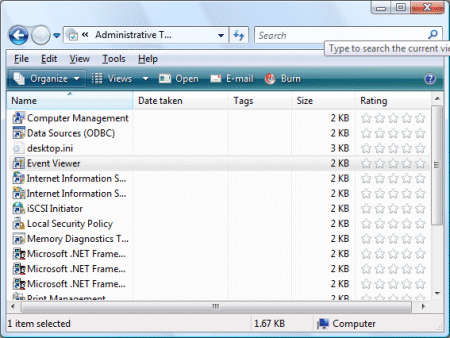
I had thought that Vista only did this if it found at least one media file in the folder, but today it happened with Control Panel:

Notice how it highlights another user-hostile feature: the name of each applet is in a column too narrow to read, and several applets are indistinguishable from each other because they begin “Microsoft .NET Frame…” or “Internet Information S…”; another triumph of branding over usability.

What I wanted was the Event Viewer; and while I’m in ranting mode, let me add that I much prefer the old NT Event Viewer to the Vista effort. The new one takes ages to populate a clever multi-pane view, which presents too much information in tiny scrolling panels. In practice I use the tree view on the left to select the log I want, subverting the new design by doing exactly what I would have done in the old Event Viewer. Habit possibly; but there are real design problems with the new Event Viewer. Administrators will always choose practical over pretty.

See here for my earlier complaint about Explorer views and a partial remedy. Why wasn’t this fixed in SP1?

Recovering data from a failed hard drive with ZAR

A friend’s computer would no longer boot. The problem turned out to be a failed hard drive. After five years’ service, this 40GB Western Digital is nearly dead. Replacing the drive is cheap; but what about the hundreds of family snapshots, for which no backup exists? Such data falls into an awkward category, of no financial value, not worth huge sums for professional data recovery, but sad to lose.

This drive is free of clicking noises (which are usually a very bad sign) and is recognized by the BIOS. My usual procedure in cases like this is to attach the drive to another working computer, do a backup image copy if possible, and then run utilities like CHKDSK as an attempted repair.

This one wasn’t easy. One problem is that the faulty drive slows down the whole system, presumably as Windows repeatedly queries it for information and gets a delayed response or a timeout. That makes for slow and frustrating work. Initially the drive was completely unreadable. Following several hours of CHKDSK, I could see the file system in Explorer, but directories took several minutes to open. I managed to copy a few files, but most of the images failed to copy; after a long pause Windows would report a file I/O error.

I tried the official Western Digital diagnostic and repair utility. It reported too many bad sectors to continue.

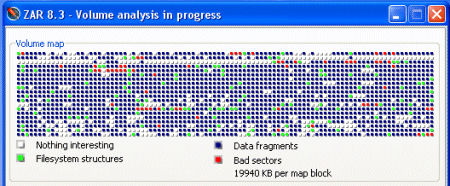
I had a quick look for utilities that might help, and came across ZAR, Zero Assumption Recovery. This is trialware, free for recovering up to 4 folders, or images from a memory card, and inexpensive for the full version. I ran it first in the free image recovery mode. It took 20 hours but recovered 55,000 image files, saved with random names in a single directory. I tried opening some of the JPEGs; some opened, some were corrupt. Still, better than nothing. I paid for the full version, and re-ran the utility. This time it was quicker. I was able to select the NTFS folders I wanted to recover – I chose all of Documents and Settings – and it retained the folders and filenames. After about 7 hours, it recovered most of the data successfully. I have not tested all the images, but the ones I have tried open fine.

There may be better utilities out there, but I was impressed with ZAR; it takes a long time, but since it works unattended that is not a problem.

Finally, a few words of general advice if you have a failing Windows drive containing important data. Disclaimer: this is based on my experience and might not work for you.

  • If you notice the problem when the drive is working, backup what you care about immediately. It may never spin up again.
  • Check the event log – if there are disk errors reported, such as ATAPI or SCSI errors, perhaps the drive is failing. I always replace the drive in these cases; keeping it is not worth the hassle.
  • If that’s not possible, stop working with the drive. Writing data to it may make it worse. Attach it to a different PC as a spare drive. Back it up as-is if possible, using something like Drive Snapshot.
  • Now, how much do you really care about that data? If it is business critical, just send it to someone like OnTrack. It will cost a fortune, but pretty much anything can be recovered.
  • If the drive won’t spin, or the BIOS won’t recognize it, you are on your own. Homely remedies include sharp taps or a dose of refrigeration; or maybe the skip beckons.
  • If it kinda works, try CHKDSK /R. This can take many hours with a bad drive, but often works well enough to recover data.
  • If that fails, get the drive manufacturer’s diagnostic utility. This will tell you if the drive is physically damaged, or just scrambled. A repair using this utility may also work – but could also make data harder to recover. That’s why you made the image backup.
  • If that fails, try ZAR or one of many other utilities out there. I noticed that OnTrack has some too. There are free ones as well. Good luck.
Technorati tags: , , ,

Moving Vista to a new hard drive

I have a Toshiba Portege M400 which is a couple of years old now, but it is not too bad a spec (Core 2 Duo 2.00 Ghz and a Tablet), so when I ran out of disk space I decided to upgrade to a larger drive rather than looking for a new machine. The M400 is slightly unusual, in that you can install a second drive in place of the DVD (which I rarely use), so I was able to fit the new drive in this bay while booting into the old system. The old drive is 80GB, and the new one 250GB. My task was to clone the old Vista installation onto the new drive.

I decided to use Drive Snapshot, which is able to make an exact copy of a running Windows installation. I created two partitions on the new drive, one just a little bigger than the old drive, and one to hold the Drive Snapshot backup files. Then I backed up the old drive to the second partition, and restored it to the first. Next, I removed the old drive (which remains as a backup),  moved the new drive to the permanent internal position, and started the system.

No joy. Windows tried to boot but reported a missing winload.exe. I presumed it was looking in the wrong place. I booted from a Vista DVD and chose the Repair option. There was a slight complication: Vista setup needs to load the Toshiba RAID driver in order to see the drive, but fortunately I have this on another CD. The Vista repair fixed the boot configuration, and I restarted thinking all would be well.

Still no joy. Well, partial joy. Vista booted, and I logged on, but only to a blank light blue screen. Using Task Manager I could start Explorer, but Windows told me it was using a temporary profile. I figured out the problem: drive letters. The system drive was meant to be C, but when I created the partition I had assigned it the letter K. I though that Drive Snapshot’s sector copy would overwrite that assignment, but apparently not. In this state, Vista could boot OK but not much worked. Even RegEdit and the disk management utility failed to open, reporting a “path not found” error.

I found some useful information on the problem here. It looked as if I could fix it by editing the registry, if I could work out how to do so. I have a little experience with this, so I knew roughly what to do. I booted again from the Vista DVD, and opened a command prompt. The minimal system recovery version of Windows does have a registry editor, but if you run RegEdit you get the registry of the setup Windows, not the one in the system you are trying to fix. The solution is to use Load Hive to edit the target registry. I found the key HKEY_LOCAL_MACHINE\SYSTEM\MountedDevices and deleted all the entries except Default. Rebooted, and everything worked perfectly.

One task remained. I ran Disk Management, and deleted the spare partition which contained the Drive Snapshop backup files. Next, I right-clicked the Windows partition, selected Extend Volume, and expanded it to fill the entire drive. Success – now I have 155GB free for new versions of Visual Studio, Adobe CS4, Delphi 2009, VirtualBox disk images, interview recordings, and all the other stuff which occupies my time.

Should I have done a clean install? Now I have a spare drive I might do one as an experiment, but considering the work involved in reinstalling everything, plus the fact that there is nothing really wrong with the current installation, I am not keen.

Overall it did not take long, and while there may be better utilities out there for this particular operation, I’m happy with the results from Drive Snapshot.

Technorati tags: , ,

Microsoft’s cloud platform, multi-touch Windows 7: mining the PDC schedule

I’ve been looking at the PDC Session schedule, as posted so far. Microsoft is serious about its new cloud computing platform. For a start, count the sessions.

Out of 180 posted so far, here are the subjects with 10 or more sessions:

  1. Cloud services [33]
  2. Windows 7 [22]
  3. SQL Server [16]
  4. Visual Studio [16]
  5. Silverlight [13]
  6. Live Platform [11]
  7. ASP.NET [10]
  8. Languages [10]

That’s a huge focus on the cloud. Microsoft’s problem: the company is not perceived as a leader in cloud computing. It has two distinct challenges: first, getting the technology in place, and second, winning developers to its new platform. In mitigation, it is in theory well placed to migrate users from on-premise Windows and Office to cloud equivalents.

Here’s a few snippets about Microsoft’s cloud platform:

A lap around Cloud Services: … Learn about the pillars of the platform, its service lifecycle, and see how they fit with both Microsoft and non-Microsoft technologies. Also, hear about the services roadmap over the next few years.

Cloud Computing: Economics and Service Level Agreements: … Topics include the pricing model for the cloud computing platform, how to monetize a service, and how to reduce the total cost of ownership.

Connecting Active Directory to Microsoft Cloud Services: … Manage and secure end user access to cloud services using your existing investment in Active Directory. Enable end users to access cloud services through existing Active Directory accounts, the same way they access your intranet-hosted software today. Hear how to enable existing software to use new service capabilities without re-writes, and do it all through the use of open and standard protocols.

That last item is a big deal. Managing separate user identities for local and cloud services is horrible.

What else can we glean from the PDC schedule. Here’s a few items that intrigued me:

Windows 7: Web Services in Native Code … Windows 7 introduces a new networking API with support for building SOAP based web services in native code.

Windows 7: Developing Multi-touch Applications … This session highlights the new multi-touch gesture APIs and explains how you can leverage them in your applications.

Oomph: A Microformat Toolkit … a toolkit from the MIX Online Team, that is aimed at web developers and designers to make it easier to create, consume, and style Microformats on the web. See also here.

Concurrent programming: Microsoft Visual Studio: Bringing out the Best in Multicore Systems … demonstrations of the parallel performance analysis and optimization tools in the next release of Microsoft Visual Studio. .

Oslo of course: A Lap around "Oslo" … “Oslo" is the family of new technologies that enable data-driven development and execution of services and applications. Come and learn how to capture all aspects of an application schematized in the "Oslo" repository and use "Oslo" directly to drive the execution of deployed applications.

Generics and constructors in XAML: Microsoft .NET Framework: Declarative Programming Using XAML … Learn about XAML additions like: support for generics, object references, non-default constructors, and more.

Instant cloud apps: Research: BAM, AjaxScope, and Doloto … Hear how BAM can turn a simple specification into a web-based cloud application with the click of a button. Learn how AjaxScope and Doloto automatically instrument and rewrite your web applications’ JavaScript code for end-to-end monitoring and optimization.

Office, a big feature of PDC 2005 when the ribbon was introduced, only has 3 sessions posted so far, though there may be more to come. Normally a new version of Office accompanies each new version of the Windows client.

Another question: what is in .NET Framework 4.0, to merit a full new version number? There is surprisingly little mention of it so far.

Microsoft’s open source breakthrough

Microsoft’s integration of jQuery and Visual Studio/ASP.NET is significant and I wrote about it on the ITJobBlog. I’ve included some comments from Scott Guthrie about ASP.Net AJAX vs jQuery.

Miguel de Icaza, who works on open source versions of .NET, also says it is a “first time for Microsoft”.

Rick Strahl, who is an ASP.NET MVP and writes an excellent technical blog, says in a comment to Guthrie’s original post:

To me jQuery has easily  the most game changing component in Web Development since ASP.NET originally was released.

It is a breakthrough; but note that it comes from the developer division, which is more inclined towards open source than other divisions running Windows and Office.

Windows comes to Amazon’s cloud

You will soon be able to run Windows on Amazon’s Elastic Compute Cloud (EC2), in a fully supported manner. Jeff Barr says this is scheduled for public release by the end of 2008:

The 32 and 64 bit versions of Windows Server will be available and will be able to use all existing EC2 features such as Elastic IP Addresses, Availability Zones, and the Elastic Block Store. You’ll be able to call any of the other Amazon Web Services from your application. You will, for example, be able to use the Amazon Simple Queue Service to glue cross-platform applications together.

This opens up EC2 to a substantial new group of potential customers. They will be asking, of course, if the cloud can be made reliable.

Now, how about integrating with Hyper-V and/or VMware so you could easily move your servers in and out of the cloud?

Adobe Media Player adding to Windows bloat

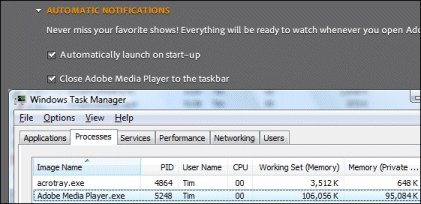
I allowed Adobe Media Player to auto-update yesterday, and noticed that it added itself to the list of applications that run automatically on startup (without asking, as I recall).

This is an AIR application and has a relatively large memory footprint even when inactive, according to Task Manager. It is also currently of little use as far as I can tell; Adobe no doubt plans for it to be the next iTunes, but right now there’s only a tiny selection of videos on offer, some of which report “not available in your territory” if you try to play them.

You can stop this software from impacting Windows performance by going to Options – Automatic notifications and unchecking Automatically launch on startup and Close Adobe Media Player to the taskbar.

The Windows utility msconfig is great for identifying startup applications and shows you where they can be disabled. Stripping these down to a minimum can have a marked affect on performance.

Internet Explorer no longer the de facto Web standard

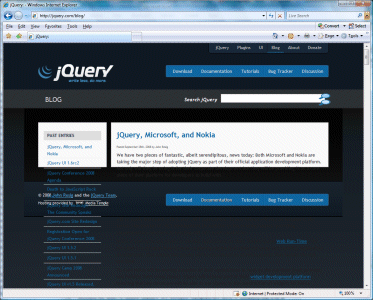
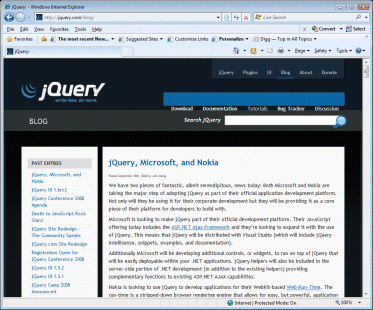
Following Scott Guthrie’s remarkable announcement about jQuery getting integrated into Visual Studio and ASP.NET, I took a look at the jQuery site and blog. I mix and match with my browser usage, and on this occasion was using IE7. The page was badly scrambled:

It is meant to look like this, as it does in IE8:

I tried the site with IE7 on another machine and it was fine, so this is not a problem with all IE7 installations, though it is fully repeatable on this particular box. I don’t know what is causing the issue.

Still, it reminded me of a significant change on the Web, which is that IE is no longer the safest choice if you are pragmatic and simply want sites to look right. In fact, there are more occasions when I have to close IE and use Firefox or Chrome to view a site properly, than the other way round.

I also notice a sharp decline in IE usage in my browser stats. 80% of visitors run Windows, but only 40% use IE in this month’s figures. A year ago that was 82% and 58%.

My stats are not representative of the web as a whole, which gives IE a larger share, but everyone seems to be reporting a decline. IE8 may slow the decline, but I doubt it will reverse it.

Fixing slow Windows Vista: yet again, it’s a third-party problem

Great post from Mark Russinovitch on fixing a slow Vista system, belonging to his wife.

The fact that was in the family suggests that this kind of incident is common. My reasoning: if Russinovitch were blogging about an unusually slow PC identified in Alaska and sent to Redmond for examination, that would suggest that this stuff is rare. If it happens to the person next to you, it is more likely to be commonplace.

So Vista is “not responding to her typing or mouse clicks”. What’s the problem? Not at all obvious. Russinovitch fires up his Process Explorer (no, Task Manager would not do) and has a look. Still not obvious. Iexplore.exe and Dllhost.exe are the culprits – except they are not. The problem turns out to be a buggy Flash player or application (he still doesn’t know which), and a third-party MP4 demultiplexer. The Flash problem remains unsolved; the only solution when it turns up is to terminate Iexplore.exe. The demultiplexer is now disabled with no ill-effects.

The specifics are only interesting to geeks, but there is a wider point. Most people:

  • Would have blamed Windows and Microsoft
  • Would not have been able to discover the cause of the problem
  • Would have shrugged and rebooted – which would work for a while

That “most people” includes many professionals. Be honest: how many tech professionals, whether in internal or external support, or PC repair experts, would have both known enough and cared enough to identify this kind of issue? A lot will say, “just reboot and hope it doesn’t happen again soon.” I’m not even sure that they are wrong. Look at the economics: if a reboot is a quick fix, how much time and expense does the problem merit?

Further, is Microsoft really innocent? Surely the OS could do a better job of identifying rogue processes and threads, and curbing the extent to which they can grab too much CPU. My experience of the troubleshooting wizards and self-healing capabilities in Vista is dismal; there are examples on this blog. Why isn’t there an automated tool that could follow the kinds of steps Russinovitch follows and identify the actual component that is causing problems?

Technorati tags: , , ,