Category Archives: windows

Missing from Bill Gates Tech Ed keynote: Live Mesh

I watched the video of Bill Gates keynote at Tech Ed yesterday. You can also read the transcript.

I enjoyed the second half more than the first. Gates can rarely resist giving a potted history of computing in his keynotes – maybe because of his own role in that history – but I find it a snooze. It also tends to reinforce the impression that Microsoft is yesterday’s company.

Gates shaped his keynote, which was on the subject of application development, around four themes:  Presentation, Business Logic, Data Access and Web Services. In presentation we got a plug for WPF and Silverlight – more the latter, with a nice demo by Soma Somasegar but nothing we haven’t seen before from Mix08 and the like.

On the business logic theme, we got a demo of a new tool called the Architecture Explorer, said by Brian Harry to be part of the Oslo wave. Microsoft will be pushing Oslo strongly at PDC later this year. Separately, I noticed that the Microsoft’s software factories guy, Jack Greenfield, has recently posted about how his team has moved from Visual Studio Team Architect to Developer and Platform Evangelism. Now I may be wrong here; but my guess is that Microsoft had a huge internal debate about whether to bet on software factories or modelling as the next step in enterprise application development, and that software factories is being sidelined in favour of Oslo. Hence statements like this:

Visual Studio Team Architect team remains actively committed to supporting Software Factories, as do the rest of Visual Studio Team System, the Visual Studio Ecosystem team and patterns & practices.

Phrases like “actively committed” usually mean the opposite of what they say. We’ll see; but note that we got Oslo in the Gates keynote, not factories.

Then we got data access, with Dave Campbell on SQL Server Data Services and the Sync framework. I think this is cool stuff; but having seen it at Mix (where I talked to Campbell and liked what he had to say) it was not new to me.

Finally,  web services. This is where Gates talks about Live Mesh, right? Wrong. Gates gave a nod to cloud computing as the future:

I can run Exchange on premise, or I can connect up to it as a service. But even at the BizTalk level, we’ll have BizTalk Services. For SQL, we’ll have SQL Server Data Services, and so you can connect up, build the database. It will be hosted in our cloud with the big, big data center, and geo-distributed automatically.

but that was it, it was on to fun robotics. I found this a surprising omission. As I see it, Mesh + Silverlight (plus of course things like SSDS) forms Microsoft’s cloud computing development platform. However, I imagine that like modelling vs software factories this is a matter of debate within the company as well as outside; perhaps we are seeing the Gates view vs the Ozzie view here.

By the way, I got my official Mesh sign-up invite this morning and I have the impression anyone can sign up now; why not try it?

Microsoft wants to end the Windows release circus?

I’ve just received a press release summarizing what Microsoft is willing to say about Windows 7. Perhaps the most interesting comment is this one:

  • Microsoft’s goal looking forward is to focus on building Optimized Desktop infrastructures including an OS versus single point-in-time OS releases.

That sounds sensible. It also suggests that Microsoft is beginning to treat its client OS as mature, at least when it comes to the kernel and core. The problem with big OS releases, as we saw with Vista, is getting the drivers lined up and working properly. Treating OS upgrades more casually is fine as long as the drivers continue to work.

What else? Here are a few more snippets:

  • Windows 7 will ship around January 2010. Actually, the release says “approximately three years after the general availability of Windows Vista (January 30, 2007)”. Of course January is a terrible month to release a new OS; Vista ended up there by mistake. More likely is September 2009 (optimistic) or say  June 2010 (realistic).
  • Windows 7 will be available in both 32 and 64-bit.
  • Microsoft “will be baking touch right into the OS …the user interface is designed to make touch a natural part of the user experience – even on the smallest laptops.”
  • The goal with Windows 7 is that it will run on the same hardware as Windows Vista and that the applications and devices that work with Windows Vista will also be compatible with Windows 7.

News: Steven Sinofsky says nothing about Windows 7

I feel for CNET’s Inet Fried, who got an interview with Microsoft’s Steven Sinofsky to talk about Windows 7, but got nothing of substance out of him, even though he is the right person to ask. I quite enjoyed this bit of circumlocution though. Sinofsky is talking about how Microsoft “re-plumbed” the graphics in Vista:

The team worked super hard with the partners in graphics to really do a great job, but the schedule challenges that we had, and the information disclosure weren’t consistent with the realities of the project, which made it all a much trickier end point when we got to the general availability in January.

Who are the “partners in graphics”? Sinofsky is talking about third-party vendors of graphics cards, mostly ATI, NVIDIA and Intel. What is the relevance of “information disclosure”? Sinofsky is talking about how the information delivered by Microsoft to these vendors was insufficiently accurate, complete or consistent for them to create robust drivers in time. What is a “trickier end point”? Well, problems like this driver error I guess – an earlier post which has just clocked up its 244th comment.

So now we are getting a few confessions about Vista, but that does not tell us much about Windows 7; except that there will be less re-plumbing and more high-level changes. Maybe.

If you are still curious about Windows 7, there are always the rumours about Ribbon, Jewel, and the new “markup based UI and a small, high performance, native code runtime” to chew on.

Installing .NET, PowerShell on Windows 2008 Server Core: it can be done

Dmitry Sotnikov explains how to install .NET and PowerShell on Windows Server 2008 in its Server Core configuration. It is necessary to tweak the .NET setup with Orca, a low-level editor for Microsoft Installer files. Note this is unsupported.

The lack of PowerShell is an annoyance; the lack of .NET is a major obstacle to making use of Server Core, so this is interesting work. Sotnikov does not say whether ASP.NET springs to life; I presume it may be possible.

I imagine that one of the issues with .NET on Server Core is that some parts of the Framework will not work because dependencies are missing. Server Core has little in the way of a GUI, so I would not expect System.Windows.Forms or Windows Presentation Foundation to work; yet the .NET runtime is all or nothing. This is changing; Microsoft has announced a Client Profile Setup to reduce the runtime size in .NET 3.5 SP1, for client applications.

What we now need is a Server Profile, tailored to work on Server Core.

WinFS reborn: SQL Server as a file system

Fascinating interview with Quentin Clark, who led the cancelled WinFS project at Microsoft. Jon Udell is the interviewer.

Clark talks about how technology from WinFS is now emerging as the Entity Framework in ADO.NET (part of .NET 3.5 SP1) and the FileStream column type in SQL Server 2008 – a connection I’d already made at the Barcelona TechEd last year. He also mentions the new HierarchyID column type that enables fast querying of paths, the concept of rows which contain other rows. He adds that a future version of SQL Server will support the Win32 API so that it can support a file system:

In the next release we anticipate putting those two things together, the filesystem piece and the hierarchical ID piece, into a supported namespace. So you’ll be able to type //machinename/sharename, up pops an Explorer window, drag and drop a file into it, go back to the database, type SELECT *, and suddenly a record appears.

Put that together with the work Microsoft is doing on synchronization, and you get offline capability too – something more robust than offline files in Vista. Clark says SharePoint will also benefit from SQL Server’s file system features.

Note that Live Mesh does some of this too. I guess SQL Server is there in the Live Mesh back end, but it strikes me Microsoft is at risk of developing too many ways to do the same thing.

The piece of WinFS that shows no sign of returning is the shared data platform, which was meant to enable applications to share data:

… all that stuff is gone. The schemas, and a layer that we internally referred to as base, which was about the enforcement of the schemas, all that stuff we’ve put on the shelf. Because we didn’t need it.

Misunderstanding Vista

Microsoft has posted a 9-page document on Five Misunderstood Features in Windows Vista. Apparently these “cause confusion and slow Windows Vista adoption for many folks.” Here they are:

  1. User Account Control
  2. Image Management
  3. Display Driver Model
  4. Windows Search
  5. 64 bit architecture

I thought I did understand User Account Control, but now I’m not so sure. I understand the long-term goal of UAC, which is to move Windows to the position enjoyed by Unix-like operating systems, where users run with limited rights. Fixing this means fixing applications that require local administrator rights; but making third-party app vendors change their practice is hard. UAC takes a multi-pronged approach. It makes it safer to run as local administrator; it makes it possible to run some applications that used to require admin rights without really having those rights; and it is sufficiently annoying that app vendors will feel under some pressure to fix their next release.

This statement caused me to pause:

Enterprises should not run as default in Protected Admin mode, because there are really no benefits—only the pain of prompts. Instead, strive to move users to a Standard User profile.

The highlighting is mine. If there are no benefits, it seems odd that most Vista installations I see are set up in this way. I realise that in this context UAC is not a security boundary. Nevertheless, I figure there are some benefits, in that the user is running most of the time with standard user credentials. If there are no benefits … why does the feature exist?

I’m not sure the Image Management is “widely misunderstood”; it mostly matters only to network administrators whose business it is to understand it. Windows Display Driver Model … again, not sure; I think it is Desktop composition which is misunderstood; people dismiss this as eye-candy, when in fact it “fundamentally changes the way applications display pixels on the screen”, as the referenced article explains.

Windows Search is an interesting one. I think it is misunderstood, but not in the way explained by this new paper. People have questions like, “why does it not index all my files?”

What about performance? In my view, this is far and away the primary problem users have with Vista. It is not in any sense a misunderstanding, however Microsoft spins it. It is bewilderment: why does my new machine, which should be fast, spend so much time spinning its little bagel when I want to get on with my work?

Here’s what this document says:

We’ve heard some of you say that Windows Vista runs slower than Windows XP on a given PC. So what‘s really happening here? First, we need to avoid comparing apples to oranges – Windows Vista is doing a lot more than Windows XP, and it requires resources to conduct these tasks.

It goes on to say that:

On machines configured with the appropriate specifications for their operating system, the speed of most operations and tasks between Windows Vista and Windows XP is virtually on parity. Which is pretty remarkable when you consider one key thing Windows Vista is doing that Windows XP isn’t: indexing for near instantaneous search results for desktop files, even embedded in email messages. The result is users can find information significantly faster (measured in minutes), increasing productivity far in excess of the loss in speed of operations (measured in milliseconds).

Microsoft is off-target here, despite the sleight of hand about “appropriate specifications”. First, search can be a big drain on performance; sorry, not just a few milliseconds. Second, Vista can be dramatically slower than XP, often thanks to poor configuration by OEMs. See Ed Bott’s discussion about fixing a Sony laptop.

There’s recently been discussion about Windows Server 2008, which performs very well, versus Vista, which tends to perform badly. It’s all to do with configuration and disabling unnecessary processes. This is the core of Vista’s problems, not a series of “misunderstandings”.

Update: the document is no longer online. Perhaps it will reappear with amendments?

Further postscript: The Guardian has posted the document here.

Is Vista more prone to malware than Windows 2000?

So says the research department of PC Tools, apparently.

I was intrigued as I’ve investigated security in Vista. I went along to the PC Tools site in search of more information. Unfortunately there is no relevant press release in the news section or other details. I did find an article on ars technica that asks the questions I wanted to ask, but no answers.

I also registered on the site as press in search of further information, and received my username and password back as a plain text email. Remarkable, for a security company.

I don’t mean to be cynical; I really am interested, but frankly stories like this are worthless without more information. I blogged three years ago about exaggerated claims made by a security company. These companies are unlikely to put out releases saying that we no longer need their products.

My question to these security folk: given that most PC users (that I see) have been scared into using their products, why have we not seen a corresponding reduction in malware infections? It is as if the industry is glad to brag about the failure of its products.

Technorati tags: , , ,

How Outlook 2007 deletes your messages without asking

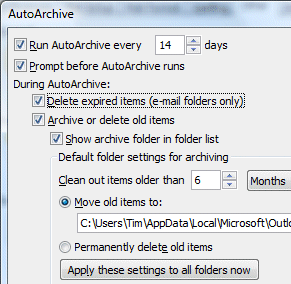
A puzzled Outlook 2007 user asked me why his Outlook 2007 archive folders were empty. Investigation led me to this dialog, found at Tools – Options – Other – AutoArchive:

This is actually from my own Outlook; but as you can see, it is set to move old items to an archive folder. Note that the option to Move rather than delete is set by default.

However, I was puzzled by the option to Delete expired items (e-mail folders only). What does this mean? In particular, why does it refer to expired items when the rest of the dialog refers to old items? The word expired suggests some kind of non-validity, like an expired subscription, or password, or credit card.

Pressing F1 did not yield anything helpful; but this article explains:

Delete expired items (e-mail folders only)   This option is not selected by default. You can choose to have e-mail messages deleted when their aging period has expired. The default period for your Draft and Inbox items is six months, and three months for your Sent Items, but you can change these periods using the Clean out items older than option.

As I understand it, this means that items are deleted after as little as three months if the option is checked; and expired means exactly the same as old. But that’s OK; it isn’t checked by default.

Or is it? For sure, I have never checked that option, nor did my contact, but it is checked on all my Outlook installations, and on his. Take a look: is your Outlook set up like this? I’d be interested to know.

The consequence is that old emails simply disappear. The only dialog the user will see is that auto-archive wants to run. By the way, most people would not imagine that an archive process will delete items. Archive means long-term storage. Words like prune or purge imply deletion, but not archive.

Now, I happen to think that archiving in Outlook is a mess anyway. If you have several machines on the go (which is one of the reasons for using Exchange and Outlook), then you usually end up with several archives, buried deep in hidden folders where nobody is likely to find them without help. It is easy to miss these archive files when migrating to a new machine.

Still, I hadn’t realised that Outlook actually deletes old emails without asking – that is, if I am right and this is (incorrectly) the default.

It may seem a small matter; but there are times when finding that old email, sent or received, is critically important. It is another reason why I am fed up with Outlook 2007: its amusingly obscure dialogs, its broken RSS support, and its disgracefully slow performance.

Update: Duncan Smart below suggests that the “Expired items” refers to emails that have an expiry date set in message options. I must say that makes more sense to me. On the other hand, it isn’t what the help document says, and it doesn’t explain why why my contact had no messages in his archive folder, until I changed the setting. I’ll try some experiments … [slightly later] … if I archive a folder with File – Archive, it does not delete old messages (good); on the other hand this dialog is different because you specify the archive date so it is not a perfect test.

I suspect it is not as bad as I first thought, that the help document is incorrect, and that some other factor must have messed up my contact’s archiving. I hope that is the case.

See also this official help document:

Choosing an option to have items deleted permanently deletes the items automatically when they expire. They are not archived. For instance, if you click Delete expired items (e-mail folders only), this option deletes all messages in all your e-mail folders, such as Inbox, Sent, or Drafts, when they reach the end of their aging periods. The messages are not archived.

So … either Outlook really is deleting messages without asking; or I’m not the only one confused.

Substantial .NET, Visual Studio 2008 update in Service Pack 1

Microsoft’s Scott Guthrie has announced .NET 3.5 SP1 and Visual Studio 2008 SP1 beta. Some of the things which caught my eye:

  • Performance: up to 40% faster startup for desktop .NET apps, up to 10% faster ASP.NET.
  • Smaller runtime in .NET “Client profile”. There is a new cut-down runtime for Windows Forms or WPF client apps, bringing the setup down to “only” 26MB. The key point here is the size of the file a user must download and run if she does not already have .NET installed in the right version. Tim Sneath has more details about the new client profile.

A bit of context: the .NET 2.0 runtime is only 22.4MB. This ballooned to 50.3MB for .NET 3.0, and 197MB for .NET 3.5 (check the size of the full package, not the 2.7MB bootstrapper which launches further downloads) – though there are ways to reduce the size of the 197MB monster, which actually includes several versions of the .NET Framework.

  • New vector shape, Printing, and DataRepeater controls for Windows Forms – echoes of old VB controls.
  • A datagrid for WPF – not actually in SP1, but promised shortly afterwards.
  • WPF interop with Direct3D
  • ADO.NET Data Services (formerly Astoria) and Entity Framework

The new SP offers compatibility with SQL Server 2008, and the database product itself is still expected “third quarter” as far as I’m aware. I guess it may go final at the same moment as SP1 for .NET and Visual Studio.

The smaller runtime for .NET desktop apps is welcome, but those in search of a lightweight .NET runtime should look at Silverlight 2.0, which is currently 4.38MB.

Xobni: Outlook users should try this now

Yes, Xobni is brilliant.

Have you ever tried sorting an Outlook inbox by conversation? Of course Outlook goes into a thrash while it prepares the view. Then when it has finished, it does not work right. It has a limited view of what a conversation is, based on the email title. It does not show your sent items, unless you sort them into the same folder. In fact, it is more frustrating than useful, which is why I never use it.

Xobni (the name is inbox reversed) does this right. When you select an email, a panel shows your previous emails from that person, with your replies, which you can read without changing the focus from the message you are attending to. It is based on an index together with some simple analytics. Who else has appeared in the cc list on emails from this person? Where are their messages? What is the sender’s phone number? All of this information is shown automatically; no need to hit confusing menus like Arrange By or Current View.

There’s also a search box; it’s smoother and quicker than Microsoft’s desktop search, also used by Outlook in the latest version. Under the covers lies my favourite desktop database engine: sqlite. I’ve turned off the official Outlook search; anything to speed performance.

Xobni is free right now (it is a beta), so what’s the business model? Still up in the air, apparently. However, given the number of Outlook users, I expect it will be possible to monetize it. Apparently Microsoft tried to buy the company and was refused.

Technorati tags: , , ,