Category Archives: development

Microsoft’s new open source direction for C# and .NET (and native compilation too): Anders Hejlsberg explains

At the April 2014 Build conference Microsoft made some far-reaching announcements about its .NET platform and the C# programming language. Yes, there was talk of C# 6.0, the next version, but the real changes are more profound. Specifically:

C# and Visual Basic have a new compiler, itself written in C#, code-named Roslyn. Roslyn is not just a new compiler; Microsoft now calls it the “.NET Compiler Platform”.

There is a new commitment to open source for .NET projects. Microsoft formed the .NET Foundation to oversee existing open source projects, including  ASP.NET, Entity Framework, the Azure .NET SDK, and now Roslyn as well. “When it comes to development projects we are going to operate from the premise that open source is the default. Unless there are reasons why it does not work,” said C# lead architect Anders Hejlsberg.

image

Note that open source does not mean chaos. It does mean that you can fork the project if you want – the Roslyn license is Apache 2.0 – but getting Microsoft to accept new features you have contributed will not be trivial. Hejlsberg makes the point that language features are easy to add, but impossible to take away, so extreme care is necessary.

Microsoft is also supporting cross-platform C# to a greater extent than it has done in the past. The most obvious sign of this is its cooperation with Xamarin, which provides C# compilers for iOS and Android. Xamarin’s Miguel de Icaza got a top billing at Build, and is also involved in the .NET Foundation.

There is more though. The idea of standardised C# is re-emerging:

“The last ECMA standard was C# 2.0. There wasn’t a lot of demand for it, but that demand has recently risen and we have re engaged with the ECMA community to produce a standard for C# 5.0,” said Hejlsberg.

This bears some unpacking. Why was there little demand for ECMA C#? Partly I would guess from the assumption the C# was firmly in Microsoft’s grip, with Java the obvious choice for cross-platform development. The main interest was from the Mono folk (Miguel de Icaza again), which implemented .NET for Linux and the Mac with some success, but nothing to disturb Java’s momentum.

The focus now though is on mobile, and interest in C# is stronger, mainly from Microsoft-platform developers reaching beyond Windows. There is also Unity, which uses C# as a scripting language for developing games for multiple platforms, including iOS, Android, Windows, Mac, Linux, Xbox, PS3 and Wii – PS4 is coming very soon.

Microsoft has now consciously embraced multiple platforms, as evidenced by Office for iOS as well as the Xamarin collaboration. “We want C#developers to build great applications across different form factors and different device platforms,” said Jay Schmelzer Director of Program Management for Visual Studio.

You might observe that this position has been forced on the company by the rise of iOS and Android, a view which likely has some merit, but the impact it has on C# and .NET itself is still real.

I asked Hejlsberg to unpack the difference between the Roslyn project and C# 6.0, bearing in mind that both are covered on the Roslyn open source site; you can see the current status of C# 6.0 and the next Visual Basic here.

Roslyn is the name for the project that encompasses the new C#compiler and the new VB compiler and the new language services that they share. C# 6.0 is the name of the next version of the C #language which will have a specification and which will have an implementation. We are implementing C# 6.0 on the Roslyn platform. We are not going to continue to evolve our old C++ C# compiler – the C# compiler was originally written in C++ and has been evolved up through C# 5.0. That is where we are going to retire that code base, and going forward versions of C# will be built on Roslyn and therefore will be built open source. Unlike previously where, boom. C# came down from the sky with a set of features, it is going to happen more organically now, people will submit pull requests, open up issues, and you will see us work on these features. You will see them from inception to fruition.

“The C# team, the Roslyn team, the VB team, their day to day workplace now is the open source site. That is where they check-in code. It is a community in the making.

Even that is not all. At Build, Microsoft also announced .NET Native, which is a native compiler for C# and Visual Basic, now in preview for x64 Store apps. What is the difference between .NET Native and the existing NGen native compiler for .NET? Over to Hejlsberg:

NGen is the native feature that we currently support. NGen is really, “I’m going to JIT [Just in time compile] your code and then snapshot all the data structures and dump them in a file so that I can quickly rebuild that file later when you run this particular application”. But it is the same code generator and all the same features, and JIT is still there. NGen is really a way to pre-cache the JIT output and therefore get better performance, but it adds to the size of your app because you still have all the assemblies and metadata and then the NGen image as well.

.NET Native is a completely different approach. Instead of the JIT we use the backend from the C++ compiler. You can think of it as a linker that takes as input assemblies, and as output produces a PE [Portable Executable] executable. In the process this linker or code generator will analyse all the IL [Intermediate Language] that goes into the application and it will apply a thing known as tree-shaking where it eliminates all of the code that will never execute based on known execution roots.

In other words, the public static main of your program and also whatever pieces of your app that you designate as reflectable, they also become roots. Based on that we produce an optimised exe, and into that exe we link the pieces of the framework that you are referencing. We link in a garbage collector [GC], and it looks to the operating system just like an exe. When you run it, it runs a local GC in there and it is as efficient really as C++ code.

There are some restrictions associated with .net native, mainly that you can’t just willy-nilly reflect on the whole world. You can’t just generate new code and ask for that to be jitted because they may not be a JIT compiler. We are considering allowing you to link in a JIT compiler, but there are certain execution environments which don’t permit jitting, like Xbox. If you use reflection in your lap you have to tell us what to keep reflectable, because otherwise we will optimise it away.

According to Schmelzer:

The preview out today is scoped to Store app x64 and ARM. We haven’t run into any technical limitation that shows it can’t be done across the breadth, it is just a matter of request and need.

Open source, native code compilation, and an innovative compiler: it adds up to huge changes for C# and .NET, positive ones as far as I can tell.

The Xamarin connection is intriguing though. Developers in general admire the technology as far as I can tell, but it is expensive, and paying out for a Xamarin subscription on top of maybe MSDN for Visual Studio is too much for some smaller organisations and does not encourage experimentation. Might Microsoft acquire Xamarin and build Visual Studio into an IDE targeting all the major mobile platforms, but with special hooks to Azure-hosted services?

That prospect makes sense to me, though it would be a shame if the energetic Xamarin culture became bogged down in big-company bureaucracy. Currently though: no news to report.

Getting animated: basics in Windows Store apps

I am not a designer and prefer to avoid things like animation as too difficult. On the other hand, I am writing an electronic card game and it looks bad if the cards move without any animation. There is also an issue in that animation is built into the standard controls, so if you do not animate your own parts of the user interface, it looks inconsistent.

Animation is more significant than it may first appear. You can think of it as a natural progression from a basic graphical user interface, along with things like full window drag. In the real world, objects do not just blink in and out of existence when they move from one spot to another.

My game is a bridge simulation so four cards are laid on the table in turn, at which point the winner of the four cards is calculated and the four cards gathered to form a “trick”. In my original implementation, the four cards simply disappeared at the end of the trick. How can I have it so that they smoothly gather themselves into a pile of four cards?

Like most things in Store apps, it proved a little more complex than I had thought. Originally, I put put each card in a separate cell of a layout grid. In Store apps, there is no built-in way to animate movement between grid cells, though users have come up with custom animations that do this. I thought it would be simpler to put the cards on a canvas instead.

I did some sums and positioned four Rectangle objects at the borders of the Canvas.

image

I want the Rectangle objects to slide smoothly into a pile in the centre. You do this in XAML with a Storyboard element. A Storyboard has child animation elements. When you call Storyboard.Begin() in your code, all the animations run. They run simultaneously unless one or more of the animations has a different BeginTime attribute. If you want a sequence of animations, you can either vary BeginTime, or use a KeyFrame animation which is designed for this.

There are several ways to do what I want. One is to animate Canvas.Top and Canvas .Left using a DoubleAnimation (the name indicates that it targets properties of type Double, not that anything happens twice). Note that if you this, the Storyboard.TargetProperty has to be in parantheses:

Storyboard.TargetProperty="(Canvas.Top)"

because it is an attached property. However, I chose to use a RepositionThemeAnimation. I found the way this works counter-intuitive. In XAML, you define a RepositionThemeAnimation with either or both a FromHorizontalOffset and a FromVerticalOffset. At runtime, the RepositionThemeAnimation moves the object to the offset position instantly, and then back to its starting point with animation. In other words, the animation itself does not move the object; unless you have AutoReverse set to True, in which case it does a second animation back to the offset position.

Once you grasp it, it is not difficult. Here is my Storyboard, set as a XAML Resource:

<Page.Resources>
    <Storyboard x:Name="TrickStoryboard">
        <RepositionThemeAnimation Storyboard.TargetName="CardLeft" SpeedRatio=".5"  FromHorizontalOffset="-185"/>
        <RepositionThemeAnimation Storyboard.TargetName="CardTop" SpeedRatio=".5"  FromVerticalOffset="-200"/>
        <RepositionThemeAnimation Storyboard.TargetName="CardRight" SpeedRatio=".5"  FromHorizontalOffset="185"/>
        <RepositionThemeAnimation  Storyboard.TargetName="CardBottom" SpeedRatio=".5"  FromVerticalOffset="200"/>
    </Storyboard>
</Page.Resources>

And here is my code to gather the trick:

this.CardTop.Margin = new Thickness(0, 185, 0, 0);
this.CardLeft.Margin = new Thickness(200, 0, 0, 0);
this.CardRight.Margin = new Thickness(-200, 0, 0, 0);
this.CardBottom.Margin = new Thickness(0, -185, 0, 0);
this.TrickStoryboard.Begin();

In other words, you move the objects to where you want them, and then apply the animation which moves them temporarily back to their starting point, then smoothly to their destination. At this point I should include a little video, but will leave you to imagine the four Rectangles above sliding and merging to a single central Rectangle.

Something to watch for here is how the animation impacts your code flow. The animation runs asynchronously, so if you have:

this.TrickStoryboard.Begin();
DoSomething();

then DoSomething runs before the animation completes. If this is not what you want, you can break at that point, and handle the StoryBoard.Completed event to resume. In my brief tests, StoryBoard.Completed always fires even if the animation gets interrupted, say by some other code that did something to the objects.

For more on this subject, read up on Animating your UI and get to know the different animation classes, Visual states, easing functions, RenderTransforms and more. It soon gets complex and verbose unfortunately, but on the plus side it is great to have animation baked into the framework, and the result is a more polished user interface.

Windows problems: new users cannot log in, SQL Server 2014 install fails

Two issues I have seen recently:

1. A Windows 7 laptop which belonged to a developer and was being passed on to a new user. However, although you could create the new user, you could not log in as that user. The error was “User Profile Service service failed the logon. User profile cannot be loaded.”

I narrowed the problem down to an “Access denied” error when trying to create the profile, but we decided to restore Windows to factory settings (using recovery tools) since that was probably a better approach for the new user anyway – you never know what a developer may have tweaked or installed in Windows!

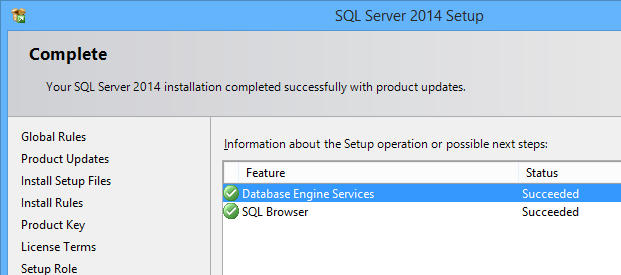
2. SQL Server 2014 Database Engine installation failing on Windows 8. The reported error: Could not find the Database Engine startup handle.

Annoyingly, you cannot attempt a repair install if you get this, since repair cannot run if there has not been a successful install in the first place. However this error does not rollback the installation, so you have the feature installed but not working. You have to remove the SQL Server feature using control panel, then you can retry. I got this on a couple of machines, tried a few things but failed, so used fresh VMs instead.

Others have run into this and there is a solution, which applies to both problems. They are actually the same, since SQL Server 2014 creates a new profile in the default install.

This solution means resetting the permissions on c:\users\default so that they are replaced with permissions inherited from the parent folder. This solution works; but it is not perfect, since these are the wrong permissions for the folder (too loose). Someone has done the job of finding the correct permissions for Windows 7. Applying all these is arduous though, and things may possibly have changed with updates since. In a production environment it would be better to narrow down the exact permission that is wrong, or to do a system restore.

If you are happy to risk it, navigate to c:\users in Windows Explorer and find the Default folder. This is hidden by default; you can make it visible using the View Options in Explorer; on the View tab choose Show hidden files, folders and drives. Next, right-click the c:\users\Default folder and choose Properties, then the Security tab, then Advanced, then click Change Permissions. Check the box:

Replace all child object permission entries with inheritable permission entries from this object

Click OK – it does not take long – and now new users can log in, and the SQL Server 2014 setup runs OK.

image

The problem seems to be common so it is likely that either an official update or a commonly-used third-party install is breaking these permissions. I would be glad to know what it is; it would also be good if Microsoft would build into Windows a feature that would restore default permissions for a system folder like this one.

Update: It may be sufficient to delete a single file. See this thread where event logs lead to a sqmdata…sqm file that, when deleted, fixed the issue. Check the Windows Application log for event 1509.

Notes on styling a Windows Store app ListView to vary item appearance according to the data

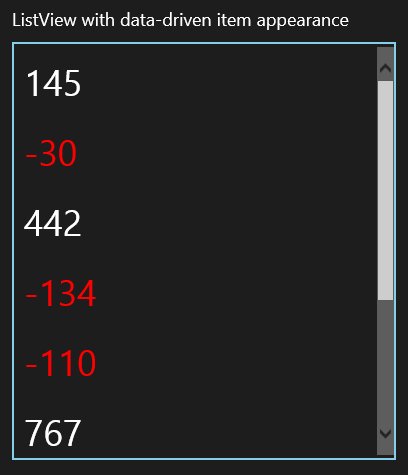
Problem: You have a ListView containing data. You want to vary the appearance of items in the ListView according to the value of the data.

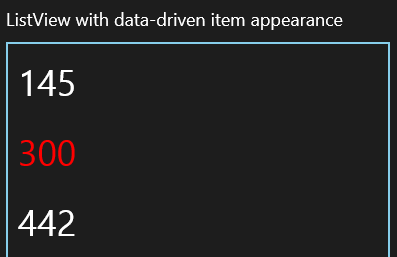
I spent some time on this in relation to a panel for a game I am writing. For example, you have a ListView containing numbers. How can you have negative numbers appear in red?

image

In desktop WPF (Windows Presentation Foundation) you could do this with Property Triggers but these are not supported in Store apps.

One way to do this is with a value converter. Add a class to your project called MyValueConverter. Make the class public, and inherit from Windows.UI.Xaml.Data.IValueConverter.

Right-click IValueConverter and choose Implement Interface to have Visual Studio create two stub methods, Convert and ConvertBack.

This class is going to return an object which will be applied to the Foreground property of a ListViewItem. The Convert method looks like this:

public object Convert(object value, Type targetType, object parameter, string language)

At runtime, the value argument will contain the item displayed in this row of the ListView. The targetType will match the type of the property we are setting, which in this case is a Brush object.

Now add an instance of MyValueConverter to MainPage.xaml (or App.xaml) as a resource. If there is no Page.Resources element, create it, and add an instance of MyValueConverter with the Key “NumberForegroundConverter”:

<Page.Resources>
<local:MyValueConverter x:Key="NumberForegroundConverter" />
</Page.Resources>

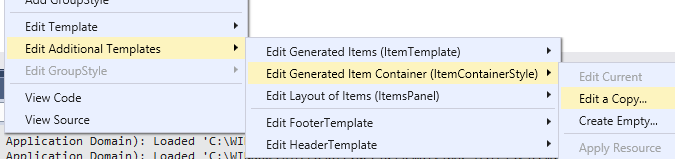
Next, select the ListView element in the XAML editor or designer. Right-click the selected element in the designer, and choose Edit Additional Templates – Edit Generated Item Container (ItemContainerStyle) – Edit a Copy …

image

Accept the default name of ListViewItemStyle1 and click OK.

This generates an element that defines the layout and appearance of items in the ListView. Currently it does not appear to do anything, since it is a copy of the default settings.

Find the element called <ListViewItemPresenter> which is nested within <ControlTemplate TargetType=”ListViewItem”>. No Foreground attribute for ListViewItemPresenter is generated, but we can add one:

Foreground="{Binding Converter={StaticResource NumberForegroundConverter}}"

If you now run the project, you will get an exception, because the methods in MyValueConverter do not yet have any code. Now we have to think about the type of the items in the ListView. In this example, I just typed some strings into the XML editor:

<ListView ItemContainerStyle="{StaticResource ListViewItemStyle1}">
<x:String>145</x:String>
<x:String>-30</x:String>
<x:String>442</x:String>
</ListView>

All the items are strings, so the Convert method can look like this:

String s = (String)value; //note this ONLY works if the item is always a string

if (float.Parse(s) < 0)
{
return new SolidColorBrush(Windows.UI.Colors.Red);
}
else
{
return new SolidColorBrush(Windows.UI.Colors.White);
}

We don’t care about the ConvertBack method so can use this code:

return Windows.UI.Xaml.DependencyProperty.UnsetValue;

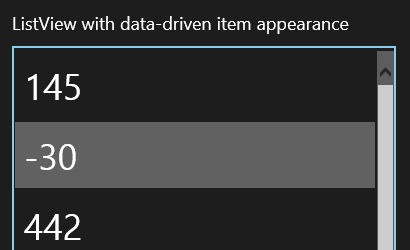
It works but there are some issues. One oddity is that when you roll the mouse over a negative number, it looks the same as a positive number.

image

This is because we did a converter for the Foreground property but not for the SelectedForeground property. XAML in Store apps makes extensive use of themes, and themes include a lot of brushes.

Another issue, which may or may not impact your application, is that the converter code does not run again if you change the displayed item dynamically. That is, if you replace the item it updates OK, but if you update the existing item it does not.

A slightly more complex example will demonstrate this. Let’s say that rather than displaying strings, the ListView is displaying Widget quantities, where a negative number indicates backorders. The ListView is bound to an ObservableCollection<Widget>, and the Widget class implements INotifyPropertyChanged so that the ListView will update automatically when a Widget property changes. Note that the NumberForegroundConverter must be updated to accept a Widget value rather than a string.

Here is what happens if a Widget had a negative quantity when the ListView was first populated, but got dynamically updated to a positive value (some stock arrived):

image

Oops! Now the positive quantity is in red.

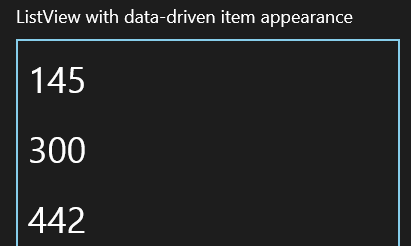
We can fix this by abandoning the converter, and instead giving the Widget class a Foreground property of its own, calculated to return Red for negative quantities and White for positive. Make sure it fires a NotifyPropertyChanged event when updated. Now the Foreground property in <ListViewItemPresenter> looks like this:

Foreground="{Binding Foreground}"

It works:

image

I used this approach in my game in order to implement an Enabled property that indicates items which are unselectable. This changes dynamically according to the state of the play.

Note that you are unlikely to want a Foreground property in your business objects, but could create a DisplayWidget class for the purpose.

I realise that these are not the only ways to create a ListView which styles items differently according to their values, but they may be the simplest. Other suggestions and comments are welcome.

Update: Mike Taulty has some comments and suggestions here.

Hands on: SQL Server 2014 with data files in Azure Blob Storage

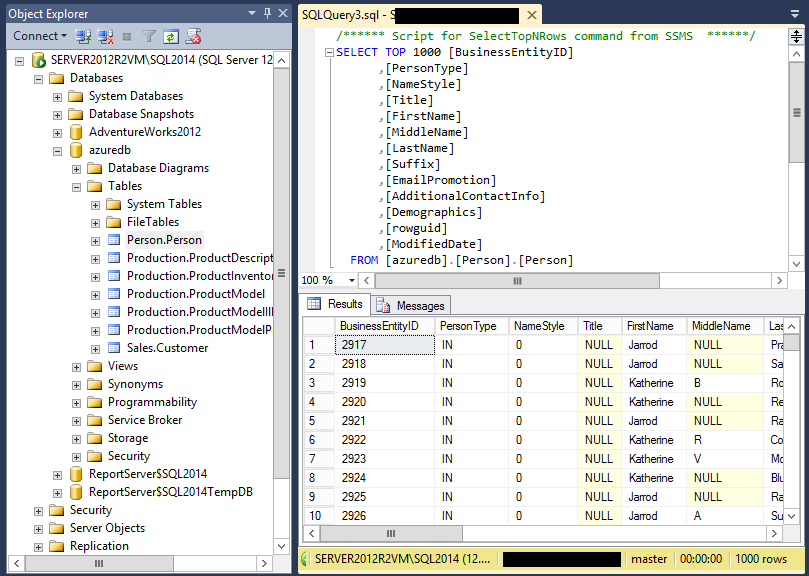
One intriguing new feature in Micrsosoft’s SQL Server 2014 is the ability to create or attach databases whose files are in Azure blog storage. This sounds like something that would not work at all well: why would you want a database engine to mount files located hundreds or thousands of miles away? However, the feature is apparently baked deeply into SQL Server, according to this white paper (which is essential reading if you want to know more):

SQL Server 2014 integration with Windows Azure blob storage occurs at a deep level, directly into the SQL Server Storage Engine; SQL Server Data Files in Windows Azure is more than a simple adapter mechanism built on top of an existing software layer.

· The Manager Layer includes a new component called XFCB Credential Manager, which manages the security credentials necessary to access the Windows Azure blob containers and provides the necessary security interface; secrets are maintained encrypted and secured in the SQL Server built-in security repository in the master system database.

· The File Control Layer contains a new object called XFCB, which is the Windows Azure extension to the file control block (FCB) used to manage I/O against each single SQL Server data or log file on the NTFS file system; it implements all the APIs that are required for I/O against Windows Azure blob storage.

· At the Storage Layer, the SQL Server I/O Manager is now able to natively generate REST API calls to Windows Azure blob storage with minimal overhead and great efficiency; in addition, this component can generate information about performance counters and extended events (xEvents).

It also seems that the main target usage is SQL Server running on Azure VMs in the same region as the blog storage, removing latency concerns, though the wording of the explanation is curious, implying almost that on-premise connection is supported but should not be:

Although it is theoretically possible and officially supported, using an on-premises SQL Server 2014 installation and database files in Windows Azure blob storage is not recommended due to high network latency, which would hurt performance; for this reason, the main target scenario for this white paper is SQL Server 2014 installed in Windows Azure Virtual Machines (IaaS). This scenario provides immediate benefits for performance, data movement and portability, data virtualization, high availability and disaster recovery, and scalability limits.

If you use blob storage in this way on an Azure VM, then I/O goes through the Virtual Network Driver, whereas an Azure data disk uses the Virtual Disk Driver. This nicety may be the main reason to consider the feature.

I tried both scenarios: on-premise and from an Azure VM. I had some difficulty getting started, despite this seemingly exhaustive tutorial. I followed it, I thought, to the letter, but got either the error:

Unable to open the physical file "https://myaccount.blob.core.windows.net/sqldata/azuredb.mdf". Operating system error 86: "86(The specified network password is not correct.)".

or else

CREATE FILE encountered operating system error 1117(The request could not be performed because of an I/O device error.) while attempting to open or create the physical file https://myaccount.blob.core.windows.net/sqldata/azuredb.mdf

The problem turned out to relate to the Shared Access Signature required. The supposedly exhaustive tutorial merely refers you to the CloudBlobContainer.GetSharedAccessSignature method in the Azure SDK and offers an incomplete code snippet. I wrote C# code for this and was able to generate a Shared Access Signature but it did not work (see above). I found myself in the depths of the Azure SDK, wondering if I should use version 2.1 or 3.0, and whether I should use Microsoft.WindowsAzure.StorageClient.CloudBlobClient or Microsoft.WindowsAzure.Storage.Blob.CloudBlobClient. The tutorial is also not clear about exactly which part of the Shared Access Signature you should store in the SQL Server Credential Manager; it is a multipart string separated by ampersands.

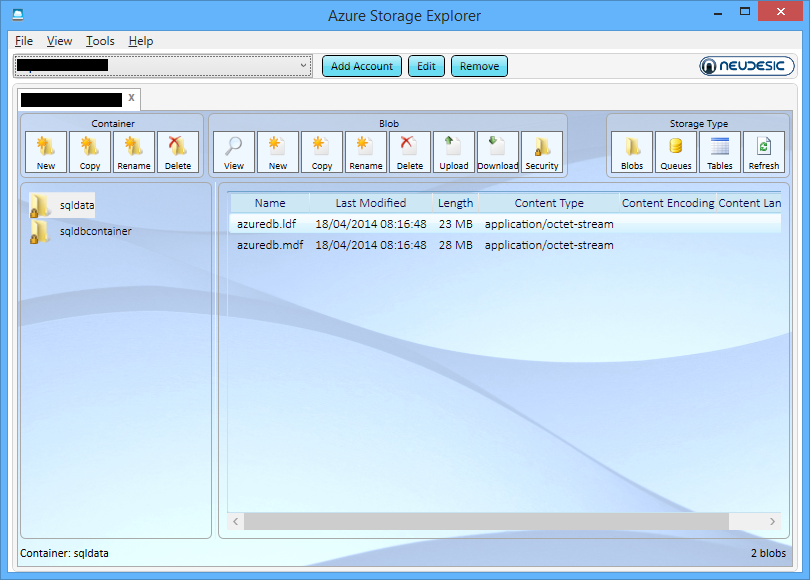
I have still not fully worked it out, but discovered the very helpful Azure Storage Explorer on CodePlex. If you follow the instructions in the white paper referenced above, and use the Azure Storage Explorer to generate the Shared Access Signature, then it works. The project is open source, so with a little effort it should be possible to find and document the exact requirements.

image

I tried creating and using a database from my on-premise SQL Server 2014 and I find the performance remarkably good, considering. There is no doubt some smart caching going on under the covers. Selecting 1000 rows from a table took 11 seconds the first time, and was instant the second time. It seems to me viable, on my brief look, though I am not sure why you would want to do this. However it is a good demonstration of how cloud and on-premise are coming ever-closer.

image

Running from an Azure VM in the same region is a different case, though I would suggest detailed and intensive testing before going into production.

A quick hands-on with native code compilation for .NET

I had a quick look at the .NET Native Preview. I am interested to see what the benefits might be. Note that currently the preview only supports 64-bit Windows Store apps.

Here is what is promised:

For users of your apps, .NET Native offers these advantages:

  • Fast execution times
  • Consistently speedy startup times
  • Low deployment and update costs
  • Optimized app memory usage

I created a small C# app that counts prime numbers using a simple approach. I created it first as a Universal App that does not use .NET Native, and then as a second app that does use .NET Native.

image

My initial results are disappointing. The time taken to count prime numbers is similar in both apps.

image

As a further test, I added code that adds the prime numbers found to a ListView control using an async task. The idea was to see if GUI interaction and multi-threading would be more revealing than simply crunching numbers in a tight loop. The apps takes much longer with this enabled, but again, there is nothing to choose between the two.

Did I really succeed in compiling the app to native code? I think so. Here are the contents of the AppX folder for the standard .NET executable:

image

and here for the native compiled executable – note the additional DLLs:

image

I am not actually surprised that there is no performance benefit in my example. JIT (just-in-time) compilation means that any .NET application is native code at runtime, though optimization might be different.

I have ended up with a much larger app to deploy, though the relative difference would be less, I imagine, with an app that contains more code.

I can also readily believe that start-up time will be better for a native compiled app, since there is no need for the JIT compiler. However my app is so small that this is not significant.

My question though is what kind of app will benefit most from native compilation? I would be interested to see guidance on this.

Of course it is also possible that later iterations of the technology will yield different results.

Microsoft Build 2014: what happened

It’s curious. Microsoft’s new CEO Satya Nadella has been in place for only a month which means that almost everything announced at Build, Microsoft’s developer conference which took place last week in San Francisco, must have been set before he was appointed; yet there was a sense of “all things new” at the event, as if he had overseen a wave of changes.

The wave began the previous week, with the simultaneous announcement and delivery of Office for iPad. The significance of this is threefold:

  • It demonstrated Microsoft’s decision to give first-class support to mobile platforms other than Windows
  • It demonstrated that Office can be redesigned to work nicely on a tablet
  • The quality of the product exceeded expectations, showing that in the right circumstances Microsoft can do excellent non-Windows software

image

Next came Build itself. It was a tale of two keynotes. The first was all about Windows client – both Phone and PC. The core news is the arrival of the Windows Runtime  (WinRT, the engine behind Metro/Store Apps) on Windows Phone 8.1. This means that WinRT is now the runtime that developers should target for apps that run across phone and desktop – and even, we were shown, Xbox One, which will support WinRT apps written in HTML and WinJS (Microsoft’s JavaScript library for Windows apps).

In support of this, Microsoft announced a new Universal App project for Visual Studio, which lets you share both visual and non-visual code across multiple targets. How much is shared is a developer choice.

There is more. A Universal App is now (kind-of) a desktop app as well as a Store app, since in a future free update to Windows 8, it will run on the desktop within a window, as well as appearing in the Start menu on the desktop. We were even shown this; apparently it is a mock-up. This was the biggest surprise at Build.

image

What did Executive VP Terry Myerson say about this? Here is the exact quote:

We are going all in with this desktop experience, to make sure your applications can be accessed and loved by people that love the Windows desktop. We’re going to enable your Universal Windows applications to run in a window. We’re going to enable your users to find, discover and run your Windows applications with the new Start menu. We have Live Tiles coming together with the familiar experience customers are looking for to start and run their applications and we’ll be making this available to all Windows 8.1 users as an update. I think there will be a lot of happy people out there.

This is significant. When Myerson says, “we are going all in with this desktop experience”, he does not mean backtracking on Windows Store apps, to return to desktop windows apps (Win32 or WPF) as the future of Windows development. Rather, he means Windows Store apps integrated into the desktop.

There is a further twist to this. Windows Store apps are sandboxed and cannot communicate with each other or with the operating system other than via carefully designed and secured paths. This is in general a good thing, but restrictive for businesses designing line of business apps. It also means that legacy code cannot be carried over into a Store app, other than by full porting.

In the just-released Windows 8.1 Update this has changed. Side-loaded apps (in other words, not deployed from the Windows Store) can now escape the sandbox thanks to Brokered Windows Runtime Components. There are some limitations (32-bit only on the desktop side, for example) but this will make it possible to implement business applications as Store apps even if they need to interact with existing desktop applications or services.

There is still a huge blocker to Store apps from a business perspective, which is that you need Windows 8. Still, my guess is that once the update with the restored Start menu appears, most of the objections to Windows 8 will melt away.

We also saw Office for the Windows Runtime, which will run on both Phone and PC. It is written, I discovered later, in XAML, DirectX and C++ (“Blazingly fast”, we were told). Corporate VP Kirk Koenigsbauer introduced a preview of this, or at least PowerPoint.

image

No detail yet, and several references to “early code” suggest to me that this is a year or more away from full release (giving Office on iPad a big head start); but it will come. Koenigsbauer did not call it cut-down; in fact, it was instanced as proof that WinRT is suitable for large-scale apps, so I would expect something more complete than Office on iPad; yet it is hard to imagine things like the VBA macro language appearing here in its current form (VBA is based on the ancient Visual Basic 6.0 runtime), so there will be some major differences.

We also saw Windows Phone 8.1, including the Cortana virtual personal assistant who responds to voice input. For me other things in Windows Phone 8.1 are more significant, including new swipe-style keyboard for fast text input, VPN, S/MIME secure email, and a new notification centre. Unlike touch Office, Windows Phone 8.1 is coming soon; Nokia’s Stephen Elop (soon to be in charge of Windows Phone at Microsoft) said that the first 8.1 Lumia devices could be out from May, depending on territory, and that all Lumia Windows Phone 8 devices will get the update in the summer.

On to day two, which was Cloud day, though we also got significant .NET developer news.

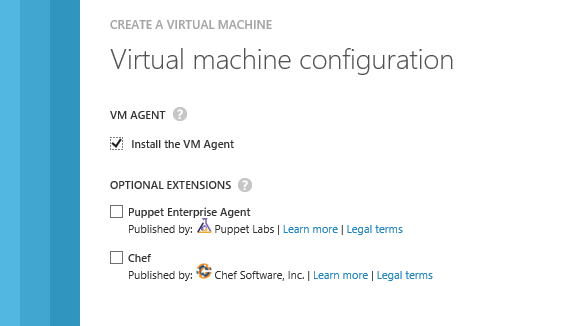
Executive VP Scott Guthrie introduced a new portal for Microsoft Azure, the cloud platform. This is not just a new look, but integrates with Visual Studio online so you can easily view and edit the code and track team projects. There are also new monitoring and analytics features so you can check page views, page load time, browser usage and more. Guthrie also announced integration with Puppet and Chef for deployment automation.

image

Language designer Anders Hejsberg also came on stage. He announced the release version of TypeScript, a “typed superset of JavaScript” which is suitable for large applications. He also announced a new preview release of the compiler project code-named Roslyn, and on stage pushed the button that published it as open source. What is Roslyn? It is the next generation compiler for C# and VB, and is itself written in C#. This enables compiler and workspace APIs, which in turn enable rich editor features:

The transition to compilers as platforms dramatically lowers the barrier to entry for creating code focused tools and applications. It creates many opportunities for innovation in areas such as meta-programming, code generation and transformation, interactive use of the C# and VB languages, and embedding of C# and VB in domain specific languages.

Roslyn will be fully released in the next version of Visual Studio, for which we do not yet have a date. Roslyn will be delivered alongside C# 6.0.

There is also a new .NET Foundation which will oversee open source projects for .NET, with backing from folk including Xamarin’s Miguel de Icaza and Umbraco’s Niels Hartvig. It is all a bit vague at the moment:

In the upcoming months, the .NET Foundation will be inviting many companies and community leaders to join the foundation, including its Board of Directors and will then finalize its operational details, including governance models for its open source initiatives, membership structure and industry and community engagement.

Another significant event in the .NET story is the arrival of true native code compilation for .NET, although currently only for 64-bit Store apps. More on this soon.

A couple of events during Build caught my eye. One was de Icaza’s session on using C# to build for iOS and Android, not so much for the content itself (though there was nothing wrong with it), but rather for the huge attendance it drew.

image

The session was moved to the Build keynote room, and while there were spare seats, the room felt well filled. This speaks loudly about the importance of those platforms even to Microsoft platform developers, as well as of Microsoft’s support of Xamarin’s work.

Another was the appearance of John Gruber, author of the Daring Fireball blog and an Apple enthusiast. He appeared in a video during the keynote, explaining how a project in which he is involved uses Azure for back-end services, and then in person at another session, interviewing journalist Ed Bott about what is changing at Microsoft.

image

Gruber seems to me representative of a group of smart observers who have not in general been impressed with Microsoft’s endeavours over the past few years; but he for one is now more positive on the subject. Windows Phone is much better than its market share suggests, he said. This alongside Azure and a new openness to supporting third-party clients has made him look more favourably on the company.

My summary is this. On the Windows client side, Microsoft is taking its unpopular Windows release and its minority Phone platform and making them better and more compatible with each other, making sense of the client platform in a way that should result in growth of the app ecosystem both on Phone and PC/Tablet. On the cloud side, the company is building Azure and Office 365 (two platforms united by Azure Active Directory) into a one-stop platform that is increasingly compelling. The result was a conference and a direction that was largely welcomed by those in attendance, as far as I could tell.

That does not mean that the PC will stop declining, or that iOS and Android will become less dominant in mobile. There is progress though, and more clarity about the direction of Microsoft’s platform than we have seen for some years.

For the official news from Build, see the Build Newsroom.

Microsoft CEO Satya Nadella introduces Microsoft Office for iPad, talks up Azure Active Directory and Office 365 development

New Microsoft CEO Satya Nadella has announced Office for iPad at an event in San Francisco. Office General Manager Julie White gave a demo of Word, Excel and Powerpoint on Apple’s tablet.

image

White made a point of the fidelity of Office documents in Microsoft’s app, as opposed to third party viewers.

image

Excel looks good with a special numeric input tool.

image

Office will be available immediately – well, from 11.00 Pacific Time today – and will be free for viewing, but require an Office 365 subscription for editing. I am not clear yet how that works out for someone who wants full Office for iPad, but does not want to use Office 365; perhaps they will have to create an account just for that purpose.

There was also a focus on Office 365 single sign-on from any device. This is Azure Active Directory, which has several key characteristics:

1. It is used by every Office 365 account.

2. It can be synchronised and/or federated with Active Directory on-premise. Active Directory handles identity and authentication for a large proportion of businesses, small and large, so this is a big deal.

3. Developers can write apps that use Azure Active Directory for authentication. These can be integrated with SharePoint in Office 365, or hosted on Azure as a separate web destination.

While this is not new, it seems to me significant since new cloud applications can integrate seamlessly with the directory already used by the business.

Microsoft already has some support for this in Visual Studio and elsewhere – check out Cloud Business Apps, for example – but it could do more to surface this and make it easy for developers. Nadella talked about SDK support for iOS and other devices.

Microsoft hardly mentioned Android at the event, even though it has a larger market share than iOS. That may be because of the iPad’s popularity in the enterprise, or does it show reluctance to support the platform of a bitter competitor?

Microsoft is late with Office for iPad; it should perhaps have done this two years ago, but was held back by wanting to keep Office as an exclusive for Windows tablets like Surface, as well as arguments with Apple over whether it should share subscription income (I do not know how that has been resolved).

There was also a brief introduction to the Enterprise Mobility Suite, which builds on existing products including Azure Active Directory, InTune (for device management) and Azure Rights Management to form a complete mobility management suite.

Nadella made a confident performance, Office for iPad looks good.

What is coming up at Build, Microsoft’s developer conference next week? Nadella said that we will hear about innovations in Windows, among other things. Following the difficulties Microsoft has had in marketing Windows 8, this will be watched with interest.

Flash developers fret as Adobe doubles down on PhoneGap


Adobe has announced Experience Manager Apps for Marketers and Developers. This comes in two flavours: Experience Manager Apps is for marketers, and PhoneGap Enterprise is for developers. The announcements are unfortunately sketchy when it comes to details, though Andre Charland’s post has a little more:

  • Better collaboration – With our new PhoneGap Enterprise app, developer team members and business colleagues can view the latest version of apps in production, development and staging

  • App editing capabilities – Non-developer colleagues can edit and improve the app experience using a simple drag-and-drop interface from the new Adobe Experience Manager apps; this way developers can focus on building new features, not on making updates.

  • Analytics & optimization – Teams can immediately start measuring app performance with Adobe Analytics; we’re also planning to incorporate functionality so teams can start A/B testing their way to higher app engagement and monetization using Adobe Target.

  • Push notifications – Engage your customers on-the-go with push notifications from Adobe Campaign

  • Support and training – PhoneGap Enterprise comes with SLA and support so customers can be rest assured that Adobe PhoneGap has their back.

Head over to the PhoneGap Enterprise site and you get nothing more than a “Get in touch” button.

image

Announcement-ware then. Still, enough to rile Flash and AIR (Adobe Integrated Runtime) developers who feel that Adobe is abandoning a better technology for app development. Despite the absence of the Flash runtime on Apple iOS, you can still build mobile apps by compiling the code with a native wrapper.

Adobe… this whole thread should make you realize what an awesome platform and die hard fans you have in AIR. Even after all that crap you pulled with screwing over Flex developers, mitigating Flash to just games, retreating it from the web, killing AS4 and god knows what else you’ve done to try to kill the community’s spirit. WE STILL WANT AIR!

says one frustrated developer.

Gary Paluk has also posted on the subject:

I have invested 13 years of my own development career in Adobe products and evangelized the technology over that time. Your users can see that there is a perfectly good technology that does more than the new HTML5 offerings and they are evidently frustrated that you are not supporting developers that do not understand why they are being forced to retrain to use inferior technologies.

Has Adobe in fact abandoned Flash and AIR? Not quite; but as this detailed roadmap shows, plans for a next-generation Flash player have been abandoned and Adobe is now focused on “web-based virtual machines,” meaning I guess JavaScript and other browser technologies:

Adobe will focus its future Flash Player development on top of the existing Flash Player architecture and virtual machine, and not on a completely new virtual machine and architecture (Flash Player "Next") as was previously planned. At the same time, Adobe plans to continue its next-generation virtual machine and language work as part of the larger web community doing such work on web-based virtual machines.

From my perspective, Adobe seemed to mostly lose interest in the developer community after its November 2011 shift to digital marketing, other than in an “apps for marketing” context. Its design tools on the other hand go from strength to strength, and the transition to subscription in the form of Creative Cloud has been brilliantly executed.