Category Archives: microsoft

Linux applications and .NET Core on a Chromebook makes this an increasingly interesting device

I have been writing about Google Chromebooks of late and as part of my research went out and bought one, an HP Chromebook 14 that cost me less than £200. It runs an Intel Celeron N3350 processor and has a generous (at this price) 32GB storage; many of the cheaper models have only 16GB.

This is a low-end notebook for sure, but still boots quickly and works fine for general web browsing and productivity applications. Chrome OS (the proprietary version of the open source Chromium OS) is no longer an OS that essentially just runs Google’s Chrome browser, though that is still the main intent. It has for some time been able to run Android applications; these run in a container which itself runs Android. Android apps run fairly well though I have experienced some anomalies.

Recently Google has added support for Linux applications, though this is still in beta. The main motivation for this seems to be to run Android Studio, so that Googlers and others with smart Pixelbooks (high-end Chromebooks that cost between £999 and £1,699) can do a bit more with their expensive hardware.

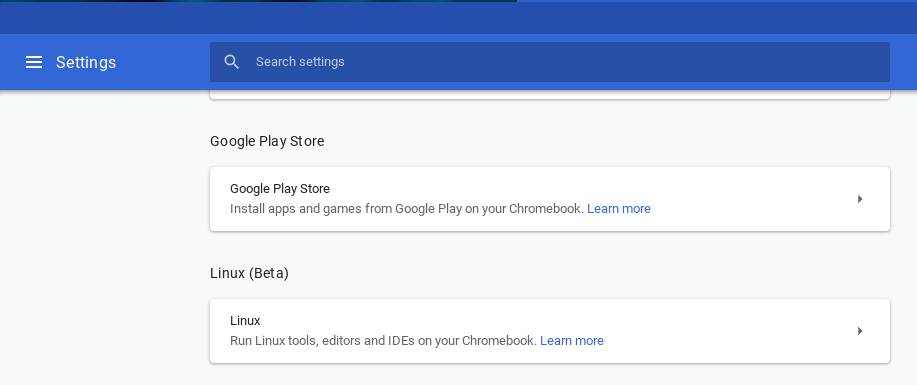
I had not realised that even a lowly HP Chromebook 14 is now supported by the beta, but when I saw the option in settings I jumped at it.

image

It took a little while to download but then I was able to open a Linux terminal. Like Android, Linux runs in a container. It is also worth noting that Chrome OS itself is based on Linux so in one sense Chromebooks have always run Linux; however they have been locked down so that you could not, until now, install applications other than web apps or Android.

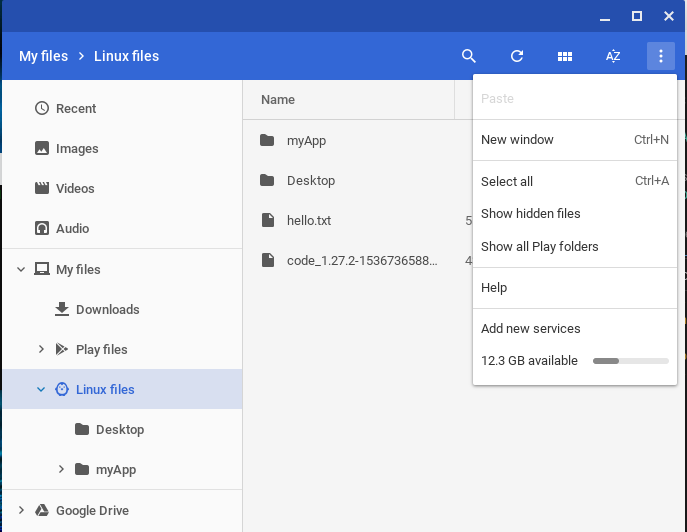
Linux is therefore sandboxed. It is configured so that you do not have access to the general file system. However the Chromebook Files application has access to your user files in both Chrome OS and Linux.

image

I found little documentation for running Linux applications so here are a few notes on my initial stumblings.

First, note that the Chromebook trackpad has no right-click. To right-click you do Alt-Click. Useful, because this is how you paste from the clipboard into the Linux terminal.

Similarly, there is no Delete key. To Delete you do Alt-Backspace.

I attribute these annoyances to the fact that Chrome OS was mostly developed by Mac users.

Second, no Linux desktop is installed. I did in fact install the lightweight LXDE with partial success but it does not work properly.

The idea is that you install GUI applications which run in their own window. It is integrated so that once installed, Linux applications appear in the Chromebook application menu.

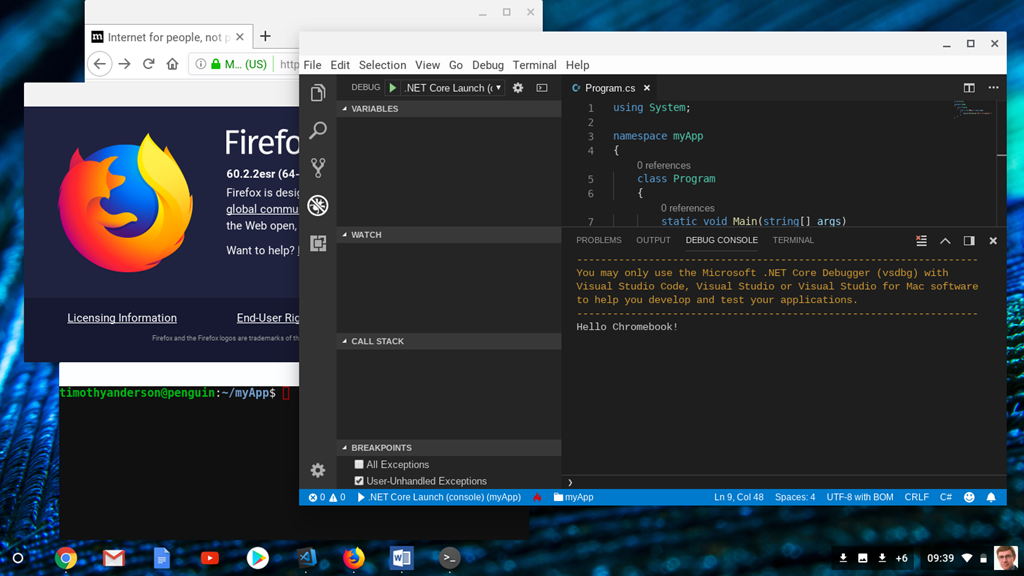
I installed Firefox ESR (Extended Support Release).  Then I installed an application which promises to be particularly useful for me, Visual Studio Code. Next I installed the .NET Core SDK, following the instructions for Debian.

image

Everything worked, and after installing the C# extension for VS Code I am able to debug and run .NET Core applications.

I understand that you will not be so lucky with VS Code if you have an ARM Chromebook. Intel x86 is the winner for compatibility.

What is significant to me is not only that you can now run desktop applications on a Chromebook, but also that you can work on a Chromebook without needing to be deeply hooked into the Google ecosystem. You still need a Google account of course, for log in and the Play Store.

You will also note from the screenshot above that Chrome OS is no longer just about a full-screen web browser. Multiple overlapping windows, just like Windows and Mac.

These changes might persuade me to spend a little more on a Chromebook next time around. Certainly the long battery life is attractive. Following a tip, I disabled Bluetooth, and my Chromebook battery app is reporting 48% remaining, 9 hrs 23 minutes. A little optimistic I suspect, but still fantastic.

Postscript: I was always a fan of the disliked Windows RT, which combined a locked-down operating system with the ability to run Windows applications. Maybe container technology is the answer to the conundrum of how to provide a fully capable operating system that is also protected from malware. Having said which, there is no doubt that these changes make Chromebooks more vulnerable to malware; even if it only runs in the Linux environment, it could be damaging and steal data. The OS itself though will be protected.

Microsoft Azure Stack: a matter of compliance

At the Ignite conference last week in Orlando, Microsoft’s hardware partners were showing off their latest Azure Stack boxes.

In conversation, one mentioned to me that Azure Stack was selling better in Europe than in the USA. Why? Because stricter compliance regulations (perhaps alongside the fact that the major cloud platforms are all based in North America) makes Azure Stack more attractive in Europe.

image
Lenovo’s Azure Stack

Azure Stack is not just “Azure for your datacentre”. It is a distinctive way to purchase IT infrastructure, where you buy the hardware but pay for the software with a usage-based model.

Azure / Azure Stack VMs are resilient so you cannot compare the value directly with simply running up a VM on your own server. Azure Stack is a premium option. The benefits are real. Microsoft mostly looks after the software, you can use the excellent Azure management tools, and you get deep integration with Azure in the cloud. Further, you can diminish the cost by scaling back at times of low demand; especially easy if you use abstracted services such as App Service, rather than raw VMs.

How big is the premium? I would be interested to hear from anyone who has done a detailed comparison, but my guess is that running your own servers with Windows Server Datacenter licenses (allowing unlimited VMs once all the cores are licensed) is substantially less expensive.

You can see therefore that there is a good fit for organizations that want to be all-in on the cloud, but need to run some servers on-premises for compliance reasons.

Redesign coming to Outlook for Windows and Mac, but will Microsoft fix what matters most?

At its Ignite conference under way in Orlando, Microsoft has been talking about its plans for Outlook, the unavoidable email and personal information management client for Office 365 and Exchange.

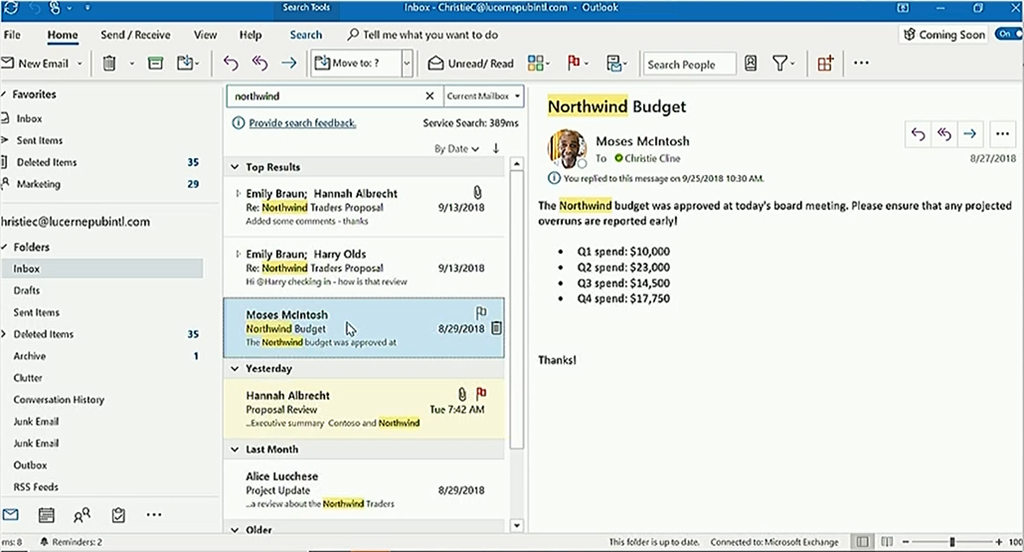
A lot of UI design changes are on the way, as well as back-end changes that should improve our experience. One of the changes is that “AI-infused” search will surface top results, based on contacts we often communicate with, keyword matching and so on. Search is also getting faster; apparently it has already doubled in speed compared to earlier versions.

image

There will be a simplified ribbon, more use of colour, an improved calendar, and many small design changes.

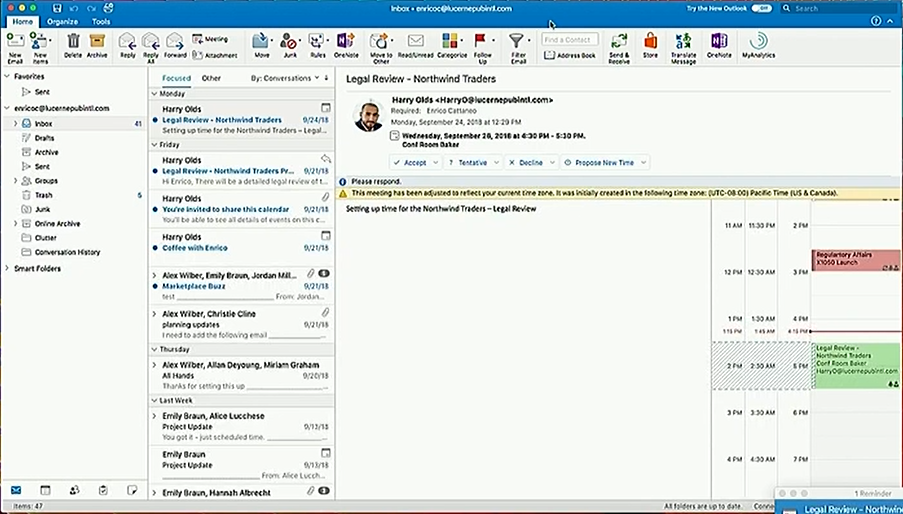
On the Mac, this is what Outlook looks like today:

image

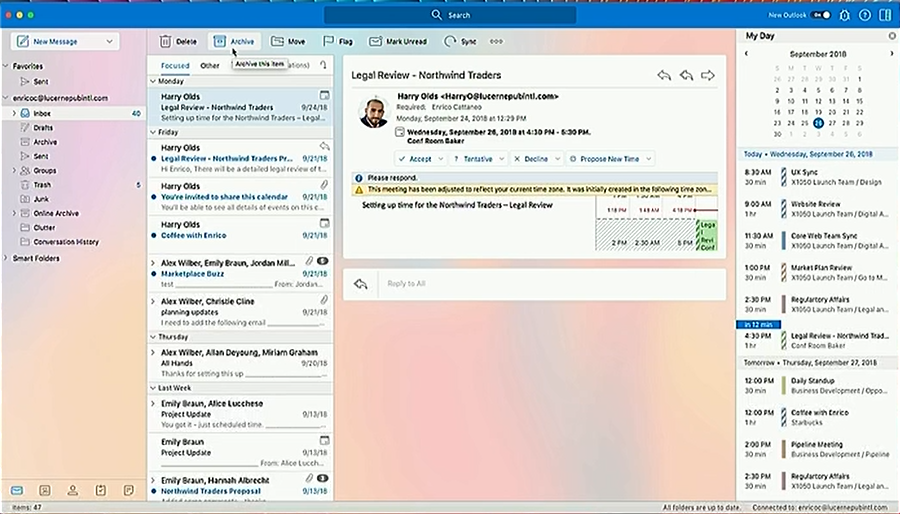
and this is what is planned:

image

The background shading is caused by transparency, which is configurable.

Nothing is set in stone and the previews we saw are just that, previews. Microsoft is looking for feedback via the Office Insider community, as well as previewing features in the application itself and inviting opinions.

It’s good to see redesign work on this application which is essential to many of us. However it is not clear that the things which matter most to me are being addressed. I had a chat with the speakers at the end and mentioned the following personal bugbears:

1. Message formatting still gets messed up especially if you want to do things like replying inline to an email. If you click in the wrong place you can still end up inheriting formatting from the message you are quoting such that you cannot easily get back to normal typing. It is all to do with the use of Word for the message editor, but without all the features of Word to control it.

2. I’d like to see something in the UI that would deter users from quoting a massive chain of previous correspondence in the message, sometimes sending content unawares that would better have remained confidential.

3. Something many have asked for: delayed send, so that when you reply too hastily there is a window of time when you delete or edit the message before it is sent. Configurable, of course.

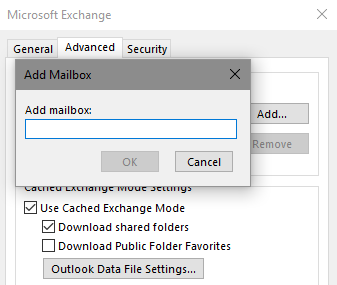
4. Attention paid to the many obscure dialogs, some of which have not been touched for decades. Like the Open other user’s mailbox control, which is not even a picklist, you have to type it exactly right:

image

5. Ever had a call from someone who has inadvertently engaged Work Offline and does not know why mail is no longer arriving? I have.

6. In Outlook mobile, at least on Android, search is infuriating. It retrieves results, but if they are more than a couple of weeks old, you cannot see the message.

7. Better performance when your connection is poor. I realise it is challenging, but you would think that proper use of background processes could give the user a reasonable and informative experience. Whereas today you can get hangs, lies (“this folder is up to date”, when it is not), that certificate warning when you are on public wifi and have not logged in yet (why can’t Outlook detect this common scenario?), repeated password requests when there are network problems, and so on.

8. Why are Outlook profiles managed in a Mail applet in Control Panel? Admins know this, but why not make it an Outlook Configuration app that appears in the Start menu. It would be easier for those who get stumped when Outlook does not open.

I am sure you have your own list. The bottom line though is this: the cosmetics of the design do matter, but not as much as issues which can stop you getting things done.

Microsoft Office 365 and Google G-Suite: why multi-factor authentication is now essential

Businesses using Office 365, Google G-Suite or other hosted environments (but especially Microsoft and Google) are vulnerable to phishing attacks that steal user credentials. Here is a recent example, which sailed through Microsoft’s spam and malware filters despite its attempts to use AI and other techniques to catch them.

image

If a user clicks the link and signs in, the bad guys have their credentials. What are the consequences?

– at best, a bunch of spam sent out from the user’s account, causing embarrassment and a quick password reset.

– at worst, something much more serious. Once an unauthorised party has user credentials, there are all sorts of social engineering possibilities to escalate the attack, obtain other credentials, or see what interesting data can be found in collaborative document stores and shared applications.

– another risk is to discover information about an organisation’s customers and contact them to advise of new bank details which of course direct payments to the attacker’s account.

The truth is there are many risks and it is worth every effort to prevent this happening in the first place.

However, it is hard to educate every user to the extent that you can be confident they will never click a link in an email such as the one above, or reveal their password in some other way – such as using the same one as one that has been leaked – check here to find out, for example.

Multi-factor authentication (MFA), which is now easy to set up on both Office 365 or G-Suite, helps matters by requiring users to enter a one-time code from their mobile, either via an authenticator app or a text message, before they can log in. It does not cost any extra and now is the time to set it up, if you have not already.

It seems to me that in some ways the prevalence of a few big providers in hosted email and applications has made matters easier for the hackers. They know that a phishing attack simulating, say, Office 365 support will find many potential victims.

The more positive view is that even small businesses can now easily use Enterprise-grade security, if they choose to take advantage.

I do not think MFA is perfect. It usually depends on a mobile phone, and given that possession of a user’s phone also often enables you to reset the password, there is a risk that the mobile becomes the weak link. It is well known that social engineering against mobile providers can persuade them to cancel a SIM and issue a new one to an impostor.

That said, hijacking a phone is a lot more effort than sending out a million phishing emails, and on balance enabling MFA is well worth it.

Want to connect PowerBI to Dynamics 365 CRM on-premises? Good luck with the official documentation

Microsoft champions hybrid IT, that is, some IT on-premises, some in the cloud; but its cloud-first strategy means that on-premises customers sometimes have a hard time getting the most from their software.

I have posted before about Dynamics CRM, which is very expensive but in places oddly sloppy, as if Microsoft has quality control issues or just does not care about some of the details in the product.

I encountered another example of this when attempting to configure Power BI desktop to connect to an on-premises instance of Dynamics CRM. At one time this was not supported, but it is now possible using OAuth to authenticate (presuming you have an internet-facing CRM deployment, which is generally the case).

There is an official document explaining how to set this up here.

That said, it seems that whoever wrote the document did not follow through the steps to check that they work, because they do not.

The first error is in in the documentation for enabling OAuth, which tells you to use ClaimsSettings in PowerShell:

image

However this is not the right setting, and the steps given will give you an error. The correct setting is called OAuthClaimsSettings. It is disabled by default. Set it to enabled using similar steps to those above.

Second, the document tells you to run the Add-Adfsclient command “on the PC where you are running Power BI Desktop”. In fact this must be run on the server where ADFS is installed.

The command itself is not all that reassuring:

Add-AdfsClient -ClientId “a672d62c-fc7b-4e81-a576-e60dc46e951d” -Name “Microsoft Power BI” -RedirectUri @(“https://de-users-preview.sqlazurelabs.com/account/reply/”, “https://preview.powerbi.com/views/oauthredirect.html”) -Description “ADFS OAuth 2.0 client for Microsoft Power BI”

Note the word “preview” that appears a couple of times in this mysterious command.

Even if you do all this, many people have struggled with connection issues. For myself, when I got this working on a test setup, I still got the error:

OData: The feed’s metadata document appears to be invalid. Error: The metadata document could not be read from the message content.

The fix in my case was to use “https://orgname.yourdomain/XRMServices/2011/Organizationdata.svc” for the feed, instead of “https://orgname.yourdomain/api/data/v8.2/”. Then I was up and running.

image

Maybe someone just needs to tell Microsoft to fix its documentation? A good point, but Cobalt’s Chris Capistran pointed out the errors back in April and nothing has changed.

Of course this sort of thing is not all bad for Microsoft partners, who can come in with superior knowledge and get things working.

Windows Server 2019 Essentials may be Microsoft’s last server offering for small businesses

Microsoft’s Windows Server Team has posted about Windows Server 2019 Essentials, stating that:

“There is a strong possibility that this could be the last edition of Windows Server Essentials.”

Server Essentials is an edition aimed at small organisations that includes 25 Client Access Licenses (CALs). If you go beyond that you have to upgrade to Windows Server Standard at a much higher cost. There are some restrictions in the product, such as lack of support for Remote Desktop Services (other than for admin use).

image

Microsoft has already greatly reduced its server offering for small businesses. Small Business Server, the last version of which was Windows Small Business Server 2011, bundled Exchange, SharePoint and System Update Services, and supported up to 75 users.

“Capabilities that small businesses need, like file sharing and collaboration are best achieved with a cloud service like Microsoft 365,” says the team, though also observing that Server 2019 will be supported according to the normal timeline, which means you will get something like mainstream support until 2024 and extended support until 2029 or so.

Good decision? There are several ways to look at this. Microsoft’s desire for small businesses to adopt cloud is not without self-interest. The subscription model is great for vendors, giving them a consistent flow of income and a vehicle for upselling.

Cloud also has specific benefits for small businesses. Letting Microsoft manage your email server makes huge sense, for example. The cloud model has brought many enterprise-grade features to organisations which would otherwise lack them.

Despite that, I do not altogether buy the “cloud is always best” idea. From a technical point of view, running stuff locally is more efficient, and from a business point of view, it can be cheaper. Of course there is also a legacy factor, as many applications are designed to run on a server on the local network.

Businesses do have a choice though. Linux works well as a file and print server, and pretty well as a Windows domain controller.

Network attached storage (NAS) devices like those from Synology and Qnap are easy to manage and include a bunch of features which are small-business friendly, including directory services and even mail servers if you still want to do that.

A common problem though with small businesses and on-premises servers (whether Windows or Linux) is weak backup. It makes sense to use the cloud for that, if nothing else.

Although it is tempting to rail at Microsoft for pulling the rug from under small businesses with their own servers, the truth is that cloud does mostly make better sense for them, especially with the NAS fallback for local file sharing.

Where next for Windows Mixed Reality? At IFA, Acer has an upgraded headset at IFA; Dell is showing Oculus Rift

It is classic Microsoft. Launch something before it is ready, then struggle to persuade the market to take a second look after it is fixed.

This may prove to be the Windows Mixed Reality story. At IFA in Berlin last year, all the major Windows PC vendors seemed to have headsets to show and talked it up in their press events. This year, Acer has a nice new generation headset, but Asus made no mention of upgrading its hardware. Dell is showing Oculus Rift on its stand, and apparently is having an internal debate about future Mixed Reality hardware.

I reviewed Acer’s first headset and the technology in general late last year. The main problem was lack of content. In particular, the Steam VR compatibility was in preview and not very good.

Today I tried the new headset briefly at the Acer booth.

image 

The good news: it is a big improvement. It feels less bulky but well made, and has integrated headphones. It felt comfortable even over glasses.

On the software side, I played a short Halo demo. The demo begins with a promising encounter with visceral Halo aliens, but becomes a rather dull shooting game. Still, even the intro shows what is possible.

I was assured that Steam VR compatibility is now much improved, but would like to try for myself.

The big questions are twofold. Will VR really take off at all, and if it does, will anyone use Windows Mixed Reality?

SQLite with .NET: excellent but some oddities

I have been porting a C# application which uses an MDB database (the old Access/JET format) to one that uses SQLite. The process has been relatively smooth, but I encountered a few oddities.

One is puzzling and is described by another user here. If you have a column that normally stores string values, but insert a string that happens to be numeric such as “12345”, then you get an invalid cast exception from the GetString method of the SQLite DataReader. The odd thing is that the GetFieldType method correctly returns String. You can overcome this by using GetValue and casting the result to a string, or calling GetString() on the result as in dr.GetValue().ToString().

Another strange one is date comparisons. In my case the application only stores dates, not times; but SQLite using the .NET provider stores the values as DateTime strings. The SQLite query engine returns false if you test whether “yyyy-mm-dd 00:00:00” is equal to “yyy-mm-dd”. The solution is to use the date function: date(datefield) = date(datevalue) works as you would expect. Alternatively you can test for a value between two dates, such as more than yesterday and less than tomorrow.

Performance is excellent, with SQLite . Unit tests of various parts of the application that make use of the database showed speed-ups of between 2 and 3 times faster then JET on average; one was 8 times faster. Note though that you must use transactions with SQLite (or disable synchronous operation) for bulk updates, otherwise database writes are very slow. The reason is that SQLite wraps every INSERT or UPDATE in a transaction by default. So you get the effect described here:

Actually, SQLite will easily do 50,000 or more INSERT statements per second on an average desktop computer. But it will only do a few dozen transactions per second. Transaction speed is limited by the rotational speed of your disk drive. A transaction normally requires two complete rotations of the disk platter, which on a 7200RPM disk drive limits you to about 60 transactions per second.

Without a transaction, a unit test that does a bulk insert, for example, took 3 minutes, versus 6 seconds for JET. Refactoring into several transactions reduced the SQLite time to 3 seconds, while JET went down to 5 seconds.

Should you convert your Visual Basic .NET project to C#? Why and why not…

When Microsoft first started talking about Roslyn, the .NET compiler platform, one of the features described was the ability to take some Visual Basic code and “paste as C#”, or vice versa.

Some years later, I wondered how easy it is to convert a VB project to C# using Roslyn. The SharpDevelop team has a nice tool for this, CodeConverter, which promises to “Convert code from C# to VB.NET and vice versa using Roslyn”. You can also find this on the Visual Studio marketplace. I installed it to try out.

image

Why would you do this though? There are several reasons, the foremost of which is cross-platform support. The Xamarin framework can use VB to some extent, but it is primarily a C# framework. .NET Core was developed first for C#. Microsoft has stated that “with regard to the cloud and mobile, development beyond Visual Studio on Windows and for non-Windows platforms, and bleeding edge technologies we are leading with C#.”

Note though that Visual Basic is still under active development and history suggests that your Windows VB.NET project will continue running almost forever (in IT terms that is). Even Visual Basic 6.0 applications still run, though you might find it convenient to keep an old version of Windows running for the IDE.

Still, if converting a project is just a right-click in Visual Studio, you might as well do it, right?

image

I tried it, on a moderately-size VB DLL project. Based on my experience, I advise caution – though acknowledging that the converter does an amazing job, and is free and open source. There were thousands of errors which will take several days of effort to fix, and the generated code is not as elegant as code written for C#. In fact, I was surprised at how many things went wrong. Here are some of the issues:

The tool makes use of the Microsoft.VisualBasic namespace to simplify the conversion. This namespace provides handy VB features like DateDiff, which calculates the difference between two dates. The generated project failed to set a reference to this assembly, generating lots of errors about unknown objects called Information, Strings and so on. This is quick to fix. Less good is that statements using this assembly tend to be more convoluted, making maintenance harder. You can often simplify the code and remove the reference; but of course you might introduce a bug with careless typing. It is probably a good idea to remove this dependency, but it is not a problem if you want the quickest possible port.

Moving from a case-insensitive language to a case-sensitive language is a problem. Visual Studio does a good job of making your VB code mostly consistent with regard to case, but that is not a fix. The converter was unable to fix case-sensitivity issues, and introduced some of its own (Imports System.Text became using System.text and threw an error). There were problems with inheritance, and even subtle bugs. Consider the following, admittedly ugly and contrived, code:

image

Here, the VB coder has used different case for a parameter and for referencing the parameter in the body of the method. Unfortunately another variable with the different case is also accessible. The VB code and the converted C# code both compile but return different results. Incidentally, the VB editor will work very hard to prevent you writing this code! However it does illustrate the kind of thing that can go wrong and similar issues can arise in less contrived cases.

C# is more strict than VB which causes errors in conversion. In most cases this is not a bad thing, but can cause headaches. For example, VB will let you pass object members ByRef but C# will not. In fact, VB will let you pass anything ByRef, even literal values, which is a puzzle! So this compiles and runs:

image

Another example is that in VB you can use an existing variable as the iteration variable, but in C# foreach you cannot.

Collections often go wrong. In VB you use an Item property to access the members of a collection like a DataReader. In C# this is omitted, but the converter does not pick this up.

Overloading sometimes goes wrong. The converter does not always successfully convert overloaded methods. Sometimes parameters get stripped away and a spurious new modifier is added.

Bitwise operators are not correctly converted.

VB allows indexed properties and properties with parameters. C# does not. The converter simply strips out the parameters so you need to fix this by hand. See https://stackoverflow.com/questions/2806894/why-c-sharp-doesnt-implement-indexed-properties if the language choices interest you.

There is more, but the above gives some idea about why this kind of conversion may not be straightforward.

It is probably true that the higher the standard of coding in the original project, the more straightforward the conversion is likely to be, the caveat being that more advanced language features are perhaps more likely to go wrong.

Null strings behave differently

Another oddity is that VB treats a String set to null (Nothing) as equivalent to an empty string:

Dim s As String = Nothing

If (s = String.Empty) Then ‘TRUE in VB
     MsgBox(“TRUE!”)
End If

C# does not:

String s = null;

   if (s == String.Empty) //FALSE in C#
    {
        //won’t run
    }

Same code, different result, which can have unfortunate consequences.

Worth it?

So is it worth it? It depends on the rationale. If you do not need cross-platform, it is doubtful. The VB code will continue to work fine, and you can always add C# projects to a VB solution if you want to write most new code in C#.

If you do need to move outside Windows though, conversion is worthwhile, and automated conversion will save you a ton of manual work even if you have to fix up some errors.

There are two things to bear in mind though.

First, have lots of unit tests. Strange things can happen when you port from one language to another. Porting a project well covered by tests is much safer.

Second, be prepared for lots of refactoring after the conversion. Aim to get rid of the Microsoft.VisualBasic dependency, and use the stricter standards of C# as an opportunity to improve the code.

Microsoft’s Dynamics CRM 2016/365: part brilliant, part perplexing, part downright sloppy

I have just completed a test installation of Microsoft’s Dynamics CRM on-premises; it is now called Dynamics 365 but the name change is cosmetic, and in fact you begin by installing Dynamics CRM 2016 and it becomes Dynamics 365 after applying a downloaded update.

Microsoft’s Dynamics product has several characteristics:

1. It is fantastically useful if you need the features it offers

2. It is fantastically expensive for reasons I have never understood (other than, “because they can”)

3. It is tiresome to install and maintain

I wondered if the third characteristic had improved since I last did a Dynamics CRM installation, but I feel it has not much changed. Actually the installation went pretty much as planned, though it remains fiddly, but I wasted considerable time setting up email synchronization with Exchange (also on-premises). This is a newish feature called Server-Side Synchronization, which replaces the old Email Router (which still exists but is deprecated). I have little love for the Email Router, which when anything goes wrong, fills the event log with huge numbers of identical errors such that you have to disable it before you can discover what is really going wrong.

Email is an important feature as automated emails are essential to most CRM systems. The way the Server-Side Synchronization works is that you configure it, but CRM mailboxes are disabled until you complete a “Test and Enable” step that sends and receives test emails. I kept getting failures. I tried every permutation I could think of:

  • Credentials set per-user
  • Credentials set in the server profile (uses Exchange Impersonation to operate on behalf of each user)
  • Windows authentication (only works with Impersonation)
  • Basic authentication enabled on Exchange Web Services (EWS)

All failed, the most common error being “Http server returned 401 Unauthorized exception.” The troubleshooting steps here say to check that the email address of the user matches that of the mailbox; of course it did.

An annoyance is that on my system the Test and Enable step does not always work (in other words, it is not even tried). If I click Test and Enable in the Mailbox configuration window, I get this dialog:

image

However if I click OK, nothing happens and the dialog stays. If I click Cancel nothing happens and the dialog stays. If I click X the dialog closes but the test is not carried out.

Fortunately, you can also access Test and Enable from the Mailbox list (select a mailbox and it appears in the ribbon). A slightly different dialog appears and it works.

I was about to give up. I set Windows authentication in the server profile, which is probably the best option for most on-premises setups, and tried the test one more time. It worked. I do not know what changed. As this tech note (which is about server-side synchronization using Exchange Online) remarks:

If you get it right, you will hear Microsoft Angels singing

But what’s this about sloppy? There is plenty of evidence. Things like the non-functioning dialog mentioned above. Things like the date which shows for a mailbox that has not been tested:

image

Or leaving aside the email configuration, things like the way you can upload Word templates for use in processes, but cannot easily download them (you can use a tool like the third-party XRMToolbox).

And the script error dialog which has not changed for a decade.

Or the warning you get when viewing a report in Microsoft Edge, that the browser is not supported:

image

so you click the link and it says Edge is supported.

Or even the fact that whenever you log on you get this pesky dialog:

image

So you click Don’t show this again, but it always reappears.

It seems as if Microsoft does not care much about the fit and finish of Dynamics CRM.

So why do people persevere – in fact, the Dynamics business is growing for Microsoft, largely because of Dynamics 365 online and its integration with Office 365. The cloud is one reason, which removes at least some of the admin burden. The other thing though is that it does bring together a set of features that make it invaluable to many businesses. You can use it not only for sales and marketing, but for service case management, quotes, orders and invoices.

It is highly customizable, which is a mixed blessing as your CRM installation becomes increasingly non-standard, but does mean that most things can be done with sufficient effort.

In the end, it is all about automation, and can work like magic with the right carefully designed custom processes.

With all those things to commend it, it would pay Microsoft to work at making the user interface less annoying and the administration less prone to perplexing errors.