Category Archives: mobile

Review: Acer Iconia W3 with Windows 8.1 Preview

Attendees at Microsoft’s Build conference last month were given an Acer Iconia W3 tablet, presumably because it is the earliest examples of Windows 8 on an 8″ tablet. I find it hard to assess; it seems good value but is a frustrating device.

The specs in summary:

  • Processor: Intel Atom Z2760 1.50 GHz Dual-core
  • Memory: 2GB
  • Storage: 64GB SSD
  • Card slot: MicroSD up to 64 GB
  • Display: 8.1″ Active Matrix TFT Colour LCD WXGA 1280 x 800
  • Graphics: Intel Graphics Media Accelerator HD, shared memory
  • Wireless: 802.11b/g/n, Bluetooth
  • Ports: HDMI, Micro USB, headset/speaker jack
  • Cameras: Front and rear
  • Microphone: Yes
  • Battery: 2-cell Li-Polymer 6800 mAh
  • Size and weight: 11.4 x 134.9 x 219 mm, 500g
  • Price: Around £350 or $430

Since this is an x86 device, it comes with full Windows 8.x, not the locked-down Windows RT edition. My guess is that Acer did this because Windows RT has been a hard sell, thanks to the poor selection of Windows Store apps on offer, indifferent performance, and confusion among customers when they discover that none of their existing Windows apps will run.

On the other had, do you really want full desktop Windows on an 8.1″ device? I view it with mixed feelings. Technically it runs well, and means that you have amazing capability in a small and highly portable device. The case against is that desktop Windows is designed neither for touch, nor to run on such a small screen. In order to use it, you need good eyesight and ideally a keyboard and mouse. The mouse is especially important, since targeting small desktop icons with fingers (at which I have become quite adept on larger Windows slates) is a real challenge on this tiny display.

image

There is a matching Bluetooth keyboard/dock (included in the picture above) which is available for around $80 and which was also handed out at Build. The underside of the keyboard forms a kind of case.

image

I am typing this review, naturally, on this very keyboard, and I am would not want to tackle it with only the on-screen keyboard. It feels cheap and plastic though, and I saw one Build delegate struggling with a broken key after only a day of use. Keyboards are quite delicate (some more than others), and arguably it would make more sense to protect the keyboard with the tablet, than the tablet with the keyboard.

Another issue is that the Bluetooth keyboard does not include a trackpad, perhaps because it would require a docking connector rather than just Bluetooth. However as mentioned above, the lack of a mouse is equally troublesome in desktop Windows. Therefore I have plugged in a USB mouse in order to work on this review.

Of course, once you have loaded your bag with keyboard and mouse as well as tablet, you begin to wonder whether a conventional laptop would have been easier. I admire Microsoft’s Surface design, where the keyboard cover does include a trackpad, and where the keys on the Type cover are folded inside the cover and therefore protected in your bag. The Surface Pro is far more expensive, but Surface RT not so much, and I suggest that Surface RT is a more satisfying product despite its locked-down desktop, especially with Windows 8.1 which includes Outlook.

The Iconia W3 also has a grainy screen. It is usable, but the worst screen I have seen for a while, and not helped by a high-gloss reflective surface.

Annoyance number three is the micro USB port. Few devices expect to find micro USB on the PC side, so you will need an adaptor. The Build handout included one, but I suspect this is not in the box by default. Even with an adaptor though, it is a nuisance, though I appreciate the difficulty in including a USB A port on a slim device like this.

Performance is no more than so-so, which is what you would expect from the Atom CPU. On SunSpider 1.0, for example, with IE11, the W3 scores 671.5ms, better than Surface RT at 1029.2ms but behind Surface Pro at 209ms. I think it is good enough for a device of this kind.

The device does get uncomfortably hot though, in an area at back right which I presume is close to the CPU.

The W3 does have its plus points. Battery life is good, Office Home Premium is included in the price, and it is what it claims to be: a small tablet capable of running full desktop Windows. That means you can use VLC to watch videos on a flight, or Live Writer for writing blog posts, or FileZilla for FTP, or Putty for SSH, to mention a few utilities that I miss on Windows RT.

Making sense of this device means reversing your thinking about Windows. You should plan to spend most of your time in the “Modern” tablet user interface, while occasionally dipping into the desktop. If that mode of working makes sense for you, and you want an 8.1″ device, the Iconia W3 is a reasonable purchase. Take note of all the caveats though. A close look at this device makes you realise why Microsoft embarked on the Surface project.
Not just Instagram: the Windows Phone (and BlackBerry, Firefox OS) app problem

I like the Windows Phone OS and use one day to day. However it has become impossible to do my job in technical journalism without either an Apple iOS or Android device alongside it. The reason is that I review gadgets and find increasingly that they come with app support – but only for iOS or Android.

The Fitbit exercise tracking gadget, for example.

image

Or the Corsair Voyager Air wireless hard drive, almost inaccessible from Windows Phone (you can do it with a firmware update and DLNA).


image

Or the Seagate Wireless Plus. Actually this one is better as it has a web UI, but no app.

image

My bank is Nationwide and has an app – uh oh.

image

It’s not just Instagram.

image

Where do Microsoft and Nokia go from here? Or other contenders like BlackBerry and Firefox OS? The answer of course is to sell lots of devices so that discontented users beat up the companies that do not support them. But selling lots of devices is difficult when the customer says, “it’s a nice phone, but it does not work with my portable hard drive. Or my bank. Or my Fitbit.”

The Mac survived versus the PC for many years with this kind of problem. It takes a loyal customer base and excellent 1st party and niche apps. There are still areas of strength which Microsoft and its phone partners could exploit (though they have been poor at this to date). Enterprise integration with Windows Server and System Center. Consumer integration with Xbox.

If the company can get it right with Windows tablets that would help too, especially combined with unification of the Windows 8 and Windows Phone app platforms.

Unfortunately for Microsoft though, the market has already decided that only two mobile platforms matter, and that will not be easy to change.

Acer announces 8.1” Windows tablet – but will desktop Windows work in this format?

Acer has announced an 8.1″ Windows tablet, the Iconia W3:

  • Intel Atom 1.8Ghz dual-core Z2760 CPU
  • 8 hr battery life
  • 1280 x 800 screen
  • 2GB RAM
  • Front and rear 2 MP cameras
  • Micro HDMI
  • Bluetooth 4.0
  • GPS
  • 32 or 64GB storage
  • Micro SD
  • Bundles Office 2013 Home and Student
  • Optional keyboard $79.99
  • $379.99, available this month

image

Anything wrong with this picture? Certainly it could be handy for using Windows on the go, being more compact than a Surface (though how much more, if you include the keyboard?) and much cheaper than Surface Pro.

There are some snags though. This device runs full Windows 8 rather than Windows RT, the ARM version, so you can run all your desktop apps; but many will be no fun to use on an 8.0″ screen, or without keyboard and mouse. The Modern – that is, Metro-style – apps should be fine, but the Windows 8 app ecosystem is still weak so you may struggle to get by on those. There is Office – and it is smart of Acer to bundle Home and Student – but will you be squinting to use it on such a small screen?

My hunch is that Windows will not sing on small tablets until there is a version of Office for the Modern UI.

Fixing an unresponsive screen on a Samsung Series 7 Slate with Windows 8

I currently travel with a Windows 8 slate, the slate being the retail Samsung Series 7 model (similar but not the same as the one given to Build attendees in 2011).

It is a decent machine with good performance, but has one considerable annoyance. From time to time, when waking the device from sleep or even turning on from cold, the screen stops responding to touch. The crude fix is to reset it by turning it off, then holding down the power button so it reboots. Open documents may be lost of course.

I do not have a cure for this behaviour, though I would love to know. However I have discovered the cause, which is that one or both Intel USB host controllers fails to start. You can see the problem in Device Manager:

image

How do you even get to this screen? Well, on my machine, if the top Intel host controller has a problem, then pen input fails but touch works. If the second Intel host controller fails, touch input fails but pen input works. If both fail (which also happens) you are sunk unless you can remote desktop in from another machine on the network.

Once you are in – via pen, touch, or remote desktop – right-click the offending controller and choose Disable. Then right-click again and choose Enable. This will fix the problem until next time.

A likely fix would be an updated driver for the host controller. The current driver dates from 2006.

image

However I cannot easily find anything more up to date.

Update: I have succeeded in updating the driver to one from February 2013 but it does not fix the problem. My conclusion is that the error in the USB Enhanced Host Controller is the symptom and not the cause of the issue. It is a resume or power-on problem; such as something happening too quickly or in the wrong order. Again, suggestions welcome!

Nokia 925: smart camera and metal band design continues Windows Phone 8 and Lumia effort

Nokia has announced the Lumia 925, a high-end Windows Phone which will go on sale in Europe in June from Vodafone and others. The price is around €469 + VAT, presumably without a contract. Vodafone customers will be offered an “exclusive 32GB version” according to the press release.

image

So what’s special about the 925? It sports a 4.5″ AMOLED 1280 x 768 display, which is decent, along with 1GB RAM and 16GB storage. Battery life is a claimed 440 hrs standby and 12.8 hrs talk time. No SD card slot, presumably for the same reason as for the 920: it would have “defiled it” according to Nokia VP Kevin Shields.

A big attraction is the camera, or rather cameras, including the main 8.7 MP PureView which also offers 1080p 30fps HD video, and the front-facing 1.2MP wide angle camera. The magic is said to be both in the lens and the software, especially the Smart Camera update (coming shortly after the launch) which enables the camera to take ten images in one shot, giving the user options for which one to keep (sounds similar to Microsoft’s Blink app which is already available for Windows Phone).

There is also Nokia’s HERE mapping suite which the company says offers “the world’s only fully integrated and true offline maps experience.”

Another Lumia innovation is the metal frame which is for “antenna functionality, appeal and robustness”. Presumably Nokia has ensured that it does not kill the signal when touched in the wrong place, as happened with the metal band for Apple’s iPhone 4.

Seemingly every mention of a Nokia phone has to ask the big questions. Can Windows Phone succeed against iPhone and Android? Can Nokia survive?

Whatever is the answer to those questions, this phone is unlikely to change it.

I will say that after a shaky start with the 800 (nice phone, terrible battery life and unfortunate bugs) the Lumia range has evolved into something excellent, that spans from good budget smartphones like the 620 to devices like the 820 and 920 which are a pleasure to use.

Windows Nokia Lumia 510 Phone just £70 at Tesco

In Tesco this morning I noticed the Nokia Lumia 510 on offer for £70.

image

Quick spec: Windows Phone 7.5, 4″ display, 800 x 480 screen, multipoint touch screen, Bluetooth, Wi-Fi, GPS, 256MB RAM, 4GB storage, 5MP camera, 480p video camera. Full details here.

256MB is minimal these days and there is no SD memory card slot or front-facing camera. For battery life, Nokia quote 653 hours of standby or 8.4 hours talk time on a 3G connection.

Sill, at £70 Windows Phone is no longer an expensive option.

If you want Windows Phone 8, you can get the Lumia 520 for £99.95 on Orange pay as you go, according to Nokia’s chart.

HP ElitePad 900: a tablet that is easy to disassemble thanks to magnetic screen attachment

I saw the HP ElitePad Windows 8 slate at a trade show last week and was impressed by a feature I had not heard about before: easy serviceability.

Tablets are usually intimidating to disassemble, thanks to screens that are either glued in place or which require alarming force to prise away. The ElitePad is different. It is a slate which is actually easier to take apart than most laptops, thanks to magnetic attachment. HP supplies a  depolarising jig into which you slot the tablet, whereupon you can easily remove the screen with a suction handle. There are a couple of screws to undo first, but it looks like an easy job.

Here are a few screen grabs from the explanatory video (embedded at the end of this post) which show what is involved. This is the tablet in the jig with the screen about to be removed.

image

This is the screen coming away.

image

And here is the unit with screen removed.

image

Once opened up, HP says you can replace these parts:

  • Dock connector
  • speaker system
  • SD and Sim card connector
  • webcam
  • NFC (Near Field Communications) sensor
  • battery
  • wireless LAN
  • antennas
  • power board
  • motherboard
  • processor
  • memory card

According to the video, the motherboard “contains the SSD” which sounds disappointing, since one of the first things you might want to do is to replace the rather small 32GB or 64GB SSD with a larger one.

Unfortunately this feature is not aimed at home users wanting to modify or fix their own tablets; you need the jig and HP training. At least, that is the official line; but I imagine that the DIY community will also benefit from this approach.

The ElitePad has a 10″ 1280×800 screen, dual core Z2760 Atom processor, 2GB RAM, and 32GB or 64GB SSD. It also supports memory expansion via an SD card, and there an option for a SIM for mobile broadband. Battery life is around 8 hours.

HP is using expansion jackets to adapt the ElitePad for specialist tasks – a throwback to the iPaq (remember that?) handheld computer which used the same concept. This includes jackets with additional battery, a productivity jacket with a keyboard and stand, a jacket for medical use, a retail POS (point of sale) option, and a rugged case for outside use. I hated the iPaq jackets, which were horribly bulky, but these look like a better proposition, though it is still a shame to bulk up your nice slim slate with fat case.

According to HP, a key selling point of the ElitePad is enterprise manageability thanks to Active Directory support. Of course this is x86 Windows 8, not Windows RT which cannot be domain-joined.

I do get the impression that HP has put considerable effort into the ElitePad which is not just a me-too Windows 8 product. Good to see.

The main snag with the ElitePad is its high price. It starts at $699 in the US, or £520 + VAT in the UK, and considering the lowly specification in terms of processing power, and the extra cost of the accessories, it looks poor value, though if it is a perfect fit for your business it might still be worth it (and no doubt you will get a better price if you buy in quantity).

Review: Plantronics Voyager Legend UC B235 Bluetooth Headset

A high quality wireless headset is a valuable accessory for frequent phone users. The Plantronics Voyager Legend UC (87670) is a high-end device suitable for softphones like Skype as well as smartphones and tablets, and replaces the Voyager Pro UC. The UC means Unified Communications and means it comes with a USB Bluetooth adapter for wireless desktop connections; it is also bundled with a dock and charger case.

If you want to use Microsoft Lync, look out for the special B235–M (Microsoft) version (87680). If you only want to use it with mobile devices, look for the Voyager Legend (without the UC).

I have been impressed by Plantronics headsets in the past, and this one too is an excellent device though I encountered a few niggles getting started.

image

In the box is the headset and USB adapter within a dual-purpose case/charger, a USB power adaptor, a desktop dock, a USB cable, and a few different sizes of ear gels and foam covers.

image

The headset itself has a similar basic design to the earlier Voyager Pro, though the call/answer button has been repositioned and there is an additional button on the microphone boom.

image

I am happy to see the call/answer button repositioned, since I found it awkward on the Pro. The ease of use of the buttons is critical, since you will often be operating them with the headset fitted, which means by feel alone. It takes practice of course, but the buttons on the Legend are well designed in this respect.

Another difference between the Pro and the Legend is the USB connection, for charging or wired connection to a PC. Whereas the Pro had a standard micro USB port, the Legend has a recessed magnetic connector. There is an adaptor supplied which converts this to a micro USB

The magnetic connector also enables the Legend to connect when in the case. The case has an external micro USB port so you can charge it in the case.

Note that the case also has a battery. According to Plantronics, if the case is fully charged, it can charge the headset twice before needing its own recharge, greatly increasing the effective talk time of the headset.

If that is not enough, you can also charge by sitting the Legend in a small desktop dock.

image

The buttons on the Legend Pro are as follows:

image

On/Off: self explanatory

Volume: a rocker switch which lets you increase or decrease volume to one of 9 positions. A tone sounds when you adjust the volume, and a voice announces when you reach maximum or minimum. Maximum volume is not that loud, perhaps to protect your hearing. It is fine provided the input volume from your device is reasonably loud, so check that if you have problems.

Call/Answer: Multi-function button. If there is an incoming call, tap to answer. During a call, tap to end call. Press and long hold to enter Bluetooth pairing mode. Press and hold for 2 seconds (indicated by a tone) to enter voice dial mode, or on iPhone, Siri. Double tap for redial of last inbound or outbound call.

Voice: Multi-function button, new in the Legend. Tap to use voice commands. During a call, tap to mute or unmute microphone. During music streaming, press and hold to play or pause.

The multi functions take a little bit of learning, but this does not take long.

Using the Voyager Legend Pro

There are apparently three microphones, nose-cancelling digital signal processing, and stainless steel windscreens in the Legend, and it shows in good voice quality; the results I got were consistently clear.

Pairing with the devices I tried – two phones and a PC – was straightforward. I used voice control (other than with the PC which is pre-paired using the supplied USB receiver). Tap voice, say “Pair mode”, go to Bluetooth devices on the phone and connect.

You can pair with two phones simultaneously. If you are making a call using voice control, and two phones are connected, it seems to default to whatever it thinks is “phone 1”.

I got good results both with the smartphones and with Skype on the PC. On the PC, the only thing that caught me out initially was that I had to press the Call button to enable Skype audio, even though Skype thought it was connected to the headset.

The incoming sound quality is fine for voice but disappointing for music. You cannot expect a mono headset to compete with high-end ear buds for audio, but I recall the Pro being a little better in this respect.

When I first connected to an Android phone, some features did not work properly. The basics worked, but voice dialling always seemed to call the wrong person, and pause/resume of music did not work. I connected to a Windows Phone 8 device, which proved more reliable. Then I reconnected to the Android phone, and everything now worked there too. The reason, I suspect, for some unpredictable behaviour is that many of the clever features of the Legend depend on the Bluetooth stack on the mobile device, hardware and software. Note that the things you can do with voice dialling and how well it works depend mainly on your mobile, not on the headset, though a good microphone like this one helps.

The headset is comfortable and I can happily wear it for long periods. As mentioned above, the button placement is better than on the Pro, and for this reason alone I prefer it.

Smart features

The Legend has a few smart tricks which distinguish it:

1. Voice commands. There are 9 voice commands you can use after tapping the voice button, such as “Pair mode”, “Check battery”, “Am I connected”, and “Redial”. Since the number of commands is limited, accuracy of recognition I found good. Note that voice dialling is engaged using the Call button, not the voice button, which is confusing. The reason is that voice dialling is more a feature of whatever mobile you are connected to, than it is of the headset itself.

2. Sensors. The Legend recognises when you put it on or take it off. Putting on the headset will answer a call, taking it off will pause streaming audio, for example. The call button is locked when the headset is not being worn.

3. Vocalyst is a subscription service you can use with the headset. A code for a year of basic service is included in the box.  You can connect to email, Twitter or Facebook, check news and sports, and so on. I did not try this; it does not look business-ready with limited Exchange support, for example.

4. Headset update. If you download the MyHeadset updater you can customise the Legend. I used this to replace the US voice with a UK voice, a nice feature.

5. Apps. I installed a couple of Android apps, MyHeadset which shows battery life, and FindMyHeadset which plays a tone if you have lost your headset but it is within range. The Spokes PC app also shows battery life and enables UC presence features and other settings.

Conclusion

This headset is excellent. The charger case is a great idea, but note that it does not hold all the accessories; I would like to keep the USB adaptor in there.

The new voice button is on the whole successful, within its limited goals.

I liked the ability to pair with two phones, the option for a UK voice, and the improved call button placement over the Voyager Pro.

There is still scope for improvement in usability and features, but much of the experience is down to how well Bluetooth is implemented in your particular mobile device, and how up to date is its specification.

On the desktop this is ideal for Skype and other softphones.

Specifications

Bluetooth version: 3.0 with A2DP (Advanced Audio Distribution), AVRCP (Audio/Video Remote Control), HFP (Wideband Hands-free) 1.6, HSP (Headset) 1.2, Phone Book access (PBAP), SSP2 (Secure Simple Pairing).

Headset weight: 18g.

Battery life: 7 hours talk time, 11 days standby.

Charge time: 90 minutes.

Operating distance: 10m.


Xamarin acquires LessPainful, announces Test Cloud for mobile apps

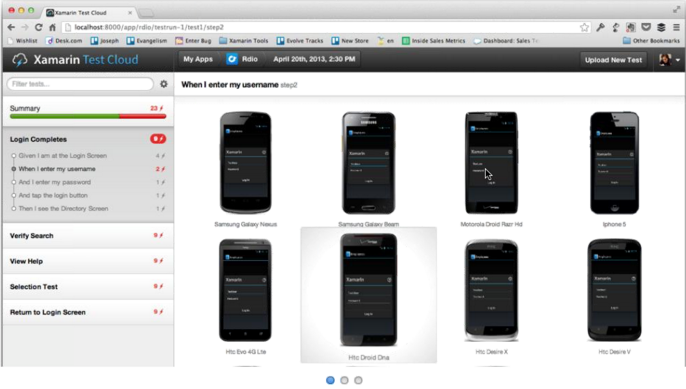
Xamarin, a company which provides tools for cross-platform development in C#, has announced its acquisition of LessPainful and the creation of cloud-based testing for mobile apps based on LessPainful’s technology and the Calabash scripting language it created.

The Test Cloud will perform automated user-interface tests on real devices, hosted by Xamarin, will provide detailed reports in the event of test failures, and will support Continuous Integration so that bugs are caught as early as possible.

image

“After you’ve conquered the cross-platform mobile development problem, testing is the next large pain point” says Xamarin CEO Nat Friedman. “You can’t just get by with manual testing. There’s a need for the same level of tools and processes in mobile testing that you have in desktop and web testing.”

“Quality is actually more important on mobile than in other places. Mobile sessions are very short. People are really intolerant of low quality on mobile. The release cycles are shorter too. People are revving more frequently, and testing is a bigger challenge.”

Another issue with mobile testing is the number of devices out there, especially if you throw cross-platform into the mix. “You have on Android all these manufacturers who customise the OS in different ways, you have multiple different versions that are in use, and you have multiple different form factors and device capabilities. The testing permutation matrix is huge.”

“Automated UI testing is the only kind of testing that can ensure that the app does what it is supposed to do.”

Friedman says that the Xamarin UI tests are more robust than competing UI test frameworks because they do not depend on UI image recognition. “The right answer is object-based, you identify user interface elements on the screen by object IDs”.”

How does testing on real devices work? If you have 50 developers testing on 27 devices in Xamarin’s cloud, will there be racks and racks of devices to support them?  “That’s what it looks like at our end, racks and racks of devices,” confirmed Friedman. “The service is going to be built based on device/hour usage. We’ll be able to scale up to match what people need.

“We talk to developers who spend $8,000 a month just to get new devices. That’s not counting the labour and everything else they need to do, to set up their own testing infrastructure. It’s a giant pain point.”

Xamarin’s Test Cloud will offer plug-ins for Jenkins, TeamCity, and Microsoft’s Team Foundation Server, to support Continuous Integration.

The scripting language for the Test Cloud is either Calabash , or C# scripting which is under development by Xamarin.

The Test Cloud is not just for applications developed using Xamarin’s C# framework, but also supports other frameworks including those written in native iOS Objective C. However, only iOS and Android are supported.

Availability is set for the third quarter of 2013.

Xamarin’s Evolve conference is currently under way in Austin, Texas, with around 600 developers in attendance. Friedman says the company is growing fast. 1000 developers a day download the tools, there are over 15,000 paid developers, and the company now has 65 employees.

More information on the Xamarin Test Cloud is here.