Category Archives: windows

Visual Studio 2012 hits and misses

A few quick reflections after writing a rather large review of Visual Studio 2012, Microsoft’s development tool for everything Windows.

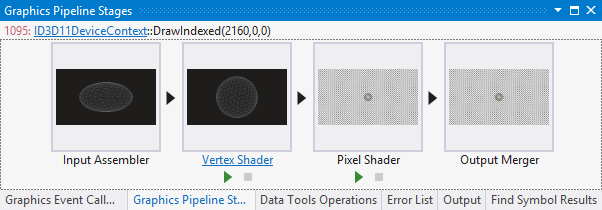
Several things impressed me. The Graphics Diagnostics Tools for Direct3D, for example, is amazing; you can capture a frame, select a pixel, and drill down into why it is the colour it is. See Amit Mohindra’s blog post here. Though admittedly I got “Unable to start the experiment session” on my first go with this; make sure the Debugger Type is set to Native Only.

image

Graphics is not really my area; but web development is more like it, and I continue to be impressed by what Microsoft has done with Windows Azure. You can go from hitting New Project in Visual Studio to an ASP.NET MVC 4.0 web site up and running on Windows Azure in moments. Even if you add an Azure SQL database into the mix it is not much harder. The experience is slightly spoiled by the fact that the new Azure portal for web sites etc is still in preview and seems to be a bit unreliable; I sometimes get an error when logging in and have to refresh before it works. That is a minor detail though; the actual deployed web sites and applications seem to work fine.

That said, it was also apparent to me that Microsoft’s Azure story has become a little confusing. Want an ASP.NET web app on Azure? Choose between a Web Role, a stateful VM, or a web site. Both web roles and web sites can be scaled quite effectively, thanks to the built in load balancer for web sites. Still, choice is good, as long as the differences are understood. It appears that Microsoft is still backing the web role approach as the most architecturally sound; but web sites are so easy to use and understand that it would not surprise me if they are more successful.

Another hit with me is the SQL Server Data Tools (SSDT), once I understood the difference between DACPACs and BACPACs – a DACPAC encapsulates the schema and logins etc for a database in a single file that you can import elsewhere, whereas a BACPAC also stores the data. The approach in SSDT is that a database schema is just a bunch of SQL scripts, and that if you manage it that way it makes a lot of sense in terms of version control, schema comparisons, deployment and maintenance.

On the ALM side I am impressed with Team Foundation Server Express, which is genuinely easy to install and lights up most of the key features of Microsoft’s ALM platform, though it does not handle the full SharePoint team portal or all the reporting features. Cloud hosting is also an option for TFS and that also worked OK for me, though with occasional delays as my code crossed the internet.

I hesitate slightly with TFS though. It feels like a heavyweight solution, whereas most developers like lightweight solutions. I know that open source tools like git and subversion only do a fraction of what you can do with TFS; but they also never keep me waiting.

I also wonder whether TFS simply creates too many artefacts. Work items seem to multiply rapidly as you use the system, which is good for traceability but could also become a bit of a bureaucratic nightmare if you have team members who make every action into a thing that needs comments and deadlines and links to source code and so on.

I guess it is like any other tool; it will work well for a team that already works well, but will not solve problems for a team that is already a bit dysfunctional.

I had not looked at Microsoft’s modelling featurs for a while; I was interested to discover new code generation features in the UML diagramming tools.

I am slowly beginning to understand what Microsoft is doing with apps for SharePoint. Get this: Microsoft is moving SharePoint 2013 towards being more of a service than a platform; you do not build apps on SharePoint; you build apps that use SharePoint services. This means you can at last develop SharePoint apps without having SharePoint installed on the same box as Visual Studio (thank goodness). And you can build SharePoint apps with PHP or Java as well as ASP.NET, because they are calling SharePoint, not running on it. Makes sense.

So what is not to like? There are a few puzzles, like the way Visual C++ has fallen behind in standards compliance despite the presence of Herb Sutter at Microsoft.

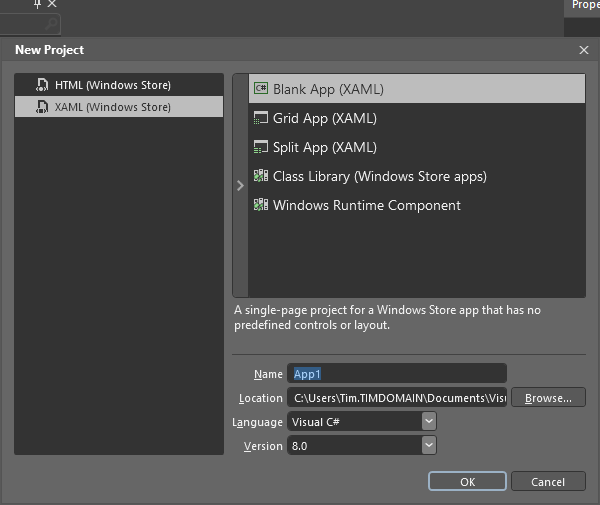
I also still find the whole XAML/Visual Studio/Blend thing a bit of a struggle. One day I will open up Blend, Microsoft’s XAML designer, and it will all fall into place as a natural and quick way to build a user interface, but it has not happened yet. I have also heard that developers should find the designer in Visual Studio enough; but at best it is rather slow and a little unpredictable.

Otherwise the tools for Windows Store apps seem decent to me, though I have heard that advanced developers are finding some issues; not surprising considering how new a platform it is. It is a distinctive platform, and my sense it that while there is a lot to like, developers need time to get the best from it, and there is also scope for Microsoft to improve it, maybe a few refinements in Windows 8 SP1?

Considering its scope, Visual Studio was relatively stable in my tests, though I did once get it into a state where it froze every time I tried to debug an application; fixed by a reboot (sigh).

I do not mind the monochrome user interface; I do not like it especially but it is something you get used to and do not notice after a short time.

Overall? Few people will use everything that is in Visual Studio and of course I have missed out most of it in the above, but it is a mighty achievement and still an asset to Microsoft’s platform.

All about Search in Windows 8: a feature every user has to understand

Windows 8 is a frustrating experience until you work out how Search works. Once it is discovered though, it is an elegant and powerful feature.

A confusing aspect of Windows 8 apps (on the tablet side) is that features such as menus and toolbars are hidden by default. There can be menu bars at top and bottom of an app, but you have to display them either by right-click or by swiping in from top or bottom. There is a philosophy behind this. Microsoft has called it the “immersive user interface”, one which puts content first and hides anything distracting.

Even this will not generally show Search though. Rather, Search is in the Charms bar, which you show by swiping from the right or pressing Windows key and C. There are also better shortcuts for Search, which I will come to in a moment.

When you click or tap Search in Windows 8, you are really in a kind of search centre. Take a look at the following screen, where I have displayed Search and typed “Keyboard”:

image

Note that the active search is restricted to Apps which have the word keyboard in their name. However, if you look at the right column, you can also see numbers: 25 against Settings, and 911 against Files.

This means Windows has found 25 settings for the keyboard, and 911 files. If you click or tap the different context, you see the new results.

image

Even this is not everything. The column below shows apps which have a search feature, such as Wikipedia, Store, Maps and Bing. If I tap or click Wikipedia, for example, I see encyclopaedia entries for keyboard.

image

Bing of course would give me an Internet search. Even Tunein Radio gives me results, and I can hear a broadcast about How does a QWERTY Keyboard work:

image

What this means is that the Search feature is a fast and efficient means of navigating the Windows user interface, finding documents and files, and discovering information from a variety of sources.

To get the most our of search, learn the following shortcuts:

  • Windows key and Q: Search apps
  • Windows key and W: Search settings
  • Windows key and F: Search documents and files

These shortcuts save you some clicks. If you use the mouse or Windows key and C to show charms, you have to then click or tap Search, and then choose the context you want. The shortcuts on the other hand get you a cursor ready to type your search. Search is incremental, so often just a few letters will do.

There is one subtlety. If you are  in the Start screen or on the Desktop and press Windows key and Q, you will search for an app by default. However, if you are in a Windows 8 tablet app, the shortcut will search within the current app by default. This is an inconsistency, and annoying if it comes up “This app can’t be searched”, but you can understand why it is designed that way. Otherwise, we would have four shortcuts to learn.

Appcelerator mobile developer survey shows Windows 8 progress, uncertainty

Cross-platform mobile tools vendor Appcelerator has released its latest mobile developer survey (in conjunction with IDC) representing the views of around 5,500 developers using its tools.

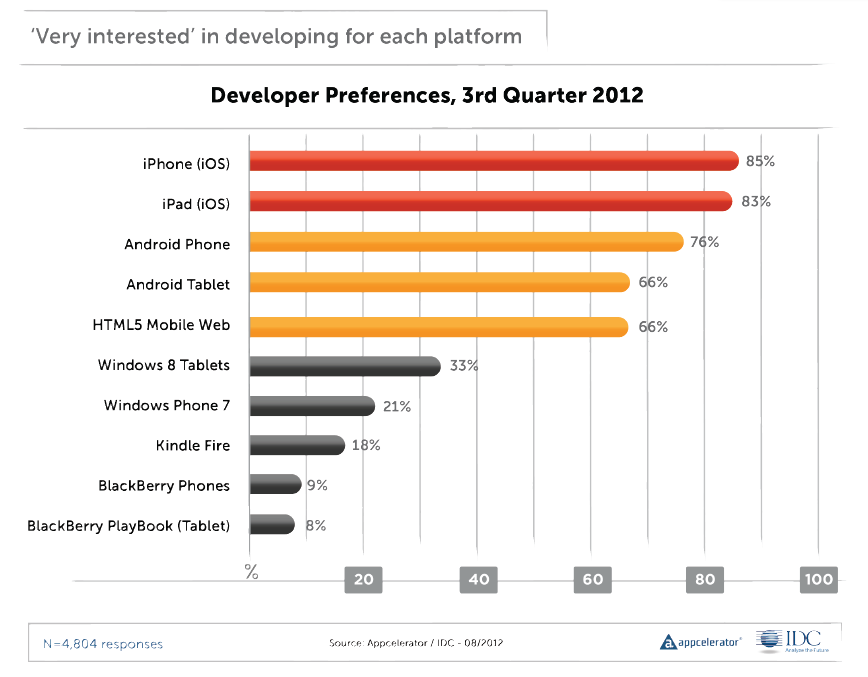
It is worth a read this time around. I was particularly interested to see what Appcelerator developers think of Windows 8, launching later this month. There is a chart showing the percentage of developers who are “very interested” in developing for various mobile platforms, and which shows Apple iOS leading at 85%/83% for iPhone and iPad, Android next, then HTML5, and then Windows 8 Tablets at 33% – already ahead of Windows Phone as well as Amazon and RIM devices (RIM has declined from 40% in January 2011).

image

The report says that potential Windows 8 developers are most interested in the “shared development capabilities between desktop and tablet promised by Microsoft with the launch of Windows 8.” I am not sure exactly what this means, and of course surveys like this are broad-brush and different developers will have meant different things. It could be about code sharing between desktop applications and Windows Runtime (WinRT) apps. It could be about the ability to run WinRT apps on the desktop as well as the tablet. It could be about Visual Studio and its ability to target multiple Windows platforms. However, the the survey goes on to talk about a “single paradigm for both desktop and tablet/smartphone applications” which seems to look forward to a future Windows where desktop applications really are legacy.

There is also a note that there were as many developers convinced that they will not be building apps for Windows 8 or Windows phone, as those who were.

What really counts is in the next paragraph in the report:

A large installed base of devices was the #1 criterion for 53% of developers when asked about why they choose to develop on a platform

This is the simple truth, which is why Microsoft has chosen a strategy which puts WinRT on every Windows 8 box whether or not it is really wanted.

The report also states that developers are dissatisfied with HTML5 for mobile applications, in terms of monetization, security, fragmentation, performance, and more. I suggest not taking too much account of this since Appcelerator’s Titanium tool is an alternative to HTML for mobile apps, so will have attracted those who do not want to use HTML5.

Finally, there is a fun section on what devices developers think they will be targeting in 2015. Televisions head the list, followed by connected cars. Most intriguing though are the final two: foldable screens and Google Glass. Apparently 67.1% believe Google Glass is in their future. Surveys, always entertaining but given the volatility of the results, not something you can rely on as a predictor.

A glimpse into the internal battles that set the future of Windows and .NET

A couple of posts from Hal Berenson give insight into the internal battles at Microsoft as the company worked out its strategy to rescue Windows from irrelevance in the world of mobile and tablets. Berenson is now President of True Mountain Group LLC but was formerly at Microsoft where his roles included SQL Server development and architecture, Mobile Development Tools strategy, and General Manager of Forefront identity and security products.

image

Berenson left Microsoft in October 2010, but by that time the strategy behind Windows 8 and Windows Phone 8 would have been in place.

According to Berenson, there were two core options for evolving Windows. There may have been others, but the heart of it is this: what to do with .NET. One option was to make .NET the app model for Windows, which is what was planned for the original Longhorn, before it was reset and became the less radical update that was Windows Vista. The other was to create a new app model based on native code. Steven Sinofsky, the Windows President, chose the latter, which is why .NET is only one of three options for programming the new tablet personality in Windows 8. This meant going down the opposite path from that of Windows Phone 7, which has an entirely .NET-based programming model.

You may recall from other sources that Steven Sinofsky has never been known to be a .NET fan.  While others within Microsoft, and even senior people in the (pre-Windows 8) Windows organization, wanted to move to an entirely .NET app model for Windows Steven did not.  He (and others fyi) wanted to re-engage the native code C++ developers that Microsoft had been neglecting.  And they wanted to co-opt the huge base of web developers to create apps for the Windows platform.  Well, what had the Windows Phone guys done?  They’d implemented a .NET only app platform.  Could the Windows Phone app platform evolve to address the native and web developers?  Sure.  But with no existing library of apps and a desire not to have .NET-centric platform at the core of Windows Sinofsky apparently felt pretty comfortable ignoring the Windows Phone team’s work.

This goes a long way to explain the puzzlement many of us experienced when it transpired that having created in Windows Phone 7 the basis for a touch-friendly operating system that could easily be extended to larger form factors such as tablets, Microsoft chose instead to do a new thing entirely for its tablet strategy.

One take on this is that Berenson’s account illustrates the chaos at Microsoft. Windows Phone was created in a mad hurry in reaction to the iPhone and the ascendance of touch UIs, reusing pieces of .NET, Silverlight and Zune to bring something to market quickly. Then the company’s next move was not to build on that, but to throw it away, even in the context of a mobile and device revolution that was and is a huge threat to its core business. And where was CEO Steve Ballmer in all of this?

The other take though is how this shows the determination and strategic focus of Windows boss Steven Sinofsky. He did not believe that rebuilding the Windows user interface on .NET would save it, with the Longhorn experiment no doubt a factor in that conviction, so he refused to go down that path again, despite the cost in terms of time and, perhaps more seriously, the impact on the developer ecosystem. Microsoft platform developers were asked first to bet on .NET and Silverlight, and now to bet on this new thing the Windows Runtime, and many are disillusioned or even angry. A hard decision; but putting long term strategy ahead of the immediate demands of your customers may be the right thing, in fact the only right thing.

Berenson also confirms what many of us have always assumed: that the removal of the Start menu on the Windows 8 desktop is all about making the new personality in Windows hard to avoid:

The Start menu, and indeed the entire desktop, are legacies that will have to be removed from Windows over time.  While the desktop itself is probably with us for a couple of additional major Windows releases (though there may be truly desktop-free editions sooner than that) the start menu was something that Steven has bet he could get away with not bringing forward into Windows 8.  By doing so he forces users to start living in the new usage paradigm rather than totally avoiding it.  Yes you can still set up a system to avoid leaving the desktop most of the time.  But you can’t avoid the new world completely.  In doing so he sets people up to eventually accept systems without the desktop at all (or at least Windows RT systems for personal use even if they need the desktop at work, for example).

Personally I no longer miss the Start menu; but its absence is certainly a barrier to adoption for Windows 8, as new users struggle to navigate the operating system.

Note: Berenson has kindly commented below. Note his point that merely working at Microsoft does not give you detailed knowledge of all decisions made there.

When will Blend, Microsoft’s Visual Studio design tool, be done? Not for a while says Soma Somasegar

During the Visual Studio 2012 launch last week I took the opportunity to ask Developer division Corp VP Soma Somasegar when Blend, Microsoft’s design tool for Visual Studio 2012, will be finished. A tricky question to answer, since there are multiple versions, as explained here:

  • Blend for Windows Store apps (HTML or XAML) is fully released and available as part of Visual Studio 2012

    image

  • Blend for WPF and Silverlight is in preview. For production you are meant to use the old Blend 4, unless you are targeting Silverlight 5 where you have no choice but to use the preview version.
  • Blend for Windows Phone is part of the Windows Phone SDK 7.1

The SketchFlow prototyping tool is also part of the preview Blend.

So when will Blend for Visual Studio 2012 be done? Somasegar refers to HBlend, which is the HTML version, and XBlend, which is for XAML.

“We shipped HBlend, and we shipped a preview of XBlend. It will take several months to finish. We also want to continue adding to HBlend. So I can’t tell you that Blend is ever going to be done [laughs],” he told me.

That said, the full Blend for Visual Studio 2012 will come out of preview sometime. Will it coincide with the first update for Visual Studio, announced for later this year?

“It is going to be later than the update, but I don’t have a specific timeframe,” he said.

Personally I have mixed (ha!) feelings about Blend. On the one hand, it is obvious that the simple designer in the Visual Studio IDE is insufficient, and that the rich Blend tool is needed, for those who can make sense of its intricate user interface. On the other hand, the designer aspect of Microsoft’s tooling seems to me messy, with too many versions of Blend and overlap between Blend and Visual Studio which gives developers a difficult choice: do I work with Blend, or stay within the simpler but more limited IDE tools?

Visual Studio 2012 launch: focus on Modern Apps

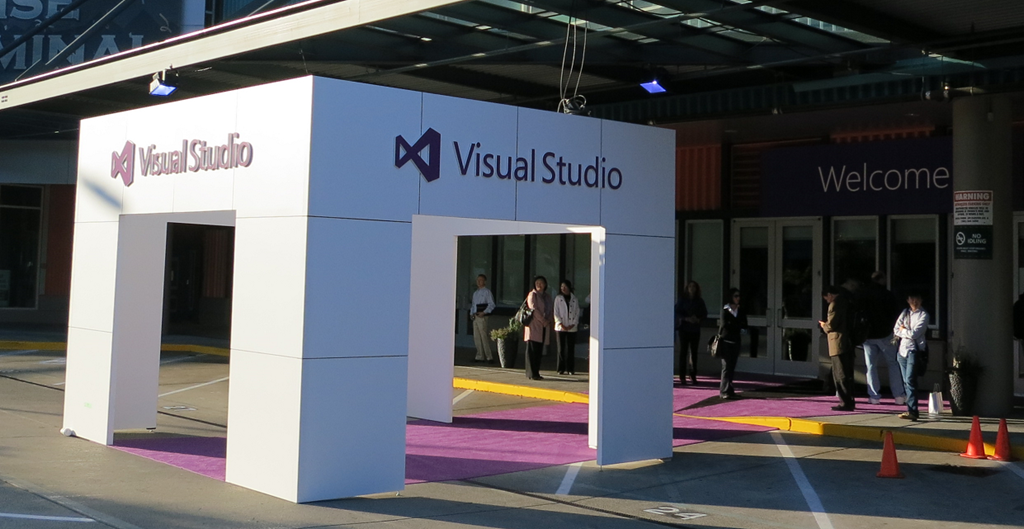
Microsoft is holding a launch event in Seattle for Visual Studio 2012, attended by selected Microsoft-platform developers as well as press from around the world.

image

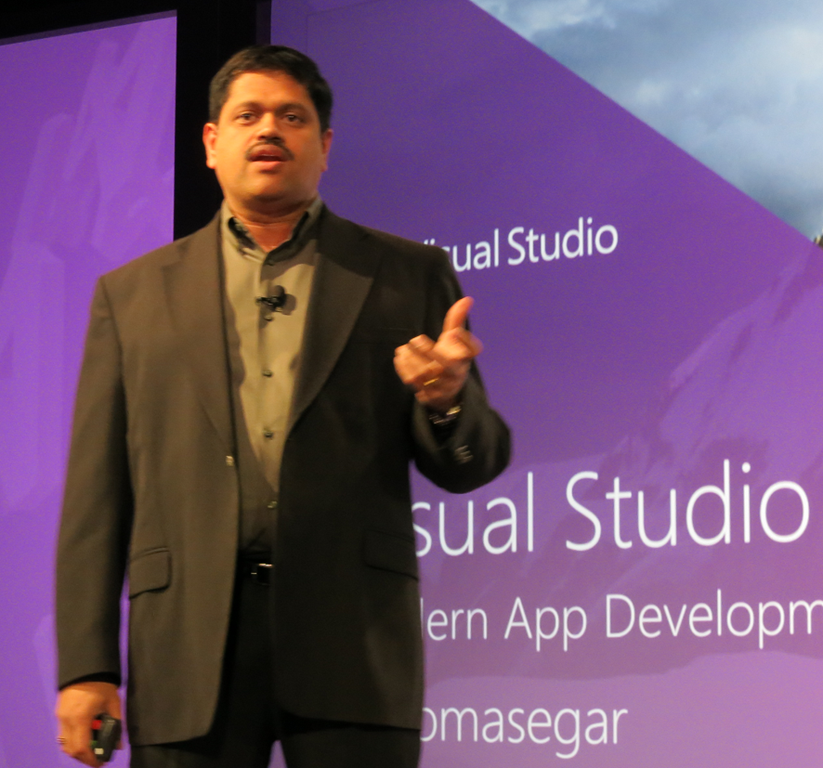
Corporate VP Soma Somasegar kicked off the keynote, saying that Visual Studio 2012 has already been downloaded 600,000 times since its release to the web around one month ago – a take-up, he said, which exceeds previous versions.

image

But what is Visual Studio 2012 all about? It’s for Modern Apps, said Somasegar, though you would be wrong to imagine that this means a Windows 8 formerly-known-as-Metro app. Rather, a Modern App implies continuous services and multiple client devices, connected over both public and private networks. In other words, think mobile as well as desktop, public and private cloud, and bring your own device as well as corporate desktops.

Fair enough, but it is all a bit vague and still leaves us wondering what exactly apps for the Windows Runtime are called at Microsoft. Visual Studio calls them Windows Store apps, which does not make complete sense when you consider that you can deploy the apps without going through the Store, and that the Store can include desktop apps although these are links rather than direct downloads.

Visual Studio 2012 is a vast and impressive product though. Developers were shown various new features, including asynchronous development for maintaining a responsive user interface, pixel-level debugging in DirectX, after the fact debugging using Intellitrace, and new HTML and CSS support in the editor, with error highlighting that adapts to the specified version of HTML.

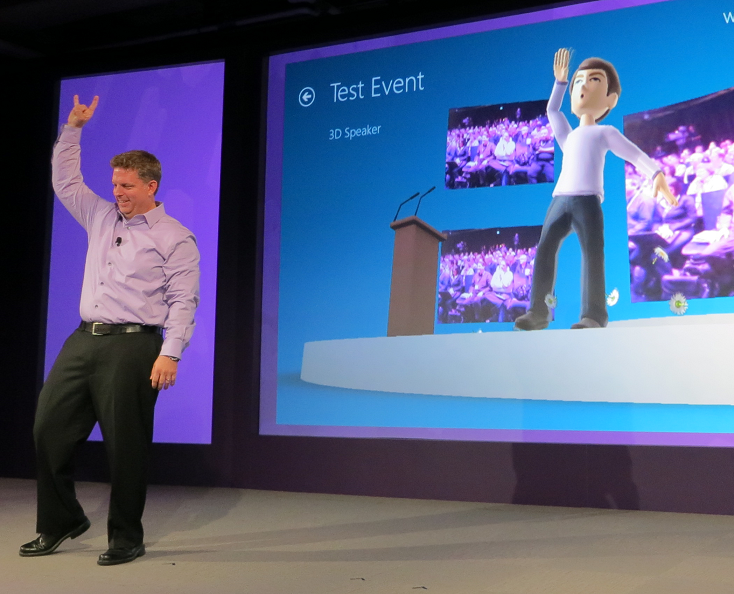
There was a quick demonstration of developing for Kinect, in which we saw an avatar mimic the movements of VP Jason Zander.

image

Technical Fellow Brian Harry spent some time showing off application lifecycle features in Team Foundation Server, including improved Scrum support and an emphasis on agile concepts like whole team development (the development team is not just developers).

There were a couple of announcements, including news of an update in preparation for Visual Studio 2012 which will include new features. There will be a preview later this month and delivery by the end of 2012.

Visual Studio Express for the desktop has now shipped and is available for download. This supports development in C#, Visual Basic and C++, so there is now a free C++ compiler available for Windows desktop development in the Visual Studio 2012 family.

I spoke to a couple of the invited developers after the morning event. Visual Studio 2012 looks good, they told me, but then again what choice is there for Windows platform development? That said, they had expected a stronger push for Windows 8 development, especially on the Metro-style side. Why did Microsoft not spend more time evangelising Windows 8 app development and the Windows Store? Of course there is a lot to cover but given how critical app momentum is to the success of the new Windows, it struck me as a valid point.

SharpDX: Managed DirectX for Metro from the community

One of the disappointments in Microsoft’s new Windows Runtime platform is lack of support for XNA, a gaming/fast graphics API which wraps DirectX and is supported on Windows, Windows Phone and on Xbox 360.

Developer Alexandre Mutel has stepped up to fill the gap with the open source SharpDX, which also provides access to the DirectX API from C#, supports both desktop and Windows Runtime development. One of the first games to use SharpDX, ARMED, has already arrived in the Windows Store.

image

In addition, Mutel says “it will certainly be possible to use ShardDX from Windows Phone 8”.

SharpDX was made possible by a custom tool called SharpGen which generates the .NET API automatically from the DirectX SDK.

The puzzle is why Microsoft did not make more effort to support XNA in Windows 8, or failing that to provide an alternative for .NET developers.

If you want to use SharpDX, be prepared for considerable effort learning the API, as there is little documentation so far. Still, it will likely be easier than learning C++, which is the official solution for DirectX on the Windows Runtime.

Adobe’s Roy Fielding patches Apache to ignore IE10 Do Not Track privacy request

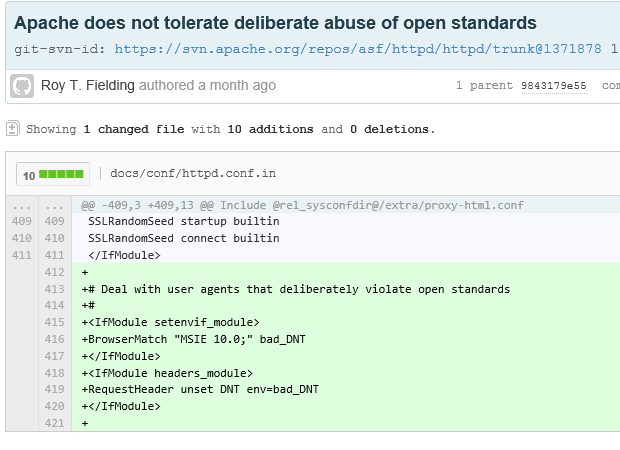
Adobe’s Roy Fielding, who is also the original author of the W3C’s Tracking Preference Expression draft, has patched Apache, the open source web server, to ignore the Do Not Track header sent by Microsoft’s Internet Explorer 10, the browser in Windows 8:

image

Under the heading “Apache does not tolerate deliberate abuse of open standards,” Fielding’s patch sets Apache to remove the Do Not Track request header if IE10 is the web browser.

Fielding’s argument, one presumes, is that IE10 breaches clause three in the Tracking Preference Expression draft:

Key to that notion of expression is that it must reflect the user’s preference, not the choice of some vendor, institution, or network-imposed mechanism outside the user’s control. The basic principle is that a tracking preference expression is only transmitted when it reflects a deliberate choice by the user. In the absence of user choice, there is no tracking preference expressed.

However the document goes on to say (highlighting is mine):

We do not specify how tracking preference choices are offered to the user or how the preference is enabled: each implementation is responsible for determining the user experience by which a tracking preference is enabled. For example, a user might select a check-box in their user agent’s configuration, install an extension or add-on that is specifically designed to add a tracking preference expression, or make a choice for privacy that then implicitly includes a tracking preference (e.g., Privacy settings: high). The user-agent might ask the user for their preference during startup, perhaps on first use or after an update adds the tracking protection feature. Likewise, a user might install or configure a proxy to add the expression to their own outgoing requests.

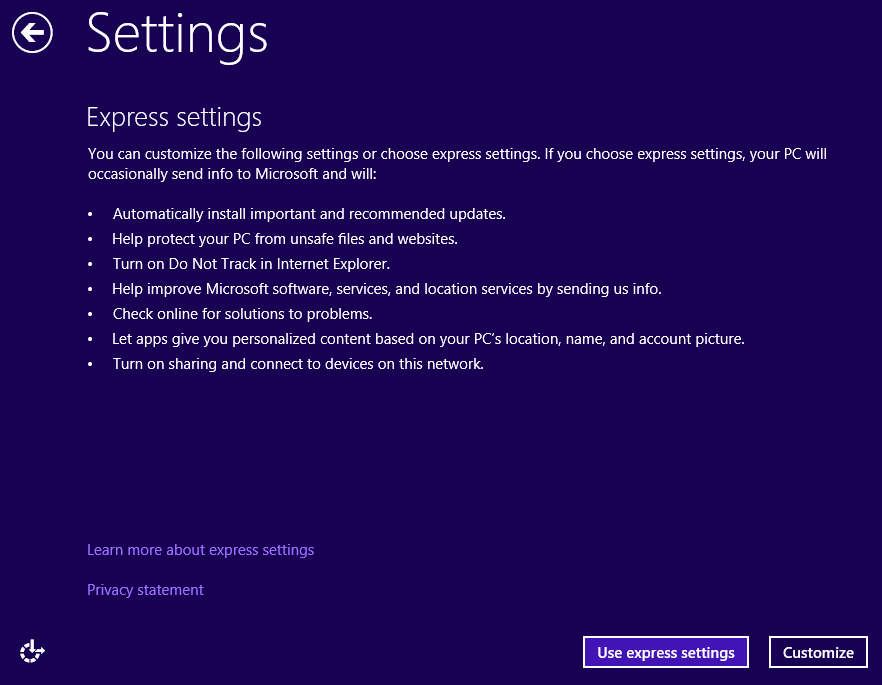
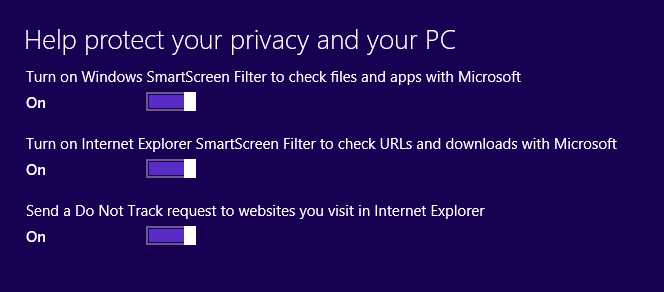
Here is what happens in Windows 8 after startup. This is among the first screens you see when installing Windows 8, before you get full access to the operating system:

image

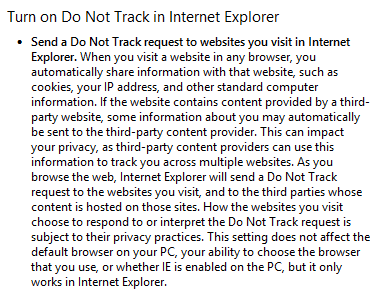
One of the settings specified is “Turn on Do Not Track in Internet Explorer. If you click Learn more about express settings you get this:

image

If you click Customize you get this:

image

Does this respect the user’s preference? It seems to me a reasonable effort. The only objection I can see is if you consider that any user agent that defaults to setting Do Not Track on cannot be respecting the user’s preference. The draft specification does not state what the default should be.

It is also worth noting that clause 3 in the Tracking Preference Expression draft has changed; the wording about “not the choice of some vendor” was inserted in the 7th September draft, after Windows 8 was released to manufacturing. Here it is in the latest (March 2012) W3C Working draft:

Key to that notion of expression is that it must reflect the user’s preference, not the preference of some institutional or network-imposed mechanism…

Even if you agree with Fielding’s views on browser defaults, quietly patching the world’s most used web server to ignore the IE10 setting looks hard to defend, especially on a matter that is far from clear cut. Fielding is personally involved, not only as the author of the Tracking Preference Expression document, but also as an employee of Adobe, which specialises in digital marketing and may be more aligned with the vendors and their brands which may want to track user activity wherever their ads appear, rather than with end users.

Of course Apache is an open source project and Fielding’s patch has attracted the attention of the Apache community and may not survive.

It is also possible that a future draft of the Tracking Preference Expression document will state that Do Not Track must be off by default; but even if it does, patching the web server to ignore the browser’s header strikes me as a contentious solution.

Finally, it is worth noting that sending the Do Not Track header has little effect on whether or not your activity is tracked, since its meaning is unclear and respecting its value is a a choice made by third-parties, so this is a debate with little practical impact for the time being.

Ancient game plays better in Windows 8 than Windows 7

Windows 8 runs the 1999 game Age of Empires II better than Windows 7, which curiously messes up the screen graphics unless you terminate the Windows Explorer process – a fact that I noted in December 2010. Here is the game in Windows 7:

and in Windows 8, without fiddling with Explorer:

image

The fact that the game runs better in Windows 8 is probably due to some obscure bug-fix, though I like to think that somewhere in the development team is a fan of this old but excellent game (it is great multi-player) who decided to make it work.

Microsoft’s Hyper-V Server 2012: too painful to use?

A user over on the technet forums says that the free standalone Hyper-V is too painful to use:

I was excited about the free stand-alone version and decided to try it out.  I downloaded the Hyper-V 2012 RC standalone version and installed it.  This thing is a trainwreck!  There is not a chance in hell that anyone will ever use this thing in scenarios like mine.  It obviously intended to be used by IT Geniuses in a domain only.  I would really like a version that I can up and running in less than half an hour like esxi.  How the heck is anyone going to evaluate it this in a reasonable manner? 

To be clear, this is about the free Hyper-V Server, which is essentially Server Core with only the Hyper-V role available. It is not about Hyper-V in general as a feature of Windows Server and Windows 8.

Personally I think the standalone Hyper-V Server is a fantastic offering; but at the same time I see this user’s point. If you join the Hyper-V server to a Windows domain and use the administration tools in Windows 8 everything is fine; but if you are, say, a Mac user and download Hyper-V Server to have a look, it is not obvious what to do next. As it turns out you can get started just by typing powershell at a command prompt and then New-VM, but how would you know that? Further, if Hyper-V is not joined to a domain you will have permission issues trying to manage it remotely.

Install Hyper-V Server, and the screen you see after logging on does not even mention virtualization.

image

By contrast, with VMWare’s free ESXi has a web UI that works from any machine on the network and lets you get started creating and managing VMs. It is less capable than Hyper-V Server; but for getting up and running quickly in a non-domain environment it wins easily.

I have been working with Hyper-V Server 2012 myself recently, upgrading two servers on my own network which run a bunch of servers for development and test. From my perspective the free Hyper-V Server, which is essentially Server Core with only the Hyper-V role available, is a great offer from Microsoft, though I am still scratching my head over how to interpret the information (or lack of it) on the new product page, which refers to the download as a trial. I am pretty sure it is still offered on similar terms to those outlined for Hyper-V Server 2008 R2 by Program Manager Jeff Woolsey, who is clear that it is a free offering:

  • Up to 8 processors
  • Up to 64 logical processors
  • Up to 1TB RAM
  • Up to 64GB RAM per VM

These specifications may have been improved for Hyper-V Server 2012; or perhaps reduced; or perhaps Microsoft really is making it a trial. It is all rather unclear, though I would guess we will get more details soon.

It is worth noting that if you do have a Windows domain and a Windows 8 client, Hyper-V Server is delightfully easy to use, especially with the newly released Remote Server Administration Tools that now work fine with Windows 8 RTM, even though at the time of writing the download page still says Release Preview. You can use Server Manager as well as Hyper-V Manager, giving immediate access to events, services and performance data, plus a bunch of useful features on a right-click menu:

image

In addition, File and Storage services are installed by default, which I presume means you can use Storage Spaces with Hyper-V Server, which could be handy for hosting VMs with dynamically expanding virtual hard drives. Technically you could also use it as a file server, but I presume that would breach the license.

For working with VMs themselves of course you have the Hyper-V Manager which is a great tool and not difficult to use.

image

The question then: with all the work that has gone into these nice GUI tools, why does Microsoft throw out Hyper-V Server with so little help that a potential customer calls it “too painful to use”?

Normally the idea of free editions is to entice customers into upgrading to a paid-for version. That is certainly VMWare’s strategy, but Hyper-V seems to be different. It is actually good enough on its own that for many users it will be a long time before there is any need to upgrade. Microsoft’s hope, presumably, is that you will run Windows Server instances in those Hyper-V VMs, and these of course do need licenses. If you buy Windows 8 to run the GUI tools, that is another sale for Microsoft. In fact, the paid-for Windows Server 2012 can easily work out cheaper than the free editions, if you need a lot of server licenses, since they come with an allowance of licenses for virtual instances of Windows Server. Hyper-V Server is only really free if you run free software, such as Linux, in the VMs.

Personally I like Hyper-V Server for another reason. Its restricted features mean that there is no temptation to run other stuff on the host, and that in itself is an advantage.