Category Archives: .net

Hands on Windows 8 development: Twitter and hyperlink hassles

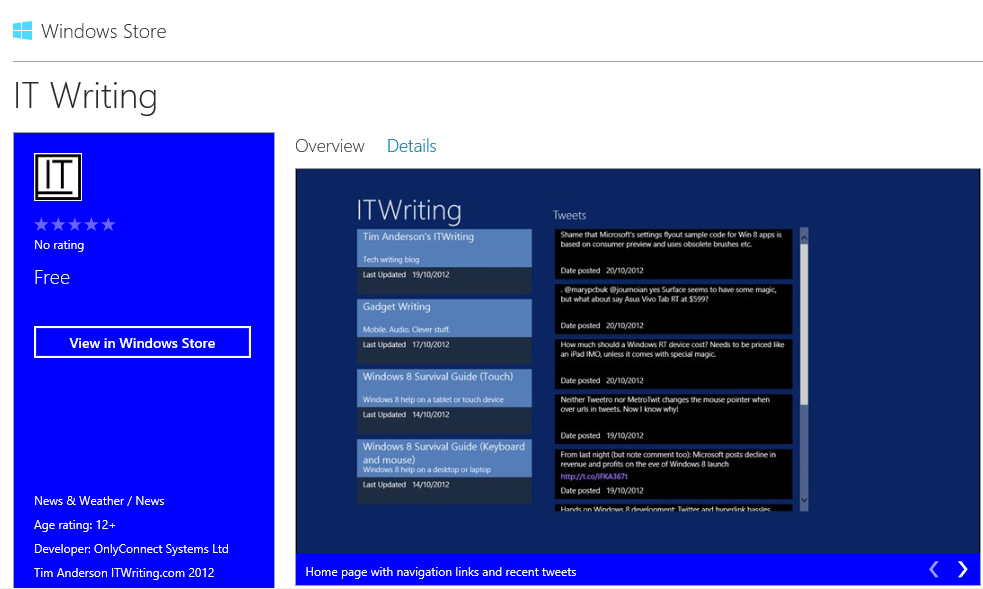
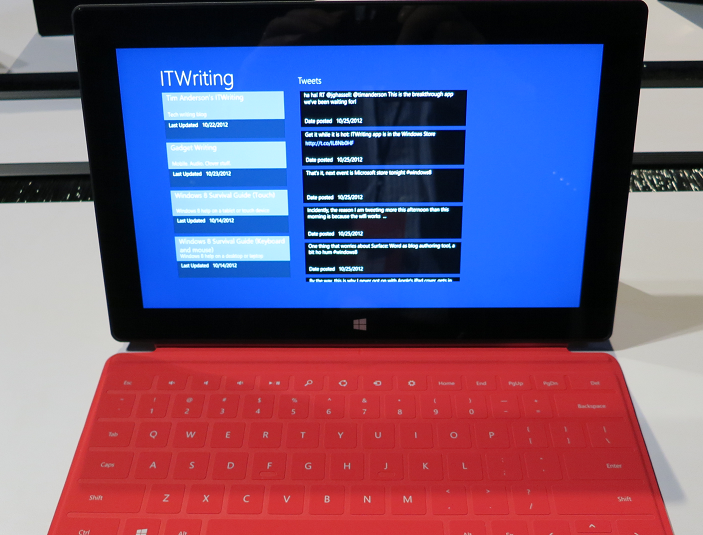
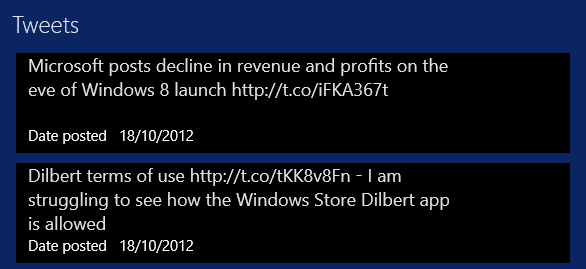
I have been messing around with a Windows 8 app to present content from ITWriting.com in an app, mainly as a learning exercise. I came up with the idea of showing recent tweets on the main page of the app. Like this:

image

I thought this would be easy, but encountered several problems. I am developing in XAML and C#; this aspect would probably be easier in HTML.

The first problem: retrieving the tweets. The Twitter REST API version 1.1 has GET statuses/user_timeline which does what I want, except that it requires “user context”, in other words a Twitter log-in. That is an unacceptable requirement for a user simply viewing my tweets, rather than their own timeline.

The deprecated  Twitter RSS API on the other hand is perfect. Unfortunately:

Please note that there is no support for the RSS response format in API v1.1. Properly versioned API v1 URLs will cease functioning in March 2013

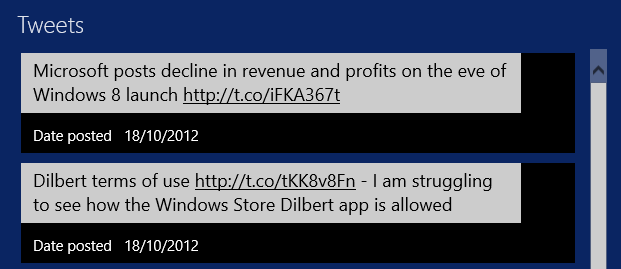
Never mind, it will do for the moment. I created a Twitter data source which retrieves the tweets as RSS. In my XAML I have a ListView which is bound to this data source. This ListView has an ItemTemplate which defines what appears in the list. I added a TweetItemTemplate in the Resources section of the XAML which displays each tweet in a TextBlock. So far so good.

image

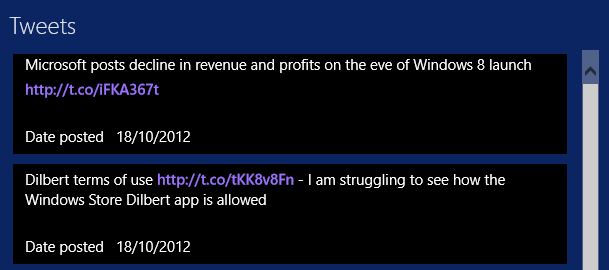
No hyperlinks though – they are dead. What is the use of a tweet without hyperlinks? Not much. I thought of a hack which would let you click or tap an entire tweet, look to see if a hyperlink is there, and then launch it. Ugly, and would only work for one hyperlink per tweet.

TextBlock does not support hyperlinks. However there is a way to do this using RichTextBlock. This supports a collection of inline elements. You can have a Run element containing text, then an InlineUIContainer containing a HyperLinkButton, then another Run element and so on. The Hyperlink will be out of alignment, as shown here, but you can fix that by tweaking margins and padding.

Of course, this approach does mean parsing the tweet to extract the URLs and then building the RichTextBlock content. So in place of my simple TextBlock binding I now have this:

  <ContentControl Content="{Binding Path=Title,Converter={StaticResource tweetToBlocks}}"></ContentControl>

I have also written a converter class which takes the bound value, builds the RichTextBlock in C#, and returns it. This gets you the result in the first image in this post. Not too bad, and the links work.

What is annoying though is that the mouse pointer does not change to a hand icon when you hover over the link. I thought I could fix this by subclassing HyperLinkButton and adding code to change the cursor on the PointerEntered event:

Window.Current.CoreWindow.PointerCursor = new Windows.UI.Core.CoreCursor(Windows.UI.Core.CoreCursorType.Hand, 1);

This does not work. At least, you can see a flash as the cursor tries to change, but it is overridden by the RichTextBlock which changes it back to a text select cursor. I have not found a way round this yet.

I then tried another approach. You can use a RichEditBox which does support links. The approach is different; you set the text of the Document property and then use the Link method to assign a link to a TextRange within it. It works; but I was frustrated to find that the mouse pointer still does not change to a hand when over the link. The RichTextBlock actually works just as well and is more integrated with XAML.

image

I am sure you could fix this by using a WebView – embedded IE – for each tweet, but that seems to me an unduly heavyweight approach. Better perhaps would be a single web view showing all the tweets, which I might try when I have a moment.

Even so, I was surprised how tricky it is to show tweets with hyperlinks in a ListView.

Adapting the Items Page template in a Windows Runtime app

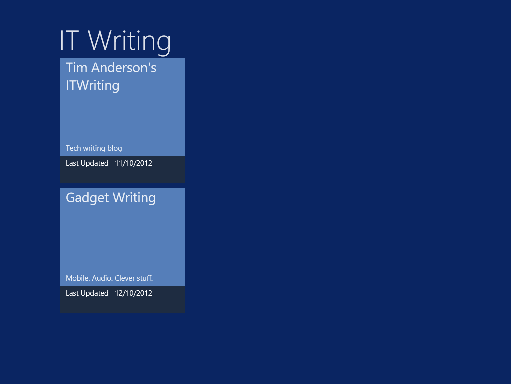
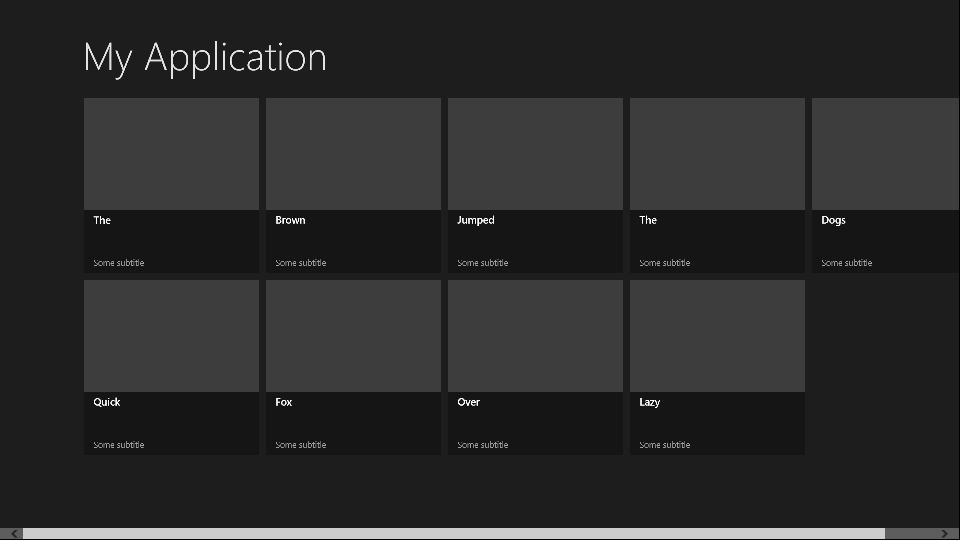
A while back I adapted a sample application in order to create an app for Windows 8. I am mulling over putting it in the Windows Store, but it needed some work. In particular, I wanted to add a Twitter feed to the front page. There is plenty of space:

image

Sounds easy; but inspecting the layout code I realised that I did not understand it all that well at first.

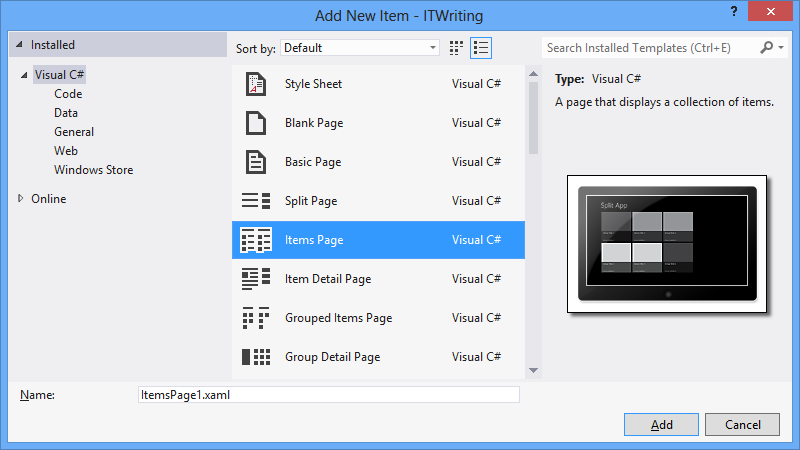
It is based on the Items Page template in Visual Studio 2012, and there is a fair amount going on in that template:

image

  • The contents are data-bound, which is great at runtime but inconvenient at design time as the page is empty.
  • The contents are layout-aware which means that they account for the four views possible in a Windows Runtime app: landscape, portrait, snapped, and filled. The “filled” name is a little misleading; this is an app which occupies most (but not all) of the screen when another app is snapped to one side.
  • The page uses resources and templates for its element styling, which are defined either in the page itself, or in StandardStyles.xaml which resides in the Common folder in your project (added automatically in projects which use the ItemsPage template).

It’s worth adding some dummy data early on so you can see what the page really looks like:

image

For example, imagine that you want to use a smaller item size that the default 250 x 250 size. Proceed as follows:

  1. Copy the DataTemplate called Standard250x250ItemTemplate from StandardStyles.xaml. Place it in the Page.Resources section of ItemsPage1.xaml (or whatever you called your ItemsPage). Rename it to, say, “MyItemTemplate”.
  2. Modify it to use a smaller size. You will probably want to adjust the bound elements as well, plus change the references to the standard Brush elements like  ListViewItemPlaceholderBackgroundThemeBrush as well.

Here is how the page looks with the space for the image removed, the DataTemplate height set to 50, and the height of the bound Title field set to 20:

image

Note that this template is not used by the Snapped view. For that, you will need to copy and modify the Standard80ItemTemplate, or make your own template suitable for an item in the Snapped view.

The code that determines which templates are used in which state is in the VisualStateManager.VisualStateGroups element. This has a Storyboard animation for the Portrait and Snapped views. The way this works:

  1. The default view is landscape. This is why in the XAML there is a GridView called itemGridView which is visible, and a ListView called itemListView which is hidden (Visibility="Collapsed").
  2. In the Snapped view there is only room for a single-column list, not the grid. Therefore the Storyboard for the Snapped view sets the itemListView to visible and the itemGridView to hidden.
  3. When you change back to a non-Snapped landscape view, the layout reverts to the default. Code for this in in LayoutAwarePage.cs, also in the Common folder.

After working this out I was better able to adapt my own page. More on that another time!

Visual Studio 2012 hits and misses

A few quick reflections after writing a rather large review of Visual Studio 2012, Microsoft’s development tool for everything Windows.

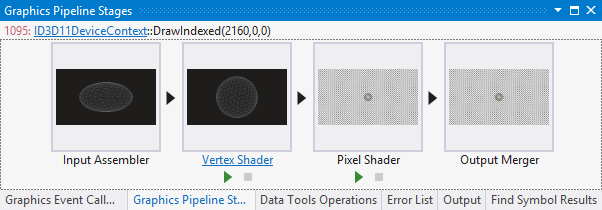
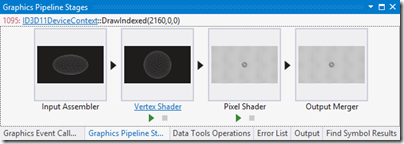
Several things impressed me. The Graphics Diagnostics Tools for Direct3D, for example, is amazing; you can capture a frame, select a pixel, and drill down into why it is the colour it is. See Amit Mohindra’s blog post here. Though admittedly I got “Unable to start the experiment session” on my first go with this; make sure the Debugger Type is set to Native Only.
image

Graphics is not really my area; but web development is more like it, and I continue to be impressed by what Microsoft has done with Windows Azure. You can go from hitting New Project in Visual Studio to an ASP.NET MVC 4.0 web site up and running on Windows Azure in moments. Even if you add an Azure SQL database into the mix it is not much harder. The experience is slightly spoiled by the fact that the new Azure portal for web sites etc is still in preview and seems to be a bit unreliable; I sometimes get an error when logging in and have to refresh before it works. That is a minor detail though; the actual deployed web sites and applications seem to work fine.

That said, it was also apparent to me that Microsoft’s Azure story has become a little confusing. Want an ASP.NET web app on Azure? Choose between a Web Role, a stateful VM, or a web site. Both web roles and web sites can be scaled quite effectively, thanks to the built in load balancer for web sites. Still, choice is good, as long as the differences are understood. It appears that Microsoft is still backing the web role approach as the most architecturally sound; but web sites are so easy to use and understand that it would not surprise me if they are more successful.

Another hit with me is the SQL Server Data Tools (SSDT), once I understood the difference between DACPACs and BACPACs – a DACPAC encapsulates the schema and logins etc for a database in a single file that you can import elsewhere, whereas a BACPAC also stores the data. The approach in SSDT is that a database schema is just a bunch of SQL scripts, and that if you manage it that way it makes a lot of sense in terms of version control, schema comparisons, deployment and maintenance.

On the ALM side I am impressed with Team Foundation Server Express, which is genuinely easy to install and lights up most of the key features of Microsoft’s ALM platform, though it does not handle the full SharePoint team portal or all the reporting features. Cloud hosting is also an option for TFS and that also worked OK for me, though with occasional delays as my code crossed the internet.

I hesitate slightly with TFS though. It feels like a heavyweight solution, whereas most developers like lightweight solutions. I know that open source tools like git and subversion only do a fraction of what you can do with TFS; but they also never keep me waiting.

I also wonder whether TFS simply creates too many artefacts. Work items seem to multiply rapidly as you use the system, which is good for traceability but could also become a bit of a bureaucratic nightmare if you have team members who make every action into a thing that needs comments and deadlines and links to source code and so on.

I guess it is like any other tool; it will work well for a team that already works well, but will not solve problems for a team that is already a bit dysfunctional.

I had not looked at Microsoft’s modelling featurs for a while; I was interested to discover new code generation features in the UML diagramming tools.

I am slowly beginning to understand what Microsoft is doing with apps for SharePoint. Get this: Microsoft is moving SharePoint 2013 towards being more of a service than a platform; you do not build apps on SharePoint; you build apps that use SharePoint services. This means you can at last develop SharePoint apps without having SharePoint installed on the same box as Visual Studio (thank goodness). And you can build SharePoint apps with PHP or Java as well as ASP.NET, because they are calling SharePoint, not running on it. Makes sense.

So what is not to like? There are a few puzzles, like the way Visual C++ has fallen behind in standards compliance despite the presence of Herb Sutter at Microsoft.

I also still find the whole XAML/Visual Studio/Blend thing a bit of a struggle. One day I will open up Blend, Microsoft’s XAML designer, and it will all fall into place as a natural and quick way to build a user interface, but it has not happened yet. I have also heard that developers should find the designer in Visual Studio enough; but at best it is rather slow and a little unpredictable.

Otherwise the tools for Windows Store apps seem decent to me, though I have heard that advanced developers are finding some issues; not surprising considering how new a platform it is. It is a distinctive platform, and my sense it that while there is a lot to like, developers need time to get the best from it, and there is also scope for Microsoft to improve it, maybe a few refinements in Windows 8 SP1?

Considering its scope, Visual Studio was relatively stable in my tests, though I did once get it into a state where it froze every time I tried to debug an application; fixed by a reboot (sigh).

I do not mind the monochrome user interface; I do not like it especially but it is something you get used to and do not notice after a short time.

Overall? Few people will use everything that is in Visual Studio and of course I have missed out most of it in the above, but it is a mighty achievement and still an asset to Microsoft’s platform.
Windows 8 discoverability: users searching for search

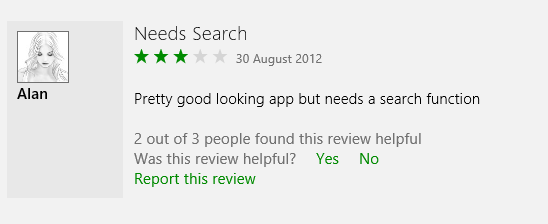
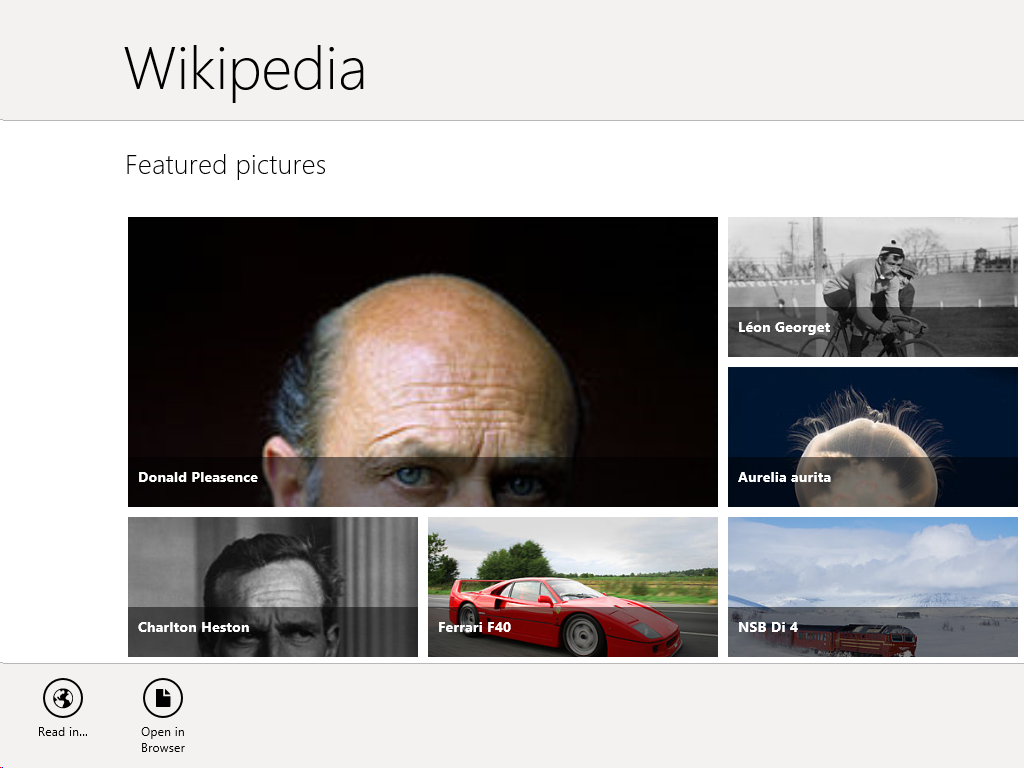
I have been poking around in the Windows Store as the public launch of Windows 8 approaches, and was intrigued by the reviews for the Wikipedia app, which is nicely done. Several users complain about the lack of a search function:

image

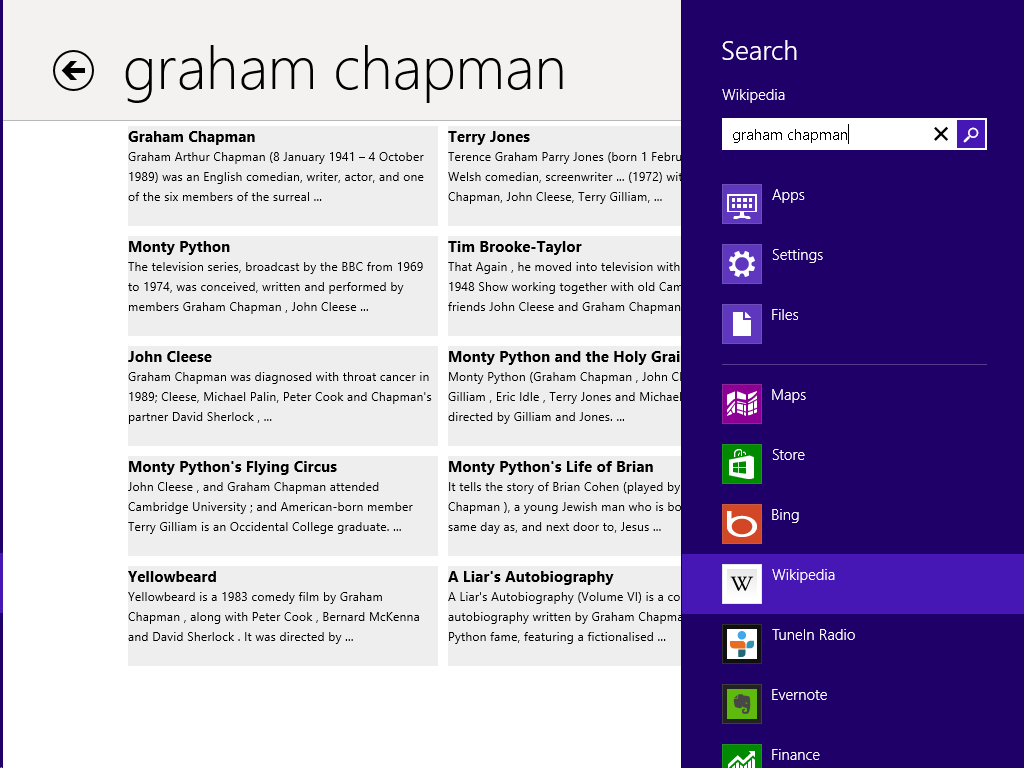
In fact the Wikipedia app has excellent fast search, on the Charms bar:

image

The problem: when you open the Wikipedia app there is no visual clue of where to find Search. Even if you have figured out that you need to right-click, or swipe up, to show the menu bar, it does not show a Search option.

image

The Wikipedia app developers have done the design correctly, in terms of Microsoft’s guidelines. This is the “Immersive user interface” which shows content rather than distracting UI furniture.

Another advantage of having Search on the Charms bar is that you are just a tap away from performing the same search in other apps, such as Internet Explorer.

The concept fails though if users simply do not discover key functions. What is the use of an encyclopaedia without search?

It does not help that the Charms bar, which is where Search lives, is hard to summon with the mouse. It is OK on a tablet (swipe from the right) or with the keyboard (Windows Key + Q). With the mouse, you have to position the pointer vaguely in the top or bottom corner and wait for Charms to fade into view if you have done it correctly. It is a vague movement with no feedback that you have initiated an action, like a button that does not click.

I presume though that as users live with Windows 8, Windows Key + Q will become natural when looking for a Search function (hah!). It is fair to say though that the UI does not score highly for discoverability.

Here comes TypeScript: Microsoft’s superset of JavaScript

Microsoft’s Anders Hejlsberg has introduced TypeScript, a programming language which is a superset of JavaScript and which compiles to JavaScript code.

The thinking behind TypeScript is that JavaScript is unsuitable for large projects.

“JavaScript was never designed to be a programming language for big applications,” says Microsoft’s Anders Hejlsberg, inventor of C#. “It’s a scripting language.”

The ubiquity of JavaScript makes it remarkably useful though, with that now extending to the server thanks to projects like node.js. Microsoft is using node.js for its Azure Mobile Services.

TypeScript therefore lets you use features including type annotations, classes, modules and interfaces to make large projects more robust and maintainable.

Variable names are preserved when TypeScript is compiled. Further, since TypeScript is a superset, any JavaScript code can be pasted into a TypeScript project. The compiler is open source and you can download an early version here.

Microsoft is also trying to stay close to the specification for Ecmascript 6, the proposed next iteration of the official JavaScript standard, where relevant.

There is tooling for Visual Studio including a language service to provide code hinting, syntax highlighting and the like.

TypeScript differs from projects like Google Web Toolkit or Script#, both of which also emit JavaScript, in that it does not compile from one language into another; rather, it compiles into a reduced version of itself.

Why is Microsoft doing this? That is the interesting question. I would conjecture that it is partly self-interest. Microsoft itself has to write increasing amounts of JavaScript, for things like Office Web Apps (apparently written in Script#) and the new Azure portals. Azure Mobile Services uses JavaScript as mentioned above. JavaScript is also one of the options for coding apps for Windows 8. Better tools will help Microsoft itself to be more productive.

That said, the arrival of TypeScript will re-ignite the debate about whether Microsoft, while not anywhere close to abandoning .NET, is nevertheless drifting away from it, towards both native code in Windows and now JavaScript in the managed code space.

More information from Microsoft’s S Somasegar here.

A glimpse into the internal battles that set the future of Windows and .NET

A couple of posts from Hal Berenson give insight into the internal battles at Microsoft as the company worked out its strategy to rescue Windows from irrelevance in the world of mobile and tablets. Berenson is now President of True Mountain Group LLC but was formerly at Microsoft where his roles included SQL Server development and architecture, Mobile Development Tools strategy, and General Manager of Forefront identity and security products.

image

Berenson left Microsoft in October 2010, but by that time the strategy behind Windows 8 and Windows Phone 8 would have been in place.

According to Berenson, there were two core options for evolving Windows. There may have been others, but the heart of it is this: what to do with .NET. One option was to make .NET the app model for Windows, which is what was planned for the original Longhorn, before it was reset and became the less radical update that was Windows Vista. The other was to create a new app model based on native code. Steven Sinofsky, the Windows President, chose the latter, which is why .NET is only one of three options for programming the new tablet personality in Windows 8. This meant going down the opposite path from that of Windows Phone 7, which has an entirely .NET-based programming model.

You may recall from other sources that Steven Sinofsky has never been known to be a .NET fan.  While others within Microsoft, and even senior people in the (pre-Windows 8) Windows organization, wanted to move to an entirely .NET app model for Windows Steven did not.  He (and others fyi) wanted to re-engage the native code C++ developers that Microsoft had been neglecting.  And they wanted to co-opt the huge base of web developers to create apps for the Windows platform.  Well, what had the Windows Phone guys done?  They’d implemented a .NET only app platform.  Could the Windows Phone app platform evolve to address the native and web developers?  Sure.  But with no existing library of apps and a desire not to have .NET-centric platform at the core of Windows Sinofsky apparently felt pretty comfortable ignoring the Windows Phone team’s work.

This goes a long way to explain the puzzlement many of us experienced when it transpired that having created in Windows Phone 7 the basis for a touch-friendly operating system that could easily be extended to larger form factors such as tablets, Microsoft chose instead to do a new thing entirely for its tablet strategy.

One take on this is that Berenson’s account illustrates the chaos at Microsoft. Windows Phone was created in a mad hurry in reaction to the iPhone and the ascendance of touch UIs, reusing pieces of .NET, Silverlight and Zune to bring something to market quickly. Then the company’s next move was not to build on that, but to throw it away, even in the context of a mobile and device revolution that was and is a huge threat to its core business. And where was CEO Steve Ballmer in all of this?

The other take though is how this shows the determination and strategic focus of Windows boss Steven Sinofsky. He did not believe that rebuilding the Windows user interface on .NET would save it, with the Longhorn experiment no doubt a factor in that conviction, so he refused to go down that path again, despite the cost in terms of time and, perhaps more seriously, the impact on the developer ecosystem. Microsoft platform developers were asked first to bet on .NET and Silverlight, and now to bet on this new thing the Windows Runtime, and many are disillusioned or even angry. A hard decision; but putting long term strategy ahead of the immediate demands of your customers may be the right thing, in fact the only right thing.

Berenson also confirms what many of us have always assumed: that the removal of the Start menu on the Windows 8 desktop is all about making the new personality in Windows hard to avoid:

The Start menu, and indeed the entire desktop, are legacies that will have to be removed from Windows over time.  While the desktop itself is probably with us for a couple of additional major Windows releases (though there may be truly desktop-free editions sooner than that) the start menu was something that Steven has bet he could get away with not bringing forward into Windows 8.  By doing so he forces users to start living in the new usage paradigm rather than totally avoiding it.  Yes you can still set up a system to avoid leaving the desktop most of the time.  But you can’t avoid the new world completely.  In doing so he sets people up to eventually accept systems without the desktop at all (or at least Windows RT systems for personal use even if they need the desktop at work, for example).

Personally I no longer miss the Start menu; but its absence is certainly a barrier to adoption for Windows 8, as new users struggle to navigate the operating system.

Note: Berenson has kindly commented below. Note his point that merely working at Microsoft does not give you detailed knowledge of all decisions made there.

Adobe Creating the Web, offers Edge animation tool for free

It is less than a year ago that Adobe pivoted wholeheartedly from Flash to HTML, a moment that to mind was marked by the acquisition of Nitobi, the PhoneGap company, announced at MAX in October 2011.

Yesterday Adobe clarified its plans for its new wave of web design tools branded Edge. These are as follows:

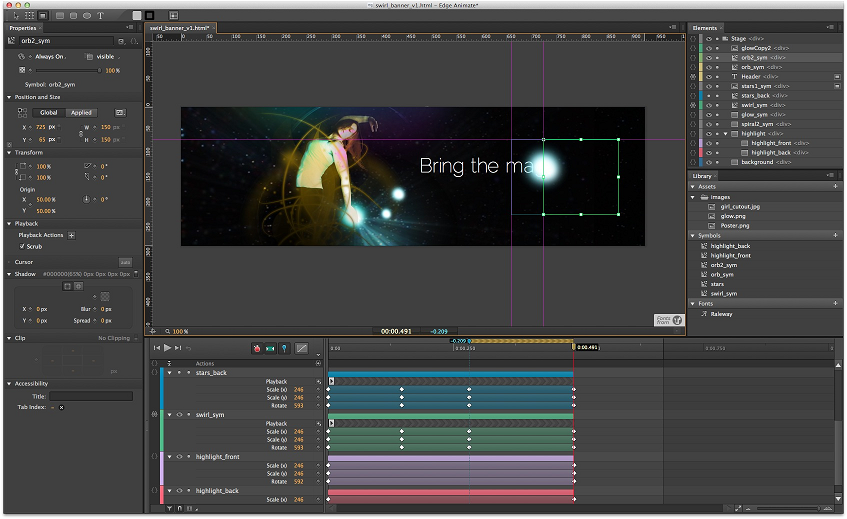
Edge Animate

A motion and interactive design tool for animating web content with HTML, JavaScript and CSS.

image

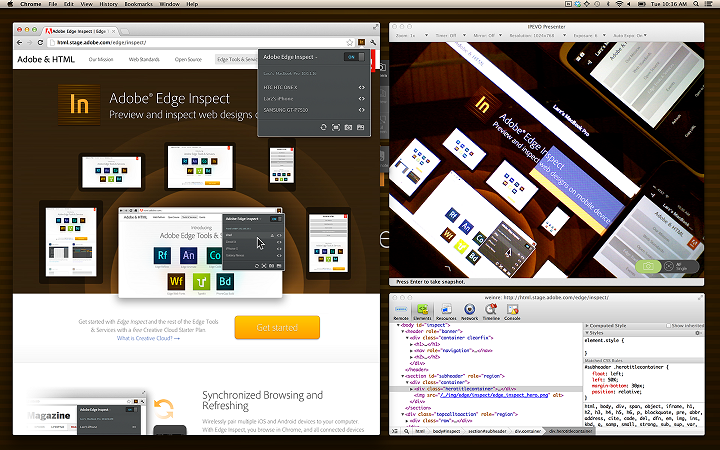
Edge Inspect

Preview HTML content on mobile devices for test and debug.

image

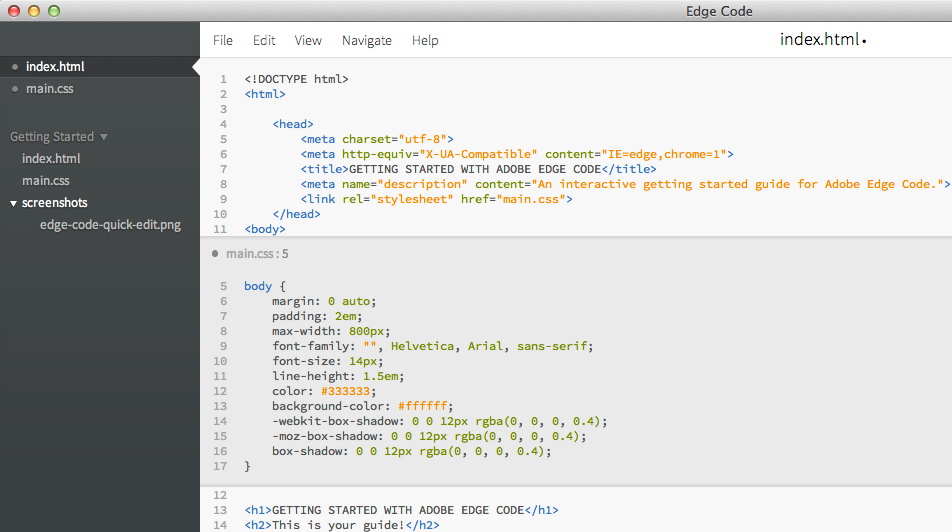
Edge Code

This is a commercial product based on the open source Brackets project – a similar relationship to the one that exists between Adobe PhoneGap and the open source Cordova project.

Edge Code adds Adobe integrations such as with Edge web fonts and Typekit, and with PhoneGap Build.

image

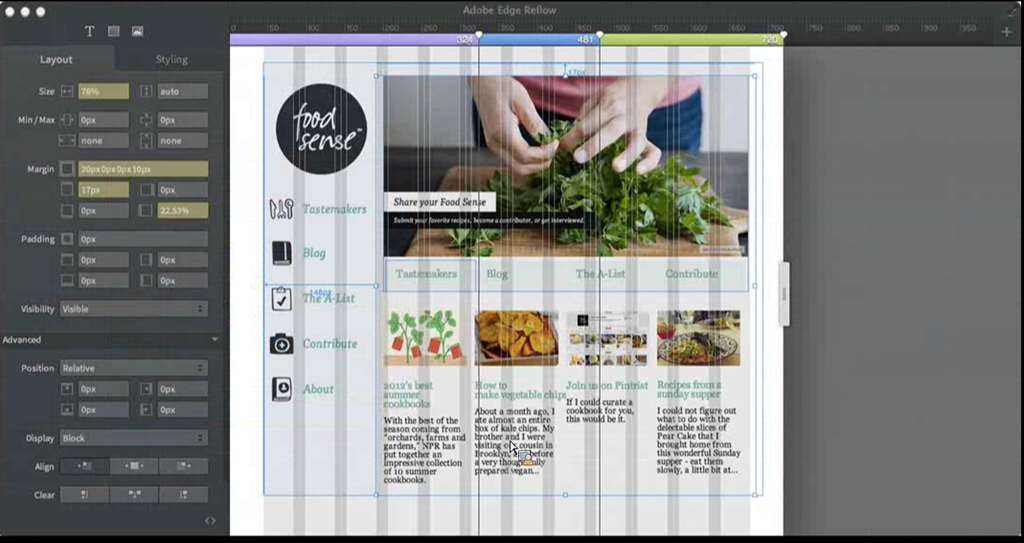
Edge Reflow

image

Design tools for CSS, preview expected by end of 2012.

Edge Web Fonts

Free web font service for open source fonts.

TypeKit

Commercial font library service.

PhoneGap Build

Package web apps as native apps for mobile platforms, without needing to install SDKs on your own machine.

PhoneGap Build is free for open source apps, or costs $9.99 per month for up to 25 private app builds.

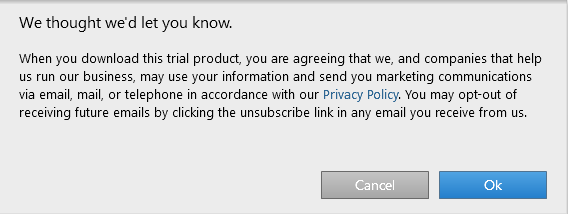
The Edge tools are only available through Creative Cloud, Adobe’s subscription service, cementing the company’s move to a subscription model for its products. As a tempter, Edge Animate is currently available even to those with the base, free subscription – though you have to agree to be on a marketing list for email, mail and telephone.

image

Will the Edge tools replace Dreamweaver, the web design tool in Creative Suite? I was told not, and that an update for Dreamweaver is in preparation. Dreamweaver is the “one production tool” as opposed to the Edge tools each of which focus on one narrow area of features. Adobe describes this as task-focused tools.

More information in yesterday’s San Francisco keynote here.

Microsoft’s Azure Mobile Services: node.js and more in beginnings of easy cloud to device development

Microsoft announced Azure Mobile Services last month and it was mentioned by Microsoft Server and Tools boss Satya Nadella at the launch of Visual Studio 2012, as an example of where Microsoft is going with its “Modern app” vision, continuous services and connected devices (but with a Windows 8 or Windows Phone 8 flavour).

Azure Mobile Services is in some ways a reworking of the WCF RIA Services developed to support Silverlight applications, and in fact I swear I saw a reference to RIA Services flash past when I was opening my first Azure Mobile Services project in Visual Studio. It consists of a service type in Microsoft’s Azure cloud combined with a client SDK which is currently for Windows Runtime apps in Windows 8, though the REST protocol used could be called from any client platform.

image

Looking at the dashboard for a Mobile Services project in the Azure portal, you can see what Microsoft is going for here. Mobile Services handles authenticated access to data stored in SQL Server Azure. It is designed to be simple and cost-effective to get started, but can be scaled out by moving from a service on a shared host, to a dedicated VM with multiple instances.

image

It is easy to think of cases where the cloud component of a cloud plus device app need do little more than authenticate users, and retrieve and update data. Azure Mobile Services also provides for server-side scripts which you can modify to handle validation and other tasks.

I was interested to see that the server-side scripts are written in JavaScript and executed by node.js. Node.js is fantastic, and one of the benefits is that if you have an HTML and JavaScript client, you can use JavaScript both on the client and on the server. On the other hand, I wonder if Microsoft’s community would rather work with C# on the server, which is more mature and more familiar. Scott Guthrie’s introductory tutorial does not mention node.js.

I had a quick go at creating my own Azure Mobile Service. I have only been partially successful so far.

Things started well enough. I created a mobile service and the Quick Start opened.

image

Both Guthrie’s blog and the Quick Start wizard in the Azure portal are based on a todo list app. I went slightly off-piste here, deciding instead to create an app to track my articles on the web. I wanted to see how Azure Mobile Services copes with related tables, as opposed to a single table.

I had a frustrating time trying to create the database tables. I had to add my IP address to a firewall rule, enable popups, and deal with connection failures caused by unknown network issues.

Finally I was able to get into the database designers. I created an Articles table joined to a Publications table, with a very few fields.

Next I downloaded an automatically generated Windows 8 app from the portal. I had hoped this would magically work with my data. Unfortunately though, it seems to be hard-coded for the todo list app. If you do not want a todo list, you have to write your own code; and so far I have not had time to figure out from the reference what to do next. I looked at the Get started with data article, and guess what, it is the todo list again.

When you create a database, you can specify simple permissions. The todo list example depends on an application key stored in your app and sent over SSL, to grant permission to read and modify data. I selected authenticated user access instead.

image

There is an article explaining how to add authentication, though note that it presumes use of a Microsoft Live ID (the service formerly known as passport). This is perfect in the context of Windows 8 and Windows Store apps, but businesses will want to use Active Directory instead, whether hosted in Azure or Office 365 or on premise. I presume Microsoft will add this at some point though it is not mentioned currently.

My initial conclusion is that Azure Mobile Services shows lots of promise, but that the introductory documentation could be usefully improved, for example not to assume that you want to make a single table todo list app.

In this context the partnership with Xamarin, which is extending the SDK to Apple iOS and Google Android, is excellent news. This makes Azure Mobile Services useful more broadly, and I have a hunch that Xamarin’s support will soon improve the documentation and tutorials. The client SDK is open source and on github.

Note that according to Microsoft’s Kirill Gavrylyuk, in answer to a question from Roger Jennings, Microsoft plans to “roll out full support for iOS and Android including native SDKs soon”, rather than leaving the non-windows support entirely to Xamarin and C#.

Platform churn? If it is in Windows 8, we are committed to it says Microsoft

I interviewed Corporate VP of Microsoft’s developer division Soma Somasegar at the Visual Studio 2012 launch last week; see the article on the Register here. I asked about the inconsistency of the Microsoft platform, and the way the platform story has changed over the years (Win32, .NET, WPF, Silverlight and now Windows Runtime). Can developers trust in the longevity of today’s platform, especially on the client?

Here is what I thought was interesting about his reply:

Any technology you see shipping as part of Windows 8, we are very committed to that.

So what ships in Windows 8? Well, for reasons which are hard to discern for those of us outside Microsoft, Silverlight is not shipped in Windows 8. It is an optional download. In fact, the only plug-in installed by default is Adobe Flash:

image

No, that does not imply that Microsoft is committed to Flash; but it does suggest lack of commitment to Silverlight, which we knew.

What you do get though is .NET Framework 4.5. This is baked in and cannot be removed as far as I can tell, though you can add and remove some advanced features.

This means you also have Windows Presentation Foundation (WPF); and in fact Somasegar specifically refers to this alongside Win32 and the new Windows Runtime.

The inclusion of technology in a current Microsoft product has implications for its support lifecycle. The ancient Visual Basic runtime, for example, is still assured of a long life since it is part of Office 2013.

image

My guess is that Microsoft’s thinking goes something like this. Right now, as the October launch date of Windows 8 approaches, what Microsoft needs most urgently is a viable ecosystem for its new Windows Runtime environment. This, you will notice, is the focus of the forthcoming BUILD conference as so far announced.

image

What, though, of the Windows desktop, has Microsoft abandoned it as legacy? My guess is that we will get deliberately mixed messaging on the subject. On the one hand, Microsoft has relegated the desktop to a single tile in the new Start screen. On the other hand, most of us will spend most of our time in the desktop, not least developers who need it to run Visual Studio. If Microsoft succeeds in establishing the new Windows Runtime platform, it would not surprise me to see a little more love given to the desktop in, say, Windows 9.

Microsoft’s platform story is messy, without question, and especially so in mobile. We have seen Windows Mobile replaced by the incompatible Windows Phone 7, and now those loyal developers who invested in the Silverlight/XNA Windows Phone 7 technologies are finding that it is all change again in Windows Phone 8 and Windows 8 (though the exact details await the release of the Windows Phone SDK).

It seems clear though that the company’s current intent is that Windows Runtime evolves as the primary client platform for both phone and tablet, while desktop remains for legacy support and for applications that do not fit the new model, such as Visual Studio and (for the time being) Office.

What if Microsoft fails to establish the Windows Runtime as a popular app platform? All I can add is that I know of no Plan B.

Information Density in Metro, sorry Windows Store apps

Regular readers will recall that I wrote a simple blog reader for Windows 8, or rather adapted Microsoft’s sample. The details are here.

This is a Windows Store app – a description I am trying to get used to after being assured by Microsoft developer division Corp VP Soma Somasegar that this really is what we should call them – though my topic is really the design style, which used to be called Metro but is now, hmm, Windows Store app design style?

No matter, the subject that caught my attention is that typical Windows Store apps have low information density. This seems to be partly due to Microsoft’s design guidelines and samples, and partly due to the default controls which are so boldly drawn and widely spaced that you end up with little information to view.

Part of the rationale is to make touch targets easy to hit with fat fingers, but it seems to go beyond that. We should bear in mind that Windows Store apps will also be used on screens that lack touch input.

I am writing this on a Windows 8 box with a 1920 x 1080 display. Here is my blog reader, which displays a mere 7 items in the list of posts:

image

This was based on Microsoft’s sample, and the font sizes and spacing come from there. I had a poke around, and after a certain amount of effort figuring out which values to change in the list’s item template, came up with a slightly denser list which manages to show 14 items in the list. The items are still easily large enough to tap with confidence.

image

Games aside though, I am noticing that other Windows Store apps also have low information density. Tweetro, for example, a Twitter client, shows only 11 tweets to view on my large display.

The densest display I can find quickly is in Wordament, which is a game but a text-centric one:

image

I have noticed this low information density issue less with iPad apps. Two reasons. One is that iOS does not push you in the same way towards such extremely large-looking apps. The other is that you only run iOS on either iPhone or iPad, not on large desktop displays.

Is Windows 8 pushing developers too far towards apps with low information density, or has Microsoft got it right? It is true that developers historically have often tried to push too much information onto single screens, while designers mitigate this with more white space and better layouts. I wonder though whether Windows 8 store apps have swung too far in the opposite direction.