Category Archives: windows

Microsoft Small Business Server to Server Essentials R2: not a smooth transition

Recently I assisted a small business (of around 10 users) with a transition from Small Business Server 2003 to Server Essentials R2.

Small Business Server 2003 had served it well for nearly 10 years. The package includes Windows Server 2003 (based on XP), Exchange, and the rather good firewall and proxy server ISA Server 2004 (the first release had ISA 2000, but you could upgrade).

image

SBS 2003 actually still does more than enough for this particular business, but it is heading for end of support, and there are some annoyances like Outlook 2013 not working with Exchange 2003. This last problem had already been solved, in this case, by a migration to Office 365 for email. No problem then: simply migrate SBS 2003 to the latest Server 2012 Essentials R2 and everything can continue running sweetly, I thought.

Sever Essentials is an edition designed for up to 25 users / 50 devices and is rather a bargain, since it is cheap and no CALs are required. In the R2 version matters are confused by the existence of a Server Essentials role which lets you install the simplified Essentials dashboard in any edition of Windows Server 2012. The advantage is that you can add as many users as you like; the snag is that you then need CALs in the normal way, so it is substantially more expensive.

Despite the move to Office 365, an on-premise server is still useful in many cases, for example for assigning permissions to network shares. This is also the primary reason for migrating Active Directory, rather than simply dumping the old server and recreating all the users.

The task then was to install Server Essentials 2012 R2, migrate Active Directory to the new server, and remove the old server. An all-Microsoft scenario using products designed for this kind of set-up, should be easy right?

Well, the documentation starts here. The section in TechNet covers both Server 2012 Essentials and the R2 edition, though if you drill down, some of the individual articles apply to one or the other. If you click the post promisingly entitled Migrate from Windows SBS 2003, you notice that it does not list Essentials R2 in the “applies to” list, only the first version, and there is no equivalent for R2.

Hmm, but is it similar? It turns out, not very. The original Server 2012 Essentials has a migration mode and a Migration Preparation Tool which you run on the old server (it seems to run adprep judging by the description, which updates Active Directory in preparation for migration). There is no migration tool nor migration mode in Server 2012 Essentials R2.

So which document does apply? The closest I could find was a general section on Migrate from Previous Versions to Windows Server 2012 R2 Essentials. This says to install Server 2012 Essentials R2 as a replica domain controller. How do you do that?

To install Windows Essentials as a replica Windows Server 2012 R2 domain controller in an existing domain as global catalog, follow instructions in Install a Replica Windows Server 2012 Domain Controller in an Existing Domain (Level 200).

Note the “Level 200” sneaked in there! The article in question is a general technical article for Server 2012 (though in this case equally applicable to R2) aimed at large organisations and full of information that is irrelevant to a tiny 10-user setup, as well as being technically more demanding that you would expect for a small business setup.

Fortunately I know my way around Active Directory to some extent, so I proceeded. Note you have to install the Active Directory role before you can run the relevant PowerShell cmdlets. Of course it did not work though. I got an error message “Unable to perform Exchange Schema Conflict Check.”

This message appears to relate to Exchange, but I think this is incidental. It just happens to be the first check that does not work. I think it was a WMI (Windows Management Instrumentation) issue,  I did not realise this at first though.

I should mention that although the earlier paper on migrating to Server Essentials 2012 is obsolete, it is the only official documentation that describes some of the things you need to do on the source server before you migrate. These include changing the configuration of the internet connection to bypass ISA Server (single network card configuration), which you do by running the Internet Connection Wizard. You should also check that Active Directory is in good health with dcdiag.exe.

I now did some further work. I removed ISA Server completely, and removed Exchange completely (note you need your SBS 2003 install CD for this). Removing ISA broke the Windows Server 2003 built-in firewall but I decided not worry about it. Following a tip I found, I also used ntdsutil to change the DSRM (Directory Services Recovery Mode) password. I also upgraded the SBS AD forest to Server 2003 (it was on Server 2000), which is necessary for migration to work.

I am not sure which step did the trick, but eventually I persuaded the PowerShell for creating the Replica Domain Controller to work. Then I was able to transfer the FSMO roles. I was relieved; I gather from reading around that some have abandoned the attempt to go from AD in Server 2003 to AD in Server 2012, and used an intermediate Server 2008 step as a workaround – more hassle.

After that things went relatively smoothly, but not without annoyances. There are a couple to mention. One is that after migrating the server, you are meant to connect the client computers by visiting a special URL on the server:

Browse to http://destination-servername/connect and install the Windows Server Connector software as if this was a new computer. The installation process is the same for domain-joined or non-domain-joined client computers.

If you do that from a client computer that was previously joined to the SBS domain (having removed unwanted stuff like the SBS 2003 client and ISA client) then you are prompted to download and run a utility to join the new network. You do that, and it says you cannot proceed because a computer of the same name already exists. But this is that same computer! No matter, the wizard will not run, though the computer is in fact already joined to the domain.

If you want to run the connect wizard and set up the Essentials features like client computer backup and anywhere access, then as far as I can tell this is the official way:

  • Make sure you have an admin user and password for the PC itself (not a domain user).
  • Demote the computer from the domain and join it to a workgroup. Make sure the computer is fully removed from the domain.
  • Then go to the connect URL and join it back.

If you are lucky, the domain user profile will magically reappear with all the old desktop icons, My Documents and so on. If you are unlucky you may need manual steps to recover it, or to use profile migration tools.

This is just lazy on Microsoft’s part. It has not bothered to create a tool that will do what is necessary to migrate an existing client computer into the Server Essentials experience (unless such a tool exists and I did not find it; I have seen reports of regedit hacks).

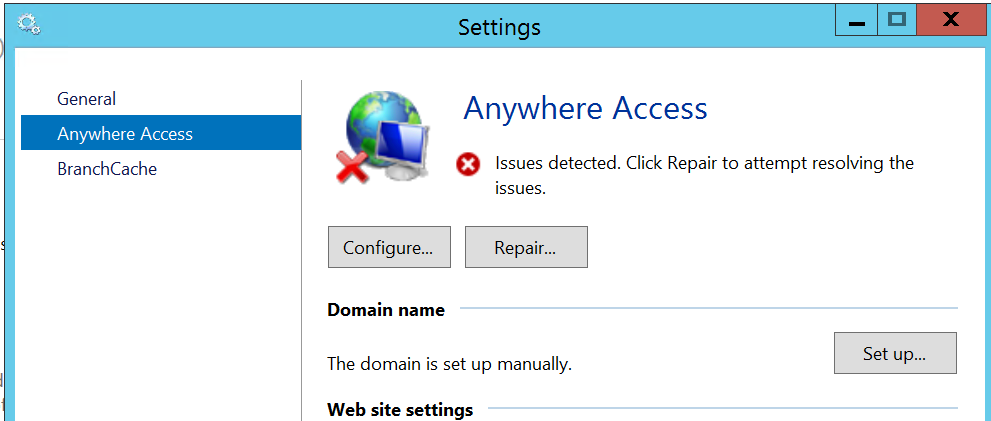
The second annoyance was with the Anywhere Access wizard. This is for enabling users to log in over the internet and access limited server features, and connect to their client desktop. I ran the wizard, installed a valid certificate, used a valid DNS name, manually opened port 443 on the external firewall, but still got verification errors.

image

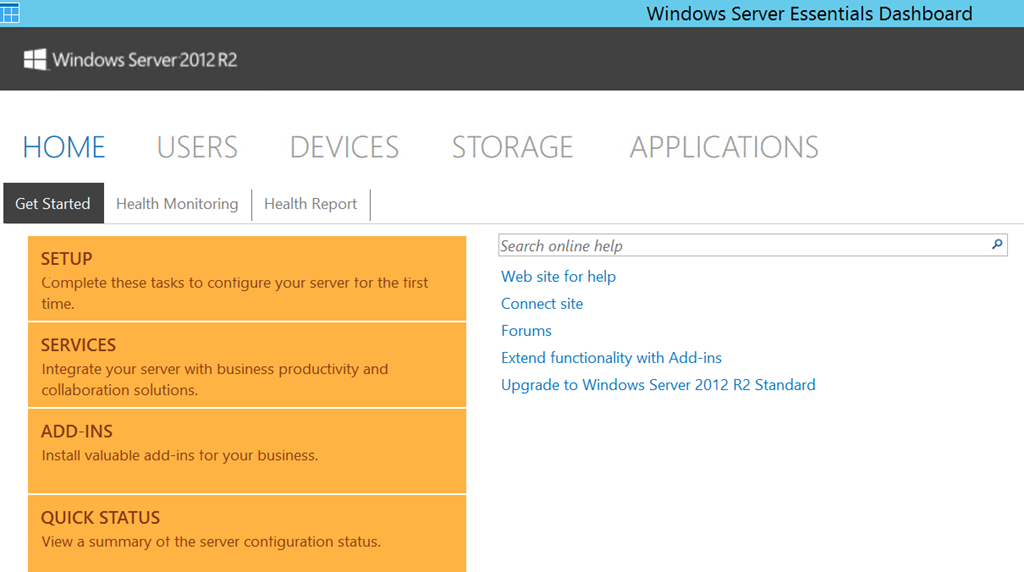
Clicking Repair is no help. However, Anywhere Access works fine. I captured this screenshot from a remote session:

image

All of the above is normal business for Microsoft partners, but does illustrate why small businesses that take on this kind of task without partner assistance may well run into difficulties.

Looking at the sloppy documentation and missing pieces I do get the impression that Microsoft cares little about the numerous small businesses trundling away on old versions of SBS, but which now need to migrate. Why should it, one might observe, considering how little it charges for SBS 2012 Essentials? It is a fair point; but I would argue that looking after the small guys pays off, since some grow into big businesses, and even those that do not form a large business sector in aggregate. Google Apps, one suspects, is easier.

An underlying issue, as ever with SBS, is that Windows Server and in particular Active Directory is designed for large scale setups, and while SBS attempts to disguise the complexity, it is all there underneath and cannot always be ignored.

In mitigation, I have to say that for businesses like the one described above SBS has done a solid job with relatively little attention over many years, which is why it is worth some pain in installation.

Update: A couple of further observations and tips.

Concerning remote access, I suspect the wizard wants to see port 80 open and directed to the server. However this is not necessary as far as I can tell. It is also worth noting that SBS Essentials R2 installs TS Gateway, which means you can configure RDP direct to the server desktop (rather than to the limited dashboard you get via the Anywhere Access site).

The documentation, such as it is, suggests that you use the router for DHCP. Personally I prefer to have this on the server, and it also saves time and avoids errors since you can import the DHCP configuration to the new server.

Acer’s R7 the most twisty Windows 8 tablet/laptop yet

What is the name for a laptop that is also a tablet? A tabtop? Or perhaps a tabletop, which is a good way to describe Acer’s R7. The hinge (called “Ezel”) swings up to become a stalk supporting the tablet, raising it above the table.

image

What is the value of this configuration? Maybe you can think of something?

The thinking here (if I have it right) is that you can get the screen closer to your eyes than would be possible with a normal laptop. In other words, the flat table-top is not the normal use, but rather a tilt towards you but raised above the keyboard, if you see what I mean.

Alternatively, there is a backwards configuration which, I was told, is for presentations. The keyboard is your side, while the screen points into the room.

image

Of course, you won’t actually be able to see the screen yourself but that is a small detail versus the great view afforded to your audience. I am being a little unfair – the idea I think is that you sit screen-side too, and control it by touch.

You can also fold the screen flat to make a standard fat tablet configuration.

Failing that, there is a keyboard-only mode – note, no trackpad on view.

image

This is to avoid hitting the trackpad by mistake, apparently. Or if you really want a trackpad, you can have it, but note that it is behind the keyboard:

image

A bit odd? Let’s just say, different.

Close the lid, and looks like just another laptop.

image

For more information on the R7 see here.

Review: Power Cover for Microsoft Surface tablets

I took advantage of a recent US trip to purchase a Surface Power Cover, at the Microsoft Store in Bellevue, near Seattle.

The concept is simple: you get an external battery integrated into a Surface keyboard cover. The keyboard is similar to the second version of the Type Cover, though curiously without backlighting other than a caps lock indicator. The keys are mechanical which for most people means you can type faster than on the alternative Touch cover, though it is less elegant when considered as a cover rather than as a keyboard.

image

The trackpad is the same on all three second edition covers, which is to say, not good. The problem is not the trackpad itself, but the mouse buttons, which are NOT mechanical keys (they were on the first edition Type Cove). Given that you need to press and hold a mouse key for some operations, having a physical click on the trackpad buttons is particularly useful and much missed. Another annoyance is that you cannot disable tap to click, which means some mis-clicks are inevitable, though on the flip side it is easier to tap to click than to use the fiddly mouse buttons.

Having said that it is the same, I have noticed that the trackpad on the Power Cover seems a bit smoother and better behaved than the one on the Type Cover 2. This could be sample variation, or that it is new, or that Microsoft has slightly tweaked the internal design.

As you would expect, the Power Cover is heavier and more substantial than the Type Cover, though I find you notice the weight more than the bulk. Even with the Power Cover, it is still smaller and neater than a laptop. The extra rigidity is a benefit in some scenarios, such as when the keyboard protrudes over the edge of a table. The fabric hinge, which is a weak point in the design of all the Surface covers, seems to be the same on the Power Cover and I fear this may cause problems as the device wears, since the extra weight will put more strain on this hinge.

As with the other keyboard covers, if you fold it back under the tablet, the keys are disabled. In this mode the Power Cover is purely an external battery.

I used the cover with the original Surface Pro (it is compatible with all the models other than the original Surface RT). I understand that a firmware update is needed for the power cover to work; if so, it installed seamlessly though I did need to restart after connecting the keyboard for the first time. Everything worked as expected. If you click the battery icon in the notification area you can see the status of both batteries and which is charging, if you are plugged in; generally one one charges at a time.

image

I boarded my flight and noticed that the Surface is smart enough to use the external battery first, and then the internal, presumably on the basis that you might want to remove the keyboard and use the Surface in pure tablet mode.

image

It is impossible to be precise about how much extra time you get from the Power Cover, since it depends how you use the machine. It is a big benefit on the original Surface Pro which has rather poor battery life; extended battery life is perhaps the biggest real-world difference between the Surface Pro and the Surface Pro 2. Subjectively I have doubled the battery life on my year-old Surface Pro, which for me makes the difference between running out of battery fairly often, and hardly ever.

The Power Cover costs $199, which is expensive considering that you can get an entire spare Android tablet or Amazon Kindle Fire for less; but put in the context of the equally over-priced Type Cover, which costs $129, you can argue that it is not that much extra to pay. Prices from third-party sites will likely be lower once availability improves.

If you need it, you need it; and this must be the best way to extend the battery life of a Surface tablet.

The Surface keyboard covers are not perfect, and I still sometimes see an annoying fault where the mouse pointer or keys stop responding and you have to jiggle the connection or tap the screen a few times to get it back (I am sure this is a driver issue rather than a poor physical connection). Still, I put up with a few irritations because the Surface gives me full Windows in a more convenient and portable form factor than a laptop, and there is more right than wrong with the overall design.

Summary:

  • If you already have a keyboard and your Surface lasts as long as you need – forget it.
  • If you have a Surface that runs out of power with annoying frequency (probably a Surface Pro 1), this is worth it despite the high price.
  • If you don’t have a keyboard (for example, you are buying a new Surface) then this is worth the extra cost over the Type keyboard.

XAML and C#, or HTML and WinJS for Windows Store, Universal and cross platform apps?

Microsoft designed the Windows Runtime (WinRT, the engine behind the controversial touch-friendly “Metro” user interface in Windows 8) to support three development platforms. These are C++ with XAML (for most GUI apps) or DirectX (for fast games); or C# and XAML; or HTML and JavaScript using the WinJS library for access to Windows-specific functions.

Microsoft’s line is that all three approaches are fine to use, with little performance difference other than that C++ avoids an interop layer. Of course if you have any arbitrary code that runs faster in C++ than in C#, then you will still see that difference in the WinRT environment.

It is also obvious that if you are an HTML and JavaScript expert but know nothing of C# or XAML, you should use WinJS; similarly if you have a lot of C# code to port and know nothing of HTML or JavaScript, C# and XAML chooses itself.

But what if you approach the decision from a neutral perspective. I am going to leave aside the C++ option for the moment as it is more of a leap than C# versus JavaScript. Which is best?

On the WinJS side, a common misconception is that this library is only for Windows. At Build 2014 Microsoft announced that WinJS is now open source, and works on other browsers and devices:

The library has been extended to smaller and more mobile devices with the release of WinJS 2.1 for Windows Phone 8.1, which was announced today at //build. Now that WinJS is available for building apps across Microsoft platforms and devices, it is ready to extend to web apps and sites on other browsers and devices including Chrome, Firefox, iOS, and Android.

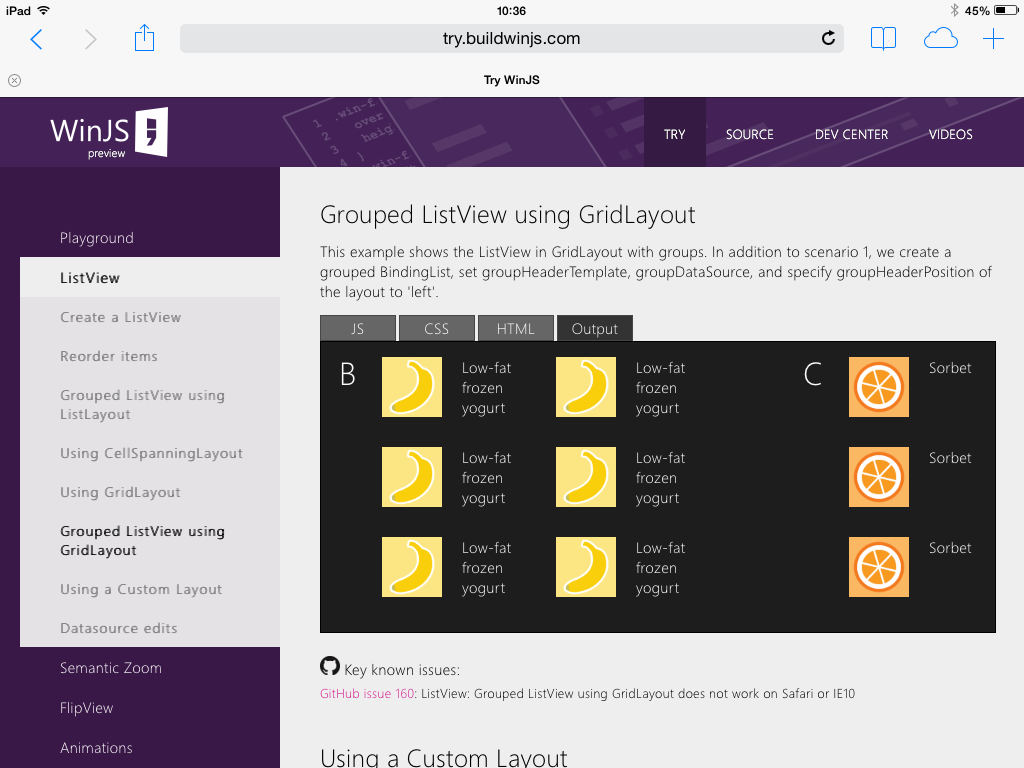
In order to sample this, I went along to try.buildwinjs.com on an iPad. All the things I tried quickly worked fine on iOS.

image 

If you used WinJS to build an app, you could use PhoneGap or Cordova to package it as a native application for the iOS or Android app stores.

A further reflection on this is that some of the WinJS controls which you might have assumed are native WinRT controls instantiated from JavaScript are in fact implemented in CSS and JavaScript. That is an advantage for cross-platform, but does suggest that Microsoft has been busy duplicating the look and feel of XAML controls in HTML and JavaScript, which seems a lot of work and an approach which is bound to result in inconsistencies.

Another snag with this approach – leaving aside the questions of performance and so on which I have not investigated – is that you end up with the distinctive look and feel of a Windows 8 app, which is going to be surprising on these other devices.

C# also has cross-platform potential, thanks to the great work of Xamarin and not forgetting RemObjects C#. Note though that I wrote C# rather than XAML. There is no cross-platform XAML implementation other than the abandoned cross-platform Silverlight efforts, Silverlight for the Mac and Moonlight for Linux. Xamarin expects you to rewrite your UI code for each platform – which may in fact be a good thing, though more effort.

If you are focused on the Windows platform though, it seems to me that the pendulum is swinging away from WinJS and towards C# and XAML. Wordament is an interesting case. This is one of the better games for Windows 8, and also available for Windows Phone, iOS and Android. Originally this was implemented in HTML and JavaScript. The developers have blogged about the choices they made:

Wordament grew up very fast. It seemed like it went from an indie game with a handful of players to a full on Microsoft title with millions of users, on lots of platforms, almost overnight. In that transition we ended up writing lots of code. For instance, in the course of a year we had ports of the Wordament client written in JavaScript, Objective C, C++ and C#. Each one of these ports has its own special issues, build processes and maintenance challenges. At the time, we were still a two person team and Jason and I were struggling to continue to innovate on Wordament, while supporting the “in-market” code bases we had shipped. So we started looking for a solution that would allow us to share more code between all of the platforms we were targeting. Funnily enough, the answer was sitting in our own backyard: C#.

As we looked around at the state of “cross platform development” on Windows, Windows Phone, iOS and Android we started to realize that C# was an excellent choice to target all modern mobile devices. So we did just that. With the help of Visual Studio for Windows and Xamarin for iOS and Android, we started a project to build a single version of Wordament’s source code that could target all the platforms we ship on. This release on Windows 8 marks the end of that journey. All of our clients are now proudly built out of one source tree and in one language. Even our service, which runs on Windows Azure, is built in C#. This is a huge efficiency win for our team of four.

Notable also is that the forthcoming Office for WinRT, previewed at Build, is written in XAML and C++ (according to what I was told). This means XAML will get some love inside Microsoft, which is bound to be good for performance and features.

An advantage of the C# approach is simply that you get to use C#, which is well-liked by developers and with some compelling new features promised in version 6.0, many thanks to the Roslyn project – which also promises a smarter editor in Visual Studio.

What about XAML? This is harder to love. XML is out of fashion – too verbose, too many angle brackets – and the initial promise of a breakthrough in designer/developer workflow thanks to XAML and MVVM (Model – View – ViewModel, which aims to separate code from user interface design) now seems hollow. I am writing a game in XAML and C# and do not much enjoy the XAML part. One of the issues is that the editing experience is less satisfactory. If you make an error in the XAML, the design view simply blanks out with an “Invalid Markup” error. Further, the integration between the XAML and C# editors is a constant source of problems. Half the time, the C# editor seems to forget the variables declared in XAML, giving you lots of errors and no code completion until you next compile. Even when it is working, a rename refactor in the C# editor will not rename variable references that are within quotes in the XAML, for example property names that are the targets of animations.

On the plus side, XAML is amazing in what it can do when you work out how. The user interfaces it generates are rich, scalable and responsive. It is way better that the old Win32 GDI-based approach (also used in the Windows Forms .NET API), which is hard to get right for all the combinations of screen sizes and resolutions, and has odd dependencies on system font sizes and dialog units (don’t ask).

Despite the issues with XAML, C# and XAML (or C++ and XAML) is my own preference for targeting the new Windows platform, but I am interested in other perspectives on this.

Getting animated: basics in Windows Store apps

I am not a designer and prefer to avoid things like animation as too difficult. On the other hand, I am writing an electronic card game and it looks bad if the cards move without any animation. There is also an issue in that animation is built into the standard controls, so if you do not animate your own parts of the user interface, it looks inconsistent.

Animation is more significant than it may first appear. You can think of it as a natural progression from a basic graphical user interface, along with things like full window drag. In the real world, objects do not just blink in and out of existence when they move from one spot to another.

My game is a bridge simulation so four cards are laid on the table in turn, at which point the winner of the four cards is calculated and the four cards gathered to form a “trick”. In my original implementation, the four cards simply disappeared at the end of the trick. How can I have it so that they smoothly gather themselves into a pile of four cards?

Like most things in Store apps, it proved a little more complex than I had thought. Originally, I put put each card in a separate cell of a layout grid. In Store apps, there is no built-in way to animate movement between grid cells, though users have come up with custom animations that do this. I thought it would be simpler to put the cards on a canvas instead.

I did some sums and positioned four Rectangle objects at the borders of the Canvas.

image

I want the Rectangle objects to slide smoothly into a pile in the centre. You do this in XAML with a Storyboard element. A Storyboard has child animation elements. When you call Storyboard.Begin() in your code, all the animations run. They run simultaneously unless one or more of the animations has a different BeginTime attribute. If you want a sequence of animations, you can either vary BeginTime, or use a KeyFrame animation which is designed for this.

There are several ways to do what I want. One is to animate Canvas.Top and Canvas .Left using a DoubleAnimation (the name indicates that it targets properties of type Double, not that anything happens twice). Note that if you this, the Storyboard.TargetProperty has to be in parantheses:

Storyboard.TargetProperty="(Canvas.Top)"

because it is an attached property. However, I chose to use a RepositionThemeAnimation. I found the way this works counter-intuitive. In XAML, you define a RepositionThemeAnimation with either or both a FromHorizontalOffset and a FromVerticalOffset. At runtime, the RepositionThemeAnimation moves the object to the offset position instantly, and then back to its starting point with animation. In other words, the animation itself does not move the object; unless you have AutoReverse set to True, in which case it does a second animation back to the offset position.

Once you grasp it, it is not difficult. Here is my Storyboard, set as a XAML Resource:

<Page.Resources>
    <Storyboard x:Name="TrickStoryboard">
        <RepositionThemeAnimation Storyboard.TargetName="CardLeft" SpeedRatio=".5"  FromHorizontalOffset="-185"/>
        <RepositionThemeAnimation Storyboard.TargetName="CardTop" SpeedRatio=".5"  FromVerticalOffset="-200"/>
        <RepositionThemeAnimation Storyboard.TargetName="CardRight" SpeedRatio=".5"  FromHorizontalOffset="185"/>
        <RepositionThemeAnimation  Storyboard.TargetName="CardBottom" SpeedRatio=".5"  FromVerticalOffset="200"/>
    </Storyboard>
</Page.Resources>

And here is my code to gather the trick:

this.CardTop.Margin = new Thickness(0, 185, 0, 0);
this.CardLeft.Margin = new Thickness(200, 0, 0, 0);
this.CardRight.Margin = new Thickness(-200, 0, 0, 0);
this.CardBottom.Margin = new Thickness(0, -185, 0, 0);
this.TrickStoryboard.Begin();

In other words, you move the objects to where you want them, and then apply the animation which moves them temporarily back to their starting point, then smoothly to their destination. At this point I should include a little video, but will leave you to imagine the four Rectangles above sliding and merging to a single central Rectangle.

Something to watch for here is how the animation impacts your code flow. The animation runs asynchronously, so if you have:

this.TrickStoryboard.Begin();
DoSomething();

then DoSomething runs before the animation completes. If this is not what you want, you can break at that point, and handle the StoryBoard.Completed event to resume. In my brief tests, StoryBoard.Completed always fires even if the animation gets interrupted, say by some other code that did something to the objects.

For more on this subject, read up on Animating your UI and get to know the different animation classes, Visual states, easing functions, RenderTransforms and more. It soon gets complex and verbose unfortunately, but on the plus side it is great to have animation baked into the framework, and the result is a more polished user interface.

Microsoft completes Nokia acquisition: what now for Windows Phone?

Microsoft has completed its acquisition of Nokia today, a milestone in the turbulent story both of Nokia and of Windows Phone, which Nokia adopted in the hope of establishing a “third ecosystem” to challenge Apple iOS and Google Android.

Rumour has it that the Nokia acquisition was controversial within Microsoft and a large factor in the departure of Steve Ballmer as CEO. However, even if Microsoft took the view that an independent Nokia was better for Windows Phone, it faced the risk that market pressure would drive Nokia to Android and weaken the platform. The beginnings of that process may have been under way, with the launch of the Nokia X Android-but-not-Google range of phones, but we will never know, since Microsoft decided on acquisition.

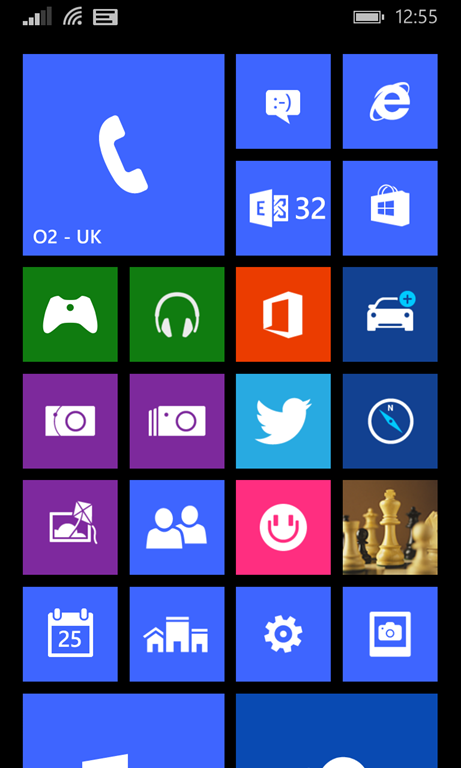
image

How important has Nokia been for Windows Phone? In my view, life-saving. Before Nokia, there was no manufacturer nor operator which really cared about the platform, and it showed in lacklustre hardware and half-hearted marketing efforts. Nokia came up with the distinctive Lumia brand and style, added a decent mapping service, and with its focus on the PureView camera technology, gave enthusiasts a reason to take a close look at its devices. It also saw an opportunity at the low end, and created some great value devices that opened up a new market for the operating system.

There were some blunders (the original Lumia 800 suffered many faults and terrible battery life on launch) and Lumia did not grow fast enough to restore Nokia to health, but to my mind it was a good effort.

Today, the general opinion of Windows Phone is that it is a strong smartphone operating system but suffers from a lack of high-quality apps. Users have to put up with the fact that most app vendors feel they are done if they support iOS and Android; and if there is a Windows Phone version of their app, it is often poor. That is not a great position for Microsoft/Nokia to be in, but it could be worse. Blackberry 10, which is also a decent mobile operating system, has been all-but written off as a viable contender.

Microsoft is fortunate in that, unlike Blackberry, it can to some extent create its own ecosystem. Office 365, Bing, OneDrive, Nokia’s maps, Azure for developers needing a cloud back-end: taken together they form a viable alternative. In this respect, Microsoft actually has an advantage over Apple, which lacks this breadth of services.

I have been reading the latest Developer Economics report from Vision Mobile. It is a good example of the neutral perspective on Windows Phone, though you will find it somewhat inconsistent:

Windows Phone sales picked up significantly in Q3 2013, showing a 140% increase year-on-year, fuelled primarily by low-end device sales. According to Kantar, Windows Phone sales in the three months running to Oct 2013, reached double-digit figures in some Western European markets. While this is certainly a positive sign for Microsoft they will continue facing an uphill struggle, in an increasingly unfavourable race against the two runaway leaders, iOS and Android.

The report emphasises that iOS and Android have won the mobile OS wars, but says that there are signs of hope for Microsoft:

Windows Phone Developer Mindshare has finally moved upwards, following positive market signals in the last two quarters. As we have frequently highlighted in past reports, the developer intent has always been there, with Windows Phone figuring at the top of our Developer Intentshare chart, but needed positive market signs in order to convert this interest into Mindshare. While the 26% Developer Mindshare is still less than half of that for iOS, Microsoft can now claim that over a quarter of developers that target mobile platforms are now actively developing for Windows Phone. […]

As a latecomer to a mobile market dominated by strong network effects, establishing a credible footprint in mobile remains a formidable challenge
for Microsoft. We believe that Microsoft may be better served in the long-run by leveraging the Android ecosystem as the deployment platform for Office
and Server businesses which are still growing.

Microsoft is in fact supporting iOS and Android as clients for its cloud services, as noted again at yesterday’s financial webcast, where CEO Satya Nadella talked about a strategy that goes across “devices some ours, some not ours.” It is a bit of both though, and the company is not showing any signs of weakening its own mobile efforts.

In my view reports like that from Vision Mobile miss a couple of factors. One is that Windows and Windows Phone are converging. They already use the same OS kernel, and at the Build conference earlier this month Microsoft announced Universal Apps that will run on both, and the ability for developers to sell an app once and have users install on both phone and full Windows.

This means that the future of Windows Phone and that of Windows itself are closely bound together. Longer term, they will either both fade away, or both succeed.

Windows remains a huge business for Microsoft, despite the decline of the PC, especially in business. Microsoft’s problem though is that adoption of Windows 8 has been relatively weak, and that those who do use it, largely live in the desktop environment rather than running Store apps (of which Universal Apps are a variant).

Despite the dismal progress so far for the Store apps platform and ecosystem, I believe it should be taken seriously. On paper it has many advantages, not only for touch control, but also in deployment, security, roaming data driven by the cloud, and discoverability through the store. Isolation from the core operating system protects users against the things that destroy desktop Windows, like unwanted extras foisted on users who simply need to update Java or Flash.

At Build we saw not only Universal Apps, but also a preview of Office in the Windows Runtime (Store app) environment. We also saw a preview of Store apps running within a window in the desktop environment, solving the jarring transition between desktop and Store app environments that unsettles users. If Microsoft gets this right, both Windows Phone and Windows tablets will be substantially more attractive.

Microsoft also has the ability to bind Windows Phone into its enterprise device management environment, System Center and InTune. In Windows Phone 8.1 the device management and security features businesses need are much improved. More is still needed; but the company should be able to build integration points that make it attractive to business customers already using products such as Active Directory, Microsoft Office, Office 365, System Center or InTune.

Another factor is the strength of Visual Studio for developers, especially as Microsoft improves its integration with cloud services like Azure and Office 365. You can use C# everywhere from cloud or server to mobile client.

image

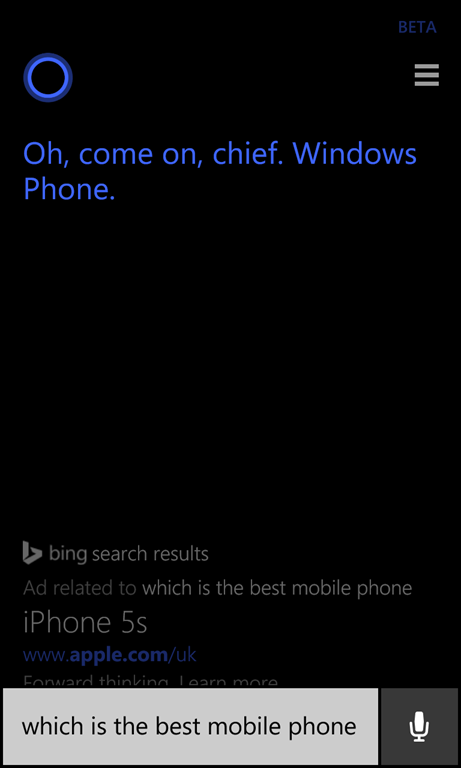
Cortana is sure that Windows Phone is the best; but check out the Bing ad.

What then is the future of Windows Phone? Uncertain, as ever; but if Microsoft pulls off a smooth Nokia acquisition – leaving in place the things that enabled the company to build the Lumia brand – and if it delivers on the promise we saw at Build, of a strong unified platform, then I expect market share to continue to grow. If it can climb to 10% or 15%, it will be on the map for vendors and the app problems will ease.

On the other hand, if Microsoft/Nokia means a return to the ineffective marketing and strategy we saw before Nokia adopted Windows Phone, then I expect Windows Phone to follow Blackberry into oblivion.

I am positive, but Microsoft needs to execute carefully and quickly to win market share for its mobile platform.

Microsoft financials: strong quarter especially in cloud services. We have a very different way to think about Windows says Nadella

Microsoft has released its financial results for the first quarter of 2014. The year on year segment figures look like this:

Quarter ending March 31st 2014 vs quarter ending March 31st 2013, $millions

Segment Revenue Change Gross margin Change
Devices and Consumer Licensing 4382 +30 3906 -23
Devices and Consumer Hardware 1973 +571 258 -135
Devices and Consumer Other 1950 +294 541 +111
Commercial Licensing 10323 +344 9430 +345
Commercial Other 1902 +453 475 +211

The “Gross margin” figures above do not tell us much other than for hardware, since Microsoft no longer allocates its research and development costs against specific segments.

Overall revenue is slightly down year on year but only because of a $1778 million decline in the “corporate and other” segment. This means it was a better quarter than the overall revenue suggests.

So what is notable? Windows OEM revenue is up, but only thanks to the business market, and partly thanks to upgrades driven by the end of support for Windows XP. Consumer OEM Windows is down by 15%.

Xbox revenue is up 45% thanks to the launch of Xbox One (and I have a hunch we will see less positive figures in future since Sony’s PS4 seems to be winning the console wars).

Surface (Microsoft’s own-brand tablet) revenue is up by over 50% year on year, to $494 million. It is a significant business, though apparently not a profitable one. Cost of sales was $539 million, says Microsoft in its notes.

Windows volume licensing, which accounts for most enterprise usage, is up 11%, also no doubt influenced by the end of XP support. SQL Server revenue is up by 15%, though in relation to server products Microsoft notes the impact of “the transition of customers to Cloud Services.”

The big winner is cloud services. Microsoft says:

  • Office 365 revenue grew more than 100%
  • Microsoft Azure revenue grew more than 150%
  • Cloud services revenue grew $367 million or 101%

These sums are a little puzzling. If growth was 101% overall, and Office 365 grew by more than 100%, where is the Microsoft Azure growth hiding, or was it from a very small base?

Note that consumer Office 365 is accounted for separately, it seems, as part of “Devices and Consumer other”. There are now 4.4 million Office 365 Home subscribers, growing by around 1 million in this quarter.

Questioned in the earnings call, CEO Satya Nadella talked about mobile-first and cloud-first, adding that the strategy goes across “devices some ours, some not ours.” He also mentioned how the advent of Universal Apps means that “we have a very different way to think about [Windows].” That is partly wishful thinking of course: the Universal App framework is still in preview and targets a still unreleased update to Windows Phone (8.1). Still, that is the strategy, even if it means giving Windows away on smaller devices – we have “monetization on the back end,” said Nadella, presumably thinking of Office 365 subscriptions and the like.

On the business and enterprise side (where Microsoft can be more confident) Nadella also spoke of the synergy between Office 365 and Azure; every Office 365 sign-up enables Azure as a business cloud platform, thanks to Azure Active Directory and other integration points.

Microsoft’s segments summarised

Devices and Consumer Licensing: non-volume and non-subscription licensing of Windows, Office, Windows Phone, and “ related patent licensing; and certain other patent licensing revenue” – all those Android royalties?

Devices and Consumer Hardware: the Xbox 360, Xbox Live subscriptions, Surface, and Microsoft PC accessories.

Devices and Consumer Other: Resale, including Windows Store, Xbox Live transactions (other than subscriptions), Windows Phone Marketplace; search advertising; display advertising; Office 365 Home Premium subscriptions; Microsoft Studios (games), retail stores.

Commercial Licensing: server products, including Windows Server, Microsoft SQL Server, Visual Studio, System Center, and Windows Embedded; volume licensing of Windows, Office, Exchange, SharePoint, and Lync; Microsoft Dynamics business solutions, excluding Dynamics CRM Online; Skype.

Commercial Other: Enterprise Services, including support and consulting; Office 365 (excluding Office 365 Home Premium), other Microsoft Office online offerings, and Dynamics CRM Online; Windows Azure.

Windows problems: new users cannot log in, SQL Server 2014 install fails

Two issues I have seen recently:

1. A Windows 7 laptop which belonged to a developer and was being passed on to a new user. However, although you could create the new user, you could not log in as that user. The error was “User Profile Service service failed the logon. User profile cannot be loaded.”

I narrowed the problem down to an “Access denied” error when trying to create the profile, but we decided to restore Windows to factory settings (using recovery tools) since that was probably a better approach for the new user anyway – you never know what a developer may have tweaked or installed in Windows!

2. SQL Server 2014 Database Engine installation failing on Windows 8. The reported error: Could not find the Database Engine startup handle.

Annoyingly, you cannot attempt a repair install if you get this, since repair cannot run if there has not been a successful install in the first place. However this error does not rollback the installation, so you have the feature installed but not working. You have to remove the SQL Server feature using control panel, then you can retry. I got this on a couple of machines, tried a few things but failed, so used fresh VMs instead.

Others have run into this and there is a solution, which applies to both problems. They are actually the same, since SQL Server 2014 creates a new profile in the default install.

This solution means resetting the permissions on c:\users\default so that they are replaced with permissions inherited from the parent folder. This solution works; but it is not perfect, since these are the wrong permissions for the folder (too loose). Someone has done the job of finding the correct permissions for Windows 7. Applying all these is arduous though, and things may possibly have changed with updates since. In a production environment it would be better to narrow down the exact permission that is wrong, or to do a system restore.

If you are happy to risk it, navigate to c:\users in Windows Explorer and find the Default folder. This is hidden by default; you can make it visible using the View Options in Explorer; on the View tab choose Show hidden files, folders and drives. Next, right-click the c:\users\Default folder and choose Properties, then the Security tab, then Advanced, then click Change Permissions. Check the box:

Replace all child object permission entries with inheritable permission entries from this object

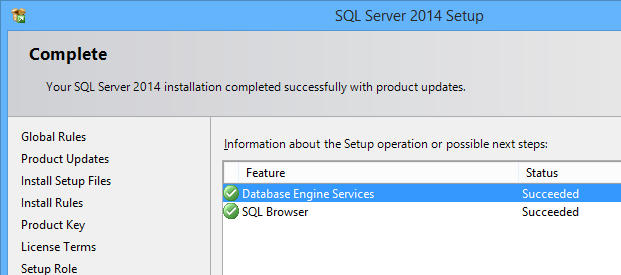
Click OK – it does not take long – and now new users can log in, and the SQL Server 2014 setup runs OK.

image

The problem seems to be common so it is likely that either an official update or a commonly-used third-party install is breaking these permissions. I would be glad to know what it is; it would also be good if Microsoft would build into Windows a feature that would restore default permissions for a system folder like this one.

Update: It may be sufficient to delete a single file. See this thread where event logs lead to a sqmdata…sqm file that, when deleted, fixed the issue. Check the Windows Application log for event 1509.

Notes on styling a Windows Store app ListView to vary item appearance according to the data

Problem: You have a ListView containing data. You want to vary the appearance of items in the ListView according to the value of the data.

I spent some time on this in relation to a panel for a game I am writing. For example, you have a ListView containing numbers. How can you have negative numbers appear in red?

image

In desktop WPF (Windows Presentation Foundation) you could do this with Property Triggers but these are not supported in Store apps.

One way to do this is with a value converter. Add a class to your project called MyValueConverter. Make the class public, and inherit from Windows.UI.Xaml.Data.IValueConverter.

Right-click IValueConverter and choose Implement Interface to have Visual Studio create two stub methods, Convert and ConvertBack.

This class is going to return an object which will be applied to the Foreground property of a ListViewItem. The Convert method looks like this:

public object Convert(object value, Type targetType, object parameter, string language)

At runtime, the value argument will contain the item displayed in this row of the ListView. The targetType will match the type of the property we are setting, which in this case is a Brush object.

Now add an instance of MyValueConverter to MainPage.xaml (or App.xaml) as a resource. If there is no Page.Resources element, create it, and add an instance of MyValueConverter with the Key “NumberForegroundConverter”:

<Page.Resources>
<local:MyValueConverter x:Key="NumberForegroundConverter" />
</Page.Resources>

Next, select the ListView element in the XAML editor or designer. Right-click the selected element in the designer, and choose Edit Additional Templates – Edit Generated Item Container (ItemContainerStyle) – Edit a Copy …

image

Accept the default name of ListViewItemStyle1 and click OK.

This generates an element that defines the layout and appearance of items in the ListView. Currently it does not appear to do anything, since it is a copy of the default settings.

Find the element called <ListViewItemPresenter> which is nested within <ControlTemplate TargetType=”ListViewItem”>. No Foreground attribute for ListViewItemPresenter is generated, but we can add one:

Foreground="{Binding Converter={StaticResource NumberForegroundConverter}}"

If you now run the project, you will get an exception, because the methods in MyValueConverter do not yet have any code. Now we have to think about the type of the items in the ListView. In this example, I just typed some strings into the XML editor:

<ListView ItemContainerStyle="{StaticResource ListViewItemStyle1}">
<x:String>145</x:String>
<x:String>-30</x:String>
<x:String>442</x:String>
</ListView>

All the items are strings, so the Convert method can look like this:

String s = (String)value; //note this ONLY works if the item is always a string

if (float.Parse(s) < 0)
{
return new SolidColorBrush(Windows.UI.Colors.Red);
}
else
{
return new SolidColorBrush(Windows.UI.Colors.White);
}

We don’t care about the ConvertBack method so can use this code:

return Windows.UI.Xaml.DependencyProperty.UnsetValue;

It works but there are some issues. One oddity is that when you roll the mouse over a negative number, it looks the same as a positive number.

image

This is because we did a converter for the Foreground property but not for the SelectedForeground property. XAML in Store apps makes extensive use of themes, and themes include a lot of brushes.

Another issue, which may or may not impact your application, is that the converter code does not run again if you change the displayed item dynamically. That is, if you replace the item it updates OK, but if you update the existing item it does not.

A slightly more complex example will demonstrate this. Let’s say that rather than displaying strings, the ListView is displaying Widget quantities, where a negative number indicates backorders. The ListView is bound to an ObservableCollection<Widget>, and the Widget class implements INotifyPropertyChanged so that the ListView will update automatically when a Widget property changes. Note that the NumberForegroundConverter must be updated to accept a Widget value rather than a string.

Here is what happens if a Widget had a negative quantity when the ListView was first populated, but got dynamically updated to a positive value (some stock arrived):

image

Oops! Now the positive quantity is in red.

We can fix this by abandoning the converter, and instead giving the Widget class a Foreground property of its own, calculated to return Red for negative quantities and White for positive. Make sure it fires a NotifyPropertyChanged event when updated. Now the Foreground property in <ListViewItemPresenter> looks like this:

Foreground="{Binding Foreground}"

It works:

image

I used this approach in my game in order to implement an Enabled property that indicates items which are unselectable. This changes dynamically according to the state of the play.

Note that you are unlikely to want a Foreground property in your business objects, but could create a DisplayWidget class for the purpose.

I realise that these are not the only ways to create a ListView which styles items differently according to their values, but they may be the simplest. Other suggestions and comments are welcome.

Update: Mike Taulty has some comments and suggestions here.