Category Archives: windows

FutureMark graphics benchmark: Surface RT vs Surface 2

We know that the new Surface 2 (Nvidia Tegra 4) is faster than the old Surface RT (Tegra 3) but by how much?

I came across the FutureMark 3D Benchmark for Windows RT in the Windows Store and tried it on both.

I could see this was going to be a wipeout from the off. The first test saw a frame rate of 12.9 FPS on RT versus 59.9 on Surface 2. Surface RT first:

image

Then Surface 2:

image

Surface 2 reported “Maxed out” on the scores. However, on the next test, Ice Storm Extreme, I got a result.

Surface RT: 2065

image

Surface 2: 8577

image

3D Mark RT says my score is “low for this device” on Surface RT, but “a great score for this device” on Surface 2. Maybe the impact of Windows RT 8.1?

Bottom line: on these tests Surface 2 is around 4 times faster. No wonder it feels snappier to use.

Nokia announces huge Windows Phones, new apps, new Asha models, Instagram, Twitter Vine apps

Nokia’s former CEO Stephen Elop has announced the Lumia 1520 at an event in Abu Dhabi.

The 1520 ($749) has a 6” screen which takes it into “phablet” territory. The larger size enables a 3rd column of live tiles, enabled by Microsoft with an update to the Windows Phone 8 operating system.

image

Camera-wise the 1520 lacks the 41MP of the 1020 but does have a 20MP PureView camera.

A new app called Nokia Camera has three camera modes including Still, Video, and Smart Mode which takes a burst of pictures.

The app has a night mode optimised for low-light, and a sports mode for quick action shots. There is also a Pro Camera UI with all available settings and manual focus.

A new Storyteller app integrates photos, images and maps.

image

The killer feature here is that you can zoom out of a photop to see where it was taken on a Nokia Here map:

image

The 1520 also sports four microphones for “directional stereo”.

Also announced is the 4G Lumia 1320 ($339):

image

This is also a large-screen model but with a 5MP camera and a more affordable price.

An update to the OS called Lumia Black is coming to all Windows.

With Windows Phones getting bigger, how is the OS differentiated from Windows RT? Well, one is a Phone OS and the other a tablet OS, but convergence cannot come soon enough.

Elop also announced improvements to the Asha range of budget phones aimed mainly at emerging markets.

The new models are the Asha 500 ($69, dual sim available, 2MP camera), 502 ($89, dual sim available, 5MP camera with flash) and 3G 503 ($99, dual sim available, 5MP camera with flash).

image

You can share photos to social media including newly announced WhatsApp Messenger support from next month.

Of course there was also the 2520 tablet, but that is the subject of a separate post.

Upgrading Hyper-V Server 2012 to 2012 R2: minor hassles

I have a couple of servers running Hyper-V Server, the free version of Microsoft’s hypervisor.

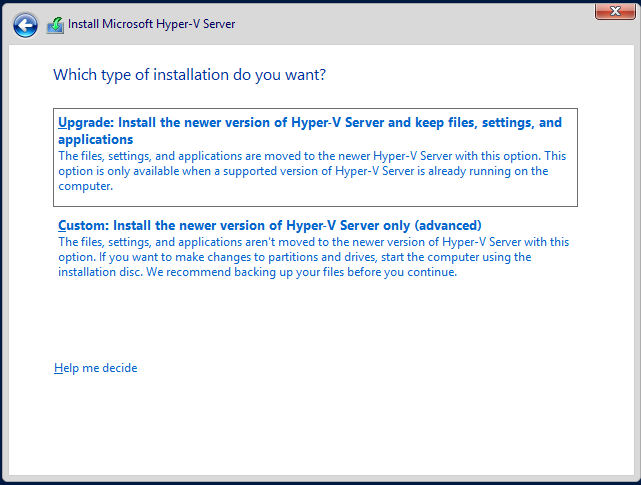
Hyper-V Server R2 is now available with some nice improvements. I tried an in-place upgrade. You do this by running setup from within a running instance of the server. This did not work when going from 2008 to 2012, but I am glad to report that it does work for 2012 to 2012 R2:

image

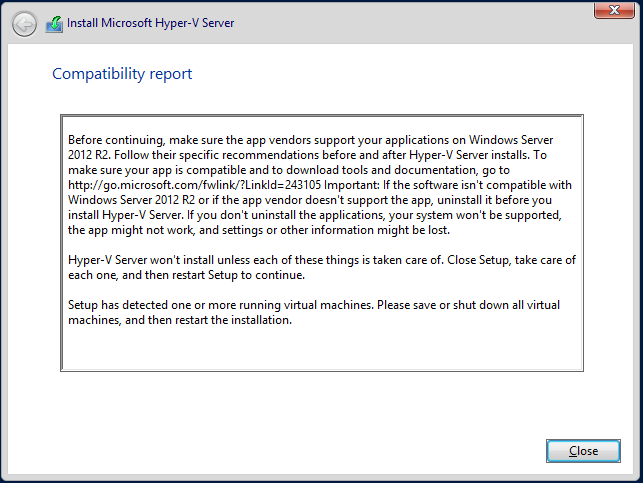
You will need to make sure that all the VMs are shut down before you run the upgrade. Otherwise you get a message and the upgrade fails:

image

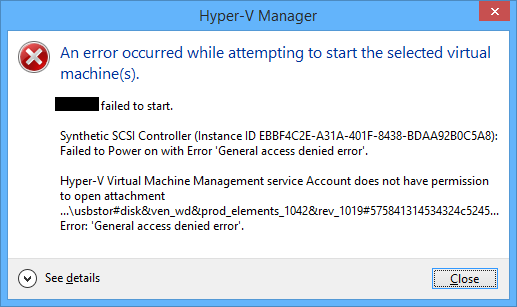
In my case the upgrade was smooth and not too lengthy. However I was warned that because I use a pass-through drive in one VM, that this might cause a problem. It did, and the VM failed to start after the upgrade:

image

The fix was trivial: remove the pass-through drive and then add it back. After that the VM started.

Then I hit another problem. Although my VMs had started, they had no network connectivity, even after I upgraded the integration components. These VMs run Server 2008 R2, in case that makes a difference (I doubt it). The virtual switch still showed in Hyper-V settings but no traffic passed through to the VMs.

I tried two solutions. Removing the NIC from the VM and re-adding it made no difference (and this is also a poor solution since you then have to reconfigure the NIC in the VM). However deleting the virtual switch and replacing it with a new one of the same name and configuration was successful. The virtual NICs then have to be reconnected to the new virtual switch, but this is painless.

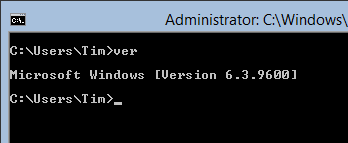
The UI for the new version looks exactly the same as before. However the Windows version number has changed from 6.2.9200 to 6.3.9600, so you can verify that the OS really was upgraded:

image

Is it better to avoid in-place upgrades? A clean upgrade is safer, if you do not mind exporting and re-importing the VMs, or moving them all to another host, before the upgrade. On the other hand, with the upgrade cycle now faster than before, in-place upgrade makes sense as a way of keeping pace with little pain.

Review: Surface Touch Cover 2

Windows tablets present a design challenge because they include desktop applications which are designed for keyboard and mouse, rather than touch – not least Microsoft Office, which for some of us accounts for a significant proportion of the time spent using the device. So far there has been consensus therefore that Windows tablets need some easy way of using a keyboard and mouse or trackpad. How to achieve this without losing the benefits of a tablet  is not easy. Bluetooth is one solution, but means three devices rather than one in your bag. Screens that twist over to form tablets are another, but the devices tend to be heavy and the twisting action inconvenient. Detachable keyboard/trackpads are the favoured solution, but leave you the problem of a loose keyboard to look after once you have detached it. If it stays always attached, perhaps you should have bought a laptop.

Microsoft’s Surface tablet has the most elegant solution I have seen. When it was launched a year ago, it included two optional keyboard covers. The Type cover is a thin keyboard with real clacky keys.  The touch keyboard is almost flat, though the keys are slightly raised. You can detach them, but they fold back behind the device, automatically disabling the keys, at which point they are unobtrusive.

Many people liked the idea of the touch keyboard, but found typing frustrating with more errors than they normally make. For this reason, the Type keyboard is more popular among Surface users. It is possible that more Touch keyboards were sold, since they are slightly cheaper and more often bundled with the device, but in actual use I see more Type keyboards.

That is a shame, because the Touch keyboard is design-wise a better solution. It adds very little bulk to the Surface, and when folded back under the device for tablet use, it feels perfectly natural, whereas the Type keyboard feels odd because of the keys that are then on the underside.

When Microsoft announced the Touch Cover 2, it said that by adding more sensors (14 times as many apparently) and more intelligence to the cover and its drivers, it had improved the typing accuracy. As a Surface user I was excited to try the Touch Cover 2 and see if it lives up to these claims. If it does, I will happily ditch the Type cover.

image

The Touch Cover 2 is the same price as before, £99 in the UK or $120 in the US. It is compatible with every Surface, including the original Surface RT. It is also fractionally thinner, 2.5mm as opposed to 3mm. Third, it is now backlit, which makes a big difference on those odd occasions when you are typing in dim light, such as on an aircraft when the cabin lights are dim.

Looking at old and new side by side though, you would be forgiven for thinking not much has changed – the new one is the lower of the two, and note that my original is a US layout and the new one UK:

image

Here are a few more points of detail:

  • The new keyboard has function key labelling F1-F12. As is now common, the default is the non-Fn meaning, and you have to press Fn first to get the function key. The old keyboard also has an Fn key, but you have to work out which top key to press. The right Alt key is now labelled Alt Gr.
  • The purpose of two of the special keys has changed. The new keyboard no longer has volume keys, though it does have a volume mute. In their place are two keys controlling the brightness of the backlight.
  • The design of the trackpad has changed slightly. On the old touch cover, the left and right “buttons” are on the edge of the keyboard outside the etched area that represents the trackpad. On the new cover, these buttons are within the etched area, which means that the trackpad seems slightly bigger, but in reality is not.
  • The underside of the touch cover used to have a fabric finish. On Touch Cover 2 it is now smooth plastic. This is one detail where I prefer the older cover, though maybe it helps to get it that 0.5mm thinner.

The following picture shows the backs of the old and new keyboard covers side by side, with the new one on the left:

image


Touch cover 2 in use

Now for what really matters. How is the Touch Cover 2 in use?

My first thought was to try a speed test. I went along to this online test and tried it several times with the old touch cover, then with the new one. The results favoured the new cover, perhaps by around 20%, though how you evaluate it depends on the weighting you give to errors versus speed.

Then I sat down to write this review. This is where my opinion of the new Touch Cover began to swing in its favour. I find real-world typing on the Touch Cover 2 substantially more pleasant than with the earlier version. Measuring words per minute does not fully represent the improved experience. Of course this is a personal thing and your experience may vary.

The backlighting is low key (ha!) but improves usability. The way this works is that the white lettering on the keys is illuminated so it stands out more.

image

Note that if you think it is not working, you probably just need to increase the brightness using the special keys.

Is it as good as a real keyboard, or even a Type Cover? I doubt it ever will be, especially if you are someone who does not look at the keyboard while you type. The problem is that the slight etching round the keys makes it harder for your fingers to know where they are, though typing with audible key clicks helps.

Another factor is that if you are not at a desk, the lightness and thinness of the touch cover counts against it, since it flexes slightly on your lap.

That said, with practice you can get good speed and accuracy. As a cover, it is so much more elegant than the Type Cover that overall I might just prefer it, even though I still rate the Type Cover slightly better for typing.

One caveat though: I used the Touch Cover 2 with both Surface RT and Surface Pro, and had an annoying problem. If I stay typing in one app everything is fine, but if I switch apps than sometimes the keyboard stops responding. Oddly, opening Device Manager and pressing the up and down arrows a few times seems to fix it. Perhaps my Touch Cover 2 is faulty, but I suspect a driver issue, which means hope for a fix soon. I will be trying it soon with a Surface 2 and will be interested to see if the problem remains.

The keyboard also seems to mark easily. I have only had it for a day, but can already see slight fading of the black finish on the keys I type most often.

Mobility always involves compromise. If you want the very best keyboard for typing, it won’t be a touch cover. In fact, for best productivity I prefer a high quality Bluetooth or USB keyboard to either of the Type or Touch covers.

That does not detract from what Microsoft’s engineers have achieved with the Touch Cover 2. Flip it back, and you have a tablet; flip it forward, and you protect your screen; place it on a desk and you have a productive typing machine.

Glitch aside, I recommend the Touch Cover 2 as a good option with a new Surface and a worthwhile upgrade from the first Touch cover.

Visual Studio 2013 is released. What’s new?

Microsoft released Visual Studio 2013 yesterday:

VS 2013 can be installed side by side with previous versions of Visual Studio or, if you have a VS 2013 pre-release, it can be installed straight over  top of the pre-release.

I installed over the top of the pre-release and I’m happy to say that this worked without incident. This is how it should be.

image

Oddly, the launch of Visual Studio 2013 is not until November 13th, proving that in Microsoft’s world products can “launch” before, at or after general release.

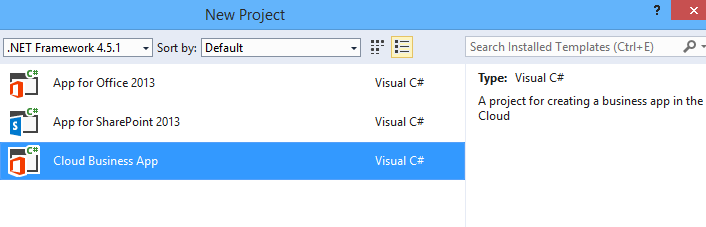
So what’s new in Visual Studio 2013? Tracking Visual Studio is difficult, because many important features show up as updates and add-ons. After all, at heart Visual Studio is just a shell or platform in which development sit. The Visual Studio LightSwitch HTML client, for example, which made LightSwitch into a strong tool for rapid application development of mobile web apps, appeared as part of Visual Studio 2012 Update 2. Now in Visual Studio 2013 we have LightSwitch support for Cloud Business Apps, though the new project type is shown under Office/SharePoint rather than under LightSwitch:

image

A Cloud Business App is an add-on for SharePoint typically running on Office 365. In the new model SharePoint apps do not really run on SharePoint, but are web apps that integrate with SharePoint. This is great in an Office 365 context, since you can write a web app that is accessible through the Office 365 site and which is aware of the logged-on user; in other words, it uses Azure Active Directory automatically. There’s more on the subject here.

What else is new? Here are some highlights:

  • Better ISO C/C++ compliance in Visual C++
  • Upgraded F# with language tweaks and improved performance
  • .NET Framework 4.5.1 with minor enhancements
  • Support for new Windows 8.1 controls and APIs in Windows Store apps – these are extensive.
  • “Just my code” debugging for C++ and JavaScript, and Edit and Continue for 64-bit .NET apps
  • Graphics diagnostics for apps running remotely
  • Sign into Visual Studio with a Microsoft account. Microsoft pulls developers further into its cloud platform.
  • Windows Azure Mobile Services – build a back end for an app running on Windows, Windows Phone, iOS, Android or web

Does that amount to much? Compared to the changes between Visual Studio 2010 and 2012, no. That is a good thing, since what we have is a refinement of what was already a capable tool, rather than something which gives developers a headache learning new ways to work.

Microsoft should have made a separate Windows for tablets say critics – but it did

David Pogue at the New York Times expresses a common view in his take on Windows 8.1:

The more you work with Windows 8, the more screamingly obvious the solution becomes: Split it up. Offer regular Windows on regular computers, offer TileWorld on tablets. That way, everyone has to learn only one operating system, and each operating system is suited to its task.

Simple, eh? One of several flaws in this argument though is that Microsoft did exactly that.

image

What is Windows RT? It is a Windows tablet OS where only Windows Store apps can be installed. Admittedly the presence of the desktop in Windows RT, in order to run Office and to access settings that would otherwise be unavailable, is a sign that Windows RT is not quite done; but you can ignore it if you want. If you are looking for Windows 8 for tablets only, here it is.

Did the market love Windows RT? No, on the contrary, Microsoft had to write down $900 million on excess Surface RT inventory and OEM partners have pretty much abandoned it, leaving Surface 2, which also runs RT, alone in the market.

What was wrong with Windows RT? While you can identify missteps in naming and marketing, the fundamental reason is the weak app ecosystem, which limits what you can do.

There is no reason to think that some other variant of Windows RT – for example, one without a desktop at all, or renamed “Surface OS” – would have fared any better. It would probably have been a bigger disaster, lacking even the benefit of Microsoft Office.

Personally I like Windows RT and I think it is strategically important, though rumours suggest that it will be absorbed into a future Windows Phone OS:

Right now, Microsoft has two ARM-based Windows operating systems: The Windows Phone OS and the Windows RT OS. The thinking is these will be one by Spring 2015. Because it tends to be easier to take a “smaller” OS and add to it than to take a larger one and remove features from it, it’s likely that the Windows Phone OS is the one on top of which the new operating systems group will build.

The reasoning, incidentally, does not altogether make sense, though I do not doubt Mary Jo Foley’s reporting. Windows Phone itself is based on a cut-down version of a larger operating system, with the Windows 7 range built on Windows CE and the Windows 8 range built on the full Windows NT kernel. What we will get, I suspect, is unification of the app platform in Windows Phone and Windows 8, and the question will be what happens to the desktop and ability to run full Office in this ARM Windows vNext.

Aside: of all the gadgets I carry around, it is Surface RT that draws the most approving comment from non-technical friends, thanks to its small size, excellent screen, long battery life, and ability to run Word and Excel as well as tablet apps. Of course it is too expensive and too slow, in its first release, and while Surface 2 may fix performance, it will not fix the premium price.

7 types of Windows 8 users and non-users

When I was in Seattle earlier this month I visited the Microsoft Store in Bellevue. I nearly bought a Nokia Lumia 1020, but also observed an enthusiastic salesperson showing off Surface 2 (a pre-launch demo unit) to an older customer. She watched patiently while he showed how it handled pictures, SkyDrive, Office, Email, Facebook and more. At the end she said. “I don’t need any of that. Show me your cheapest laptop.”

image

Yes, it’s tough for Microsoft. The incident got me thinking about computer users today and whether or not they are in the market for Windows 8 (or the forthcoming Windows 8.1).

Here is a light-hearted at some categories of users. And yes, I think I have met all of them. For those that are saying no, what would change their minds?

1. The Apple fan.

Switched to Mac from Windows XP around 2007. Has Mac, iPhone, iPad. So much easier, no anti-virus nags, boots quicker, less annoying, always works smoothly. Occasionally runs a Windows app on Parallels but nothing non-nuclear would persuade them to switch back.

Buying Windows 8? No.

2. The Enterprise admin.

In latter stages of migration from Windows XP to Windows 7. Still a few XP machines running awkward apps or run by awkward people. Last holdouts should be gone by year end. Job done, won’t even think about another migration for 3-5 years. Next focus is on BYOD (Bring your own device); will be mostly iPhones and iPads with the occasional Android or Windows 8 tablet.

Buying Windows 8? Mostly no.

3. The older Windows user

Son thinks a Mac would be better, but Windows works fine, is well understood, and does all that is needed. No desire to upgrade but when PC conks out will look for the most familiar looking machine at a good price. Would prefer Windows 7 but may be forced into Windows 8 if those are the only machines on offer.

Buying Windows 8? Maybe reluctantly.

4. The PC guy

This is the guy who understands PCs back to front. Never saw the point of Macs, overpriced, fewer apps, and little different in functionality. First thing to do with a new PC is either spend 3 hours removing all the crapware, or reinstall Windows from scratch. The Windows 8 user interface took some adjustment at first but fine with it now, likes the slightly better performance, and even uses a few Metro apps on the Surface Pro tablet.

Buying Windows 8? Yes, best Windows yet.

5. The tablet family

Used to update the family PC every few years, but mum got an iPad, son got an Android tablet, then dad went Android too, and now they spend so much time doing email, games, web browsing, YouTube, Facebook and BBC iPlayer on the tablets that the PC gets little use. It’s still handy for household accounts but it won’t be replaced unless it breaks.

Buying Windows 8? Not soon, and maybe not ever.

6. The tried it once never again person

It was embarrassing. Used Windows for years, then a friend brought over a Windows 8 laptop. Clicked on desktop, but with no Start button how do you run anything? Clicked around, right-clicked, pressed ESC, pressed Ctrl-Alt-Del, but nothing doing. Friend was laughing. Now the sight of Windows 8 evokes a chill shudder. Never, just never.

Buying Windows 8? No way.

7. The “Make it like 7” person

Windows 8? No problem, it’s just like 7 really. Installed Start8, got the Start menu back, set it to boot to desktop, set file associations for PDF and images to desktop apps, and never sees the Metro environment.

Buying Windows 8? Kind-of, but will never run a Metro app.

Usability: Microsoft’s big weakness

The iPhone, or maybe the iPod, was the beginning of the era of usability. Make something nice to use, reasoned Apple, and users will come flocking.

After the iPhone came the iPad; and then Android which while lacking the polish of iOS, mostly has the same characteristics of appliance rather than computer in its user interface.

What about Microsoft? It has learned to some extent. Windows Phone is a user-friendly operating system. The touch interface in Windows 8, although a shock to existing Windows users, shows obvious effort towards usability and sometimes succeeds. Navigating the weather app, for example, is a pleasure.

There are times though when Microsoft seems to have learned nothing. Take the new SkyDrive integration in Windows 8.1 for example. It is foundational in Microsoft’s effort to wrest Windows into being a cloud-centric operating system, where you could lose your device, buy a new one, log in, and find all your stuff. I’ve posted about its progress here.

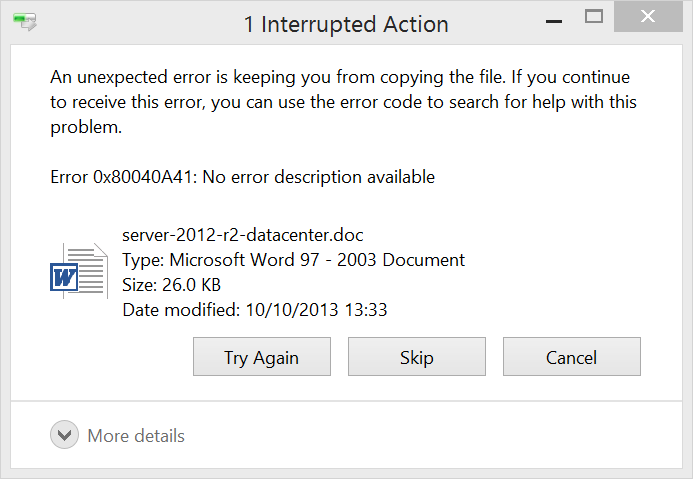
But then you are on a train, say, with a poor internet connection, and you double-click a file in SkyDrive that has not been downloaded to your PC. This is the dialog you see (at least, it is the one I just saw):

image

There is so much wrong with this dialog that I don’t know where to start. But I will have a go.

First, I doubt the error is really unexpected. If my internet connection is poor, problems downloading stuff from SkyDrive are expected, not unexpected. You would think that the client could figure out, “It looks like I have a poor connection to SkyDrive” and inform the user accordingly.

Second, the error number. The dialog invites me to search for help using this number; however to do so I would have to copy it manually as it is unselectable. The number of course is in hexadecimal, so there is a high chance of copying an O instead of a zero as the difference is not obvious other than to programmers. Nor is it clear where I should search. Should I bang the number into Bing and hope for the best? Such searches can be fruitful, but they can also go badly wrong when you hit sites that tell you to download their utility to clean your registry, or some such nonsense.

Third, there is space for a human-understandable description of the error, but it is says “No error description available”. Lazy programming somewhere. Maybe in a code base the size of Windows it is too much to expect helpful messages for every error but this is not something users should normally see.

Fourth, there are three choices: Try Again, Skip and Cancel. Bearing in mind that I double-clicked only one document, what is the difference between Skip and Cancel?

Fifth, there is a More details button but it is disabled. Why, if no more details are available, does this More details button appear at all? Though I’d suggest that Error 0x80040A41 is a great candidate for “More details” rather than being something non-technical users are expected to make sense of.

What should happen? First, SkyDrive and/or its client should work better. This is a critical feature; but users are complaining (yes, I found this by searching for the error code) and it seems that problems persist in Windows 8.1 RTM. Microsoft has been working on file sync for decades, yet upstarts like Dropbox work more smoothly.

Second, when bad things happen, I am all in favour of plain English. I don’t see any reason ever to confront users with error numbers in hex. Put it in a technical details option by all means. In this particular case, why not something like, “Windows is having problems downloading from SkyDrive. You may have a poor internet connection; please try again later, and if the problem persists, contact support.”

Getting this right is not easy; but for as long as ordinary users see this kind of dialog in day to day use of Windows, the flight to iPad and Android will continue.

Update: the error fixed itself when I found a better connection

Sunspider JavaScript Benchmark on 4 models of Microsoft Surface

Today I got my first sight of Microsoft’s new models of Surface, its Windows tablet, on display at the Microsoft Store in Bellevue.

image 

I ran the Sunspider JavaScript benchmark on the new models, and then on the old ones for comparison.

  • Surface RT 1.0: 922ms
  • Surface 2.0 (RT): 397ms
  • Surface Pro: 127ms
  • Surface Pro 2.: 114ms

No surprises; but what this confirms is that Surface 2.0 RT, which has an NVIDIA Tegra 4 chipset, is substantially faster than the earlier Tegra 3 model; whereas Surface Pro which has an updated Intel Core i5 processor is only a little faster on this particular test.

Microsoft is attempting to continue selling Surface RT alongside Surface 2.0 RT, at $349 vs $449 for the 32GB model. However the new one is a better buy and I imagine the price of the earlier model will fall further, given that Microsoft appears still to have substantial stocks.

Windows 8.1 and cloud-centric computing

If your iPad breaks or gets stolen, it’s bad but not that bad. The chances are that there is no data on the iPad that is not copied elsewhere, especially if you let Apple’s iCloud do its default thing and copy everything you create. Get a new iPad, sign in, and you can carry on where you left off; the apps are there, the data is there too, even if you do not actually have a backup of the device itself.

Google’s Chromebook goes even further in this direction. When you sign into the device you sign into Google and all your data is there.

This kind of freedom from worry about losing apps or data stored on the device seems to be Microsoft’s goal with Windows as well, though it is more difficult because historically applications have complex local installs, sometimes protected by activation tied to the PC itself, and data is stored locally in your user folders – Documents, Pictures, Music and so on – or in some cases elsewhere, depending on how well behaved the application is. In order to defend against data loss if the PC is lost or damaged, you have to keep regular backups, or make a conscious effort not to store data locally.

Windows 8.1 includes a significant change. It is optional, but the default is that documents save to SkyDrive (note that the name will change soon) by default.

image

This is in addition to synchronisation of settings, passwords and application data. Again, SkyDrive is where this data gets stored. You can see and control what is synchronised in Charms – PC Settings – SkyDrive -  Sync Settings:

image

The list is extensive and includes web browser favourites (provided you use Internet Explorer) and “settings and purchases” within apps. Note that apps in this context means new-style Windows Store apps, not desktop applications. Separately, there is a Camera Roll setting that syncs images and optionally videos from the Camera Roll folder in your  Pictures folder.

How close then is Window 8.1 to a cloud-centric experience, where you could thrown your machine in the bin, buy another one, sign in and carry on where you left off?

It is getting there, but in practice there are plenty of snags and oddities. The big one is desktop apps, of course, which do not participate in this synchronisation other than via SkyDrive if you save documents there. You will have to reinstall the applications as well as reconfigure them. That said, certain desktop applications now have a subscription model. Two big examples are Microsoft Office, if you buy via an Office 365 subscription, and Adobe’s Creative Cloud which includes Photoshop, Dreamweaver, Audition and so on. Using cloud-aware applications such as these helps, but it is not seamless. For example, in Office 2013 I have to reconfigure the Quick Access Toolbar and copy my custom templates manually to a new machine.

New-style apps do roam to a new machine and you can now use them on up to 81 different machines, which should be enough for anyone. Note though that your apps, which are listed when you sign into a new machine with a Microsoft account , are not actually installed until you run them for the first time. Not a problem is you are on the internet, but worth knowing before you catch that flight. In the following example, only two of the apps are actually installed:

image

Microsoft takes a similar approach with SkyDrive documents. The feature called SkyDrive “smart files”, described here, means that documents are by default only available online. I can see this catching people out, especially with pictures, for which a thumbnail shows even when the actual picture has not yet been downloaded. Here are some pictures I took at Microsoft Build in June; they are on SkyDrive but although they look as if they are on my PC a message in the status bar says “Available online only.”

image

A nice feature in terms of seamlessly connecting to cloud storage without filling your local hard drive (or often, small SSD drive), provided you understand it. Of course, you can mark a file or folder to be available offline if you choose, in which case it is downloaded.

Some things are confusing. If you have a domain-joined machine then passwords do not sync, which makes sense for security, but also raises the question of what all this consumer SkyDrive stuff is doing on a domain-joined machine anyway? Of course there are other ways of doing something similar in domain environments:

  • Settings determined by Group Policy
  • Default document location set to corporate shared folder
  • Roaming profiles

The odd thing though is that you can link a Microsoft account (SkyDrive, App Store account) to a domain account and you then end up with a mixture of consumer and corporate features which work in different ways. It would be tempting simply to block the use of Microsoft accounts completely – which you can do with group policy – especially if you are concerned about sensitive corporate documents arriving on consumer cloud services and mobile devices through the magic of sync.

It is also confusing that Office 365 users cannot use SharePoint in Office 365 to sync settings.

I also feel that the user interface in Windows 8.1 needs some work in this area. Here are some things I find odd:

Applications like Paint and Notepad use a principle of “default to where you last saved.” This means that even if you set SkyDrive as the default document location, if you save once to the documents or pictures folder on the PC, it will default to that local destination next time you use it.

Since both SkyDrive and the local PC have a folder called Documents, it would be easy not to notice.

Office 2013 is even more confusing. I have Office 365, so when I hit save in Word I get offered Office 365 SharePoint, SkyDrive, “Other web locations” which includes an on-premise SharePoint, and Computer. Oddly, if I hit Computer, the default location is SkyDrive:

image 

Much of this confusion is a legacy problem as Microsoft attempts to transition Windows to become a cloud-centric OS, but it could be better done. I would suggest clear naming to help users know whether a save location is local or cloud. Most of all, I would like to see consistency between consumer and corporate deployments so that a domain-joined PC can have the same options that work in the same way, except that data is stored to a corporate location.