Category Archives: windows

How to change a network from public to private in Windows 8.1

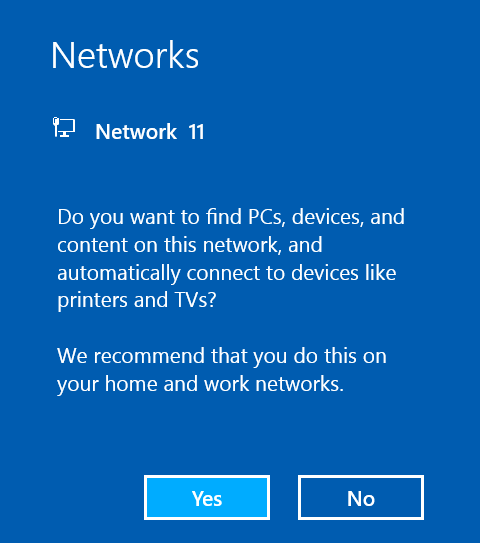
So I arrive at a hotel and turn on wi-fi and connect. That little dialog comes up, Do you want to find PCs devices and content on this network? The correct answer in a hotel is No, but in my jet-lagged stupor I click Yes. Oops.

image

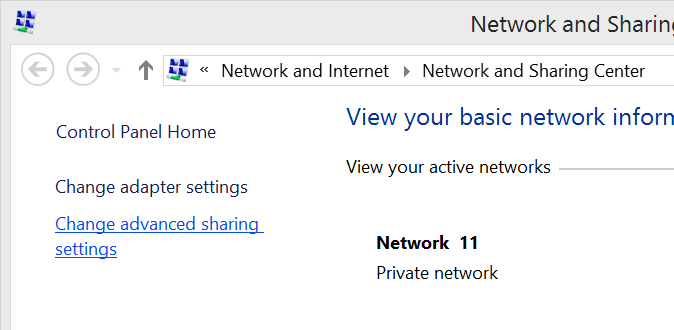
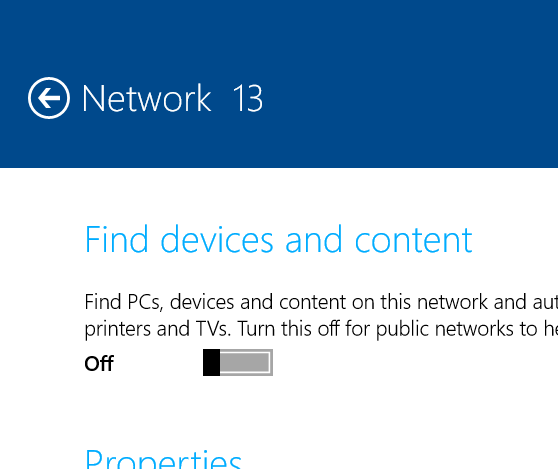
No problem, just change it, right? Hmm. Go to the Network and Sharing center and it is not obvious how to change the profile of a network. It tells me that the network is Private, but the setting seems to be read-only:

image

Not much of a Network and Sharing Center if you cannot change this setting; but never mind. How about just “forgetting” the network so that the dialog reappears?

I took a look here. Press and hold a network in the list to forget it. Unfortunately this does not work in Windows 8.1, and apparently that is by design.

OK, so try the command line:

netsh wlan delete profile name="ProfileName"

The profile name in this context is the wi-fi SSID. Seems to work; but when I reconnect the profile dialog does not appear. Apparently the network is not fully “forgotten”.

There is a way. Regedit, and go to:

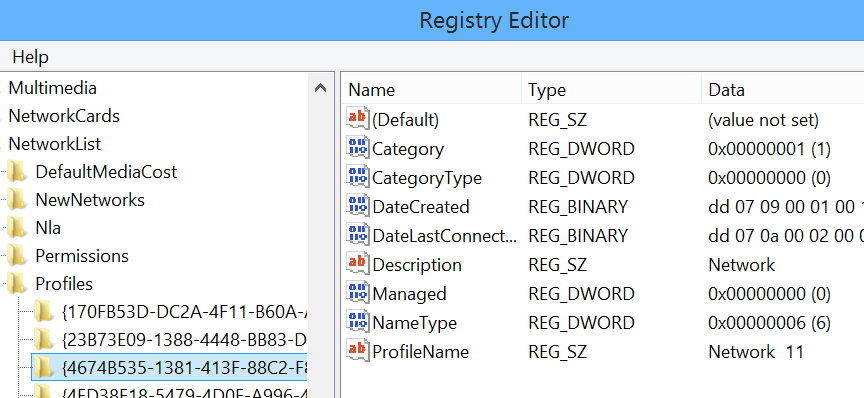
HKLM\Software\Microsoft\Windows NT\CurrentVersion\NetworkList\Profiles

and find the GUID that matches your network, in my case Network 11.

image

Delete this profile. Do the command line thing as well to delete the profile. Now the network really is forgotten. Reconnect, the profile dialog comes up again, and now you can choose Public.

There must be an easier way though. Anyone know the user-friendly way to fix things when you accidentally select the wrong profile for a connection?

Update

It seems that this is meant to be set in Charms – PC Settings – Network. In fact, you can do it for wired connections. Here is what I get if I tap a wired connection, which I presume changes the profile:

image

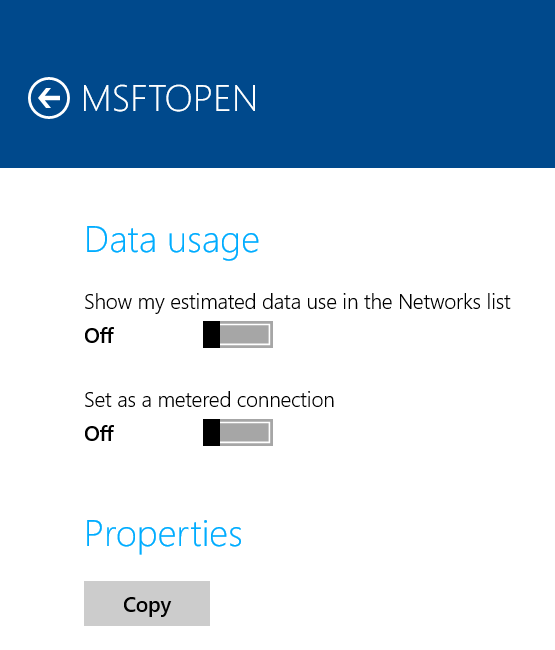
However, if I tap a wireless connection I get this:

image

This looks like a bug to me, either with my 8.1 install or more generally.

ComponentOne’s TouchToolkit for Windows Forms: another approach to the Windows tablet problem

Software component vendor ComponentOne has released Studio Enterprise 2013 v2.5, the latest in its suite of components, with support for Windows 8.1 and Visual Studio 2013.

The piece that caught my eye is the TouchToolkit for Windows Forms.

image

Here’s the problem. The Windows desktop is poor with touch control, which is why Microsoft created Windows 8 with its alternate, touch-friendly Windows Runtime platform. However users are resistant to the changed user interface, and it does not help with existing desktop apps.

Developers are also faced with a question of simple mathematics. Develop a Windows 8 Store app, get a market of x. Develop a Windows desktop app, get a market of many times x, since Windows 8 can run desktop apps, but Windows 7 cannot run Store apps.

Embarcadero approached this problem with a framework called Metropolis, for Delphi and RAD Studio. It builds apps that mimic the Windows Runtime look and feel, but which are actually desktop apps. Of course they do not run on Windows RT, the ARM version. It is a confusing solution in my opinion, leading users into what Martin Fowler calls the Uncanny Valley, where stuff works almost but not quite how you expect.

I prefer the thinking behind the TouchToolkit. Take your existing Windows Forms apps, or write a new one, using these controls to make them more touch-friendly. They will never be as well suited to touch control as a Store app, but they might be good enough, and of course will run on Windows 7 and earlier versions.

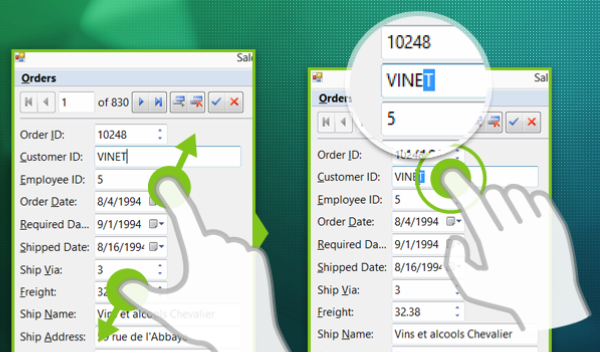
The controls include a magnifier, support for zoom gestures, and a touch event provider that adds gesture support to any control.

Windows Forms, we all know, is not as good as WPF if you want an application that scales nicely and supports modern design. On the other hand, Windows Forms is pragmatic and easy to use framework that remains popular for line of business apps.

Fixing a slow Lenovo laptop

Here is a problem I’ve not seen before. A Lenovo Thinkpad E530 laptop running Windows 7, which after working fine for months developed a critical problem. On start up the user would see the network icon in the notification area (bottom right) show a busy icon or a red cross. No network connectivity, and the machine almost unusable.

After around 20 to 25 minutes the network sprang into life and everything was fine, until the next reboot when the problem repeated.

I fixed several errors in the event log to no avail. The problem persisted.

Went into msconfig and did the usual trick of disabling all non-Microsoft services and startup items. Everything worked fine. Laptop booted quickly and connected to the network.

What was the culprit? Trial, error and instinct eventually narrowed it down to an Intel service: Bluetooth Device Monitor. If enabled, 25 minute boot. If disabled, two minute boot.

I updated the Intel Bluetooth driver, a substantial 300MB download. This fixed it. I noticed that the updated Bluetooth Device Monitor now says it is from Motorola:

image

I understand it was always provided by Motorola but previously signed by Intel.

Posted here in case others run into this issue.

Update: this seems to be a common problem. It seems that a recent Microsoft update is incompatible with some versions of the Bluetooth driver. See here for discussion on the HP support forums, where it has occurred with the HP Probook 4540s and others.

As noted in the comments, I used Lenovo’s system update utility to grab the more recent “Motorola” driver. It shows there as an optional update.

Fix screen dimming unexpectedly in Windows 8

Symptom: you are working away on your laptop or tablet, and suddenly the screen dims. Moments later, it brightens. Annoying and distracting.

The reason is the ambient light sensor. Someone thought it would be smart if the brightness of the screen varied according to the level of ambient light. If the room is more dimly lit, your screen does not need to be so bright. Microsoft’s Surface Pro, for example, has this enabled by default.

The idea is reasonable, but the implementation is lacking. Instead of the brightness gradually varying so you do not notice it, it dims and brightens like a mad thing.

You can fix this in Windows 8 through the power options – no it is not in display options so don’t bother looking there.

If you have a battery/mains icon in the notification area in the task bar, you can right-click and choose Power Options. Otherwise, open Control Panel (desktop version), and search for Power options.

Now click Change plan settings for the currently selected power plan.

Then click Change advanced plan settings.

Now scroll down to Display and expand the tree.

image

The setting you want is Enable adaptive brightness. You can set this separately for mains and battery power. It does slightly extend battery life, so you might want to leave it On for battery and Off for when plugged in.

Then click Apply and close the dialog.

Lenovo’s bundled Start menu: more OEM trouble for Microsoft

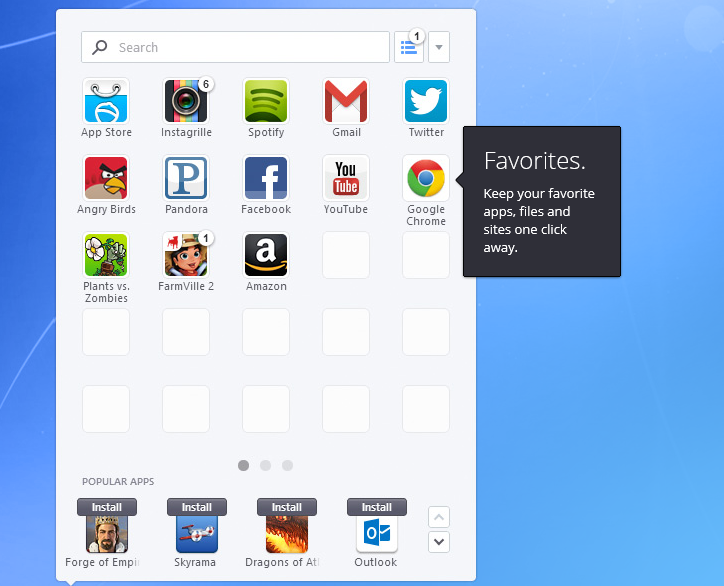
Lenovo and SweetLabs announced a deal yesterday whereby the Pokki app store and Start menu replacement will be pre-installed on Windows PCs.

This has been widely interpreted as a response to user dissatisfaction with the Windows 8 Start screen, which replaces with the hierarchical Windows 7 Start menu with a full-screen tiled view of application shortcuts. The press release, though, focuses more on the app store element:

Apps are dynamically recommended in the Pokki Start menu, app store, and game arcade to users by SweetLabs’ real-time app recommendation system, which matches the right apps with the right users. This system has already served one billion app recommendations this year, and the addition of Lenovo substantially extends the reach of this distribution opportunity for app developers looking to be promoted on brand new Windows 8 devices.

image

In other words, this is not just an app launcher but also a form of adware or if you prefer a third-party app store; the apps it installs will not be Windows Store apps running in the tablet-friendly Windows 8 environment, but desktop apps.

Microsoft could benefit I suppose if users concerned about missing the Start menu buy Windows 8, but in every other respect this is a retrograde step. Users who do want a Start menu would be better off with something like Start8 which will not nag them to install apps, which makes you wonder if Lenovo’s motivation is more to do with a lucrative deal than with pleasing its users. Microsoft’s strategy of building momentum for its own Windows 8 app store and platform will be undermined by this third-party effort.

Once again this illustrates how the relationship between Microsoft and its OEM partners can work to the detriment of both. The poor out of the box experience with Windows has been one of the factors driving users to the Mac or iPad over the years, and this is in large part due to trialware bundled by partner vendors.

Windows 8 is a special case, and there is no doubting the difficulty long-term Windows users have in getting used to the new Start screen. The new Start button in Windows 8.1 will help orient new users, but Microsoft is not backing away from Live Tiles or the Start screen. Lenovo’s efforts will make it harder for users to adjust, since they would be better off learning how to use Windows 8 as designed, rather than relying on a third-party utility.

Microsoft has Surface of course, which despite huge writedowns is well made and elegant, though too expensive; and this has not pleased the OEMs who previously had Windows to themselves.

It all makes you wonder if the famous gun-wielding cartoon of Microsoft’s organization chart should now be redrawn with the guns pointing between Microsoft and its hardware partners. After all, Windows Phone might also have gone better if the likes of Samsung and HTC had not been so focused on Android.

Not just Windows: even Mac sales are down

Apple has released its third quarter financial results, and they are decent: year on year revenue is up fractionally, from $35.023 billion to $35,323 billion, though profit is down from $8.8 billion to $6.9 billion.

Compared to the third quarter in 2012 though, Mac sales are 7% down though, from 4.02 million units to 3.754 million units. Revenue from the Mac has declined by 1%.

In isolation this is not a dramatic change, but the statistic is more interesting when you put it in context with what is happening with Windows PCs. Windows 8 is nearly a year old, released to manufacturing on August 1 2012 and generally available from October 26 2012.

Windows 8 has received a mixed reception, with many users reluctant to adopt the reinvented operating system, which replaces the Start menu and adds a touch-friendly tablet platform alongside the desktop user interface. So far it has done nothing to stem declining PC sales and may have accelerated the process. Gartner reports a 10.9% decline in worldwide PC sales in the second quarter of 2013  (same as Apple’s third quarter). Gartner’s figures also include Macs, though Gartner estimates only a 4.3% unit decline.

The evidence is that gains in Mac sales at the expense of Windows, which is a long-standing trend, is continuing, insofar as Mac sales have declined by less than the PC market overall. However the figures confirm that the decline in PC sales is due to fundamental changes in personal computing, in favour of tablets and other mobile devices, rather than market response to an unpopular Windows edition.

The twist here is that Windows 8 is designed for exactly that trend; and while there is plenty of scope for argument about how Microsoft has addressed it, there is little doubt that it was right to come up with a version of Windows for tablets – and one that was not a reprise of its previous stylus-based efforts.

My own view is that Windows 8 is a plausible strategy and that Microsoft should stick with it. Earlier comments on Windows RT are relevant here.

Hybrid devices that twist between laptops and tablets are not the answer though. They are transitional machines which end up too heavy and expensive to be good tablets. Many users will buy a cheaper laptop instead.

The question for Microsoft now is how much tablet market will be left by the time the Windows app ecosystem matures to the point when a Windows tablet can really compete with an iPad for usability and utility in pure slate form.

Apple has problems too. iPad sales are down by 27% from the same quarter last year, though iPhone is up 15%. The reason, I suspect, is Android.

Windows RT and Surface RT: Why Microsoft should persevere

Microsoft has reported a $900 million write-down on Surface RT inventory in its latest financial results. Was Surface RT a big mistake?

A loss of that size is a massive blunder, but the concept behind Surface RT is good and Microsoft should persevere. Here’s why.

Surface RT is experimental in two ways:

  • It was the first Microsoft-branded PC (or tablet if you prefer).
  • It was among the first Windows RT devices. Running on the ARM processor, Windows RT is locked down so that you can only install new-style Windows 8 apps, not desktop apps. However, the desktop is still there, and Microsoft bundles Office, a desktop application suite.

Microsoft had (and has) good reason to do both of these things.

Historically, DOS and Windows prospered because it was open to any hardware manufacturer to build machines running Microsoft’s operating system, creating a virtuous circle in which competition drove down prices, and abundance created widespread application support.

This ecosystem is now dysfunctional. The experience of using Windows was damaged by OEM vendors churning out indifferent hardware bundled with intrusive trial applications. It is still happening, and when I have to set up a new Windows laptop it takes hours to remove unwanted software.

Unfortunately this cycle is hard to break, because OEM vendors have to compete on price, and consumers are seemingly poor at discriminating based on overall quality; too often they look for the best specification they can get for their money.

Further, Windows remains a well understood and popular target for malware. One of the reasons is that despite huge efforts from Microsoft with User Account Control (the technology behind “do you really want to do this” prompts in Windows Vista onwards), most users outside the enterprise still tend to run with full administrative rights for their local machine.

Apple exploited these weaknesses with Mac hardware that is much more expensive (and profitable), but which delivers a less frustrating user experience.

Apple has been steadily increasing its market share at the high end, but an even bigger threat to Windows comes from below. Locked-down tablets, specifically the Apple iPad and later Android tablets, also fixed the user experience but at a relatively low price. Operating systems designed for touch control means that keyboard and mouse are no longer necessary, making them more elegant portable devices, and a wireless keyboard can easily be brought into use when needed.

Microsoft understood these trends, although late in the day. With Surface it began to manufacture its own hardware, an initiative which alongside the bricks-and-mortar Microsoft Stores (supplying trialware-free Windows PCs) aims to counter the corrosive race to the bottom among OEM vendors.

Windows 8 also introduces a new application model which is touch-friendly, secure, and offers easy app deployment via the app store.

In Windows RT the experiment is taken further, by locking down the operating system so that only these new-style apps can be installed.

Surface RT brings both these things together, solving many of the problems of Windows in a single package.

Why Surface RT failed

Surface RT is well made, though performance is disappointing; it seems that Nvidia’s Tegra 3 chipset is not quite sufficient to run Windows and Office briskly, though it is usable, and graphics performance not bad.

There were several problems though.

  • The price was high, especially when combined with the clever keyboard cover.
  • It may solve the problems of Windows, but for many users it also lacks the benefits of Windows. They cannot run their applications, and all too often their printers will not print and other devices lack drivers.
  • Surface RT launched when the Windows 8 app store was new. The new app ecosystem also has its problems (all these things are inter-related) and in consequence few compelling apps were available.
  • Microsoft’s built-in apps were poor to indifferent, and Office was bundled without Outlook.

I was in New York for the launch of Surface RT. There were “Click In” ads everywhere and it was obvious that Microsoft had convinced itself that it could sell the device in large numbers immediately. That was a fantasy. I suppose that if consumers had taken Windows 8 to heart quickly (as opposed to resisting the changes it imposes) and if the app ecosystem had flourished quickly then it could have taken off but neither was likely.

Surface RT positives

Despite all the above, Surface RT is not a bad device. Personally I was immediately drawn to its slim size, long battery life, and high build quality. The keyboard cover design is superb, though not everyone gets on with the “touch” cover. I purchased one of the launch machines and still use it regularly for cranking out Word documents on the road.

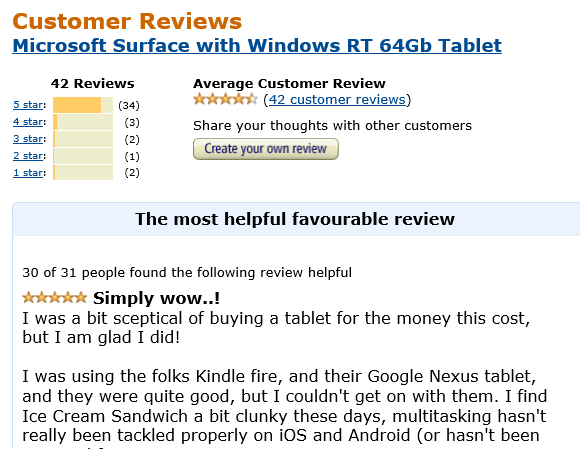
Reviews on Amazon’s UK site are largely positive:

image 

Surface RT is also improving as the software evolves. Windows 8.1, now in preview, adds Outlook and makes the device significantly more useful for Exchange users. Performance also gets a slight lift. The built-in apps are improving and app availability in general is much better than it was at launch, though still tiny compared to iPad or Android.

I have also been trying Surface Pro since receiving one at Microsoft’s Build conference last month. The Pro device has great performance and runs everything, but it is too bulky and heavy to be a satisfying tablet, and battery life is poor. I think of it more as a laptop, whereas Surface RT is a true tablet with a battery that gives pretty much a full day’s use when out and about.

Microsoft’s biggest mistake with Surface RT was not the concept, nor the quality of the device. Rather, they manufactured far too many thanks to unrealistic expectations of the size of the initial market. The sane approach would have been a limited release with the aim of improving and refining it.

I hope Microsoft perseveres both with Windows RT and with Surface RT. Give it better performance with something like Nvidia, Tegra 4, Windows 8.1, and improved app support, and it is near-perfect.

The future of Windows

Desktop Windows will remain forever, but its decline is inevitable. Even if it fails, we should recognise that Microsoft is trying to fix long-standing and deep-rooted problems with Windows through its Windows 8, Surface and Windows RT initiatives, and there is some sanity in the solutions it has devised. Despite a billion dollars thrown away on excess Surface RT inventory, it should follow through rather than abandon its strategy.

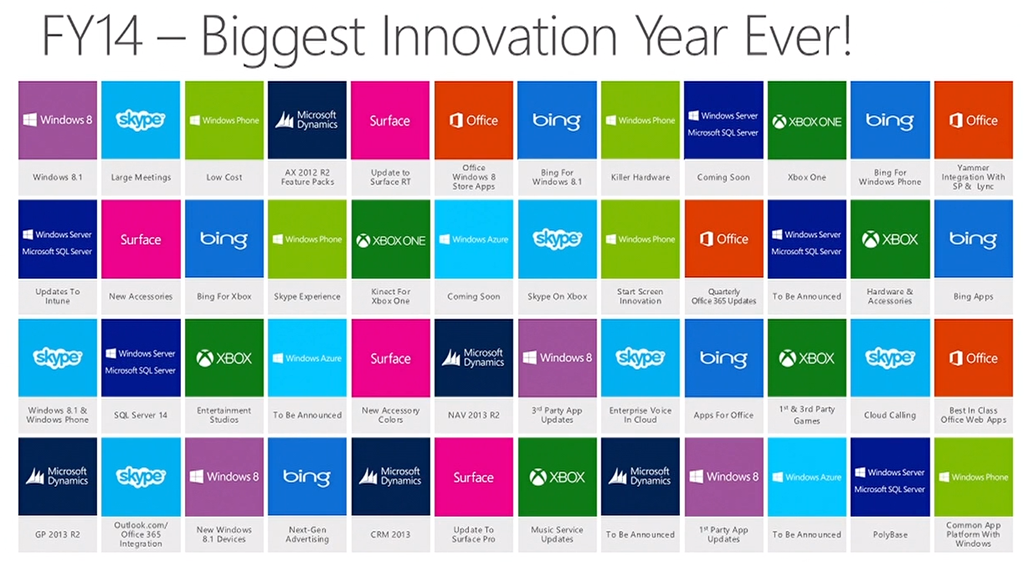
What’s coming from Microsoft in its next financial year: July 2013-June 2014

Noticed this slide shown by COO Kevin Turner at Microsoft’s Worldwide Partner Conference under way in Houston.

image

What caught my eye in particular?

  • Common app platform between Windows and Windows Phone
  • Skype integration with Outlook.com and Office 365
  • Update to Surface RT and Surface Pro – does this mean updated hardware? That seems likely, given that both models will soon look obsolete without, especially the older Surface RT.

Review: Acer Iconia W3 with Windows 8.1 Preview

Attendees at Microsoft’s Build conference last month were given an Acer Iconia W3 tablet, presumably because it is the earliest examples of Windows 8 on an 8″ tablet. I find it hard to assess; it seems good value but is a frustrating device.

The specs in summary:

  • Processor: Intel Atom Z2760 1.50 GHz Dual-core
  • Memory: 2GB
  • Storage: 64GB SSD
  • Card slot: MicroSD up to 64 GB
  • Display: 8.1″ Active Matrix TFT Colour LCD WXGA 1280 x 800
  • Graphics: Intel Graphics Media Accelerator HD, shared memory
  • Wireless: 802.11b/g/n, Bluetooth
  • Ports: HDMI, Micro USB, headset/speaker jack
  • Cameras: Front and rear
  • Microphone: Yes
  • Battery: 2-cell Li-Polymer 6800 mAh
  • Size and weight: 11.4 x 134.9 x 219 mm, 500g
  • Price: Around £350 or $430

Since this is an x86 device, it comes with full Windows 8.x, not the locked-down Windows RT edition. My guess is that Acer did this because Windows RT has been a hard sell, thanks to the poor selection of Windows Store apps on offer, indifferent performance, and confusion among customers when they discover that none of their existing Windows apps will run.

On the other had, do you really want full desktop Windows on an 8.1″ device? I view it with mixed feelings. Technically it runs well, and means that you have amazing capability in a small and highly portable device. The case against is that desktop Windows is designed neither for touch, nor to run on such a small screen. In order to use it, you need good eyesight and ideally a keyboard and mouse. The mouse is especially important, since targeting small desktop icons with fingers (at which I have become quite adept on larger Windows slates) is a real challenge on this tiny display.

image

There is a matching Bluetooth keyboard/dock (included in the picture above) which is available for around $80 and which was also handed out at Build. The underside of the keyboard forms a kind of case.

image

I am typing this review, naturally, on this very keyboard, and I am would not want to tackle it with only the on-screen keyboard. It feels cheap and plastic though, and I saw one Build delegate struggling with a broken key after only a day of use. Keyboards are quite delicate (some more than others), and arguably it would make more sense to protect the keyboard with the tablet, than the tablet with the keyboard.

Another issue is that the Bluetooth keyboard does not include a trackpad, perhaps because it would require a docking connector rather than just Bluetooth. However as mentioned above, the lack of a mouse is equally troublesome in desktop Windows. Therefore I have plugged in a USB mouse in order to work on this review.

Of course, once you have loaded your bag with keyboard and mouse as well as tablet, you begin to wonder whether a conventional laptop would have been easier. I admire Microsoft’s Surface design, where the keyboard cover does include a trackpad, and where the keys on the Type cover are folded inside the cover and therefore protected in your bag. The Surface Pro is far more expensive, but Surface RT not so much, and I suggest that Surface RT is a more satisfying product despite its locked-down desktop, especially with Windows 8.1 which includes Outlook.

The Iconia W3 also has a grainy screen. It is usable, but the worst screen I have seen for a while, and not helped by a high-gloss reflective surface.

Annoyance number three is the micro USB port. Few devices expect to find micro USB on the PC side, so you will need an adaptor. The Build handout included one, but I suspect this is not in the box by default. Even with an adaptor though, it is a nuisance, though I appreciate the difficulty in including a USB A port on a slim device like this.

Performance is no more than so-so, which is what you would expect from the Atom CPU. On SunSpider 1.0, for example, with IE11, the W3 scores 671.5ms, better than Surface RT at 1029.2ms but behind Surface Pro at 209ms. I think it is good enough for a device of this kind.

The device does get uncomfortably hot though, in an area at back right which I presume is close to the CPU.

The W3 does have its plus points. Battery life is good, Office Home Premium is included in the price, and it is what it claims to be: a small tablet capable of running full desktop Windows. That means you can use VLC to watch videos on a flight, or Live Writer for writing blog posts, or FileZilla for FTP, or Putty for SSH, to mention a few utilities that I miss on Windows RT.

Making sense of this device means reversing your thinking about Windows. You should plan to spend most of your time in the “Modern” tablet user interface, while occasionally dipping into the desktop. If that mode of working makes sense for you, and you want an 8.1″ device, the Iconia W3 is a reasonable purchase. Take note of all the caveats though. A close look at this device makes you realise why Microsoft embarked on the Surface project.