Category Archives: windows

Microsoft Surface 2: still a hard sell at retail

I am a fan of Microsoft’s Surface 2; but looking at the display at Dixons in Heathrow’s Terminal 3 it is obvious that Microsoft has work to do in terms of retail presence.

There are no clues here as to why anyone might want to buy a Surface, and no indication that Surface 2 runs anything other than standard Windows 8, other than the two letters RT which you can read on the spec summary.

Windows RT is both better and worse than Windows on Intel. It is worse because you cannot install new desktop applications, but it is better because it is locked down and less likely to suffer from viruses or annoying OEM add-ons and customisations that usually result in a worse user experience.

Why did Microsoft not come up with a distinctive brand name for RT, such as AppWindows or StoreWindows or WinBook? I am open to negotiation should Microsoft wish to use one of my brand ideas 🙂

Surface 2 has excellent performance, Microsoft Office is bundled including Outlook (though without the ability to run Visual Basic macros), and it is expandable using Micro SD cards or USB 3.0 devices, all features I miss when using an Apple iPad.

I do use the desktop a lot on Surface 2. Simple applications like Paint and Notepad are useful especially since they have, you know, cool resizable and overlapping windows so you can have multiple applications on view.

The Apple iPad is better displayed and I am sure its greater prominence is more than justified by relative sales.


Visual Studio goes online, kind-of

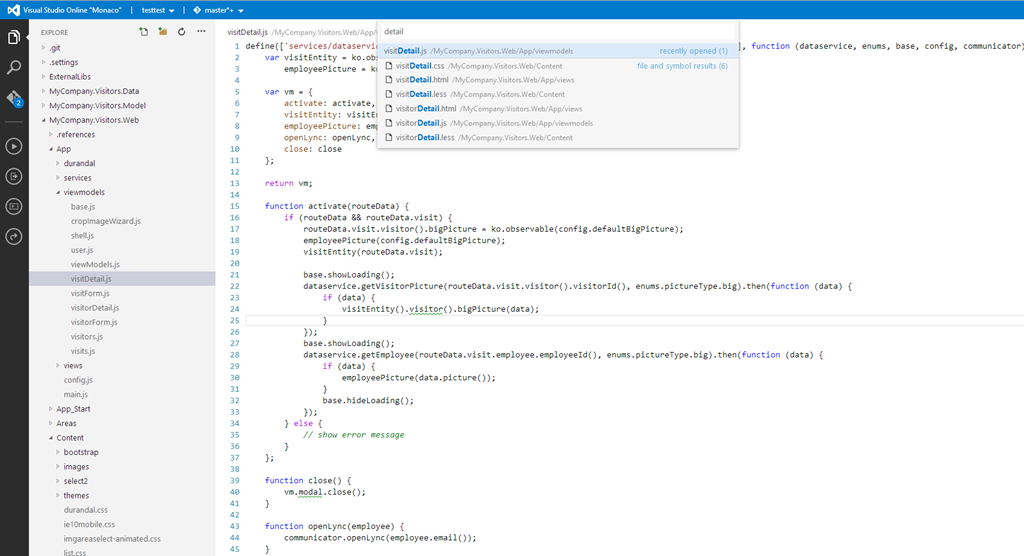
Microsoft held its official launch for Visual Studio 2013 today, at an event in New York, although the product itself has been available since mid-October. VP Soma Somasegar nevertheless made some new announcements, in particular the availability in preview of an online Visual Studio editor, codenamed Monaco. “Developers will now be able to edit their sites directly from the web, from any modern browser, on any device,” said Somasegar on his blog.

Monaco is not intended as a replacement for the desktop IDE. Instead, it parallels what Microsoft has done with Office, which is to provide a cut-down online editor for occasional use. Monaco currently targets only web applications running on Azure, Microsoft’s public cloud platform. The technology is not altogether new, since it is built on the same base as “Napa”, the online editor for Office 365 applications.

image

At the launch, Monaco was demonstrated by Erich Gamma, of Design Patterns and Eclipse fame, who says he uses it for real work. He assured us that it is built on web standards and compatible with iOS and Android tablets as well as desktop browsers.

Online editing with Monaco is only one part of what Microsoft now calls Visual Studio Online. The product also includes a hosted version of Team Foundation Server, offering source code control, collaboration tools, and an online build service. These features were already available as part of Team Foundation Service, which is now replaced by Visual Studio Online. If you are happy with the cut-down Visual Studio Express, or already have Visual Studio, then subscription is free for teams of up to five users, with additional users costing $10 per user/month for an introductory period, and rising to $20 per user/month.

Microsoft is also offering Visual Studio Online Professional, which bundling desktop Visual Studio Professional with these online services, for teams of up to 10 users, at $22.50 per user/month rising to $45.00 per user/month. This follows the same model which Adobe adopted for its Creative Cloud, where you get cloud services bundle with tools that run on the desktop.

Pay even more and you can get Visual Studio Online Advanced, which oddly does not include the Professional IDE, but supports unlimited users and has additional reporting and collaboration features, for $30 rising to $60 per user/month.

When does the introductory offer expire? It’s until further notice – 30 days’ notice will be provided before it ends. Confusing.

Somasegar also announced the preview of a new online service called Application Insights. This service analyses and monitors data from .NET or Java applications running on Windows Server or Windows Azure, and .NET applications on Windows Phone 8, reporting on availability, performance and usage.

Another new service is Elastic Load Test (not to be confused with Amazon’s Elastic Compute Cloud), which simulates multiple concurrent users for testing the performance and behaviour of an application under stress. This requires the expensive Visual Studio Ultimate with MSDN subscription, and offers 15,000 virtual user minutes per month, with additional virtual user minutes at $.001 each.

Finally, he announced a partnership with Xamarin to enable development for iOS and Android in C# and Visual Studio, extending the existing Portable Class Libraries so that non-visual code can be shared across different Windows platforms as well as the new mobile target platforms.

I spoke to Xamarin’s Nat Friedman about this and wrote it up on the Register here.

Microsoft’s strategy here is to persuade existing Windows developers, familiar with C#, Visual Studio, and both desktop and ASP.NET applications, to stick with Microsoft’s platform as they migrate towards cloud and mobile. In this context, the heart of Microsoft’s platform is Windows Azure and Office 365, which is why the company can tolerate iOS or Android clients.

The company will also hope that a proliferation of apps which integrate and extend SharePoint online will help drive subscriptions to Office 365.

The latest Visual Studio includes a new Cloud Business App project type, which is an app that sits on Windows Azure and integrates with SharePoint in Office 365. Coding in Visual Studio and deploying to Azure, both for Cloud Business apps and ordinary web applications, is now an easy process, reducing friction for developers deploying to Azure.

More information on Visual Studio Online is here.

My last server? HP ML310e G8 quick review

Do small businesses still need a server? In my case, I do still run a couple, mainly for trying out new releases of server products like Windows Server 2012 R2, System Center 2012, Exchange and SharePoint. The ability to quickly run up VMs for testing software is of huge value; you can do this with just a desktop but running a dedicated hypervisor is convenient.

My servers run Hyper-V Server 2012 R2, the free version, which is essentially Server Core with just the Hyper-V role installed. I have licenses for full Windows server but have stuck with the free one partly because I like the idea of running a hypervisor that is stripped down as far as possible, and partly because dealing with Server Core has been educational; it forces you into the command line and PowerShell, which is no bad thing.

Over the years I have bought several of HP’s budget servers and have been impressed; they are inexpensive, especially if you look out for “top value” deals, and work reliably. In the past I’ve picked the ML110 range but this is now discontinued (though the G7 is still around if you need it); the main choice is either the small Proliant Gen8 MicroServer which packs in space for 4 SATA drives and up to 16GB RAM via 2 PC3 DDR3 DIMM slots and support for the dual-core Intel Celeron G1610T or Pentium G2020T; or the larger ML310 Gen8 series with space for 4 3.5" or 8 small format SATA drives and 4 PC3 DDR3 DIMM slots for up to 32GB RAM, with support for the Core i3 or Xeon E3 processors with up to 4 cores. Both use the Intel C204 chipset.

I picked the ML310e because a 4-core processor with 32GB RAM is gold for use with a hypervisor. There is not a huge difference in cost. While in a production environment it probably makes sense to use the official HP parts, I used non-HP RAM and paid around ÂŁ600 plus VAT for a system with a Xeon  E3-1220v2 4-core CPU, 32GB RAM, and 500GB drive. I stuck in two budget 2Tb SATA drives to make up a decent server for less than ÂŁ800 all-in; it will probably last three years or more.

There is now an HP ML310e Gen 8 v2 which might partly explain why the first version is on offer for a low price; the differences do not seem substantial except that version 2 has two USB 3.0 ports on the rear in place of four USB 2.0 ports and supports Xeon E3 v3.

Will I replace this server? The shift to the cloud means that I may not bother. I was not even sure about this one. You can run up VMs in the cloud easily, on Amazon ECC or Microsoft Azure, and for test and development that may be all you need. That said, I like the freedom to try things out without worrying about subscription costs. I have also learned a lot by setting up systems that would normally be run by larger businesses; it has given me better understanding of the problems IT administrators encounter.

image

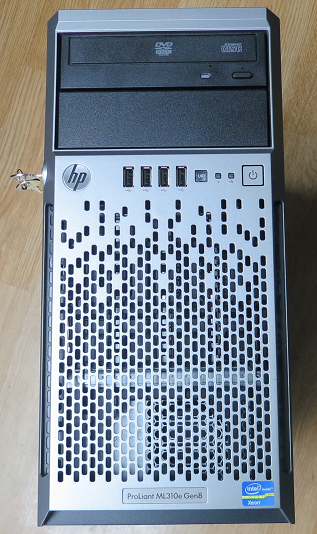
So how is the server? It is just another box of course, but feels well made. There is an annoying lock on the front cover; you can’t remove the side panel unless this is unlocked, and you can’t remove the key unless it is locked, so the solution if you do not need this little bit of physical security is to leave the key in the lock. It does not seem worth much to me since a miscreant could easily steal the entire server and rip off the panel at leisure.

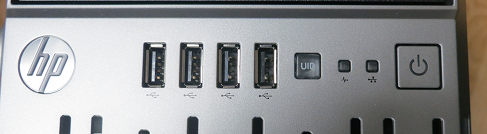
On the front you get 4 USB 2.0 ports, UID LED button, NIC activity LED, system health LED and power button.

image

The main purpose of the UID (Unit Identifier) button is to help identify your server from the rear if it is in a rack. You press the button on the front and an LED lights at the rear. Not that much use in a micro tower server.

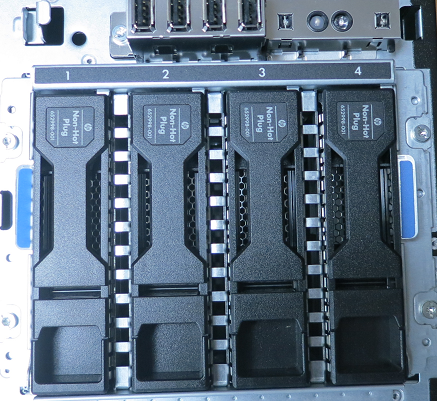
Remove the front panel and you can see the drive cage:

image

Hard drives are in caddies which are easily pulled out for replacement. However note the “Non hot plug” on these units; you must turn the server off first.

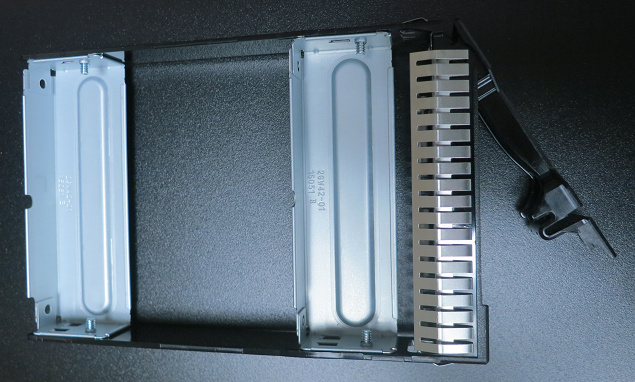
You might think that you have to buy HP drives which come packaged in caddies. This is not so; if you remove one of the caddies you find it is not just a blank, but allows any standard 3.5" drive to be installed. The metal brackets in the image below are removed and you just stick the drive in their place and screw the side panels on.

image

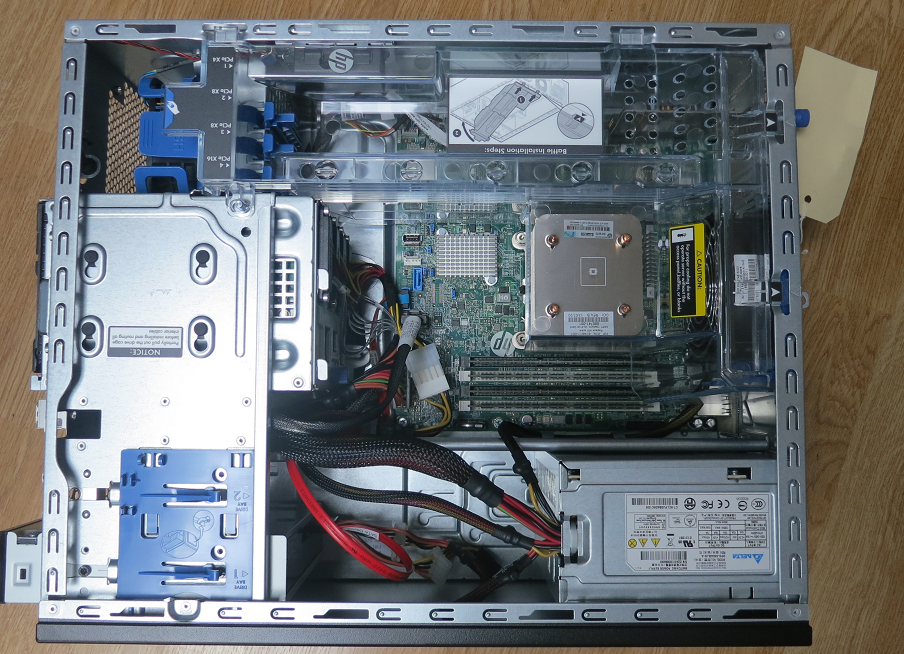
Take the side panel off and you will see a tidy construction with the 350w power supply, 4 DIMM slots, 4 PCI Express slots (one x16, two x8, one x4), and a transparent plastic baffle that ensures correct air flow.

image

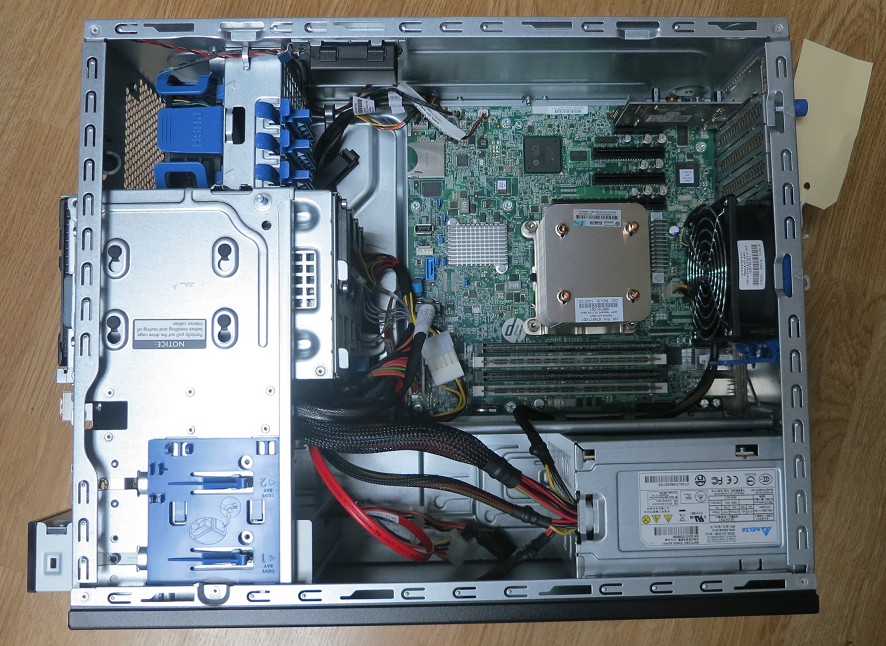
The baffle is easily removed.

image

What you see is pretty much as it is out of the box, but with RAM fitted, two additional drives, and a PCIX USB 3.0 card fitted since (annoyingly) the server comes with USB 2.0 only – fixed in the version 2 edition.

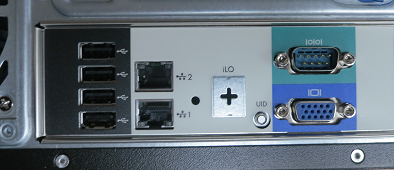
On the rear are four more USB 2.0 ports, two 1GB NIC ports, a blank where a dedicated ILO (Integrated Lights Out) port would be, video and serial connector.

image

Although there is no ILO port on my server, ILO is installed. The luggage label shows the DNS name you need to access it. If you can’t get at the label, you can look at your DHCP server and see what address has been allocated to ILOxxxxxxxxx and use that. Once you log in with a web browser you can change this to a fixed IP address; probably a good idea in case, in a crisis, the DHCP server is not working right.

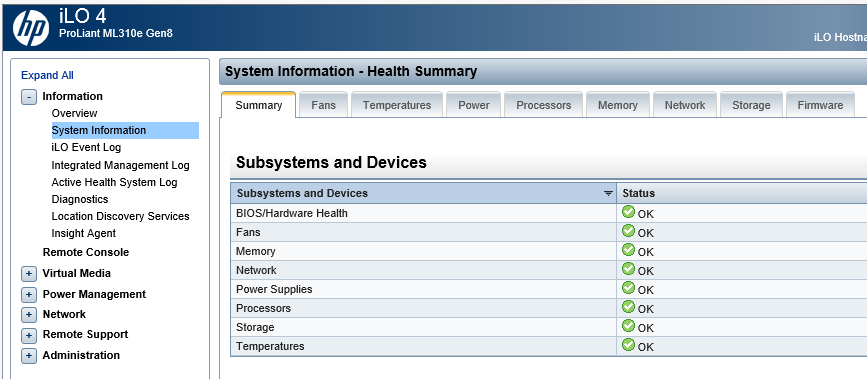
ILO is one of the best things about HP servers. It is a little embedded system, isolated from whatever is installed on the server, which gets you access to status and troubleshooting information.

image

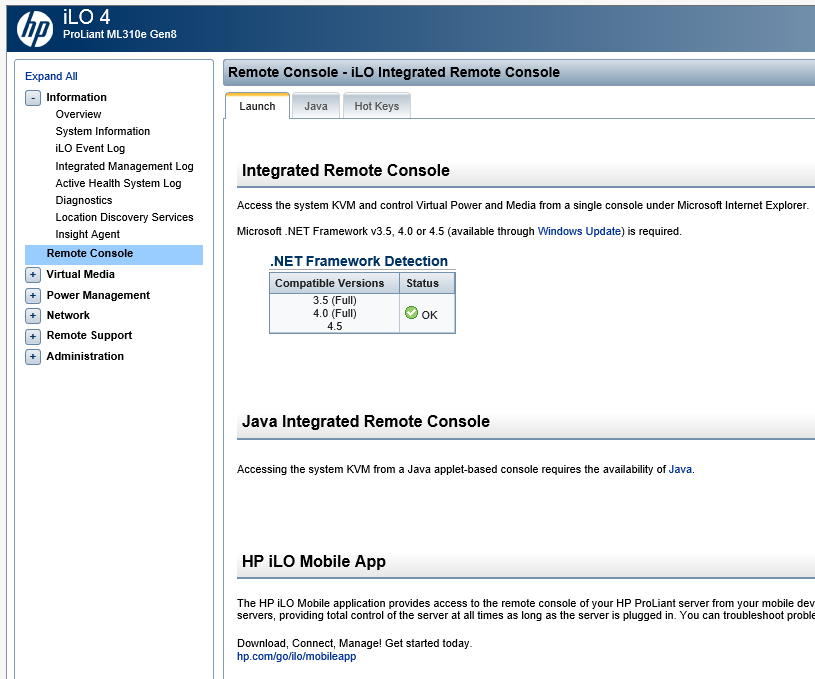
Its best feature is the remote console which gives you access to a virtual screen, keyboard and mouse so you can get into your OS from a remote session even when the usual remote access techniques are not working. There are now .NET and mobile options as well as Java.

image

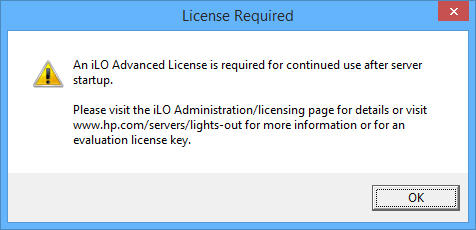
Unfortunately there is a catch. Try to use this an a license will be demanded.

image

However, you can sign up for an evaluation that works for a few weeks. In other words, your first disaster is free; after that you have to pay. The license covers several servers and is not good value for an individual one.

Everything is fine on the hardware side, but what about the OS install? This is where things went a bit wrong. HP has a system called Intelligent Provisioning built in. You pop your OS install media in the DVD drive (or there are options for network install), run a wizard, and Intelligent Provisioning will update its firmware, set up RAID, and install your OS with the necessary drivers and HP management utilities included.

I don’t normally bother with all this but I thought I should give it a try. Unfortunately Server 2012 R2 is not supported, but I tried it for Server 2012 x64, hoping this would also work with Hyper-V Server, but no go; failed with unattend script error.

Next I set up RAID manually using the nice HP management utility in the BIOS and tried to install using the storage drivers saved to a USB pen drive. It seemed to work but was not stable; it would sometimes fail to boot, and sometimes you could log on and do a few things but Windows would crash with a Kernel_Security_Check_Failure.

Memory problems? Drive problems? It was not clear; but I decided to disable embedded RAID in the BIOS and use standard AHCI SATA. Install proceeded perfectly with no need for additional drivers, and the OS is 100% stable.

I did not want to give up RAID though, so wondered if I could use Storage Spaces on Hyper-V Server. Apparently you can. I joined the Hyper-V Server to my domain and then used Server Manager remotely to create a Storage Pool from my pair of 2TB drives, and then a mirrored virtual disk.

My OS drive is not on resilient storage but I am not too concerned about that. I can backup the OS (wbadmin works), and since it does nothing more than run Hyper-V, recovery should be straightforward if necessary.

After that I moved across some VMs using a combination of Move and Export with no real issues, other than finding Move too slow on my system when you have a large VHD to copy.

The server overall seems a good bargain; HP may have problems overall, but the department that turns out budget servers seems to do an excellent job. My only complaint so far is the failure of the storage drivers on Server 2012 R2, which HP will I hope fix with an update.

Users report SkyDrive issues: sync failures, Microsoft Account problems

SkyDrive, Microsoft’s cloud storage service, is critical to the company’s strategic direction for Windows. It is the means by which content and settings are kept in synch across different Windows machines; or more precisely, user accounts across different Windows machines.

Content in SkyDrive is accessible via any web browser, and there are clients for Windows and for various mobile devices. Office Web Apps are also built-in so you can create and edit documents in the cloud.

In principle it is an excellent service, but since the release of Windows 8.1 a few problems have emerged. Specifically:

Some users report problems synching. Check out this thread which begins with users of the 8.1 preview but continues through to the release. The main issue mentioned is that synchronisation simply fails for some users, but others report duplicate documents created with names like somedoc-mypc.xls and somedoc-mylaptop.xls, where “mypc” and “mylaptop” are the names of computers used with the service. Working out which document is the most current can be tricky.

I have encountered this myself, even on some occasions with a document created and edited solely on one machine. Somehow SkyDrive manages to think there is a conflict.

Another problems is unnecessary network traffic. Here is an example of some of these issues:

My brand new shiny Surface Pro 2 was set to have the documents available offline and everything else online only.  The sync has stalled just like everyone else reports in this thread.  I changed the folder to "online only" and the sync claimed to complete.  I then changed the folder back to "available offline" and it proceeded to redownload thousands of files, finally stalling again with a little more than 200 left.  The Metro app says that the files have completed yet they are still in the pending queue.

Many users express what seems to me a valid complaint, that Windows 8.1 gives you less information and control than was in Windows 8.0.

Some users dislike being tied to a Microsoft account. SkyDrive is a consumer service, and you can only use it with a Microsoft account (MSA) – a descendant of what was once called Passport. In Windows 8 and earlier, which had standalone SkyDrive clients, that was not too bad. You can sign into SkyDrive just as you would into Dropbox or any cloud service. In Windows 8.1 though, SkyDrive is baked into the operating system, which means that you have to sign in centrally to a Microsoft account.

There are several reasons users struggle with this, including privacy concerns, inconvenience if you have more than one SkyDrive account you want to use, and complications when you have a corporate login to a Windows domain as well as SkyDrive:

When I login with my domain account and connect my MSA to it, Skydrive still won’t sync, it keeps creating "Skydrive" folders in the user directory each time it tries to start. I can’t find anything in the logs to help.

If I instead login with the MSA account to the computer it will sync.

SkyDrive is a free service and Microsoft has good reason to encourage users to sign in with one of its accounts, which gives access to the Windows Store, Xbox Music and other services. I can see why users object, but also why Microsoft wants to encourage users to sign in.

It is harder to understand why the service does not work reliably. The impression I get is that this is more to do with the client, especially in Windows 8.1, than with the cloud service; but it is hard to be sure.

How extensive are the problems? Again, it is hard to get firm data. I find it works reasonably well for me, though I get the duplicate file problem as well as regular issues saving Office documents. The notorious Office Upload Center reports a problem and you have to re-open the document in Office and save to resolve it.

Ransomware like CryptoLocker is a game changer in the malware wars – and not in a good way

The rapid spread of CryptoLocker, an example of a malware category known as ransomware, is upping the stakes in the cyber security wars. I think it is a game changer.

Ransomware is malware that steals your data by encrypting it, and then demands a ransom to decrypt it. The latest breed of ransomware uses strong encryption, and the key to decrypt it is only held by the criminals. I have not heard of any successful decryption without paying the ransom.

Why a game changer? The first reason is that the consequences of infection are more severe than was the case with most previous attacks. Previously, your infected machine might send out spam and cause you problems by getting your genuine email blacklisted as well. Or you might have passwords to online accounts stolen, leading to fraudulent transactions where in most cases you can recover the cost from your bank. Or your machine might have to be be wiped and applications reinstalled, which can be expensive if you need professional help as well as inconvenient when you have many applications to reinstall.

Malware like CryptoLocker is different. If the infection succeeds in encrypting data for which you do not have a usable backup, it gives you a difficult decision. Pay up, thus financing the criminals and perhaps making yourself a more attractive future target, or do not pay, and suffer the loss of whatever value that data has to you or your business.

That value may well exceed the ransom amount, which suggests that the rational thing to do in these circumstances is to pay up. That is risky though, not only because of the long-term consequences but also because there is no guarantee that it will work, or that the cost will not escalate. You are dealing with criminals after all.

Some people are paying. For example:

We paid as our client did not have new enough backups of the files. It encrypted 90,000 files in 5 hours, silently and then announced itself.

For reference, we researched this for 15 hours straight before paying and it really was the last resort.

Since this type of attack is highly profitable, it seems likely that we will see increasing frequency and variety of attacks, until the industry figures out the best way to counter the threat.

The best defence, of course, is not to get infected. The second best defence is to have a reliable disconnected backup. In general, data on servers or in the cloud is more likely to be protected, because it is more likely to be backed up or have a file history so you can revert to an earlier version; but bear in mind that malware executes with the same rights as the user, so in principle if you have the rights to modify data then the malware does as well.

Synchronisation services, now popular with applications like Dropbox and SkyDrive, can work against you if your encrypted documents are dutifully encrypted across all your devices.

Here are my immediate questions:

  • What is the most effective way to prevent infection? We are confronted with the failure of anti-virus products to protect effectively against new and rapidly mutating threats.
  • How much safer is a Mac? How much safer is Linux?
  • How much safer is Windows RT (a lot)
  • How much safer is an iOS or Android tablet?
  • What action, if any, should system administrators take now to protect their users?
  • What will Microsoft do to protect its users?

It would not surprise me if this kind of threat drives the industry more towards locked-own operating systems, whether Windows RT, iOS or Android, to the extent that a full operating system like OS X or Windows x86 is only used by those who specifically require it.

For more information about CryptoLocker see for example:

Sophos: Destructive malware CryptoLocker on the loose

Asus Transformer Book Trio combines Windows and Android – but what is it for?

Microsoft has one idea about how to combine desktop Windows with a tablet OS: mash them together into a single operating system and call it Windows 8.

Asus has another idea. Put Windows in the keyboard dock, Android in the tablet, and allow the tablet to be docket to form a Windows or Android laptop.

This is the Transformer Book Trio, just launched and on sale from 11 November 2013 at ÂŁ899.99.

image

All my instincts say this a terrible idea. Let Windows be Windows and Android Android, do not try to combine them.

Trying the machine though I found it was good fun. Just press the little Android button and it switches.

image 

and it becomes an Android laptop:

image

The dock mechanism is a bit ugly but looks robust:

image

There is the question still: what will you do with the keyboard when not in use? In a home context that is not a problem, but when on the road I find the most convenient place to keep a detachable keyboard is to attach it, making it more of a laptop than a tablet in practice.

Having two computers in one gives you a few options, which I did not have time to explore in detail. As I understand it, you can share storage in order to open a document prepared in Windows on Android, for example, and with two batteries there is scope for charging one from the other.

This is two separate computers though. It should really be called Duo, but Asus calls it Trio on the grounds that you can use it as a laptop or a desktop machine, with an external display.

The PC runs an Intel Core i5 4200U, and has 4GB RAM and 500GB hard drive. The display is 1920 x 1080 and supports capacitive 10-point multi-touch. Connectivity includes 802.11ac (dual-band) wi-fi, Bluetooth 4.0, 2 USB 3.0 ports, Mini DisplayPort, and Micro-HDMI 1.4.

The tablet has an Intel Atom Z2560 with 2GB RAM and 16GB storage. Connectivity includes   802.11n (2.4GHz), Bluetooth 3.0, Micro-USB 2.0, microSD card slot.

Fun then; but what is the use case for this machine? This is where I am still having difficulty. It is somewhat expensive (though with a Core i5 performance is decent), and I have a hunch that users will end up sticking with one or the other OS most of the time – probably Windows given the price.

Oddly, it would make more sense to me to have a high-end Android device with the ability to run Windows when needed. This would address the case where a user wants to migrate to Android but occasionally needs a Windows app.

Brief hands on with new Asus Windows 8.1 T100 tablet – or should that be netbook?

Asus has launched two new tablets in the UK.

This one is the 10.1″ T100 has an Intel Atom “Bay Trail” Z3740 quad-core processor. The display is 1366 x 768 and supports capacitive multi-touch.

image

You press a release button under the display to detach it from the keyboard, whereupon it becomes a tablet. This approach, it is now generally agreed, is better than a screen which twists over, since it gives you a reasonably thin and lightweight (550g) tablet rather one that is bulky and odd to hold. However, there is still the question of what you are going to do with the keyboard once detached, and I have a suspicion that these machines are likely to be almost permanently attached to the keyboard making them similar to netbooks.

image

Microsoft’s Surface overcomes this to some extent, especially with the Touch keyboard cover that folds underneath and adds little weight or bulk.

On the other hand, the T100 strikes me as good value at ÂŁ349.99 (which includes the keyboard dock), especially bearing in mind that Office Home and Student is bundled (Word, Excel, PowerPoint, but no Outlook).

The T100 comes with 2GB RAM and 32GB eMMC storage. Connectivity includes Bluetooth 4.0, Micro-USB, Micro-HDMI, MicroSD slot, and a USB 3.0 port in the docking keyboard.

I tried the T100 briefly. I was impressed with the performance; Word and Excel opened quickly and overall it feels quick and responsive. I did not like the keyboard much; it felt slightly spongy, but at this price a few weaknesses can be forgiven.

The tablet Windows key is not under the screen as with most Windows 8 tablets, but a button on the side. What looks like the Windows key in the above snap is inactive, and that logo will not show on the production units.

What to do if SkyDrive disappears from Windows 8.1 Explorer?

Here is the scenario. You are working away in Windows 8.1 and want to save a document to SkyDrive. You look for the SkyDrive link in Windows Explorer but it is not there.

image

Don’t panic; your documents are most likely fine and you can get to them in the web browser via http://skydrive.live.com

Still, that is inconvenient. How can you restore the Explorer link, other than by rebooting and hoping it reappears?

The solution is to open a command prompt (press Start button and type command) and then type:

%systemdrive%\windows\system32\skydrive.exe

and press Enter. You don’t need to run the command prompt with administrator rights.

All going well, SkyDrive will reappear:

image

What if it doesn’t? Now you have to check the logs or event viewer and look for specific errors. But the simple technique described first has always worked for me.

Microsoft proves resilience with bumper quarter, but is not yet a devices and services business

Microsoft delivered record revenue of $18.53 billion in the quarter ended September 30th 2013 – which might come as a surprise if you have been focusing on the companies failings in tablets and smartphones versus Apple and Android, the steep decline in PC sales, and its small market share in search versus Google, but less so if you have been watching the advance of products like Office 365, Windows Azure, SQL Server and Windows Server, all of which have been making good progress.

In its report, the company says the Windows OEM revenue declined 7% (reflecting PC malaise) but Surface revenue grew to $400 million. Search advertising revenue grew 47% reflecting some degree of success for Bing.

SQL Server “grew double digits”, as did “Lync, SharePoint and Exchange.”

Commercial cloud revenue grew 103%, though bear in mind that Microsoft is not telling us the absolute figures; you can easily grow fast if you start from a small number.

Microsoft has changed the way it segments its revenue, making it difficult to track, especially with large sums of money ($1.6 billion) reported as “Commercial Other”. Here is how the new segments look:

Quarter ending September 30th 2013 vs quarter ending September 30th 2012, $millions

Segment Revenue Change Profit Change
Devices and Consumer Licensing 4343 -335 3925 -178
Devices and Consumer Hardware 1485 +401 206 -242
Devices and Consumer Other 1635 +235 352 -10
Commercial Licensing 9594 +645 8801 +618
Commercial Other 1603 +355 275 +170

Now, how to make sense of this? The segment changes are detailed here (Word document). In summary:

Devices and Consumer Licensing: non-volume and non-subscription licensing of Windows, Office, Windows Phone, and “ related patent licensing; and certain other patent licensing revenue” – all those Android royalties?

Devices and Consumer Hardware: the Xbox 360, Xbox Live subscriptions, Surface, and Microsoft PC accessories.

Devices and Consumer Other: Resale, including Windows Store, Xbox Live transactions (other than subscriptions), Windows Phone Marketplace; search advertising; display advertising; Office 365 Home Premium subscriptions; Microsoft Studios (games), retail stores.

Commercial Licensing: server products, including Windows Server, Microsoft SQL Server, Visual Studio, System Center, and Windows Embedded; volume licensing of Windows, Office, Exchange, SharePoint, and Lync; Microsoft Dynamics business solutions, excluding Dynamics CRM Online; Skype.

Commercial Other: Enterprise Services, including support and consulting; Office 365 (excluding Office 365 Home Premium), other Microsoft Office online offerings, and Dynamics CRM Online; Windows Azure.

From this you can see that despite 103% growth, Azure and Office 365 remain relatively small, many times exceeded by the on-premise software licensing which is mainly in “Commercial Licensing”. However Microsoft is reporting a contribution to profits from this segment, though with smaller margins than from software licensing.

Simple addition also tells us that consumer revenue ($7,463 million) is less than business revenue ($11,197 million).

Overall it is obvious that Microsoft is not yet a “devices and services” company even if it has set that as its goal. Most of its revenue comes from traditional software licensing. Can it ever make that transition without shrinking in the process? A good question, and despite excellent figures, one that will ensure Microsoft’s future remains the subject of intense debate.

First thoughts on Surface 2

After a day or two with Surface 2 and the Touch 2 keyboard, a few thoughts.

image

First, I am typing this on my desktop PC. I would have used the Surface 2, as I like to match the tool to the review, but no Live Writer on Surface (my favoured blog authoring tool) and no, Word is not as good for this.

That neatly demonstrates the app issue on Windows RT; but despite that I expect to use Surface 2 frequently in the coming months. It is an excellent tablet, with its chief advantages over the older Surface being performance and Windows 8.1, which includes Outlook.

Performance on Surface 2 is around 4 times faster for graphics – see previous post – and more than twice as fast in general.

The touch keyboard, now with backlighting, is also much improved.

I know I am in a minority here, but to me the Windows RT concept makes good sense. A locked-down version of Windows that is almost legacy-free, though it is still Windows and capable of throwing up mystifying dialogs and hiding settings in strange places.

It seems to me that if there is any hope for the Windows 8 app ecosystem, then it will be driven by tablets like this one, and Nokia’s new Lumia 2520 which also runs Windows RT. Desktop users are mostly ignoring the app platform. There are a few signs of life, like the new Facebook app, and things like Xbox Music are now decent. MediaMonkey, which I like for its Flac support, runs nicely on Surface 2.

Isn’t an iPad Air better? In some ways for sure. Usability, performance, size and weight, and rich app availability are all in the iPad’s favour, and price is similar. The reason you might get a Surface though is for Office, USB 3.0, HDMI out, SD card, and the clever keyboard cover. I also like having more than one app to view, whether that is Word and Excel on the desktop, or Word and Caculator, or the split view that works in the new app world.

I’ve hit a few snags with Surface 2. Sound is less good than on Surface RT, tending to be thin and reedy, unless you use headphones or external speakers. The Touch 2 keyboard sometimes stops responding, which I hope is a driver issue (perhaps the update downloaded this morning will fix it).

I also suspect that build quality on Surface 2 falls short of Surface RT. It is still “Vapor Mg” but I already have a slight dent in the bezel on mine whereas on my old RT it is still perfect and I wonder if it is thinner.

The extra price for the 64GB vs 32GB SSD is absurd. Why not make them all 64GB and increase the price by a fraction?

Is Microsoft serious about selling Surface 2? There does not seem to be much stock around, and it is not yet listed on Amazon.co.uk, although it has been on sale since yesterday.

Those that do discover it will like it, provided they understand the difference between Windows RT and Windows x86, something which – bizarrely – Microsoft still seems keen to disguise.