Category Archives: windows

Review: Digital Wars by Charles Arthur

Subtitled Apple, Google, Microsoft and the battle for the internet, this is an account by the Guardian’s Technology Editor of the progress of three tech titans between 1998 and the present day. In 1998, Google was just getting started, Apple was at the beginning of its recovery under the returning CEO Steve Jobs, and Microsoft dominated PCs and was busy crushing Netscape.

Here is how the market capitalization of the three changed between 1998 and 2011:

  End 1998 Mid 2011
Apple $5.4 billion $346.7 billion
Google $10 million $185.1 billion
Microsoft $344.6 billion $214.3 billion

This book tells the story behind that dramatic change in fortunes. It is a great read, written in a concise, clear and engaging style, and informed by the author’s close observation of the technology industry over that period.

That said, it is Apple that gets the best quality coverage here, not only because it is the biggest winner, but also because it is the company for which Arthur feels most affinity. When it comes to Microsoft the book focuses mainly on the company’s big failures in search, digital music and smartphones, but although these failures are well described, the question of why it has performed so badly is not fully articulated, though there is reference to the impact of antitrust legislation and an unflattering portrayal of CEO Steve Ballmer. The inner workings of Google are even less visible and if your main interest is the ascent of Google you should look elsewhere.

Leaving aside Google then, describing the success of Apple alongside Microsoft’s colossal blunders makes compelling reading. Arthur is perhaps a little unfair to Microsoft, because he skips over some of the company’s better moments, such as the success of Windows 7 and Windows Server, or even the Xbox 360, though he would argue I think that those successes are peripheral to his theme which is internet and mobile.

The heart of the book is in chapters four, on digital music, and five, on smartphones. The iPod, after all, was the forerunner of the Apple iPhone, and the iPhone was the forerunner of the iPad. Microsoft’s famous ecosystem of third-party hardware partners failed to compete with the Ipod, and by the time the company got it mostly right by abandoning its partners and creating the Zune, it was too late.

The smartphone story played out even worse for Microsoft, given that this was a market where it already had significant presence with Windows Mobile. Arthur describes the launch of the iPhone, and then recounts how Microsoft acquired a great mobile phone team with a company called Danger, and proceeded to destroy it. The Danger/Pink episode shows more than any other how broken is Microsoft’s management and mobile strategy. Danger was acquired in February 2008. There was then, Arthur describes, an internal battle between the Windows Mobile team and the Danger team, won by the Windows Mobile team under Andy Lees, and resulting in 18 months delay while the Danger operating system was rewritten to use Windows CE. By the time the first new “Project Pink” phone was delivered it was short on features and no longer wanted by Verizon, the partner operator. The “Kin” phone was on the market for only 48 days.

The Kin story was dysfunctional Microsoft at its worst, a huge waste of money and effort, and could have broken a smaller company. Microsoft shrugged it off, showing that its Windows and Office cash cows continue to insulate it against incompetence, probably too much for its own long-tem health.

Finally, the book leaves the reader wondering how the story continues. Arthur gets the significance of the iPad in business:

Cook would reel off statistics about the number of Fortune 500 companies ‘testing or deploying’ iPads, of banks and brokers that were trying it, and of serious apps being written for it. Apple was going, ever so quietly, after the business computing market – the one that had belonged for years to Microsoft.

Since he wrote those words that trend has increased, forming a large part of what is called Bring Your Own Device or The Consumerization of IT. Microsoft does have what it hopes is an answer, which is Windows 8, under a team led by the same Steven Sinofsky who made a success of Windows 7. The task is more challenging this time round though: Windows 7 was an improved version of Windows Vista, whereas Windows 8 is a radical new departure, at least in respect of its Metro user interface which is for the Tablet market. If Windows 8 fares as badly against the iPad as Plays for Sure fared against the iPod, then expect further decline in Microsoft’s market value.


Microsoft re-imagining client computer management for Windows 8

I am surprised this post by Microsoft Program Manger Jeffrey Sutherland has not attracted more attention. It describes enterprise app deployment to Windows on ARM devices, now officially called Windows RT devices. These devices run Windows 8 compiled for ARM, which means high efficiency but a greater degree of lockdown than with x86. In particular, desktop applications cannot be installed, though Microsoft Office is pre-installed, but without Outlook.

The interesting aspect is that what Sutherland describes is not just a way of managing Windows RT computers, but a new approach which fits with the trend towards BYOD – Bring Your Own Device – where employees use their own devices for work as well as at home.

Quick reminder: in the old model, Windows clients are managed by being joined to a domain, controlled by Active Directory. Once domain-joined, the machine is subject to group policy administered by the domain, a fine-grained system for configuring settings and deploying applications.

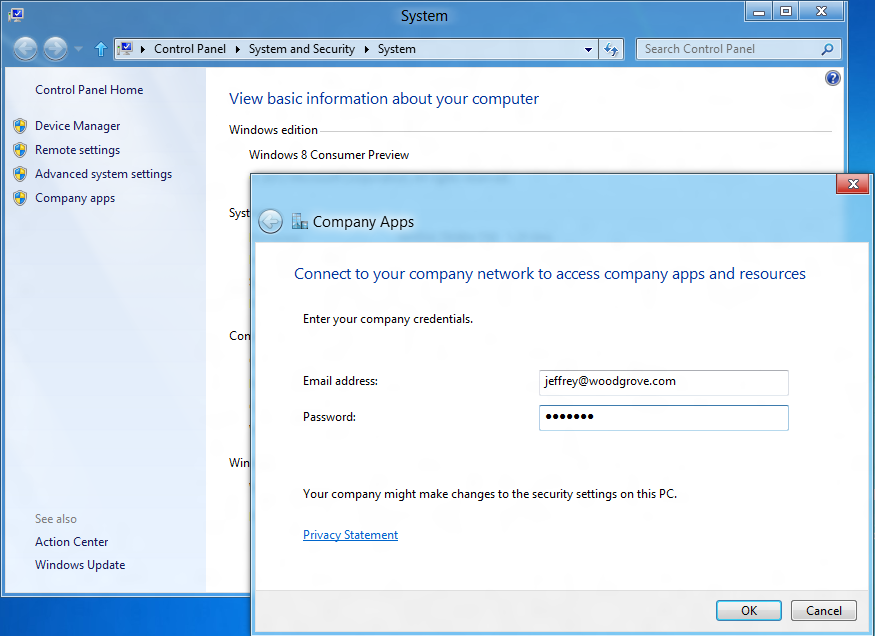
Windows RT devices cannot be joined to a domain. However, there is a new option in Control Panel to “connect to your company network”.

image

Note that the user must still be joined to the Active Directory domain. Since this is now joining the machine to the network and subjecting it to a degree of centralised control, Windows RT network joining is conceptually not far distant from domain joining, but it is a completely new approach.

The next step is to install a management agent which communicates with the Enterprise network.

Once network-joined and with the agent installed, the machine:

  • Is subject to a set of security policies covering password and logon rules (eg whether to allow picture logons)
  • Is audited for antivirus and antispyware status, drive encryption and auto-update; network connection can be refused if not compliant
  • Will lock encrypted drives if wrong password is entered repeatedly
  • can automatically set up a VPN profile for network access
  • enables access to a self-service portal (SSP), operated by the enterprise, for app deployment
  • can be deactivated which renders all SSP-deployed apps inoperable

The SSP can deploy custom or third-party Metro apps, but can also include links to the Windows store and web links to web application.

Microsoft envisages the above tools being used both for company-owned and employee-owned Windows RT devices. One advantage over domain-joining is that it is less intrusive to the user. When you domain-join a Windows PC, it creates a new user profile on the machine, which can be a nuisance if the user wants to use the machine for non-work purposes; they have to either switch profiles or use the work profile for home as well.

Metro-style apps are inherently better suited for intermingling business and home, since they are isolated from one another and from the operating system.

This new approach is not only for Windows RT machines but works on x86 as well:

We do support this functionality on x86. However, x86 also has a load more management functionality through Domain membership, Group Policy and existing tools like System Center.

says Microsoft’s Iain McDonald in the comments.

Although it is true that the old domain-joined model offers a higher degree of control, Windows RT should have security advantages thanks to the lockdown preventing desktop applications from being installed, which will restrict malware.

Windows computer domains are not going away, but BYOD and the trend towards cloud computing will gradually reduce the number of domain-joined machines. For example, a small business using Small Business Server will usually domain-join all its machines, but a small business using Office 365 will usually not do so.

I should add that although the approach outlined above is great for simplicity and flexibility, the fatal flaw for many organisations will be its dependence on Metro-style apps. If you have any Windows desktop apps to deploy, then it will not work.

Microsoft results: old business model still humming, future a concern

Microsoft has published its latest financials. Here is my at-a-glance summary:

Quarter ending March 31st 2012 vs quarter ending March 31st 2011, $millions

Segment Revenue Change Profit Change
Client (Windows + Live) 4624 +177 2952 +160
Server and Tools 4572 +386 1738 +285
Online 707 +40 -479 +297
Business (Office) 5814 +485 3770 +457
Entertainment and devices 1616 -319 -229 -439

What is notable? Well, Windows 7 is still driving Enterprise sales, but more striking is the success of Microsoft’s server business. The company reports “double-digit” growth for SQL Server and more than 20% growth in System Center. This seems to be evidence that the company’s private cloud strategy is working; and from what I have seen of the forthcoming Server 8, I expect it to continue to work.

Losing $229m in entertainment and devices seems careless though the beleaguered Windows Phone must be in there too. Windows Phone is not mentioned in the press release.

Overall these are impressive figures for a company widely perceived as being overtaken by Apple, Google and Amazon in the things that matter for the future: mobile, internet and cloud.

At the same time, those “things that matter” are exactly the areas of weakness, which must be a concern.

A bug in embedded Internet Explorer in Windows 8

Long-time readers of this site may remember that I did some work on embedding Internet Explorer, and its core rendering component MSHTML, in .NET applications. The code is still online.

I noticed that it does not work properly in Windows 8 Consumer Preview. Specifically, plain HTML works but you can no longer apply external CSS stylesheets. I reported the bug here (sign-in required).  I did not use my own component, but rather the standard WebBrowser control. I have appended the code to reproduce the bug in case you cannot see the report.

Microsoft has now responded as follows:

We were able to validate your feedback. However, based on the limited impact this bug may have, we will not be able to address this bug during this release.

This status is also known as “won’t fix” and gives me pause for thought. How many other little bugs are there which Microsoft is not fixing, but which break a certain number of applications?

If you are one of those few people using embedded IE in an application, I suggest checking Windows 8 compatibility now to avoid any unpleasant surprises.

Perhaps it would be preferable to use WebKit or Gecko (Mozilla) rather than IE in any case. There is a thread on stackoverflow that discusses some options. OpenWebKitSharp looks promising.

Code to reproduce the bug:

Create a Windows Forms application in C# in VS 11. Add a Webbrowser control and two buttons, and an OpenFileDialog control. Also add a reference to the COM library Microsoft HTML Object Library.

Here is the code for the first button that loads some HTML:

string sHTML = "<html><head><title>Some title</title></head><body><p>Some text</p></body></html>";
this.webBrowser1.DocumentText = sHTML;

Here is the code for the second button that applies a stylesheet:

openFileDialog1.Filter = "CSS files|*.css";
if (openFileDialog1.ShowDialog() == DialogResult.OK)  {
mshtml.HTMLDocument doc = (mshtml.HTMLDocument)this.webBrowser1.Document.DomDocument;
doc.createStyleSheet(openFileDialog1.FileName);
}

This is the stylesheet I am applying:

body
{
    font-family: Arial;
    font-size: 18pt;
}

To reproduce, run the application. Click the first button to load the HTML. Then click the second button to apply the stylesheet. In Windows 7 and earlier the stylesheet is applied. In Windows 8, the stylesheet is not applied.

UPDATE: It seems this bug was fixed in Windows 8 RTM, despite the “will not fix” designation. Good.

Windows 8 to be called Windows 8, no Outlook on ARM

Microsoft has announced the range of editions planned for Windows 8, which is now the official name (previously it was a code name).

Here is what I found interesting. Windows on Arm (WOA) is now called Windows RT and ships with Office included. However, Outlook is not included, confirming my suspicion that Outlook may gradually get de-emphasised in favour of separate email, calendar and task managers built into the operating system but with strong Exchange support – a good move since Outlook is perhaps the most confusing and over-complex application that Microsoft ships.

Windows RT is missing some features which are in the Intel versions, not least the ability to install desktop software, but has an unique feature of its own: device encryption.

I consider Windows RT as critical to the success of the Windows 8 project, and the only edition that may compete effectively with the Apple iPad in terms of price, convenience, battery life and usability. That said, the market will see the Intel version as primary, since it is the one that can run all our existing apps, but all the legacy baggage will also weigh it down. Users will suffer the disjunction between Metro and Desktop, and will need mouse or stylus and keyboard to use desktop applications. The danger is that Windows RT will get lost in the noise.

Hands on: building an app for Windows 8 Metro

How difficult is it to build an app for the Windows Runtime (WinRT), which powers Metro-style apps in Windows 8?

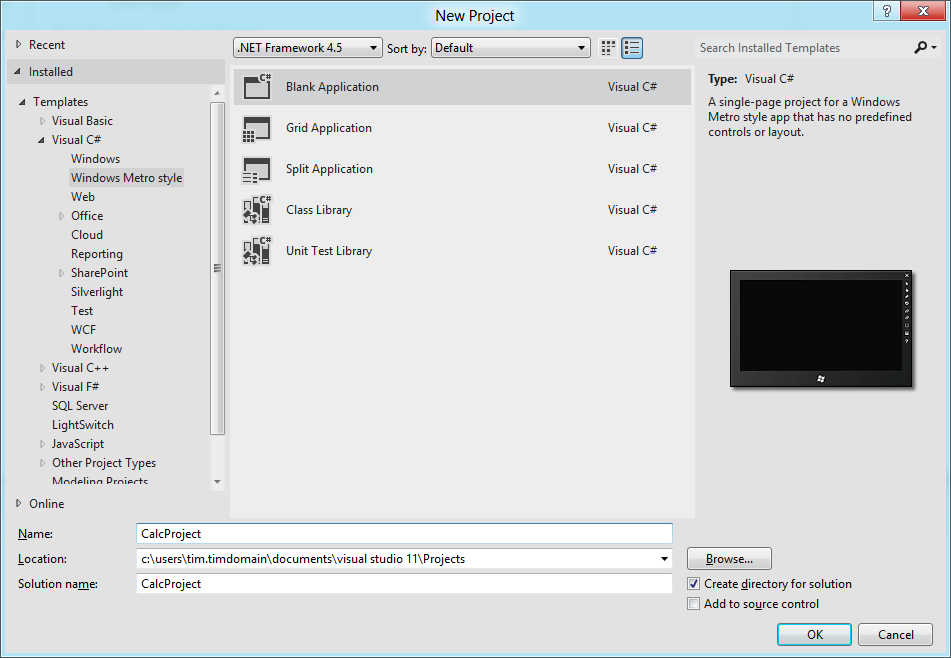
Here is how I created a simple calculator app (this is one in an occasional series) using Visual Studio 11 beta. I started with a new Visual C# Windows Metro Style project, choosing a blank template.
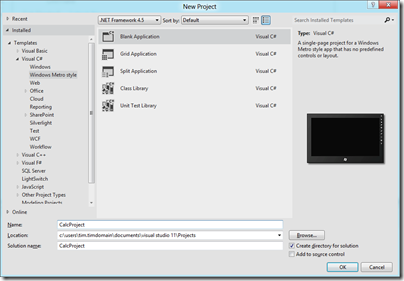
image

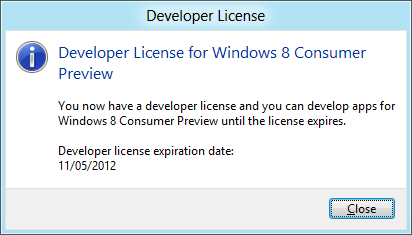
A slight complication is that you are prompted to install a Developer License, which means logging into your Windows Live account.
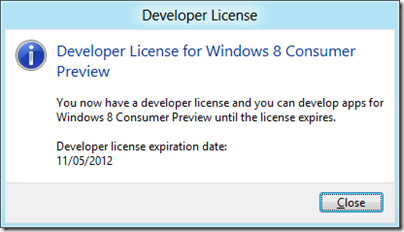
image

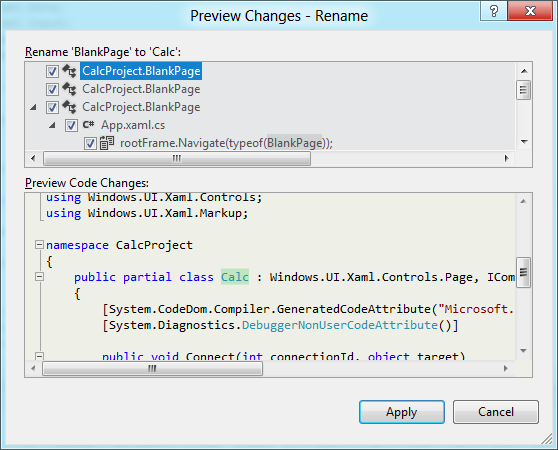
Next, I had to layout the controls. Visual Studio creates a single-page app with a main page called BlankPage.xaml. I renamed this to Calc.xaml. I also used Visual Studio’s refactor menu to rename the page class from BlankPage to Calc.
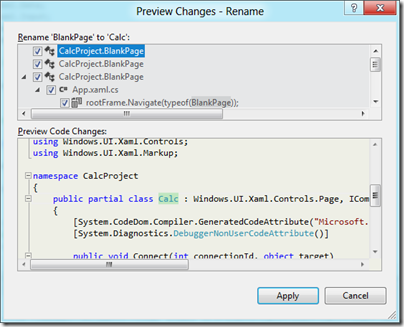
image

The default application has a black background, which seems gloomy. I changed the Background of the container grid to white.

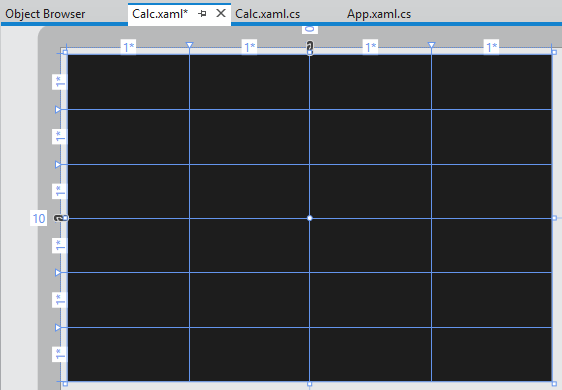
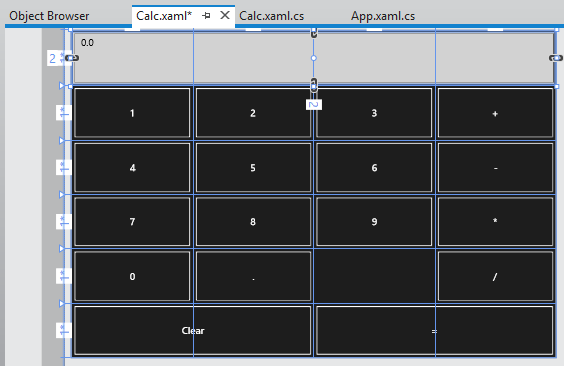
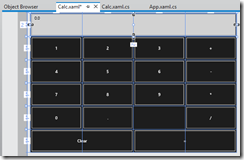
My basic calculator design is based on six rows and four columns, so I added 6 RowDefinitions and 4 ColumnDefinition to the XAML grid. The units for RowDefinitions and ColumnDefinitions can be set to Auto, Pixel or Star. Star means the unit is a weight which is calculated at runtime. For example, if you set the value of one RowDefinition.Height to 2 and the others to 1, the first one would be twice as high as the others. Here is my basic grid:
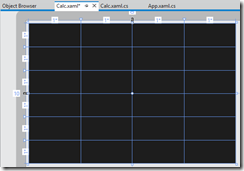
image

Next, I placed controls in the grid. The easiest way to get them to fill the space neatly is to set their HorizontalAlignment and VerticalAlignment properties to Stretch. Then you control the margin round the control with the Margin property. You can have a control fill more than one cell by using the Grid.ColumnSpan and Grid.RowSpan properties.

I found it easier to add the controls in code using copy and paste.
image

A Grid has no FontSize property, and although the Page has a FontSize property it does not seem to be inherited by the controls. I therefore set the FontSize individually for each control but there must be a better way of doing this.

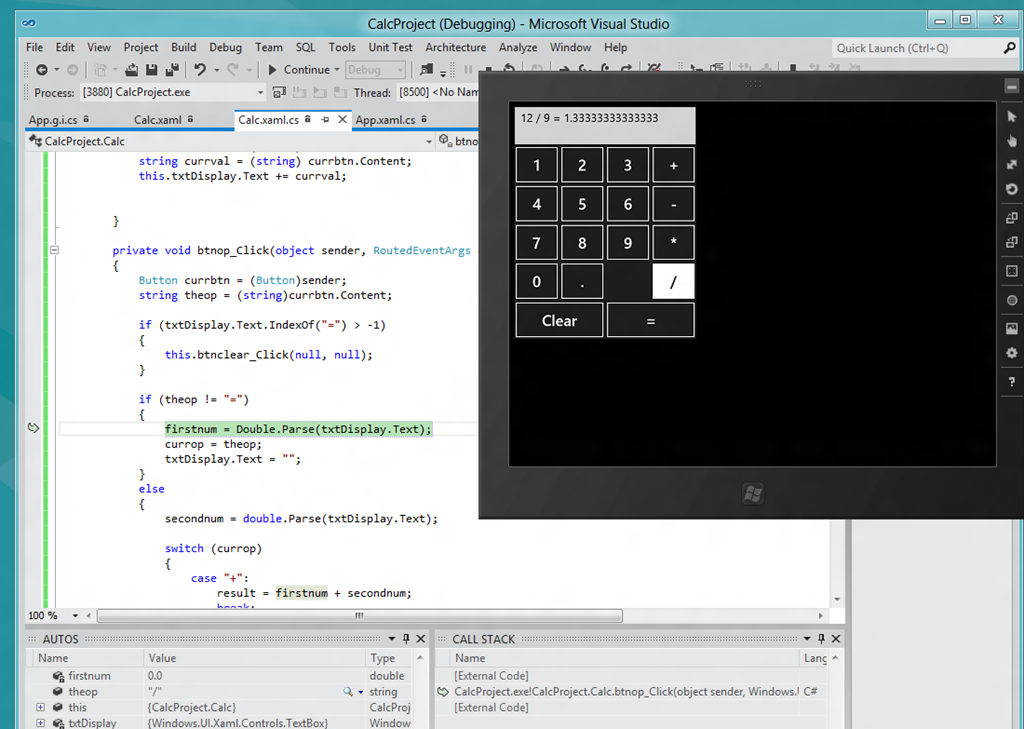
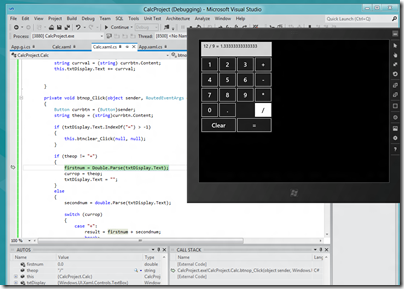
I then wrote minimal code that performs calculations without always crashing, and tested the app.  When you debug, you can choose Local Machine, Simulator, or Remote Machine. I found it easier to debug using the simulator, since if you use Local Machine and Visual Studio is running on the main display, then the app you are debugging becomes invisible if you hit a breakpoint or exception. The simulator seems really good (it is actually a remote session into your own machine) and I would like some way of running all Metro apps in a window like this, not just for debugging!
image

A few reflections

A developer with experience of C# and XAML (which is also used by Windows Presentation Foundation and by Silverlight) will not have much trouble getting started with WinRT, though I noticed that XAML is substantially cut-down, as Patrick Klug observes here.

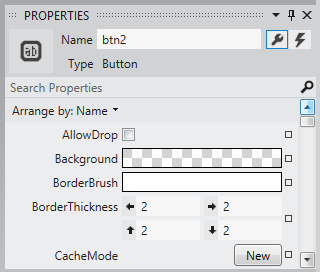
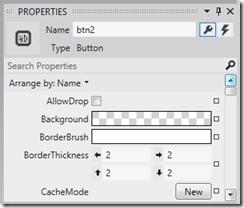
Visual Studio 2011 is an excellent IDE although I do not much like the new property editor; a minor point, but I find the latest go at prettification detrimental to usability; it is too busy. This may be a matter of familiarity and it is a minor point.
image

The XAML visual designer is slow to refresh even with my simple app, so this could be annoying with a more complex layout.

Layout with XAML works well, though it is more difficult than say Windows Forms for a new developer. It is easy to get peculiar results unless you do everything with pixel layout, which is not the best approach.

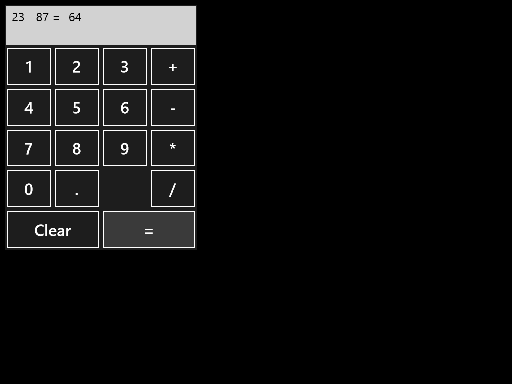
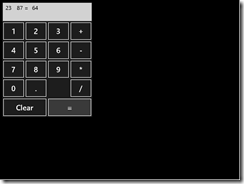
What about Metro itself? Apps always run full screen, and I had a problem with this in that my little calculator does not need all that space.
image

I am not a designer; and I suppose with a bit of effort you could add some decoration or effects to use the space, or add extra features. But why?

I was thinking about the Atari ST the other day, following the death of Jack Tramiel. The ST did not really multitask, but to get around the problem of needing to run a second app without closing the first, it had the concept of desktop accessories, available from a pull-down menu. My calculator would work well as a desktop accessory in Metro, except there is no such concept – unless you count the “Snap” split view. I wonder if Microsoft is too religious about its “Immersive UI” concept.

A few reservations then; but that does not take away from the overall impression of a strong integrated development experience for building Metro-style apps.
Run Metro apps in a window on Windows 8

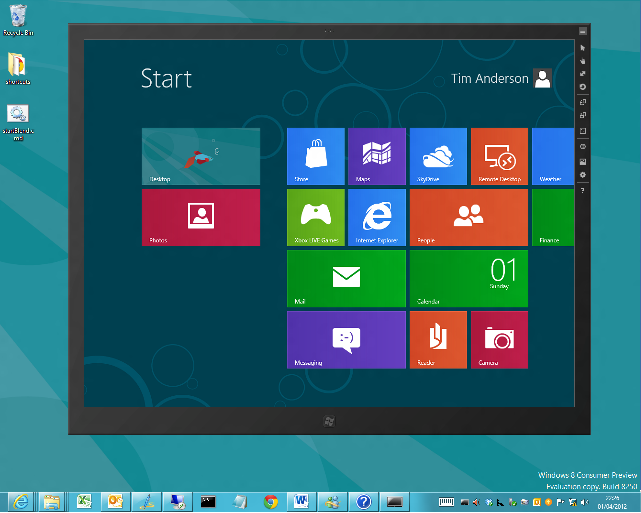
I have been drilling into Visual Studio 11 beta recently. This includes a simulator for debugging Windows 8 Metro style apps and I was surprised by the way it works. Unlike the Windows Phone emulators, which are isolated environments for testing apps, the simulator is actually a window into your own machine.

image

You can do some strange stuff. For example, you can not only debug your app in the simulator, you can run up Visual Studio 11 on the desktop within the simulator and edit it as well. It will not let you run the simulator within the simulator though – I tried!

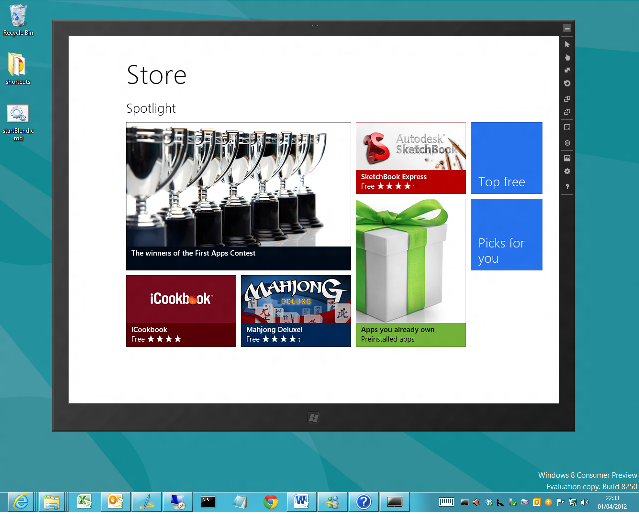
It occurred to me that the metro simulator accomplishes one of the things some users of the consumer preview have asked for. It lets you run Metro apps in a window, so that you can resize them, minimize them, and avoid the jarring context switch between full-screen Metro and the normal desktop with the taskbar.

image

What is the simulator? It is actually a remote desktop session into your own machine. Normally you cannot do this, as Windows client only allows one session at a time and you already have one running, but Microsoft has given itself special permission.

Running Metro apps in a windows is not its intended purpose but it is interesting to try as it shows how this might have worked if Microsoft had taken a more desktop-centric approach to the dual personality in Windows 8.

A further thought is to consider why the Visual Studio team decided to do things this way. Microsoft’s developers saw the necessity of working in the Visual Studio IDE while also exercising the Metro-style app.

Well, what if you are not a developer, but you still want to have Excel open while you check out, for example, the Bing Finance app? It is not only developers that may have good reasons to have a desktop and a Metro app running side by side.

Dual monitors accomplish this of course, and to some extent so does the “Snap” split view if you have the right screen resolution, but running Metro in its own window is a rather convenient solution.

Developers: will you do Metro?

It is fascinating to watch the Metro-fication of all things Microsoft, from the Xbox 360 user interface to Windows Phone to Windows 8 to forthcoming versions of Office and other applications.

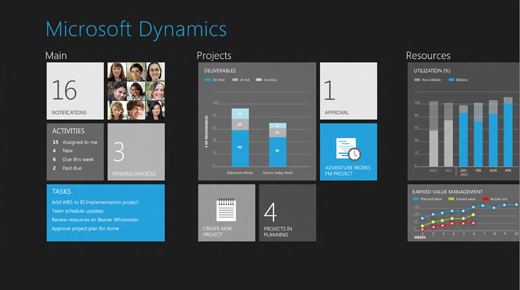
Future versions of Dynamics products were previewed at the Convergence 2012 event (which included a session called CRM goes Metro) and there are a bunch of screenshots here.

image

Microsoft calls Metro a design language and you can see its guiding principles here. Calling it a language does not seem quite right; the word “style” is more accurate, but it does have building block elements (and yes it is blocky) which I guess make it more than just a style.

A safe prediction at this point is that all Microsoft’s products will be touched by Metro influence, even though not all will become full Metro apps running on the Windows Runtime (WinRT).

In the past the style adopted by Microsoft for its own applications have strongly influenced third-party applications as well. Once Windows, Office, Dynamics and other apps have a Metro look, other apps that do not may begin to look dated or out of place.

Metro is controversial though, perhaps even more so than the Office Ribbon which replaced menus in Office 2007 and 2012. There is some connection: members of the Office team who worked with Steven Sinofsky on the design of Office 2007, including Julie Larson-Green and Jensen Harris, are now working with him on Windows 8. Harris has written extensively about the work on Office 2007 on his Office User Interface Blog, though the last substantial post was in 2008.

What’s not to like about Metro? Here’s a few arguments against:

  • Beauty is in the eye of etc; but the blockiness of the Metro style does give it a utilitarian appearance. In Windows Phone 7 it is nice to use, but not so great to look at.
  • The Live Tile concept, where shortcut blocks can be populated with current information, adds a random element to Metro start screens which does not always look good.
  • The emphasis on simplicity and immersion makes Metro vulnerable to the accusation that it wastes too much precious screen space.
  • Metro tends to be a horizontally scrolling style, though I am not sure if this is baked into the guidelines. This takes some adjustment since most of us are more used to vertical scrolling to see more content.
  • Metro seems to be optimized for a touch UI, and while its advocates insist that it is just as good with keyboard and mouse, that is a stretch. Metro seems to be a big bet on touch as the future of human-computer interaction.

On the other hand, the usability of Windows Phone 7 is a point in its favour, and some are convinced. Paul Greenberg, in a positive take on Microsoft’s strategy based on his trip to Convergence 2012, says:

They have nailed UX (a.k.a user experience). Nailed it. Their combination of the extremely well done Metro interface and their work on natural user interfaces involving voice and touch is the new gold standard – and I’m someone who loves Apple products. (please, Mac fanboys, spare my life.)

I would be interested to hear from developers whether you expect to embrace the Metro style in your apps, wither in WinRT or elsewhere.

Fixing a Metro-style app in Windows 8 Consumer Preview

I am a fan of Wordament for Windows Phone and Windows 8. This is a Metro-style app. I was annoyed though to discover that it was broken on my Windows 8 slate. That is, it could not be launched because it did not exist when searching the Start menu, nor in the “All apps view”, but it could not be installed because the Store considered that it was already installed.

I could go into Store – Settings – Accounts and see it listed under “View your apps”, where it also said it was installed.

There was some kind of warning of problems, in that from time to time Windows 8 had been offering to fix a problem with Wordament, usually after I had set the slate to sleep while the app was running. When prompted, I always accepted and let it do its stuff, but the result of the last effort was the app had disappeared completely.

How to fix this? I found one piece of official advice for a similar problem which suggested refreshing the PC. This is not much fun because you lose all installed applications other than Metro apps – ugh. I did a bit of digging.

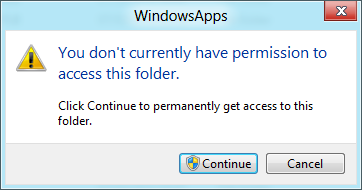
My first thought was to try manually deleting the app to see if I could trigger a reinstall. I got a little way with this. I found that Metro-style apps are installed into the WindowsApps folder, which is a sub-folder of Program Files. However, if you double-click this folder you get an access denied message, though the message also invites you to continue.

image

I did not wish to trample all over the security features of Windows 8, though following a hunch I did try restarting in safe mode. You can do this by choosing Settings – More Settings and clicking Restart now under Advanced startup. The PC restarts and you get to a “Choose an option” screen where you can click Troubleshoot. Next, click Windows Startup Settings and then Restart. This gets you the familiar F8 options including Safe mode.

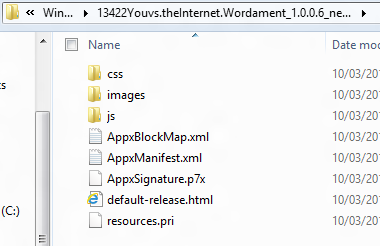
In Safe mode you have read-only access to the WindowsApps folder, and there I could see the Wordament install files.

image

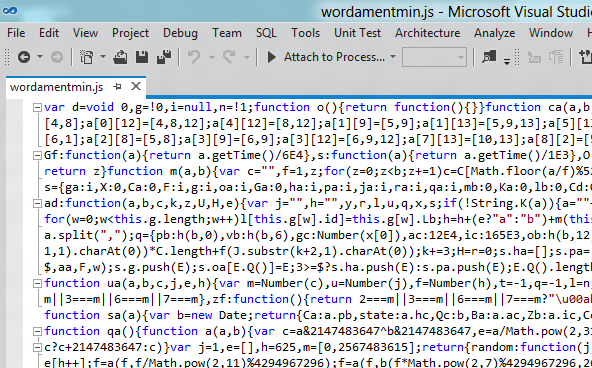
Here you can verify that this is an HTML and JavaScript app, just as its creators said. The JavaScript is minified so opening it up is not all that rewarding.

image

Still, I could confirm that the app was in fact installed, but I could not run it.

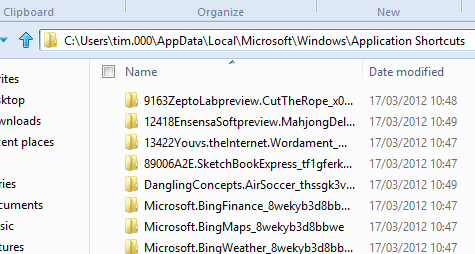
I had another idea. If all I needed was a shortcut to the app, perhaps I could grab one from another profile on the machine. I restarted in normal mode, created another user (which must be one with a Microsoft Live ID) and logged in as that user (shutdown /l logs off without shutting down). I installed Wordament, and it ran fine.

So where are the per-user shortcuts? Easy, just go along to c:\users\[username]\AppData\Local\Microsoft\Windows\Application Shortcuts and there they are.

image

Again I had to grab permission to access this folder, but doing this in a user folder is not so bad as in a system folder.

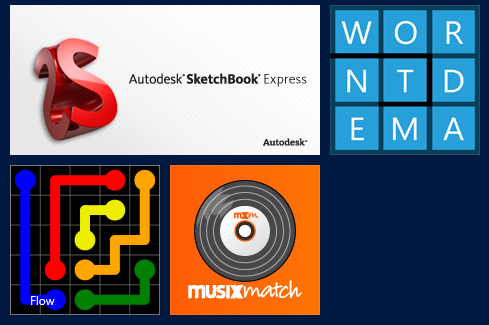
I copied the shortcut to the same location in my normal home folder and lo, Wordament reappeared in the Start menu.

image

Not too bad; but it seems to me that Windows 8 should have a built-in way of fixing this kind of problem – perhaps it has, and I missed it.

Crisis in Microsoft land: what next after the mixed reception for Windows 8 Consumer Preview?

Microsoft will have expected some users to find the transition from Windows 7 to Windows 8 challenging, but I doubt it was ready for the reaction from its own community that it is receiving for Windows 8 Consumer Preview.

image

The best place to start is the comments on Building Windows blog here and here – at the time of writing, around 1300 comments, most from users who have downloaded and tried the Consumer Preview. It is worth browsing through them if this is something you care about; some are knee-jerk negative reactions, but some others are thoughtful and wanting Microsoft to succeed.

Overall, the message is: don’t make us use Metro, let us stay in the desktop if we choose.

I’m still waiting for an explanation as to why my 30" desktop screen has to look like a smartphone, that’s what my smartphone is for.

My users range from tech savvy to plant workers and truck drivers. Like all of us, the start button is baked into our DNA … How can I make the desktop the default UI?  I’m not going to deploy metro desktop to my users as the default screen. I would rather deploy a slew of ipads and I’m no ipad fan that is for sure.

In 17 years of using Windows I have never used the Windows key. Interestingly I’ve never seen any user of a computer use the Windows key. I don’t want to learn and remember key combinations to do things that I can currently do trivially using the start menu.

Let me tell you something, I always have a gazillion webbrowser instances and tabs open (rarely less than 50 browser tabs and as much as 100) – I often run 5-10 Visual Studio instances simultaneously (and I know your usage statistics says average is 1, so you won’t make it easier to distinguish between them, but this is a different matter..) – usually have 10+ explorer windows – and I absolutely love working this way, I am productive this way and that’s what counts for me. I run 2 big screens with 2560×1440 resolutions to give me as much working space as possible, so I can easily switch between a lot of my open applications, browser tabs and explorer windows. Even if I had a use for some Metro UI application, I would be looking for a desktop alternative, so I could have it running side-by-side with my other applications – let’s be honest, one application at a time might be great for the average joe, but it’s a horrible solution for professional users.

Part of the problem here is that the Metro UI Windows 8 is more about solving a problem Microsoft has – how to compete with the iPad – than a problem its users face. It has been clear since Windows 8 was first previewed that the tablet UI and new Windows Runtime was Microsoft’s main focus, and that desktop users would get less value than they might normally expect from a major release. The reaction to the Consumer Preview though is more serious than that: many users are saying that Windows 8 is, for them, a substantial step backwards.

I am writing this in Windows 8 on a desktop and it is not that bad. Apps are easy to launch once you get the hang of Windows Key – Search, and there are workarounds for the annoyances. There is no doubt though: if you are working mainly in the desktop – which is inevitable for most users upgrading – the “immersive UI” does get in the way at times. Since it must run full screen, a Metro app obliterates the taskbar and handy features like the time and date which shows bottom right in the notification area. If there were an option to run Metro apps in a window, I would grab it.

The irony here is that the name “Windows” refers to the ability to run multiple apps in windows, as opposed to the single application UI offered by DOS.

Another issue is that if you switch between Metro and Desktop, you have to learn two ways to do common tasks. For example, I tend to use the taskbar previews to find browser tabs, since if you have numerous tabs open it is the quickest way to find the one you want. If you are in the Metro browser though, you have to right-click to show the tabs. Right-click by mistake in the desktop browser, and you get a context menu. Add to favourites? Different. History? Different. All friction if you just want to get your work done.

If you have multiple monitors, Microsoft’s “Move the mouse to the corner” idea for raising the Charms does not work well. The “Corner” is on the primary display, but if you have multiple displays it is not a corner but the border between two screens. You have to position the pointer just so to make it work.

There is more; but it is not my intention to iterate through every annoyance. I am more interested in the reaction overall and in what Microsoft will do next.

I will add that I admire what Microsoft has done from a technical standpoint in the Windows Runtime and that Windows 8 on a touch device with the right screen size has great promise as a new tablet operating system. It is my first choice for travelling; iPad and Android tablets are too limited, and I am more than ready to leave the bulky, awkward laptop at home.

Needless to say, few of those commenting will have tried such a device, for reasons I have described before. Windows 8 in a virtual machine is a worst case, and it is a shame that so many (for good reasons) are trying it that way.

What next for Windows 8?

It seems to me that Microsoft now has, broadly, three options for Windows 8.

1. Plough on regardless. This, I imagine, is the plan as it stands currently. Microsoft has deliberately made Metro unavoidable in Windows 8, I presume to ensure that it will not be ignored. There will be some refinements in the final release, improved discoverability of features users are struggling to find, but no fundamental change to the design approach. The plan as stated last month is that there will be no further beta, and the next public release will be the release candidate.

The question: can Microsoft do enough tweaking to win over a majority of its own community? Right now my sense is probably not. A negative reaction on release will be costly for the company and for all those third-parties who depend on its platform; yes, Windows 7 will have a prolonged life, but there will be loss of momentum for the platform overall.

2. Delay Windows 8 for further refinement. Go through the reactions to this broad public beta test, and work out how to fix the issues without losing the vision behind this “reimagined” Windows. Delay would be painful, of course, but less bad than a failed release.

The quick version of this would be to do what many are asking for: make the Metro-style personality in Windows 8 optional. Would that be such a disaster?

3. Release Windows on ARM (WOA) ahead of the full Windows 8. Most of the objections users have to Windows 8 do not apply to WOA, where Metro is primary, where all devices are touch tablets, and where those desktop applications (mainly Office) and utilities that are included are there to fill the gaps which Metro cannot yet fill. As for x86, users are still happy with Windows 7. When Vista was the current version, users could not wait for the next release, but there is no such pressure with Windows 7.