Category Archives: windows

Two web browsers one too many in Windows 8 Consumer Preview

A few days in, and the reactions to Windows 8 Consumer Preview are coming thick and fast, mostly strong reactions, with love for Metro on a tablet and hate from annoyed Windows users looking for the Start menu.

For myself, I have it installed on a tablet (Samsung Series 7 Slate bought for the purpose) and on a desktop, where I am using it for my work.

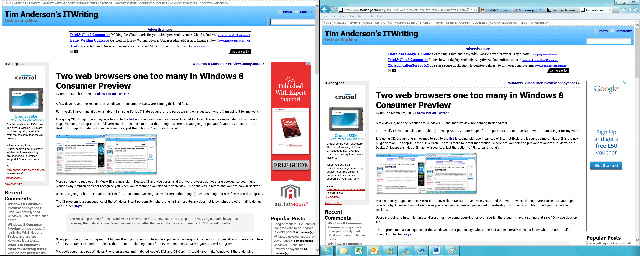
It is going OK, though one annoyance to add to the list is coping with two instances of Internet Explorer. It sounds simple: Metro IE is the no-plugin version, Desktop IE is the full version. There is more to it that that though. Where are you going to put your favourites, in Metro or in Desktop? Except that Metro IE has no favourites, just the option to “Pin to start menu”.

image

More seriously, pages open in Metro IE are invisible in Desktop IE and vice versa, and the two browsers do not share cookies, so you might wonder why Amazon does not recognize you when you remember you signed in yesterday – but that was in Metro and you are now in Desktop.

Users are going to hate this, unless Microsoft can do some tweaking, or even (perish the thought) have a setting that says “Only use desktop IE”.

The IE problem is a consequence of the Windows 8 split personality, where one half almost literally does not know what the other half is doing. John Gruber says:

The recurring theme of these Windows 8 reviews: the brand-new Metro UI is elegant, clever, original and shows much promise; the updated classic Windows desktop is better than ever; the two environments don’t flow well together.

Nicely put, though I do not agree that Microsoft is trying to anticipate Apple supposedly converging OSX and iOS (read the rest of the link). I think Microsoft sees the future of the PC as tablet-shaped, or at least, that the non-tablet segment of the PC market is essentially legacy and will not grow. If some users stay on Windows 7 for ever, that will not matter much provided that Metro succeeds on tablets.

Microsoft could have put Windows Phone on tablets and matched Apple’s iOS and OSX split. It could have make Windows 8 the underlying operating system of both but maintained the split. It chose not to, except to the extent that Windows on ARM is pretty much iOS, where the desktop nearly disappears – it is relegated to a kind of runtime for utilities and Microsoft Office.

I do think Microsoft has work to do on the seams between Metro and Desktop, but I also believe that its main rationale in making Windows 8 dual personality is to force its uptake. The danger, if it had released Windows Metro as a separate OS, is that it would have won good reviews but failed in the market, as happened with Windows Phone in its first year. Microsoft is going for all-or-nothing: if Windows Metro fails, then Windows client fails with it.

PS the above grab is not a stitched screen, but an actual view of my dual monitor setup.

Windows 8 Consumer Preview annoyances

I have been running Windows 8 Consumer Preview on a dual-monitor desktop today. I encountered several annoyances. In no particular order:

The Start Menu

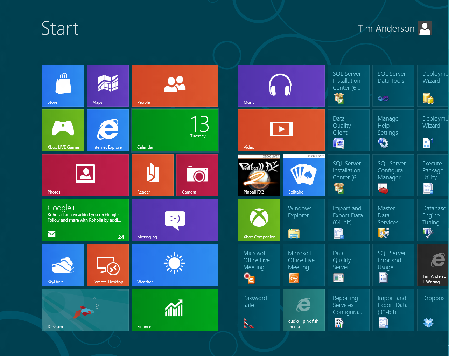
If you are working on the desktop, being dumped back in Metro every time you need the Start menu is disconcerting. It is not so bad on a touch slate, because the Metro Start menu is easier to use, but if you are using keyboard and mouse it is more annoying.

I am beginning to understand why this is. Conceptually, the Desktop is a Metro app, therefore it makes sense to start it from Metro. If Windows gets to the point where desktop apps are only used occasionally, this will work fine. Right now though, the desktop side is unavoidable. Explorer, full IE, Control Panel, even the Help app is a desktop app. This is a transitional thing that will be a long-lived annoyance.

This little issue also confirms Microsoft’s belief that touch and tablet really is the future of Windows. It is the big bet.

Horizontal scrolling

Windows 8 Metro has a lot of horizontal scrolling, the Start menu being one example. Swiping this with fingers feels natural, but using a scroll wheel on a mouse is odd because you expect that to give you a vertical scroll. There is a scroll bar as well, but the mouse wheel is easier.

App switching

App switching has been messed up in Windows 8. Long ago, users of Windows 3.1 used to complain that they lost the app they were working on. In reality, what used to happen was that Word would be running behind Excel, and they did not realise that Alt-Tab would bring it back, or forgot that Word was running. Sometimes users would open multiple instances of an app just to get it back. I wonder if we may see a return to this problem in Windows 8? The taskbar in Windows 95 was invented partly to solve it, but the taskbar no longer works because Metro apps do not appear there. If you are in Metro, you do not see the taskbar anyway, of course. Alt-Tab works fine, but users do not always think of that.

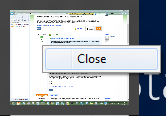
An interesting twist on this is that the desktop, from the Metro perspective, is a single app. Therefore, if you are in Metro and summon the column of running apps by moving the mouse to the top left corner and dragging down, only one desktop window shows even if you have several desktop apps running. Oddly, you can “close” the preview desktop app here, but it does not close the desktop or any desktop apps if you do, just removes it temporarily from the preview window list.

image

App menus and context menus

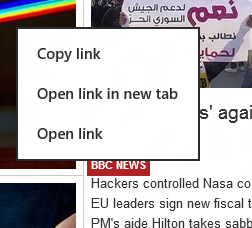
In Metro on a tablet, you raise application menus by swiping from the top or bottom. That works well, but when using the mouse you are meant to right-click instead. The snag is that right-click isn’t ideal for bringing up app menus as it might need to show a context menu. For example, in the Metro browser right-clicking a link brings up a context menu:

image

In this case then, the right-click does NOT bring up the app menus, such as the tabs and address bar in IE.

The Music app

The Music app looks great, but I have struggled to add any music to it.

image

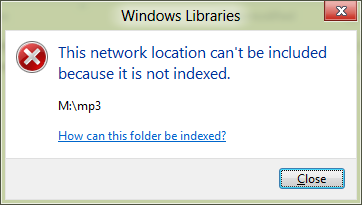
My music files are on a network share. There is no setting in the Metro Music app to add a folder to the library. It looks like you are meant to go to Explorer on the desktop side and add folders to your Music library. However, when I tried to add the network share I got this error:

image

“This network location can’t be included because it is not indexed.” Follow the help links, and you eventually get to instructions for working around this problem by creating a local folder, adding it to the Music library, then deleting the folder and recreating it as a symbolic link to the network share. Hardly a user-friendly operation, but in my case even this did not work. I am now trying to index the share on the server, but it is still not working.

I do not see DNLA streaming support here either. Maybe it will come; otherwise you will have to go back to Windows Media Player, or a third-party app, to get full features.

Metro Mail problems

I have not yet managed to get the Mail app to work with Exchange. One of the annoyances here is that when it fails to set up the account, it does not give you a reason. A bit of research suggests that it is an autodiscover problem.

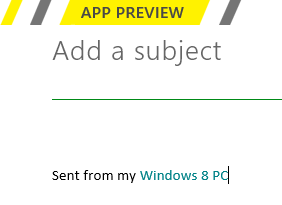
Another Mail issue is that you cannot modify the annoying signature, Sent from my Windows 8 PC:

image

Nor can you use POP3 or IMAP, or forward mail. I was relieved therefore to find this statement from Microsoftie KeithF on the Answers forum:

We aren’t anywhere near done with the app and, as you’ve seen, there are some things we haven’t gotten to yet.  One of those is supporting custom domains and aggregated POP accounts correctly.  We’re working right now on finishing this off the right way.

This is worth noting because it gives hope that more features will arrive in the other apps as well. Currently they seem only part-done.

Multiple displays

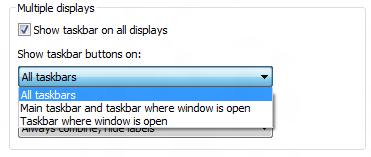
Multiple monitor support is odd. The taskbar now extends across multiple screens, but annoyingly it is not properly extended, just sort-of copied, so you cannot add more shortcuts without scrolling. There are some other options, like “Show taskbar buttons on Main taskbar and taskbar where window is open.”

image

There are oddities though. A Metro app apparently cannot be extended across two displays. The Start menu appears in one display, letting you work on the other, but if you have a desktop app stretched across two displays, the Metro side will overlay that part of the desktop app which is on its display.

Metro Messenger

Another app deficiency is that in the Metro Messenger app you cannot add a new contact, at least, not that I have seen.

Conclusion: not done yet

Windows 8 is not yet done. While I am not expecting any great change in the Start menu or essential mechanics and design of Windows 8, I do expect improvements in the Metro apps, the goal I suspect being to make this usable and enjoyable on a tablet without too many jarring visits to the desktop – though if you use Office, you will be going to the desktop a fair amount like it or not. We have yet to see what Microsoft will do in Office 15 to mitigate this.

A few days in, and I still believe that the Windows 8 compromise means that the Metro side is sub-optimal with Mouse and keyboard, and the Desktop side sub-optimal with touch.

There is a ton of promise though, and much depends on what Metro apps appear, and how successful Microsoft is at fixing deficiencies in time for the launch. Given the lead time needed by OEMs, there is not a lot of time left if this is going to be a 2012 operating system.

What’s in Windows 8 client for desktop users who do not need Metro?

Microsoft, rightly, is making plenty of noise about the Metro-style side of Windows 8, which is great for those using Windows 8 on a touch device. But has the company spent so much energy on that aspect, that there is little left for desktop users? That is arguable; but there are new features on the desktop side, as well as underlying operating system changes that benefit both sides of the dual personality in Windows 8.

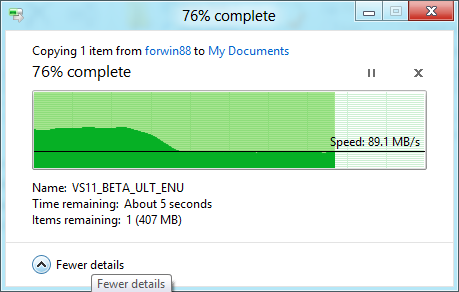
Here are some that come to mind. The new copy dialog:

image

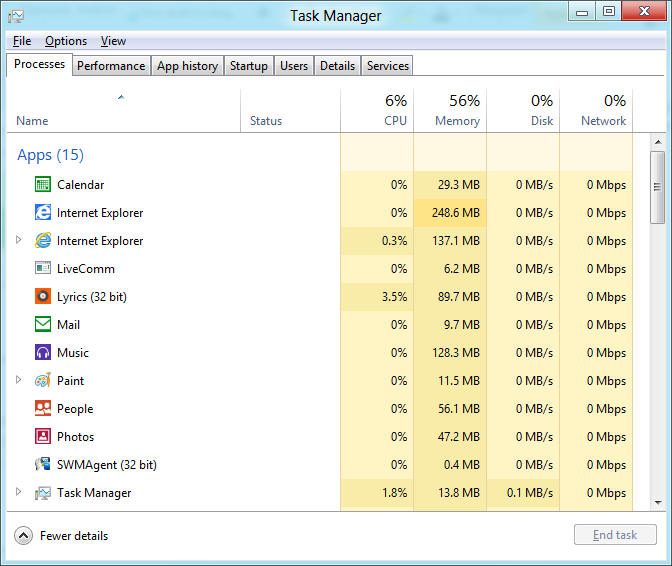
and the task manager:

image

and the Explorer ribbon:

image

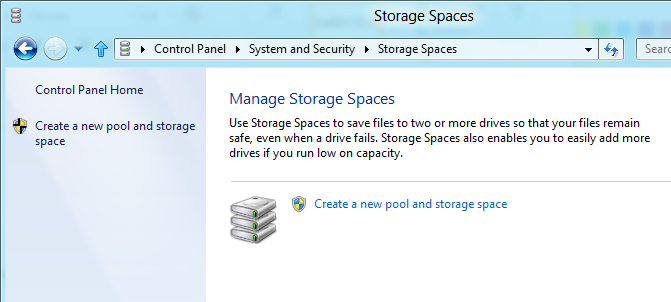
and Storage Spaces, a new approach to disk management:

image

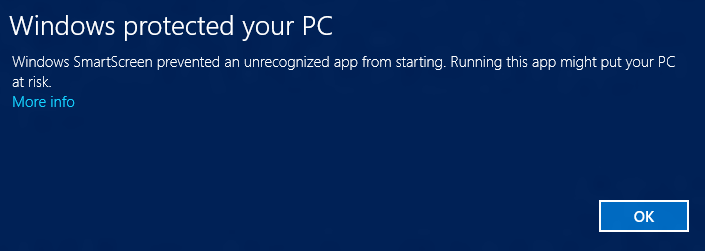
and SmartScreen which blocks your unsigned apps by default:

image

and Windows to Go that lets you run in isolation from a USB storage device, and other security features including Trusted Boot (malware-resistant boot which uses UEFI 2.3.1), Measured Boot (uses TPM – Trusted Platform Module), and AppLocker which restricts access to files as controlled by Group Policy.

Then there are performance improvements: faster network connections (I have already noticed this when working with the preview), faster boot, longer battery life.

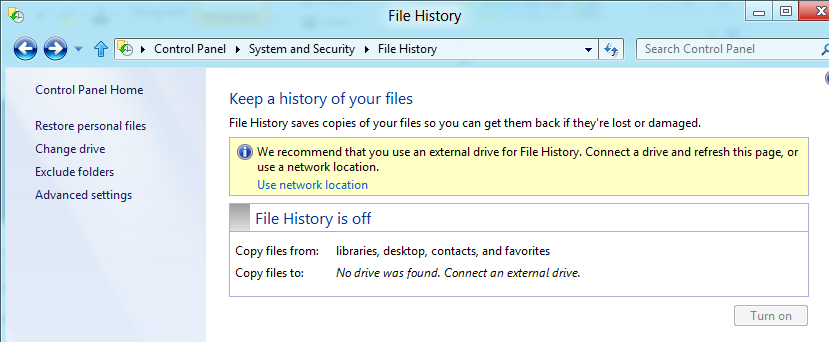
File History is a variation on what we have had before with backup but presented with a common-sense user interface:

image

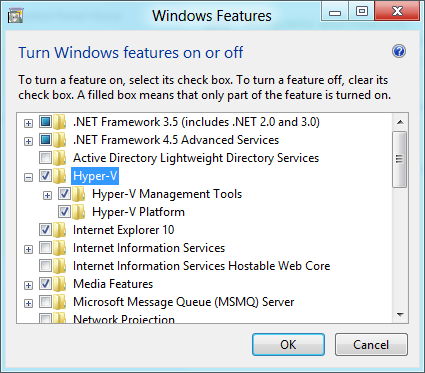
And Hyper-V, a big feature for power users:

image

What have I forgotten? And is it enough to mitigate being bounced in and out of Metro by the new Start menu – or maybe you like the Metro Start screen better than the old one?

Here comes Windows Server 8 beta: what’s new since the Developer Preview?

Following the release of Windows 8 Consumer Preview, Microsoft is now offering its server cousin. You can download Windows Server 8 beta here.

What’s new since the developer preview? Here are some highlights:

  • Metro UI screenshots to follow! There is a new Metro Remote Desktop client as well.
  • Voice over IP in Remote Desktop Services
  • SMB (Server Message Block) encryption, which you can turn on per share or for the whole server, encrypts all SMB data. SMB is the standard networking protocol for file access on a Windows network. The new feature is aimed at scenarios where data travels over untrusted networks. SMB has also been enhanced to reduce server/client round trips.
  • Always Offline is a new mode for offline files. Normally, if you use an offline folder in Windows then the local copies will only be used when the server is actually offline. In the new mode, the cached files are used anyway, giving local performance. By default the files will be synchronized every 120 minutes.
  • ReFS (Resilient File System) is implemented in the beta.
  • Hyper-V limits raised: up to 1TB in a VM, up to 64TB in a virtual hard drive.
  • Microsoft Online Backup: spotted as a non-functioning option in the Developer Preview, a new Online Backup Service is now implemented, You have to apply for an invitation if you want to try this out.
  • User Device Affinity is an enhancement to roaming profiles that lets you specify which computers a user may use for redirected data and settings.

This is new stuff since the Developer Preview; there a lot more that is new since Server 2008 R2

The confusing state of Microsoft’s TMG and UAG firewall and proxy software

I have been trying out Microsoft’s ForeFront Unified Access Gateway (UAG) recently, partly because it is the only supported way to publish a SharePoint site for Windows Phone. This was my first go with the product, though I am already familiar with the Threat Management Gateway (TMG) and its predecessor Internet Security and Acceleration Server (ISA) – and before that Proxy Server, dubbed “Poxy Server” by admins frustrated with its limitations. All these products are related, and in the case of UAG and TMG, more closely than I realised.

Note that Microsoft has indicated that the current version of TMG, 2010, is the last. What is happening to UAG is less clear.

What I had not realised until now is that TMG installs as part of UAG, though you are not meant to use it other than for a few limited uses. It is mainly there to protect the UAG server. The product positioning seems to be this:

  • Use UAG for publishing applications such as SharePoint, Direct Access (access to Windows files shares over the internet) and Exchange. It is essentially a reverse proxy, a proxy for publishing and protecting server applications.
  • Use TMG for secure internet access for users on your network.

This means that if you want to use Microsoft’s platform for everything possible, you are expected to run both UAG and TMG. That is OK for enterprises but excessive for smaller organisations. It is odd, in that TMG is also a capable reverse proxy. TMG is also easier to use, though that says more about the intricate user interface of TMG than it does about the usability of TMG. Neither product can be described as user friendly.

The complexity of the product is likely to be one of the reasons TMG is now being discontinued. It is a shame, because it is a decent product. The way TMG and ISA are designed to work is that all users have to authenticate against the proxy before being allowed internet access. This gives administrators a high degree of control and visibility over which users access which sites using which protocol.

Unfortunately this kind of locked-down internet access is inconvenient, particularly when there are a variety of different types of device in use. In many cases admins have to enable SecureNAT, or in other words unauthenticated access, partly defeating the purpose, but there is little choice.

ISA Server used to be supplied as part of Small Business Server (SBS); but when I spoke to Microsoft about why it was dropped in SBS 2008, I was told that few used it. Businesses preferred a hardware solution, whether a cheap router modem from the likes of Netgear or Linksys, or a security appliance from a company like Sonicwall, Cisco or Juniper.

The hardware companies sell the idea that a hardware appliance is more secure, because it is not vulnerable to Windows or Linux malware. There is something in the argument, but note that all security appliances are more software than hardware, and that a Windows box will be patched more regularly. ISA’s security record was rather good.

My hunch is that ease of use was a bigger factor for small businesses. Getting ISA or TMG to do what you want can be even more challenging that working out the user interface of a typical hardware appliance, though perhaps not with the more complex high-end units.

As for UAG, I have abandoned the idea of testing it for the moment. One of the issues is that my test setup has only one external IP. UAG is too elaborate for a small network like mine. I am sticking with TMG.

Windows on ARM fixes much that is wrong with Windows, but lack of apps makes it Microsoft’s big risk

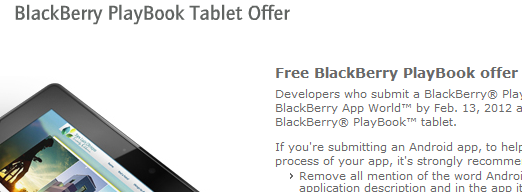
Vendors who create new platforms work hard to attract developers, because high availability of apps is seen as essential for success. This is why, for example, RIM is offering free PlayBooks to developers who submit apps to BlackBerry App World.

image

Why then would Microsoft deliberately and consciously choose to release a new family of Windows machines on which existing Windows applications cannot run, even when recompiled? This is what is happening with Windows on ARM (WOA), as Windows President Steven Sinofsky makes clear in his lengthy post on the subject:

Developers wanting to reach WOA with existing apps have two options. Many apps will be best served by building new Metro style front ends for existing data sources or applications, and communicating through a web services API … Other existing applications will be well served by reusing large amounts of engine or runtime code, and surrounding that with a Metro style experience.

This restriction means that WOA cannot benefit from what what might otherwise be its biggest advantage versus the competition: huge numbers of apps that could easily be ported.

Microsoft’s reasoning is that the existing Windows software deployment model is broken so badly that it cannot be fixed:

If we enabled the broad porting of existing code we would fail to deliver on our commitment to longer battery life, predictable performance, and especially a reliable experience over time. The conventions used by today’s Windows apps do not necessarily provide this, whether it is background processes, polling loops, timers, system hooks, startup programs, registry changes, kernel mode code, admin rights, unsigned drivers, add-ins, or a host of other common techniques. By avoiding these constructs, WOA can deliver on a new level of customer satisfaction: your WOA PC will continue to perform well over time as apps are isolated from the system and each other, and you will remain in control of what additional software is running on your behalf, all while letting the capabilities of diverse hardware shine through.

says Sinofsky. It is a view that has merit, particularly when you consider how badly Windows has been damaged by poor quality OEM software.

Note that he is even promising an end to Windows “cruft”, as memorably described by Verity Stob in State of Decay:

Cruft Force 7. Wounded. Description: No longer able to logon using original account as the system freezes, so must logon as "Verity2" or similar

and the like. “Your WOA PC will continue to perform well over time,” Sinofsky promises.

Another reason to like this approach is that the Windows Runtime (WinRT), the platform for which third-parties are allowed to develop, is in my view a great piece of work. The WinRT apps in the Windows 8 Developer Preview perform well, even though they are simple things put together quickly, many of them by students as I recall. The insistence on asynchronous calls for any system API that might be slow to return should ensure responsive applications.

At the BUILD conference last September we were told that the Windows team sat down to create a new platform that avoids the mistakes of the past and while it introduce frustrations of its own, some of which we know about and some of which developers will discover, it does appear to be well thought-through.

Microsoft Office itself is not the best performing of software, particularly Outlook which is prone to long hangs. Fortunately, Outlook is missing from the version of Office 15 which will ship for WOA, and journalist Adrian Kingsley-Hughes reports positively on a recent glimpse at the software.

The big risk

A sure-fire success then? No, because the downside of WOA is that right now there are no apps for it, beyond what we have seen in the developer preview. It is a brand new platform; and the history of personal computing is littered with good products that failed because they could not achieve sufficient momentum.

I am just back from RIM’s BlackBerry conference in Amsterdam, impressed by what I have seen of the PlayBook and forthcoming BlackBerry 10 platform and its tools for developers, but thinking, is this enough to persuade a customer to buy a BlackBerry tablet instead of the safe choices of Apple iOS or Google Android?

Microsoft has the market presence to make this work, you may think; but the Windows Phone 7 story so far shows that this is not enough. The new phone OS has only a tiny market share after a year, and if it recovers, it will be more to do with Nokia than with Microsoft.

WOA also has interesting competition in the form of Windows 8 on x86, which will also have WinRT, but without the restrictions on desktop apps. If partners focus on Intel Windows 8, as the “full” version, it could be hard for WOA to find its market.

There are problems with Windows 8 on x86 too. Most of existing Windows apps will need a keyboard and mouse to work properly, and expect to find large amounts of storage, not the 16 or 32 GB in a typical tablet. Windows 8 Intel devices may end up like the Samsung tablet given to attendees at BUILD: powerful, but heavy, expensive, with short battery life, and complete with the clutter of a separate keyboard. Such devices have their place, but they are not an answer to the iPad.

It is WOA, not Windows 8 x86, that has to win market share from Apple.

Microsoft is choosing to do WOA right, rather than opening it up to the kinds of problems which have afflicted Windows in the past. That does makes sense, because it is those problems which have made users gladly move away from Windows now that compelling alternatives are available.

I also believe that OS vendors work too hard to pump up the app numbers, and not hard enough to ensure quality, resulting in app stores full of poor to indifferent apps. This is why schemes like the BlackBerry effort mentioned above do as much harm as good, enticing developers to submit rubbish in order to win a new gadget. An app store with 10 great apps is better for users than one with a thousand poor ones.

It is nevertheless true that apps make or break a platform. BUILD attendees and those who have downloaded the Windows 8 developer preview have had the tools to make WinRT apps for a few months now, but my impression is that most are waiting to see how it progresses before investing seriously in WinRT development. Another problem is that Windows 8 developer preview works nicely on a real tablet, but not so well in a virtual machine or on a PC without a touch screen.

I still think WOA may work.

  • If Microsoft does a good job with WOA Office, giving it an unique selling point against the competition.
  • If the WOA devices are competitively priced.
  • If the battery life is good.
  • If there are at least a handful of truly worthwhile third-party apps at launch.
  • If there is not some obvious problem with stability, or an annoyance that spoils the experience, like the one I found on the PlayBook when the virtual keyboard failed to pop up when trying to author a tweet in the web browser.

That is a lot of ifs though, and the progress of WOA will be a fascinating tech story throughout 2012.

Windows on ARM: Microsoft can write Desktop apps, but you cannot

Microsoft’s Windows chief Steven Sinofsky has written a long post describing Windows on ARM (WOA), which he says is a:

new member of the Windows family, much like Windows Server, Windows Embedded, or Windows Phone

There are many point of interest in the post, but the one which stands out for me is that while the traditional Windows desktop exists in WOA, third party applications will not be allowed there:

Developers with existing code, whether in C, C++, C#, Visual Basic, or JavaScript, are free to incorporate that code into their apps, so long as it targets the WinRT API set for Windows services. The Windows Store can carry, distribute, and service both the ARM and x86/64 implementations of apps (should there be native code in the app requiring two distributions).

says Sinofsky. He writes with extreme care on this issue, since the position for which he argues is finely nuanced. Why have the Windows desktop on WOA at all?

Some have suggested we might remove the desktop from WOA in an effort to be pure, to break from the past, or to be more simplistic or expeditious in our approach. To us, giving up something useful that has little cost to customers was a compromise that we didn’t want to see in the evolution of PCs

he says, while also saying:

WOA (as with Windows 8 ) is designed so that customers focused on Metro style apps don’t need to spend time in the desktop.

From a developer perspective, the desktop is more than just a different Windows shell. Apps that run on the Windows Runtime (WinRT) are isolated from each other and can call only a limited set of “safe” Windows APIs, protecting users from malware and instability, but also constraining their capabilities. The desktop by contrast is the old Windows, an open operating system. On Windows 8 Intel, most things that run on Windows 7 today will still work. On WOA though, even recompilation to target the ARM architecture will not help you, since Microsoft will not let desktops apps install:

Consumers obtain all software, including device drivers, through the Windows Store and Microsoft Update or Windows Update.

What if you really want to use WOA, but have some essential desktop application without which you cannot do your work, and which cannot quickly and easily be ported to WinRT? Microsoft’s answer is that you must use Windows on Intel.

That said, Microsoft itself has this problem in the form of Office, its productivity suite. Microsoft’s answer to itself is to run it on the desktop:

Within the Windows desktop, WOA includes desktop versions of the new Microsoft Word, Excel, PowerPoint, and OneNote, codenamed “Office 15”.

No Outlook, which I take to imply that a new WinRT-based Exchange client and PIM (Personal Information Manager) is on the way – a good thing.

Microsoft’s aim is to give customers the security and stability of a locked-down machine, while still offering a full version of Office. If you think of this as something like an Apple iPad but with no-compromise document editing and creation, then it sounds compelling.

At the same time, some users may be annoyed that the solution Microsoft has adopted for its legacy desktop application suite is not also available to them.

The caveat: it is not clear in Sinofsky’s post whether there may be some exceptions, for example for corporate deployments, or for hardware vendors or mobile operators. It will also be intriguing to see how Office 15 on ARM handles extensibility, for example with Office add-ins or Visual Basic macros. I suspect they will not be supported, but if they are, then that would be a route to a kind of desktop programming on WOA.

It will be interesting to see how Microsoft locks down Explorer, which Sinofksy says is present:

You can use Windows Explorer, for example, to connect to external storage devices, transfer and manage files from a network share, or use multiple displays, and do all of this with or without an attached keyboard and mouse—your choice.

By the way, this is a picture of the Windows ARM desktop as it looked at the BUILD conference last September. The SoC (System on a Chip) on this machine is from NVIDIA.

Cross-platform Windows and Mac lifts Delphi sales by 54%

Embarcadero has announced 54% growth in sales of Delphi and C++ Builder, its rapid application development tools, in 2011 vs 2010. These tools primarily target Windows, but in the 2011 XE2 edition also support Mac and iOS applications. XE2 also added a 64-bit compiler, making this the most significant Delphi release for years. The company says that the 2011 figures come on top of 15% year on year growth in the previous three years.

This is encouraging for Delphi developers, and well deserved in that Delphi still offers the most productive environment for native code development on Windows. The cross platform aspect is also interesting, though the FireMonkey framework which enables it is less mature than the old VCL, and there are many other options out there for cross-platform apps. FireMonkey does not yet support Android or other mobile platforms apart from Apple iOS.

2012 is also the year of Windows 8, raising the question of whether Delphi and C++ Builder will support the new Windows Runtime (WinRT) in future, and if it does, whether this will be FireMonkey only, or whether it could work with a XAML-defined user interface.

Windows Phone 8 “Apollo”: Windows 8 kernel, more form factors

Microsoft’s partner ecosystem is vulnerable to leaks, as demonstrated today by reports of a video said to have been made for Nokia, which arrived in the hands of a smartphone review website. The leaked information was corroborated by Windows journalist Paul Thurrott who has received advance information independently from Microsoft, but under non-disclosure:

Thanks to a recent leak which has revealed some interesting information about the next major Windows Phone version, I can now publicly discuss Windows Phone 8 for the first time.

First, a quick recap:

  • Windows Phone 7.5 “Mango” came out in the second half of last year and was the launch OS for Nokia’s Lumia phones.
  • Windows Phone “Tango” is expected in the second quarter of 2012 and appears to be a minor update focused on low-end handsets.
  • Windows Phone “Apollo” is the subject of the new leaks. Some of the details:
  • Uses the Windows 8 kernel and other OS components, rather than Windows CE
  • Supports multicore processors
  • Supports more form factors and screen resolutions
  • Preserves compatibility with Windows Phone 7 apps
  • Adds BitLocker encryption

I presume this also means that native code development will be supported, as it is for the Windows Runtime (WinRT) in Windows 8.

Date for “Apollo”? The rumour is towards the end of this year, as a close follow-on from Windows 8 itself.

Like many leaks, this one raises as many questions as it answers. While it makes sense that Windows Phone 8 and Windows 8 should share the same kernel, it also raises the question of  how they are differentiated. Windows 8, especially on ARM, is designed for small screens and tablets. Windows Phone 8, we now learn, will support more form factors. The implication is that there may be Windows Phone 8 devices that are close in size to Windows 8 devices. Will they run the same apps from the same Marketplace, at least in some cases, in the same way that some iOS apps support both iPhone and iPad?

The Windows 8 and Windows Phone 8 era will be simplified in one sense, with a single core operating system across desktop and devices. In another sense though, it ushers in new complexity, with multiple platforms that have subtle or not so subtle differences:

  • Windows 8 desktop side, on laptop and tablet (x86)
  • Windows 8 desktop side, laptop and tablet (ARM) – rumoured to be locked down for Office and perhaps a few other favoured apps
  • Windows 8 Metro side, desktop, laptop and tablet (x86) which should be nearly the same as
  • Windows 8 Metro side, desktop, laptop and tablet (ARM) – runs WinRT
  • Windows Phone 8 – runs WinRT, plus Silverlight compatibility layer

My guess is that Microsoft will push WinRT as the single platform developers should target, but I can see scope for confusion among both developers and users.

What would you like to see in Microsoft Office 15?

Today brings the news that Microsoft Office 15 is now in Technical Preview (also known as private beta).

There is little news about what is in it other than this:

With Office 15, for the first time ever, we will simultaneously update our cloud services, servers, and mobile and PC clients for Office, Office 365, Exchange, SharePoint, Lync, Project, and Visio.

image

So what would you like to see in Office 15? Here are a few things on my wish list:

  1. Properly integrate SharePoint (and therefore Office 365) with Windows so that you can use it easily without ever opening a web browser. That might mean fixing SharePoint WorkSpace or doing something better, like Explorer integration without the various hassles associated with WebDAV.
  2. Fix Outlook, or better still replace it. I hear many complaints about Outlook, either concerning its performance, or else one of its many annoyances such as how hard it is to reply to an email while quoting sections of the original message – astonishing, when you consider the maturity of the product.
  3. Improve cross-platform support. Office on the Mac is poor compared to the Windows version, particularly in terms of performance. It is also time Microsoft came out with apps for iOS and Android for touch-friendly document editing.
  4. Update the user interface for touch control as far as possible. This will be critical for Windows 8 tablets, especially on ARM.
  5. Improve structured document editing in Word. Styles are hard to use, so are bullets and numbering. I tend not to use the paragraph numbering in Word because it is so fiddly and annoying.

The problem is that Office is a huge and intricate bag of legacy. The work Microsoft did in replacing the menus with ribbon toolbars was admirable in its way, and potentially more touch-friendly, but if you scratch the surface much is unchanged underneath. All the old commands remain.