Category Archives: windows

Microsoft’s confusing web sites

Scott Barnes draws attention to this study which compares the usability of the Apple vs the Microsoft web sites.

Some things are bad for so long that you stop complaining about them. This is one of them. Let’s acknowledge though that there are mitigating factors:

  • Microsoft is a huge organisation, has a vast number of products, and creating a coherent web presence that covers everything is a monumental task.
  • The goals and technical abilities of visitors to Microsoft’s web properties vary enormously.
  • Staying up-to-date is a challenge.

Against that though, Microsoft is in the IT business and supplies both web design and web server technology; it regularly talks up the importance of “user experience” and must be aware that potential users will judge to some extent by what they find.

I use “web sites” in the plural because there are many Microsoft web sites. Perhaps there should be one; but as the referenced study observes, there are numerous different designs. There are different domains too, such as Silverlight.net, ASP.Net and so on.

Take my experience this morning for example. My question: how many processors are supported by Windows Small Business Server 2008? My Google search got me to here, an overview showing the two editions, Standard and Premium. I clicked Compare Features and got to here, which says I have to visit the Server 2008 web site to find out more about the “Server 2008 product technologies”. I click the link, and now I am looking at info on Server 2008 R2 – only I know already that SBS is based on the original Server 2008, not the R2 version. It’s not clear where to go next, other than back to Google.

Some general observations, after clicking around various SBS sites (I had some other questions too):

  • It’s hard to get past the marketing blather to clear information
  • Too many links lead to menu pages with further links – sometimes it feels like an endless loop
  • I found lots of information in the future tense, clearly prepared before launch and not updated
  • Regionalisation is poor. You can start on the UK site but end up with pricing and availability information applicable only to the US
  • There’s a Technet site as well as a general site and the differentiation is not clear. I suppose the general site is meant to be more business/marketing focused, but there’s plenty of overlap
  • In general pages are too busy with each one offering a splurge of choices
  • Some things are just inherently confusing – like the CAL policy, which has four different types of CAL (user and device in combination with standard and premium) that can be mixed and matched: you can use standard CALs with SBS Premium if they are not used with “Premium features”. Whoever dreamt that up has never worked in a small business.

Clearly this is not a simple problem to solve. At the same time, it is hard to understand why it is so bad. It is a large company problem: maybe too much bureaucracy, conflicting kingdoms, little budget following initial launch, everyone knows it is a problem but nobody knows who should be fixing it, that kind of thing.

Incidentally, I think the processor limit is actually the same in SBS 2008 Standard as in Server 2008 Standard R2, and this chart shows it to be 4 sockets. In other words, you can have up to four physical processors and still benefit from multiple cores. Probably.

10 Mac alternatives to Windows utilities

I’ve been spending an extended time on the Mac in order to explore Snow Leopard. As far as possible, I’ve done all my work on the Mac since its release. The trial will be over soon … but in the meantime I’m sharing notes on some of the utilities I used for tasks I normally do on Windows, in no particular order.

1 Capturing screenshots

On Windows I press PrintScreen or Alt-PrintScreen (for the current window), then paste into an ancient copy of Paint Shop Pro 5.0 for trimming and re-sizing. No, it’s not PhotoShop, but it loads in a blink.

For the Mac I use Ctrl-Command-Shift-3 (whole screen) or Ctrl-Command-Shift-4 (selectable area) which adds a screenshot to the clipboard. Then I use the latest Preview, which has a File – New from Clipboard option. I love Preview – it has tools for further trimming and resizing, and when you save it shows the file size as you select different formats. Since I often want to minimise the size for a web page, it’s ideal.

2 Secure file transfer

I avoid FTP for security reasons, so on Windows I normally use WinSCP for secure file transfer.

On the Mac I use Fugu, and of the two I prefer it.

3 Word processing

On Windows I use Microsoft Word. On the Mac I mainly use NeoOffice, which actually felt a bit nicer than its parent, OpenOffice. I also spent some time with Word 2008 (good for compatibility, but slow) and Apple’s Pages from iWork 09. One nice feature of Pages, for journalism, is the stats window that shows the word count as you type.

4 Web browsing

I used Safari, in order to get the most complete Apple experience. I’m getting to like the Top Sites feature, though it’s hardly essential, especially the way it shows at a glance which pages have changed.

5 Sound editing

On Windows I use Audacity. On the Mac I use … Audacity, though for some reason I found it slightly less smooth.

6 Playing FLAC

Apple is still stubbornly refusing to support FLAC in iTunes or Quicktime. My solution was Songbird, a great alternative, which supports FLAC straight out of the box, or rather download.

For converting to FLAC I used MacFLAC, though I found it less than robust. I missed dbPowerAmp (Windows).

7 Remote desktop

I find Remote Desktop invaluable for managing servers. On the Mac I used the official Remote Desktop client, which worked well though it falls slightly short of the Windows version (perhaps this is a policy!).

8 Twitter

I use Twhirl on both Mac and Windows, an Adobe AIR application. One oddity (getting picky): the font spacing is slightly better on Windows. In the word Blog, for example, there is too much space between the B and the l, but only on the Mac.

9 Email

I never thought I’d say I missed Outlook, but I did. The thing is, after much experimentation I’ve found a permutation that works really well on Windows: 64-bit Windows and Outlook 2007 SP2 in online mode (only for a desktop, of course).

On the Mac I use Mail, but I’ve found it less than satisfactory even though I run Exchange 2007 with all the required configuration.

10 Blog authoring

On Windows I use Live Writer, which is superb.

On the Mac I write posts (like this one) in the WordPress online editor. I don’t like it as much, but it does the job.

11 Bridge

Now this one is a problem :-). I find JackBridge ideal for those moments when I need a break from work. It won this year’s World Champion computer bridge contest.

The Mac is not so well served, but I have trialled Bridge Baron and found it not bad at all.

Apple Snow Leopard: why don’t we all use Macs?

Last Friday I attended Apple’s press briefing for Snow Leopard, and I’ll be a Mac (mostly) for the next few days as I put OS 10.6 through its paces. For as long as I can remember, I’ve set up my desktop so that I can easily switch between Mac and Windows, so it is no great hardship.

Snow Leopard is a relatively low-key release, timed by accident or design to appear not long before Windows 7 makes its full public debut in October – though many IT professionals are already using the final build. In the unlikely event that you’ve missed the many reports, the headline new features are:

  • Many small refinements and speed improvements
  • Major applications re-written in 64-bit
  • Grand Central Dispatch – OS-level support for easier concurrent programming
  • OpenCL – standard means of using the GPU (graphics processing unit) for general processing, not just graphics
  • Exchange support in Mail, iCal and Address Book

The Exchange support is welcome, though unfortunately it is limited to Exchange 2007. It was already possible to access Exchange in Mail, though the older support (which still exists for pre-2007 Exchange) was based on IMAP, whereas the new support is based on Exchange web services and has richer features.

I use Exchange 2007, and found it easy to set up my account in Mail. Unfortunately I’m missing some Outlook features, such as the ability to choose a different Sender  address, and I’ve found it prone to a few mysterious pauses –  once it went into a sulk for over a minute when I marked a message as junk – but this might be a problem with Exchange web services rather than Mail, who knows? I also have some public folders which appear to be inaccessible from Mail or iCal. Then again – Entourage isn’t as flexible as Outlook either.

Still, I  expect the Exchange support will be good enough for many users, and this will make it easier to integrate Macs into Windows-based networks.

So, here’s a thought experiment. Let’s make an assumption:

  • Most people prefer the Mac operating system over Windows, and prefer the Mac hardware over most PC or laptop hardware.

If that is the case, why do we not all use Macs?  There’s a host of reasons which come to mind, starting with price. I looked at macwarehouse.co.uk and pcworld.co.uk, which are owned by the same group. The cheapest Mac I can find (Mac Mini + keyboard, mouse and display) is currently £536.96, vs £260.86 for a PC; and the cheapest laptop is £645.99 + VAT for a MacBook vs £216.52 for a cheapie PC laptop with Vista Basic. These differences are not small.

Note I am not saying that the Mac is poorer value; that is an entirely different argument.

A second big issue is application compatibility. Although there is no problem that cannot be solved with finding alternatives, or dual boot, or a virtual machine, it is all friction that impedes Mac acceptance.

Third, there is the greater manageability of Windows in a corporate environment based on Windows. This is a form of incumbent advantage, which is hard to break unless the incumbent messes up badly. Arguably Microsoft has messed up badly, though less in the business context than in the consumer context, and Windows 7 will pull back some lost ground.

The above leads me to believe that Snow Leopard is not likely to change the status quo significantly – understanding that the status quo is that Apple is gradually increasing its market share – even granting the assumption I made, which is somewhat controversial. On balance, I consider it more likely that Windows 7 will stem the flow towards Apple, though without a high degree of confidence.

More significant than either factor is the continuing migration towards the Internet. In this respect I’ve argued that Apple is like Microsoft. The Internet is a great leveller; it will reduce the friction of changing operating systems (helping Apple) but also make Apple’s UI advantage less noticeable (helping Windows/Linux/Google), and make it harder to sell expensive desktop software (Microsoft is the bigger loser here I think).

It’s fun to speculate; but I must add that so far Snow Leopard has been a pleasure to install and use. Technically, Apple hasn’t missed a beat with OS X since the first release, and that’s an impressive achievement.

Fixing a Windows PC with Knoppix

Last night I took a look at a poorly Windows XP box. It would not boot; error was:

C:\Windows\System32\Hal.dll missing or corrupt:
Please re-install a copy of the above file.

The one thing you can be confident about is that doing what the error message says will not fix the problem. I suspected an issue either with a failing hard drive, or with boot.ini. It was not boot.ini, and to my surprise the drive checked out OK using the long (most thorough) test in the manufacturer’s utility. There were files missing though, so I ran chkdsk /r and then tried a repair install. To do this, you boot from the setup CD, choose to install Windows, and then choose the option to repair an existing installation; it usually does a good job of preserving documents, applications and settings.

Everything was going fine until well into the repair. Setup came up with a message I had not seen before:

The file ‘Asms’ on Windows XP Home CD-ROM is needed. Type the path where the file is located, and then click OK.

It turns out that this means setup cannot communicate with the setup CD.  Microsoft has a fix which did not work for me; the UPPERFILTERS and LOWERFILTERS registry keys mentioned there did not exist, though it was interesting to discover that you can press Shift+F10 during setup and get a command prompt. However, the command prompt could not see the CD either.

Even if you cancel the setup, it automatically resumes on reboot. All I needed to do was to copy the setup files (contents of the i386 folder) from the CD to the hard drive. However, the bafflingly crippled XP recovery console does not support either xcopy, or wild card copy, or copying directories.

I found an easy solution for this in Knoppix, a version of Linux designed to run from CD.I downloaded the latest version 6.0.1 which has read-write access to NTFS drives by default, booted Knoppix, copied the WIndows XP setup CD to a folder on the hard drive, and re-booted Windows. Setup resumed, and when I got the Asms error I pointed setup to the new folder. I had to do this multiple times (fortunately Ctrl-C and Ctrl-V works) but it was not difficult and the repair completed successfully.

Technorati Tags: ,

Windows 7 tip: use Group by to merge and manage library views

I’ve been looking forward to the libraries feature in Windows 7. For example, on my desktop PC I keep some downloads in my personal download folder – under c:\users\[username]\Documents\Downloads – while others are in a download folder on drive E. It makes sense to treat this as one location, rather than two. Libraries let you view these two folders together, without physically merging them.

That said, Windows 7 tripped me up. I created a new library, called Downloads. I added the two folders. I was annoyed though to see that I had two separate lists of folders in the new library, not one. I wanted a single, merged list.

I clicked around to see if there was a way of merging the lists. I tried the Arrange by menu. If you arrange by Name, you get a single merged list but without folders at all – in my case, thousands of files. Arranging by folder got me back to the separate listings. I tried the Organize menu, but that didn’t help. I tried right-clicking, with promising options like Expand group and Expand all groups, but these were simply different ways of viewing the location groups.

Then I noticed that the default Documents library had exactly the view I wanted, merging the personal and public Documents folders. Had Microsoft included some magic for the built-in libraries, or was I missing something?

I was missing something. I found out what when I clicked Organize – Layout – Menu bar. Of course this is off by default, because someone at Microsoft has a religious aversion to menus; they have been removed entirely from most of Office. But once I had the menu bar, I found the View – Group by option. If I select View – Group by – None, then I get the merged folder list that I want.

In fact, all the Group by options seem to work on a merged list, which leads to strange fact number two: once I had the merged list, it was not obvious how to get back to the non-merged list. It is as if there is a Group by Location which is not on the menu. I did eventually work it out. To get back to the non-merged list, choose View – Arrange by – Clear changes. Obvious, eh?

Incidentally, there is a way of using Group by without displaying the menu bar. You have to right-click in the left margin of the right-hand pane of the library listing. Easy when you know how.

Technorati Tags: ,

Memory leak bug in useless NVIDIA Windows service

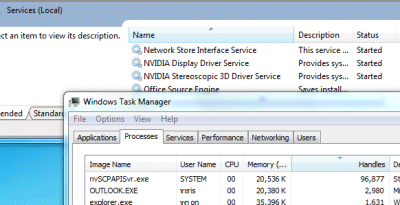
Rafael Rivera reports on a severe memory leak in an NVIDIA service that gets installed and auto-runs by default with many GeForce graphics cards. It consumes ever-increasing numbers of handles while running.

The service is the NVIDIA Stereoscopic 3D Driver service – nvSCPAPISvr.exe. I investigated on my system (now Windows 7) and was suffering from the problem. The silly thing is, if I try to explore any of the 3D features (even with the service running) I get a message: Your graphic card does not support 3D Vision.

Well worth disabling the service if you have an affected driver.

This is poor practice from the vendor, and to make matters worse, the driver had apparently passed WHQL verification – a Microsoft certification which is meant to ensure quality. Well, possibly Microsoft only checked the core driver, and not ancillary services like this one, but nevertheless the user has been falsely reassured.

Posted to help spread the word.

In-place upgrade adventures with Windows 7

I have just done Windows 7 RTM in-place upgrades on two systems, one running Vista Ultimate x64, and the other running Vista Business x64. Why do an in-place upgrade? Simply because it is much less time and effort than a clean install. Actually, the “less time” bit needs qualification. The in-place upgrade takes several hours; I left one running overnight. However, most of the time is spent leaving the setup chugging away. It does not take much effort from you.

By contrast, a clean install involves finding all your application setup disks or downloads, serial numbers, and patches, then installing and configuring them. In some cases – Adobe Creative Suite comes to mind – you might need to de-authorize an existing installation first, or be faced with a call to support on reinstallation. Drivers are another issue; you will likely need to visit the vendor web site for your PC and any added devices and download the latest drivers. Overall, not a trivial task.

An in-place upgrade is not optimal. Doing a clean install gives Windows the best chance of running with full performance and stability, without inheriting legacy problems. Still, there is no harm in doing an in-place upgrade now, and a clean install later when you have the time. That way, you get Windows 7 goodness immediately.

Although there has been some fuss about the complexity of Windows 7 upgrades, it is not merited. In a nutshell, you can in-place upgrade from Vista to the equivalent Windows 7 edition or higher. You cannot go backwards, you cannot in-place upgrade XP, and you cannot move between 32-bit and 64-bit editions. Simple.

Here’s how it goes. For an in-place upgrade, you run setup from within the running version of Vista. If you click Check Compatibility Online, you are directed to the beta upgrade advisor. I wouldn’t bother if you’ve got this far; the setup does the same job and does not require a download. So click Install Now.
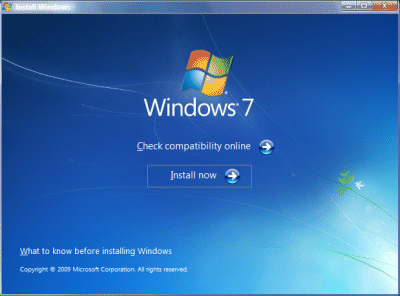
 

Of course, you’ve backed up stuff that matters to you, and appreciate that there is some small chance that Windows will be broken beyond repair and never boot again.

The first thing setup does is to check compatibility (see!).
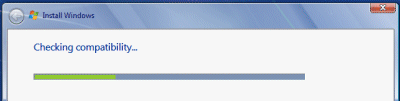
 

Then it will inform you of any issues. This is what I got:
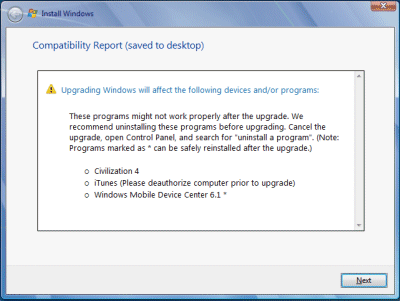
 

Apparently Windows 7 does not like Civilization 4, iTunes or Windows Mobile Device Center 6.1. On my x64 box it also objected to SQL Server 2008, Daemon Tools, and an IDE storage controller. You are advised to cancel setup (which you do by closing the window; there is no Cancel button), remove the problem software, and try again.

You can fix the SQL Server 2008 issue by installing SP1. Daemon Tools is a low-level utility and could easily trip-up a Windows upgrade, and has only recently come out in a Windows 7 compatible version, so I removed it. iTunes was not being used so I removed that too. I also uninstalled Windows Mobile Device Center.

How about the storage controller on the x64 box? This one made me nervous, since if Windows cannot find a compatible storage controller, nothing will work. However, I knew that the storage controller which matters was the one for Intel Sata RAID, not IDE, so I ignored it.

Once I had tidied up the system, I re-ran setup. This time, I hit Next. I got the Big Decision dialog box:
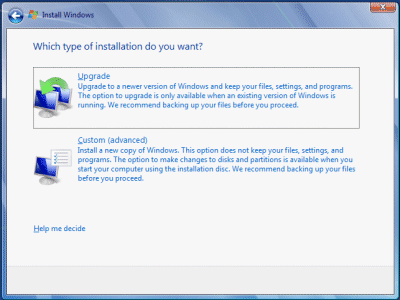
 

I wanted an in-place upgrade, so I chose Upgrade.

The next task is to wait a long time. Go and do something else. While it would be nice if this part went more quickly, it does not bother me that it takes hours; it is a one-off task. In my case, setup transferred nearly 600,000 “files, settings and programs”.

The aftermath

All going well (and it did) the next action is to hit Ctrl-Alt-Del (strange how that ugliness survives the years) and log onto your shiny new Windows 7 OS. There were just a few issues to resolve.

First, the upgrade tinkers with the Start menu, and one of the oddities is that Microsoft Office (version 2007 is installed) in effect disappears from view:
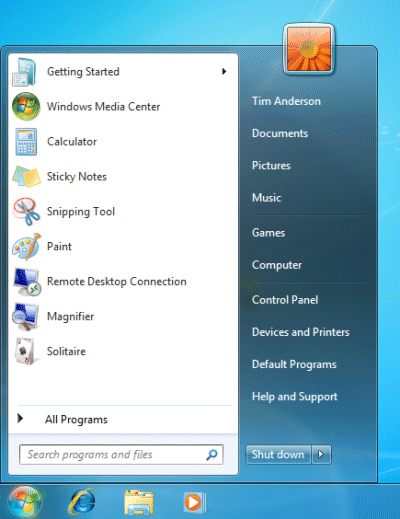
 

I am not saying it is hard to find. Desktop shortcuts remain, if you have them, and you can always type a search or burrow down into All Programs. Still, this could be jarring for some users. Among my first tasks with Windows 7 is to find the applications I use frequently and pin them to the taskbar (right-click, pin to taskbar).

Second, Internet Explorer 8 opened for the first time with odd dimensions. Easily fixed, though it is annoying that you have to go through Welcome to IE8 wizards that you have seen many times before.

 

Third, Lego Digital Designer (don’t ask) failed to run. Apparently the upgrade messed up OpenGL, even though setup correctly detected my NVIDIA graphics card. I downloaded the latest from NVIDIA, bumping up the version from 8.15.11.8593 to 8.15.11.9038. This fixed it. I suspect it was not the driver version as such, more that the NVIDIA install added additional components including OpenGL support.

Fourth, the Movie Maker problem. Your old Movie Maker 6 is removed, and if you try to run Movie Maker, you are invited to download Windows Live Essentials from the Web. The new Live Movie Maker is in beta, and after installation you get a message saying it has expired and offering an update (I imagine this will be fixed by the time of full rollout in October). Eventually it runs, but it is not as good as the old one. Solution: install the Vista one.

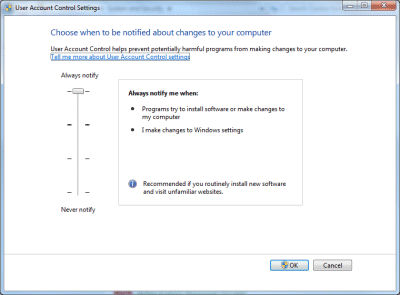
Fifth, the upgrade reduces your UAC protection level without asking. My first move is to put it back to the highest level, for reasons explained here.
Sixth, Windows Live Writer is slightly broken under Windows 7. When inserting a picture, the “From Web” option no longer appears; and even if you type in an URL in the file dialog (which used to work), it still tries to upload it. Some incompatibility in the common dialog API, or risky assumptions made by the Live Writer developers?

Overall, these are minor issues – so far, so good. Even Visual Studio 2008 appears to have survived the upgrade.

I need to run Windows 7 for review; but I’d recommend it anyway. It is an excellent upgrade from Vista, even more so from XP.
The scandal of PC repair shops

This month’s PC Pro, quaintly dated “October”, has an excellent, shocking article, researched in association with Sky News, in which a faulty laptop was taken to a number of computer repair shops around London. You can also read the article online. The laptop was not really faulty, but had a deliberately loosened memory module that needed to be pressed home. In addition, the researchers installed spy software hooked to the laptop’s webcam (I find it hard to believe that the engineers did not notice this).

The results are truly depressing. Only one of six shops behaved with full professionalism, fixing the fault without charge. Another fixed the fault but could not resist flicking through the customer’s holiday snaps. Three of the six insisted a new motherboard was required and quoted or charged accordingly; one actually charged for this but returned the machine with the old (and good) motherboard still in place. The sixth shop fixed the fault but then quoted £145 for a full fault-finding examination.

One of these six shops went the totally evil route, not only quoting for an unneeded part, but also searching the laptop for logon credentials and attempting to break into the customer’s bank account.

I would find all this implausible except that something similar happened to a friend of mine. They had a Dell machine that shut itself down spontaneously from time to time. They took it to a PC repair shop locally, several times (because the fault was never fixed). First, a new power supply was fitted. Machine was returned as working, but still had the fault. Next, the shop reinstalled Windows, even though the fault bore all the symptoms of a hardware issue. Machine returned as working, but still had the fault. On the third visit, the customer was told that they must have downloaded a virus which was preventing the machine from working. They were sold an anti-virus security suite and made to sign a statement that the PC was now fully working, though it still was not reliable.

I took a look at the machine and discovered that it was a known issue with this particular Dell model, caused by a fault on the motherboard. I didn’t discover the exact fault, since the remedy was to exchange the board with Dell. Nothing to do with the power supply. Nothing to do with Windows. Nothing to do with malware.

Looking at the research, along with my friend’s experience, is enough to convince me that this sort of thing is very common.

I doubt there will ever be a complete solution to the problem. It is like the motor trade. On the one hand you have users who know little of the technology but can only describe their experience: works, does not work, makes a strange hum, etc. On the other hand you have service engineers of variable expertise who can easily exploit their customers’ lack of knowledge, though the better ones will at least deliver a working system at the end of it.

Technorati Tags: ,,

No more Windows E – Europe will get full Windows 7 plus upgrade editions

Microsoft’s Dave Heiner has announced that plans for a separate Europe-only release of Windows 7, without Internet Explorer, have been abandoned at the last minute. This follows a new proposal to include a menu of browser choices instead:

In the wake of last week’s developments, as well as continuing feedback on Windows 7 E that we have received from computer manufacturers and other business partners, I’m pleased to report that we will ship the same version of Windows 7 in Europe in October that we will ship in the rest of the world.

Did Microsoft ever intend to ship Windows E, or was the whole thing some sort of bargaining proposition? Heiner even threatens to re-introduce it:

… if the ballot screen proposal is not accepted for some reason, then we will have to consider alternative paths, including the reintroduction of a Windows 7 E version in Europe.

Although Microsoft is making a significant concession by promoting other browsers, its proposal does mean that some users will still get IE by default. These are the users who either install Windows 7 themselves by purchasing Microsoft’s standalone package, or who receive a PC from an OEM that has chosen to leave IE as the default. In this case, here’s what happens:

Shortly after new Windows PCs are set up by the user, Microsoft will update them over the Internet with a consumer ballot software program. If IE is the default browser, the user will be presented with a list of other leading browsers and invited to select one or more for installation. Technically, this consumer ballot screen will be presented as a Web page that can be updated over time as new browsers become available.

There will be a proportion of users who have a “don’t bug me with this” reaction and just close the screen, in which case they will keep IE.

However, if the OEM supplies a PC with a browser other than IE as the default, the ballot screen will not appear, so Microsoft is at a disadvantage in that respect.

I am not sure how this will be handled in corporate environments. IE is arguably more attractive in a Microsoft-centric business environment, because it integrates with network management tools and should work properly with other Microsoft products such as SharePoint or Outlook Web Access. If IE is the corporate standard, I doubt admins will want users to see a ballot screen offering other browsers, and I imagine there will be some way of blocking it.

One final observation. Personally I have never felt locked into using IE or had any problem making choices between different browsers, email clients or other applications on Windows. That’s not the point of course; owning the defaults gives a vendor a substantial advantage because of inertia or lack of technical confidence among a certain proportion of users. It is still worth noting that users have always been able to install alternative browsers, and that the adoption achieved by Firefox, Opera, Google Chrome and others would not have been possible if Windows were truly a closed platform.

Microsoft’s new EU Windows 7 proposal – will IE now be the default?

I’m trying to figure out exactly what Microsoft is now proposing to the EU in order to satisfy its concerns about the “tying of Microsoft Internet Explorer web browser with Windows”.

The EU says:

This followed extensive discussions with the Commission which centred on a remedy outlined in the January 2009 Statement of Objections (see MEMO/09/15) whereby consumers would be shown a "ballot screen" from which they could – if they wished – easily install competing web browsers, set one of those browsers as a default, and disable Internet Explorer. Under the proposal, Windows 7 would include Internet Explorer, but the proposal recognises the principle that consumers should be given a free and effective choice of web browser, and sets out a means – the ballot screen – by which Microsoft believes that can be achieved.

Microsoft says:

Under our new proposal, among other things, European consumers who buy a new Windows PC with Internet Explorer set as their default browser would be shown a ‘ballot screen’ from which they could, if they wished, easily install competing browsers from the Web. If this proposal is ultimately accepted, Microsoft will ship Windows in Europe with the full functionality available in the rest of the world. As requested by the Commission, we will be publishing our proposal in full here on our website as soon as possible.

The difference I’ve noticed between these two statements is that Microsoft talks about “a new Windows PC with Internet Explorer set as their default browser.”

Is Microsoft winning the right to continue making IE the default, in exchange for offering the user an easy way to switch browsers?

I guess we will discover when the full details appear.

It is not yet a done deal. The EU is only considering the proposal; and in the meantime customers will still get the browserless Windows E.

Another question: if the change is agreed, will the full Windows 7 be available in time for launch? Microsoft implies it may not:

We currently are providing PC manufacturers in Europe with E versions of Windows 7, which we believe are fully compliant with European law. PCs manufacturers building machines for the European market will continue to be required to ship E versions of Windows 7 until such time that the Commission fully reviews our proposals and determines whether they satisfy our obligations under European law. If the Commission approves this new proposal, Microsoft will begin work at that time to begin implementation of it with PC manufacturers.

My reflection: if the EU had done this twelve years ago, it might have changed the history of the Internet, probably for the better. Today, this manoeuvring is unnecessary.

See also: EU responds to questions on Microsoft’s plans for Windows 7

Technorati Tags: ,,