Tag Archives: microsoft

Which online storage service? SkyDrive is best value but lacks cool factor

This week both Microsoft and Google got their act together and released Dropbox-like applications for their online storage services, SkyDrive and Google Drive respectively.

Why has Dropbox been winning in this space? Fantastic convenience. Just save a file into the Dropbox folder on your PC or Mac, and it syncs everywhere, including iOS and Android mobiles. No official Windows Phone 7 client yet; but nothing is perfect.

Now both SkyDrive and the new Google Drive are equally convenient, though with variations in platform support. Apple iCloud is also worth a mention, since it syncs across iOS and Mac devices. So too is Box, though I doubt either Box or Dropbox enjoyed the recent launches from the big guys.

How do they compare? Here is a quick look at the pros and cons. First, pricing per month:

  Free 25GB 50GB
Apple iCloud 5GB $3.33 $8.33
Box 5GB $9.99 $19.99
Dropbox 2GB   $9.99
Google Drive 5GB $2.49 $4.99 (100GB)
Microsoft SkyDrive 7GB $0.83
(27GB)
$2.08
(52GB)

and then platform support:

  Web Android Black
berry
iOS Linux Mac Windows Windows
Phone
Apple iCloud X X X Limited X
Box X X
Dropbox X
Google Drive X X X
Microsoft SkyDrive X X X

Before you say it though, this is not really about price and it is hard to compare like with like – though it is obvious that SkyDrive wins on cost. Note also that existing SkyDrive users have a free upgrade to 25GB if they move quickly.

A few quick notes on the differences between these services:

Apple iCloud is not exposed as cloud storage as such. Rather, this is an API built into iOS and the latest OS X. Well behaved applications are expected to use storage in a way that supports the iCloud service. Apple’s service takes care of synchronisation across devices. Apple’s own apps such as iWork support iCloud. The advantage is that users barely need to think about it; synchronisation just happens – too much so for some tastes, since you may end up spraying your documents all over and trusting them to iCloud without realising it. As you might expect from Apple, cross-platform support is poor.

Box is the most expensive service, though it has a corporate focus that will appeal to businesses. For example, you can set expiration dates for shared content. Enterprise plans include Active Directory and LDAP support. There are numerous additional apps which use the Box service. With Box, as with Dropbox, there is an argument that since you are using a company dedicated to cross-platform online storage, you are less vulnerable to major changes in your service caused by a change of policy by one of the giants. Then again, will these specialists survive now that the big guns are all in?

Dropbox deserves credit for showing the others how to do it, Apple iCloud aside. Excellent integration on Mac and Windows, and excellent apps on the supported mobile platforms. It has attracted huge numbers of free users though, raising questions about its business model, and its security record is not the best. One of the problems for all these services is that even 2GB of data is actually a lot, unless you get into space-devouring things like multimedia files or system backups. This means that many will never pay to upgrade.

Google Drive presents as a folder in Windows and on the Mac, but it is as much an extension of Google Apps, the online office suite, as it is a storage service. This can introduce friction. Documents in Google Apps appear there, with extensions like .gdoc and .gsheet, and if you double-click them they open in your web browser. Offline editing is not supported. Still, you do not have to use Google Apps with Google Drive. Another issue is that Google may trawl your data to personalise your advertising and so on, which is uncomfortable – though when it comes to paid-for or educational services, Google says:

Note that there is no ad-related scanning or processing in Google Apps for Education or Business with ads disabled

Google Drive can be upgraded to 16TB, which is a factor if you want huge capacity online; but by this stage you should be looking at specialist services like Amazon S3 and others.

Microsoft SkyDrive is also to some extent an adjunct to its online applications. Save an Office 2010 document in SkyDrive, and you can edit it online using Office Web Apps. Office Web Apps have frustrations, but the advantage is that the document format is the same on the web as it is on the desktop, so you can also edit it freely offline. A snag with SkyDrive is lack of an Android client, other than the browser.

Conclusions

There are many more differences between these services than I have described. Simply though, if you use a particular platform or application such as Apple, Google Apps or Microsoft Office, it makes sense to choose the service that aligns with it. If you want generic storage and do not care who provides it, SkyDrive is best value and I am surprised this has not been more widely observed in reports on the new launches.

One of Microsoft’s problems is that is perceived as an old-model company wedded to the desktop, and lacks the cool factor associated with Apple, Google and more recent arrivals like Dropbox.

Microsoft re-imagining client computer management for Windows 8

I am surprised this post by Microsoft Program Manger Jeffrey Sutherland has not attracted more attention. It describes enterprise app deployment to Windows on ARM devices, now officially called Windows RT devices. These devices run Windows 8 compiled for ARM, which means high efficiency but a greater degree of lockdown than with x86. In particular, desktop applications cannot be installed, though Microsoft Office is pre-installed, but without Outlook.

The interesting aspect is that what Sutherland describes is not just a way of managing Windows RT computers, but a new approach which fits with the trend towards BYOD – Bring Your Own Device – where employees use their own devices for work as well as at home.

Quick reminder: in the old model, Windows clients are managed by being joined to a domain, controlled by Active Directory. Once domain-joined, the machine is subject to group policy administered by the domain, a fine-grained system for configuring settings and deploying applications.

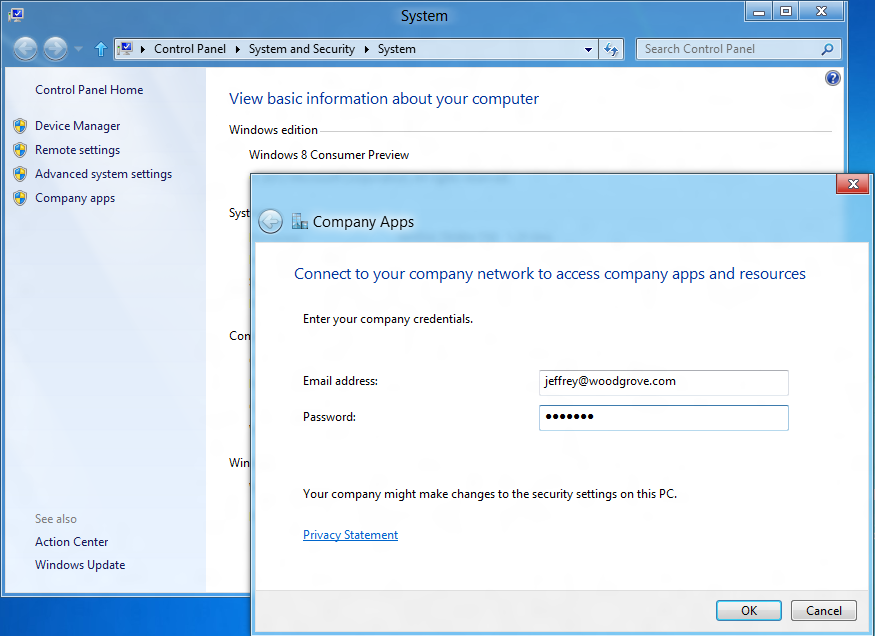
Windows RT devices cannot be joined to a domain. However, there is a new option in Control Panel to “connect to your company network”.

image

Note that the user must still be joined to the Active Directory domain. Since this is now joining the machine to the network and subjecting it to a degree of centralised control, Windows RT network joining is conceptually not far distant from domain joining, but it is a completely new approach.

The next step is to install a management agent which communicates with the Enterprise network.

Once network-joined and with the agent installed, the machine:

  • Is subject to a set of security policies covering password and logon rules (eg whether to allow picture logons)
  • Is audited for antivirus and antispyware status, drive encryption and auto-update; network connection can be refused if not compliant
  • Will lock encrypted drives if wrong password is entered repeatedly
  • can automatically set up a VPN profile for network access
  • enables access to a self-service portal (SSP), operated by the enterprise, for app deployment
  • can be deactivated which renders all SSP-deployed apps inoperable

The SSP can deploy custom or third-party Metro apps, but can also include links to the Windows store and web links to web application.

Microsoft envisages the above tools being used both for company-owned and employee-owned Windows RT devices. One advantage over domain-joining is that it is less intrusive to the user. When you domain-join a Windows PC, it creates a new user profile on the machine, which can be a nuisance if the user wants to use the machine for non-work purposes; they have to either switch profiles or use the work profile for home as well.

Metro-style apps are inherently better suited for intermingling business and home, since they are isolated from one another and from the operating system.

This new approach is not only for Windows RT machines but works on x86 as well:

We do support this functionality on x86. However, x86 also has a load more management functionality through Domain membership, Group Policy and existing tools like System Center.

says Microsoft’s Iain McDonald in the comments.

Although it is true that the old domain-joined model offers a higher degree of control, Windows RT should have security advantages thanks to the lockdown preventing desktop applications from being installed, which will restrict malware.

Windows computer domains are not going away, but BYOD and the trend towards cloud computing will gradually reduce the number of domain-joined machines. For example, a small business using Small Business Server will usually domain-join all its machines, but a small business using Office 365 will usually not do so.

I should add that although the approach outlined above is great for simplicity and flexibility, the fatal flaw for many organisations will be its dependence on Metro-style apps. If you have any Windows desktop apps to deploy, then it will not work.

Nokia Lumia strategy needs time, may not have it

A quick comment on Nokia’s dismal results for the first quarter of 2012. Sales are down 26% quarter on quarter; Smartphone sales down 38% despite the introduction of the Lumia Windows Phone in Europe. Negative operating margin, heavy losses.

The reasons given?

  • competitive industry dynamics continuing to negatively affect the Smart Devices and Mobile
    Phones business units;
  • timing, ramp-up, and consumer demand related to new products; and
  • the macroeconomic environment.

Translation: the new Lumias are failing to compete effectively against Apple iPhone and Google Android devices.

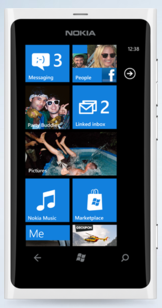
I have a Lumia 800 and like it increasingly. It is elegant and nice to hold, it works well, and Nokia Drive makes an excellent SatNav, to mention three good things.

image

Nevertheless, I am not surprised by the poor sales. When I first got the Lumia its battery life was poor; it is still not great, but was much improved by the last firmware update I installed (1600.2487.8107.12070), for which I had to use a manual process.

There was also an aggravating problem where if the phone ran out of power completely, it could not easily be charged. In other words, it was nearly a brick, though I managed to coax it back to life by repeatedly reconnecting the charger. The problem seems to be fixed with the latest update.

I do not think my experience is untypical, and can see that while in one sense it is a great phone, from another perspective it qualifies as buggy and problematic; I expect returns were above average.

The problems are fixable, but with hindsight Nokia should have worked that bit harder to ensure a trouble-free launch. The US launch of the Lumia 900 may be better since the company has had a little more time to improve quality, though there was a data connection bug.

Everything to prove

The bigger problem is that Windows Phone has everything to prove; iPhone and Android dominate the market, so the Lumia has to be sufficiently better to win customers over to a braver choice.

App availability is another factor. Windows Phone is not on the radar for most app vendors – because its market share is too small.

Despite a few lapses, I have been impressed with what I have seen of Nokia’s Windows Phone efforts. Nokia’s marketing and developer evangelism has been far better than Microsoft’s. At Mobile World Congress in February Microsoft had a large stand but was mainly doing silly “smoked by Windows Phone” demos, while Nokia’s stand was humming with activity.

Microsoft more to blame than Nokia

I also incline to the view that Microsoft is more to blame than Nokia – except insofar as Nokia could have made a different choice of partner.

Windows Phone 7 was nicely designed but badly launched, more than a year before the Lumia appeared. The launch hardware was uninteresting and Microsoft failed to line up strong operator or retail support for its devices. Microsoft focused on quantity rather than quality in the Windows Phone app store, resulting in a mountain of rubbish there.

The pace of development in the Windows Phone 7 operating system has also been rather slow, but the issues are more to do with marketing and partner support than with the OS itself.

Nokia has gone some way towards fixing the issues. Its devices are better, and so is its marketing. It is unlikely though that Nokia can succeed unless Microsoft also ups its smartphone game.

The future

Microsoft’s strategy for Windows Phone and Windows 8, as far as I am aware, does make some sense. We will see convergence of the operating system, improved tool support with an option for native code development, and a coherent cloud story.

This will take time to unfold though. It also seems likely that Windows 8 will have a rocky launch, with desktop users disliking the Metro-style elements imposed for the sake of tablet support. Nokia has indicated that it will be producing Windows 8 tablets as well as phones, but whether this will be an instant hit is at the moment uncertain.

Who knows, perhaps it will be Windows 9 before Microsoft really makes its tablet strategy work.

The problem is that Nokia does not have time to wait while Microsoft sorts out its mobile phone and tablet strategy. It needs quick success.

Two final thoughts.

First, Microsoft can hardly afford to see Nokia fail, so some sort of acquisition would not surprise me.

Second, how difficult would it be for Nokia to bring out some Android smartphones alongside its Windows range? Currently we are told that there is no plan B, but perhaps there should be.

Microsoft results: old business model still humming, future a concern

Microsoft has published its latest financials. Here is my at-a-glance summary:

Quarter ending March 31st 2012 vs quarter ending March 31st 2011, $millions

Segment Revenue Change Profit Change
Client (Windows + Live) 4624 +177 2952 +160
Server and Tools 4572 +386 1738 +285
Online 707 +40 -479 +297
Business (Office) 5814 +485 3770 +457
Entertainment and devices 1616 -319 -229 -439

What is notable? Well, Windows 7 is still driving Enterprise sales, but more striking is the success of Microsoft’s server business. The company reports “double-digit” growth for SQL Server and more than 20% growth in System Center. This seems to be evidence that the company’s private cloud strategy is working; and from what I have seen of the forthcoming Server 8, I expect it to continue to work.

Losing $229m in entertainment and devices seems careless though the beleaguered Windows Phone must be in there too. Windows Phone is not mentioned in the press release.

Overall these are impressive figures for a company widely perceived as being overtaken by Apple, Google and Amazon in the things that matter for the future: mobile, internet and cloud.

At the same time, those “things that matter” are exactly the areas of weakness, which must be a concern.

Windows 8 to be called Windows 8, no Outlook on ARM

Microsoft has announced the range of editions planned for Windows 8, which is now the official name (previously it was a code name).

Here is what I found interesting. Windows on Arm (WOA) is now called Windows RT and ships with Office included. However, Outlook is not included, confirming my suspicion that Outlook may gradually get de-emphasised in favour of separate email, calendar and task managers built into the operating system but with strong Exchange support – a good move since Outlook is perhaps the most confusing and over-complex application that Microsoft ships.

Windows RT is missing some features which are in the Intel versions, not least the ability to install desktop software, but has an unique feature of its own: device encryption.

I consider Windows RT as critical to the success of the Windows 8 project, and the only edition that may compete effectively with the Apple iPad in terms of price, convenience, battery life and usability. That said, the market will see the Intel version as primary, since it is the one that can run all our existing apps, but all the legacy baggage will also weigh it down. Users will suffer the disjunction between Metro and Desktop, and will need mouse or stylus and keyboard to use desktop applications. The danger is that Windows RT will get lost in the noise.

Hands on: building an app for Windows 8 Metro

How difficult is it to build an app for the Windows Runtime (WinRT), which powers Metro-style apps in Windows 8?

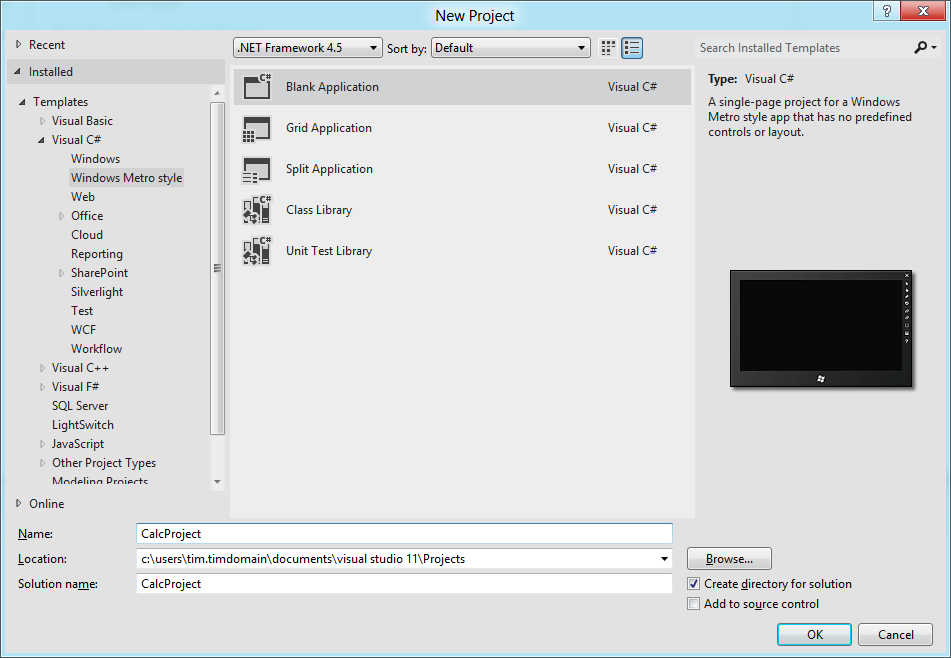
Here is how I created a simple calculator app (this is one in an occasional series) using Visual Studio 11 beta. I started with a new Visual C# Windows Metro Style project, choosing a blank template.

image

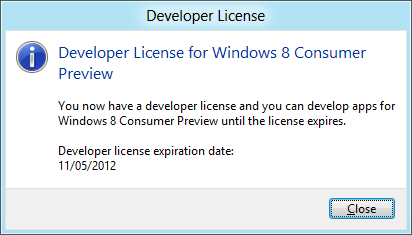
A slight complication is that you are prompted to install a Developer License, which means logging into your Windows Live account.

image

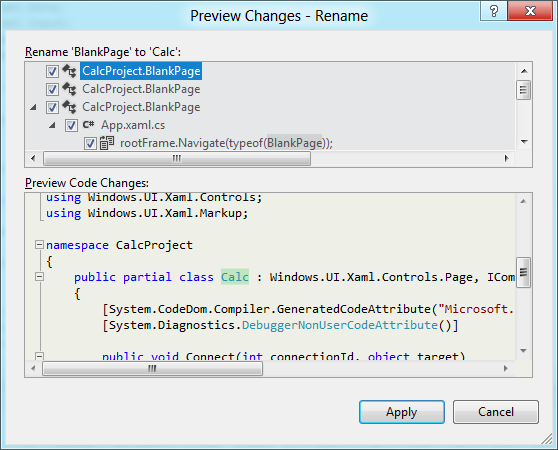
Next, I had to layout the controls. Visual Studio creates a single-page app with a main page called BlankPage.xaml. I renamed this to Calc.xaml. I also used Visual Studio’s refactor menu to rename the page class from BlankPage to Calc.

image

The default application has a black background, which seems gloomy. I changed the Background of the container grid to white.

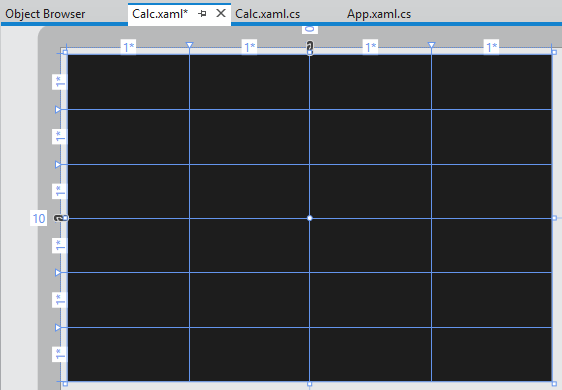
My basic calculator design is based on six rows and four columns, so I added 6 RowDefinitions and 4 ColumnDefinition to the XAML grid. The units for RowDefinitions and ColumnDefinitions can be set to Auto, Pixel or Star. Star means the unit is a weight which is calculated at runtime. For example, if you set the value of one RowDefinition.Height to 2 and the others to 1, the first one would be twice as high as the others. Here is my basic grid:

image

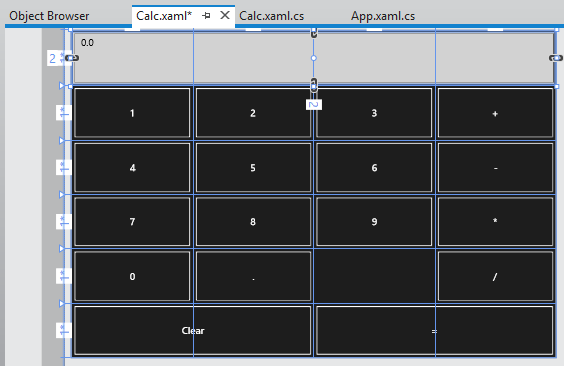
Next, I placed controls in the grid. The easiest way to get them to fill the space neatly is to set their HorizontalAlignment and VerticalAlignment properties to Stretch. Then you control the margin round the control with the Margin property. You can have a control fill more than one cell by using the Grid.ColumnSpan and Grid.RowSpan properties.

I found it easier to add the controls in code using copy and paste.

image

A Grid has no FontSize property, and although the Page has a FontSize property it does not seem to be inherited by the controls. I therefore set the FontSize individually for each control but there must be a better way of doing this.

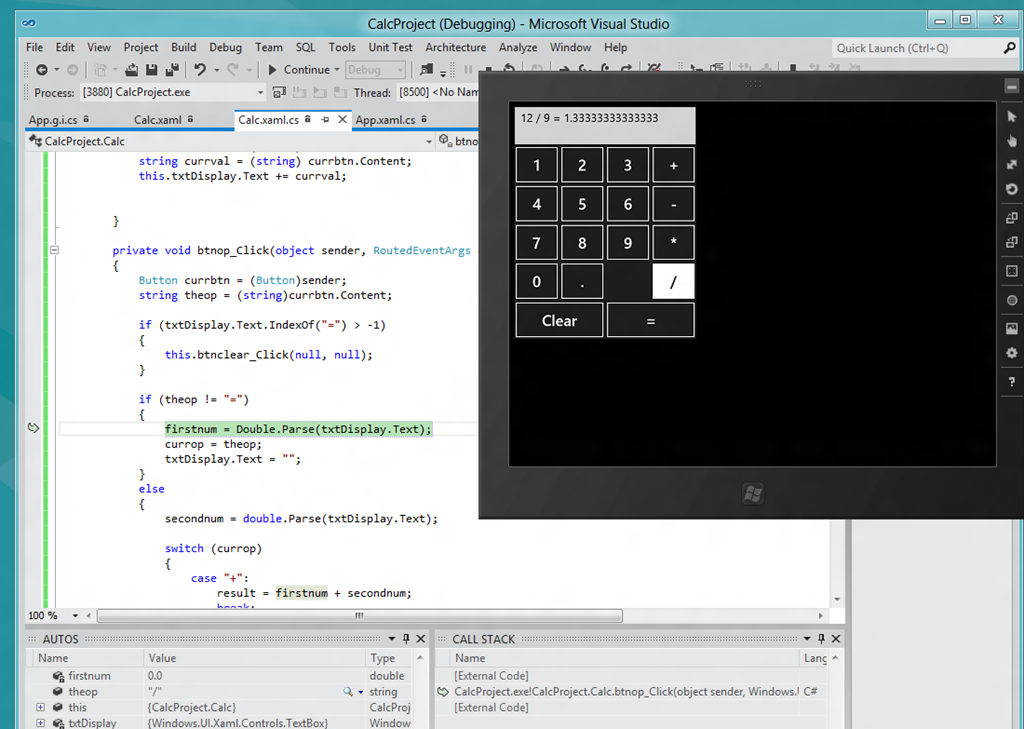
I then wrote minimal code that performs calculations without always crashing, and tested the app.  When you debug, you can choose Local Machine, Simulator, or Remote Machine. I found it easier to debug using the simulator, since if you use Local Machine and Visual Studio is running on the main display, then the app you are debugging becomes invisible if you hit a breakpoint or exception. The simulator seems really good (it is actually a remote session into your own machine) and I would like some way of running all Metro apps in a window like this, not just for debugging!

image

A few reflections

A developer with experience of C# and XAML (which is also used by Windows Presentation Foundation and by Silverlight) will not have much trouble getting started with WinRT, though I noticed that XAML is substantially cut-down, as Patrick Klug observes here.

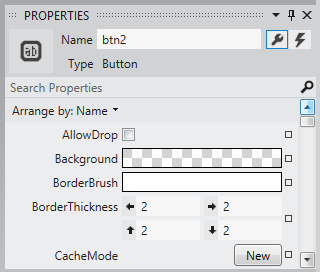
Visual Studio 2011 is an excellent IDE although I do not much like the new property editor; a minor point, but I find the latest go at prettification detrimental to usability; it is too busy. This may be a matter of familiarity and it is a minor point.

image

The XAML visual designer is slow to refresh even with my simple app, so this could be annoying with a more complex layout.

Layout with XAML works well, though it is more difficult than say Windows Forms for a new developer. It is easy to get peculiar results unless you do everything with pixel layout, which is not the best approach.

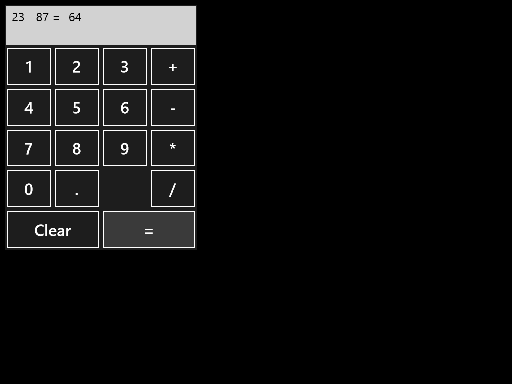
What about Metro itself? Apps always run full screen, and I had a problem with this in that my little calculator does not need all that space.

image

I am not a designer; and I suppose with a bit of effort you could add some decoration or effects to use the space, or add extra features. But why?

I was thinking about the Atari ST the other day, following the death of Jack Tramiel. The ST did not really multitask, but to get around the problem of needing to run a second app without closing the first, it had the concept of desktop accessories, available from a pull-down menu. My calculator would work well as a desktop accessory in Metro, except there is no such concept – unless you count the “Snap” split view. I wonder if Microsoft is too religious about its “Immersive UI” concept.

A few reservations then; but that does not take away from the overall impression of a strong integrated development experience for building Metro-style apps.

Windows Phone and Windows 8 convergence: a few more hints from Microsoft

The moment when Nokia is in the midst of the US launch for its Lumia 900 phone, which both Nokia and Microsoft hope will win some market share for Windows Phone 7, is not the best time to talk about Windows Phone 8 from a marketing perspective. Especially when Windows Phone 8 will have a new kernel based on Windows 8 rather than Windows CE, news which was leaked in early February and made almost official by writer Paul Thurrott who has access to advance information under NDA:

Windows Phone 8, codenamed Apollo, will be based on the Windows 8 kernel and not on Windows CE as are current versions. This will not impact app compatibility: Microsoft expects to have over 100,000 Windows Phone 7.5-compatible apps available by the time WP8 launches, and they will all work fine on this new OS.

Nevertheless, Microsoft is talking a little about Windows Phone 8. Yesterday Larry Lieberman posted about the future of the Windows Phone SDK. After echoing Thurrott’s words about compatibility, he added:

We’ve also heard some developers express concern about the long term future of Silverlight for Windows Phone. Please don’t panic; XAML and C#/VB.NET development in Windows 8 can be viewed as a direct evolution from today’s Silverlight. All of your managed programming skills are transferrable to building applications for Windows 8, and in many cases, much of your code will be transferrable as well. Note that when targeting a tablet vs. a phone, you do of course, need to design user experiences that are appropriately tailored to each device.

Panic or not, these are not comforting words if you love Silverlight. Lieberman is saying that if you code today in Silverlight, you had better learn to code for WinRT instead in order to target future versions of Windows Phone.

The odd thing here is that while Lieberman says:

today’s Windows Phone applications and games will run on the next major version of Windows Phone.

(in bold so that you do not doubt it), he also says that “much of your code will be transferrable as well”. Which is equivalent to saying “not all your code will be transferrable.” So how is it that “non-transferrable code” nevertheless runs on Windows Phone 8 if already compiled for Window Phone 7? It sounds like some kind of compatibility layer; I would be interested to know more about how this will work.

I was also intrigued by this comment from Silverlight developer Morton Nielsen:

Its really hard to sell this investment to customers with all these rumors floating, and you only willing to say that my skill set is preserved is only fuel onto that. The fact is that there is no good alternative to Silverlight, and its an awesome solution for distribution LOB apps, but the experience on win8 is horrible at best. And it doesn’t help that the blend team is ignoring us with a final v5, and sl5 is so buggy it needs 100% DEET but we don’t see any GDRs any longer.

What are these acronyms? DEET just means insect repellent, ie. bug fixes. GDR is likely “General Distribution Release”; I guess Nielsen is saying that no bug-fix releases are turning up are turning up for Silverlight 5, implying that Microsoft has abandoned it.

All in all, this does not strike me as a particularly reassuring post for Windows Phone developers hoping that their code will continue to be useful, despite Lieberman’s statement that:

I hope we’ve dispelled some of your concerns

Still, it has been obvious for some time that WinRT, not Silverlight, is how Microsoft sees the future of its platform so nobody should be surprised.

Update: Several of you have commented that Lieberman talks about WinRT on Windows 8 not on Windows Phone 8. Nobody has said that WinRT will be on Windows Phone 8, only that the kernel will be the that of Windows 8 rather than Windows CE. That said, Lieberman does specifically refer to “the long term future of Silverlight for Windows Phone” and goes on to talk about WinRT. The implication is that WinRT is the future direction for Windows Phone as well as for Windows 8 on tablets. Maybe that transition will not occur until Windows Phone 9; maybe Windows Phone as an OS will disappear completely and become a form factor for Windows 8 or Windows 9. This aspect is not clear to me; if you know more, I would love to know.

The incredible moving cursor: why your cursor jumps around when typing on your Windows 7 laptop

Here is the problem: you are typing on your laptop and suddenly the input cursor jumps to a different place and you are typing somewhere in a previous paragraph.

It is infuriating and there are long threads on the subject on Microsoft Answers here and here, for example.

I have just been speaking to a user with exactly this problem. The clue: he had recently created a new profile, which resets your Windows user settings to the default.

The answer was simple. Laptops have touchpads or trackpads which have a feature called tapping. Just tap with the finger and it registers a mouse click. Double tap and it registers a double-click.

Nice idea, but it is a vile feature for some – possibly most – users since it is so easy to trigger accidentally. Anything might happen: emails sent by mistake, documents closed, buttons clicked, and so on. It is as if your computer is being remote controlled by a malevolent third party, especially if you have a slight tremor for any reason.

Fortunately you can disable the setting, but it is among the most buried in Windows. The instructions on my Toshiba are as follows:

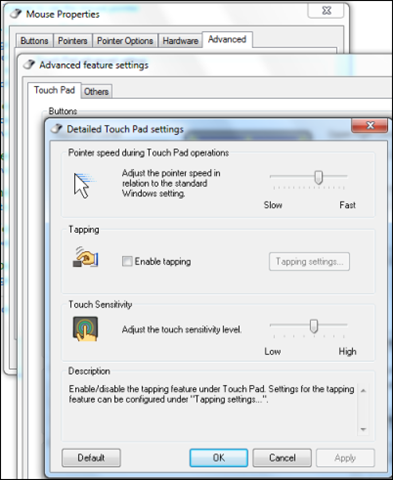
Go to Control Panel, Mouse, Change Mouse Settings, Advanced tab, click Advanced Feature Settings, then click Settings under Detailed Settings for Touch Pad operations, then uncheck Enable Tapping.

The path may be different for you, particularly if you have a different brand of touchpad. The above is for a Synaptics; Alps has different dialogs, for example. Poke around in mouse settings until you find it.

The setting “Disable tapping while typing” is not sufficient for some reason.

Why does this make your cursor jump, even if you do not use your touchpad? It is the vibration from your typing that is enough to trigger a tap on some machines, registering a “click” wherever the pointer happens to be (and the pointer is usually hidden when typing, making this appear even more mysterious).

The question which puzzles me is why this annoying feature is enabled by default, when it should be disabled, and second, why it is so hard to find the setting, when it is something that many people need?

I imagine this single feature has driven some users to the Mac. Most users never discover the fix, but just have the impression that Windows is buggy.

Developers: will you do Metro?

It is fascinating to watch the Metro-fication of all things Microsoft, from the Xbox 360 user interface to Windows Phone to Windows 8 to forthcoming versions of Office and other applications.

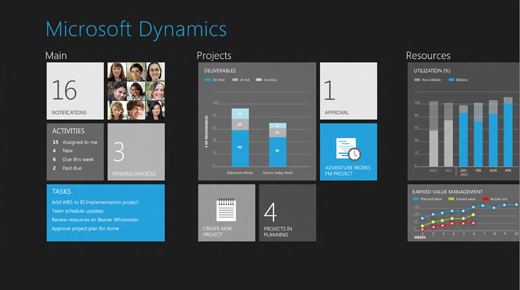
Future versions of Dynamics products were previewed at the Convergence 2012 event (which included a session called CRM goes Metro) and there are a bunch of screenshots here.

image

Microsoft calls Metro a design language and you can see its guiding principles here. Calling it a language does not seem quite right; the word “style” is more accurate, but it does have building block elements (and yes it is blocky) which I guess make it more than just a style.

A safe prediction at this point is that all Microsoft’s products will be touched by Metro influence, even though not all will become full Metro apps running on the Windows Runtime (WinRT).

In the past the style adopted by Microsoft for its own applications have strongly influenced third-party applications as well. Once Windows, Office, Dynamics and other apps have a Metro look, other apps that do not may begin to look dated or out of place.

Metro is controversial though, perhaps even more so than the Office Ribbon which replaced menus in Office 2007 and 2012. There is some connection: members of the Office team who worked with Steven Sinofsky on the design of Office 2007, including Julie Larson-Green and Jensen Harris, are now working with him on Windows 8. Harris has written extensively about the work on Office 2007 on his Office User Interface Blog, though the last substantial post was in 2008.

What’s not to like about Metro? Here’s a few arguments against:

  • Beauty is in the eye of etc; but the blockiness of the Metro style does give it a utilitarian appearance. In Windows Phone 7 it is nice to use, but not so great to look at.
  • The Live Tile concept, where shortcut blocks can be populated with current information, adds a random element to Metro start screens which does not always look good.
  • The emphasis on simplicity and immersion makes Metro vulnerable to the accusation that it wastes too much precious screen space.
  • Metro tends to be a horizontally scrolling style, though I am not sure if this is baked into the guidelines. This takes some adjustment since most of us are more used to vertical scrolling to see more content.
  • Metro seems to be optimized for a touch UI, and while its advocates insist that it is just as good with keyboard and mouse, that is a stretch. Metro seems to be a big bet on touch as the future of human-computer interaction.

On the other hand, the usability of Windows Phone 7 is a point in its favour, and some are convinced. Paul Greenberg, in a positive take on Microsoft’s strategy based on his trip to Convergence 2012, says:

They have nailed UX (a.k.a user experience). Nailed it. Their combination of the extremely well done Metro interface and their work on natural user interfaces involving voice and touch is the new gold standard – and I’m someone who loves Apple products. (please, Mac fanboys, spare my life.)

I would be interested to hear from developers whether you expect to embrace the Metro style in your apps, wither in WinRT or elsewhere.

What’s new in SQL Server 2012?

Microsoft’s SQL Server 2012 is released next month and available to download now (I am not sure what the distinction is). I have a high regard for Microsoft’s database server; it seems to me that the team mostly gets it right. The product has become somewhat diffuse though, especially as the Business Intelligence aspect has grown, and this may account for what to me is a rather unfocused launch for SQL Server 2012, even though its name suggests that it is the most significant release since SQL Server 2008.

The following slide summarises the new features, presumably with the type size suggesting the importance of each one.

image

But is the ODBC Driver for Linux really more important than the SQL Server Data Tools, for example? Not in my view; but that reflects how SQL Server represents different things to different people.

So what are the key new feature? Here’s my quick take.

Always On

A new feature called Availability Groups that is an improved version of database mirroring

Improved failover clustering which supports multi-site clustering across subnets – above to failover across datacentres.

ColumnStore Index

A new type of index for data warehouses. This is actually pretty simple: the name says it all. Here is Microsoft’s illustration:

image

and explanation:

A columnstore index stores each column in a separate set of disk pages, rather than storing multiple rows per page as data traditionally has been stored.

Why do this? Because it is more efficient when the query only requests a a few columns from the table. Microsoft claims performance improvements from 6X to 100X in cases where the the data can be cached in RAM, and thousand-fold improvements where the working set does not fit in RAM.

SQL Server Data Tools

This is my favourite feature, probably because it is developer-focused. These are the tools that were code-named “Juneau” and which install into Visual Studio 2010. There are some visual tools, but this is essentially a code-centric approach to database design, where you design your database with all its tables, queries, triggers, stored procedures and so on. You can then build it and test it against a private “localdb” instance of SQL Server. What I like is that the database project includes the entire design of your database in a form that can be checked into source control and compared against other schema versions. Here is the Add New Item dialog for a database project:

image

Data Quality Services

Data Quality Services (DQS) lets you check your data against a Data Quality Knowledge Base (DQKB), the contents of which are specific to the type of data in the database and may be created and maintained by your business or obtained from a third-party. If your data includes addresses, for example, the DQKB might have all valid city names to prevent errors. Features of DQS include data cleansing, de-duplication through data matching, profiling a database for quality, and monitoring data quality.

image

Illustration and more details are here.

Updated SQL Server Management Studio

SQL Server Management Studio now runs in the Visual Studio 2010 shell.

LocalDB

LocalDB is a local instance of SQL Server aimed at developers and for use as an embedded database in single-user applications. It is a variant of SQL Server Express, but different in that it does not run as a service. Rather, the LocalDB process is started on demand by the SQL native client and closed down when there are no more connections. You can attach database files at runtime by using AttachDBFileName in the connection string. LocalDB is intended to replace user instances which are now deprecated.

FileTables

This is the most intriguing feature in SQL Server 2012. It is described here:

The FileTable feature brings support for the Windows file namespace and compatibility with Windows applications to the file data stored in SQL Server … In other words, you can store files and documents in special tables in SQL Server called FileTables, but access them from Windows applications as if they were stored in the file system, without making any changes to your client applications.

and the purpose:

Enterprises can move this data from file servers into FileTables to take advantage of integrated administration and services provided by SQL Server. At the same time, they can maintain Windows application compatibility for their existing Windows applications that see this data as files in the file system.

Integration of the file system and the database is not a new idea, and Microsoft has tried variants before, such as the “M” drive that was once part of Exchange, the aborted WinFS feature planned for Windows Longhorn (Vista), and SharePoint, which can store documents in SQL Server while presenting them as Windows file shares through WebDAV.

That said, FileTables in SQL Server 2012 are not an attempt to reinvent the file system, but presented more as a way of supporting legacy applications while managing data in SQL Server. It is an interesting feature though, and it would not surprise me if users find some unexpected ways to exploit it.

Power View

Codenamed “Project Crescent”, this is a web-based reporting client for businesses that have embraced Microsoft’s platform, because it has several key dependencies:

  • SharePoint Server Enterprise Edition
  • SQL Server Reporting Services
  • Silverlight on the client

In fact, Power View is described as:

a feature of SQL Server 2012 Reporting Services Add-in for Microsoft SharePoint Server 2010 Enterprise Edition

Power View reports that I have seen do look good, and have an Office ribbon style designer for designing customising the report. That said, I would guess that Microsoft now wishes it had used HTML 5 rather than Silverlight for this – there are those Apple iPad and Windows 8 Metro users to think of, after all.

Microsoft emphasises that Power View is not a replacement for Report Designer or Report Builder, but an ad-hoc reporting tool.

Closing thoughts

There is more in SQL Server 2012, as a glance back at the initial slide will tell you, but the above is a starting point if you are wondering what it is all about. It is also worth noting that Microsoft still gives away SQL Server Express which supports up to 10GB per database and includes many of same features as the paid-for versions; it is the same product at heart.

Someone who finds that SQL Server Express actually meets all their needs asked me why Microsoft gives it away. My guess is that this is a consequence of all the other free database engines available such as MySQL, PostgreSQL, interesting  newer NoSQL options like mongoDB, and of course equivalent free versions of Oracle and IBM DB2. A proportion of customers who start with SQL Server Express will grow into the paid-for editions.

This does make SQL Server Express an excellent choice for smaller scale applications and small businesses, particularly since it integrates smoothly into Microsoft’s developer stack. Having said which, I am becoming something of an Entity Framework sceptic, but that is a story for another day – and fortunately you do not have to use EF if you do not want to.