Category Archives: microsoft

Microsoft SQL Server is coming to Linux. What are the implications for Windows Server?

Microsoft is porting SQL Server, its popular database manager, to Linux. According to Executive VP Scott Guthrie:

Today I’m excited to announce our plans to bring SQL Server to Linux as well. This will enable SQL Server to deliver a consistent data platform across Windows Server and Linux, as well as on-premises and cloud. We are bringing the core relational database capabilities to preview today, and are targeting availability in mid-2017.

Why do this? The short answer is that like any other software company, Microsoft wants to sell more licenses, and porting its premier (and excellent) database manager to Linux extends its market and helps it compete more directly with the likes of Oracle and even MySQL.

image

However that begs a second question, which is why has Microsoft not done this before? After all, SQL Server has been around forever. The first release was in 1989, jointly with Ashton Tate and Sybase, and was for OS/2. The first Windows release was 1993. There was a significant leap forward in SQL Server 7.0, in 1998, which I think of as the beginning of the product as we know it today.

Microsoft in the nineties and in the first decade of the new millennium was all about Windows. Dominant on the desktop, the idea was to build synergies between Windows desktop and Windows server so that running server applications like Active Directory, Exchange and SQL Server was the obvious choice. The Visual Studio development environment pushed developers towards Visual Studio in subtle and not-so-subtle ways. Some programming language innovations like LINQ to SQL (a form of Language Integrated Query) only worked with SQL Server. It was not quite lock-in, it was always possible to use a different database engine, but SQL Server was always the default, used in all the examples and documentation, and the best understood when you needed support.

Today Microsoft’s circle of dominance is breaking down. Windows still has desktop dominance, but the importance of the desktop is less, thanks to mobile devices which mostly do not run Windows, and a move away from desktop applications towards web applications that do not care which operating system you use. Active Directory is still important, but cloud computing giants like Google and Amazon are encroaching on that space.

“Only on Windows Server” has become a liability rather than the key to keeping customers locked to Microsoft’s platform.

You can see this in the company’s development strategy, which is migrating towards a cross-platform implementation of .NET as well as embracing iOS and Android via the recently announced Xamarin acquisition. You can also see it in the Azure cloud platform, and Microsoft’s partnership with Red Hat for Linux on Azure. The company is happy to take your money whatever operating system you choose.

It is early days though, and Microsoft is still a Windows-centric company. SQL Server on Linux, expected sometime next year, will probably not be feature-complete compared to SQL Server on Windows – I am guessing, but things like .NET Stored Procedures may be tricky to get right, as well as features like in-memory databases that are tightly integrated with the operating system.

It is worth noting that cross-platform is actually a burden as well as a strength and may involve compromises. It will be fascinating to see how performance compares on equivalent hardware.

Microsoft is now betting than opening up new markets for SQL Server is more important than keeping customers hooked on Windows Server – especially as that last strategy is failing in the cloud computing era.

Finally, there is the question I posed in the title of this post. How does moving key server applications to Linux impact the appeal of Windows Server? After all, Linux licenses are generally cheaper than Windows Server and in some cases free. The answer is that it is one less reason to buy Windows Server, presuming SQL Server works properly on Linux.

You can see this as a process of commoditizing the operating system so that in time expensive server operating system licenses are a thing of the past. This is probably not a good trend for Microsoft. It can still prosper though if you rent your virtual infrastructure from the company and use its cloud services, like Azure and Office 365.

Another way of looking at this is that there is more pressure on Windows Server architect Jeffrey Snover and his team to make Windows Server better than Linux, so that you want to run it because of its merits, not because it is the only way to run SQL Server or Exchange.

Outlook 2016 attachment mysteries and annoyances

Microsoft Outlook 2016 has a new feature which the company highlighted when it first appeared, which is that it sends attachments as links by default, if they are stored in network-accessible locations. The idea is to prevent proliferation of different versions if several respondents make changes and email them back. It also means that everyone has the latest version. Good stuff, right?

I am not sure. Of course Outlook is meant to give you the choice about whether to send as a link or as a copy, but we all know that busy people just click and expect it to work; they mostly will not think through which method is appropriate in a particular case, or in some cases, even understand the difference. One of the implications of sending links is that the document received may not be what is sent. For example, consider this scenario:

1. Hmm, shall I send the minutes of our last meeting to this person at supplier X? Better check there is nothing sensitive in it. [Checks]. OK, send.

2. Colleague happens to look at minutes, thinks, why did we not minute our difficulties with supplier X? Adds section of sensitive information and proposal to switch to supplier Y.

3. Person at supplier X receives document …

OK, my scenario is somewhat contrived, but you can see the underlying issue.

There is also the question of whether the mechanism behind this feature is really robust. It is not in fact a simple feature. What is meant to happen is that Outlook detects whether your document can be sent as a link, and if it can, interacts with SharePoint to create a magic link with either view or edit permissions. In my experience, it is easy to end up sending an attachment that cannot in fact be accessed by the person at the other end.

I have an internal SharePoint and soon figured out that I had to prevent Outlook from sending documents as links. The URL I use for SharePoint internally is not accessible externally, which is perhaps a flaw in my setup, but not one that has ever caused problems before. In any case, I would prefer not to give out any magic links to documents in my SharePoint; it just seems an unnecessary security risk.

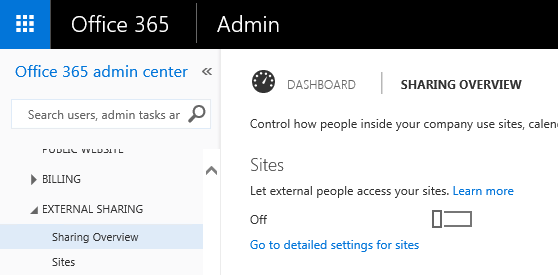
In the case of Office 365, note that external sharing may be switched off, in which case links will not work. External sharing may also be disabled for specific sites.

image

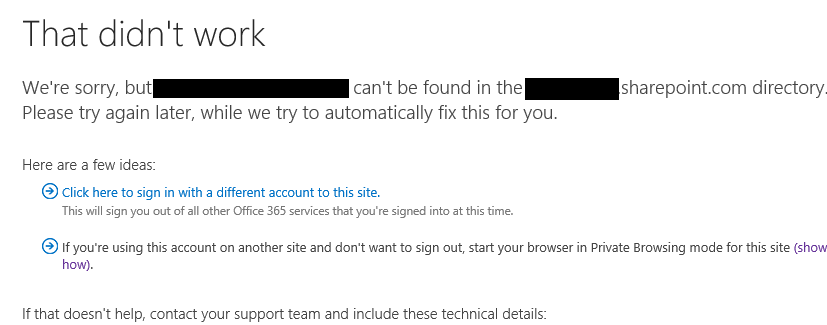
Maybe Outlook 2016 is smart enough to detect whether or not external sharing is enabled, but if so, this does seem to go wrong sometimes. I have seen cases where users send an attachment link, but the recipient cannot access the document. Rather, they click the link and get a “can’t be found in directory” error or similar.

image

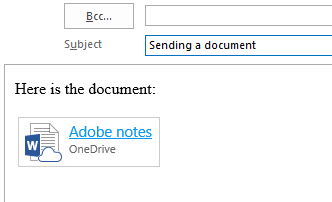
Another issue is that Outlook 2016 does not always offer you the choice of link or attachment. Here is how it is meant to work. What happens sometimes though is that the attachment does not end up in the “attached” header at the top of the email, but rather in the body. In this scenario, you actually end up with a small Word table (Outlook messages use the Word editor) that cannot be converted into a standard attachment:

image

Note the little icon, an embedded image, which includes a cloud to give you a clue that this is not really attached. It also seems to mess up text formatting; note that my typing is now Times New Roman rather than Calibri. Another Outlook mystery.

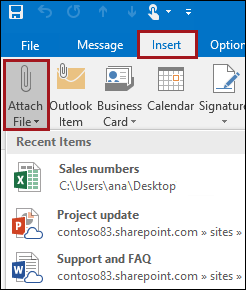
This problem only seems to happen if you select a file from Outlook 2016’s recently accessed document list, which appears when you click the new Attach File button:

image

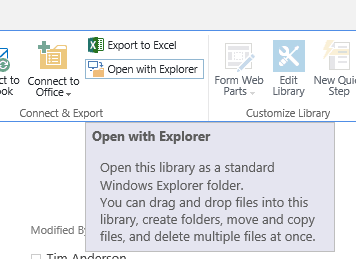
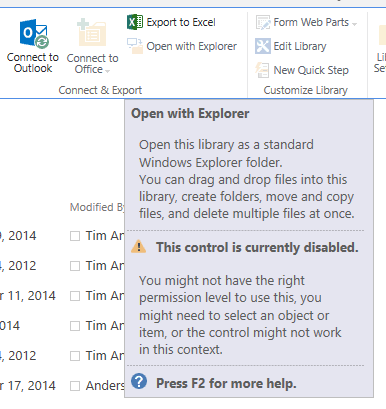
So how do you prevent this behaviour? Given the difficulties it can cause, I thought Outlook might have an option to disable sending attachments as links, or at least to prevent it happening by default. I have not found such an option yet. One point to bear in mind is that in previous versions of Outlook it was not easy to send a document from SharePoint at all, unless you could access it from Windows Explorer. This means using WebDAV (“Open in Explorer”), or the still-problematic OneDrive for Business client. So the dropdown with recently accessed SharePoint and OneDrive documents is new and potentially welcome functionality.

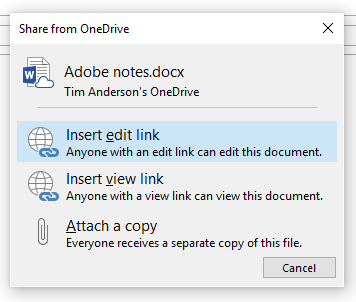
Here are a couple of workarounds though. If you format an email as plain text, which you can set as default if you choose, then you will not get the embedded link that cannot be changed. Instead, you will get the dialog with options to link or attach a copy:

image

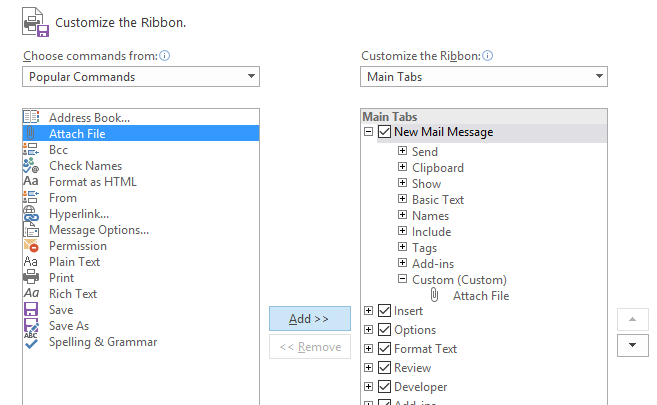
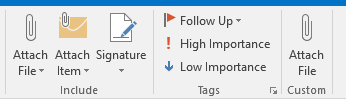
What if you want Outlook 2016 to behave like Outlook 2013 and earlier? Well, the Attach File with the dropdown is not customizable directly, but you can add an old-style Attach File button. To do this, start a new email, right-click the toolbar, and click Customize the Ribbon. Right-lick the New Mail Message section on the right, and choose Add new group. Then select the Attach File command on the left, and the new group on the right, and click Add. I have called my new group Custom:

image

The effect is that you now have two Attach File commands, one of which behaves just like Outlook 2013:

image

My custom Attach File is on the right in the image above, does not have a drop-down list, and simply selects a file using an insert file dialog.

I appreciate that these are workarounds and not complete solutions.

Did Microsoft really think through this feature? Why the bugs? Why no easy way to disable it? I wish I knew.

Microsoft Office 365 and desktop friction

Microsoft would like us to think of Office 365, its hosted email and collaboration service, as “cloud”. And it is in many ways; you can even get all your email and Onedrive-stored documents direct from a web browser.

The truth though is that Microsoft has been careful not to disrupt its desktop Office software too much. Most users, in my experience, choose Office 365 in part because of its integration with Outlook, Word and Excel. You can install the software from the Office 365 portal, and open and save documents from Onedrive for Business.

Another part of the service is online chat and conferencing, for which you need the Skype for Business (formerly Lync) client on your PC.

There is an issue here though. Part of the attraction of “cloud” is that you do not have to manage software; but in the case of Office 365 you do have to manage the software that is installed on your PC. Microsoft’s investment in click-to-run installation has helped to simplify the setup, but under the covers it is as complex as ever.

Take the case of a small business I know, which was on the Office Midsize Business plan. Microsoft has retired this plan, so when it came to renewal time the customer had to change to a different plan. If they wanted to keep *all* the features of Midsize Business, including the Access database app, they could migrate to the Enterprise E3 plan – at £14.70 per month, nearly double the £7.80 per user/month for Midsized Business. On the other hand, they could migrate to the Business Premium plan for the same cost and, well, *nearly* the same features. The horrible details are here.

They didn’t use Access so Business Premium seemed OK. On the cloud side, the migration was straightforward. However, since Access was no longer included they had to remove and reinstall Office, as well as the Skype for Business client.

In this particular small business, most of the users needed some assistance with this operation. Unfortunately there is no single button to click that will remove the old Office and install the new one. You have to remove Office using Control Panel, then reinstall it from the Office 365 portal. Removing Office removes the old Skype for Business client, but putting it back means choosing a separate installation option in the portal, which most of them missed. One user somehow ended up with two versions of Office 2016 installed, neither of which worked properly. Office would not activate, reported an error, and offered to repair itself. This was not going to work, since it was the wrong version of Office.

Even when it goes smoothly, the business of removing Office and reinstalling both the desktop software and Skype for Business takes a long time, over an hour.

Overall, life in the Office 365 era is easier than it was in the days of 27 Office floppies, one or two of which were bound to be unreadable. Nevertheless, it is friction, and not fulfilling the seamless promise of cloud.

Microsoft’s story continues: Windows down, cloud up in financials Oct-Dec 2015

Microsoft has reported its latest financial results, for the quarter ending December 31st 2015.

Here are the latest figures (see end of post for what is in the segments):

Quarter ending  December 31st 2015 vs quarter ending December 31st 2014, $millions

Segment Revenue Change Operating income Change
Productivity and Business Processes 6690 -132 6460 -528
Intelligent Cloud 6343 +302 4977 +272
More Personal Computing 12660 -622 3542 +528
Corporate and Other -1897 -2222 -1897 -1980

A few points to note.

Revenue is down: Revenue overall was $million 23.8, $million 2.67 down on the same quarter in 2014. This is because cloud revenue has increased by less than personal computing has declined. The segments are rather opaque. We have to look at Microsoft’s comments on its results to get a better picture of how the company’s business is changing.

Windows: Revenue down 5% “due primarily to lower phone and Windows revenue and negative impact from foreign currency”.

Windows 10: Not much said about this specifically, except that search revenue grew 21% overall, and “nearly 30% of search revenue in the month of December was driven by Windows 10 devices.” That enforced Cortana/Bing search integration is beginning to pay off.

Surface: Revenue up 29%, but not enough to offset a 49% decline in phone revenue.

Azure: Azure revenue grew 140%, compute usage doubled year on year, Azure SQL database usage increased by 5 times year on year.

Office 365: 59% growth in commercial seats.

Server products: Revenue is up 5% after allowing for currency movements.

Xbox: Xbox Live revenue is growing (up 30% year on year) but hardware revenue declined, by how much is undisclosed. Microsoft attributes this to “lower volumes of Xbox 360” which is lame considering that the shiny Xbox One is also available.

Further observations

This is a continuing story of cloud growth and consumer decline, with Microsoft’s traditional business market somewhere in between. The slow, or not so slow, death of Windows Phone is sad to see; Microsoft’s dismal handling of its Nokia acquisition is among its biggest mis-steps and hugely costly.

CEO Satya Nadella came from the server side of the business and seems to be shaping the company in that direction, if he had any choice.

Azure and Office 365 are its big success stories. Nadella said in the earnings call that “the enterprise cloud opportunity is massive, larger than any market we’ve ever participated in.”

A reminder of Microsoft’s segments:

Productivity and Business Processes: Office, both commercial and consumer, including retail sales, volume licenses, Office 365, Exchange, SharePoint, Skype for Business, Skype consumer, OneDrive, Outlook.com. Microsoft Dynamics including Dynamics CRM, Dynamics ERP, both online and on-premises sales.

Intelligent Cloud: Server products not mentioned above, including Windows server, SQL Server, Visual Studio, System Center, as well as Microsoft Azure.

More Personal Computing: What a daft name, more than what? Still, this includes Windows in all its non-server forms, Windows Phone both hardware and licenses, Surface hardware, gaming including Xbox, Xbox Live, and search advertising.

Adapting a native code DLL to be called from a Store or Universal Windows app

I am writing a Bridge game in C# – yes, I have been doing this for some time, it does run now but it is not ready for public unveiling.

It is good fun though and a learning experience, as I am writing it as a Windows 8 Store app. This means it can also be a Universal Windows Platform app but I have kept it compatible with Window 8.1 as I don’t want to lose that large market of Windows 8 users who have not upgraded to 10. Hmm.

Bridge is a card game in which a pack of 52 cards is dealt into 4 hands of 13 cards. Each hand is played as a sequence of 13 4-card “tricks”, and each trick is won one of two opposing pairs of players according to the cards played. Each pair of course tries to win as many tricks as possible, so one of the points of interests is how many tricks can be won if you play perfectly (ie with full knowledge of all four hands). Another point of interest is how each card played affects the potential number of tricks you can win with best play. For example, leading a King might cost you a trick (or more) if your opponents hold both the Ace and the Queen of that suit.

This is called “double dummy” analysis and smart people have written algorithms to calculate the answers. A double dummy analysis is useful in a bridge game for two reasons. One is that users may like to know, after playing a hand, what their best score could have been, or even to analyse the hand and see how if they played this card rather than that card at trick such-and-such the outcome would have varied. The other is that you can use it to assist the software in finding the best play. Of course it is important that the software plays fair by not using knowledge of all four hands beyond what would be known by human players; but it is legitimate to try out various possible hands that match what is currently known and use double dummy analysis on these hands.

One such smart person is Bo Haglund who wrote a C++ Windows library for double dummy analysis, called Double Dummy Solver (DDS) and released it as open source under the Apache 2 license. It works very well and is widely used in the Bridge software community, and has now been ported to Mac and Linux; you can find the latest code on Github.

Modifying a native code DLL to use with a Store app

I wanted to use the library in my own Bridge game but faced a compatibility problem. Windows Store apps can only call into DLLs that meet certain requirements, such as using only a subset of the Windows API, and DDS did not meet those requirements. My choice was either to port the DLL to C#, or to modify the code so that it would work as a Windows Runtime native DLL.

I have no doubt that the code could be ported to C# but it looks like rather a long job that would result in a library with slower performance (please feel free to prove me wrong). I thought it would be more realistic to modify the code, so I created a new Windows 8.1 DLL project in Visual Studio 2013 (I am now using Visual Studio 2015 but it is the same for this) and set about modifying the code so that it would compile.

In no particular order, here are some notes on what I learned.

I was able to get the DLL to compile after disabling the multi-threading support (more on this later), and commenting out some functions that I don’t yet need.

Another issue I hit was that Visual C++ by default performs “Security Development Lifecycle” checks (compile with /sdl). This means that that common functions like strcpy, strcat, sprintf and others will not compile. You have to use “secure” versions of those functions, strcpy_s, strcat_s, sprintf_s and so on. These are specific to Microsoft’s libraries though. Of course you can just not compile with /sdl, or define _CRT_SECURE_NO_WARNINGS, but I chose to fix all of these. Now the library compiled.

But did it work? No. I had introduced a stupid bug which took me a while to fix. Did it then work? Yes, but it took me some time to get it working from C#.

Next, I kept getting DLLNotFound exceptions. OK, so you have to add the DLL as content in your C# project, and make sure it is set to copy to your output. I still got DLLNotFound exceptions. It turns out that you get this exception even when the DLL is present, if there is a dependency in the DLL which is not found. What dependency was not found? I downloaded the Sysinternals Process Monitor utility and set the filter to monitor my C# game. I excluded SUCCESS results. Then I tried to load the DLL. This told me that it was looking for the file msvcr120_app.dll (the Windows Runtime version of the Visual C++ runtime library). My first thought was to add runtime libraries from the appx deployment packages, in:

C:\Program Files (x86)\Microsoft SDKs\Windows\v8.1\ExtensionSDKs\Microsoft.VCLibs\12.0

image

Then I discovered that all you need to do is to add a reference to the Visual C++ runtime packages, much easier. That fixed DLLNotFound.

Next, I had some problems calling the 64-bit DLL with Platform Invoke (PInvoke) from C#. I found it easier to compile both my C# app and the DLL itself as 32-bit code. I may go back to the 64-bit option later.

Concurrency issues

Now I had everything working; except that my DDS port was far inferior to the standard one because it was single-threaded. The original used QueueUserWorkItem which is not available in a Windows Runtime DLL. I searched for what to do, and came across this MSDN article which recommends using RunAsync, WorkItemHandler and IAsyncAction. However my DLL was not currently compiled using /ZW for “Consume Windows Runtime Extension”. I could add that of course; but then my DLL would have a dependency on the Windows Runtime and if I wanted to use the code for, say, Windows 7, it would not work. or not without yet more #ifdef blocks. No big deal perhaps; but my preference was to avoid this dependency.

There may be other solutions, but the one that I found was to use the Concurrency Runtime. Previously, QueueUserWorkItem was called in a for loop. I simply modified this to use a parallel_for loop instead, using the example here for guidance. I also added:

#include <ppltasks.h>

using namespace concurrency;

to the top of the code. It works well, speeding performance by about three times on my quad-core desktop. Of course I was greatly helped by the fact that the code was already written with concurrency in mind.

image

The effect is spoiled by the time it takes to load the DLL but fortunately you can get DDS to solve multiple boards in one call though I have yet to experiment with this.

Microsoft financials July-Sept 2015: decline of Windows hits home, cloud rises

Microsoft has reported its financials for its first quarter. Making sense of these is harder than usual because the company has changed its segment breakdown (and the names are misleading). The new segments are as follows:

Productivity and Business Processes: Office, both commercial and consumer, including retail sales, volume licenses, Office 365, Exchange, SharePoint, Skype for Business, Skype consumer, OneDrive, Outlook.com. Microsoft Dynamics including Dynamics CRM, Dynamics ERP, both online and on-premises sales.

Intelligent Cloud: Server products not mentioned above, including Windows server, SQL Server, Visual Studio, System Center, as well as Microsoft Azure.

More Personal Computing: What a daft name, more than what? Still, this includes Windows in all its non-server forms, Windows Phone both hardware and licenses, Surface hardware, gaming including Xbox, Xbox Live, and search advertising.

Here are the latest figures:

Quarter ending  Sept 30th 2015 vs quarter ending Sept 30th 2014, $millions

Segment Revenue Change Operating income Change
Productivity and Business Processes 6306 -184 3105 -233
Intelligent Cloud 5892 +417 2400 +294
More Personal Computing 9381 -1855 1562 -57
Corporate and Other -1200 -1200 -1274 -55

A few points to note.

Death of Windows Phone: Microsoft acquired Nokia’s Devices and Services business in April 2014. In fiscal year 2015, according to Microsoft’s 10-Q report, the company “eliminated approximately 19,000 positions in fiscal year 2015, including approximately 13,000 professional and factory positions related to the Nokia Devices and Services business.” This was rationalisation following the acquisition; the real blow came a year later. “In June 2015, management approved a plan to restructure our phone business to better focus and align resources (the “Phone Hardware Restructuring Plan”), under which we will eliminate up to 7,800 positions in fiscal year 2016.”

Windows Phone is not quite dead, but Microsoft seems to have given up on the idea of competing with Android and iOS in the mainstream. Year on year, phone revenue is down 58%, Lumia units down from 9.3 million to 5.8 million, non-Lumia phones down from 42.9 million to 25.5 million. This is what happens when you tell the world you are giving up.

Windows: Revenue down 7% “driven by declines in the business and consumer PC markets”.

Surface: Revenue down by 26% because Surface Pro 3 launched in June 2014; this should pick up following the launch of new Surface hardware recently.

Cloud: Microsoft’s “Commercial cloud” comprises Office 365 Commercial, Azure and Dynamics CRM online. All are booming. Azure revenue and usage more than doubled year on year, with 121% revenue growth. In addition, Office 365 consumer subscribers increased by 3 million in the quarter, to 18.2 million, an increase of nearly 20%.

Server products: Revenue is up 6% thanks to “higher revenue from premium versions of Microsoft SQL Server, Windows Server, and System Center”

Xbox: Steady, with Live revenue up 17%, Minecraft adding 17% to game revenue, and hardware revenue down 17% because of Xbox 360 declining (and by implication, not being replaced by Xbox One, a worrying trend).

Further observations

Is Microsoft now facing permanent long (but slow) decline in Windows as a client or standalone operating system? It certainly looks that way. The last hope is that Windows 10 in laptop, tablet and hybrid forms wins some users over from Mac computers and iPad/Android tablets. Despite some progress, Microsoft still has work to do before Windows delivers the smooth appliance-like experience of competing tablets, so I do not regard this as likely. The app ecosystem is also a problem. Tablets need Universal Windows Platform (UWP) apps but developers can still target more Windows users with desktop apps, discouraging UWP development.

Microsoft is also busy removing the advantage of Windows by stepping up its first-party Mac, iOS and Android application development, though this makes sense as a way of promoting Office 365.

That leads on to the next question. If Windows continues to decline, can Microsoft still grow with Office 365 and Azure? Of course it is possible, and on these figures that strategy looks to be going reasonably well. That said, you can expect both Google to continue integrating Android and of course Chromebook with its rival cloud services. Apple today does not compete so much in the cloud, but may do in future. If the future Microsoft has to relying on third-party operating systems for user interaction it will be a long-term weakness.

Is Windows 10 stable? Mostly it is, but there are some concerns

“Windows 10’s lack of stability is really starting to be an issue for me” says Mary Jo Foley over on zdnet.

The problems she experienced include the Store not working, the Mail app not syncing and then wiping her accounts after an update, and the PC randomly shutting down. She has now done a clean install and so far all is good.

I am using Windows 10 now for most of my work, having in-place upgraded from Windows 8.1. My experience has been better, with no random shutdowns, and the desktop environment has been perfectly stable. There are some bugs and annoyances though. Here are the ones that come to mind:

The Start menu bug is the biggest annoyance. This one deserves some reflection. If you have a lot (possibly more than 512, possibly some other factors) of Start menu entries, Windows 10 does not show them all. Even Cortana/Search does not find them. The entries exist though, and I use my Explorer workaround to find them.

I find this bug astonishing. It looks like poor coding in a hugely sensitive part of Windows, the first thing people mention when they explain why they dislike Windows 8. There is still no fix from Microsoft, though some users report improvement after various updates.

Another annoyance is that on my HP laptop I cannot disable tap-to-click. I can disable it temporarily but it reverts, certainly on the next start-up.

image

While some users like tap-to-click, I loathe it and do not think it should ever be on by default. In many Windows laptops the setting is hard to find and some users have ditched Windows because of it, and switched to Macs. The reason is that it is easy to tap the trackpad by mistake; and an accidental click can have dire consequences, such as sending an email by mistake, or clicking Yes in a dialog when you meant No. If you suffer from any sort of tremble it is a disaster.

I am not sure who is responsible for this bug; it could be the Synaptics driver, but it was fine in Windows 8.1.

Another annoyance relates to the new Windows calculator. On my desktop PC I am in the habit of pressing the Calculator key to open it (I have a Microsoft keyboard). In earlier versions of Windows the calculator appears instantly. In Windows 10 it may take several minutes or not appear at all. Of course what you tend to do is to assume that you did not press the key hard enough and press it again. Eventually lots of instances appear. I’ve looked into this a little; the Calculator does appear in the Task Manager process list, but with a status of Suspended. I’ve also had a scenario where the calculator appears but does not accept input until you click on it with the mouse, defeating the value of the key.

I am using the Edge browser but in practice it is not that good. I like the direction Edge is taking, but some sites do not work properly, and there are bugs. Favourites do not work when you have a long list; you click a sub-folder but the wrong entries appear, until it settles down and starts functioning correctly. You can pin the task pane (with Favourites, History etc) but the setting does not persist when you next start the browser. I also sometimes get long delays opening a web page; it is always hard to say what causes these and sometimes it will be a server issue, but Edge is worse than other browsers so I think it is partly to blame.

Some of the new apps show promise but are not 100% stable. Photos is good but I have had it exit silently when scrolling through a long list (perhaps related to OneDrive issues). I still prefer Paint for quick cropping and simple editing. The Music app has its attractions, but Foobar2000 is much faster, and Spotify is better if you want all the cloud streaming and social aspects.

Talking of OneDrive, the lack of placeholders in Explorer, where a file is listed but only downloaded on request, is an issue though I do not find it too difficult to work around. I have a OneDrive folder called synced which I sync on every PC I use. Photos of course does have a kind of OneDrive placeholder system.

So there are annoyances, and others will have different ones, but nothing I would describe as instability. Most applications run fine, and I have found application compatibility with Windows 7 and 8 very good. I like the faster boot and resume. I like the new Task View button and the multiple desktops. Overall it is working OK for me.

My general advice when consulted about whether to upgrade is to wait until next year, unless there are pressing reasons to go more quickly. I am also aware of numerous issues related to the in-place upgrade. One user for example upgraded from Windows 7 because of the annoying nags from Windows Update. The upgrade worked, but for some reason resulted in tablet mode being enabled (I cannot be sure whether this was a mis-click or an upgrade issue). This is on a desktop PC. Unfortunately, tablet mode is almost as confusing as Windows 8 was for a less technical user. The taskbar is hidden and it is not easy to find your applications.

I am sure Windows 10 will be the best version yet. It is taking time though and from a user perspective there is no rush (yes, it was released before it was ready). From Microsoft’s point of view it is important that the worst bugs get fixed soon (Start menu, please); and the generally poor performance of the Universal apps is a concern, considering the strategic significance of the platform.

Update: a newer Synaptics driver on the HP site has improved the trackpad problem; at least, the setting has survived a reboot so I hope it is fixed.

Notes from the field: unexpected villain breaks Dynamics CRM and IIS on Windows Server 2012

Yesterday I was asked to convert a Dynamics CRM 2013 installation from an internal to an Internet Facing Deployment (IFD). It is a bit fiddly, but I have done this before so I was confident.

The installation in question is only for test; the company has its production CRM 2011 on another server. Because it is for test though, it is a small deployment on a single server.

I got to work running the Claims Based Authentication wizard in the CRM Deployment Manager but also noticed something odd about the server. WSUS (Windows Server Update Services) was installed though it was not in use. This seems a bad idea so I asked if I could remove it. Sure, it was just a quick experiment. I removed WSUS and got on with the next steps of configuring IFD.

Unfortunately ADFS 2.0 (in this case) would not play ball. It could not communicate with CRM. I quickly saw why: attempting to browse to the special FederationMetadata.xml URL raised a 500 error.

I tried a few things. There are plenty of odd things that can go wrong: permissions on the private keys of the certificate used for the CRM web site, Service Principal Names, incorrect DNS entries and so on. All seemed fine. Still the error.

I decided to backtrack and temporarily disable Claims Based Authentication. Unfortunately it appeared that I had broken CRM completely. All access to the site raised the same 500.19 IIS error.

image

The web page IIS delivers says that the most likely causes are that the worker process is unable to read the ApplicationHost.config or web.config file, or malformed XML in the applicationhost.config or web.config file, or incorrect NTFS permissions.

I did a repair install on CRM. I reapplied the rollups. No difference.

I ran Process Monitor to try to figure out what configuration file was causing the problem. It was not a great help, but did point me in the right direction to the extent that it seemed that ASP.NET was not working properly at all. I now focused on this rather than CRM itself, observing also that there were not many CRM-related errors in the event log and I would expect more if it was really broken.

I created a hello world ASP.NET application and installed it in a separate site on a different port. Same error.

Searching for help on this particular error was not particularly helpful. In the context of CRM, the few users that encountered something similar had reinstalled everything from scratch. However, now at least I knew that IIS rather than CRM was broken. This helpful MSDN article actually includes a hint to the solution:

For above specific error (mentioned in this example), DynamicCompressionModule module is causing the trouble. This is because of the XPress compression scheme module (suscomp.dll) which gets installed with WSUS. Since Compression schemes are defined globally and try to load in every application Pool, it will result in this error when 64bit version of suscomp.dll attempts to load in an application pool which is running in 32bit mode.

which is also referenced here. These refer to WSUS breaking 32-bit applications, but in my case after removing WSUS neither 64-bit nor 32-bit apps were running.

Let me put it more clearly. If you remove WSUS using the role wizard in Server Manager, a number of bits get left behind, including a setting in ApplicationHost.config (in /System32/Inetsrv) that breaks IIS.

So it was my attempt to clean up the server that had made it worse.

That said, this is also a Windows Server failure. Adding and removing a role should result as far as possible in no change.

Once identified, the problem is easy to fix (this is often true). Still, several hours wasted and more evidence for Martin Fowler’s assertion that you should automate server configuration and spin up a new one from scratch when you want to make a change, to avoid configuration drift. There is a more detailed post on the same theme – Phoenix servers that rise from the ashes, not snowflake servers that are unique and ugly – here.

In a small business context this perhaps is harder to achieve – though the cost of entry gets lower all the time, through either cloud computing or internal virtualization platforms.

Windows 10: My Surface Pro is mocking me

I have a Surface Pro, first version, still a reasonable spec with Core i5 and 4GB RAM, though the 128GB SSD is too small and a frustration.

Still, Microsoft hardware, Windows 8.1 installed and in good shape, Windows 10 upgrade will be a breeze?

Now, I know there is an ISO route that would probably work but I decided to wait for the upgrade to arrive via Windows Update since I have yet to see this run successfully. In due course the GWX (Get Windows 10) update sprang to life and said my upgrade was ready.

image

Note that in anticipation of the big day I had freed over 10GB of disk space which should be enough, right?

The upgrade failed though.

image

Well, I understand that things go wrong sometimes; but note that Microsoft has not seen fit to give us any log entries to give a clue about what might be going wrong, just an error code and a useless link that leads to generic Windows Update troubleshooting tips.

I did try a few things. Freeing more disk space. Resetting Windows Update. The famous sfc /scannow beloved of generic forum respondents. I was rewarded for my efforts with a variety of different error codes but the same outcome.

Now my Surface is mocking me. Every time I boot up, I get the little pop up assuring me that my upgrade is ready. Every time I shutdown I am am invited to “update and restart”, the machine attempts to install Windows 10, and then again it fails.

I guess I should get the message: this is not going to work.

image

Again, I know there is an ISO route and I guess I will have to use it; but while I am not really surprised, it is disappointing that even on first-party hardware the automatic upgrade is so problematic.

Postscript

I am not sure what changed, but I tried the update again a couple of days ago and it worked. This is the first time I have successfully upgraded a PC to Windows 10 via Windows Update.

image

Using Explorer as an alternate Start menu for Windows 10 to work around missing entries

There are a couple of issues with the Start menu in Microsoft’s just-released Windows 10. One is that some sort of bug means there may be missing entries. Second, the All Apps list is not great for navigation even when it is working. There are two many clicks: click Start, click All Apps, click a letter or start scrolling, maybe expand the folder you want, and you eventually get there.

I have upgraded my own desktop PC to Windows 10, which was running Windows 8.1 Enterprise. The good news is that the upgrade went smoothly, but unfortunately I have run into this bug and some applications are missing from the All Apps list.

I am reluctant to install a third-party Start menu like Start 10, though this is a good solution for many users, since I like to keep Windows as plain as possible as well as tracking changes Microsoft makes to the user interface. How than can I retain easy access to all my applications until this bug is fixed?

My first thought was to use the Windows libraries feature. Using this, you can combine the two main locations for Start menu entries into a single list in Explorer. These are the locations:

C:\ProgramData\Microsoft\Windows\Start Menu\Programs

C:\Users\[Username]\AppData\Roaming\Microsoft\Windows\Start Menu\Programs

The first location is for applications available to all users of your PC, while the second is per-user. I combined these in a new library which I called Store Complete and was initially pleased; all the shortcuts were there. Except they were not: I realised that my new Start folder did not include any Store apps, since the shortcuts for these are handled differently.

This led me to investigate Store app shortcuts, and I came across another approach. Make a new shortcut (no need for a library), and in the Target field type:

c:\windows\explorer.exe shell:AppsFolder

image

I called the Shortcut Apps but you can call it what you like. This creates a folder with shortcuts to all your applications, both Store and desktop apps. The snag: they are all in a single list, whereas the Library approach preserves the hierarchy if an application has several subfolders of shortcuts (like some developer tools).

The Apps list on my PC has 836 items and it is complete. For example, I have the application Password Safe, which is not listed in All Apps, nor is Futuremark’s PC Mark which I have just installed:

image

Actually PC Mark should be under F for Futuremark, but it is not there either:

image

Nor are they found if I type Password Safe or PC Mark into Cortana/Search in the taskbar. But they are there in my Apps folder:

image

Scrolling through this list is a little tedious, but it also has a search box which works. Not ideal, but a workable alternative.

Note: I tried pinning this folder to the Start panel but that does not work. However you can pin it to the taskbar for quick access.