Category Archives: microsoft

Microsoft open sources further ASP.NET Frameworks, publishes code with Git

Microsoft has released two further ASP.NET frameworks as open source, joining ASP.NET MVC which was already open source. These are published on CodePlex, Microsoft’s open source repository site, using the newly added Git support. You can find the code here.

The two additional frameworks are ASP.NET Web API and ASP.NET Web Pages. Just to recap, ASP.NET supports several frameworks:

ASP.NET Web Forms: the original framework shipped with .NET 1.0 and greatly enhanced since then. Excellent for quickly assembling a dynamic web site but somewhat heavyweight with its ViewState field and complex page lifecycle. Designed in pre-Ajax days.

ASP.NET MVC: A more elegant framework with separation of content from code, amenable to test-driven development, based on controllers and routing.

ASP.NET Web Pages formerly known as Razor: An alternative view engine designed to work with ASP.NET MVC. Uses .cshtml or .vbhtml extension in place of .aspx. A declarative language with codewords like @foreach and @if – though Microsoft’s Scott Guthrie says it is not a language but rather a template markup syntax.

ASP.NET Web API: formerly known as WCF Web API is a framework for building REST services. A key framework if you have a cloud + mobile target in mind. Now gets installed with ASP.NET MVC.

So why is ASP.NET Web Forms not open source? According to Microsoft’s Scott Hanselman:

The components that are being open sourced at this time are all components that are shipped independently of the core .NET framework, which means no OS components take dependencies on them. Web Forms is a part of System.Web.dll which parts of the Windows Server platform take a dependency on. Because of this dependency this code can’t easily be replaced with newer versions expect when updates to the .NET framework or the OS ships.

though it is not clear why this prevents the code being published.

Hanselman adds that Microsoft is not only publishing the code, but also taking contributions:

Today we continue to push forward and now ASP.NET MVC, Web API, Web Pages will take contributions from the community.

Why is Microsoft doing this? Within Microsoft, there have always seemed to be open source advocates like Hanselman, and others who pull back. One answer is that the open source folk are winning more arguments now.

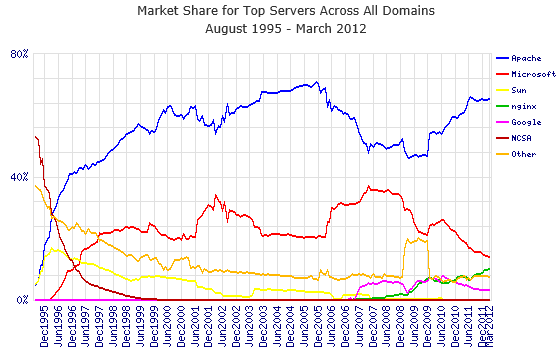
Another take is that this is the outcome of industry-wide changes. Microsoft’s platform is less dominant than it was; it still reigns on the desktop, but Macs, tablets and smartphones are eroding its position on the client, and on the web Netcraft’s figures show steady decline since June 2010:

image

Most of the competition is open source and it is possible that this is a factor behind the latest moves. Microsoft is not open sourcing its IIS web server yet, though Hanselman does make the point that ASP.NET MVC runs well on Mono, the open source implementation of the .NET Framework, which is often used with Apache.

Developers: will you do Metro?

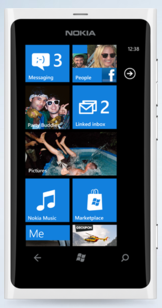
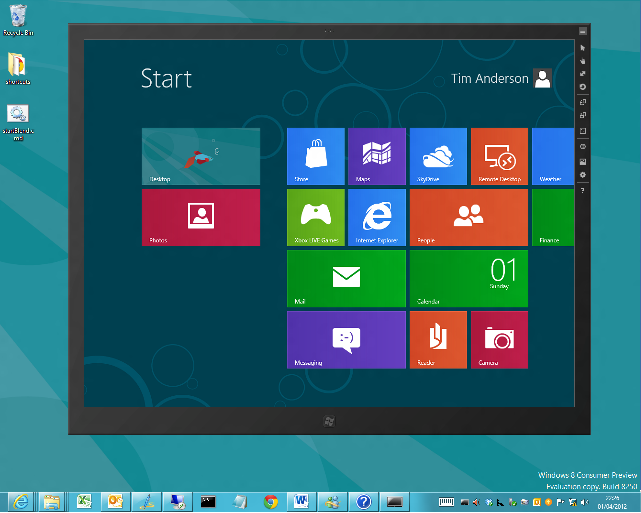
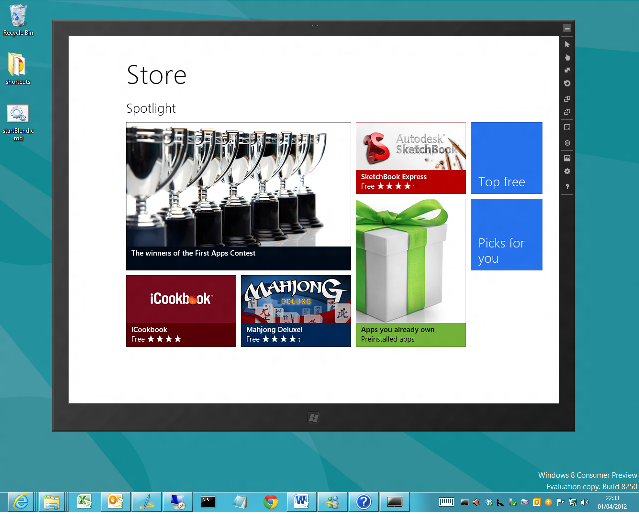
It is fascinating to watch the Metro-fication of all things Microsoft, from the Xbox 360 user interface to Windows Phone to Windows 8 to forthcoming versions of Office and other applications.

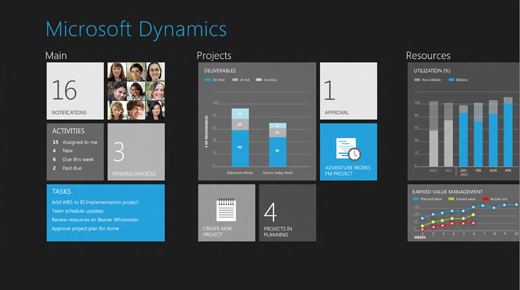
Future versions of Dynamics products were previewed at the Convergence 2012 event (which included a session called CRM goes Metro) and there are a bunch of screenshots here.

image

Microsoft calls Metro a design language and you can see its guiding principles here. Calling it a language does not seem quite right; the word “style” is more accurate, but it does have building block elements (and yes it is blocky) which I guess make it more than just a style.

A safe prediction at this point is that all Microsoft’s products will be touched by Metro influence, even though not all will become full Metro apps running on the Windows Runtime (WinRT).

In the past the style adopted by Microsoft for its own applications have strongly influenced third-party applications as well. Once Windows, Office, Dynamics and other apps have a Metro look, other apps that do not may begin to look dated or out of place.

Metro is controversial though, perhaps even more so than the Office Ribbon which replaced menus in Office 2007 and 2012. There is some connection: members of the Office team who worked with Steven Sinofsky on the design of Office 2007, including Julie Larson-Green and Jensen Harris, are now working with him on Windows 8. Harris has written extensively about the work on Office 2007 on his Office User Interface Blog, though the last substantial post was in 2008.

What’s not to like about Metro? Here’s a few arguments against:

  • Beauty is in the eye of etc; but the blockiness of the Metro style does give it a utilitarian appearance. In Windows Phone 7 it is nice to use, but not so great to look at.
  • The Live Tile concept, where shortcut blocks can be populated with current information, adds a random element to Metro start screens which does not always look good.
  • The emphasis on simplicity and immersion makes Metro vulnerable to the accusation that it wastes too much precious screen space.
  • Metro tends to be a horizontally scrolling style, though I am not sure if this is baked into the guidelines. This takes some adjustment since most of us are more used to vertical scrolling to see more content.
  • Metro seems to be optimized for a touch UI, and while its advocates insist that it is just as good with keyboard and mouse, that is a stretch. Metro seems to be a big bet on touch as the future of human-computer interaction.

On the other hand, the usability of Windows Phone 7 is a point in its favour, and some are convinced. Paul Greenberg, in a positive take on Microsoft’s strategy based on his trip to Convergence 2012, says:

They have nailed UX (a.k.a user experience). Nailed it. Their combination of the extremely well done Metro interface and their work on natural user interfaces involving voice and touch is the new gold standard – and I’m someone who loves Apple products. (please, Mac fanboys, spare my life.)

I would be interested to hear from developers whether you expect to embrace the Metro style in your apps, wither in WinRT or elsewhere.

What’s new in SQL Server 2012?

Microsoft’s SQL Server 2012 is released next month and available to download now (I am not sure what the distinction is). I have a high regard for Microsoft’s database server; it seems to me that the team mostly gets it right. The product has become somewhat diffuse though, especially as the Business Intelligence aspect has grown, and this may account for what to me is a rather unfocused launch for SQL Server 2012, even though its name suggests that it is the most significant release since SQL Server 2008.

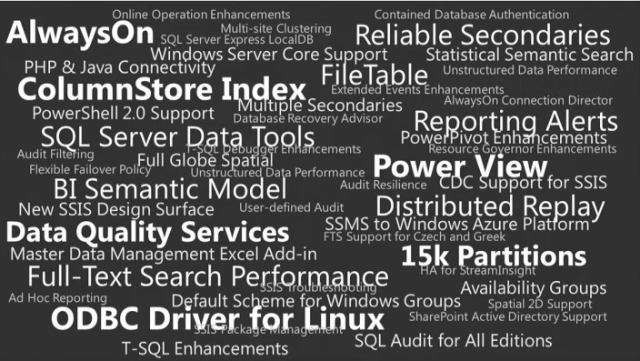
The following slide summarises the new features, presumably with the type size suggesting the importance of each one.

image

But is the ODBC Driver for Linux really more important than the SQL Server Data Tools, for example? Not in my view; but that reflects how SQL Server represents different things to different people.

So what are the key new feature? Here’s my quick take.

Always On

A new feature called Availability Groups that is an improved version of database mirroring

Improved failover clustering which supports multi-site clustering across subnets – above to failover across datacentres.

ColumnStore Index

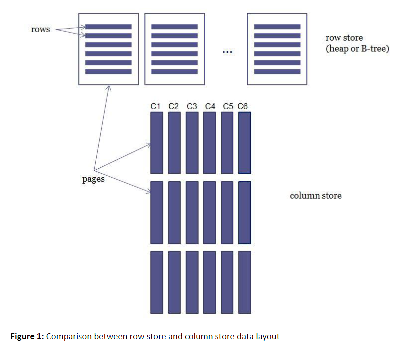
A new type of index for data warehouses. This is actually pretty simple: the name says it all. Here is Microsoft’s illustration:

image

and explanation:

A columnstore index stores each column in a separate set of disk pages, rather than storing multiple rows per page as data traditionally has been stored.

Why do this? Because it is more efficient when the query only requests a a few columns from the table. Microsoft claims performance improvements from 6X to 100X in cases where the the data can be cached in RAM, and thousand-fold improvements where the working set does not fit in RAM.

SQL Server Data Tools

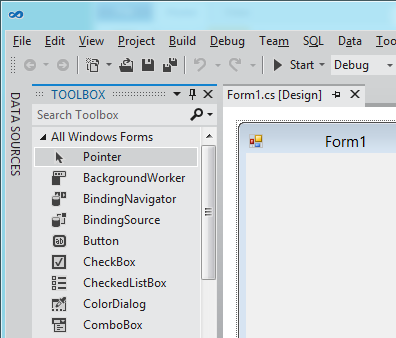
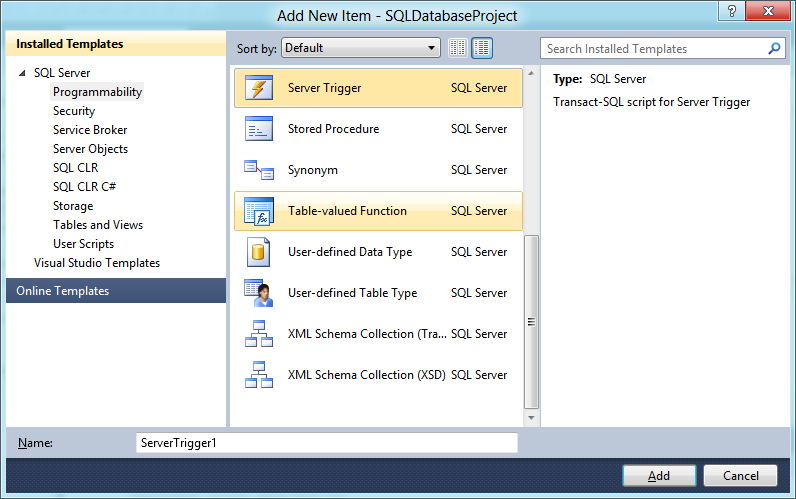
This is my favourite feature, probably because it is developer-focused. These are the tools that were code-named “Juneau” and which install into Visual Studio 2010. There are some visual tools, but this is essentially a code-centric approach to database design, where you design your database with all its tables, queries, triggers, stored procedures and so on. You can then build it and test it against a private “localdb” instance of SQL Server. What I like is that the database project includes the entire design of your database in a form that can be checked into source control and compared against other schema versions. Here is the Add New Item dialog for a database project:

image

Data Quality Services

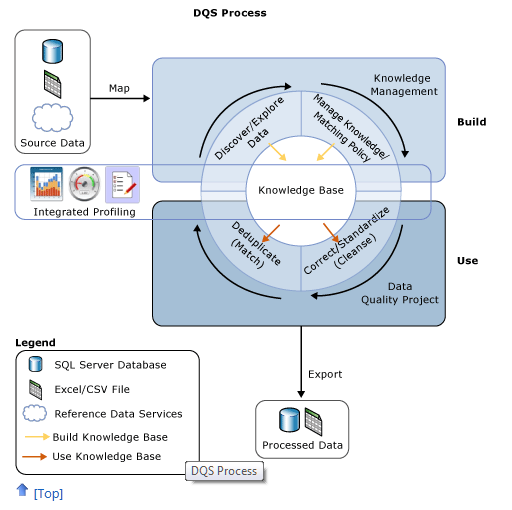
Data Quality Services (DQS) lets you check your data against a Data Quality Knowledge Base (DQKB), the contents of which are specific to the type of data in the database and may be created and maintained by your business or obtained from a third-party. If your data includes addresses, for example, the DQKB might have all valid city names to prevent errors. Features of DQS include data cleansing, de-duplication through data matching, profiling a database for quality, and monitoring data quality.

image

Illustration and more details are here.

Updated SQL Server Management Studio

SQL Server Management Studio now runs in the Visual Studio 2010 shell.

LocalDB

LocalDB is a local instance of SQL Server aimed at developers and for use as an embedded database in single-user applications. It is a variant of SQL Server Express, but different in that it does not run as a service. Rather, the LocalDB process is started on demand by the SQL native client and closed down when there are no more connections. You can attach database files at runtime by using AttachDBFileName in the connection string. LocalDB is intended to replace user instances which are now deprecated.

FileTables

This is the most intriguing feature in SQL Server 2012. It is described here:

The FileTable feature brings support for the Windows file namespace and compatibility with Windows applications to the file data stored in SQL Server … In other words, you can store files and documents in special tables in SQL Server called FileTables, but access them from Windows applications as if they were stored in the file system, without making any changes to your client applications.

and the purpose:

Enterprises can move this data from file servers into FileTables to take advantage of integrated administration and services provided by SQL Server. At the same time, they can maintain Windows application compatibility for their existing Windows applications that see this data as files in the file system.

Integration of the file system and the database is not a new idea, and Microsoft has tried variants before, such as the “M” drive that was once part of Exchange, the aborted WinFS feature planned for Windows Longhorn (Vista), and SharePoint, which can store documents in SQL Server while presenting them as Windows file shares through WebDAV.

That said, FileTables in SQL Server 2012 are not an attempt to reinvent the file system, but presented more as a way of supporting legacy applications while managing data in SQL Server. It is an interesting feature though, and it would not surprise me if users find some unexpected ways to exploit it.

Power View

Codenamed “Project Crescent”, this is a web-based reporting client for businesses that have embraced Microsoft’s platform, because it has several key dependencies:

  • SharePoint Server Enterprise Edition
  • SQL Server Reporting Services
  • Silverlight on the client

In fact, Power View is described as:

a feature of SQL Server 2012 Reporting Services Add-in for Microsoft SharePoint Server 2010 Enterprise Edition

Power View reports that I have seen do look good, and have an Office ribbon style designer for designing customising the report. That said, I would guess that Microsoft now wishes it had used HTML 5 rather than Silverlight for this – there are those Apple iPad and Windows 8 Metro users to think of, after all.

Microsoft emphasises that Power View is not a replacement for Report Designer or Report Builder, but an ad-hoc reporting tool.

Closing thoughts

There is more in SQL Server 2012, as a glance back at the initial slide will tell you, but the above is a starting point if you are wondering what it is all about. It is also worth noting that Microsoft still gives away SQL Server Express which supports up to 10GB per database and includes many of same features as the paid-for versions; it is the same product at heart.

Someone who finds that SQL Server Express actually meets all their needs asked me why Microsoft gives it away. My guess is that this is a consequence of all the other free database engines available such as MySQL, PostgreSQL, interesting  newer NoSQL options like mongoDB, and of course equivalent free versions of Oracle and IBM DB2. A proportion of customers who start with SQL Server Express will grow into the paid-for editions.

This does make SQL Server Express an excellent choice for smaller scale applications and small businesses, particularly since it integrates smoothly into Microsoft’s developer stack. Having said which, I am becoming something of an Entity Framework sceptic, but that is a story for another day – and fortunately you do not have to use EF if you do not want to.

Fixing a Metro-style app in Windows 8 Consumer Preview

I am a fan of Wordament for Windows Phone and Windows 8. This is a Metro-style app. I was annoyed though to discover that it was broken on my Windows 8 slate. That is, it could not be launched because it did not exist when searching the Start menu, nor in the “All apps view”, but it could not be installed because the Store considered that it was already installed.

I could go into Store – Settings – Accounts and see it listed under “View your apps”, where it also said it was installed.

There was some kind of warning of problems, in that from time to time Windows 8 had been offering to fix a problem with Wordament, usually after I had set the slate to sleep while the app was running. When prompted, I always accepted and let it do its stuff, but the result of the last effort was the app had disappeared completely.

How to fix this? I found one piece of official advice for a similar problem which suggested refreshing the PC. This is not much fun because you lose all installed applications other than Metro apps – ugh. I did a bit of digging.

My first thought was to try manually deleting the app to see if I could trigger a reinstall. I got a little way with this. I found that Metro-style apps are installed into the WindowsApps folder, which is a sub-folder of Program Files. However, if you double-click this folder you get an access denied message, though the message also invites you to continue.

image

I did not wish to trample all over the security features of Windows 8, though following a hunch I did try restarting in safe mode. You can do this by choosing Settings – More Settings and clicking Restart now under Advanced startup. The PC restarts and you get to a “Choose an option” screen where you can click Troubleshoot. Next, click Windows Startup Settings and then Restart. This gets you the familiar F8 options including Safe mode.

In Safe mode you have read-only access to the WindowsApps folder, and there I could see the Wordament install files.

image

Here you can verify that this is an HTML and JavaScript app, just as its creators said. The JavaScript is minified so opening it up is not all that rewarding.

image

Still, I could confirm that the app was in fact installed, but I could not run it.

I had another idea. If all I needed was a shortcut to the app, perhaps I could grab one from another profile on the machine. I restarted in normal mode, created another user (which must be one with a Microsoft Live ID) and logged in as that user (shutdown /l logs off without shutting down). I installed Wordament, and it ran fine.

So where are the per-user shortcuts? Easy, just go along to c:\users\[username]\AppData\Local\Microsoft\Windows\Application Shortcuts and there they are.

image

Again I had to grab permission to access this folder, but doing this in a user folder is not so bad as in a system folder.

I copied the shortcut to the same location in my normal home folder and lo, Wordament reappeared in the Start menu.

image

Not too bad; but it seems to me that Windows 8 should have a built-in way of fixing this kind of problem – perhaps it has, and I missed it.

Microsoft deprecates Subsystem for UNIX, recommends open source instead

I am getting started with the Windows Server 8 beta and noticed this in the list of Features Removed:

The Subsystem for UNIX-based Applications (SUA) is deprecated. If you use the SUA POSIX subsystem with this release, use Hyper-V to virtualize the server. If you use the tools provided by SUA, switch to Cygwin or Mingw.

Cygwin and Mingw are open source tools which let you use some Unix tools on Windows. That said, my preference would be the virtualisation route, rather than installing these layers on Windows Server itself.

Crisis in Microsoft land: what next after the mixed reception for Windows 8 Consumer Preview?

Microsoft will have expected some users to find the transition from Windows 7 to Windows 8 challenging, but I doubt it was ready for the reaction from its own community that it is receiving for Windows 8 Consumer Preview.

image

The best place to start is the comments on Building Windows blog here and here – at the time of writing, around 1300 comments, most from users who have downloaded and tried the Consumer Preview. It is worth browsing through them if this is something you care about; some are knee-jerk negative reactions, but some others are thoughtful and wanting Microsoft to succeed.

Overall, the message is: don’t make us use Metro, let us stay in the desktop if we choose.

I’m still waiting for an explanation as to why my 30" desktop screen has to look like a smartphone, that’s what my smartphone is for.

My users range from tech savvy to plant workers and truck drivers. Like all of us, the start button is baked into our DNA … How can I make the desktop the default UI?  I’m not going to deploy metro desktop to my users as the default screen. I would rather deploy a slew of ipads and I’m no ipad fan that is for sure.

In 17 years of using Windows I have never used the Windows key. Interestingly I’ve never seen any user of a computer use the Windows key. I don’t want to learn and remember key combinations to do things that I can currently do trivially using the start menu.

Let me tell you something, I always have a gazillion webbrowser instances and tabs open (rarely less than 50 browser tabs and as much as 100) – I often run 5-10 Visual Studio instances simultaneously (and I know your usage statistics says average is 1, so you won’t make it easier to distinguish between them, but this is a different matter..) – usually have 10+ explorer windows – and I absolutely love working this way, I am productive this way and that’s what counts for me. I run 2 big screens with 2560×1440 resolutions to give me as much working space as possible, so I can easily switch between a lot of my open applications, browser tabs and explorer windows. Even if I had a use for some Metro UI application, I would be looking for a desktop alternative, so I could have it running side-by-side with my other applications – let’s be honest, one application at a time might be great for the average joe, but it’s a horrible solution for professional users.

Part of the problem here is that the Metro UI Windows 8 is more about solving a problem Microsoft has – how to compete with the iPad – than a problem its users face. It has been clear since Windows 8 was first previewed that the tablet UI and new Windows Runtime was Microsoft’s main focus, and that desktop users would get less value than they might normally expect from a major release. The reaction to the Consumer Preview though is more serious than that: many users are saying that Windows 8 is, for them, a substantial step backwards.

I am writing this in Windows 8 on a desktop and it is not that bad. Apps are easy to launch once you get the hang of Windows Key – Search, and there are workarounds for the annoyances. There is no doubt though: if you are working mainly in the desktop – which is inevitable for most users upgrading – the “immersive UI” does get in the way at times. Since it must run full screen, a Metro app obliterates the taskbar and handy features like the time and date which shows bottom right in the notification area. If there were an option to run Metro apps in a window, I would grab it.

The irony here is that the name “Windows” refers to the ability to run multiple apps in windows, as opposed to the single application UI offered by DOS.

Another issue is that if you switch between Metro and Desktop, you have to learn two ways to do common tasks. For example, I tend to use the taskbar previews to find browser tabs, since if you have numerous tabs open it is the quickest way to find the one you want. If you are in the Metro browser though, you have to right-click to show the tabs. Right-click by mistake in the desktop browser, and you get a context menu. Add to favourites? Different. History? Different. All friction if you just want to get your work done.

If you have multiple monitors, Microsoft’s “Move the mouse to the corner” idea for raising the Charms does not work well. The “Corner” is on the primary display, but if you have multiple displays it is not a corner but the border between two screens. You have to position the pointer just so to make it work.

There is more; but it is not my intention to iterate through every annoyance. I am more interested in the reaction overall and in what Microsoft will do next.

I will add that I admire what Microsoft has done from a technical standpoint in the Windows Runtime and that Windows 8 on a touch device with the right screen size has great promise as a new tablet operating system. It is my first choice for travelling; iPad and Android tablets are too limited, and I am more than ready to leave the bulky, awkward laptop at home.

Needless to say, few of those commenting will have tried such a device, for reasons I have described before. Windows 8 in a virtual machine is a worst case, and it is a shame that so many (for good reasons) are trying it that way.

What next for Windows 8?

It seems to me that Microsoft now has, broadly, three options for Windows 8.

1. Plough on regardless. This, I imagine, is the plan as it stands currently. Microsoft has deliberately made Metro unavoidable in Windows 8, I presume to ensure that it will not be ignored. There will be some refinements in the final release, improved discoverability of features users are struggling to find, but no fundamental change to the design approach. The plan as stated last month is that there will be no further beta, and the next public release will be the release candidate.

The question: can Microsoft do enough tweaking to win over a majority of its own community? Right now my sense is probably not. A negative reaction on release will be costly for the company and for all those third-parties who depend on its platform; yes, Windows 7 will have a prolonged life, but there will be loss of momentum for the platform overall.

2. Delay Windows 8 for further refinement. Go through the reactions to this broad public beta test, and work out how to fix the issues without losing the vision behind this “reimagined” Windows. Delay would be painful, of course, but less bad than a failed release.

The quick version of this would be to do what many are asking for: make the Metro-style personality in Windows 8 optional. Would that be such a disaster?

3. Release Windows on ARM (WOA) ahead of the full Windows 8. Most of the objections users have to Windows 8 do not apply to WOA, where Metro is primary, where all devices are touch tablets, and where those desktop applications (mainly Office) and utilities that are included are there to fill the gaps which Metro cannot yet fill. As for x86, users are still happy with Windows 7. When Vista was the current version, users could not wait for the next release, but there is no such pressure with Windows 7.

Microsoft’s platform nearly invisible at QCon London 2012

QCon London ended yesterday. It was the biggest London QCon yet, with around 1200 developers and a certain amount of room chaos, but still a friendly atmosphere and a great opportunity to catch up with developers, vendors, and industry trends.

Microsoft was near-invisible at QCon. There was a sparsely attended Azure session, mainly I would guess because QCon attendees do not see that Azure has any relevance to them. What does it offer that they cannot get from Amazon EC2, Google App Engine, Joyent or another niche provider, or from their own private clouds?

Mark Rendle at the Azure session did state that Node.js runs better on Windows (and Azure) than on Linux. However he did not have performance figure to hand. A quick search throws up these figures from Node.js inventor Ryan Dahl: 

  v 0.6.0 (Linux) v 0.6.0 (Windows)
http_simple.js /bytes/1024 6263 r/s 5823 r/s
io.js read 26.63 mB/s 26.51 mB/s
io.js write 17.40 mB/s 33.58 mB/s
startup.js 49.6 ms 52.04 ms

These figures are more “nothing to choose between them” than evidence for better performance, but since 0.6.0 was the first Windows release it is possible that it has swung in its favour since. It is a decent showing for sure, but there are other more important factors when choosing a cloud platform: cost, resiliency, services available and so on. Amazon is charging ahead; why choose Azure?

My sense is that developers presume that Azure is mainly relevant to Microsoft platform businesses hosting Microsoft platform applications; and I suspect that a detailed analysis would bear out that presumption despite the encouraging figures above. That said, Azure seems to me a solid though somewhat expensive offering and one that the company has undersold.

I have focused on Azure because QCon tends to be more about the server than the client (though there was  a good deal of mobile this year), and at enterprise scale. It beats me why Microsoft was not exhibiting there, as the attendees are an influential lot and exactly the target audience, if the company wants to move beyond its home crowd.

I heard little talk of Windows 8 and little talk of Windows Phone 7,  though Nokia sponsored some of the catering and ran a hospitality suite which unfortunately I was not able to attend.

Nor did I get to Tomas Petricek’s talk on asynchronous programming in F#, though functional programming was hot at QCon last year and I would guess he drew a bigger audience than Azure managed.

Microsoft is coming from behind in cloud -  Infrastructure as a Service and/or Platform as a Service – as well as in mobile.

I should add the company is, from what I hear, doing better with its Software as a Service cloud, Office 365; and of course I realise that there are plenty of Microsoft-platform folk who attend other events such as the company’s own BUILD, Tech Ed and so on.

Update:

This is the basis for the claim that node.js runs better on Windows:

IOCP supports Sockets, Pipes, and Regular Files.
That is, Windows has true async kernel file I/O.
(In Unix we have to fake it with a userspace thread pool.)

from Dahl’s presentation on the Node roadmap at NodeConf May 2011.

Two web browsers one too many in Windows 8 Consumer Preview

A few days in, and the reactions to Windows 8 Consumer Preview are coming thick and fast, mostly strong reactions, with love for Metro on a tablet and hate from annoyed Windows users looking for the Start menu.

For myself, I have it installed on a tablet (Samsung Series 7 Slate bought for the purpose) and on a desktop, where I am using it for my work.

It is going OK, though one annoyance to add to the list is coping with two instances of Internet Explorer. It sounds simple: Metro IE is the no-plugin version, Desktop IE is the full version. There is more to it that that though. Where are you going to put your favourites, in Metro or in Desktop? Except that Metro IE has no favourites, just the option to “Pin to start menu”.

image

More seriously, pages open in Metro IE are invisible in Desktop IE and vice versa, and the two browsers do not share cookies, so you might wonder why Amazon does not recognize you when you remember you signed in yesterday – but that was in Metro and you are now in Desktop.

Users are going to hate this, unless Microsoft can do some tweaking, or even (perish the thought) have a setting that says “Only use desktop IE”.

The IE problem is a consequence of the Windows 8 split personality, where one half almost literally does not know what the other half is doing. John Gruber says:

The recurring theme of these Windows 8 reviews: the brand-new Metro UI is elegant, clever, original and shows much promise; the updated classic Windows desktop is better than ever; the two environments don’t flow well together.

Nicely put, though I do not agree that Microsoft is trying to anticipate Apple supposedly converging OSX and iOS (read the rest of the link). I think Microsoft sees the future of the PC as tablet-shaped, or at least, that the non-tablet segment of the PC market is essentially legacy and will not grow. If some users stay on Windows 7 for ever, that will not matter much provided that Metro succeeds on tablets.

Microsoft could have put Windows Phone on tablets and matched Apple’s iOS and OSX split. It could have make Windows 8 the underlying operating system of both but maintained the split. It chose not to, except to the extent that Windows on ARM is pretty much iOS, where the desktop nearly disappears – it is relegated to a kind of runtime for utilities and Microsoft Office.

I do think Microsoft has work to do on the seams between Metro and Desktop, but I also believe that its main rationale in making Windows 8 dual personality is to force its uptake. The danger, if it had released Windows Metro as a separate OS, is that it would have won good reviews but failed in the market, as happened with Windows Phone in its first year. Microsoft is going for all-or-nothing: if Windows Metro fails, then Windows client fails with it.

PS the above grab is not a stitched screen, but an actual view of my dual monitor setup.

Windows 8 Consumer Preview annoyances

I have been running Windows 8 Consumer Preview on a dual-monitor desktop today. I encountered several annoyances. In no particular order:

The Start Menu

If you are working on the desktop, being dumped back in Metro every time you need the Start menu is disconcerting. It is not so bad on a touch slate, because the Metro Start menu is easier to use, but if you are using keyboard and mouse it is more annoying.

I am beginning to understand why this is. Conceptually, the Desktop is a Metro app, therefore it makes sense to start it from Metro. If Windows gets to the point where desktop apps are only used occasionally, this will work fine. Right now though, the desktop side is unavoidable. Explorer, full IE, Control Panel, even the Help app is a desktop app. This is a transitional thing that will be a long-lived annoyance.

This little issue also confirms Microsoft’s belief that touch and tablet really is the future of Windows. It is the big bet.

Horizontal scrolling

Windows 8 Metro has a lot of horizontal scrolling, the Start menu being one example. Swiping this with fingers feels natural, but using a scroll wheel on a mouse is odd because you expect that to give you a vertical scroll. There is a scroll bar as well, but the mouse wheel is easier.

App switching

App switching has been messed up in Windows 8. Long ago, users of Windows 3.1 used to complain that they lost the app they were working on. In reality, what used to happen was that Word would be running behind Excel, and they did not realise that Alt-Tab would bring it back, or forgot that Word was running. Sometimes users would open multiple instances of an app just to get it back. I wonder if we may see a return to this problem in Windows 8? The taskbar in Windows 95 was invented partly to solve it, but the taskbar no longer works because Metro apps do not appear there. If you are in Metro, you do not see the taskbar anyway, of course. Alt-Tab works fine, but users do not always think of that.

An interesting twist on this is that the desktop, from the Metro perspective, is a single app. Therefore, if you are in Metro and summon the column of running apps by moving the mouse to the top left corner and dragging down, only one desktop window shows even if you have several desktop apps running. Oddly, you can “close” the preview desktop app here, but it does not close the desktop or any desktop apps if you do, just removes it temporarily from the preview window list.

image

App menus and context menus

In Metro on a tablet, you raise application menus by swiping from the top or bottom. That works well, but when using the mouse you are meant to right-click instead. The snag is that right-click isn’t ideal for bringing up app menus as it might need to show a context menu. For example, in the Metro browser right-clicking a link brings up a context menu:

image

In this case then, the right-click does NOT bring up the app menus, such as the tabs and address bar in IE.

The Music app

The Music app looks great, but I have struggled to add any music to it.

image

My music files are on a network share. There is no setting in the Metro Music app to add a folder to the library. It looks like you are meant to go to Explorer on the desktop side and add folders to your Music library. However, when I tried to add the network share I got this error:

image

“This network location can’t be included because it is not indexed.” Follow the help links, and you eventually get to instructions for working around this problem by creating a local folder, adding it to the Music library, then deleting the folder and recreating it as a symbolic link to the network share. Hardly a user-friendly operation, but in my case even this did not work. I am now trying to index the share on the server, but it is still not working.

I do not see DNLA streaming support here either. Maybe it will come; otherwise you will have to go back to Windows Media Player, or a third-party app, to get full features.

Metro Mail problems

I have not yet managed to get the Mail app to work with Exchange. One of the annoyances here is that when it fails to set up the account, it does not give you a reason. A bit of research suggests that it is an autodiscover problem.

Another Mail issue is that you cannot modify the annoying signature, Sent from my Windows 8 PC:

image

Nor can you use POP3 or IMAP, or forward mail. I was relieved therefore to find this statement from Microsoftie KeithF on the Answers forum:

We aren’t anywhere near done with the app and, as you’ve seen, there are some things we haven’t gotten to yet.  One of those is supporting custom domains and aggregated POP accounts correctly.  We’re working right now on finishing this off the right way.

This is worth noting because it gives hope that more features will arrive in the other apps as well. Currently they seem only part-done.

Multiple displays

Multiple monitor support is odd. The taskbar now extends across multiple screens, but annoyingly it is not properly extended, just sort-of copied, so you cannot add more shortcuts without scrolling. There are some other options, like “Show taskbar buttons on Main taskbar and taskbar where window is open.”

image

There are oddities though. A Metro app apparently cannot be extended across two displays. The Start menu appears in one display, letting you work on the other, but if you have a desktop app stretched across two displays, the Metro side will overlay that part of the desktop app which is on its display.

Metro Messenger

Another app deficiency is that in the Metro Messenger app you cannot add a new contact, at least, not that I have seen.

Conclusion: not done yet

Windows 8 is not yet done. While I am not expecting any great change in the Start menu or essential mechanics and design of Windows 8, I do expect improvements in the Metro apps, the goal I suspect being to make this usable and enjoyable on a tablet without too many jarring visits to the desktop – though if you use Office, you will be going to the desktop a fair amount like it or not. We have yet to see what Microsoft will do in Office 15 to mitigate this.

A few days in, and I still believe that the Windows 8 compromise means that the Metro side is sub-optimal with Mouse and keyboard, and the Desktop side sub-optimal with touch.

There is a ton of promise though, and much depends on what Metro apps appear, and how successful Microsoft is at fixing deficiencies in time for the launch. Given the lead time needed by OEMs, there is not a lot of time left if this is going to be a 2012 operating system.

What’s in Windows 8 client for desktop users who do not need Metro?

Microsoft, rightly, is making plenty of noise about the Metro-style side of Windows 8, which is great for those using Windows 8 on a touch device. But has the company spent so much energy on that aspect, that there is little left for desktop users? That is arguable; but there are new features on the desktop side, as well as underlying operating system changes that benefit both sides of the dual personality in Windows 8.

Here are some that come to mind. The new copy dialog:

image

and the task manager:

image

and the Explorer ribbon:

image

and Storage Spaces, a new approach to disk management:

image

and SmartScreen which blocks your unsigned apps by default:

image

and Windows to Go that lets you run in isolation from a USB storage device, and other security features including Trusted Boot (malware-resistant boot which uses UEFI 2.3.1), Measured Boot (uses TPM – Trusted Platform Module), and AppLocker which restricts access to files as controlled by Group Policy.

Then there are performance improvements: faster network connections (I have already noticed this when working with the preview), faster boot, longer battery life.

File History is a variation on what we have had before with backup but presented with a common-sense user interface:

image

And Hyper-V, a big feature for power users:

image

What have I forgotten? And is it enough to mitigate being bounced in and out of Metro by the new Start menu – or maybe you like the Metro Start screen better than the old one?