Category Archives: microsoft

A Silverlight UI for Windows Mobile 7, backward compatibility in doubt

Note: speculative post; I have no official information on this.

It’s been rumoured for ages; but at this point I would be surprised if the Windows Mobile 7 UI were not built with Silverlight. Consider:

  • Silverlight has to be supported – it should have been in 6.5 – otherwise nobody will take mobile Silverlight seriously
  • WM7 has to have excellent UI design; and WPF/Silverlight is Microsoft’s designer-friendly UI framework
  • Silverlight 4 already supports touch control in the current beta
  • Scaling/Zooming is baked into Silverlight and ideal for a mobile UI
  • If Silverlight is present on the device it would make sense to build the UI with it

If this is right, there are a couple of interesting aspects for developers. It will make Silverlight a more attractive platform in scenarios such as Enterprise roll-outs where the device can be specified.

The awkward question: what about all those existing Windows Mobile apps built either with native code or with the compact framework? Again, there are rumours of lack of backward compatibility. Does that mean that all Windows Mobile 7 apps with a UI will have to be done in Silverlight? That’s what John Biggs says:

WinMo 7 will not run 6.x code. End of story. It is based on Silverlight and .Net. Everything save a few basic programs will not work under WinMo 7. There is no expectation that this will be a “business device” and the focus is currently on games including some XBox Live functionality for gaming and messaging. There will be a Microsoft App store with an easy approval process.

I find this a stretch. I can believe that Microsoft might initially target the consumer market, or have crippled “consumer” versions; but not that it would give up on mobile business apps – we heard at PDC (to the point of tedium) how Microsoft is supporting “three screens and a cloud”, unified for developers by Visual Studio. There’s no reason why Silverlight should not be used for business apps.

What about backward compatibility though? Traditionally Microsoft does a good job of keeping your old stuff running, within reason; possibly too good – Windows is full of compatibility hacks that may be to its detriment overall.

Another point to bear in mind: WM7 needs a browser, and I don’t see Microsoft re-implementing IE in Silverlight.

So I’m sceptical about this too; but with Windows Mobile at such a low ebb could the company decide it has little to lose?

Windows Azure is too expensive for small apps

I’m researching Windows Azure development; and as soon as you check out early feedback one problem jumps out immediately. Azure is prohibitively expensive for small applications.

Here’s a thread that makes the point:

Currently I’m hosting 3 relatively small ASP.net web applications on a VPS. This is costing about $100 per month. I’m considering transitioning to Azure.
Q: Will I need to have 1 azure instance per each ASP.net application? So if I have 3 web apps, then I will need to run 3 instances which costs about $300 per month minimum, correct?

The user is correct. Each application consumes an “instance”, costing from $0.12 per hour, and this cost is incurred whenever the application is available.

Amazon also charges $0.12 per hour for a Windows instance; but the Amazon instance is a virtual machine. You can run as many applications on there as you like, until it chokes.

Google App Engine has a free quota for getting started, and then it is charged according to CPU time. If the app is idle, you don’t pay.

In addition, all these services charge extra for storage and data transfer; but in a low-usage application these are likely to be a small proportion of the total.

Summary: Azure’s problem is that it does not scale down in a way that makes business sense. There is no free quota, unless you count what is bundled with an MSDN subscription.

I realise that it is hard to compare like with like. A cheap Windows plan with a commodity ISP will cost less than either Amazon EC2 or Azure, but it is worth less, because you don’t get a complete VM as with Amazon, or a managed platform as with Azure, or the scalability of either platform. The point though is that by cutting out smaller businesses, and making small apps excessively expensive for customers of any size – even enterprises run small apps – Azure is creating a significant deterrent to adoption and will lose out to its rivals.

Check out the top feature request for Azure right now: Make it less expensive to run my very small service.

Silverlight 4 with COM can do anything – on Windows

At PDC Microsoft played down the significance of adding COM support to Silverlight 4 when run out of the browser and fully trusted (you can also be out of the browser and not fully trusted). The demos were of Office automation, and journalists were told that the feature was there to satisfy the requests of a few Enterprise customers.

Now former Microsoft Silverlight program manager Justin Angel, who has implemented his blog in Silverlight, has spelt out what we all knew, that Silverlight with COM support can do just about anything. His richly-illustrated blog post has code examples for:

  • reading and writing to any file (subject I guess to the permissions of the current user)
  • executing any command or file
  • emulating user input with WShell.SendKeys
  • pinning files to the Windows 7 taskbar
  • reading any registry values
  • adding an application to the Windows startup folder
  • doing text to speech using Windows built-in engine
  • accessing local databases with ODBC
  • automating scanners and cameras
  • using the Windows 7 location API, accessing the full .NET Framework
  • and of course … automating Microsoft Office.

Well, fully trusted means fully trusted; and these are great features for powerful though Windows-only Silverlight applications, though I hope no user installs and trusts one of these applets thinking it is “only Silverlight” and can’t do much harm.

The post also has comments on the lack of any equivalent feature for the Mac in Silverlight 4:       

If Microsoft chooses to not go ahead with Mac support in Silverlight 4 RTM, well, it’s not because they couldn’t

says Angel, suggesting that it would be easy to add AppleScript support. (I had to type that quote – no clipboard support in Silverlight 3).

Of course there is time for Microsoft to unveil such a feature, say at Mix10 in March, though I wouldn’t count on it.

Why F# rather than IronPython in Visual Studio 2010?

Dynamic languages are all the rage; and after JavaScript, Python is perhaps the dynamic language of the day, loved by Google and gaining increasing attention. IronPython, built on .NET, is stable and at version 2.6. Now Visual Studio 2010 turns up with an additional language in the box, but it is not IronPython; rather it is a little-known language out of Microsoft Research called F#.

Now, F# is very interesting and brings real diversity to Visual Studio; it is great for mathematics and for parallel programming. But wouldn’t IronPython have sparked more immediate interest from the .NET community? Judging by this feature request, with 500 votes, it would. It’s is a little embarrassing for Microsoft that the favoured IDE for IronPython work is SharpDevelop. Plenty of IronPython enthusiasts are pressing for Visual Studio support.

Here’s what IronPython MVP Jeff Hardy says:

I think I can safely say that adding full, high-quality support for IronPython to Visual Studio would require at least a couple of man-years of work. The rabbit hole goes pretty deep when you consider all of the functionality that VS offers, not to mention the difficulty of doing IntelliSense well. I estimate they’d have to at least double the IronPython team to get full support into VS11. IronRuby would require the same commitment.

Hardy is hopeful for VS 2012.

I still find it odd. Official Visual Studio integration would do a lot to raise awareness and usage of IronPython; and make Microsoft’s commitment to dynamic languages more visible – though I guess F# supporters will be happy with Microsoft’s priorities here.

The end of Code Access Security in Microsoft .NET

In the early days of .NET I remember being hugely impressed by Code Access Security. It gave administrators total control over what .NET code was permitted to run. It’s true that the configuration tool was a little intimidating, but there were even wizards to adjust .NET security, trust an assembly, or fix an application – great idea, that last one.

image

Well, now the truth is out. Code Access Security was too complex for humans to configure. Buried deep in the documentation for .NET Framework 4.0 you can find Microsoft’s confession, under the heading Security Policy Simplification:

In the .NET Framework 4 Beta 2, the common language runtime (CLR) is moving away from providing security policy for computers. Historically, the .NET Framework has provided code access security (CAS) policy as a mechanism to tightly control and configure the capabilities of managed code. Although CAS policy is powerful, it can be complicated and restrictive. Furthermore, CAS policy does not apply to native applications, so its security guarantees are limited. System administrators should look to operating system-level solutions such as Windows Software Restriction Policies (SRP) as a replacement for CAS policy, because SRP policies provide simple trust mechanisms that apply to both managed and native code. As a security policy solution, SRP is simpler and provides better security guarantees than CAS.

The section below, headed Obsolete Permission Requests, is even more damning of the old system:

Runtime support has been removed for enforcing the Deny, RequestMinimum, RequestOptional, and RequestRefuse permission requests. In general, these requests were not well understood and presented the potential for security vulnerabilities when they were not used properly.

It goes on to explain why they did not work, with explanations like this one for RequestOptional:

RequestOptional was confusing and often used incorrectly with unexpected results. Developers could easily omit permissions from the list without realizing that doing so implicitly refused the omitted permissions.

The new .NET Framework 4.0 no longer enforces these obsolete permissions.

Microsoft is right. As far as I’m aware, few used the .NET Configuration tool, and I cannot even find it in Windows 7, even though Visual Studio and all the versions of the .NET Framework are installed. Developers feared, with justification, that tinkering with the settings would simply cause mysterious exceptions that were hard to resolve.

I recall though that Code Access Security was considered a highly strategic feature when .NET was first released. One of the promises of .NET was that applications would be more secure and malware less prevalent. The fine-grained permissions were a selling point versus Java.

The painful lesson is that simplicity is a feature. Of course some things are inherently complex; but technology succeeds when it simplifies rather than complicates the tasks that we face.

What does Ribbon Hero say about Microsoft Office?

Microsoft has released a tutorial game called Ribbon Hero in its Office Labs. This installs an Office add-in for Word and Excel which watches you work. It has several features. When you perform an action such as Copy and Paste for the first time, it awards you points. You get further points by performing “challenges”, where Ribbon Hero generates a document and sets you a task, like removing duplicates from a table. Finally, you can upload your score to Facebook to share with friends.

I gave it a go. It worked, though on the second challenge I got the right result in what the Ribbon Hero clearly considered to be the wrong way, which was annoying. Hint – use the Ribbon. Should have thought of that.

image

Ribbon Hero is easily impressed, and on a quick look the tasks are mostly basic ones, though I guess they could be expanded if the idea proves popular.

Irritating and patronising, or a brilliant training tool? Well, learning by doing is a good principle so I don’t dismiss it, even if my own reaction is more the former one.

The interesting aspect is what the existence of this tool says about Office. Not everyone gets on with the Ribbon; some miss the old menus. Further, Office is so bloated feature-rich that knowing it in depth is a formidable task. I have often been told that the majority of wish-list requests are for features that already exist.

In consequence, a large part of the challenge for Microsoft’s Office team lies in enabling users to operate the product successfully. This is not a new problem; the notorious “it looks like you’re writing a letter” Office Assistant, or Clippy, was another attempt. The Ribbon itself was also meant to address it, though I am convinced that Microsoft also intended to differentiate itself from the competition and to devise a user interface it had some hope of protecting, if necessary, in the courts.

You could argue that the very existence of Ribbon Hero is an admission of failure. The perfect office suite would not need a game to teach it; it would work so much in accord with what the user expected that it would not be necessary.

I use Office all the time and respect it. That said, eventually Microsoft (or a competitor) will need to remove features rather than adding them, or to retire Office and deliver something better in its place, that achieves the same goals but with less complexity – if such a thing is possible. And if it is going to happen, it will happen on the Web; for some, it already has.

Government security advice is misguided; switching browsers will not make you safe

I have mixed feelings about the recent government recommendations from France and Germany to switch from Internet Explorer for security reasons.

Although raising security awareness seems on the face of it to be a good thing, this is naïve advice and may do more harm than good. Security is a complex and multi-faceted problem, and it does people no service if they believe it can be fixed by switching browsers. Another common illusion is that running anti-virus software, or even up-to-date anti-virus software, makes you safe. It does not. Anti-virus software does not detect all viruses, and in particular it frequently fails on those that are most dangerous, in other words, those which are newest.

Another factor is that many of the most successful malware attacks come via social engineering. That’s not browser-specific, though there are attempts to maintain bad site lists, which don’t in my experience work very well.

The danger is that people think they are safe, and take fewer other precautions, ending up less safe than before.

Is FireFox, Chrome or Opera safer than IE? I’m not even sure about that. The latest versions of each are massively safer than IE6, for sure. But how does a fully-patched IE8 compare to the latest fully-patched versions of the other browsers? At least one test [pdf] says that IE8 is actually safer, though unfortunately it dates from March last year and does not cover drive-by downloads:

Microsoft Internet Explorer 8 (RC1) was the standout in our tests, achieving a best-in-class 69% catch rate against Malware. It is clear that Microsoft is making an effort to provide security to their customers with IE8.

Know a better one? I’d be interested in more recent tests.

Microsoft is not always competent; read this blog for evidence. But it has made genuine efforts to improve security and has a comprehensive update mechanism that mostly works. IE now has protected mode on Vista or Windows 7, which is no panacea but helps a little.

But what about the known zero-day vulnerability in IE? Isn’t that enough to make switching browsers necessary, if only temporarily?

I’m not so sure. Frankly, it would surprise me if there are not known multiple vulnerabilities in all the major browsers, if you move in the right (or wrong) circles.

How then do you do secure computing? Don’t connect to the internet. OK, how else? The risk cannot be eliminated but it can be reduced … don’t run with local admin rights, don’t run unknown executables, only enable plug-ins and scripting for web sites you know to be safe, keep your operating system patched and up-to-date, and so on.

Another thing you can do is to browse the web in a virtual machine – a sort of super protected mode – not perfect, but would prevent some attacks at the expense of convenience.

If you are really serious you can use AppLocker, or another whitelisting technique, to control what can run on your box.

And passwords … one thing I do hold against Microsoft is that the company has a brilliant authentication mechanism called InfoCard that is almost never used, even by Microsoft. Unfortunately that’s not something any individual can change; but it is possible at least to use more complex passwords and not to pass them over the internet in plain text.

I’m not sure, even today, that many people realise that when they use Twitter on an airport or hotel or conference wi-fi, or collect email via POP3, that they are likely passing their credentials in plain text over the internet for any smart hacker to read.

I am also depressed how often I see “security questions” on registration forms, asking for things like mother’s maiden name to be used in case of lost password. It is obvious that these are actually insecurity questions; they lower security while easing the burden on support desks. All too often, these organisations then lower it further by emailing your password back to you in plain text. It also sometimes turns out that the password itself is stored in plain text on their web-connected databases, accessible to hackers.

Overall the IT industry is desperately bad at security, and by and large convenience has won. Yes, I think that should change. No, after years of reporting on IT I am not optimistic that it will, certainly not soon. And knee-jerk instructions to switch browsers may please Mozilla and Google, and web developers for whom Internet Explorer is a constant irritation especially in old versions, but will do little else to improve the situation.

SharePoint Explorer View hassles show benefits of cloud storage

Many of us want access to our documents from anywhere these days, and if you are still storing documents on a Windows server then remote access to documents usually means either VPN or SharePoint. VPN is heavy on bandwidth and not great for security, so SharePoint seems the obvious solution.

SharePoint is a mixed bag of course, but once it is up and running the browser user interface seems reliable as a means of getting at your documents over the internet. That said, it is inconvenient to run up the browser and navigate to a web site whenever you want a document. A user recently highlighted another issue. Their company uses a web application that frequently requires documents to be uploaded. This is straightforward if the document is on a local hard drive or network share, but not if it is in SharePoint. The workaround is to save the document out of SharePoint to the local drive, then upload it.

Fortunately there is another option. SharePoint Explorer View lets you access documents through Windows Explorer; you can even map SharePoint as a network drive. Now you can browse documents without a web browser, and upload directly to a web application.

Sounds great; and when it works, it is great. Troubleshooting though is a world of pain. If you have looked into this, you will know that there are really two Explorer Views, one using Internet Explorer and ancient FrontPage protocols, and the other using WebDav and Explorer. It’s the second of these that you most likely want. However, achieving this is notoriously troublesome, raising uninformative messages such as “Your client does not support opening this list with Windows Explorer", or from the command line System Error 67, or System Error 53 “The network path was not found”.

image

Another common complaint is incessant login dialogs.

I discovered a few useful resources.

This white paper on Understanding and Troubleshooting the SharePoint Explorer View is essential reading.

From this you will discover that if you are using Windows XP, the WebDav SharePoint Explorer view will not work over SSL or on any port other than 80. You are stuck with the FrontPage view, which is less useful. Apparently Microsoft has no intention of fixing this. Upgrade to Vista or Windows 7.

In addition, many XP and even Vista users find this update essential before anything starts working. It is necessary on Windows 2003 since the web client is not installed by default. It does not apply to Windows 7 though.

A good resource on the repeated login issue is here. It can be tamed.

Windows 7 is better, though I experienced an odd issue. One Windows 7 machine cheerfully opened the Explorer view to a remote site on port 444. I could engage Explorer View from the SharePoint web site, or from Network in Explorer, and it just worked.

On another machine, same network, also Windows 7, same web client settings, I could not get it working. I was on the point of giving up when I happened on the right incantation from a command prompt:

net use s: https://your.domain.name:444\shared%20documents /user:domain\username password

In this example S is the drive letter for a mapped drive, your.domain.name is the URL for SharePoint, 444 is the port number, shared documents is the folder name. For some reason this worked instantly.

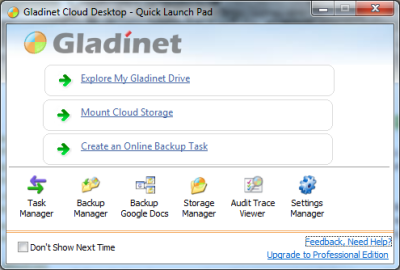
Well, SharePoint is an option. Before leaving this subject though, I would like to mention Gladinet, a third-party utility which is able to mount a variety of cloud storage providers as network drives, including Amazon S3, Google Docs, Windows Live SkyDrive, and in the latest version Windows Azure.  It works on XP, Vista, Windows 7 and Windows 2003, comes in 32-bit and 64-bit editions, and worked immediately in my quick test. The ability to mount drives in Explorer itself, as opposed to an Explorer-like application, makes a big difference in usability.

image

Gladinet does not support SharePoint, sadly. Still, before you roll out SharePoint it is worth considering that something like an Amazon S3 account requires no CALs (though third-party clients like Gladinet may do), is maintained by a cloud provider rather than on your premises, is not hooked in any way to Windows clients, and might be a lot less hassle to deploy.

I do also understand the attraction of SharePoint, if you don’t or can’t trust the cloud, and like the way it integrates with Active Directory or its other clever features such as versioning or workflow management. What I don’t get is why Microsoft makes basic features like Explorer View so hard to get working.

Finally, this aspect of SharePoint should get better in Office 2010 and SharePoint 2010, which includes SharePoint Workspace 2010. This will synchronize with SharePoint 2010 document lists, giving you an offline copy you can access in Explorer. Agnes Molnar has a summary with screenshots.

New HP and Microsoft agreement commits $50 million less than similar 2006 deal

I’ve held back comment on the much-hyped HP and Microsoft three-year deal announced on Wednesday mainly because I’ve been uncertain of its significance, if any. It didn’t help that the press release was particularly opaque, full of words with many syllables but little meaning. I received the release minutes before the conference call, during which most of us were asking the same thing: how is this any different from what HP and Microsoft have always done?

It’s fun to compare and contrast with this HP and Microsoft release from December 2006 – three years ago:

We’ve agreed to a three-year, US$300 million investment between our two companies, and a very aggressive go-to-market program on top of that. What you’ll see us do is bring these solutions to the marketplace in a very aggressive way, and go after our customers with something that we think is quite unique in what it can do to change the way people work.

$300 million for three years in 2006; $250 million for three years in 2010. Hmm, not exactly the new breakthrough partnership which has been billed. Look here for what the press release should have said: it’s mainly common-sense cooperation and joint marketing.

Still, I did have a question for CEOs Mark Hurd and Steve Ballmer which was what level of cloud focus was in this new partnership, drawing these remarks from Ballmer:

The fact that our two companies are very directed at the cloud is the driving force behind this deal at this time. The cloud really means a modern architecture for how you build and deploy applications. If you build and deploy them to our service that we operate that’s called Windows Azure. If a customer deploys them inside their own data centre or some other hosted environment, they need a stack on which to build, hardware software and services, that instances the same application model that we’ll have on Windows Azure. I think of it as the private cloud version of Windows Azure.

That thing is going to be an integrated stack from the hardware, the virtualization layer, the management layer and the app model. It’s on that that we are focusing the technical collaboration here … we at Microsoft need to evangelize that same application model whether you choose to host in the the cloud or on your own premises. So in a sense this is entirely cloud motivated.

Hurd added his insistence that this is not just more of the same:

I would not want you to write that it sounds a lot like what Microsoft and HP have been talking about for years. This is the deepest level of collaboration and integration and technical work we’ve done that I’m aware of … it’s a different thing that what you’ve seen before. I guarantee Steve and I would not be on this phone call if this was just another press release from HP and Microsoft.

Well, you be the judge.

I did think Ballmer’s answer was interesting though, in that it shows how much Microsoft (and no doubt HP) are pinning their hopes on the private cloud concept. The term “private cloud” is a dubious one, in that some of the defining characteristics of cloud – exporting your infrastructure, multi-tenancy, shifting the maintenance burden to a third-party – are simply not delivered by a private cloud. That said, in a large organisation they might look similar to most users.

I can’t shake off the thought that since HP wants to carry on selling us servers, and Microsoft wants to carry on selling us licences for Windows and Office, the two are engaged in disguised cloud avoidance. Take Office Web Apps in Office 2010 for example: good enough to claim the online document editing feature; bad enough to keep us using locally installed Office.

That will not work long-term and we will see increasing emphasis on Microsoft’s hosted offerings, which means HP will sell fewer servers. Maybe that’s why the new deal is for a few dollars less than the old one.

Crazy Microsoft stuff

I have a theory that Microsoft’s Small Business Server (SBS), which is meant to be easy to manage, is actually more complex than a full-blown multiple server setup – though you can now emulate the latter nicely using virtual machines.

Yesterday I spotted a post from Paul Culmsee which makes the point well:

A former colleague called me up because he knew of my dim, dark past in the world of Cisco, Active Directory and SharePoint. He asked me to help put in SBS2008 for him, configuring Exchange/AD/SharePoint and migrating his environment over to it.

“Sure”, I say, “it’ll be a snap” (famous last words)

Culmsee is a SharePoint expert. His mistake was to attempt installing Search Server Express (built on SharePoint) into SBS 2008:

Search Server 2008 Express, uses SQL Server Express edition when performing a basic install. As a result, an additional SQL Server Express instance (SERVERNAME\OFFICESERVERS) gets installed onto the Small Business 2008 server. Then, to make matters worse, the installer gets mixed up and installs some Search Server express databases into the new instance (a Shared Service Provider), but then uses the SQL Embedded Edition instance to install other databases (like the searchDB). Then later during the configuration wizard, it cannot find the databases that it needs because it searches the wrong instance!

The problem: there is too much installed on that box, and SBS comes way down low on Microsoft’s priorities, so it issues products and patches that ought to work on SBS as well as on mainstream Microsoft servers, but do not. Culmsee apparently gave up on Search Server Express.

Evidence 2: Exchange 2007 Service Pack 2. Released in August 2009. Does not work on SBS 2008 without daunting manual steps. Six months later, Microsoft releases a special Exchange Server 2007 SP2 Installation Tool for SBS. Even with the tool, the install may be problematic.

In some ways it would not be so bad if SBS were a totally locked-down product with its own patches and no possibility of installing generic Microsoft products – though third parties might scream. As it is, it falls betwixt and between.

You can make it work. You can make it work very well, if you have patience, read SBS blogs like that of Susan Bradley and David Overton, and maintain it carefully. But … don’t pretend it is not complex.

Note also the hassles Culmsee had configuring his HP server. Google Apps anyone?