Category Archives: windows

Microsoft OneDrive and OneDrive for Business: a guide for the perplexed

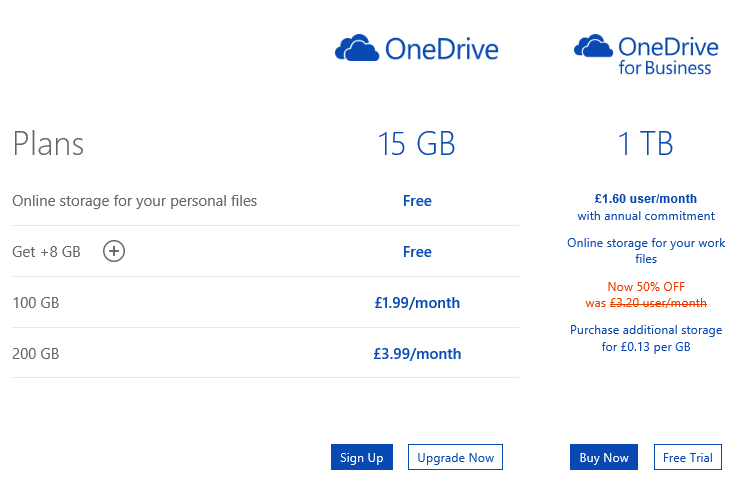
Microsoft’s price plans for additional cloud storage are odd:

image

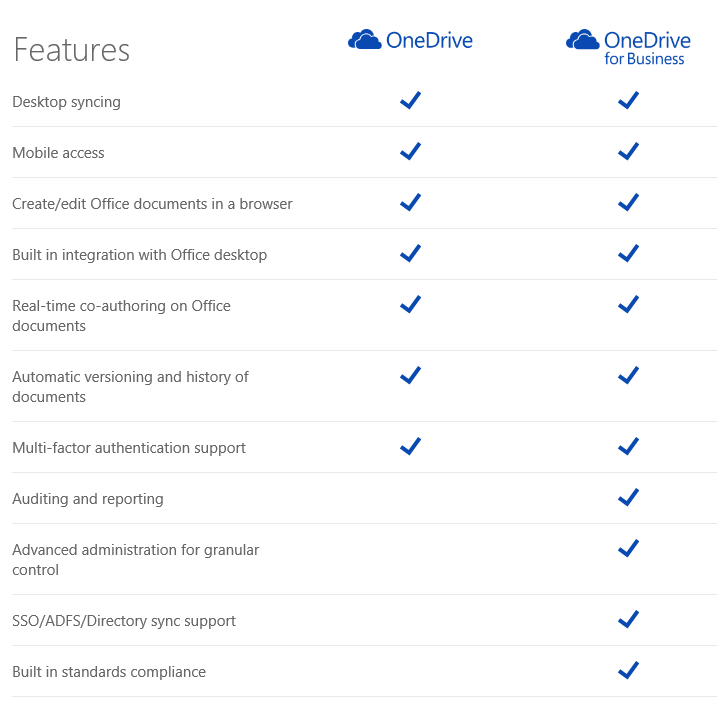
Hmm, £1.60 per month for 1TB or £3.99 for 200GB. Difficult decision? Especially as OneDrive for Business appears to be a superset of OneDrive:

image

It is not that simple of course (and see below for how you can get 1TB OneDrive for less). The two products have different ancestries. OneDrive was once SkyDrive and before that Windows Live Folders and before that Windows Live Drive. It was designed from the beginning as a cloud storage and client sync service.

OneDrive for Business on the other hand is essentially SharePoint: team portal including online document storage and collaboration. The original design goal of SharePoint (a feature of Windows Server 2003) was to enable businesses to share Office documents with document history, comments, secure access and so on, and to provide a workplace for teams. See the history here. SharePoint supported a technology called WebDAV (Web Distributed Authoring and Versioning) to allow clients to access content programmatically, and this could be used in Windows to make online documents appear in Windows Explorer (the file utility), but there was no synchronization client. SharePoint was not intended for storage of arbitrary file types; the system allowed it, but full features only light up with Office documents. In other words, not shared storage so much as content management system. Documents are stored in Microsoft SQL Server database.

SharePoint was bolted into Microsoft BPOS (Business Productivity Online Suite) which later became Office 365. In response to demand for document synchronization between client and cloud, Microsoft came up with SharePoint Workspace, based on Groove, a synchronization technology acquired along with Groove Networks in 2005.

I have no idea how much original Groove code remains in the the OneDrive for Business client, nor the extent to which SharePoint Online really runs the same code as the SharePoint you get in Windows Server; but that is the history and explains a bit about why the products are as they are. The OneDrive for Business client for Windows is an application called Groove.exe.

OneDrive and OneDrive for Business are different products, despite the misleading impression given by the name and the little feature table above. This is why the Windows, Mac and Mobile clients are all different and do different things.

OneDrive for Business is reasonable as an online document collaboration tool, but the sync client has always been poor and I prefer not to use it (do not click that Sync button in Office 365). You may find that it syncs a large number of documents, then starts giving puzzling errors for which there is no obvious fix. Finally Microsoft will recommend that you zap your local cache and start again, with some uncertainty about whether you might have lost some work. Microsoft has been working hard to improve it but I do not know if it is yet reliable; personally I think there are intractable problems with Groove and it should be replaced.

The mobile clients for OneDrive for Business are hopeless as DropBox replacements. The iOS client app is particularly odd: you can view files but not upload them. Photo sync, a feature highly valued by users, is not supported. However you can create new folders through the app – but not put anything in them.

Office on iOS on the other hand is a lovely set of applications which use OneDrive for Business for online storage, which actually makes sense in this context. It can also be used with consumer OneDrive or SharePoint, once it is activated.

The consumer version of OneDrive is mostly better than OneDrive for Business for online storage. It is less good for document collaboration and security (the original design goals of SharePoint) but more suitable for arbitrary file types and with a nice UI for things like picture sharing. The Windows and mobile clients are not perfect, but work well enough. The iOS OneDrive client supports automatic sync of photos and you can upload items as you would expect, subject to the design limitations of Apple’s operating system.

Even for document collaboration, consumer OneDrive is not that bad. It supports Office Web Apps, for creating and editing documents in the browser, and you can share documents with others with various levels of permission. 

What this means for you:

  • Do not trust the OneDrive for Business sync client
  • Do not even think about migrating from OneDrive to OneDrive for Business to get cheap cloud storage
  • No, you mostly cannot use the same software to access OneDrive and OneDrive for Business
  • Despite what you are paying for your Office 365 subscription, consumer OneDrive is a better cloud storage service
  • SharePoint online also known as OneDrive for Business has merit for document collaboration and team portal services, beyond the scope of consumer OneDrive

Finally, what Microsoft should do:

  • Create a new sync client for OneDrive for Business that works reliably and fast, with mobile apps that do what users expect
  • Either unify the technology in OneDrive and OneDrive for Business, or stop calling them by the same name

I do understand Microsoft’s problem. SharePoint has a huge and complex API, and Microsoft’s business users like the cloud-hosted versions of major server applications to work the same way as those that are on premise. However SharePoint will never be a optimal technology for generic cloud storage.

If I were running Office 365, I think I would bring consumer OneDrive into Office 365 for general cloud storage, and I would retain SharePoint online for what it is good at, which is the portal, application platform, and document collaboration aspect. This would be similar to how many businesses use their Windows servers: simple file shares for most shared files, and SharePoint for documents where advanced collaboration features are needed.

In the meantime, it is a mess, and with the explosive growth of Office 365, a tricky one to resolve without pain.

Microsoft has a relatively frank FAQ here.

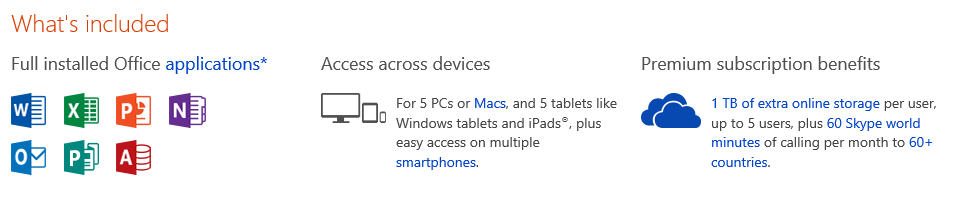
Postscript: here is a tip if you need large amounts of OneDrive storage. If you buy Office 365 Home for £7.99 per month or £79.99 per year (which works out at £6.66 per month) you get 1TB additional storage for consumer OneDrive for up to 4 users, as well as the main Office applications:

image

The way this works is that each user activates Office using a Microsoft account. The OneDrive storage linked to that account gets the 1TB extra storage while the subscription is active.

Another option is Office 365 Personal – same deal but for one user at £5.99 per month, or £59.99 per year (£4.99 per month).

Even for one user, it is cheaper to subscribe to Office 365 Home or Personal than to buy 1TB storage at £3.99 per month per 200GB. When you add the benefit of Office applications, it is a great deal.

Despite the name, these products have little to do with Office 365, Microsoft’s cloud-hosted Exchange, SharePoint and more. These are desktop applications plus consumer OneDrive.

Windows “9”: forget the Start menu, consider the apps

This week has seen multiple leaks of early builds of the next version of Windows – sometimes called Windows 9 or “Threshold” – showing Microsoft’s continuing inability to persuade all of its partners to keep secrets.

It seems to me that the leaks are likely to be genuine, though the usual health warnings apply. I also expect that Microsoft is deliberately holding back from releasing final UI designs, in part because they are likely to leak, so you should not read too much into the appearance.

The headline new features are a revamped Start menu which appears in the old position on the desktop, rather than on a separate screen; and the ability to run several desktops at once, as a way of organising your work.

No doubt the new Start menu will feel more comfortable for Windows 7 users, though for myself I am now used to the full-screen version and it is no big deal.

I am more interested in what is happening with Windows Store apps (also known as Metro or Windows Runtime apps). These are significant because it is this kind of app that you can easily port to Windows Phone using a Visual Studio Universal App project.

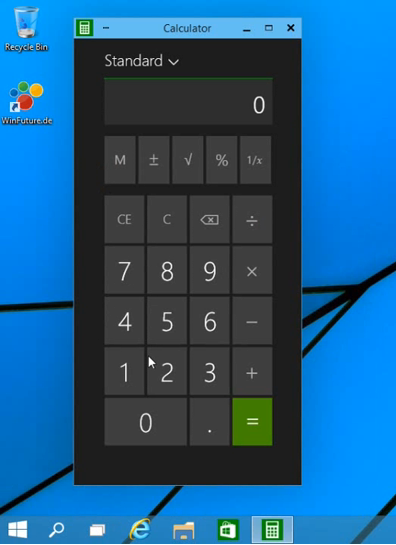
We saw these apps running in desktop windows, in a preview at the Build developer conference earlier this year. The leaked build seems also to have this feature. Check out the video here. Here is Calculator running on the desktop:

image

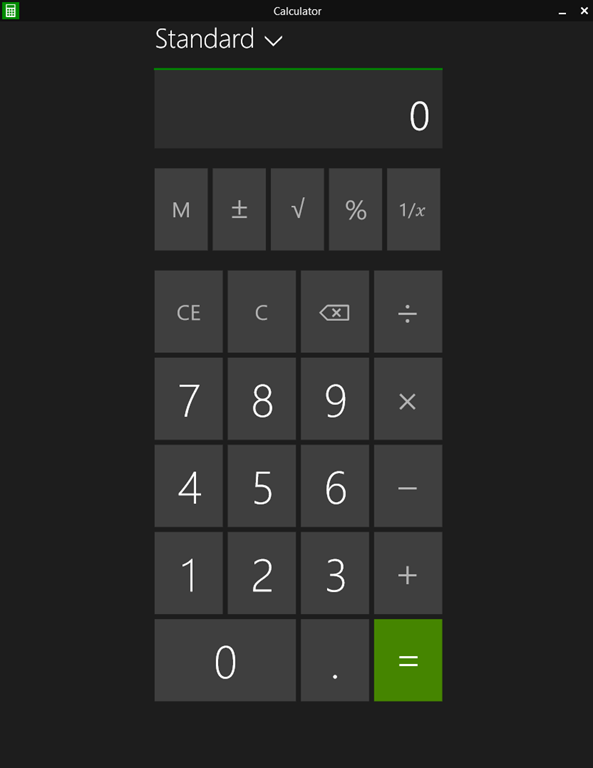
This is the Metro app, not the old desktop calculator. Here it is in Windows 8.1:

image

Note a big difference though: in Windows 8.1 you can get a window bar to appear along the top, but in Windows 9 there is also a maximize widget at top right of the window (in Windows, this doubles as a “restore down” button when the windows is already maximized).

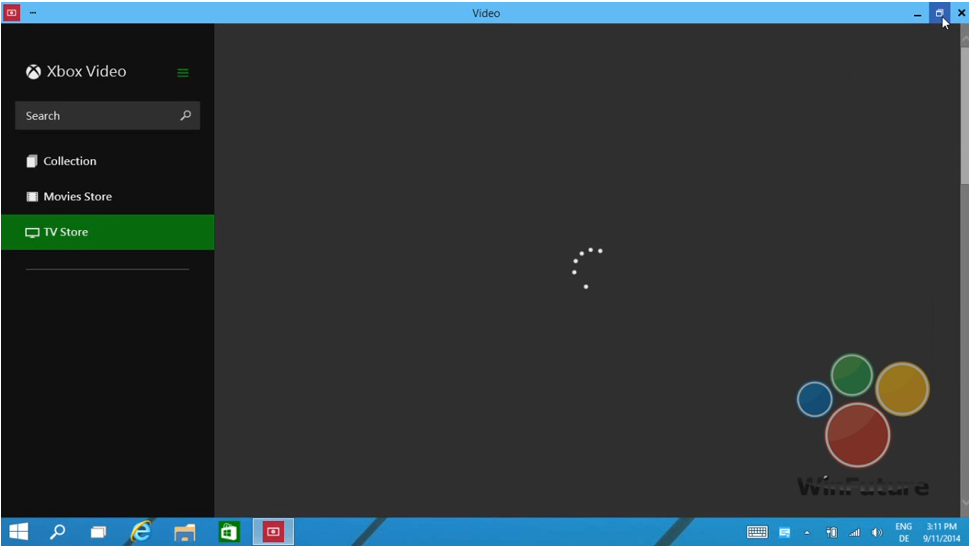
Later in the video, we see this in operation. The user starts the Xbox Video app full screen:

image

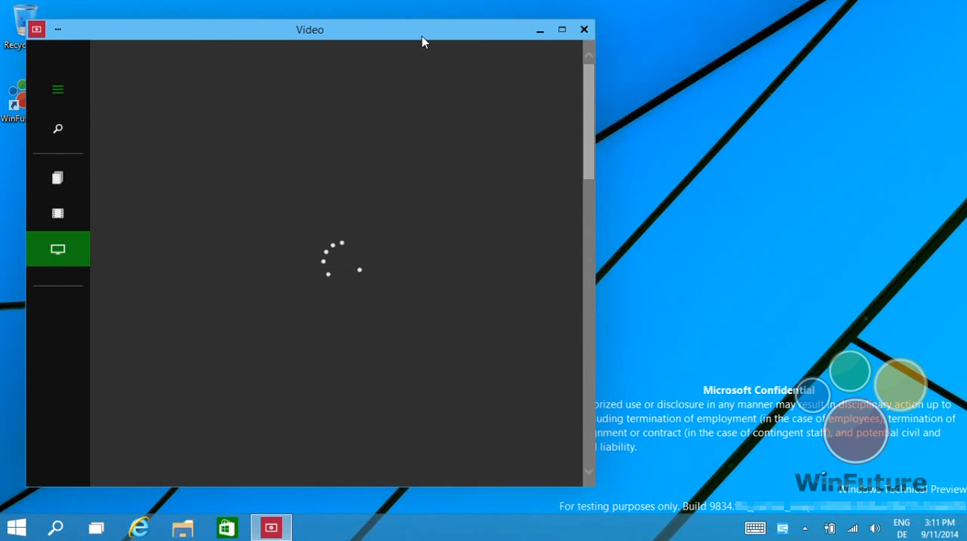
and then hits the “restore down” button:

image

This is therefore the bridge between the “Metro” and desktop environments. Hit that button, and the full-screen experience becomes a windowed app on the desktop.

In another leaked image, the Charms menu options (a right-edge menu in Windows 8.x) becomes a drop-down window menu, summoned by clicking in the right-hand upper corner. Users often find the Charms menu awkward with mouse and keyboard (I still do) so this will be a more convenient alternative.

Now, although Windows experts can easily see the difference between a Metro app and a desktop app, I doubt that the average user will care. All they will note is that this kind of app requires Windows 8 or 9 to run.

Although this is a diminished target for developers, who may still prefer to write desktop apps that target Windows 7 (or XP) and higher, my guess is that this new UI will make Windows Runtime apps more visible and acceptable for users who live primarily in the desktop – which is most Windows users.

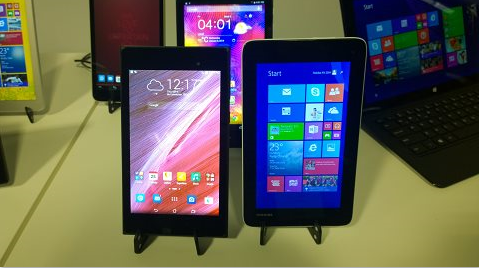
If Microsoft can increase the momentum behind this style of apps, then their benefits will be more apparent too: easy install and uninstall via the Store, low malware risk, and a UI that works well on tablets as well as with mouse and keyboard. This in turn would make more sense of the small Windows tablets from the likes of Toshiba, HP and Lenovo which we recently saw at IFA in Berlin.

There would be a knock-on benefit for Windows Phone, too, thanks to relatively easy porting between the two platforms.

What do you think – is desktop integration enough to rescue the Windows 8 app platform?

Alcatel OneTouch on plans for Windows Phone OS tablets

At IFA in Berlin, I spoke to Dan Dery, VP and CMO at Alcatel OneTouch, who told me of the company’s plans for Windows Phone OS tablets. Alcatel OneTouch is part of TCL Corporation, a Chinese global electronics company, though for historical reasons (a 2004 joint venture between TCL and the French company Alcatel-Lucent) it has strong links with France; Dery’s first language is French.

image

Alcatel was at IFA to launch new Android devices, primarily the Hero 2 smartphone and the Hero 8 tablet, but Dery particularly caught my interest when he started talking about future plans for tablets running the Windows Phone OS 8.2 (the current version of Windows Phone is 8.1).

Note that I am reporting on my press briefing with Alcatel; I have not heard anything from Microsoft about Windows Phone 8.2.

“Rumour has it that the Windows Phone is going to be available on tablet kind-of form factor on ARM chipset, and we are going to be first in doing that. For example we are developing a 10 inch tablet which has this Magic Flip technology for the keypad with trackpad.”

Magic Flip is Alcatel’s brand name for smart magnetic covers which fold back as stands and which are able to show notifications, so it sounds like Alcatel has something Surface-like in mind here. The cost will be similar to Android he implied – my guess is that Microsoft will charge little or nothing for the use of Windows in this context – and the devices will have LTE, so we are talking about connected devices.

But why will the market want an Windows Phone tablet, I asked?

“Compared to Android there is still a big advantage with the presence and natural integration of Office. To be fair, you start having it on iOS. It’s available, but integrated, that is probably a different thing. The simple fact, for most of the users who are interested in that kind of use case, to receive an email which has an attachment, to click the attachment, to open it, edit it, and resend it, that’s almost impossible today unless you are going into the Microsoft environment. That’s the standard for 20 or 30 years in the market, you are not going to change it overnight.

“There is a big advantage in Microsoft because they are probably the most advanced in driving an integrated solution between computer, tablet and smartphone. Everybody is going in that direction, but Android is probably not the easiest one for that.”

Today, something like full Office is available on Windows RT (as found in Surface RT), but not on Windows Phone, which has cut-down viewers and editors for Office documents. The implication is that Windows Phone OS for tablets will have something more fully featured.

I asked Dery if the Windows Phone OS is more efficient than Android on a low-end device, from Alcatel’s experience with prototypes.

“It is the case. It was not a few months ago. There is a big advantage which is the memory footprint. This OS is meant to run with rather low memory, which is not the case in Android. You have far less overhead the day you switch on your device. Android is fantastic but in some countries, the day you switch it on you download a size of apps and services which obviously has a toll on the memory footprint, on the processing capability. That’s less the case on Windows Phone.

“I think they have been doing a pretty good job on eye-candy, on the UI, where even with a low GPU you can have elasticity features, and all that. So there are some benefits.

“So you can ask, if you are telling me this is so good, why haven’t you been shipping Windows Phone 8 for a year and a half?” said Dery. Apparently the company’s researchers have been uncertain whether the success of entry-level Windows Phones is because of the OS, or because of the Nokia brand. The company seems to have experimented with ideas or prototypes, but “each time we came up with a solution, and each time we have been told, maybe this works because it is Nokia. That is still today the big question mark. Is Windows Phone working in entry [level], is it Nokia with decent smartphones in entry making it happen? Nobody has the answer to that question.”

Dery is convinced that Microsoft’s appeal is for the mass market, not at the high end. “In essence it is a mass market thing. Playing it super high end, was more challenging,” he says.

Note that pre-announced plans can change. We should learn more soon.

Another go at Windows 8 from Microsoft’s hardware partners but strategy puzzles remain

I am at the IFA consumer electronics event in Berlin, and have been struck by the number of new Windows 8 tablets on display. Some are hybrid laptop/tablet affairs, but there are also small tablets at keen prices (less than $199) which look superficially similar to Android tablets.

image

Under the covers though, they could not be more different. Android, like it or loath it, is well designed for tablets and low-maintenance for the user. Windows 8 on the other hand is a PC operating system with a split personality: apps that run in the don’t-call-it-Metro environment (Windows Store apps) and which work well with touch; and desktop applications most of which are hard to operate with touch.

Today’s PCs should also be low-maintenance; but they are vulnerable to badly behaved applications or even malware, applications that insist on installing themselves at start-up executables; applications that hijack file associations and cause confusion, and so on. Users have to understand the Windows Control Panel or burrow around in utilities like Task Manager and System Configuration (msconfig) to fix problems.

Microsoft foresaw this when Windows 8 was launched, and created a safer version of the operating system called Windows RT. It is perhaps not quite as low maintenance as Android, but since you cannot install desktop applications, all apps are sandboxed and can be easily installed or removed. Windows RT runs on ARM chipsets.

Unfortunately Windows RT was a flop, thanks to its confusing name and a lack of compelling apps in the Windows Store. Users seemed to be demanding “full Windows”, running on Intel chipsets, so that any Windows software can be installed.

There is no inherent reason, as far as I am aware, why x86 Windows cannot be locked down in the same way as Windows RT; this was a decision Microsoft made to differentiate the two. However they are not locked down, and therefore just as vulnerable and complex as any other PC.

The optimistic view is that the new wave of tablets will stimulate Windows Store app development and revive Windows 8. A Toshiba representative assured me that updates Microsoft made in Windows 8.1 had increased user acceptance of the new user interface.

I will not believe this though until we see Windows 8 tablets flying off the shelves in the same way as Android tablets or iPads; and further, I do not expect this to happen. Nor am I sure that they will be good for non-expert users; if they are like most PCs (and they are), they will get gradually slower and less usable as stuff (often unwanted) gets installed; Java, Ask Toolbar, Google Chrome and Toolbar, Silverlight, Flash, Adobe AIR and all the rest.

The current wave of tablets also makes me wonder what is the long-term thinking. With the near-demise of Windows RT, my expectation is that some future iteration of Windows Phone designed for larger displays will take its place, hopefully with full Windows Runtime compatibility or at least easy porting.

However, Windows 9 “Threshold” is also on the way. Are we going to end up with Windows 9 x86 tablets in form factors such as 7” and 8” tablets, as well as Windows Phone OS tablets in similar sizes? Or will Microsoft remove the desktop and lock down the OS in Windows 9 for phones and small tablets, to make it more like Windows RT, and call it Windows Phone 9?

CEO Satya Nadella speaks of “One Windows” but we are not close to it yet, and the developer story still seems uncertain to me. The one sure point is that Microsoft will use the Universal App concept to assist developers in targeting multiple Windows platforms (and perhaps even iOS and Android via Xamarin integration). The question though: what will those multiple Windows platforms look like a year or two from now?

Microsoft’s broken Windows Store: an unconvincing official response and the wider questions

Microsoft’s Todd Brix has posted about misleading apps in Windows Store:

Every app store finds its own balance between app quality and choice, which in turn opens the door to people trying to game the system with misleading titles or descriptions. Our approach has long been to create and enforce strong but transparent policies to govern our certification and store experience. Earlier this year we heard loud and clear that people were finding it more difficult to find the apps they were searching for; often having to sort through lists of apps with confusing or misleading titles. We took the feedback seriously and modified the Windows Store app certification requirements as a first step toward better ensuring that apps are named and described in a way that doesn’t misrepresent their purpose.

Although it is not mentioned, the post is likely in response to this article which describes the Windows Store as “a cesspool of scams”:

Microsoft’s Windows Store is a mess. It’s full of apps that exist only to scam people and take their money. Why doesn’t Microsoft care that their flagship app store is such a cesspool?

That is a good question and one which Brix does not answer. Nor are the complaints new. I posted in November 2012 about Rubbish apps in Windows Store – encouraged by Microsoft? with the extraordinary rumour that Microsoft employees were encouraging trivial and broken apps to be uploaded multiple times under different names.

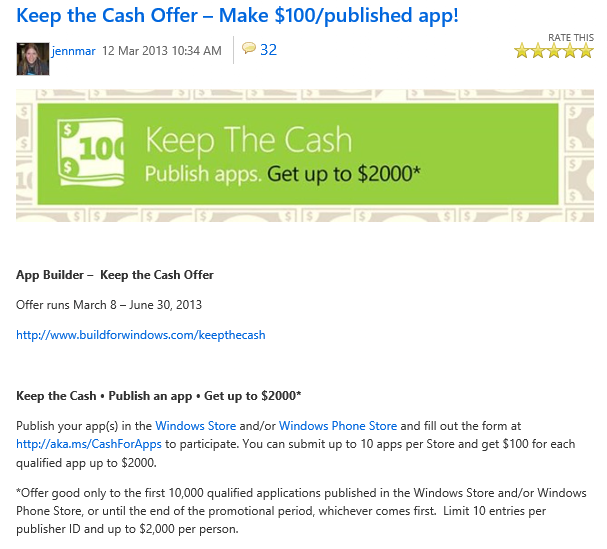
The facts in that case are somewhat obscure; but there was no obscurity about the idiotic (if your goal is to improve the availability of compelling Windows Store apps) Keep the Cash campaign in March 2013:

Publish your app(s) in the Windows Store and/or Windows Phone Store and fill out the form at http://aka.ms/CashForApps to participate. You can submit up to 10 apps per Store and get $100 for each qualified app up to $2000.

image

Microsoft decided to reward mediocrity – no, even that is not strong enough – rather, to reward the distribution of meaningless trivial apps in order to pad out its store with junk and make the actual high quality apps (yes there are some) harder to find.

I agree with the commenters to Brix’s post who call him out on his claim that “Our approach has long been to create and enforce strong but transparent policies to govern our certification and store experience”. How do you reconcile this claim with the torrent of rubbish that was allowed, and even encouraged, to appear in the store?

Every public app store is full of junk, of course, and it is hard to see how that can be completely avoided; if Apple, Google or Microsoft declined apps for subjective reasons there would be accusations of exerting too much control over these closed platforms.

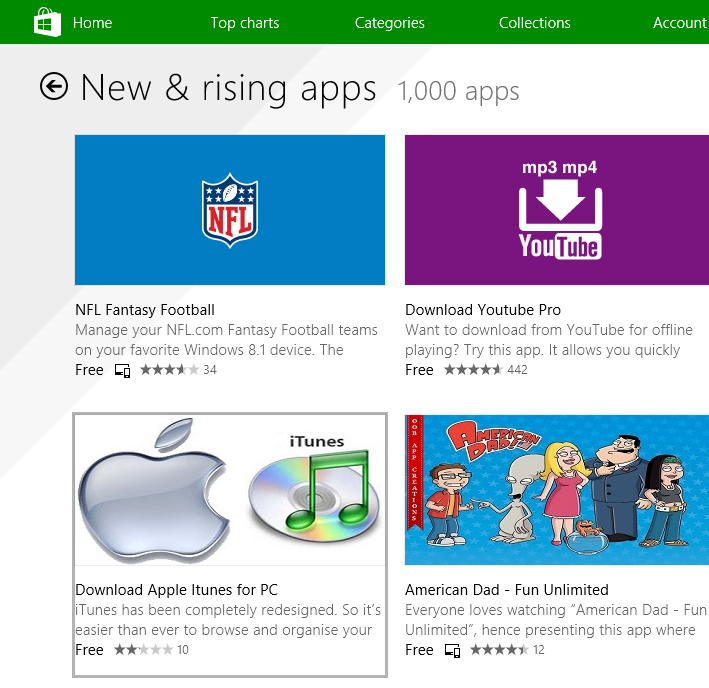
That does not excuse the appearance of apps like Download Apple Itunes (sic) for PC, listed today under New & rising apps:

image

The app is nothing to do with Apple; it is a third-party downloader of the kind I analysed here. The idea is to persuade people to run an application that installs all sorts of adware or even malware before directing them to a download that is freely available.

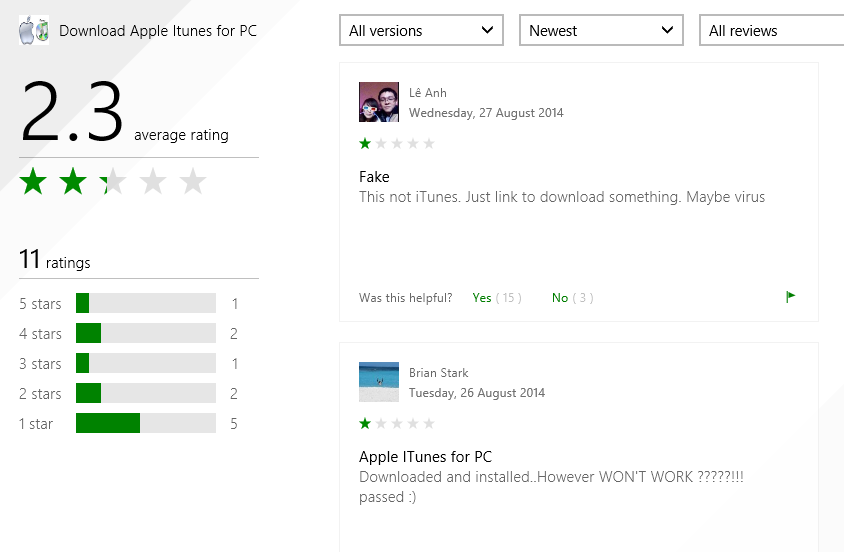
It seems that users do not think much of this example, which apparently does not even do what it claims.

image

While apps like this are making in into the store, I do not see how Brix can justify his claim of enforcing “strong but transparent policies to govern our certification and store experience”.

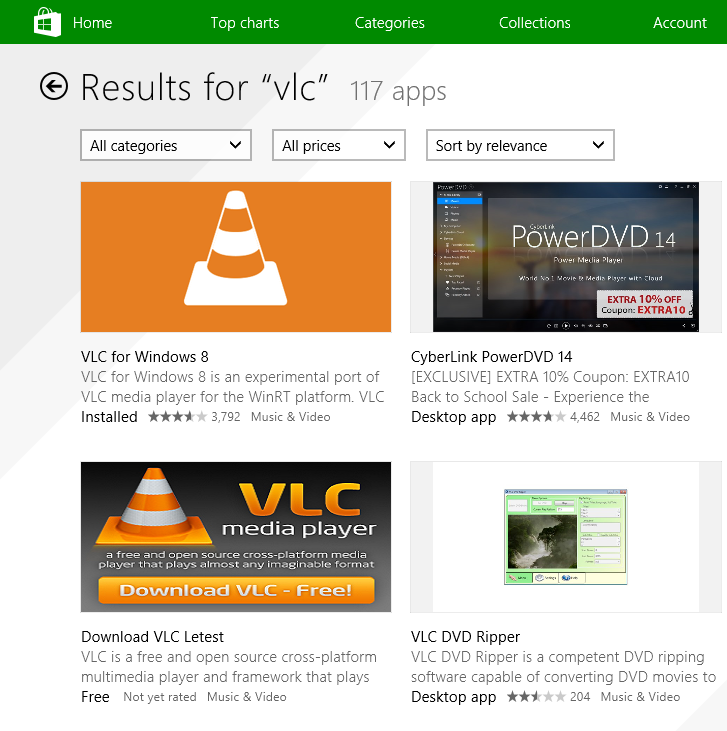
Even VLC, where scammy apps have been largely cleaned up following many complaints, is still being targeted. Apparently Microsoft’s store curators are happy to let through an app called “Download VLC Letest” (sic).

image

How much does this matter or has this mattered? Well, Microsoft launched Windows 8 at huge risk, trading the cost of unpopular and disruptive changes to the OS and user interface for the benefit of a new more secure and touch-friendly future. That benefit depended and depends completely on the availability of compelling apps which use the new model. The store, as the vehicle of distribution for those apps, is of critical importance.

Another benefit, that of protecting users from the kind of junk that has afflicted and diminished the Windows experience for many years, has been scandalously thrown away by Microsoft itself. It is a self-inflicted wound.

What could Microsoft do? It is too late for Windows 8 of course, but the correct approach to this problem, aside from not approving harmful and deceitful apps in the first place, is to take a strongly editorial approach. For less cost than was spend actually undermining the store by paying for rubbish, Microsoft could have appointed an editorial team to seek out strong apps and include within the store features that describe their benefits and tell their story, making the green store icon one that users would actually enjoy tapping or clicking. Currently there is too much reliance on automated rankings that are frequently gamed.

There are some excellent apps in the store, and teams that have worked hard to make them what they are. Apps to mention, for example, include Adobe’s Photoshop Express; Microsoft’s Fresh Paint; or Calculator Free. Those developers deserve better.

Hands on with Surface Pro 3

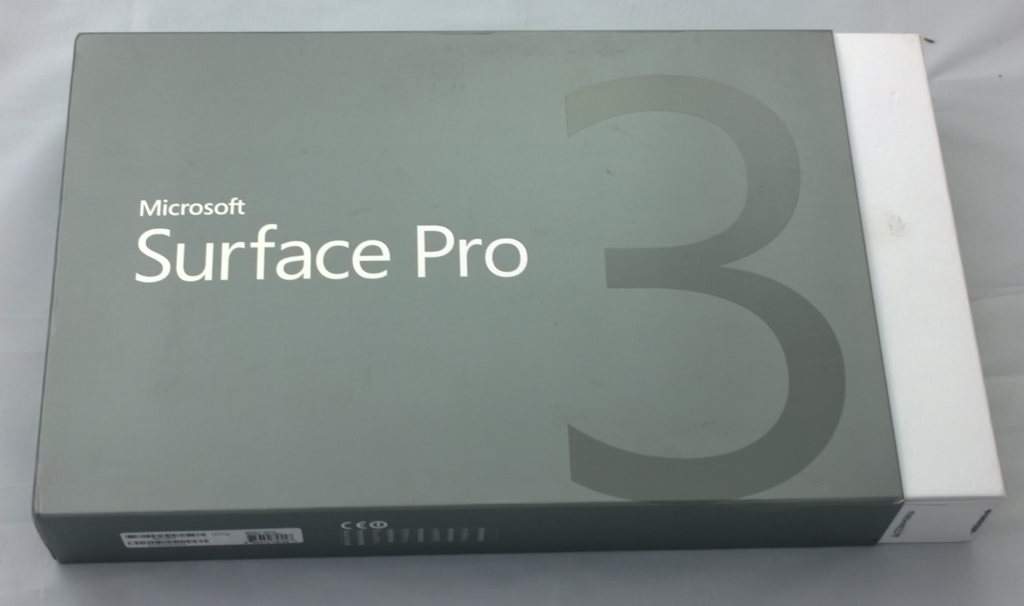
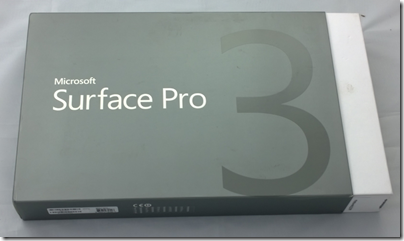
I am about to hand back my Surface Pro 3 after a week or so of use – how is it?
image

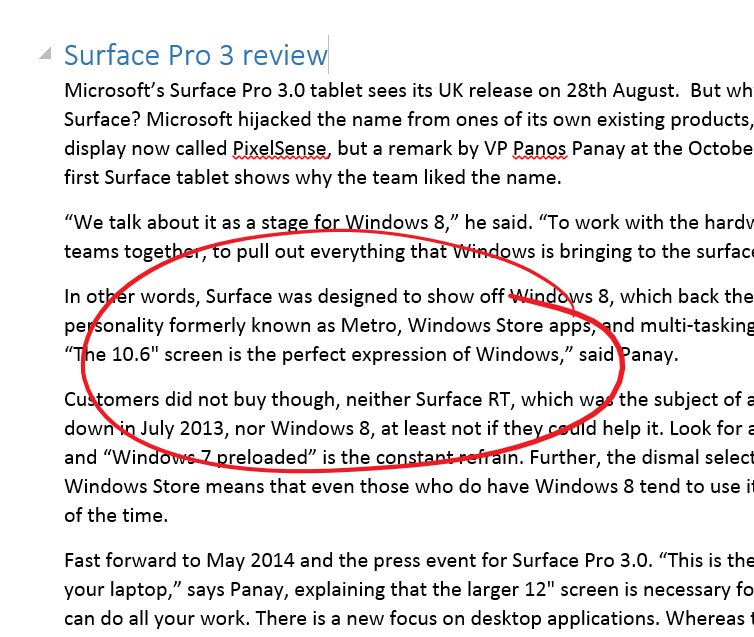
I reviewed the Surface on The Register, where I tried to bring out the changed focus of the device, compared to the first two iterations. Surface RT (the first to be released) was released simultaneously with Windows 8 and represented Microsoft’s best effort at creating a device that made Windows 8 work in both its roles, as a tablet controlled by touch and as a laptop replacement. Surface RT runs on ARM and does not allow installation of desktop applications, though with Office pre-installed the desktop is still useful. The first Surface Pro came later and uses the same 10.6" screen and form factor, though because of its more powerful x86 (Core i5) CPU it is thicker and more power-hungry (short battery life). I use both Surface 2 (the second iteration of Surface RT) and Surface Pro regularly so I know the products well.

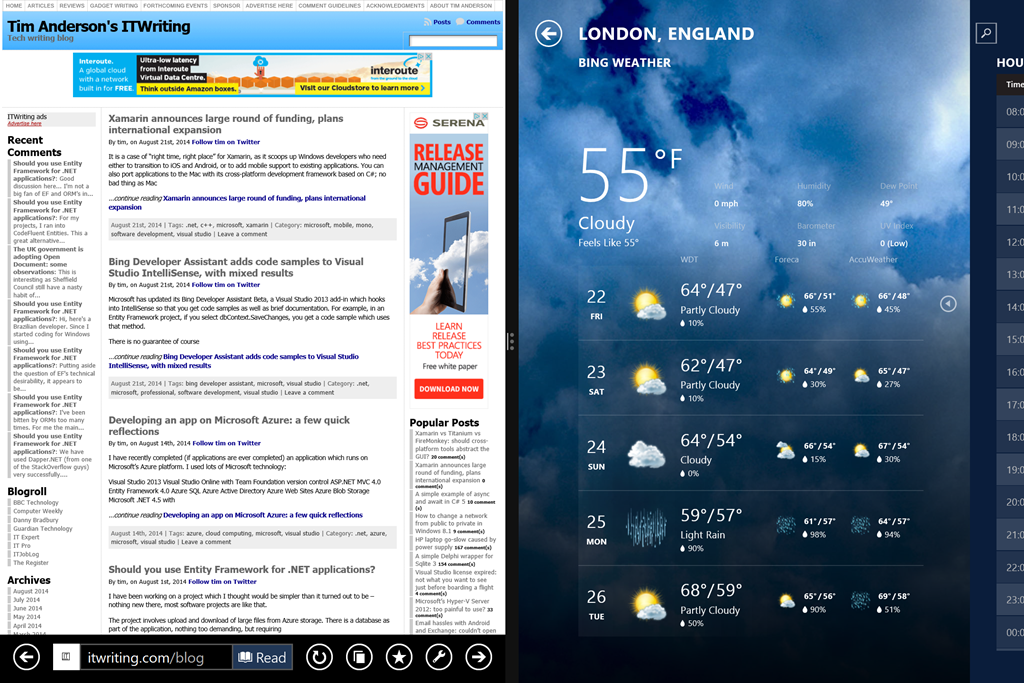
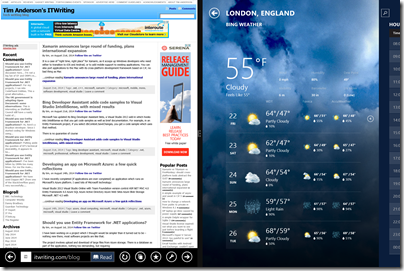
Surface Pro 3 was designed to be a better laptop replacement. It has a larger 12” display and a 3:2 screen ratio, in place of 16:9. The new size feels far more spacious and comfortable for applications like Word, Excel, Photoshop or Visual Studio. It is less obviously suited if you use a horizontally split view, part of the original Windows 8 design concept, but in practice it is such a high resolution screen (2160 x 1440) that it still works OK.
image

The new display is superb; the only two things I have against it are first, that it is glossy which is a slight annoyance in most environments and a disaster out of doors; and second, that it makes the device larger and therefore less convenient in space-constrained environments like crowded trains if you don’t have a table seat.

There is no one perfect size for a computing device, but Surface 3 is large enough that you will may want to have a smaller tablet with you, such as an iPad Mini or a Google Nexus 7. That said, phones are getting larger, so perhaps a phablet-sized phone and a Surface 3 is a good compromise.

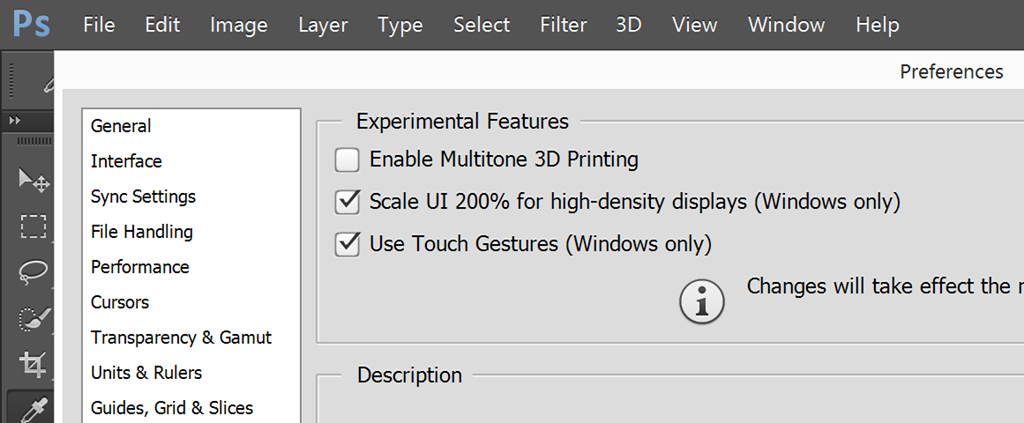
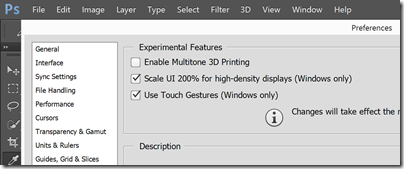
I had to turn on “Experimental features” in Adobe Photoshop to get high-density display scaling and full touch support:
image

Performance-wise, I have no complaints about Surface Pro 3; it exceeded my expectations. Although the review unit is only a Core i5, it is among the most responsive Windows PCs I have used; of course it helps that the OS is a fresh install. Considering that the Surface will in some circumstances throttle performance anyway, and that heat may be a problem with a higher spec CPU, it seems to me that there is no necessity to get the Core i7 variants for most purposes.

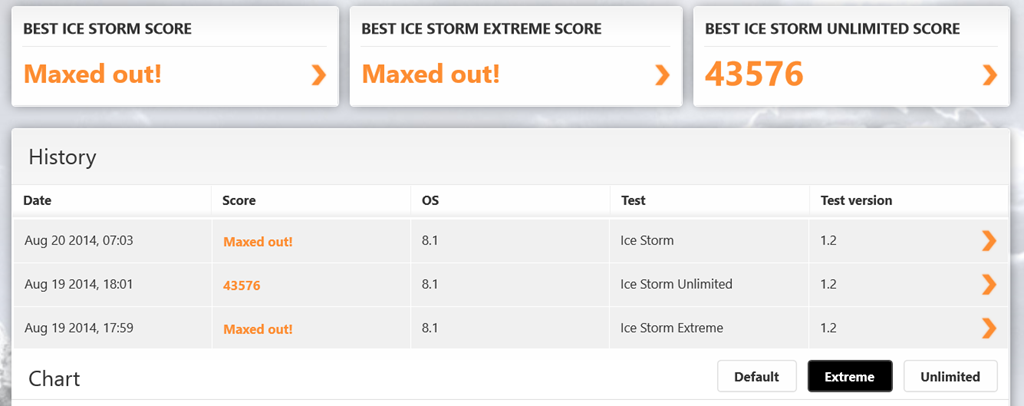
I have not done comprehensive performance tests but did run 3DMark RT on which the Surface Pro 3 scored about 9% better than my old Surface Pro, and the JavaScript SunSpider test on which it was 44% faster. Of course it is a faster Core i5 (1.9 GHz vs 1.7 GHz).

image

Thanks to Intel’s Haswell design, this performance comes alongside good battery life. The advertised 9 hours is optimistic, but 6 hours plus is realistic. I also noticed that Surface Pro 3 is much better at holding its charge on standby, a common annoyance with older models.

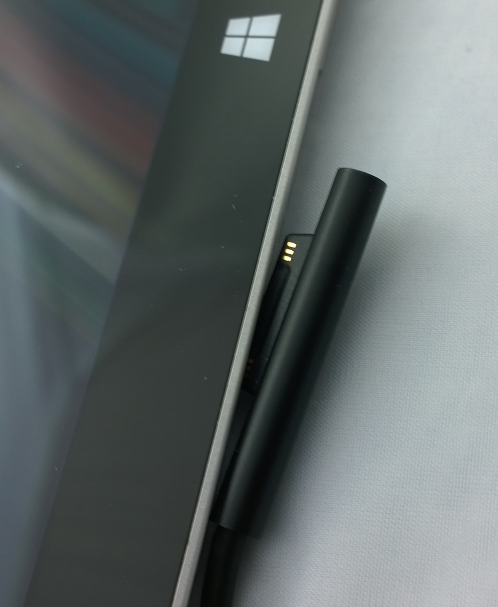
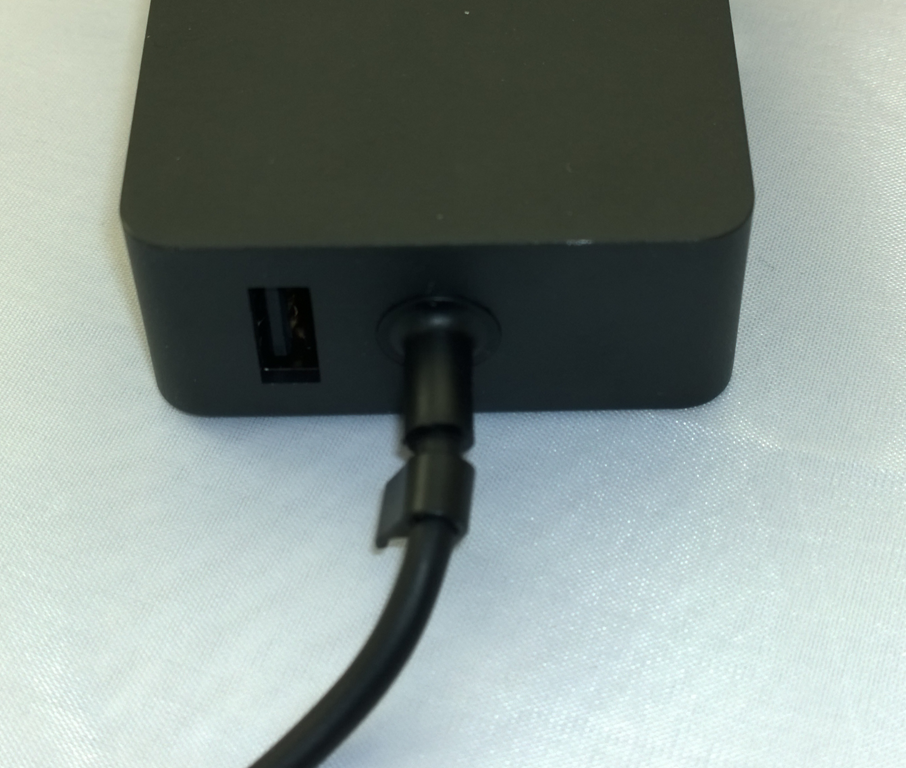
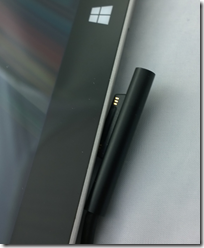
The power connector has been improved to make it both easier and firmer to connect.
image

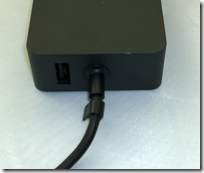
The power supply still has that handy USB power supply built-in; I am often grateful for this.
image

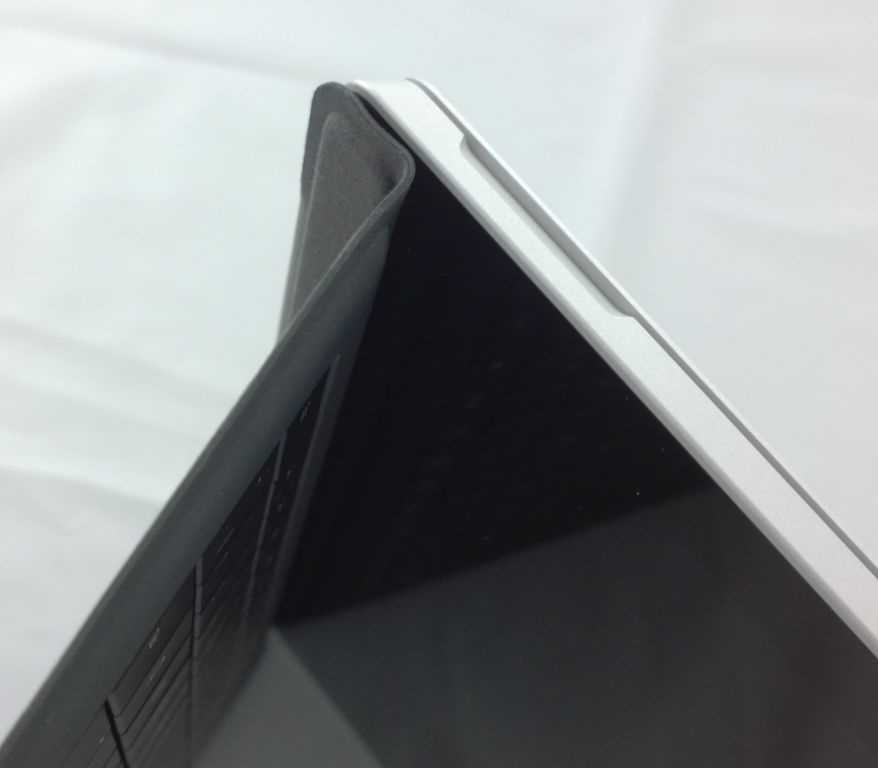
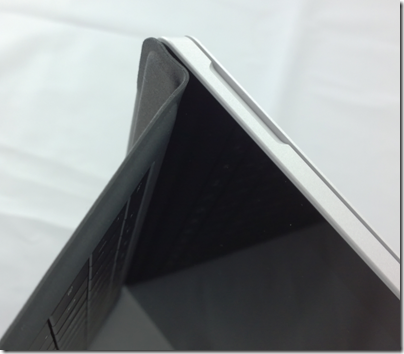
What about the new fold-up keyboard, where the keyboard cover attaches across the bottom of the device to form a stronger hinge?
image

I am not sure about this one. The benefit is real; it is a firmer attachment and better when you use the Surface on your lap (though I have never really found this hard). It is a compromise though. Support for this feature has pushed the Windows key to the right hand of the screen, where you can easily hit it by accident if using Surface as a tablet in landscape mode. It also makes the taskbar hard to tap. A more subtle disadvantage is that the keyboard cover now has two hinges; you can think of it as a flap with two panels, a large one for the keyboard itself, and a thin one for the fold-up section. When you fold the keyboard to the back of the device for tablet use, this two-panel arrangement means it tends to move about more, it does not fit so snugly. I also prefer the keyboard to be flat on the desk when in tabletop mode, but find that it goes into the fold-up position by default and I have to unfold it.

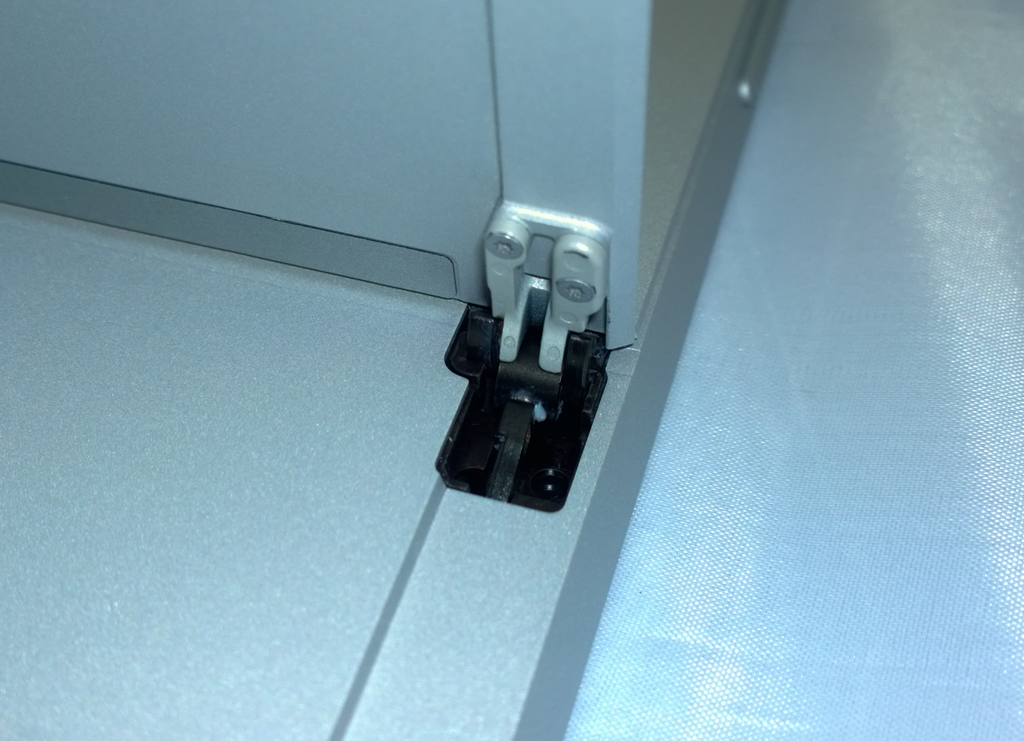
The infinitely variable kickstand is also a mixed blessing. I like the flexibility it offers, but it means you now have to think about where to set it every time, it no longer clicks into place. Since I was happy with the choice of two in the 2nd edition models, the new hinge is little benefit to me, but I do appreciate that for some users it makes all the difference. The hinge does look strong, and hopefully will prove to be enduring.

image

These are fine details, and even the complaints do not detract from a positive experience overall. That said, whereas the old Surface is truly distinctive, with the new one I find myself asking whether a conventional Ultrabook with a better keyboard and more USB 3.0 ports is a more attractive purchase. It depends, I guess, how much you think you will use Surface Pro 3 in tablet mode.

Talking of tablet mode, the pen that comes with Surface Pro 3.0 is the best tablet pen I have used. It is capable of natural strokes and precise control. If you like inking word documents, for example, this is ideal.
image

I recognise this; but after years of experimentation have concluded that pen computing is not for me. I find them too easy to lose, and too awkward to use. Tablet in one hand, pen in the other: you are losing the freedom that tablet computing offers.

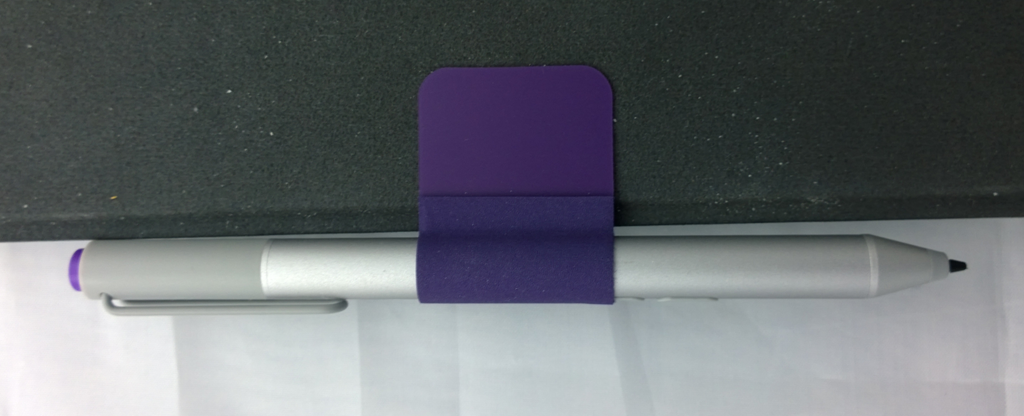
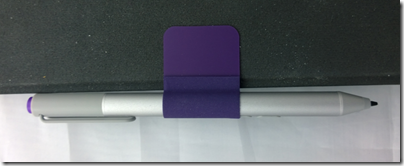
Note also the most clunky aspect of Surface Pro 3.0, which is how you park the pen. The magnetic attachment to the power connector port is hopeless; it falls off in no time. The keyboard loop is better, but my loop has already come off twice, and this will get worse. Time for some superglue? Microsoft should at a minimum make the loop sewn in to the keyboard. Everybody gets a pen, after all, though I also wish it were optional so I could save some money.
image

Another annoyance is only one USB 3.0 port; if Microsoft could squeeze another one in I would find that useful.

The camera is pretty good but no better than the one on Surface 2 (which is also pretty good); both are 5MP. However it easily beats the 720p camera on the Surface Pro 2. The Surface Pro 3 has a better front-facing camera than Surface 2.

The speakers are better than earlier models too. I am not sure how much this matters, since most of the time you will use a headset or external powered speakers, but sometimes the built-in ones are all you have to hand.

As a long-term Surface user I must not neglect to mention the best feature of the device, which is great portability combined with the ability (in the Pro versions) to run most PC applications. I travel enough to appreciate this greatly; it slips into a small bag and is far more convenient to carry than most laptops. I will never go back to a traditional laptop, though I might be tempted by a conventional Ultrabook; some of these are also relatively slim and light, though not so much as a Surface.

I like the Surface Pro 3 and regard it as decent value for money, given the all-round high quality. There are compromises though, and personally I would like to see Microsoft retain a smaller 10.6" screen model in the range as in some ways that works better for me.

When Windows 8 will not boot: the Automatic Repair disaster

“My PC won’t boot” – never good news, but even worse when there is no backup.

The system was Windows 8. One day, the user restarted his PC and instead of rebooting, it went into Automatic Repair.

Automatic Repair would chug for a bit and then say:

Automatic Repair couldn’t repair your PC. Press “Advanced options” to try other options to repair your PC, or “Shut down” to turn off your PC.

Log file: D:\Windows\System32\Logfiles\Srt\SrtTrail.txt

image

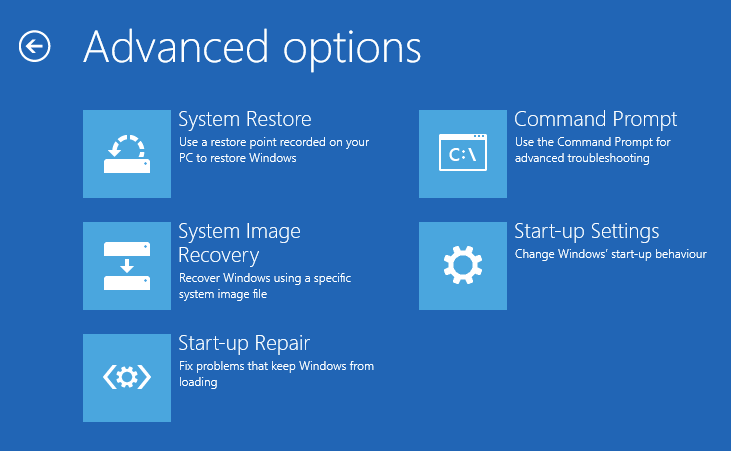
Advanced options includes the recovery console, a command-line for troubleshooting with a few useful commands and access to files. There is also an option to Refresh or reset your PC, and access to System Restore which lets you return to a configuration restore point.

System Restore can be a lifesaver but in this case had been mysteriously disabled. Advanced start-up options like Safe Mode simply triggered Automatic Repair again.

Choosing Exit and continue to Windows 8.1 triggers a reboot, and you can guess what happens next … Automatic Repair.

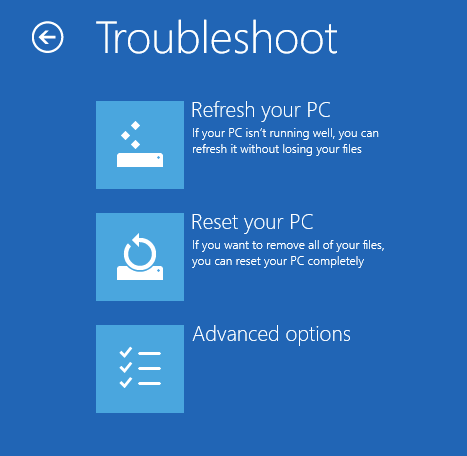
You also have options to Refresh or Reset your PC.

image

Refresh your PC is largely a disaster. It preserves data but zaps applications and other settings. You will have to spend ages updating Windows to get it current, including the update to Windows 8.1 if you originally had Windows 8. You may need to find your installation media if you have any, in cases where there is no recovery partition. You then have the task of trying to get your applications reinstalled, which means finding setup files, convincing vendors that you should be allowed to re-activate and so on. At best it is time-consuming, at worst you will never get all your applications back.

Reset your PC is worse. It aims to restore your PC to factory settings. Your data will be zapped as well as the applications.

You can also reinstall Windows from setup media. Unfortunately Windows can no longer do a repair install, preserving settings, unless you start it from within the operating system you are repairing. If Windows will not boot, that is impossible.

Summary: it is much better to persuade Windows to boot one more time. However if every reboot simply cycles back to Automatic Repair and another failure, it is frustrating. What next?

The answer, it turned out in this case, was to look at the logfile. There was only one problem listed in SrtTrail.txt:

Root cause found:
—————————
Boot critical file d:\windows\system32\drivers\vsock.sys is corrupt.

Repair action: File repair
Result: Failed. Error code =  0x2
Time taken = 12218 ms

I looked up vsock.sys. It is a VMware file, not even part of the operating system. How can this be so critical that Windows refuses to boot?

I deleted vsock.sys using the recovery console. Windows started perfectly, without even an error message, other than rolling back a failed Windows update.

Next, I uninstalled an old vmware player, using control panel. Everything was fine.

The Automatic Repair problem

If your PC is trapped in the Automatic Repair loop, and you have no working backup, you are in trouble. Why, then, is the wizard so limited? In this case, for example, the “boot critical file” was from a third-party; the wizard just needed to have some logic that says, maybe it is worth trying to boot without it, at least one time.

Finally, if this happens to you, I recommend looking at the logs. It is the only way to get real information about what it going wrong. In some cases you may need to boot into the recovery console from installation media, but if your hard drive is working at all, it should be possible to view those files.

Asus bets on everything with new UK product launches for Android, Google Chromebook and Microsoft Windows

Asus unveiled its Winter 2014 UK range at an event in London yesterday. It is an extensive range covering most bases, including Android tablets, Windows 8 hybrids, Google Chromebooks, and Android smartphones.

image

Asus never fails to impress with its innovative ideas – like the Padfone, a phone which docks into a tablet – though not all the ideas win over the public, and we did not hear about any new Padfones yesterday.

The company’s other strength though is to crank out well-made products at a competitive price, and this aspect remains prominent. There was nothing cutting-edge on show last night, but plenty of designs that score favourably in terms of what you get for the money.

At a glance:

  • Chromebook C200 dual-proc Intel N2830 laptop 12″ display £199.99 and C300 13″ display £239.99
  • MeMO Pad Android tablets ME176C 7″ £119 and 8″ ME181 (with faster Z3580 2.3 GHz quad-core processor) £169
  • Transformer Pad TF103C Android tablet with mobile keyboard dock (ie a tear-off keyboard) £239
  • Two FonePad 7″ Android phablets: tablets with phone functionality, LTE in the ME372CL at £129.99  and 3G in the ME175CG at £199.99.
  • Three Zenfone 3G Android phones, 4″ at £99.99, 5″ at £149.99 and 6″ at £249.99.
  • Transformer Book T200 and T300 joining the T100 (10.1″ display) as Windows 8 hybrids with tear-off keyboards. The T200 has an 11.6″ display and the T300 a 13.3″ display and processors from Core i3 to Core i7 – no longer just a budget range. The T200 starts at £349.
  • Transformer Book Flip Windows 8.1 laptops with fold-back touch screens so you can use them as fat tablets. 13.3″ or 15.6″ screens, various prices according to configuration starting with a Core 13 at £449.
  • G750 gaming laptops from £999.99 to £1799.99 with Core i7 processors and NVIDIA GeForce GTX 800M GPUs.
  • G550JK Gaming Notebook with Core i7 and GTX 850M GPU from £899.99.

Unfortunately the press event was held in a darkened room useless for photography or close inspection of the devices. A few points to note though.

The T100 is, according to Asus, the world’s bestselling Windows hybrid. This does not surprise me since with 11 hr battery life and full Windows 8 with Office pre-installed it ticks a lot of boxes. I prefer the tear-off keyboard concept to complex flip designs that never make satisfactory tablets. The T100 now seems to be the base model in a full range of Windows hybrids.

On the phone side, it is odd that Asus did not announce any operator deals and seems to be focused on the sim-free market.

How good are the Zenfones? This is not a review, but I had a quick play with the models on display. They are not high-end devices, but nor do they feel cheap. IPS+ (in-plane switching) displays give a wide viewing angle. Gorilla Glass 3 protects the screen; the promo video talks about a 30m drop test which I do not believe for a moment*. The touch screens are meant to be responsive when wearing gloves. The camera has a five-element lens with F/2.0 aperture, a low-light mode, and “time rewind” which records images before you tap. A “Smart remove” feature removes moving objects from your picture. You also get “Zen UI” on top of Android; I generally prefer stock Android but the vendors want to differentiate and it seems not to get in the way too much.

Just another phone then; but looks good value.

As it happens, I saw another Asus display as I arrived in London, at St Pancras station.

image

The stand, devoted mainly to the T100, was far from bustling. This might be related to the profile of Windows these days; or it might reflect the fact that the Asus brand, for all the company’s efforts, is associated more with good honest value than something you stop to look at on the way to work.

For more details see the Asus site or have a look in the likes of John Lewis or Currys/ PC World.

*On the drop test, Asus says: “This is a drop test for the Gorilla glass, and is dropping a metal ball on to a pane of it that is clamped down, not actually a drop of the phone itself.”

Microsoft CEO Satya Nadella promises “One Windows” in place of three, but should that be two?

Microsoft released its latest financial results yesterday, on which I will post separately. However, this remark from the earnings call transcript (Q&A with financial analysts) caught my eye:

In the year ahead, we are investing in ways that will ensure our Device OS and first party hardware align to our core. We will streamline the next version of Windows from three Operating Systems into one, single converged Operating System for screens of all sizes. We will unify our stores, commerce and developer platforms to drive a more coherent user experiences and a broader developer opportunity. We look forward to sharing more about our next major wave of Windows enhancements in the coming months.

What are the three versions of Windows today? I guess, Windows x86, Windows RT (Windows on ARM), and Windows Phone. On the other hand, there is little difference between Windows x86 and Windows RT other than that Windows RT runs on ARM and is locked down so that you cannot install desktop apps. The latter is a configuration decision, which does not make it a different operating system; and if you count running on ARM as being a different OS, then Windows Phone will always be a different OS unless Microsoft makes the unlikely decision to standardise on x86 on the phone (a longstanding relationship with Qualcomm makes this a stretch).

Might Nadella have meant PC Windows, Windows Phone and Xbox? It is possible, but the vibes from yesterday are that Xbox will be refocused on gaming, making it more distinct from PC and phone:

We made the decision to manage Xbox to maximize enterprise value with a focus on gaming. Gaming is the largest digital life category in a mobile first, cloud first world. It’s also the place where our past success, revered brand and passionate fan base present us a special opportunity.

With our decision to specifically focus on gaming we expect to close Xbox Entertainment Studios and streamline our investments in Music and Video. We will invest in our core console gaming and Xbox Live with a view towards the broader PC and mobile opportunity.

said Nadella.

As a further aside, what does it mean to “manage Xbox to maximize enterprise value”? It is not a misprint, but perhaps Nadella meant to say entertainment? Or perhaps the enterprise he has in mind is Microsoft?

Never mind; the real issue issue is about the development platform and making it easier to build applications for PC, phone and tablets without rewriting all your code. That is the promise of the Universal App announced earlier this year at the Build conference.

That sounds good; but remember that Windows 8.x is two operating systems in one. There is the desktop side which is what most of us use most of the time, and the tablet side (“Metro”) which is struggling. Universal Apps run on the tablet side. The desktop side has different frameworks and different capabilities, making it in effect a separate platform for developers.

“One Windows” then is not coming soon. But we might be settling on two.

Developing an ASP.NET MVC app with Azure Active Directory: an ordeal

Regular readers will know that I am working on a simple (I thought) ASP.NET MVC application which is hosted on Azure and uses Azure Blob Storage.

So far so good; but since this business uses Office 365 it seemed to me logical to have users log in using Azure Active Directory (AD). Visual Studio 2013, with the latest update, has a nice wizard to set this up. Just complete the following dialog when starting your new project:

image

This worked fairly well, and users can log in successfully using Azure AD and their normal Office 365 credentials.

I love this level of integration and it seems to me key and strategic for the Microsoft platform. If an employee leaves, or changes role, just update Active Directory and all application access comes into line automatically, whether on premise or in the cloud.

The next stage though was to define some user types; to keep things simple, let us say we have an AppAdmin role for users with full access to the application, and an AppUser role for users with limited access. Other users in the organisation do not need access at all and should not be able to log in.

The obvious way to do this is with AD groups, but I was surprised to discover that there is no easy way to discover to which groups an AD user belongs. The Azure AD integration which the wizard generates is only half done. Users can log in, and you can programmatically retrieve basic information including the firstname, lastname, User Principal Name and object ID, but nothing further.

Fair enough, I thought, there will be some libraries out there that fill the gap; and this is how the nightmare begins. The problem is that this is the cutting edge of .NET cloud development and is an area of rapid change. Yes there are samples out there, but each one (including the official ones on MSDN) seems to be written at a different time, with a different approach, with different .NET assembly dependencies, and varying levels of alpha/beta/experimental status.

The one common thread is that to get the AD group information you need to use the Graph API, a REST API for querying and even writing to Azure Active Directory. In January 2013, Microsoft identity expert Vittorio Bertocci (Principal Program Manager in the Windows Azure Active Directory team at Microsoft) wrote a helpful post about how to restore IsInRole() and [Authorize] in ASP.NET apps using Azure AD – exactly what I wanted to do. He describes essentially a manual approach, though he does make use of a library called Azure Authentication Library (AAL) which you can find on Nuget (the package manager for .NET libraries used by Visual Studio) described as a Beta.

That would probably work, but AAL is last year’s thing and you are meant to use ADAL (Active Directory Authentication Library) instead. ADAL is available in various versions ranging from 1.0.3 which is a finished release, to 2.6.2 which is an alpha release. Of course Bertocci has not updated his post so you can use the obsolete AAL beta if you dare, or use ADAL if you can figure out how to amend the code and which version is the best/safest to employ. Or you can write your own wrapper for the Graph API and bypass all the Nuget packages.

I searched for a better sample, but it gets worse. If you browse around MSDN you will probably come across this article along with this sample which is a Task Tracker application using Azure AD, though note the warnings:

NOTE: This sample is outdated. Its technology, methods, and/or user interface instructions have been replaced by newer features. To see an updated sample that builds a similar application, see WebApp-GraphAPI-DotNet.

Despite the warnings, the older sample is widely referenced in Microsoft posts like this one by Rick Anderson.

OK then, let’s look at at the shiny new sample, even though it is less well documented. It is called WebApp-GraphAPI-DotNet and includes code to get the user profile, roles, contacts and groups from Azure AD using the latest Graph API client: Microsoft.Azure.ActiveDirectory.GraphClient. This replaces an older effort called the GraphHelper which you will find widely used elsewhere.

If you dig into this new sample though, you will find a ton of dependencies on pre-release assemblies. You are not just dealing the Graph API, but also with OWIN (Open Web Interface for .NET), which seems to be Microsoft’s current direction for communication between web applications.

After messing around with Nuget packages and trying to get WebApp-GraphAPI-DotNet working I realised that I was not happy with all this preview code which is likely to break as further updates come along. Further, it does far more than I want. All I need is actually contained in Bertocci’s January 2013 post about getting back IsInRole.

I ended up patching together some code using the older GraphHelper (as found in the obsolete Task Tracker application) and it is working. I can now use IsInRole based on AD groups.

This is a mess. It is a simple requirement and it should not be necessary to plough through all these complicated and conflicting documents and samples to achieve it.