Tag Archives: microsoft

Microsoft and Salesforce: Office 365 integration in Salesforce 1

Salesforce has posted a video showing Microsoft Office 365 integration in the forthcoming version of Salesforce 1, its cloud platform and mobile app.

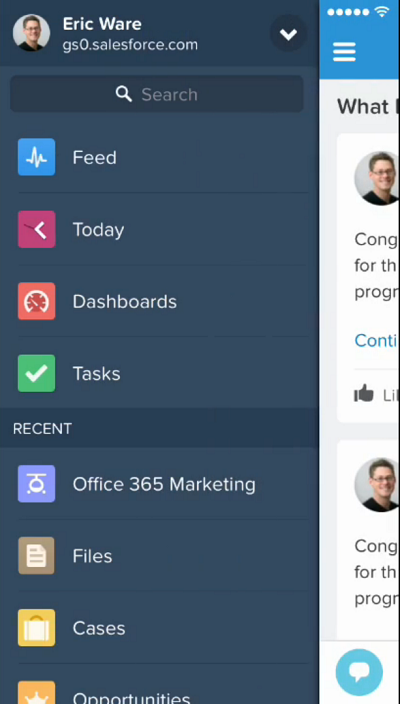
The demo is not in the least elaborate. It shows how a user opens the Salesforce 1 app on an iPhone:

image

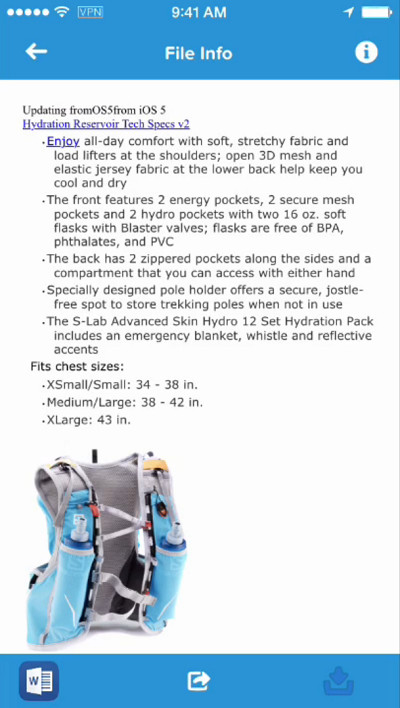
searches for a document on Office 365 and previews in in the app:

image

taps the Word icon to edit in Word on the iPhone:

image

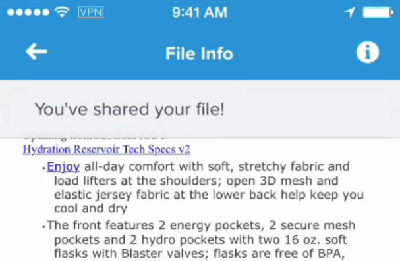
and shares the document with a colleague:

image

Not much too it; but it is the kind of workflow that makes sense to a busy executive.

This interests me for several reasons. One is that, historically, Salesforce and Microsoft are not natural partners. Salesforce CEO Marc Benioff loves poking fun at the Redmond company. I remember how he spoke to the press about “Microsoft Azoon” soon after the launch of Azure. He did not believe that Microsoft grasped what cloud computing was. Of course his product also competes with Microsoft’s Dynamics CRM.

That said, Salesforce always tied in with Microsoft products like Active Directory and Outlook, because it needed to. It could be the same today, as Office 365 has grown too big to ignore, but I am sensing a little more warmth from Benioff in Microsoft’s Nadella era:

image

It is also worth noting that the workflow above needs iOS Office to work well. The example edit could have been done in Office Web Apps, I guess, but the native app is a much better experience. Microsoft’s decision was: do we keep Office as a selling point for Windows, or do we try to keep Office as the document standard in cloud and mobile, as it has been on the desktop? It chose the latter path, and this kind of partnership shows the wisdom of that strategy.

Notes from the field: when Outlook 2010 cannot connect to Office 365

If you set up a PC to connect to Office 365, you may encounter a problem where instead of connecting, Outlook repeatedly prompts for a password – even when you have entered all the details correctly.

I hit this issue when configuring Outlook 2010 on a new PC. It was not easy to find the solution, as most technical help documents suggest that this is either a problem with the autodiscover records in DNS (not so in this case), or that you can fix it with manual configuration of the connection properties (also not so in this case).

Note that if you are using Office 2010, you should install the desktop setup software from Office 365 before trying to configure Outlook. However this still did not work.

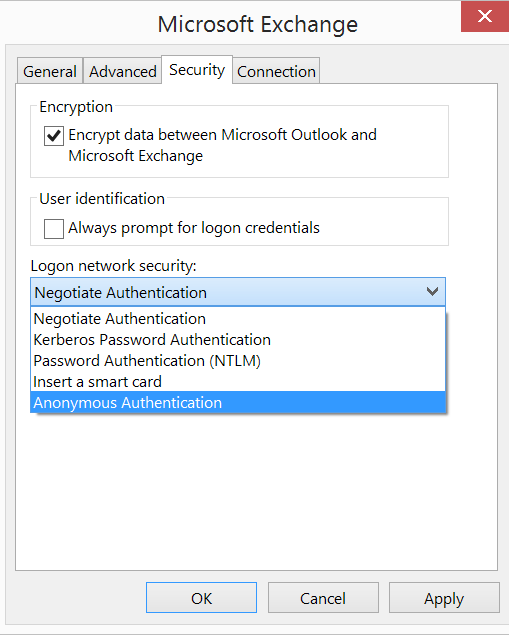
The clue for me was when I noticed that Outlook 2010 was missing a setting in network security for Anonymous Authentication.

image

In order to fix this, I installed Office 2010 Service Pack 2, and it started working. The problem is that if you set up a new PC using an Office 2010 DVD, it takes a while before everything is up to date.

I heard of another business that had this problem and decided to upgrade their Office 365 subscription to include the latest version of Office, rather than figuring out how to fix it. Now that plans including desktop Office are reasonably priced, this strikes me as a sensible option.

Microsoft publishes new OneDrive API with SDK, sample apps

Microsoft has announced a new OneDrive API for programmatic access to its cloud storage service. It is a REST API which Microsoft Program Manager Ryan Gregg says the company is also using internally for OneDrive apps. The new API replaces the previous Live SDK, though the Live SDK will continue to be supported. One advantage of the new API is that you can retrieve changes to files and folders in order to keep an offline copy in sync, or to upload changes made offline.

Unfortunately this does not extend to only downloading the changed part of a file (as far as I can tell); you still have to delete and replace the entire file. Imagine you had a music file in which only the metadata had changed. With the OneDrive API, you will have to upload or download the entire file, rather than simply applying the difference. However, you can upload files in segments in order to handle large files, up to 10GB.

I have worked with file upload and download using the Azure Blob Storage service so I was interested to see what is now on offer for OneDrive. I went along to the OneDrive API site on GitHub and downloaded the Windows/C# API explorer, which is a Windows Forms application (why not WPF?). This uses a OneDrive SDK library which has been coded as a portable class library, for use in desktop, Windows 8, Windows Phone 8.1 and Windows Phone Silverlight 8.

image

I have to say this is not the kind of sample I like. I prefer short snippets of code that demonstrate things like: here is how you authenticate, here is how you iterate through all the files in a folder, here is how you download a file, here is how you upload a file, and so on. All these features are there in this app, but finding them means weaving your way through all the UI code and async calls to piece together how it actually works. On top of that, despite all those async calls, there are some performance issues which seem to be related to the smart tiles which display a preview image, where possible, from each file and folder. I found the UI becoming unresponsive at times, for example when retrieving my large SkyDrive camera roll.

Gregg makes no reference in his post to OneDrive for Business, but my assumption is that the new API only applies to consumer OneDrive. Microsoft has said though that it intends to unify its two OneDrive services so maybe a future version will be able to target both.

At a quick glance the API looks different to the Azure Blob Storage API. They are different services but with some overlap in terms of features and I wonder if Microsoft has ever got all its cloud storage teams together to work out a common approach to their respective APIs.

I do not intend to be negative. OneDrive is an impressive and mostly free service and the API is important for lots of reasons. If you find the OneDrive integration in the current Windows 10 preview too limited (as I do), at least you now have the ability to code your own alternative.

Universal Apps: a look at Microsoft’s first efforts on Phone and PC

Windows 10 for phones is now available on preview; I wrote a first-look piece for The Register here. I like it better than I had expected; it is a bit laggy but pretty much stable and with some compelling new features.

The main interest of the preview for me though is the appearance of first-party universal apps. Since these form a key part of the strategy for Windows 10, it seems to me that they merit close attention; after all, this is what Microsoft is hoping other developers will do when creating apps for Windows. Universal apps are not actually new in Windows 10 – you can write one today for Windows 8 and Windows Phone – but in the forthcoming Windows they run on the desktop rather than just in the tablet environment. There are also changes in the Windows Runtime API and frameworks though these are currently undocumented as far as I am aware (wait for Build!)

How many Microsoft universal apps are there in Windows 10, designed for both tablet and phone? Quite a few. The ones I am looking at here are Settings (not sure if this is actually the same app), Calculator, Photos, Sound Recorder, Alarms and Feedback.

There is more coming, most notably Outlook (including Mail and Calendar), Word, Excel and PowerPoint. The latter three are already available in preview in Windows 10 for PCs and tablets, but not yet for phone. However, the Android and iOS phone versions are probably a good indication of what is to come, at least for Word, Excel and PowerPoint. For Outlook there is some confusion caused by Microsoft acquiring third-party apps and rebadging them, so in these cases Windows 10 may diverge more from iOS and Android.

Enough apps then to be significant. In the screenshots that follow, I have shown in most cases three versions of each app: Windows Phone 8.1 (the equivalent app, not a universal app), Windows 10 PC, and Windows 10 phone. My general observations are:

1. The old Windows Phone version is more carefully optimized for a smartphone, with a chunky UI that is optimized for touch.

2. The new apps have more functionality, as you would expect for apps that need to work on the desktop where expectations are higher.

3. The new apps have a distinctive look and feel compared to either Windows Phone 8.1 apps, or Windows 8 “Metro” apps. Needless to say, they look different from Windows 7 style desktop apps as well. These are still Windows Runtime (the platform underlying “Metro” or “Store” apps) but in general the UI is denser than before; there is more information on view in a single screen.

While I have some doubts about the usability of the new apps on a phone, this seems to me a good direction overall; the phone is benefiting from work Microsoft is doing for the PC and vice versa. I think we will see better, more useful apps on both platforms as a result.

Now for the screenshots:

Calculator

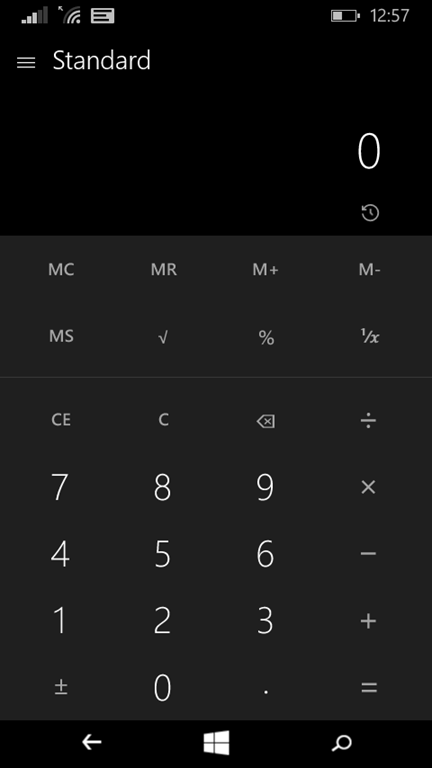
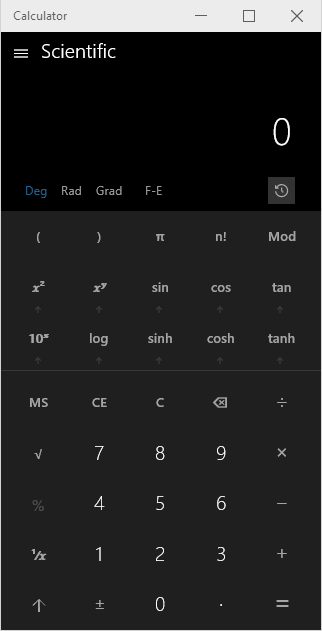
Windows Phone 8.1 Windows 10 Phone Windows 10 PC
image image image

A good example of how the new app is more functional but less well optimized for touch.

Alarms

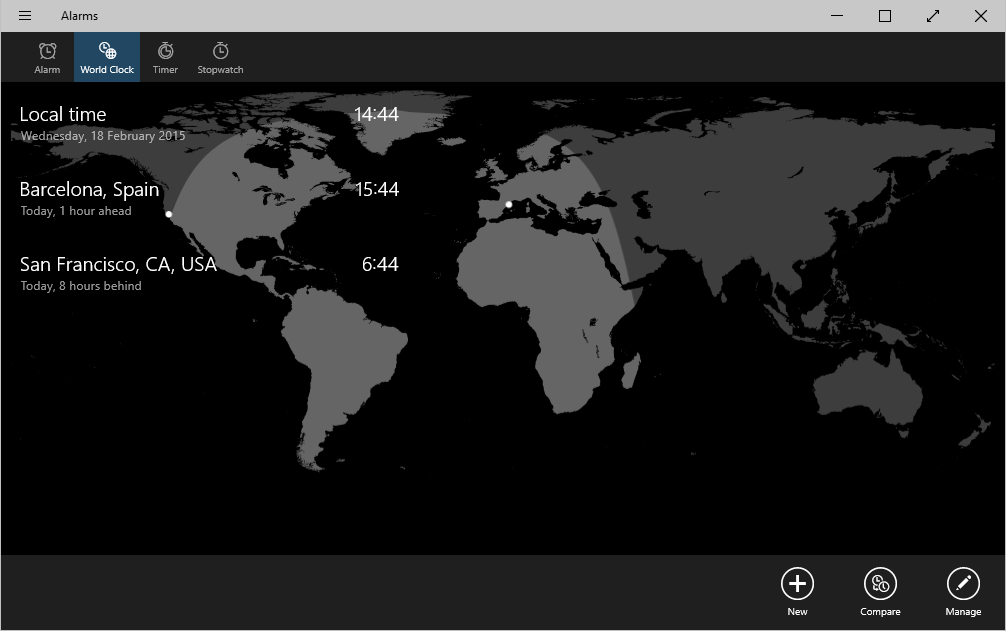
Windows Phone 8.1 Windows 10 Phone Windows 10 PC
image image image

I have cheated a bit here because no world clock in the old Alarms app!

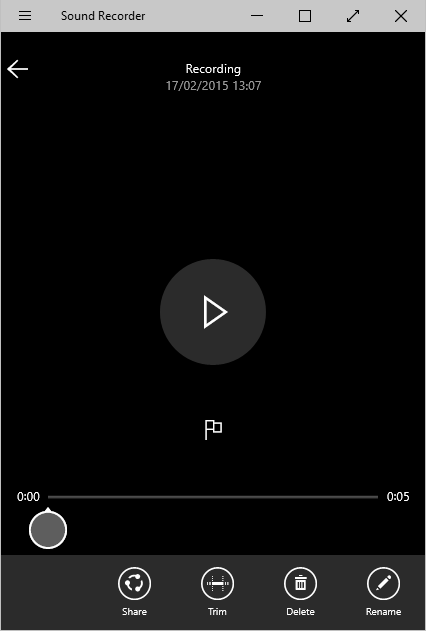
Sound Recorder

Windows 10 Phone Windows 10 PC
image image

No Phone 8.1 version. But you can see this really is the same app. I am glad to see this on the phone; it is an update of an ancient Windows accessory and actually useful.

Photos

Windows Phone 8.1 Windows 10 Phone Windows 10 PC
image image image

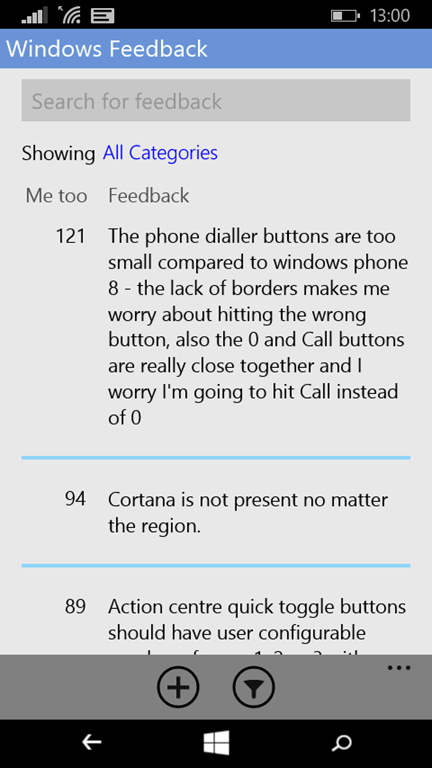
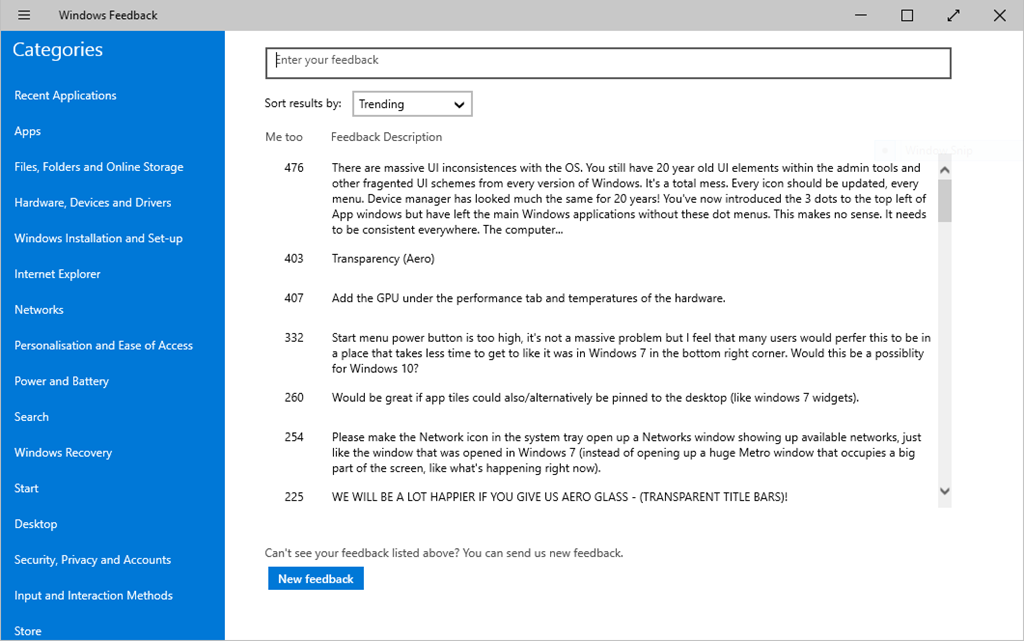
Feedback

Windows 10 Phone Windows 10 PC
image image

While this is the same app, you can see that Microsoft has adapted the UI for the phone. In the Phone version, you hit the All Categories link to see the categories and select. In the PC version, they are listed in a left-hand column. The Universal App concept allows for a totally different UI on different devices if necessary.

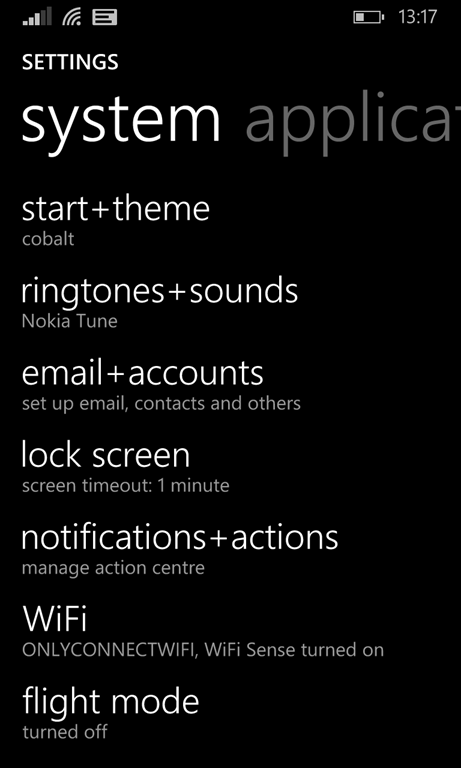
Settings

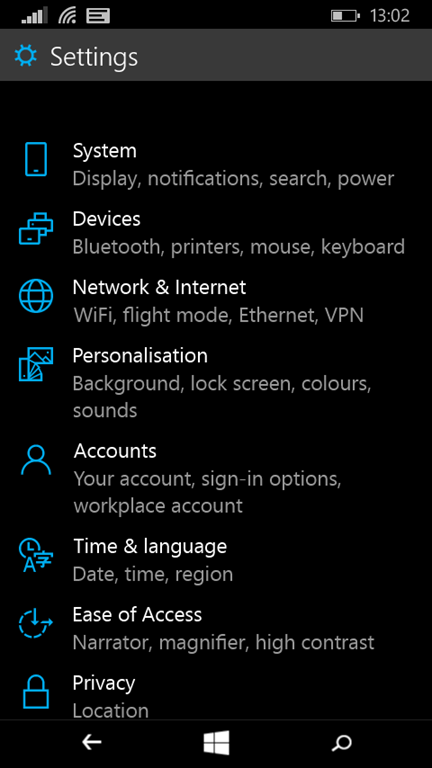
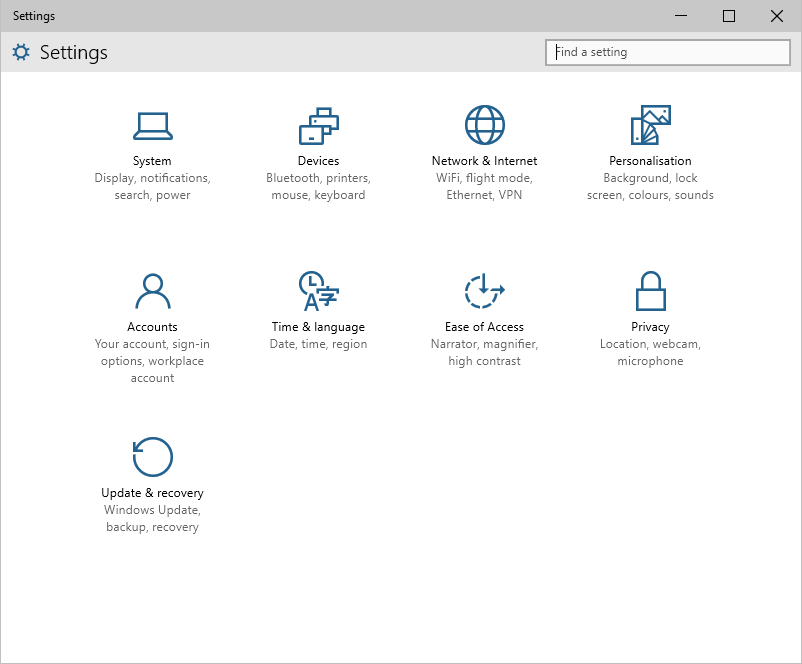
Windows Phone 8.1 Windows 10 Phone Windows 10 PC
image image image

The Settings app is radically changed in Windows 10; a good thing in that the Windows Phone 8.1 settings is a hopeless long and confusing list and needed some organisation. The Windows 10 PC version looks different but has the same sections and icons.

Microsoft open sources heart of .NET: CoreCLR runtime now on GitHub

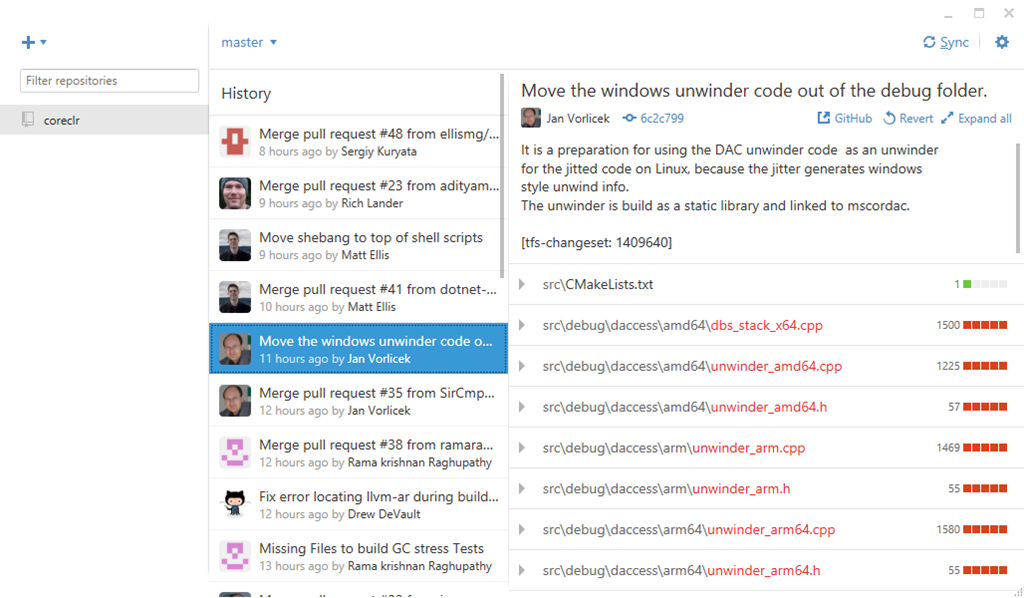
Microsoft’s CoreCLR is now available on GitHub. We knew this was coming, but it is still a significant step, since this piece is the very heart of .NET: the execution engine that consumes a .NET IL (Intermediate Language) executable and compiles it to machine code for execution. The IL can easily be decompiled back to C#; it is in a sense fairly close to what you wrote in the editor. The CLR piece compiles it to a native executable, and also handles garbage collection (automatic memory management) and interop with other  native code libraries. The just-in-time compiler in CoreCLR is called RyuJIT.

CoreCLR is not same as the .NET Framework CLR (as found in the Windows desktop today), though one thing we now learn is that it is a true subset:

CoreCLR is a subset of the .NET Framework CLR. They share the same codebase and are updated together. For example, an update to the .NET GC improves both CoreCLR and the .NET Framework CLR.

We setup a live 2-way mirror between the coreclr repo on GitHub and the .NET Framework TFS server within Microsoft. The latency of the mirror is low, measurable in minutes.

Contributions made to the coreclr repo are integrated to the Microsoft TFS server automatically and will become part of both the .NET Framework and .NET Core products. The same is true in reverse, that .NET Framework CLR changes (within the CoreCLR subset) are mirrored to the CoreCLR repo. These changes will sometimes result in large commits to unrelated components.

This is good news since it reduces the risk of fragmentation between the .NET Framework and the CoreCLR. Note that the same does not apply to the framework libraries, which are forked between .NET Framework and CoreFX. The reason for the fork is to enable cross-platform .NET and to benefit from greater modularity in the Framework without breaking the existing .NET Framework.

Some other points of interest:

  • CoreCLR will run on Linux and Mac but not yet, this is work in progress
  • CoreCLR powers Windows Phone apps as well as ASP.NET 5
  • CoreCLR uses the CMake build system rather than MSBuild, because it runs cross-platform

There is a key architectural difference between CoreCLR and the .NET Framework, which is that in CoreCLR each application is deployed with the runtime and libraries it requires, whereas in the .NET Framework applications depend on a system-managed runtime and shared libraries. This has the advantage that applications are standalone, and you could run one from say a portable USB drive on a system which did not have .NET or Mono installed.

The disadvantage, aside from greater use of disk space, is that patching the same libraries across multiple applications is hard. In the interview here Microsoft offers a clue about how it might come up with a solution for this. Jan Kotas on the CLR team talks about an ideal scenario where identical copies of the same DLL are in fact shared even though each application appears to have its own copy. This sounds similar to the mechanism used by de-duplication in Windows Server. The file system makes it look as if several copies of a file exist in different directories, but in fact there is only one. If you update a file though, the right thing happens and only the virtual copy that you overwrite is changed. It sounds as if Kotas has in mind a variant where you could say, “update this file and all its instances elsewhere.” This would of course somewhat undermine the concept of app-isolated dependencies; but you know what they say about cakes and eating them:

“The ideal we should get to is every application has a local copy of everything. People eventually get to a point where through some OS mechanisms or through some other means the DLLs that are the same between different applications would get shared. That way nobody needs to worry about is this shared, or is it not shared. The ideal place that we’d like to get to is that sharing happens under the hood. It can happen through different mechanisms for different applications. [That would be the] ideal place for the runtime and how to version it.”

said Kotas. Possibly I am misinterpreting this; but it does sound like some kind of sharing-but-not-sharing solution to the patching problem.

Another point to note: a managed code application cannot execute without help. In order to run, every managed application needs three things:

1. The application code

2. The CLR – either CoreCLR or the .NET Framework CLR

3. A CLR host which loads the CLR and instructs it to execute the application. The CLR host has to be native code, for obvious reasons.

In the .NET Framework this third piece is invisible, since it is handled by the operating system (though apparently SQL Server is a special case). In the CoreCLR world though, you need to think about the CLR host. ASP.NET 5.0 has the KRuntime (K probably stands for Katana) which I think is the same as Project K. If you want to test CoreCLR today, you can use a host called CoreConsole which (as its name implies) lets you run console apps. Apparently there are a few technical problems using CoreCLR with ASP.NET 5 as the moment.

image

Microsoft risks enterprise credibility by pushing out insecure mobile Outlook

One thing about Microsoft: it may not be the greatest for usability or convenience, but it does understand enterprise requirements around compliance and protecting corporate data.

At least, I thought it did.

That confidence has been undermined by the release yesterday of new “Outlook” mobile apps for iOS and Android.

I read the cheery blog posts from Office PM Julia White and from new Outlook GM Javier Soltero. “Now, with Outlook, you really can manage your work and personal email on your phone and tablet – as efficiently as you do on your computer,” says White.

There is a snag though. The new Outlook apps are rebadged Acompli apps, Acompli being a company acquired by Microsoft in early December 2014. Acompli, when it thought about how to create user-friendly email apps that connected to multiple accounts, came up with a solution which, as I understand it, looks like this:

  1. User gives us credentials for accessing email account
  2. We store those credentials in our cloud servers – except they are not really our servers, they are virtual machines on Amazon Web Services (AWS)
  3. Our server app grabs your email and we push it down to the app

A reasonable approach? Well, it simplifies the mobile app and means that the server component does all the hard work of dealing with multiple accounts and mail formats; and of course everything is described as “secure”.

However, there are several issues with this from a security and compliance perspective:

  1. From the perspective of the email provider, the app accessing the email is on the server, not on the device, and the server app may push the emails to multiple devices. That means no per-device access control.
  2. Storing credentials anywhere in a third-party cloud is a big deal. In the case of Exchange, they are Active Directory credentials, which means that if they were compromised, the hacker would potentially get access not only to email, but to anything for which the user has permission on that Active Directory domain.
  3. If an organisation has a policy of running servers on its own premises, it is unlikely to want credentials and email cached on the AWS cloud.

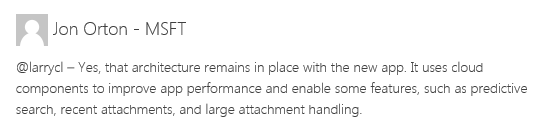
The best source of information is this post A Deeper look at Outlook on iOS and Android, and specifically, the comments. Microsoft’s Jon Orton confirms the architecture described above, which is also described in the Acompli privacy policy:

Our service retrieves your incoming and outgoing email messages and securely pushes them to the app on your device. Similarly, the service retrieves the calendar data and address book contacts associated with your email account and securely pushes those to the app on your device. Those messages, calendar events, and contacts, along with their associated metadata, may be temporarily stored and indexed securely both in our servers and locally on the app on your device. If your emails have attachments and you request to open them in our app, the service retrieves them from the mail server, securely stores them temporarily on our servers, and delivers them to the app … If you decide to sign up to use the service, you will need to create an account. That requires that you provide the email address(es) that you want to access with our service. Some email accounts (ones that use Microsoft Exchange, for example) also require that you provide your email login credentials, including your username, password, server URL, and server domain. Other accounts (Google Gmail accounts, for example) use the OAuth authorization mechanism which does not require us to access or store your password.

image

The only solution offered by Microsoft is to block the new apps using Exchange ActiveSync policy rules.

The new apps do not even respect Exchange ActiveSync policies – presumably hard to enforce given the architecture described above – though Microsoft’s AllenFilush says:

Outlook is wired up to work with Active Sync policies, but it currently only supports Remote Wipe (a selective wipe of the corporate data, not a device wipe). We will be adding full support for EAS policies like PIN lock soon.

However a user remarks:

Also, i have set up a test account, and performed a remote wipe, and nothing happened. I also removed the mobile device partnership later and still able to send and receive emails.

The inability to enforce a PIN lock means that if a device is stolen, the recipient might be able simply to turn on the device and read the corporate email.

The disappointment here is that Microsoft held to a higher standard for security and compliance than its competitors, more perhaps than some realise, with things like Bitlocker encryption built into Surface and Windows Phone devices.

Now the company seems willing to throw that reputation away for the sake of getting a consumer-friendly mobile app out of the door quickly. Worse still, it has been left to the community to identify and publicise the problems, leaving admins now racing to put the necessary blocks in place. If Microsoft was determined to do this, it should at least have forewarned administrators so that corporate data could be protected.

Microsoft Financials

Microsoft has released figures for its second quarter, ending December 31st 2014. Here is my simple summary of the figures showing the segment breakdown:

Quarter ending  December 31st 2014 vs quarter ending December 31st 2013, $millions

Segment Revenue Change Gross margin Change
Devices and Consumer Licensing 4167 -1377 3876 -1105
Computing and Gaming Hardware 3997 -473 460 +49
Phone Hardware 2284 N/A 331 N/A
Devices and Consumer Other 2436 +562 550 +163
Commercial Licensing 10679 -227 9926 -154
Commercial Other 2593 +813 900 +485

There are a couple of blotches of red in the figures, reflecting weak PC sales in the consumer market and decline in non-subscription Office products. This is offset by strong growth in cloud and subscription. Microsoft says in the accompanying press release that revenue from Office 365, Azure and Dynamics CRM online grew 114%. SQL Server and System Center grew revenue yet again, with server products up 9% overall. Microsoft also notes that this quarter revenue from Surface exceeded $1 billion for the first time, thanks to the success of Surface 3. Note though that margins are relatively poor on hardware.

Nadella talked up both cloud and integration in the earnings call. On cloud, he said that new Office 365 features like Sway, Delve and Video are “completely new scenarios”; I am personally not yet convinced by Sway but both Delve (a search service) and video look compelling. On integration he referenced unifying Xbox Live across PC, tablet, phones and Xbox, streaming Xbox games to Windows 10, and the unified app store and platform with Windows 10 phones, tablets and PCs.

A lot rests on Windows 10; following the rocky reception for Windows 8, Microsoft cannot afford to get this one wrong.

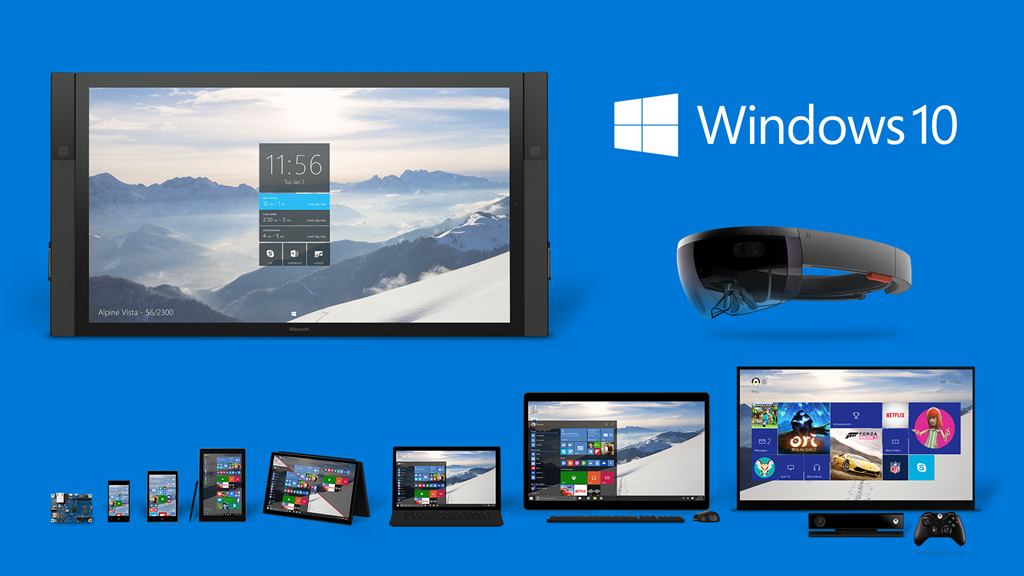
Windows 10 and HoloLens: quick thoughts and questions following the January reveal

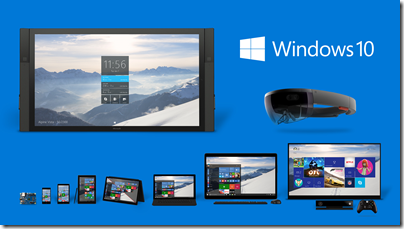
Microsoft is revealing its Windows 10 plans in stages, presumably in part to build up expectation and get feedback, and in part because some pieces are ready to show before others.
image

Today in Redmond Microsoft shared a number of new features. In quick summary:

Windows 10 will be a free upgrade for all Windows 7 and 8.x users, at least for the first year.

Comment: this is necessary since the refusal of Microsoft’s user base to upgrade from Windows 7 is a strategic roadblock. For example, Windows 7 users cannot use Store apps, reducing the market for those apps. It is more important to persuade users to upgrade than to get upgrade revenue. Windows 10, of course, will have to be compelling as well as free for this initiative to work, as well as providing a smooth upgrade process (never a trivial task).

Windows to evolve to become a service Executive VP Terry Myerson says this in this post:

Once a Windows device is upgraded to Windows 10, we will continue to keep it current for the supported lifetime of the device – at no additional charge. With Windows 10, the experience will evolve and get even better over time. We’ll deliver new features when they’re ready, not waiting for the next major release. We think of Windows as a Service – in fact, one could reasonably think of Windows in the next couple of years as one of the largest Internet services on the planet.

And just like any Internet service, the idea of asking “What version are you on?” will cease to make sense – which is great news for our Windows developers.

Comment: What does this mean exactly, beyond what we already have via Windows Update? What does Myerson mean by “the supported lifetime of the device”? What are the implications for the typical three-year Windows release cycle? I hope to discover more detail soon, though when I enquired whether there will be, for example, a “Windows 11” I was told, “We aren’t commenting beyond what’s stated in post that you reference.”

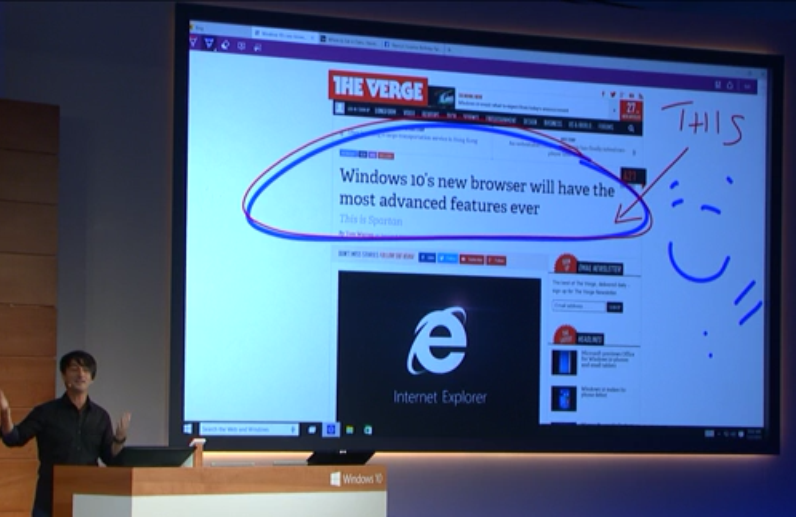
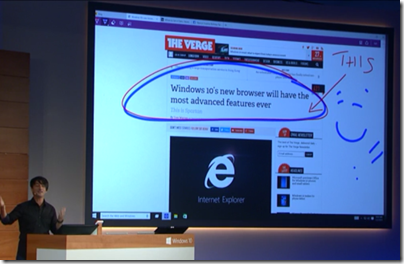
Project Spartan (a code name) is a new browser developed as a universal app – this means an app built for the Windows Runtime (“Metro”) environment, though in Windows 10 these also run in a window on the desktop, blurring the sharp distinction you see in Windows 8. Project Spartan features, according to Microsoft’s Joe Belfiore, a new rendering engine along with features includes the ability to annotate web pages with keyboard or touch/stylus, and the ability to save pages for reading offline. There will also be “enterprise mode compatibility for existing web apps”, which means that old IE will live on.
image

Comment: Creating a new browser is a bold step though it may be as much for marketing reasons as anything else, since IE has a tarnished reputation. The advantages of the new rendering engine, and the way compatibility will be handled, are not yet clear. Another point of interest is compatibility issues caused not only by the new engine, but also by running in sandboxed universal app environment. Looking forward to more detail on this.

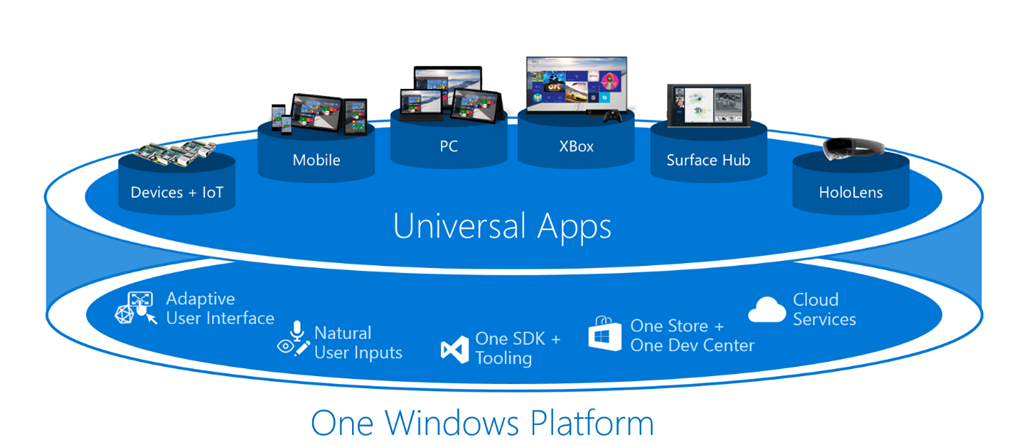
Windows 10 across PC, tablet and mobile: the OS will have the same name on all three, universal apps (like a new mobile Office) will run on all three, and there are new efforts to synchronize content. For example, notifications will sync across phone and PC/Tablet.

Comment: Sounds good, but there are a few downsides. One is that Windows Phone is tied to the same release cycle as full Windows, which is rather slow. Currently Windows Phone is falling back as it waits for Windows 10 in respect of both operating system upgrade and also the universal app version of Office – which is already available for iOS and Android. CEO Satya Nadella said today that there will be new “flagship” Windows phone devices, which is good news for what is currently a neglected platform, but it will be hard for the platform to thrive if it is constantly waiting for the next big Windows update. Update: if “Windows as a service” means no more monolithic upgrades but constant incremental improvement, perhaps this will not be the case. Watch this space.

Cortana coming to Windows PC and tablet: we saw Microsoft’s digital assistant, powered by Bing search, demonstrated on full Windows.

Comment: Cortana is impressive and fun, but I am not sure how much the feature enhances the platform. On the phone I do not use it much; the problem is that speaking to your phone “what meetings to I have today” and getting a spoken response is a great demo, but in practice it is easier to glance at the calendar, especially as voice control only works in quiet scenarios. The other aspect of Cortana is the personalisation it brings to things like web search or reminders; more data about our preferences and activities can bring some magic. This is Google Now territory, and while Microsoft’s approach to privacy may be preferable, Google will be hard to match in respect of the amount of data it can draw upon.

DirectX 12: Microsoft showed a demo of its latest DirectX graphics API, claiming up to 50% better performance and up to 50% less power consumption.

Comment: this is solid good news. If games run best on Windows 10 a significant enthusiast community will want to upgrade right away. Further, DirectX is not just for games.

Xbox One integration: Microsoft showed how Xbox Live team or competitive games can work across Xbox One and PC, and how games can be streamed from XboxOne so that the console becomes a kind of games server for your Windows 10 tablets and PCs. Xbox One will also run universal apps.

Comment: Better integration between Windows devices and Xbox is long overdue and can help to promote both. Xbox One though has a bit of a Windows 7 problem of its own, with Xbox 360 remaining popular simply because of the huge numbers of games that have not been ported. If only Microsoft could introduce backwards compatibility …

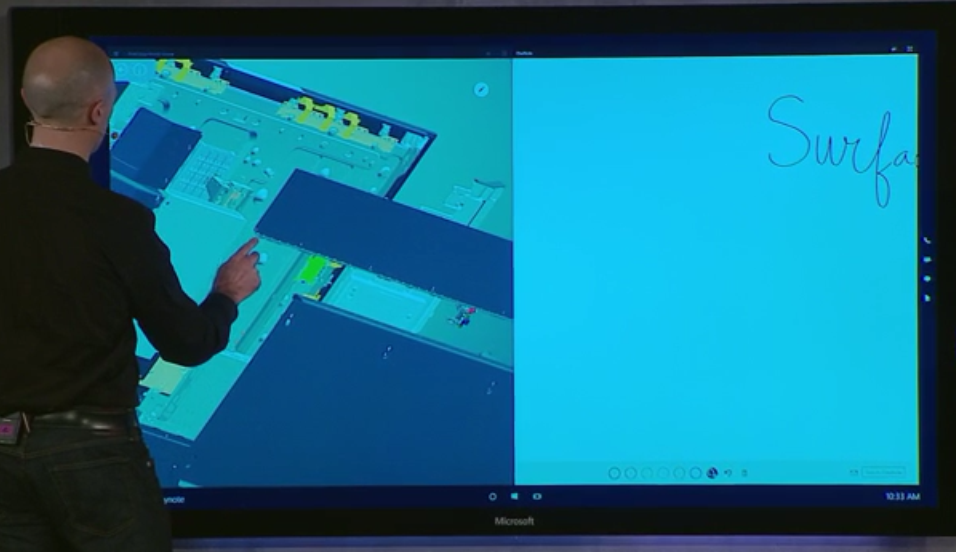
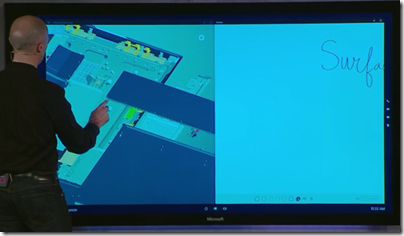
Surface Hub: this is a giant 84”, 4K display wall-hanging PC which you can use as an interactive whiteboard for meetings and so on. It seems to be the next innovation from the Perceptive Pixel folk who also developed the table-top Surface device.
image

Comment: Looks cool, but it will be expensive. May help to encourage businesses to keep faith with the Windows client.

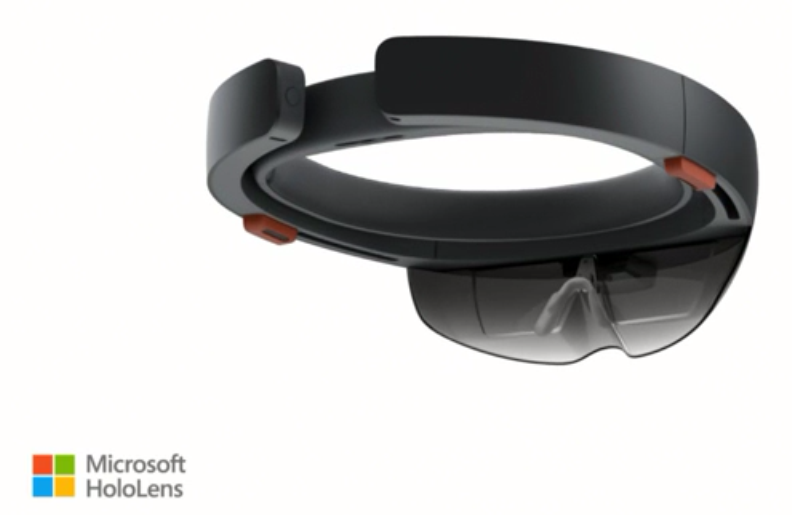
Microsoft HoloLens: this was the big reveal, a secret project that, we were told, has been developed in the basement of the Microsoft Visitor Center on its Redmond campus.

image

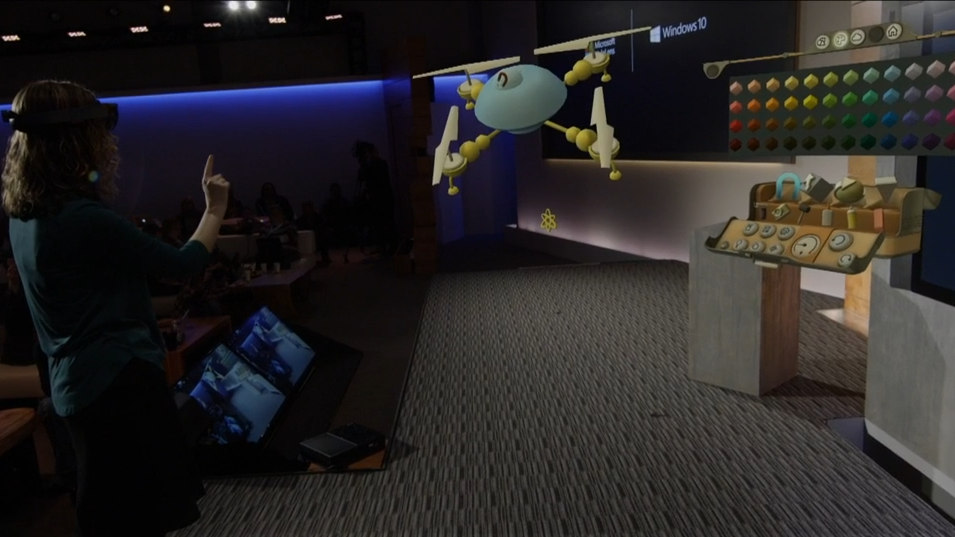
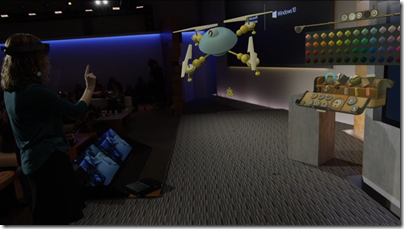
HoloLens is a headset which enables 3D augmented reality: projected images are seen like holographic images in the space around you, and you can interact by gesture detected by cameras and motion sensors in the headset. Look carefully at the following image:
image

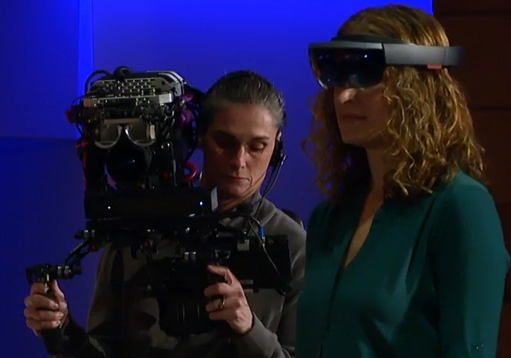
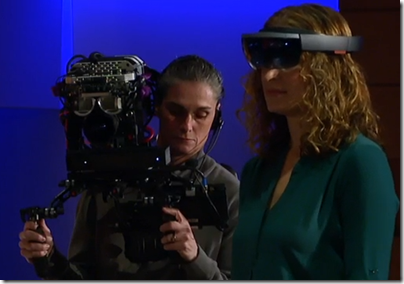
In this example, the demonstrator is assembling a quad copter using a palette of 3D components in Holo Studio, an application which uses the technology. However, note that you only see the quad copter through the HoloLens headset, the image from which in this case is merged with a view of the demonstrator herself using a custom camera:
image

If you had been in the room, you would see the quad copter only on the screen, not in the room itself. Therefore I suspect this is more accurately described as augmented reality than holography, though the scene does look holographic if you are wearing the headset.

In a final flourish, Microsoft a 3D printed version of the quad copter which duly flew up and down; I am sure the motor and so on was NOT 3D printed, but it made a lovely demo.

Apparently NASA loves the technology and will be using it with Mars Rover in July in a project called OnSight – read the NASA release.

image

Bringing it down to earth, Microsoft also stated that all universal apps will have access to the HoloLens APIs.

Comment: This looks amazing and must have potential for all sorts of scenarios: architects, planners, marketing, games and more. The tough question I suppose is how much it has to do with Windows 10 as experienced by most users.

In closing

Microsoft surprised us today and deserves kudos for that. Nobody can accuse the company of lack of innovation; then again, Windows 8 and the original Surface were innovative too, and proved to be a disaster. I do not think Windows 10 will be a disaster; we have already seen in the preview how it is an easier transition for Windows 7 users.

A key thing to note from a developer and technical perspective is that universal apps are right at the centre of the Windows 10 story. That is a good thing in many respects, since we get Store deployment, sandbox security, and a degree of compatibility across phone, PC, tablet and Xbox One. But is the Store app / Universal app platform mature enough to deliver a good experience for both developers and users, bearing in mind that in Windows 8.x it is really not good enough?

Look to Microsoft Build at the end of April, which Myerson said is the culmination of the Windows 10 reveal, to answer that question.
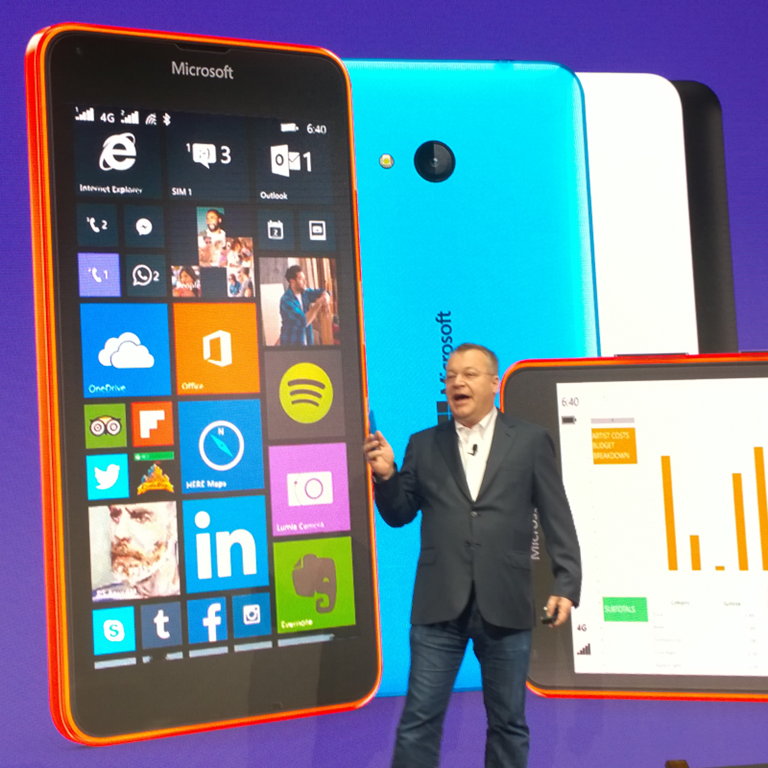
Microsoft’s Lumia 400, the cheapest Windows Phones yet, but what is the brand becoming?

Microsoft has announced the Lumia 435, the first 400-series Lumia and the cheapest Windows Phone yet. The Lumia 532, also just announced, is an upgrade to the Lumia 530 and also pitched at a low-end market.

image
Lumia 432

The 435 has a dual-core 1.2GHz Snapdragon processor, 1GB RAM and 8GB storage, front-facing camera, back-facing 2MP camera, micro SD slot. 4″ 800 x 480 pixel screen. GPS, wi-fi and Bluetooth. Replaceable battery. Dual-SIM is available.

The 532 has a quad-core 1.2 GHz Snapdragon processor, 1GB RAM and 8GB storage, 5.0MP main camera, front-facing camera, micro SD slot. 4″ 800 x 480 pixel screen. GPS, wi-fi and Bluetooth. Replaceable battery. Dual-SIM is available.

The phones are expected to go on the market in February at a price of around €69 (£53.50) for the Lumia 435 and €79 (61.50) for the Lumia 532.

I like the Windows Phone OS, and these devices look like great value. That said, the last aspirational Windows Phone was the Lumia 1020 in Summer 2013, with its fantastic camera. You would be forgiven for concluding that Microsoft has given up on high-end Windows Phone devices, which is unfortunate for developers since those are the devices likely to deliver more app sales.

If the Lumia brand has become strongly associated with cheap phones it will be hard for the company to convince customers that a high-end device is worth their attention in future.

We may get some phone news soon, linked to the launch of Windows 10; we may hear more at the event on January 21 in New York.

More details here.

Reserved IPs and other Microsoft Azure annoyances

I have been doing a little work with Microsoft’s Azure platform recently. A common requirement is that you want a VM which is internet-accessible with a custom domain, for which the best solution is to create a A record in your DNS pointing to the IP number of the VM. In order to do this reliably, you need to reserve an IP number for the VM; otherwise Azure may assign a different IP number if you shut it down and later restart it. If you keep it running you can keep the IP number, but this also means you are have to pay for the VM continuously.

Azure now offers reserved IP numbers. Useful; but note that you can only link a VM with a reserved IP number when it is created, and to do this you have to create the VM with PowerShell.

What if you want to assign a reserved IP number to an existing VM? One suggestion is that you can capture an image from the VM, and then create a new VM from the image, complete with reserved IP. I went partially down this route but came unstuck because Azure for some reason captured the image into a different region (West Europe) than the region where the VM used to be (North Europe). When I ran the magic PowerShell script, it complained that the image was in the wrong region. I then found a post explaining how to move images between regions, which I did, but the metadata of the moved image was not quite the same and creating a new VM from the image did not work. At this point I realised that it would  be easier to recreate the VM from scratch.

Note that when reserved IP number were announced in May 2014, program manager Mahesh Thiagarajan said:

The platform doesn’t support reserving the IP address of the existing Cloud Services or Virtual machines. We expect to announce support for this in the near future.

You can debate what is meant by “near future” and whether Microsoft has already failed this expectation.

There is another wrinkle here that I am not clear about. Some Azure VMs have special pricing, such as those with SQL Server pre-installed. The special pricing is substantial, often forming the largest part of the price, since it includes licensing fees. What happens to the special pricing if you fiddle with cloning VMs, creating new VMs with existing VHDs, moving VMs between regions, or the like? If the special pricing is somehow lost, how do you restore it so SQL Server (for example) is still properly licensed? I imagine this would mean a call to support. I have not seen any documentation relating to this in posts like this about moving a virtual machine into a virtual network.

And there’s another thing. If you want your VM to be in a virtual network, you have to do that when you create it as well; it is a similar problem.

While I am in complaining mode, here is another. Creating a VM with PowerShell is easy enough, but you do need to know the image name you are using. This is not shown in the friendly portal GUI:

image

In order to get the image names, I ran a PowerShell script that exports the available images to a file. I was surprised how many there are: the resulting output has around 13,500 lines and finding what you want is tedious.

Azure is mostly very good in my experience, but I would like to see these annoyances fixed. I would be interested to hear of other things that make the cloud admin or developer’s life harder than it should be.