Tag Archives: microsoft

Visual Studio goes online, kind-of

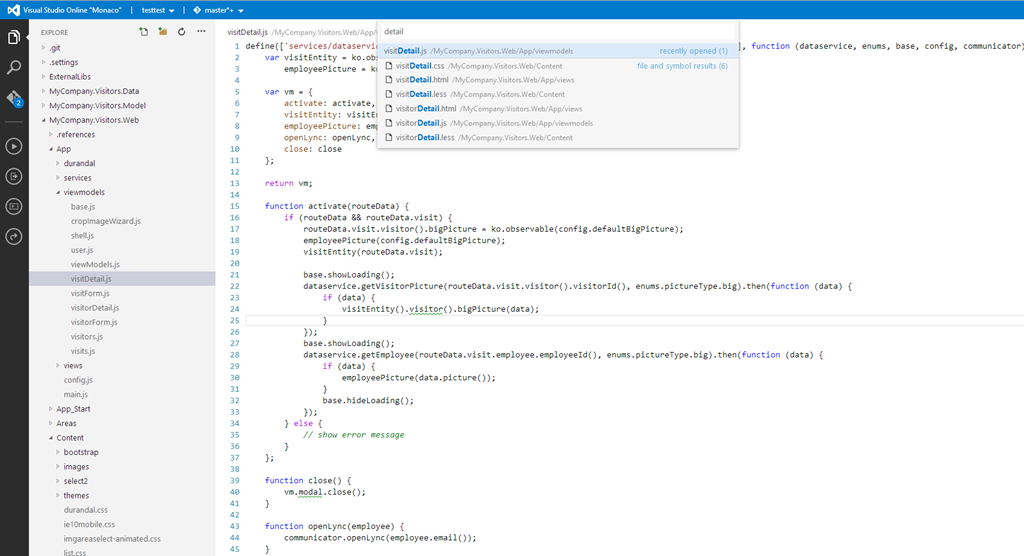
Microsoft held its official launch for Visual Studio 2013 today, at an event in New York, although the product itself has been available since mid-October. VP Soma Somasegar nevertheless made some new announcements, in particular the availability in preview of an online Visual Studio editor, codenamed Monaco. “Developers will now be able to edit their sites directly from the web, from any modern browser, on any device,” said Somasegar on his blog.

Monaco is not intended as a replacement for the desktop IDE. Instead, it parallels what Microsoft has done with Office, which is to provide a cut-down online editor for occasional use. Monaco currently targets only web applications running on Azure, Microsoft’s public cloud platform. The technology is not altogether new, since it is built on the same base as “Napa”, the online editor for Office 365 applications.

image

At the launch, Monaco was demonstrated by Erich Gamma, of Design Patterns and Eclipse fame, who says he uses it for real work. He assured us that it is built on web standards and compatible with iOS and Android tablets as well as desktop browsers.

Online editing with Monaco is only one part of what Microsoft now calls Visual Studio Online. The product also includes a hosted version of Team Foundation Server, offering source code control, collaboration tools, and an online build service. These features were already available as part of Team Foundation Service, which is now replaced by Visual Studio Online. If you are happy with the cut-down Visual Studio Express, or already have Visual Studio, then subscription is free for teams of up to five users, with additional users costing $10 per user/month for an introductory period, and rising to $20 per user/month.

Microsoft is also offering Visual Studio Online Professional, which bundling desktop Visual Studio Professional with these online services, for teams of up to 10 users, at $22.50 per user/month rising to $45.00 per user/month. This follows the same model which Adobe adopted for its Creative Cloud, where you get cloud services bundle with tools that run on the desktop.

Pay even more and you can get Visual Studio Online Advanced, which oddly does not include the Professional IDE, but supports unlimited users and has additional reporting and collaboration features, for $30 rising to $60 per user/month.

When does the introductory offer expire? It’s until further notice – 30 days’ notice will be provided before it ends. Confusing.

Somasegar also announced the preview of a new online service called Application Insights. This service analyses and monitors data from .NET or Java applications running on Windows Server or Windows Azure, and .NET applications on Windows Phone 8, reporting on availability, performance and usage.

Another new service is Elastic Load Test (not to be confused with Amazon’s Elastic Compute Cloud), which simulates multiple concurrent users for testing the performance and behaviour of an application under stress. This requires the expensive Visual Studio Ultimate with MSDN subscription, and offers 15,000 virtual user minutes per month, with additional virtual user minutes at $.001 each.

Finally, he announced a partnership with Xamarin to enable development for iOS and Android in C# and Visual Studio, extending the existing Portable Class Libraries so that non-visual code can be shared across different Windows platforms as well as the new mobile target platforms.

I spoke to Xamarin’s Nat Friedman about this and wrote it up on the Register here.

Microsoft’s strategy here is to persuade existing Windows developers, familiar with C#, Visual Studio, and both desktop and ASP.NET applications, to stick with Microsoft’s platform as they migrate towards cloud and mobile. In this context, the heart of Microsoft’s platform is Windows Azure and Office 365, which is why the company can tolerate iOS or Android clients.

The company will also hope that a proliferation of apps which integrate and extend SharePoint online will help drive subscriptions to Office 365.

The latest Visual Studio includes a new Cloud Business App project type, which is an app that sits on Windows Azure and integrates with SharePoint in Office 365. Coding in Visual Studio and deploying to Azure, both for Cloud Business apps and ordinary web applications, is now an easy process, reducing friction for developers deploying to Azure.

More information on Visual Studio Online is here.

Users report SkyDrive issues: sync failures, Microsoft Account problems

SkyDrive, Microsoft’s cloud storage service, is critical to the company’s strategic direction for Windows. It is the means by which content and settings are kept in synch across different Windows machines; or more precisely, user accounts across different Windows machines.

Content in SkyDrive is accessible via any web browser, and there are clients for Windows and for various mobile devices. Office Web Apps are also built-in so you can create and edit documents in the cloud.

In principle it is an excellent service, but since the release of Windows 8.1 a few problems have emerged. Specifically:

Some users report problems synching. Check out this thread which begins with users of the 8.1 preview but continues through to the release. The main issue mentioned is that synchronisation simply fails for some users, but others report duplicate documents created with names like somedoc-mypc.xls and somedoc-mylaptop.xls, where “mypc” and “mylaptop” are the names of computers used with the service. Working out which document is the most current can be tricky.

I have encountered this myself, even on some occasions with a document created and edited solely on one machine. Somehow SkyDrive manages to think there is a conflict.

Another problems is unnecessary network traffic. Here is an example of some of these issues:

My brand new shiny Surface Pro 2 was set to have the documents available offline and everything else online only.  The sync has stalled just like everyone else reports in this thread.  I changed the folder to "online only" and the sync claimed to complete.  I then changed the folder back to "available offline" and it proceeded to redownload thousands of files, finally stalling again with a little more than 200 left.  The Metro app says that the files have completed yet they are still in the pending queue.

Many users express what seems to me a valid complaint, that Windows 8.1 gives you less information and control than was in Windows 8.0.

Some users dislike being tied to a Microsoft account. SkyDrive is a consumer service, and you can only use it with a Microsoft account (MSA) – a descendant of what was once called Passport. In Windows 8 and earlier, which had standalone SkyDrive clients, that was not too bad. You can sign into SkyDrive just as you would into Dropbox or any cloud service. In Windows 8.1 though, SkyDrive is baked into the operating system, which means that you have to sign in centrally to a Microsoft account.

There are several reasons users struggle with this, including privacy concerns, inconvenience if you have more than one SkyDrive account you want to use, and complications when you have a corporate login to a Windows domain as well as SkyDrive:

When I login with my domain account and connect my MSA to it, Skydrive still won’t sync, it keeps creating "Skydrive" folders in the user directory each time it tries to start. I can’t find anything in the logs to help.

If I instead login with the MSA account to the computer it will sync.

SkyDrive is a free service and Microsoft has good reason to encourage users to sign in with one of its accounts, which gives access to the Windows Store, Xbox Music and other services. I can see why users object, but also why Microsoft wants to encourage users to sign in.

It is harder to understand why the service does not work reliably. The impression I get is that this is more to do with the client, especially in Windows 8.1, than with the cloud service; but it is hard to be sure.

How extensive are the problems? Again, it is hard to get firm data. I find it works reasonably well for me, though I get the duplicate file problem as well as regular issues saving Office documents. The notorious Office Upload Center reports a problem and you have to re-open the document in Office and save to resolve it.

Asus Transformer Book Trio combines Windows and Android – but what is it for?

Microsoft has one idea about how to combine desktop Windows with a tablet OS: mash them together into a single operating system and call it Windows 8.

Asus has another idea. Put Windows in the keyboard dock, Android in the tablet, and allow the tablet to be docket to form a Windows or Android laptop.

This is the Transformer Book Trio, just launched and on sale from 11 November 2013 at £899.99.

image

All my instincts say this a terrible idea. Let Windows be Windows and Android Android, do not try to combine them.

Trying the machine though I found it was good fun. Just press the little Android button and it switches.

image 

and it becomes an Android laptop:

image

The dock mechanism is a bit ugly but looks robust:

image

There is the question still: what will you do with the keyboard when not in use? In a home context that is not a problem, but when on the road I find the most convenient place to keep a detachable keyboard is to attach it, making it more of a laptop than a tablet in practice.

Having two computers in one gives you a few options, which I did not have time to explore in detail. As I understand it, you can share storage in order to open a document prepared in Windows on Android, for example, and with two batteries there is scope for charging one from the other.

This is two separate computers though. It should really be called Duo, but Asus calls it Trio on the grounds that you can use it as a laptop or a desktop machine, with an external display.

The PC runs an Intel Core i5 4200U, and has 4GB RAM and 500GB hard drive. The display is 1920 x 1080 and supports capacitive 10-point multi-touch. Connectivity includes 802.11ac (dual-band) wi-fi, Bluetooth 4.0, 2 USB 3.0 ports, Mini DisplayPort, and Micro-HDMI 1.4.

The tablet has an Intel Atom Z2560 with 2GB RAM and 16GB storage. Connectivity includes   802.11n (2.4GHz), Bluetooth 3.0, Micro-USB 2.0, microSD card slot.

Fun then; but what is the use case for this machine? This is where I am still having difficulty. It is somewhat expensive (though with a Core i5 performance is decent), and I have a hunch that users will end up sticking with one or the other OS most of the time – probably Windows given the price.

Oddly, it would make more sense to me to have a high-end Android device with the ability to run Windows when needed. This would address the case where a user wants to migrate to Android but occasionally needs a Windows app.

Microsoft’s Xbox One almost invisible at Gadget Show Live

I looked in on London’s Gadget Show Live this morning. It was the usual frustrating experience: the things that were interesting were surrounded by hordes of visitors so you could barely get a look.

image

Here is what I found curious. Microsoft is the lead sponsor, but the Xbox One was shown only on a tiny stand near the back of the hall. Here it is – all of it.

image

By contrast, Sony had a huge stand for PlayStation 4. Apologies; my snap does not show the scale well.

image

That said, Microsoft had its own massive stand, but for Windows, with a strong push for Surface tablets and a reasonable presence for Windows Phone.

However, if you look at the demographic of the show, with lots of kids even on a Friday, it is better suited to gaming consoles than to relatively expensive tablets – though to be fair, the Windows tablets seemed to be attracting a fair amount of attention.

I had a chat with a guy from Sonos at its stand. Will Sonos support high resolution formats (better then CD quality)? This is almost a trick question as I’m not sure you can hear the difference; but there is nevertheless strong demand for it in the slightly crazy world of high-end audio. Apparently there are ways to do it now, but the Sonos engineers are working at bringing full support into the range.

Sonos has apps for iOS and Android; what if I have a Windows Phone? No support yet but again I got the impression that this is being looked at. There is a public API so third-party support is also possible. They appear also to be considering a Windows 8 store app though nothing is confirmed.

Panasonic had a rather lovely 4K display running full resolution video – only £5,499 – as well as a 3D display which looked great though it requires glasses. Don’t bother with 4K unless you have a 42″ or bigger screen, I was told by a Panasonic guy.

image

I also watched a bit of Gadget Show Live in the Super Theatre. Sorry, but I thought it was dreadful. Little innovation on show, slightly risqué humour despite the presence of many kids in the audience – “I’ve got a new girlfriend, you should see her Nokias” said a robot comedian, for example. I may be in a minority as the show overall seemed to go down OK.

Talking of the robot comedian, it was controlled by a Windows 8 tablet strapped to its back. After three or four jokes something went wrong and it had to be controlled manually, reducing the robot to little more than a fancy powered loudspeaker. Never mind.

Hyper-V 2012 R2 Live Migration Hands On

I have two servers running Hyper-V, which I have just upgraded to Hyper-V Server 2012 R2.

I thought it was time to test live migration. I have a VM which runs ISA server 2004. It is connected to two virtual switches, one for the internal network, and one for the external network. Both servers have two identically named virtual switches.

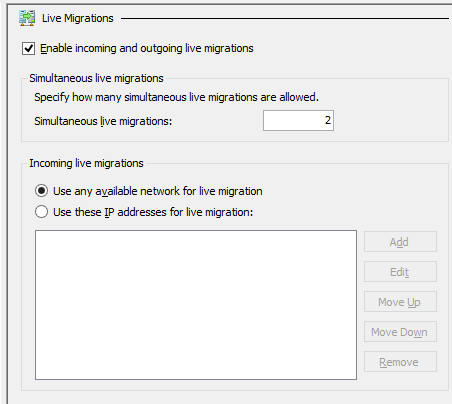
I ran into all the errors. First, I just checked the box for Enable incoming and outgoing live migrations for Hyper-V on each box.

image

Then I tried to move the VM. I got the error described here: The credentials supplied to the package were not recognized.

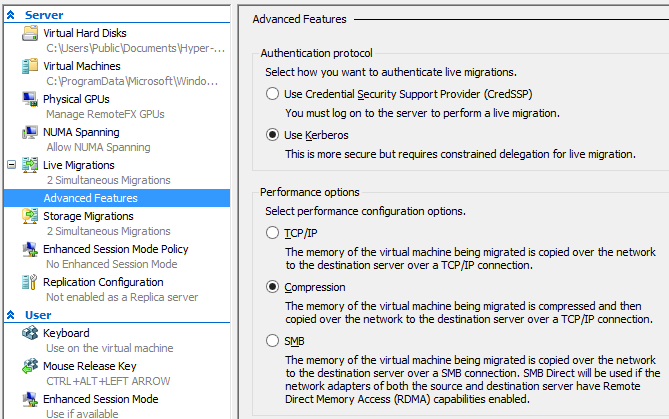
I am not using System Center VMM (Virtual Machine Manager) but just the Hyper-V manager. However it put me on the right track. To have any hope of success with this when working remotely (and who isn’t?) you need to go into the Advanced Features of Hyper-V Live Migration settings and check the box for Use Kerberos:

image

Next, you have to go into Active Directory and set up Delegation using Kerberos for several services: cifs, and Microsoft Virtual System Migration Service. There is a screengrab in the comments here. Do this for both (or all) the servers you want to participate in Live Migration.

I retried the move. Still no go; I got a General Access Denied error 0×80070005 when the source server tried to create a temp folder on the destination server.

The fix, it turned out, was to add the domain administrator to the local Hyper-V group Hyper-V Administrators. You can do this with PowerShell as explained (in generic terms) here.

Then reboot the source server.

I retried the move operation. It worked.

The funny thing: all my internet traffic goes through this VM. I use the internet constantly, but did not notice any downtime as the VM moved from one host to the other.

When I remembered I checked and found that the VM had indeed moved.

Very cool.

My question though: why is it that getting this stuff working always seems to involve several steps (in this case Active Directory, Advanced Feature settings, and of course reboot) that are barely documented?

Why can’t some wizard check the settings for you when you enable Live Migration and offer to fix them or at least tell you what to do?

Nevertheless, once you get it working this is impressive, especially considering that I have no shared storage nor System Center VMM.

What to do if SkyDrive disappears from Windows 8.1 Explorer?

Here is the scenario. You are working away in Windows 8.1 and want to save a document to SkyDrive. You look for the SkyDrive link in Windows Explorer but it is not there.

image

Don’t panic; your documents are most likely fine and you can get to them in the web browser via http://skydrive.live.com

Still, that is inconvenient. How can you restore the Explorer link, other than by rebooting and hoping it reappears?

The solution is to open a command prompt (press Start button and type command) and then type:

%systemdrive%\windows\system32\skydrive.exe

and press Enter. You don’t need to run the command prompt with administrator rights.

All going well, SkyDrive will reappear:

image

What if it doesn’t? Now you have to check the logs or event viewer and look for specific errors. But the simple technique described first has always worked for me.

Microsoft proves resilience with bumper quarter, but is not yet a devices and services business

Microsoft delivered record revenue of $18.53 billion in the quarter ended September 30th 2013 – which might come as a surprise if you have been focusing on the companies failings in tablets and smartphones versus Apple and Android, the steep decline in PC sales, and its small market share in search versus Google, but less so if you have been watching the advance of products like Office 365, Windows Azure, SQL Server and Windows Server, all of which have been making good progress.

In its report, the company says the Windows OEM revenue declined 7% (reflecting PC malaise) but Surface revenue grew to $400 million. Search advertising revenue grew 47% reflecting some degree of success for Bing.

SQL Server “grew double digits”, as did “Lync, SharePoint and Exchange.”

Commercial cloud revenue grew 103%, though bear in mind that Microsoft is not telling us the absolute figures; you can easily grow fast if you start from a small number.

Microsoft has changed the way it segments its revenue, making it difficult to track, especially with large sums of money ($1.6 billion) reported as “Commercial Other”. Here is how the new segments look:

Quarter ending September 30th 2013 vs quarter ending September 30th 2012, $millions

Segment Revenue Change Profit Change
Devices and Consumer Licensing 4343 -335 3925 -178
Devices and Consumer Hardware 1485 +401 206 -242
Devices and Consumer Other 1635 +235 352 -10
Commercial Licensing 9594 +645 8801 +618
Commercial Other 1603 +355 275 +170

Now, how to make sense of this? The segment changes are detailed here (Word document). In summary:

Devices and Consumer Licensing: non-volume and non-subscription licensing of Windows, Office, Windows Phone, and “ related patent licensing; and certain other patent licensing revenue” – all those Android royalties?

Devices and Consumer Hardware: the Xbox 360, Xbox Live subscriptions, Surface, and Microsoft PC accessories.

Devices and Consumer Other: Resale, including Windows Store, Xbox Live transactions (other than subscriptions), Windows Phone Marketplace; search advertising; display advertising; Office 365 Home Premium subscriptions; Microsoft Studios (games), retail stores.

Commercial Licensing: server products, including Windows Server, Microsoft SQL Server, Visual Studio, System Center, and Windows Embedded; volume licensing of Windows, Office, Exchange, SharePoint, and Lync; Microsoft Dynamics business solutions, excluding Dynamics CRM Online; Skype.

Commercial Other: Enterprise Services, including support and consulting; Office 365 (excluding Office 365 Home Premium), other Microsoft Office online offerings, and Dynamics CRM Online; Windows Azure.

From this you can see that despite 103% growth, Azure and Office 365 remain relatively small, many times exceeded by the on-premise software licensing which is mainly in “Commercial Licensing”. However Microsoft is reporting a contribution to profits from this segment, though with smaller margins than from software licensing.

Simple addition also tells us that consumer revenue ($7,463 million) is less than business revenue ($11,197 million).

Overall it is obvious that Microsoft is not yet a “devices and services” company even if it has set that as its goal. Most of its revenue comes from traditional software licensing. Can it ever make that transition without shrinking in the process? A good question, and despite excellent figures, one that will ensure Microsoft’s future remains the subject of intense debate.

First thoughts on Surface 2

After a day or two with Surface 2 and the Touch 2 keyboard, a few thoughts.

image

First, I am typing this on my desktop PC. I would have used the Surface 2, as I like to match the tool to the review, but no Live Writer on Surface (my favoured blog authoring tool) and no, Word is not as good for this.

That neatly demonstrates the app issue on Windows RT; but despite that I expect to use Surface 2 frequently in the coming months. It is an excellent tablet, with its chief advantages over the older Surface being performance and Windows 8.1, which includes Outlook.

Performance on Surface 2 is around 4 times faster for graphics – see previous post – and more than twice as fast in general.

The touch keyboard, now with backlighting, is also much improved.

I know I am in a minority here, but to me the Windows RT concept makes good sense. A locked-down version of Windows that is almost legacy-free, though it is still Windows and capable of throwing up mystifying dialogs and hiding settings in strange places.

It seems to me that if there is any hope for the Windows 8 app ecosystem, then it will be driven by tablets like this one, and Nokia’s new Lumia 2520 which also runs Windows RT. Desktop users are mostly ignoring the app platform. There are a few signs of life, like the new Facebook app, and things like Xbox Music are now decent. MediaMonkey, which I like for its Flac support, runs nicely on Surface 2.

Isn’t an iPad Air better? In some ways for sure. Usability, performance, size and weight, and rich app availability are all in the iPad’s favour, and price is similar. The reason you might get a Surface though is for Office, USB 3.0, HDMI out, SD card, and the clever keyboard cover. I also like having more than one app to view, whether that is Word and Excel on the desktop, or Word and Caculator, or the split view that works in the new app world.

I’ve hit a few snags with Surface 2. Sound is less good than on Surface RT, tending to be thin and reedy, unless you use headphones or external speakers. The Touch 2 keyboard sometimes stops responding, which I hope is a driver issue (perhaps the update downloaded this morning will fix it).

I also suspect that build quality on Surface 2 falls short of Surface RT. It is still “Vapor Mg” but I already have a slight dent in the bezel on mine whereas on my old RT it is still perfect and I wonder if it is thinner.

The extra price for the 64GB vs 32GB SSD is absurd. Why not make them all 64GB and increase the price by a fraction?

Is Microsoft serious about selling Surface 2? There does not seem to be much stock around, and it is not yet listed on Amazon.co.uk, although it has been on sale since yesterday.

Those that do discover it will like it, provided they understand the difference between Windows RT and Windows x86, something which – bizarrely – Microsoft still seems keen to disguise.

FutureMark graphics benchmark: Surface RT vs Surface 2

We know that the new Surface 2 (Nvidia Tegra 4) is faster than the old Surface RT (Tegra 3) but by how much?

I came across the FutureMark 3D Benchmark for Windows RT in the Windows Store and tried it on both.

I could see this was going to be a wipeout from the off. The first test saw a frame rate of 12.9 FPS on RT versus 59.9 on Surface 2. Surface RT first:

image

Then Surface 2:

image

Surface 2 reported “Maxed out” on the scores. However, on the next test, Ice Storm Extreme, I got a result.

Surface RT: 2065

image

Surface 2: 8577

image

3D Mark RT says my score is “low for this device” on Surface RT, but “a great score for this device” on Surface 2. Maybe the impact of Windows RT 8.1?

Bottom line: on these tests Surface 2 is around 4 times faster. No wonder it feels snappier to use.

Review: Surface Touch Cover 2

Windows tablets present a design challenge because they include desktop applications which are designed for keyboard and mouse, rather than touch – not least Microsoft Office, which for some of us accounts for a significant proportion of the time spent using the device. So far there has been consensus therefore that Windows tablets need some easy way of using a keyboard and mouse or trackpad. How to achieve this without losing the benefits of a tablet  is not easy. Bluetooth is one solution, but means three devices rather than one in your bag. Screens that twist over to form tablets are another, but the devices tend to be heavy and the twisting action inconvenient. Detachable keyboard/trackpads are the favoured solution, but leave you the problem of a loose keyboard to look after once you have detached it. If it stays always attached, perhaps you should have bought a laptop.

Microsoft’s Surface tablet has the most elegant solution I have seen. When it was launched a year ago, it included two optional keyboard covers. The Type cover is a thin keyboard with real clacky keys.  The touch keyboard is almost flat, though the keys are slightly raised. You can detach them, but they fold back behind the device, automatically disabling the keys, at which point they are unobtrusive.

Many people liked the idea of the touch keyboard, but found typing frustrating with more errors than they normally make. For this reason, the Type keyboard is more popular among Surface users. It is possible that more Touch keyboards were sold, since they are slightly cheaper and more often bundled with the device, but in actual use I see more Type keyboards.

That is a shame, because the Touch keyboard is design-wise a better solution. It adds very little bulk to the Surface, and when folded back under the device for tablet use, it feels perfectly natural, whereas the Type keyboard feels odd because of the keys that are then on the underside.

When Microsoft announced the Touch Cover 2, it said that by adding more sensors (14 times as many apparently) and more intelligence to the cover and its drivers, it had improved the typing accuracy. As a Surface user I was excited to try the Touch Cover 2 and see if it lives up to these claims. If it does, I will happily ditch the Type cover.

image

The Touch Cover 2 is the same price as before, £99 in the UK or $120 in the US. It is compatible with every Surface, including the original Surface RT. It is also fractionally thinner, 2.5mm as opposed to 3mm. Third, it is now backlit, which makes a big difference on those odd occasions when you are typing in dim light, such as on an aircraft when the cabin lights are dim.

Looking at old and new side by side though, you would be forgiven for thinking not much has changed – the new one is the lower of the two, and note that my original is a US layout and the new one UK:

image

Here are a few more points of detail:

  • The new keyboard has function key labelling F1-F12. As is now common, the default is the non-Fn meaning, and you have to press Fn first to get the function key. The old keyboard also has an Fn key, but you have to work out which top key to press. The right Alt key is now labelled Alt Gr.
  • The purpose of two of the special keys has changed. The new keyboard no longer has volume keys, though it does have a volume mute. In their place are two keys controlling the brightness of the backlight.
  • The design of the trackpad has changed slightly. On the old touch cover, the left and right “buttons” are on the edge of the keyboard outside the etched area that represents the trackpad. On the new cover, these buttons are within the etched area, which means that the trackpad seems slightly bigger, but in reality is not.
  • The underside of the touch cover used to have a fabric finish. On Touch Cover 2 it is now smooth plastic. This is one detail where I prefer the older cover, though maybe it helps to get it that 0.5mm thinner.

The following picture shows the backs of the old and new keyboard covers side by side, with the new one on the left:

image


Touch cover 2 in use

Now for what really matters. How is the Touch Cover 2 in use?

My first thought was to try a speed test. I went along to this online test and tried it several times with the old touch cover, then with the new one. The results favoured the new cover, perhaps by around 20%, though how you evaluate it depends on the weighting you give to errors versus speed.

Then I sat down to write this review. This is where my opinion of the new Touch Cover began to swing in its favour. I find real-world typing on the Touch Cover 2 substantially more pleasant than with the earlier version. Measuring words per minute does not fully represent the improved experience. Of course this is a personal thing and your experience may vary.

The backlighting is low key (ha!) but improves usability. The way this works is that the white lettering on the keys is illuminated so it stands out more.

image

Note that if you think it is not working, you probably just need to increase the brightness using the special keys.

Is it as good as a real keyboard, or even a Type Cover? I doubt it ever will be, especially if you are someone who does not look at the keyboard while you type. The problem is that the slight etching round the keys makes it harder for your fingers to know where they are, though typing with audible key clicks helps.

Another factor is that if you are not at a desk, the lightness and thinness of the touch cover counts against it, since it flexes slightly on your lap.

That said, with practice you can get good speed and accuracy. As a cover, it is so much more elegant than the Type Cover that overall I might just prefer it, even though I still rate the Type Cover slightly better for typing.

One caveat though: I used the Touch Cover 2 with both Surface RT and Surface Pro, and had an annoying problem. If I stay typing in one app everything is fine, but if I switch apps than sometimes the keyboard stops responding. Oddly, opening Device Manager and pressing the up and down arrows a few times seems to fix it. Perhaps my Touch Cover 2 is faulty, but I suspect a driver issue, which means hope for a fix soon. I will be trying it soon with a Surface 2 and will be interested to see if the problem remains.

The keyboard also seems to mark easily. I have only had it for a day, but can already see slight fading of the black finish on the keys I type most often.

Mobility always involves compromise. If you want the very best keyboard for typing, it won’t be a touch cover. In fact, for best productivity I prefer a high quality Bluetooth or USB keyboard to either of the Type or Touch covers.

That does not detract from what Microsoft’s engineers have achieved with the Touch Cover 2. Flip it back, and you have a tablet; flip it forward, and you protect your screen; place it on a desk and you have a productive typing machine.

Glitch aside, I recommend the Touch Cover 2 as a good option with a new Surface and a worthwhile upgrade from the first Touch cover.