Category Archives: microsoft

The Windows Runtime App Certification Kit: not too good detecting crashes and hangs

Now that I have a lovely ITWriting.com App I thought I should check out whether it is ready to fly.

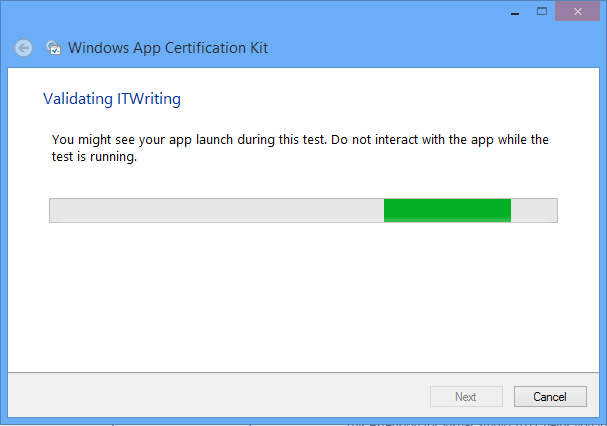
I therefore ran the App Certification Kit that installs with Visual Studio 2012.

image

The tool asks you to select an installed app and then exercises it. I saw my app open, though I did not see it get beyond the first screen.

image

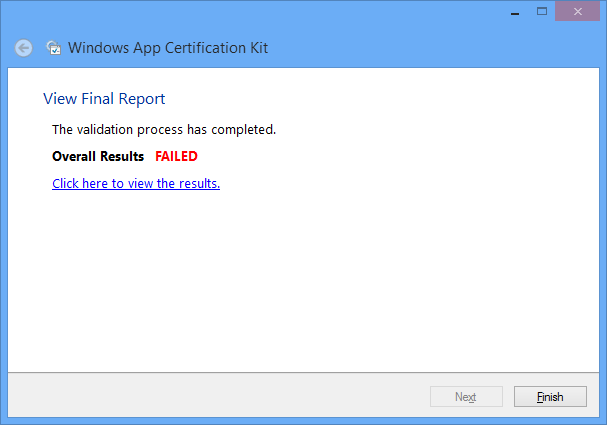
Eventually – bad news:

image

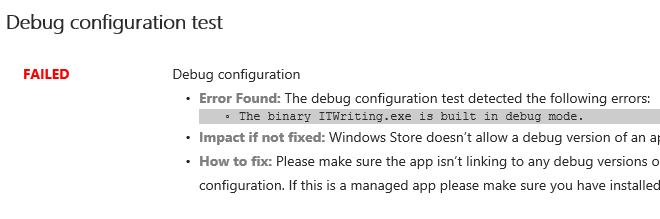
However, there is only one thing wrong with it:

image

Yes, the version installed is the debug build. I can fix this simply by rebuilding in release configuration.

What does the Kit test? Here is the list:

  • Crashes and hangs test
  • App manifest compliance test
  • Windows security features test
  • Supported API test
  • Performance test
  • App manifest resources test
  • Debug configuration test
  • File encoding
  • Direct3D feature level support
  • App Capabilities test
  • Windows Runtime metadata validation

That sounds most impressive and makes a great list for you to show to your customer.

I am sceptical though. If the app was not exercised beyond the opening screen, might it not be a bit buggy after all?

I inserted the following line of code into the the Click event handler for reading a blog:

int iCrash = 1 / string.Empty.Length;

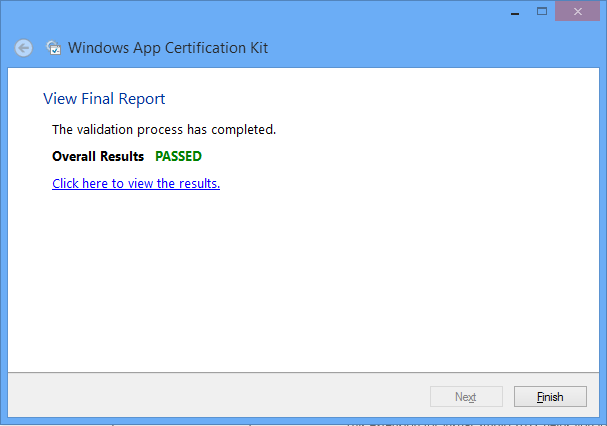
I then rebuilt the app in release mode and ran the App Certification Test. Great news!

image

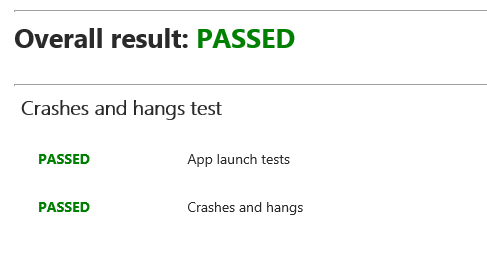
and specifically:

image

Thanks though to my umm, bug-unfix, the app crashes whenever I click to read a blog.

I mention this not to poke fun at the App Certification Kit, but to observe that it does not do a good job of automatically detecting crashes and hangs.

The implication is that the human testers are the ones who will do this before an app is admitted to the store. I think they would find my obvious bug; but how much time will they have to test every feature of an app?

Developing a Windows Runtime app: some observations

What would it take to create a Windows 8 Modern UI content reader for this site? Just for fun, I built a simple one; or rather, I slightly adapted Microsoft’s Metro style blog reader tutorial.

The app only has four screens (or pages) but despite its simplicity I found the tutorial somewhat fiddly. Getting the data from the WordPress RSS feed is simple, thanks to the Windows.Web.Syndication namespace which is part of .NET Framework 4.5. Most of the work is in the user interface, which means switching between XAML and C#. Of course as a developer I would rather work in C#.

Further, the Visual Studio editor for C# is better than the editor for XAML. In C# I can easily navigate the code using Go to Definition, Find all References, and so on.  In XAML it takes longer to find things like referenced styles and resources. Plus XAML is XML, which I find harder to read than an elegant language like C#. Even commenting out a line is more hassle in XML.

I did not like the colours used by the tutorial for the list of posts in SplitePage.xaml. It took me a while to work out what to change. Was the colour defined in a resource, or in a template, or in a style, or directly coded as an attribute of the relevant TextBlock object?

Of course you can open the XAML in Blend if you prefer, the designer-oriented tool that comes with Visual Studio 2012. Blend is more complex than the Visual Studio XAML editor, but may be better once you have figured out how it works.

The amount of work involved in making your app well-behaved is proportionately larger if your app is essentially very simple. You have to deal with different layouts for different screen sizes and orientation, as well as the small Snapped layout. You also have to consider what happens if your app is suspended and resumed.

The above means that despite the apparent simplicity of a Modern UI interface, with its chunky buttons, there is more to consider than with, say, a Windows Forms application whose window is never rotated and over which you have full control.

Still, I was pleased with my app which has reasonable functionality based on a small amount of work.

Visual Studio 2012 is impressive, though I did experience some screen corruption after switching back and forth between the Metro and Visual Studio environments for debugging. Restarting Visual Studio fixes it. Using the simulator seems more robust in this respect.

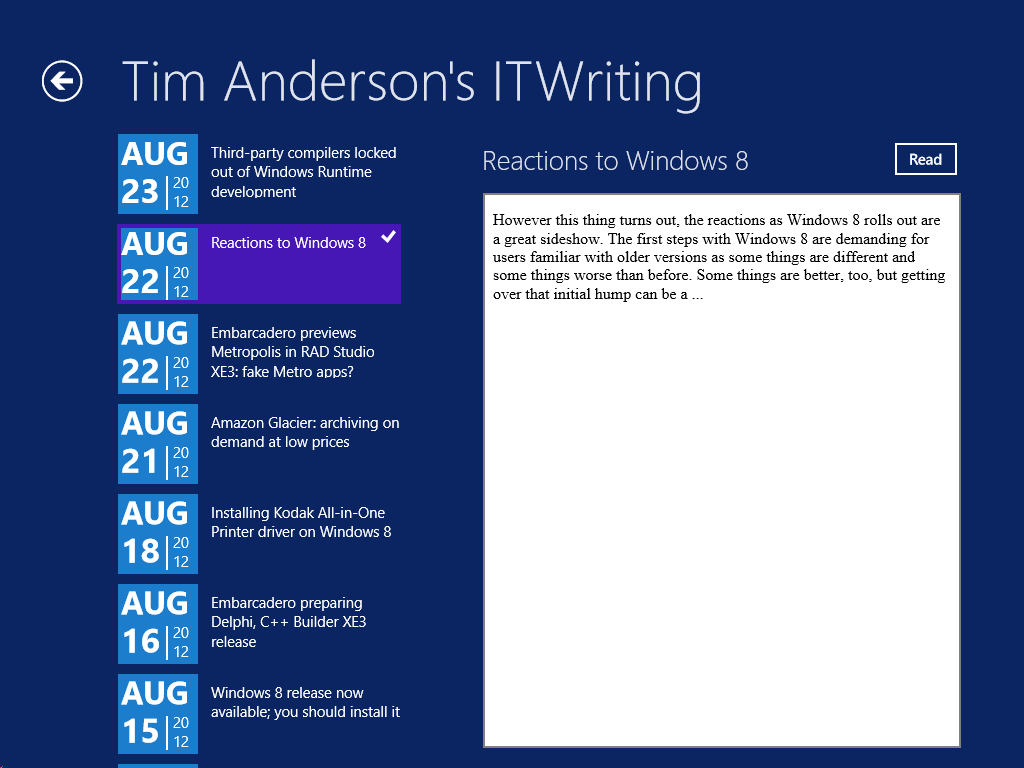
image

The App Bar

One thing though. If you squint at the above screenshot, you will see that I have put a Read button to the right of the post title. Clicking or tapping this opens the post in a embedded web browser view that is nearly full-screen. However, this Read button is not included in the tutorial, which says:

On the split page, we must provide a way for the user to go to the detail view of the blog post. We could put a button somewhere on the page, but that would distract from the core app experience, which is reading. Instead, we put the button in an app bar that’s hidden until the user needs it.

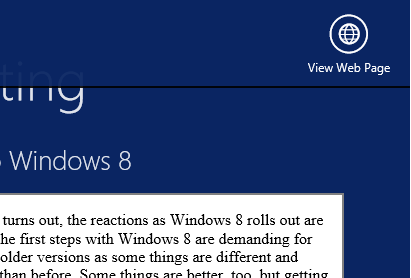
This may in fact be an excuse to include an App Bar in the tutorial; but I disagree with it. With the App Bar, the user has to right-click or swipe down to display the App Bar, and then click or tap the View Web Page button.

image

That is two actions rather than one. Is it really better than having a small button in the UI?

It seems to me that tucking things into the App Bar is fine in cases where there is real merit in an immersive experience, such as in the web browser, but less compelling when you already have a screen with a back button and a scrollable list. I was also concerned that users might not realise they needed to display the App Bar in order to use the app properly.

Let the design debate continue.

Design-centric

Microsoft’s Modern UI continues a trend which began with Windows Presentation Foundation (the first incarnation of XAML), which is to make a platform richer for UI designers and more challenging for developers who lack design skills. Nothing wrong with that; but if you remember how easy it was to snap together an app in Visual Basic 3.0, you may feel that something has been lost.

I guess that recognition of that fact was one of the motivations behind Visual Studio LightSwitch, in which you define the data and business rules, but the screens are generated for you. LightSwitch has complexities of its own though.

Third-party compilers locked out of Windows Runtime development

Embarcadero’s chief scientist Allen Bauer has posted about the problems facing tool vendors who want want to support Microsoft’s Windows Runtime (WinRT) platform with their own compilers, which he calls “Windows 8’s ‘dirty little secret.’”

The issue is that in order to enforce security and isolation in WinRT apps, Microsoft prohibits certain API calls. Even if you find a way to use them, applications that use these calls will not be accepted into the Windows Store, which in effect means no public distribution.

We are very keen on supporting WinRT with native Delphi & C++ code. Right now, the issues surrounding the WinRT space center around the fact that many OS-supplied APIs which are required by anyone implementing their own language RTL are actually off-limits unless you’re the VC++ RTL DLL. You know, little things like RtlUnwind for exception processing and VirtualAlloc (et. al.) for memory management… Any calls to those APIs from your application will automatically disqualify your application from being an "official" WinRT application capable of delivering through the MS app store.

Right now the VC++ RTL DLL is given special dispensation since that is the library that makes the calls to those forbidden APIs and not directly from the user’s app. We’re currently rattling some cages at MS to find out how or if they’re going to allow third-party tools to target WinRT. Until we can get past that, targeting WinRT isn’t actually possible from a deliverable product sense. We are able to build WinRT applications with Delphi that work with a developer certificate, however they all fail the application qualification checks because of the aforementioned (an other) APIs.

Bauer adds that there are other restrictions that make it hard to create an alternative toolchain:

For instance, you cannot merely open any file, access the registry, and even use the loopback (127.0.0.1) adaptor. LoadLibrary cannot be used to load any arbitrary DLL; you must call LoadPackageLibrary and only on a DLL that is present in the digitally signed appx package. WinRT is a seriously locked down sandbox or "walled-garden" with some extremely high walls.

Embarcadero’s answer has been to create a framework that makes desktop apps look and behave somewhat like WinRT apps. I posted about these fake metro apps here. Even Live Tiles are supported. However, these apps cannot be distributed via the Store either, but only through a desktop setup. In addition, they lack the security of true WinRT, and access to the Contracts system for safe exchange of data.

The company does have a .NET tool in the works, called Prism, that will build WinRT apps.

Who is the villain here? Embarcadero’s concern is understandable, since it is locked out of creating a native code compiler for WinRT. On the other hand, to what extent can Microsoft relax the restrictions without blowing a hole in the WinRT security story. There are parallels with the complaints from Google and Mozilla that they cannot compete equally with IE10 in the Modern UI environment.

Thanks to .NET support, Microsoft does have a measure support for alternative languages; it is the Common Language Runtime after all. What would be better though would be to support LLVM, as Apple does on iOS, though this is not likely to be on Microsoft’s roadmap.

Thanks to Eric Grange for pointing me to this post.

Reactions to Windows 8

However this thing turns out, the reactions as Windows 8 rolls out are a great sideshow. The first steps with Windows 8 are demanding for users familiar with older versions as some things are different and some things worse than before. Some things are better, too, but getting over that initial hump can be a problem. I am starting to collect some of the reactions that caught my interest, and will update this post with further links as I find them.

image

This distinctly non-PC blast from Igor Ljubuncic is based on the Consumer Preview but I quote it because it does a good job of presenting the “no way never” perspective:

Would you sacrifice your entire user base in a rich and profitable tier for the sake of a feeble chance that you might hold a small share of a new market segment that has significantly lower profit margins? Sounds like stupidity to me. … Windows 8 Consumer Preview is a technological, ideological and functional failure. It’s hard to see how no one lost their job over this.

Here is Tim Edwards in a piece with a number of inaccuracies – but remember, first impressions are still first impressions, even if some of the assumptions one makes turn out to be wrong:

Windows 8 is the worst computing experience I’ve ever had. As a desktop operating system, it’s annoying, frustrating, irritating, and baffling to use.

First impressions from Krishnan Subramanian

This is a great user interface and the underlying platform changes are pretty good. However, this interface is not suitable for desktop (Laptop) experience. … with all the “steep learning curve” factor and the fact that many enterprises just upgraded to Windows 7 makes me wonder if Windows 8 will be a flop show in the enterprise space even with their $40 pricing strategy

Windows 8 a Cognitive burden says a usability expert

Windows 8 is optimized for content consumption rather than content production and multitasking. Whereas content consumption can easily be done on other media (tablets and phones), production and multitasking are still best suited for PCs. Windows 8 appears to ignore that.

Mary Branscombe who knows Windows 8 as well as anyone outside Microsoft has a thorough review concluding:

Keep an open mind, spend some time getting used to the charm bar and the Start screen. Once you do, we defy you not to be impressed by Windows 8.

Another from the long-time-watcher Windows camp (but not always pro-Microsoft; he was the one who proclaimed Longhorn “a train wreck”) is Paul Thurrott who says:

For all the whining, hand-wringing, and ivory tower opining over Microsoft’s decision to wed an awesome new mobile platform with its superior desktop OS, few of these critics ever paused for a moment to consider an awesome possibility: This time, more really is more.

Balanced read but not convinced by the system: Preston Gralla on Computerworld:

With Windows 8, Microsoft is making a bet that it can please both tablet users and traditional computer users with a single OS. That bet didn’t pay off for me. On a tablet I find it an excellent operating system. On a traditional computer, it doesn’t work nearly so well.

Yes, it’s that bad says Woody Leonhard in a curious piece which exaggerates the difficulty of using Windows 8:

While Windows 8 inherits many of the advantages of Windows 7 — the manageability, the security (plus integrated antivirus), and the broad compatibility with existing hardware and software — it takes an axe to usability. The lagging, limited, often hamstrung Metro apps don’t help.

Nik Rawlinson on CNET UK says Windows 8 is worth the upgrade but …

The OS represents a serious attempt to unify computing across PCs and tablets in a cohesive way. It’s impressively quick, apps are presented in an original manner that avoids the repetitiveness of Android and iOS, and it hooks in well to your life on the Internet.

While the learning curve may be steep, there are more than enough similarities between Windows 7 and 8 to ease the transition. It’s well worth the upgrade, but it’s not yet the ultimate operating system Microsoft wants it to be.

A balanced piece from Avram Pltch at laptopmag.com:

If you’re a Windows 7 user and you don’t have a touch-screen device, you can safely skip this upgrade for now and wait to see how this new ecosystem of apps matures. However, if you’re buying a new laptop or tablet, Windows 8 provides a compelling experience that’s worth the learning curve.

PC Pro has divided its conclusions into Windows 8 for desktops and laptops, and Windows 8 for touchscreens and tablets. As you might expect, it is more favourable towards the latter. On desktops:

Windows 8 has relatively little to offer those who do their computing on a desktop or laptop PC. This isn’t a terrible thing – Windows 7 wasn’t exactly broken to begin with – but it means that upgrading to Windows 8 is far from essential.

but on tablets:

Microsoft has delivered a compelling – and in many ways, much more powerful – alternative to iOS and Android. It’s not perfect, and much depends on the quality of forthcoming apps and hardware, but if the goal of Windows 8 is to rejuvenate its appeal across the whole spectrum of touch-enabled devices, then we believe it’s succeeded.

My comment: the point of Windows 8 is to bring desktop and tablet OS together so is this the right way to appraise it?

Jon Honeyball lost patience with Windows 8 which he says is a car crash (one up from a train wreck?):

Any existing user will be tearing their hair out at this nonsense: the flipping backwards and forwards between Metro and the desktop, the lack of a Start button, the way all that history has been hidden away. Ask a user to find Control Panel and see the laptop being thrown into a nearby bin.

Installing Kodak All-in-One Printer driver on Windows 8

I have been busy upgrading computers to Windows 8 now that the RTM is available. So far so good, though I ran into a problem with a printer which, oddly, worked fine in the Windows 8 Release Preview.

The printer is a Kodak All-on-one. Kodak has a universal installer for all its all-in-one printers. When I ran this, I got a message that .NET Framework 2.0 was needed and would be updated.

image

It would then try to install .NET 2.0, but fail.

Easy, I thought, just install .NET first. In Windows 8, you do this through Control Panel – Programs – Turn Windows features on or off.

image

I installed .NET Framework 3.5, which includes 2.0, and re-tried the Kodak printer install. Same message, same error.

I also tried running the installer in compatibility mode for Windows 7 and Windows XP. No go.

Time for some serious troubleshooting. I presumed that if I could figure out what the installer was looking for when it failed to detect .NET Framework 2.0, I could fix it.

First, I checked the official instructions for detecting .NET in an installer. This was already correct.

Next, I downloaded Process Monitor to see if I could spot the registry query or file search the installer was making. I noticed that aio_install.exe, the Kodak installer, unpacks a setup into a temporary location and runs from there. I copied the extracted files and ran the setup. Using Process Monitor, I discovered a registry query to HKCU\Software\Kodak\BootStrapInstallStatus and the REG_DWORD key InstallStatusKeyForDotnet. This was currently set to 1. In a spirit of experimentation I changed the 1 to a zero.

image

Next I re-ran setup. It worked perfectly.

image

I still do not know why that registry key was set, but I am not inclined to pursue it further. Possibly if .NET Framework 2.0 is already installed before you run the Kodak installer for the first time, the problem does not arise.

If you encounter this problem though, I suspect the following two steps will be sufficient:

1. Install .NET Framework 3.5 using Control Panel.

2. If installing the printer driver fails, check for the registry key HKCU\Software\Kodak\BootStrapInstallStatus\InstallStatusKeyForDotnet and set it to 0.

Windows 8 release now available; you should install it

Windows 8 is now available for download on MSDN and TechNet, which means the final code is in the hands of a large number of Microsoft-platform professionals. I have been trying out the release, which I installed both as an upgrade over the Release Preview (it does not really upgrade it, but does keep a few settings and documents), and as a clean install on a virtual machine.

The first thing I noticed was the default settings:

image

You can click Customize to get more information and control over these settings, and I recommend that you do. The one that troubles me most is:

Let apps give you personalized content based on your PC’s location, name, and account picture.

I am not sure how the picture helps with that, but presume it is code for giving apps permission to use it and potentially to share it. The matter of sharing location is difficult; it certainly makes sense for numerous apps from Weather to TripAdvisor; but allowing third-parties to track your physical location is a big ask. Still, if you want the full experience you have to compromise your privacy; that is the choice.

Next I was interested to see what guidance Microsoft would give to new users. This appeared just after setup and before the Start screen is shown for the first time, and takes the form of one or two short but insistent animations:

image

When I installed on a tablet, I got a second animation about swiping in from the sides.

It seems to me that Microsoft is trusting too much that users will enjoy “discovering” the Windows 8 user interface. Perhaps some will; but I was expecting to be offered something like a video and an introductory manual. I think users will click past this and still get stuck.

Next, I noticed the new aero-less desktop theme.

image

I do not have strong feelings about this, but admit to some puzzlement about why Aero translucency has gone. Power consumption is a possibility, but why not offer it as an option for desktop users, for example? Still, this is a small detail as far as I am concerned.

Microsoft has chosen a flower for the default desktop background, not unpleasant though a bold choice in some ways. A flower is a strong, evocative image that some will therefore react against, given that a desktop background can be a sort of personal statement.

image

Not many desktop backgrounds are supplied on the install DVD. There is a Flowers theme and another called Earth, which I found rather bleak.

image

The default lock screen is a painting based, I think, on the Seattle Space Needle.

image

Disappointments? My biggest disappointment is with the RTM Store. I was hoping for a host of new applications, but in fact the Store, while containing a few new apps, is still sparsely populated.

image

This is a problem for Microsoft because Windows 8 badly needs a few compelling apps to persuade doubters that Metro, sorry Modern UI, is not worthless. I love Wordament, yes, but in general we still await great Windows 8 apps.

The best news, I guess, is that I have little to say about the install process. It was smooth, quick, and it worked. No unknown devices in Device Manager on the Samsung Slate; but I realise that this is the one device that everyone has been using to test Windows 8, so I guess this is not surprising. Not all PCs will fare so well.

Businesses should of course be cautious about rolling out a new version of Windows (and will be); and anyone installing this on a machine they use for real work will naturally take a backup first, in case of disaster or just some essential application not working.

If you can though, you should install this new release. Performance is good, it is a decent upgrade from Windows 7 even if you do not use a tablet, and it is only by using it for a while that you will get a feel for the strengths and weaknesses of Microsoft’s new operating system.

Why I want a Windows RT (ARM) tablet

Microsoft has now announced that the first Windows RT tablets will come from Asus, Dell, Lenovo, Samsung, and from Microsoft itself with Surface.

image

Windows 8 on ARM is a different thing to Windows 8 on Intel. On Intel, most Windows applications will run. On Windows RT, the ARM version, only Windows Runtime apps (also known at Metro-style, Modern and Windows Store) will run. There is still a desktop mode, but it is reserved for a special version of Office along with a few utilities like Explorer.

On the face of it, the Intel version is a better deal, because “you get it all.” However, there are times when less is more; in fact, that phrase practically defines the success of Apple’s iOS, which does not run applications coded for Mac OS X.

The problem is this. On a tablet, the Windows desktop is a horrid experience, unless you get out not only your tablet, but also your keyboard and your mouse or stylus. Even the stylus can be a problem, and having lived with Windows 8 on a Samsung Slate tablet for some months, I find a mouse works best.

We have seen this before, with the old Windows tablets starting with Windows XP. OEMs came up with clever designs with twist screens and styluses which clip into the side. These machines certainly have their uses, but they were not mainstream and they were not cheap. Intel Windows 8 tablets will have all the same problems. The poor experience offered by the Windows desktop user interface with touch was a key reason why Microsoft came up with the radical WinRT alternative.

Windows RT on the other hand promises a better tablet experience. with the additional bonus of longer battery life and a lighter, more efficient device. You cannot install desktop apps, but if the Windows 8 ecosystem fails to come up with WinRT apps to cover the essential computing activities, then the Windows 8 project will have failed in its goals.

There is also Microsoft Office of course, which makes some effort to support touch control though it could be better. Still, I would rather have Office which at least has been designed with the knowledge that some users will be controlling it with touch, than all those other desktop applications which presume keyboard and mouse.

The importance of having Office there is that it makes the difference between having to have a laptop with you as well while on the road, and being able to get all your work done on the tablet alone.

This issue does not seem to be well understood either by Microsoft’s OEM partners nor by the general public. I do not blame the latter. On the high street or at the airport, there will be rows of Windows 8 tablets with similar Start screens, and the difference between Windows RT and Windows Intel will be hard to convey. I can imagine salespeople saying, “You should get this one, it is the full Windows,” and steering customers towards the awkward, confusing experience that is Windows 8 on an Intel tablet.

One disappointing remark buried in the announcement:

Over 90% of the RTM applications in the Windows Store support Windows RT

That means 10% of WinRT apps currently do not support ARM, presumably because there is some native x86 code in there.

Microsoft really, really wants developers to build Windows Runtime apps

Or should that be Metro-style apps? or Modern UI apps? or Windows Store apps?

I am not sure; but one thing jumps out at me as I look at the Windows 8 development platform. Microsoft is doing all it can to push developers towards Windows Runtime (WinRT) rather than desktop development.

Here is a small piece of evidence. The contentious new Start screen uses tiles for application shortcuts. These can be static images and text, or live tiles that update with current information. There is only one Start screen though, so desktop apps also have tiles which you click or tap to launch the app in question.

However, there is no documented way for desktop apps to have good-looking tiles. Here is the tile for Excel 2013, for example:

image

It is mostly wasted space. A WinRT app on the other hand can fill that space:

image

or display a picture

image

or take up a double space

image

The question: how difficult would it have been for Microsoft to allow desktop apps to have pretty tiles? I can understand why desktop apps cannot have live tiles, but there is no technical reason I can think of why desktop apps could not have a resource used for a decent tile.

Here is the official answer though, from Microsoft’s Rob Caplan:

Desktop apps cannot customize their tiles and will always use the icon and name from their shortcut.

I guess Microsoft can argue that it wants users to know whether they are about to launch a desktop app or a WinRT app. This could easily be done with a little overlay signifying the desktop. There was no need to ensure that all tiles for desktop apps look ugly.

Except that Microsoft wants these tiles to look ugly. Because it wants you to develop WinRT apps, not desktop apps, and is even willing to have its own Office tiles look bad for the sake of the cause.

Update

This post was picked up by Reddit and of course there are some interesting comments. First, the desktop tiles are improved in the RTM build of Windows 8 (my screenshot above is from the Release Preview):

image

Second, here is a comment apparently from a Microsoft employee:

Wow, what a flimsy argument. The funniest thing about it, though, is that the desktop tiles look MUCH better in the RTM build (though customization is still left to Modern apps). Can’t seem to find a screenshot though.

But on the other hand, of course we want people to develop Modern apps. That’s why we built the platform. But the desktop tiles aren’t a part of that at all.

If I were the author, I’d bring up Contracts as a much better example. Desktop apps can’t support the Share Contract, or Search, or whatever; only Modern apps can. Of course, there’s no telling if this is simply a v1 limitation or a longer strategy; even I have no idea (I’ve only been at the company a little over a year). If we waited to release Windows until we had implemented everything we wanted to do, it wouldn’t come out for years. We have to draw the line somewhere.

Disclaimer: these are my thoughts, not the company’s.

In defence, I presented this only as a “small piece of evidence”.

Note the use of the term “Modern apps”.

Microsoft toughens logo requirements for Windows 8, forbids startup apps

Today I came across the certification requirements for Windows 8 desktop apps. This is the successor to the Windows 7 Logo program, and represents a set of best practices required for software to display the official Windows logo.

In practice, I am not sure how many buyers check that software is certified before buying, though it might make sense for businesses to do this as a matter of policy if they want keep Windows desktops running smoothly and safely.

The requirements are also interesting as a guide to what Microsoft considers to be well-behaved applications.

The new requirements are tougher than before. Some guidelines that were in the “Beyond Windows 7” section in the previous logo program have now moved to become full requirements. Others seem to be completely new.

Here are some highlights:

  • Your app must not depend on any Windows compatibility feature, nor the VB6 runtime.
  • Apps may not start automatically on startup. You may not set the “run” registry keys nor install a shortcut into a startup folder.
  • Apps must use “strong and appropriate ACLs” to secure executables, directories and registry keys.
  • Apps must be compiled with /SafeSEH (safe exception handling), /NXCOMPAT (no data execution) and /DYNAMICBASE (random address space layout).
  • All executables must be signed with an Authenticode certificate – this was the same in Windows 7 but worth repeating.

The automatic startup prohibition is particularly intriguing. It could not be clearer:

10.2 Your app must avoid starting automatically on startup

I hate unnecessary startup applications too; but I do not object to all of them. My password manager runs on startup and sits in the notification area. Some of Microsoft’s own applications do this, for example Lync, Skype and SkyDrive. I would have thought auto-startup is acceptable if it is under the user’s control.

One factor may be that Windows 8 desktop apps do not auto-start on log-in even if you set them to do so. Instead, they start when the user clicks or taps into the Desktop. Therefore, in a sense none of the normal auto-start techniques are reliable.

There is a way round this, which is to install an autorun service.

In general, tough certification requirements are a good idea, though if they are too demanding the risk is that vendors will simply ignore them.

Valve announces Steam-powered apps beyond games as well as embracing Linux

Steam maker Valve has announced that it is expanding beyond games, to sell software titles that “range from creativity to productivity”.

image

The Steam software is more than just a store. The platform handles updates, digital rights management, and supports multiplayer gaming. It also forms a chat network. The Steam overlay lets users access Steam features while playing a full-screen game.

Users can install a Steam title on multiple computers but can only play while logged in, and can only log in on one device.

Steam launched first on Windows, but also has clients for Mac and, via Wine compatibility, on Linux. There are also mobile clients for Android and iOS, and some support for PlayStation 3, though these have limited features. The mobile clients do not let you buy and run games for the mobile device itself.

With Apple, Google and now Microsoft backing their own app stores for their respective platforms, Valve has some tricky manoeuvring ahead if it is to avoid being squeezed out. Valve founder Gabe Newell made headlines recently by calling Windows 8 a “catastrophe”, though he is hardly a disinterested party. Note that he should not worry too much about Windows 8 in the short term, since Microsoft’s store does not support desktop titles other than by links to third-party sites, including Steam. However the general trend towards locked-down platforms with software installed only through an official store must be a concern to Newell.

Valve is turning towards Linux as a possible solution. It is talking at the Siggraph conference this week in Los Angeles about its work on OpenGL and Linux, and it seems that a native Linux Steam client is in prospect.

Could Windows gamers, or others disillusioned with Windows 8, turn to Linux in significant numbers as an alternative? While this is possible, it seems more likely that the Mac would benefit. You would also imagine that skilled gamers will be smart enough to operate the Windows 8 Start menu and discover that most of their stuff still runs fine on the new desktop.

The Steam platform is a strong one though, and with Microsoft not supporting desktop apps through its own Store, Valve has a good opportunity to extend its reach.

According to its own stats, Steam has peaked at over 4 million concurrent users this month.

image