Category Archives: professional

Windows 8 RTM: it’s better than you may have heard

Poor old Microsoft. Windows 8, the reimagining of Windows, is getting a mixed reception. There is a kind of alliance, with those who you would expect to oppose Microsoft (open source advocates, Apple enthusiasts and so on) lining up with Windows diehards who dislike too much change. Like Windows stalwart Woody Leonhard (remember those endless Office tips?) who says, under the headline Windows 8 review: Yes it’s that bad:

From the user’s standpoint, Windows 8 is a failure — an awkward mishmash that pulls the user in two directions at once. Users attracted to the new touch-friendly Metro GUI will dislike the old touch-hostile desktop underneath. By the same token, users who rely on the traditional Windows desktop will dislike having to navigate Metro to find settings and apps they intuitively locate in Windows 7.

He adds:

I can confirm after months in the trenches and talking with many hundreds of testers that anyone who defines "real work" as typing and mousing won’t like Windows 8 one little bit.

I disagree. In fact, I had the opposite experience. I installed Windows 8 Release Preview for a non-technical friend, on an old laptop with no touch capability, and was so sure that she would dislike it that I kept the backup image of her Windows 7 install ready to zap it back on.

It did not happen. She was flummoxed at first of course, but after pinning a few applications to the taskbar and learning how to navigate Start, she was fine. All her old desktop apps still work and she cannot see what the fuss is about. Now and again she pops into Modern UI land and plays a game or uses the Facebook/Twitter integration in the People app and it is not a problem.

This has made more impression on me that my own experience, which I tend to discount being used to the bleeding edge. I should mention though that I have no desire to go back to Windows 7, even on my desktop. I like the speed of Windows 8; I like having Hyper-V; I like having the taskbar on both my displays, and it works fine.

I also have Windows 8 on the Samsung Slate which I bought last year, and words cannot describe how much better it is than Windows 7 on the same device. That said, I cannot really recommend the Samsung; its battery life is too short, its design falls short in several places, and it is too expensive to be a mainstream hit. However, it has given me a feel for how well the Windows 8 UI works on a tablet.

My view is this. Windows 8 has plenty of failings, but they are the failings of transition to a better place, not the failings of something that will never work properly. Most of the problems which rile people so much can be fixed with a small amount of effort and perhaps a read of a survival guide. I did one, and there are others just as good or better.

It seems to me to be simply dishonest to portray Windows 8 as this horrible thing that is a nightmare to use. I do not have any evidence for that, beyond the initial painful moments that I have seen at first hand. I do realise that someone might be so much put off by those initial moments that they never want to touch it again, and will declare the same to anyone who will listen, but regard it as my job, as a technical communicator, to help users get past that towards a fairer judgment.

image

Windows 8 is ready, but many of its users are not.

Microsoft toughens logo requirements for Windows 8, forbids startup apps

Today I came across the certification requirements for Windows 8 desktop apps. This is the successor to the Windows 7 Logo program, and represents a set of best practices required for software to display the official Windows logo.

In practice, I am not sure how many buyers check that software is certified before buying, though it might make sense for businesses to do this as a matter of policy if they want keep Windows desktops running smoothly and safely.

The requirements are also interesting as a guide to what Microsoft considers to be well-behaved applications.

The new requirements are tougher than before. Some guidelines that were in the “Beyond Windows 7” section in the previous logo program have now moved to become full requirements. Others seem to be completely new.

Here are some highlights:

  • Your app must not depend on any Windows compatibility feature, nor the VB6 runtime.
  • Apps may not start automatically on startup. You may not set the “run” registry keys nor install a shortcut into a startup folder.
  • Apps must use “strong and appropriate ACLs” to secure executables, directories and registry keys.
  • Apps must be compiled with /SafeSEH (safe exception handling), /NXCOMPAT (no data execution) and /DYNAMICBASE (random address space layout).
  • All executables must be signed with an Authenticode certificate – this was the same in Windows 7 but worth repeating.

The automatic startup prohibition is particularly intriguing. It could not be clearer:

10.2 Your app must avoid starting automatically on startup

I hate unnecessary startup applications too; but I do not object to all of them. My password manager runs on startup and sits in the notification area. Some of Microsoft’s own applications do this, for example Lync, Skype and SkyDrive. I would have thought auto-startup is acceptable if it is under the user’s control.

One factor may be that Windows 8 desktop apps do not auto-start on log-in even if you set them to do so. Instead, they start when the user clicks or taps into the Desktop. Therefore, in a sense none of the normal auto-start techniques are reliable.

There is a way round this, which is to install an autorun service.

In general, tough certification requirements are a good idea, though if they are too demanding the risk is that vendors will simply ignore them.

Notifications in Windows 8: how to display new-style toast from a desktop app

This post was prompted by the discussion over the fact that Windows 8 boots into the Start screen, and cannot apparently be modified to boot into the Desktop (though no doubt someone will find a way).

What if, I wondered, you put a desktop app into your startup folder so it runs automatically on boot? The answer: it runs on the desktop, but you will not see it until you click or tap into the desktop from the start screen. This is different behaviour from actually starting a desktop app from the start screen, which switches you to the desktop.

So what if that desktop app has something important to tell you? The answer: you will not see it until you switch to the desktop.

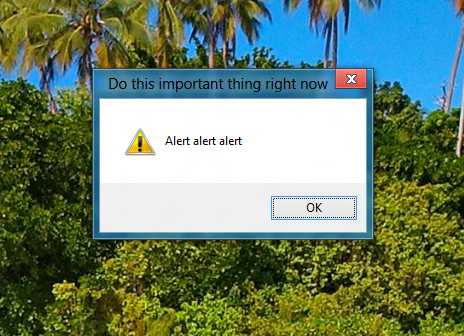
To demonstrate this, I wrote a Windows Forms app that displays a MessageBox alert after a 5 second delay. I ran the app, activated the alert, and switched to a Windows Runtime Metro app. When the alert fired, I heard a little ding, but saw no message. Only after switching to the desktop did I see the message.

image

To be fair, you might not see this even if you were working in the desktop, since Windows has complex (and sometimes unpredictable) rules about when apps are allowed to come to the foreground. Even calling the Activate method, which gives your window the focus, may do no more than flash the icon on the taskbar.

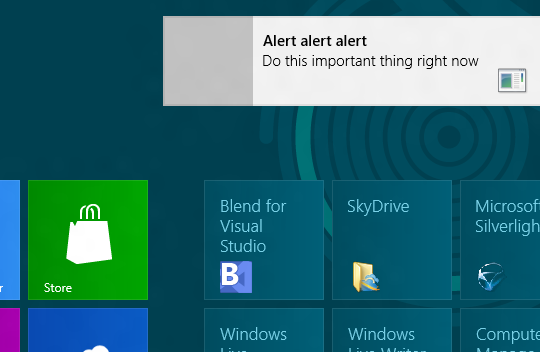
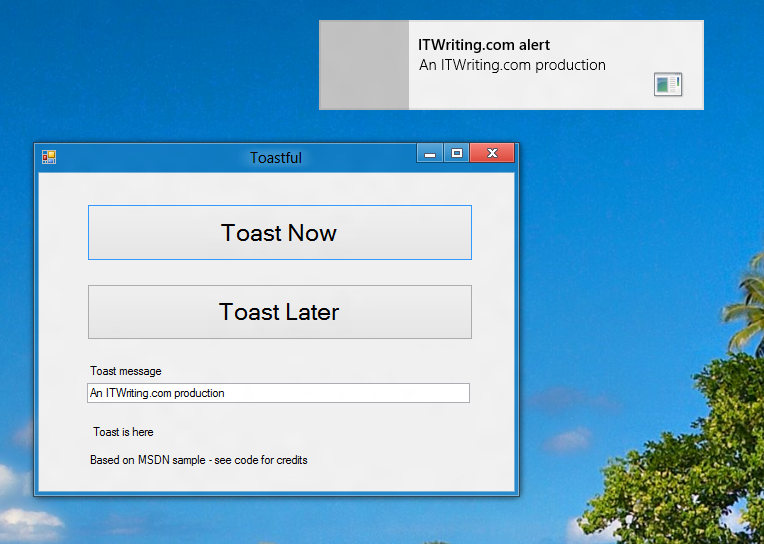
Windows 8 has a new-style “toast” notification mechanism that works across both desktop and Windows runtime. I got this working in my Windows Forms app.

image

So how do you do this? For some background, see Jim O’Neil’s series of posts which start here. However, I mostly used code from the sample Sending toast notifications from desktop apps. This is a WPF application, but I got the code to work in my Windows Forms application. Note that to reference Windows.UI.Notifications you have to add a reference to:

C:\Program Files (x86)\Windows Kits\8.0\References\CommonConfiguration\Neutral\Windows.winmd

Update: in the release version of Visual Studio 2012 the way you reference winmd has changed. See this MSDN article and the section called Core Subgroup; however at the time of writing the method described there does not quite work. Instead, proceed as follows. First right-click the project in the Solution Explorer and choose Unload Project. Then right-click the project again and choose Edit [project].csproj. Add the following to the project file after the other Reference elements:

<Reference Include="Windows" />

then save and close the editor. Finally, right-click the project name again and choose Reload project. Do not add the suggested TargetPlatformVersion element, since if you do the project will not compile.

You also need the Windows 7 API code pack which is here.

Here is a quick summary though. In order to display a toast notification, you first need a shortcut to your app on the Start menu. In addition, the shortcut has to have an AppUserModeId, which you can set in code.

Once that is sorted, you can use the ToastNotificationManager class – for which you need that reference to Windows.UI.Notifications – and retrieve a standard XML template for the notification. You can add event handlers to the notification, so you can respond if the user clicks it. Then call:

ToastNotificationManager.CreateToastNotifier(APP_ID).Show(toast);

to actually show the notification.

Note that your event handlers will not fire on the UI thread, so you need to use thread-safe methods if you want to interact with controls on your form.

It is all somewhat laborious, but on the plus side you get notifications which are better than the old notification area toast, and much better than MessageBox.

Note that this is one bit of code applications will only have if they are modified to work on Windows 8. That is worth noting if you have an application in which notifications play an important role.

image

Nokia sells Qt cross-platform software framework to Digia

Nokia has sold its Qt business to Helskinki-based Digia. According to the press release the sales includes:

… all the Qt activities formerly carried out by Nokia. These include product development, as well as the commercial and open source licensing and service business. Following the acquisition, Digia plans to quickly enable Qt on Android, iOS and Windows 8 platforms.

Digia had already acquired the Qt commercial licensing business from Nokia in March 2011. Up to 125 people will transfer from Nokia to Digia.

This is a move that makes complete sense, given that Qt is no longer central to Nokia’s plans. I once hoped that Nokia would port Qt to Windows Phone and the Windows Metro runtime in order to unify its development platform but it seems that if anyone will do that, it is Digia. It is not clear from the release whether Digia’s Windows 8 plans include the new runtime, but you would imagine that it does since as far as I know Qt already works fine on the Windows 8 desktop side.

See Digia’s Qt site for more info.

Fixing Visual Basic for Applications code for 64-bit Microsoft Office

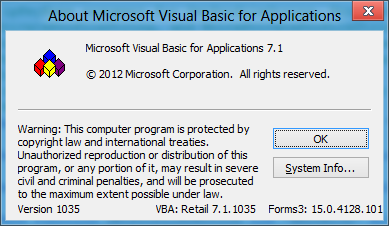
The first macro programming language in Microsoft Office was Basic, and it is still there in the forthcoming Office 2013. In fact, Visual Basic for Applications (VBA) has been slightly updated, and reports itself as version 7.1 in the preview. The version is Office 2010 is 7.0.

image

Although it is embedded in Office, VBA is a powerful tool and there is not much that you cannot do. It is based on the same runtime that powers Visual Basic 6.0, the last version before the .NET revolution.

Visual Basic makes it easy to call the Windows API though the Declare statement. One implication though is that code written for 32-bit VBA may need revising to work in 64-bit Office, and I ran into this recently with some VBA code of my own.

Some existing Declare statements will work fine on both platforms, but Microsoft chose to force developers to review all of them by introducing a new PtrSafe attribute. The name of this attribute is dubious in that it does nothing to ensure pointer safety. In fact it does nothing at all other than to say to the compiler that the Declare works in 64-bit Office, whether or not it really does. Still, it means you have to add PtrSafe to all your Declares, the idea being that you check that they work. Without PtrSafe, the Declares will not execute in 64-bit Office.

The details of what to change are here. What that article does not mention though is that Microsoft has provided declarations for the most commonly used API declarations that work in both 32-bit and 64-bit VBA. The file is called Win32API_PtrSafe.txt and you can download it here. The file is too large to load into a single VBA module but you can use it to find the declarations that you need.

It can still be difficult to work out how to call some APIs. Note that if you get it wrong VBA and Office may crash. You are giving up the safety of VBA once you use these functions.

I have not yet seen Office running on ARM in Windows RT, but the rumour is that VBA is not supported. That is not surprising, since with VBA you can code pretty much any desktop application, if you don’t mind it running within Office, undermining Microsoft’s intention that only Windows Runtime (formerly known as Metro) apps can be installed on Windows RT.

Office 365 for developers: Getting started with Microsoft Napa

One key aspect of Microsoft’s forthcoming Office 2013 is its support for a new app model. The idea is that rather than building local add-ins for desktop Office, you will build web applications that live in one of four places:

  • In SharePoint
  • Within an Excel document
  • Within a Task pane in Excel or Word
  • Adjacent to an email in Outlook
Advertisement

If you have been following Office development for a while, it is hard to supress an initial reaction of “oh no, not another development model for Office.” After all, we have had Basic macros, Visual Basic for Applications, COM Add-ins, Visual Studio Tools for Office, and in the case of Exchange, other APIs such as MAPI and Exchange Client Extensions. Further, most of this stuff still works, which is a mixed blessing as the the whole thing gets more bloated and confusing.

Even so, I can see the sense of the new Apps for Office. One key advantage is that they work in Office Web Apps as well as in the desktop applications. They are also easier to deploy and secure, since they require no executable files on the client, are sandboxed, and only interact with the local document via a JavaScript library. That may not always be sufficient of course, in which case you can stick with one of the older extension models (personally I still find VBA useful), but where it is sufficient, this strikes me as a good approach.

That said, there are plenty of gaps in the list of supported app types:

Application Supported types
Excel 2013 Preview Task pane, Content
Excel Web App Preview Content
Word 2013 Preview Task Pane
Outlook 2013 Preview Mail
Outlook Web App Preview Mail
Project Professional 2013 Preview Task Pane

It would be good to see content apps supported more widely. Still, it is a start.

Office program manager Brian Jones has an excellent post on the background to apps for Office and SharePoint, which inspired me to sign up for a developer preview. Microsoft had already created an Office 365 preview account for me, but this other one is the real deal: you get to administer an entire test organization, complete with SharePoint, Exchange 2013, and all the Office 2013 preview apps.

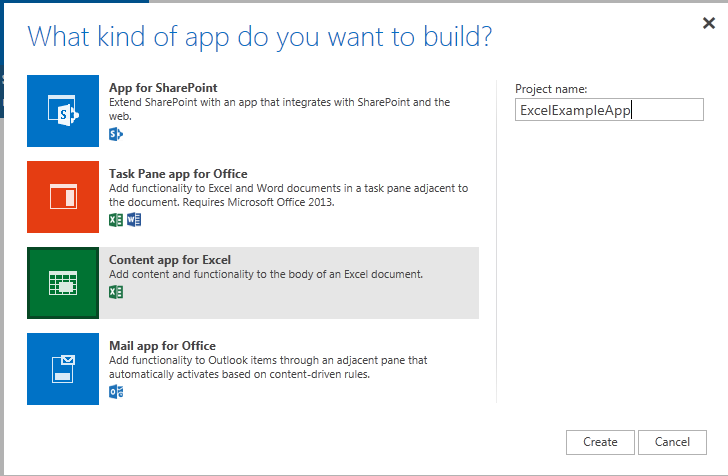
After sign-up, it took a few minutes to provision, and then I was able to add the Napa development tools to the site. This is itself a cloud app. It is easy to get started: choose the type of app you want and you are in.

image

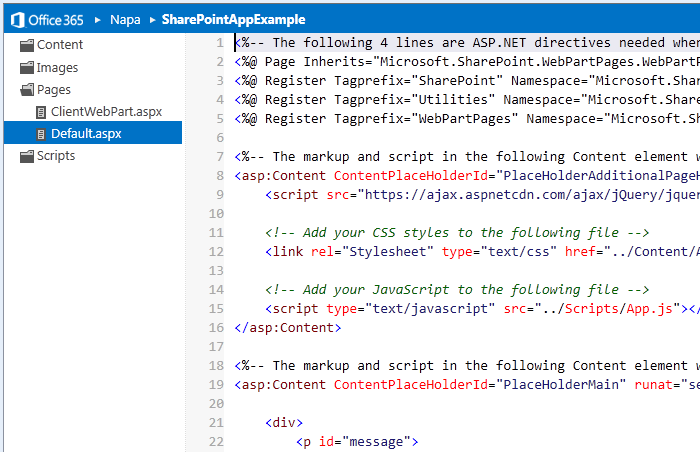
Napa is a cloud IDE, essentially a code editor with some syntax highlighting and code completion.

image

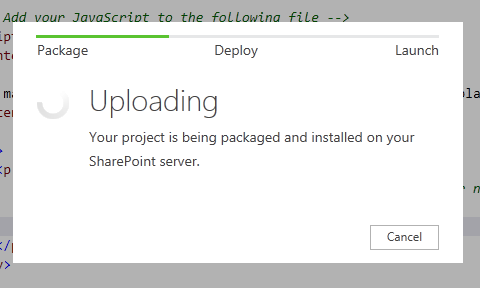
The real joy, if you have ever done SharePoint development, is how easy it is to deploy. Just click the Run button.

image

Once installed, you can launch the app with a click, provided you have enabled pop-ups on the site. An Excel content app works in the same way, but opens up the app running in an Excel Web App spreadsheet.

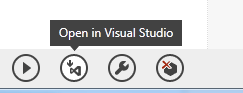
I am sure seasoned Microsoft platform developers will find Napa rather limiting, but there is also an Open in Visual Studio button, and all going well you should be able to do most of your coding in Visual Studio, upload back to Napa, and still get the benefit of easy test and deploy.

image

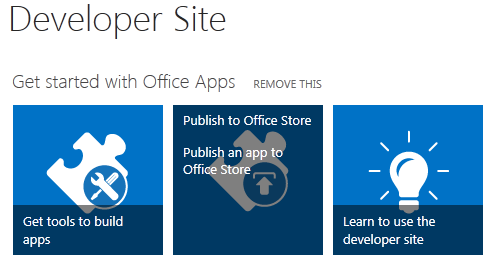
If you are pleased with your app you can easily offer it for sale by publishing to the Office store:

image

The implications for Office 365 are rather profound. It is evolving into a true extensible cloud platform, where businesses can add apps and deploy to their users using an app store model.

That said, you can argue that Microsoft is playing catch-up here. For example, Salesforce.com has had Force.com for years, and I know from visiting the huge vendor exhibitions at events like Dreamforce how strong that marketplace has turned out to be. Salesforce has also enabled its users to build apps in the cloud for many years now.

All true; but Microsoft’s approach does have the advantage of continuity. As I mentioned above, the old stuff still works, so customers can move at their own pace towards a cloud-based platform.

For more information, I recommend this overview.

Adobe Brackets: a different type of HTML and JavaScript code editor. Interview with Adobe’s Adam Lehman.

On Adobe’s Tools and Services page there is an intriguing remark about the company’s plans for a code editor. “We think there’s a need for a different type of code editor – we’re working on something and will have more to share soon.”
image

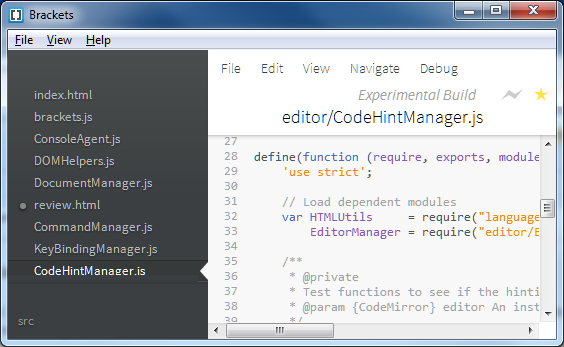
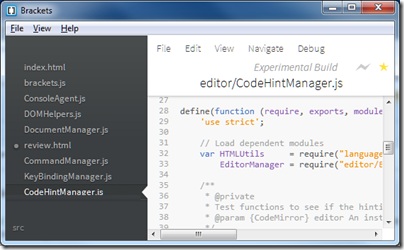
That something is Brackets, a code editor written in HTML and JavaScript (which means, as with all the best tools, that you can code Brackets in itself).

Advertisement

Although Brackets is written in HTML and JavaScript, it is not yet a web application. Instead, it runs on the desktop using Google’s Chromium Embedded Framework (CEF), which lets you embed the Chrome (strictly, the Chromium) browser engine in a desktop application. In the case of Brackets, the wrapper is lightweight, the intention being that in future Brackets may be fully browser-hosted. The consequence though is that currently you need Google Chrome installed and it only runs on Windows and Mac.

The project is open source under the MIT license; anyone can grab the code from Github. Brackets also depends on another open source project, CodeMirror, which is a JavaScript editor component for browsers. I installed it on Windows and soon had it up and running. Note that you should pull brackets_app if you want to run it, as this brings down the Brackets code as well.
image

I spoke to Brackets Product Manager Adam Lehman. “This might be the first project we started with the intent of being open source from day one,” he said.

“Our general intent is that we wanted to provide an editor that web developers felt that they could own. In the past we might have built something in Eclipse, and there would have been this giant gap between the person who knew HTML, JavaScript and CSS, and then having to write a Java-based Eclipse plug-in to extend the editor.

“When we start talking to developers, they’re going back to just text editors, things that don’t do much more than edit and manage a document, and as complex as HTML and JavaScript apps are getting these days, it seemed crazy that our tools weren’t keeping up with us. So the idea was to start this project, add a little bit of our own ideas, and have the community supply their own ideas.”

But how does Adobe intend to use Brackets in its own products, and what is the business model?

“We believe there are two spaces for the editor market. There is the larger IDE, but there’s also these lightweight text editors. We’re finding that the traditional JavaScript and HTML developer, CSS developer, was heading towards the lightweight text editor and not towards the larger IDE. We don’t see Dreamweaver and Brackets as direct competitors because they service two different tastes. It wasn’t a matter of could we add a feature here or there that was going to get people to use Dreamweaver. It was that difference between our larger tool and a much lighter weight tool. That’s where Brackets come in.”

How then will Brackets tie in with other Adobe products?

“That’s the key for Brackets. We wanted to see if we could innovate in the space and we also wanted to have a common language that we could start targeting. When you say, I want to open up an editor from Adobe Edge and start coding, we needed to define what that editor would be, so Brackets would come into that.

“We’re also saying we need to do better tooling around PhoneGap. A lot of people are fine with the command line, but we want to take a step beyond that and so Brackets is the obvious place where we’ll start to build an extension where we can tie into PhoneGap Build, or extensions around the PhoneGap APIs.

“We’ve got a lot of ideas around using Brackets to bring a lot of our HTML efforts together, not only our core HTML products but also a lot of the W3C and WebKit work that we’re doing. Brackets is a great place to put tooling, that isn’t quite ready for mass consumption yet, but we could actually build extensions for something like Shaders where those people who are interested in it can get in and start playing around with it.

“The beauty of building on the web platform is that we can go wherever the web platform goes.”

Initial prototypes of Brackets ran entirely in the browser, which would be interesting for future versions of Adobe’s Creative Cloud as well as other scenarios, but Lehman said this got mixed reactions.

“While we believe that the future of development is heading towards the cloud, and the general consensus from developers is the same, we also heard that it is not ready yet. We decided to focus on a desktop version first, with the idea that towards the end of this year or beginning of next year we’ll start to supplement with other targets, whether it be in the cloud or  a tablet, or embedded in a tool like Edge,”

says Lehman. He adds that a browser-hosted Brackets could end up integrated with the PhoneGap Build site. PhoneGap Build is a service for compiling cross-platform HTML and JavaScript into mobile apps for a variety of devices.

Since Brackets is built on Google’s Chrome/Chromium platform, what are the implications for cross-browser compatibility?

“There’s two pieces to it. There’s our container that Brackets runs in, and that is running on Chromium.

“The other part is that we have this live preview system which is tied directly to Chrome on the desktop. We happened to just start with Chrome, mostly because there is a remote debugging API that’s pretty fleshed out there.

“With Firefox and Internet Explorer, it’s a little bit different. We talked to Mozilla and they’re just now starting to work on that remote debugging API and trying to get it inline with where Chrome is, so we’re expecting to hear from them in August that they actually might have an API where we can start to build that same functionality, which is our intent.

“We’ve already started engaging with Microsoft about Internet Explorer. Right now their remote debugging API is somewhat private and in the form of a COM object which is not ideal coming from a JavaScript perspective, but we’ve showed them what we’re after, and we’ve started discussion of what a remote API from IE might look like that didn’t require COM. We’re exploring those options. Those are our priorities right now.

“If we build a cloud-based version then it’s going to be a question of what browsers this is going to run in. Our intent is to run in the modern major browsers. We aren’t building anything that’s Chrome-specific, we’re doing our best to stay as browser-agnostic as we can, but we are likely to require a more modern browser. We feel it would be OK to require the latest versions of Firefox, IE or Chrome.”

I asked Lehman whether Brackets might be useful for server-side as as client-side code. He said that Brackets is focused on the client, though a community extension is under way for node.js. He adds that since Brackets is fully extendable, others may do plug-ins for languages such as PHP.

Why is Brackets at Github and not Apache?

“We have a lot of people at Adobe who work for Apache now, and we talked to them before we released Brackets. Our sense is that Apache might be too much of a turn-off for the individual contributor, who just wants to hack and fix a bug and submit it back,”

Lehman told me. Although there are external contributors, all the committers are currently at Adobe, though there are plans for adding external committers by the end of the year. “We don’t want this to be 100% Adobe controlled.”

When will Brackets get to version 1.0?

“We’re being as agile as we can. Every bit we add, it comes closer to being a 1.0 for somebody. The things that I think are missing that you would expect out of a core editor are around code-completion for CSS and JavaScript, and solid and advanced search and replace. In the web world, that’s how we refactor code. We’re hoping to drive those in by November time. But we are on 2.5 week sprints and things change rapidly.”

I also asked about plans for a mobile app version of Brackets. Lehman says that is planned for next year, though the community is working on getting a Linux version working and support for ChromeOS.

Brackets is a fascinating project on several levels. What stands out is how far Adobe has moved from being the Flash company. A few years back Adobe came up with a system for having Flash applications run on the desktop and on mobile devices: Adobe AIR. It also invested in Eclipse and came up with the Flash Builder IDE.

Now here is Adobe with an open source project for a desktop application built from HTML, JavaScript, and a third-party open source browser engine; and in place of mobile AIR it has PhoneGap.

It is a big change, most of which has become publicly known in less than a year, signalled by the repositioning of Flash and AIR versus HTML in September 2011, and the abandonment of Flash for Mobile in November 2011.

As for Brackets itself, it is well worth a look though probably not a tool you want to use for real work just yet. In a few months though, that may well change.

Postscript: Brackets reminds me of another Adobe, or rather Macromedia, HTML code editor. That was HomeSite, an excellent text-based tool that Adobe discontinued in 2009; active development ceased years before that.
Offline web mail in new Office 365 and Exchange 2013 Outlook Web Access

Microsoft has posted details of the forthcoming Exchange 2013, and one of the features that intrigues me is the ability to use the browser-based email client, Outlook Web Access (OWA), offline.

Since offline use is one of the primary issues with web applications, this is a key feature. It would be particularly interesting if it worked with mobile devices such as the Apple iPad or Google Android tablets.

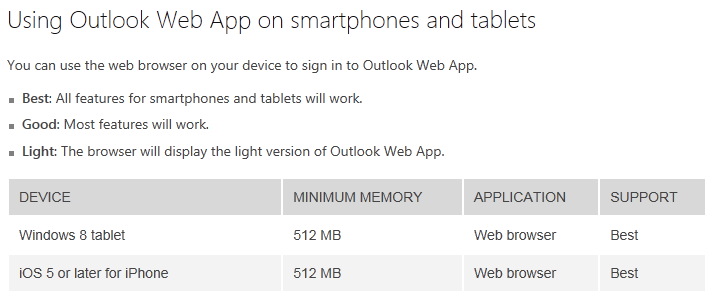
I asked about this and was directed to this table, which states that offline access is supported in Internet Explorer 10 or later, Safari 5.1 or later, and Chrome 18 or later. Offline is not supported on mobile browsers, nor on “Windows 8 tablet”.

image

I have not seen Microsoft use the term Windows 8 tablet in a technical sense before. I presume it means Metro-style IE and Windows RT?

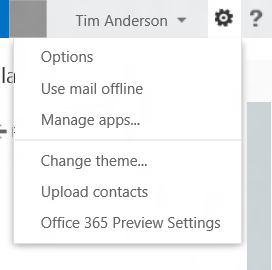
Next, I went to my preview Office 365 account on a Windows 8 tablet (ha!) but in desktop IE, and noticed that OWA already has an offline option there, which I presume is essentially Exchange 2013 though perhaps with some differences.

image

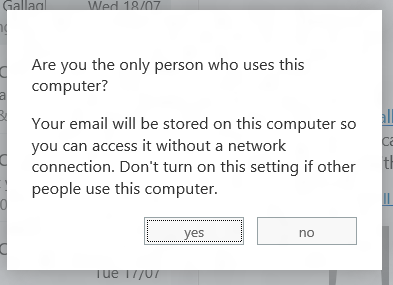
I selected the option and was prompted to confirm.

image

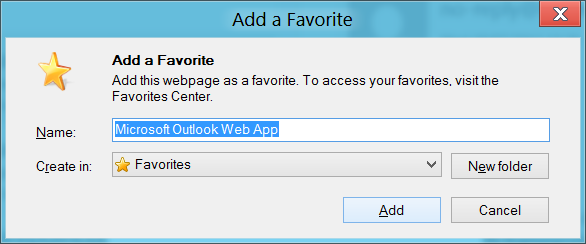
I clicked Yes and was prompted to add to favourites.

image

Then I closed the browser, turned on Airplane mode, and restarted.

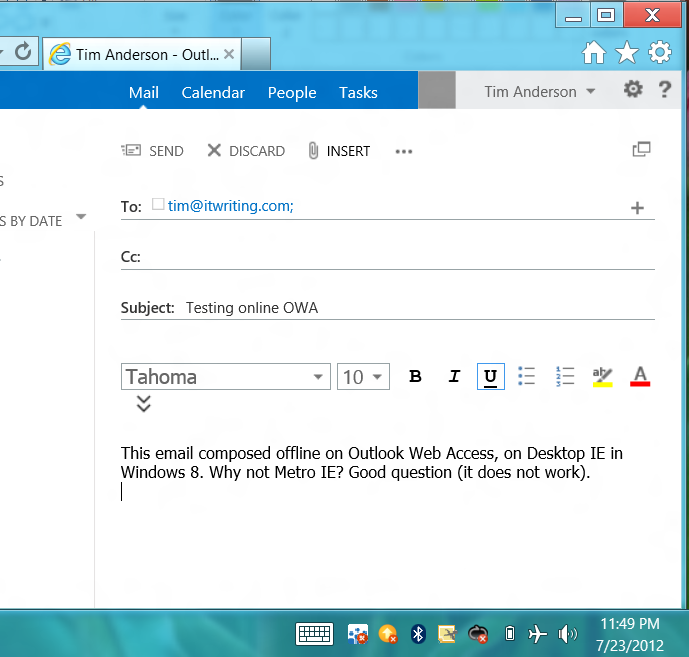
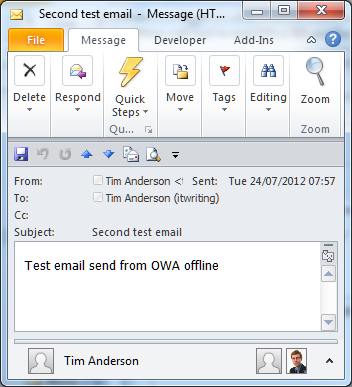
Success! I was able to return to OWA, compose and send an email. Note the Airplane mode icon in the screen grab.

image

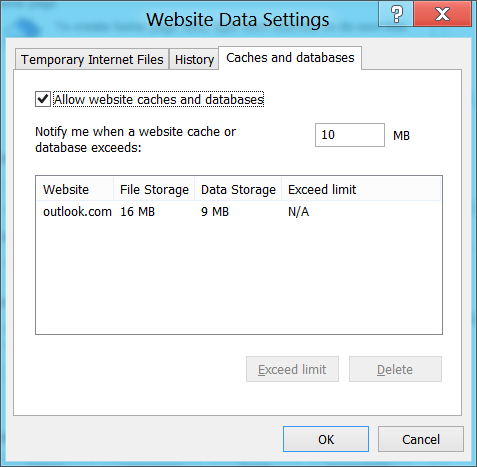
Looking at IE settings I also had an offline cache set for outlook.com.

image

I closed the browser, re-enabled the network, and restarted.

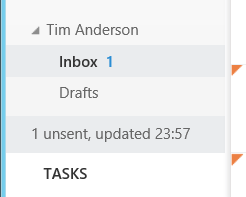
Bad news, my first email was never sent. I tried again though, and this time confirmed that, while offline, my email was in an unsent folder.

image

However, when I went back online I could not see it in sent items. I made a third attempt. Eventually though, both my second and third attempts succeeded and I got the email.

image

That’s good, but I have a few observations (bearing in mind that this is preview software):

1. The experience in Metro-style IE is terrible. You can enable offline there (I tried) but it does not work. And where is the cache setting for Metro-style IE, is it shared with desktop IE? Does it have one? This whole relationship between the two forms of IE 10 in Windows 8 is obscure and difficult.

2. What happened to my first email? Did I not in fact click send (I am fairly sure I did)? Losing emails is bad and can be costly.

3. This offline setting would be particularly useful on mobile devices so I would like to know what plans Microsoft has to get it working.

Exascale computing: you could do it today if you could supply the power says Nvidia

Nvidia’s Bill Dally has posted about the company’s progress towards exascale computing, boosted by a $12.4 million grant from the U.S. Department of Energy. He mentions that it would be possible to build an exascale supercomputer today, if you could supply enough power:

Exascale systems will perform a quintillion floating point calculations per second (that’s a billion billion), making them 1,000 times faster than a one petaflop supercomputer. The world’s fastest computer today is about 16 petaflops.

One of the great challenges in developing such systems is in making them energy efficient. Theoretically, an exascale system could be built with x86 processors today, but it would require as much as 2 gigawatts of power — the entire output of the Hoover Dam. The GPUs in an exascale system built with NVIDIA Kepler K20 processors would consume about 150 megawatts. The DOE’s goal is to facilitate the development of exascale systems that consume less than 20 megawatts by the end of the decade.

If the industry succeeds in driving down supercomputer power consumption to one fortieth of what it is today, I guess it also follows that tablets like the one on which I am typing now will benefit from much greater power efficiency. This stuff matters, and not just in the HPC (High Performance Computing) market.

Microsoft opens up Office 365 and Azure single sign-on for developers

Remember Passport and Hailstorm? Well here it comes again, kind-of, but in corporate-friendly form. It is called Windows Azure Active Directory, and is currently in Developer Preview:

Windows Azure AD provides software developers with a user centric cloud service for storing and managing user identities, coupled with a world class, secure & standards based authorization and authentication system. With support for .Net, Java, & PHP it can be used on all the major devices and platforms software developers use today.

The clearest explanation I can find is in John Shewchuk’s post on Reimagining Active Directory for the Social Enterprise. He makes the point that every Office 365 user is signing on to Microsoft’s cloud-hosted Active Directory. And here is the big deal:

The Windows Azure Active Directory SSO capability can be used by any application, from Microsoft or a third party running on any technology base. So if a user is signed in to one application and moves to another, the user doesn’t have to sign in again.

Organisations with on-premise Active Directory can use federation and synchronisation (Shewchuk fudges the distinction) so that you can get a single point of management as well as single sign-on between cloud and internal network.

Is this really new? I posted about Single sign-on from Active Directory to Windows Azure back in December 2010, and in fact I even got this working using my own on-premise AD to sign into an Azure app.

It seems though that Microsoft is working on both simplifying the programming, and adding integration with social networks. Here is where it gets to sound even more Hailstorm-like:

… we will look at enhancements to Windows Azure Active Directory and the programming model that enable developers to more easily create applications that work with consumer-oriented identities, integrate with social networks, and incorporate information in the directory into new application experiences.

Hailstorm failed because few trusted Microsoft to be the identity provider for the Internet. It is curious though: I am not sure that Facebook or Google are more well-trusted today, yet they are both used as identity providers by many third parties, especially Facebook. Spotify, for example, requires Facebook sign-in to create an account (an ugly feature).

Perhaps the key lesson is this. Once people are already hooked into a service, it is relatively easy to get them to extend it to third-parties. It is harder to get people to sign up for an all-encompassing internet identity service from scratch.

This is why Azure Active Directory will work where Hailstorm failed, though within a more limited context since nobody expects Microsoft to dominate today in the way it might have done back in 2001.