Category Archives: windows

Notifications in Windows 8: how to display new-style toast from a desktop app

This post was prompted by the discussion over the fact that Windows 8 boots into the Start screen, and cannot apparently be modified to boot into the Desktop (though no doubt someone will find a way).

What if, I wondered, you put a desktop app into your startup folder so it runs automatically on boot? The answer: it runs on the desktop, but you will not see it until you click or tap into the desktop from the start screen. This is different behaviour from actually starting a desktop app from the start screen, which switches you to the desktop.

So what if that desktop app has something important to tell you? The answer: you will not see it until you switch to the desktop.

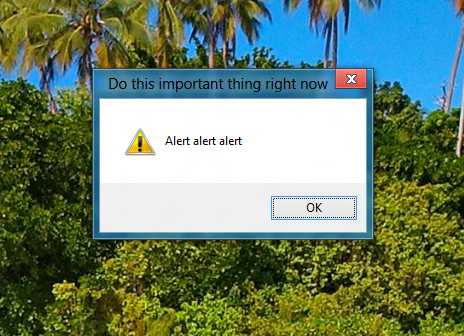
To demonstrate this, I wrote a Windows Forms app that displays a MessageBox alert after a 5 second delay. I ran the app, activated the alert, and switched to a Windows Runtime Metro app. When the alert fired, I heard a little ding, but saw no message. Only after switching to the desktop did I see the message.

image

To be fair, you might not see this even if you were working in the desktop, since Windows has complex (and sometimes unpredictable) rules about when apps are allowed to come to the foreground. Even calling the Activate method, which gives your window the focus, may do no more than flash the icon on the taskbar.

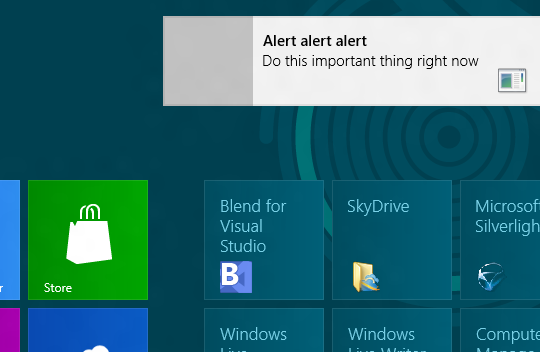
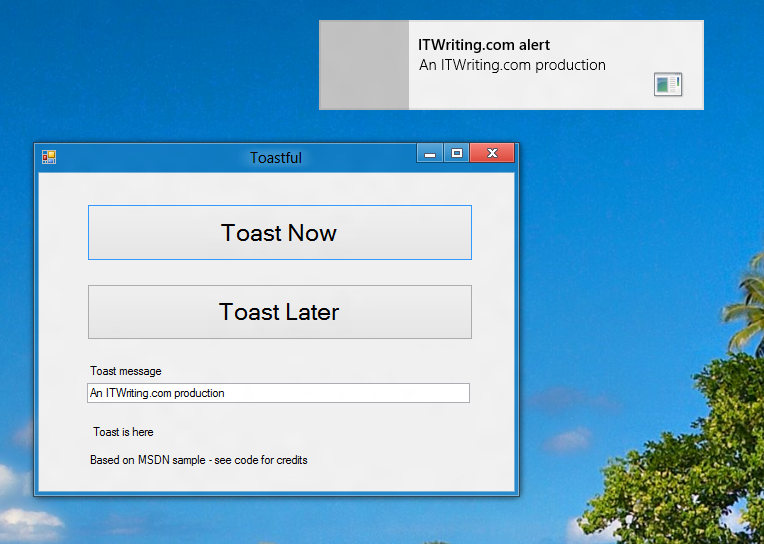
Windows 8 has a new-style “toast” notification mechanism that works across both desktop and Windows runtime. I got this working in my Windows Forms app.

image

So how do you do this? For some background, see Jim O’Neil’s series of posts which start here. However, I mostly used code from the sample Sending toast notifications from desktop apps. This is a WPF application, but I got the code to work in my Windows Forms application. Note that to reference Windows.UI.Notifications you have to add a reference to:

C:\Program Files (x86)\Windows Kits\8.0\References\CommonConfiguration\Neutral\Windows.winmd

Update: in the release version of Visual Studio 2012 the way you reference winmd has changed. See this MSDN article and the section called Core Subgroup; however at the time of writing the method described there does not quite work. Instead, proceed as follows. First right-click the project in the Solution Explorer and choose Unload Project. Then right-click the project again and choose Edit [project].csproj. Add the following to the project file after the other Reference elements:

<Reference Include="Windows" />

then save and close the editor. Finally, right-click the project name again and choose Reload project. Do not add the suggested TargetPlatformVersion element, since if you do the project will not compile.

You also need the Windows 7 API code pack which is here.

Here is a quick summary though. In order to display a toast notification, you first need a shortcut to your app on the Start menu. In addition, the shortcut has to have an AppUserModeId, which you can set in code.

Once that is sorted, you can use the ToastNotificationManager class – for which you need that reference to Windows.UI.Notifications – and retrieve a standard XML template for the notification. You can add event handlers to the notification, so you can respond if the user clicks it. Then call:

ToastNotificationManager.CreateToastNotifier(APP_ID).Show(toast);

to actually show the notification.

Note that your event handlers will not fire on the UI thread, so you need to use thread-safe methods if you want to interact with controls on your form.

It is all somewhat laborious, but on the plus side you get notifications which are better than the old notification area toast, and much better than MessageBox.

Note that this is one bit of code applications will only have if they are modified to work on Windows 8. That is worth noting if you have an application in which notifications play an important role.

image

Windows 8 is done, available August 15th with final Visual Studio 2012

Microsoft’s Windows chief Steven Sinofsky has announced the release to manufacturing of Windows 8:

The Windows 8 team is proud to share with you that a short while ago we started releasing Windows 8 to PC OEM and manufacturing partners.

image

The separate post by Brandon LeBlanc has more details. Microsoft’s developer (MSDN) and IT admin (Technet) subscribers will be first to get the new Windows, leaks aside, on August 15th. LeBlanc adds:

On August 15th, developers will be able to visit the Windows Dev Center to get access to all the tools and resources they need including the final build of Visual Studio 2012 to design, build, and sell apps in the Windows Store.

from which we learn that Visual Studio 2012 is also done, or will be by the 15th.

Windows Server 2012, which uses the same core code, has also been released to manufacturing, says Microsoft’s Jeffrey Snover:

the final code is complete and we are delivering it to our hardware and software vendor partners this week

The Windows Store is also open for business, kind-of. Antoine Leblond says that you can submit a Metro-style app from today, though you will need an RTM build to do so, so for most of us that will actually mean from August 15th. Apps can include free, paid-for, trials, and those with in-app purchases. Only Metro-style apps can be submitted for installation through the store, though desktop apps can be offered through a link to the vendor’s web site.

Windows 8 is a bold release. Despite pressure from existing Windows users, Microsoft has held firmly to its decision to abandon the old-style Start menu and to make the Metro side prominent for all users. There are several big unknowns:

  • How will users react to the changes? The early moments with Windows 8 tend to be difficult, and some may be put off completely.
  • How popular will Metro-style apps be, relative to traditional desktop apps?
  • How well will Windows 8 and Office 2013 really work on a tablet without keyboard or mouse?
  • What proportion of users will want the ARM version, Windows RT, as opposed to the familiar, messy world of x86 Windows?

I have used Windows 8 intensively for some months now, both on desktop and tablet. It works fine, and seems a little faster than Windows 7 on the same hardware. On a tablet, the Metro-style apps are delightful but few, but desktop apps are a bit of a struggle, which is one reason I am looking forward to Windows RT devices on which those troublesome desktop apps cannot be installed.

Should Microsoft have made such radical changes in Windows? That is open to debate; but check out this report on how tablets, mainly Apple iPads, are eating away at the PC market to understand why the company felt that “reinventing Windows” was its only option.

Windows 8 defeats booking.com virus

Someone trying out Windows 8 release preview brought her machine to me to look at. She was having trouble with an email attachment. The email was in fact carrying a virus, one that purported to be from booking.com though it had nothing to do with that company. The supposed booking is in an attached zip file which the victim is invited to open. My contact had opened the zip and attempted to run the contents, a windows executable. She could not remember exactly what happened but said that a dialog had appeared and she clicked OK.

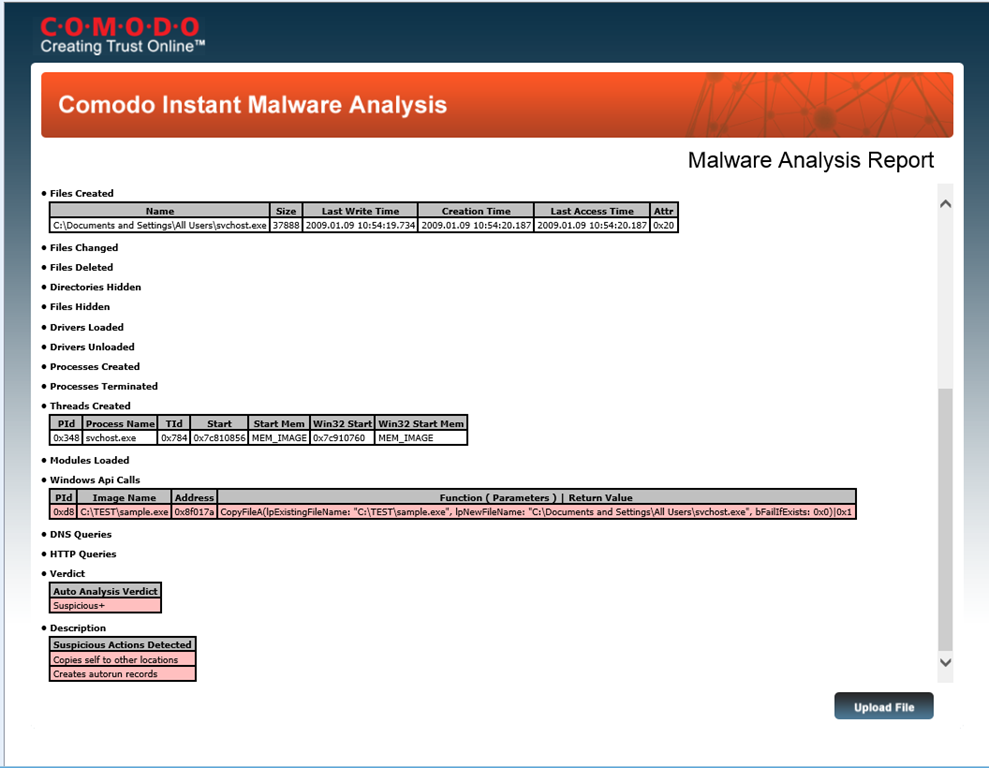
Clicking OK is normally the wrong thing to do with a virus but not in this case. I had a look at the virus and uploaded it to Comodo’s online virus analyser.

image

This detected API calls that copy a file to the All Users folder and sets it to autorun. Comodo pronounced the executable “Suspicious+”.

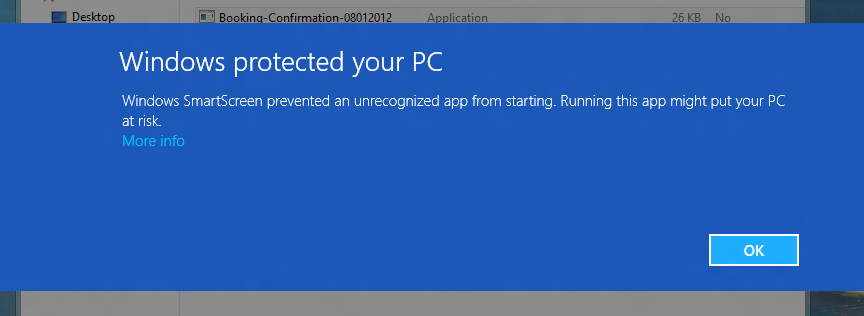
But did it run? I tried it on an isolated virtual instance of Windows 8 Release Preview. Running the executable throws up this dialog:

image

If you click OK nothing happens. If you click More Info, it says that SmartScreen does not recognise the file and offers a Run Anyway option. However the user in this case did not click More info, but instinctively clicked OK, therefore not running the virus.

As a final experiment, I tried running the virus on the isolated machine. It deleted itself but did not seem to succeed in infecting the machine. It is hard to be sure though, so the virtual machine has now been deleted.

Observations:

Windows 8 did not detect the file as a virus. SmartScreen merely did not recognise the file. It would do the same for any unrecognised file, and I have seen this dialog appear for files that I do want to run.

Even when I ran the file, Windows Defender did not (as far as I can tell) detect the virus. The test machine was offline (for isolation) but fully up to date.

What interests me most is how SmartScreen interacts with the social engineering behind the malware. The user actually wanted to run the file, being convinced that it was genuine, but clicking OK simply did nothing. This behaviour is annoying if the application is not in fact malware, but clearly it can on occasion save the day.

BBC web site has a Metro look

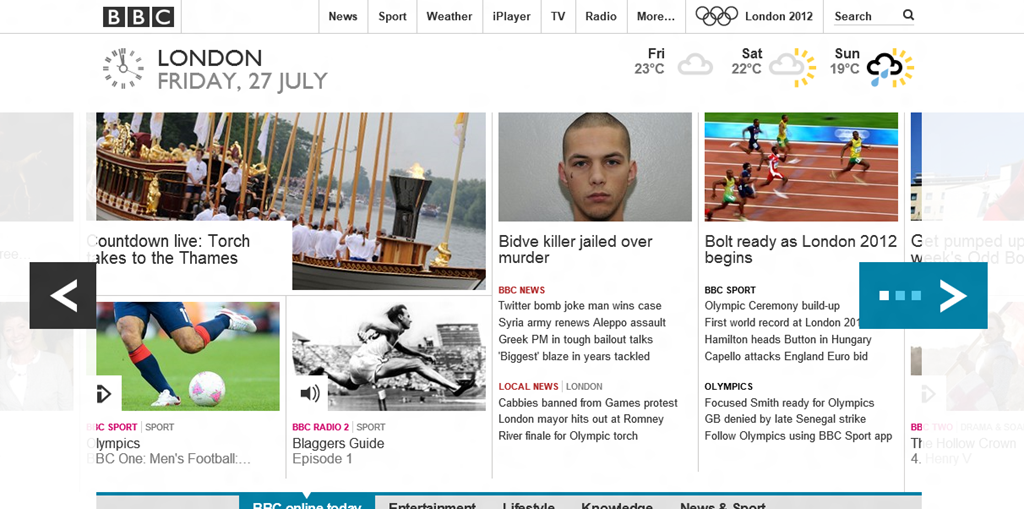
The BBC redesigned its web site last year borrowing elements of Microsoft’s Metro design language, as seen in Windows 8, Windows Phone, and Office 2013. Note the tiles, the typography, the horizontal scrolling, the way elements stand out against a pale background.

image

The BBC site is the 5th most popular in the UK and 47th in the world according to Alexa.

This strikes me as a significant design win for Microsoft. One of the goals of redesigns is to make your stuff look fresh and modern, while other stuff looks dated, and it helps drive an upgrade cycle. 

Update: amended to clarify that the design update was last year. Details here and here. Also interesting to note considerable hostility from users. Another point of similarity with Windows 8!

Offline web mail in new Office 365 and Exchange 2013 Outlook Web Access

Microsoft has posted details of the forthcoming Exchange 2013, and one of the features that intrigues me is the ability to use the browser-based email client, Outlook Web Access (OWA), offline.

Since offline use is one of the primary issues with web applications, this is a key feature. It would be particularly interesting if it worked with mobile devices such as the Apple iPad or Google Android tablets.

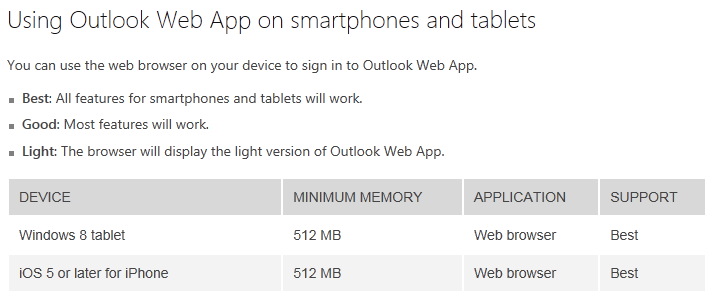
I asked about this and was directed to this table, which states that offline access is supported in Internet Explorer 10 or later, Safari 5.1 or later, and Chrome 18 or later. Offline is not supported on mobile browsers, nor on “Windows 8 tablet”.

image

I have not seen Microsoft use the term Windows 8 tablet in a technical sense before. I presume it means Metro-style IE and Windows RT?

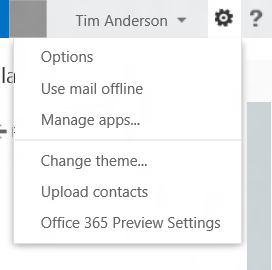
Next, I went to my preview Office 365 account on a Windows 8 tablet (ha!) but in desktop IE, and noticed that OWA already has an offline option there, which I presume is essentially Exchange 2013 though perhaps with some differences.

image

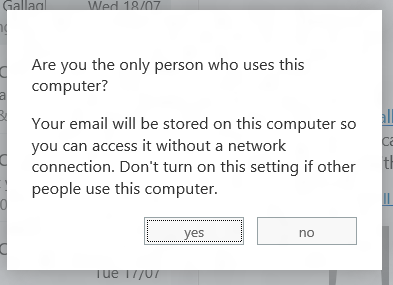
I selected the option and was prompted to confirm.

image

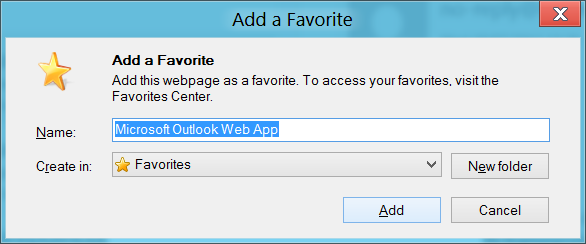
I clicked Yes and was prompted to add to favourites.

image

Then I closed the browser, turned on Airplane mode, and restarted.

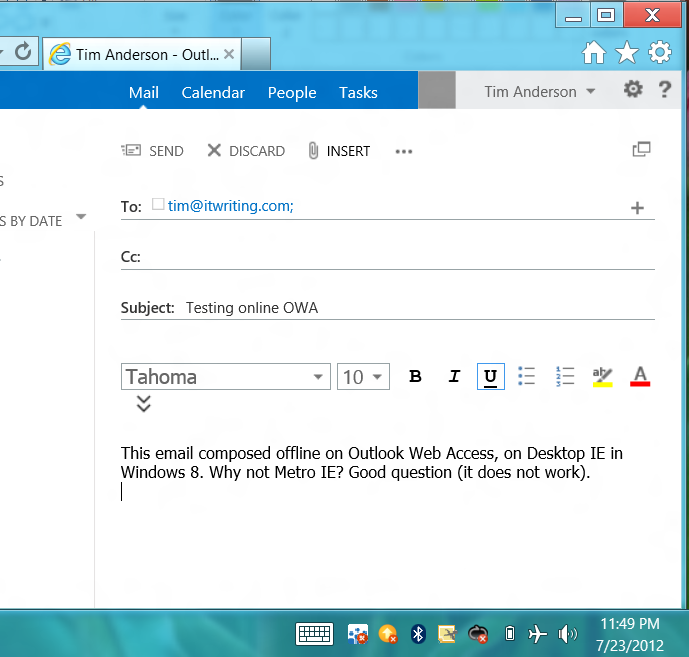
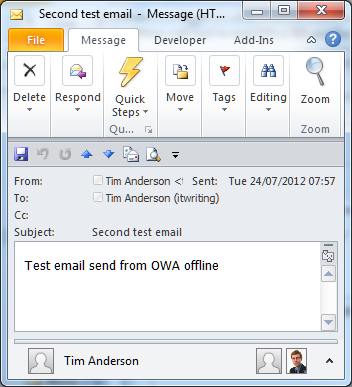
Success! I was able to return to OWA, compose and send an email. Note the Airplane mode icon in the screen grab.

image

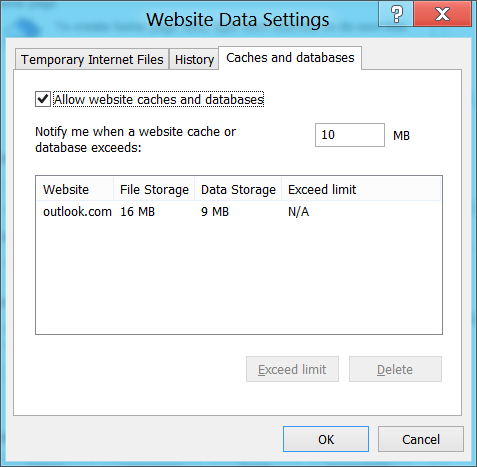
Looking at IE settings I also had an offline cache set for outlook.com.

image

I closed the browser, re-enabled the network, and restarted.

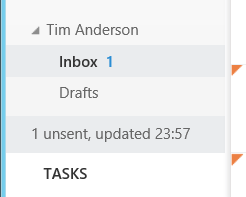
Bad news, my first email was never sent. I tried again though, and this time confirmed that, while offline, my email was in an unsent folder.

image

However, when I went back online I could not see it in sent items. I made a third attempt. Eventually though, both my second and third attempts succeeded and I got the email.

image

That’s good, but I have a few observations (bearing in mind that this is preview software):

1. The experience in Metro-style IE is terrible. You can enable offline there (I tried) but it does not work. And where is the cache setting for Metro-style IE, is it shared with desktop IE? Does it have one? This whole relationship between the two forms of IE 10 in Windows 8 is obscure and difficult.

2. What happened to my first email? Did I not in fact click send (I am fairly sure I did)? Losing emails is bad and can be costly.

3. This offline setting would be particularly useful on mobile devices so I would like to know what plans Microsoft has to get it working.

Intranet and Mail hassles with Windows 8

Microsoft has made changes to networking in Windows 8, mainly I presume for security reasons, but there are odd side-effects, at least in the Release Preview version.

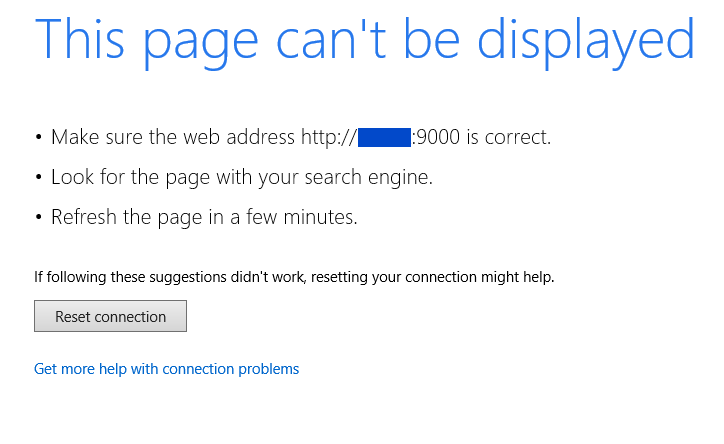
One is that if you browse to a site on your intranet in the Metro-style browser, you are likely to get a connection failure. This is what I get when trying to get to my Logitech Media Server (the Squeezebox server):

image

A bunch of useless, misleading suggestions and that is it.

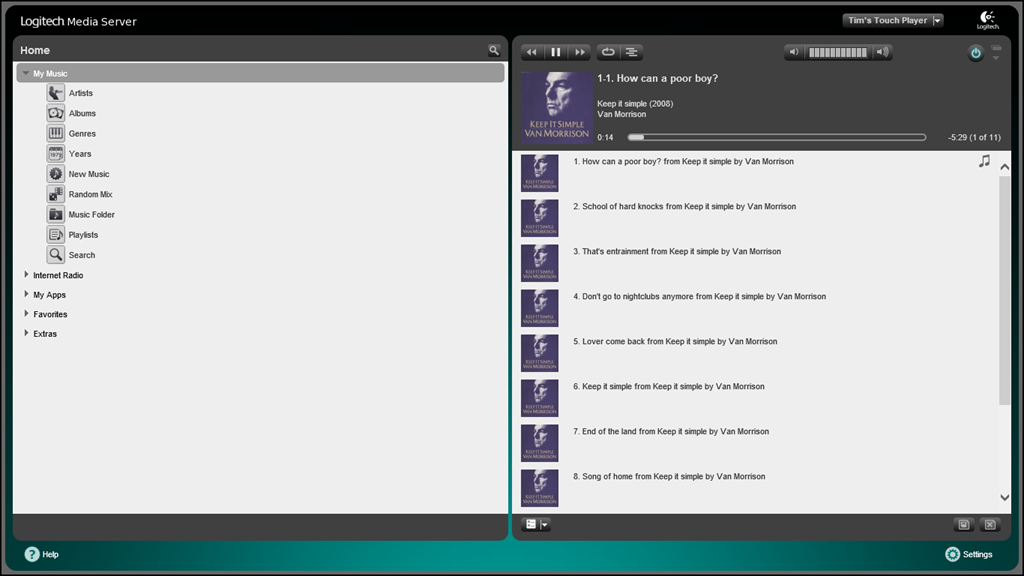
The solution is to go to desktop IE, Tools, Internet options, Security, Trusted Sites, Sites and add the target URL to the list of Trusted sites. Now it works fine in Metro-style IE:

image

I got exactly the same behaviour with Outlook Web Access on the intranet. It did not work from Metro IE until I added the URL to Trusted Sites.

I am not sure if this is “expected behaviour”; I hope it is not, because it is a significant annoyance. The answer may lie in Microsoft’s Enhanced Protected Mode, described here, but although this states that Metro-style apps cannot connect by default to a server running on the same machine, it does not suggest that the entire intranet is blocked. The security benefits are also compromised if you can easily bypass them by running desktop IE.

While I am on the subject, I am still puzzled by the problems the Metro-style Mail app has with connecting to Exchange when this is configured with a self-signed certificate. I obtained a free SSL Cert from StartCom and confirmed that using a cert from a recognised issuer does fix the problem, though it is not a perfect solution for me because of the detail of my setup.

I would still like to know exactly what is stopping the self-signed approach from working. There are numerous discussions on the subject (this is one of the best) but I have not seen any definitive explanation from Microsoft. Following a suggestion from that thread, I have tried publishing the CRL (Revocation List) on the internet but that has not fixed it for me.

Security is great but we do want to get stuff done with our computers and some of this stuff just seems obstructive. Even if Microsoft is doing the right thing here, that is no excuse for false error messages. Mail, for example, reports “Unable to connect. Ensure that the information you’ve entered is correct.” How hard would it be to report a problem with the server certificate?

Macro virus reborn: ACAD/Medre.A steals drawings using AutoCAD AutoLISP

Remember the Concept virus? Someone wondered if you could make a self-replicating virus with a Microsoft Word macro. It worked; and the proof of concept soon became a real virus causing the usual mayhem and spoiling our clever VBA templates.

Microsoft locked down Office macros fairly effectively; but the idea lived on and has re-emerged as an AutoCAD virus which runs automatically when a drawing is opened. It is not quite the same, as in AutoCAD the code has to be in an external .lsp file, but you can have code in the S::STARTUP function run when a document loads, as explained in the documentation here. The malware relies on the fact that when drawings are emailed, users often archive an entire folder rather than sending a single file. This is how the virus spreads.

Most of the actual malicious code is not in AutoLISP, but in the more familiar form of VBScript files to which the code calls out. The malware then emails AutoCAD drawings to addresses in China – a rather crude mechanism for stealing data, but apparently somewhat effective since on investigation the target mailboxes were found overflowing with messages.

The threat is serious though. Much intellectual property and many future product plans are contained in AutoCAD drawings.

Security vendor ESET’s white paper [PDF] describes the attack in detail.

According to ESET, the combined efforts of Autodesk, Chinese ISP Tencent, and the Chinese National Computer Virus Emergency Response Center have contained the virus for now. There is also a free clean-up utility here: http://download.eset.com/special/EACADMedreCleaner.exe.

Telerik releases Kendo UI components for ASP.NET MVC

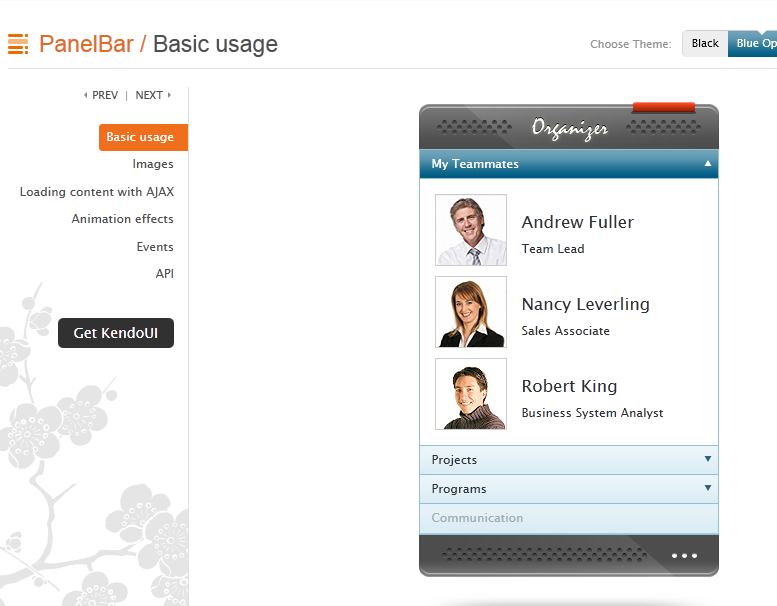
Component vendor Telerik has released an updated version of Kendo UI, its HTML5 framework. This is the first non-beta release with support for ASP.NET MVC server wrappers, with components including Grid, ListView, calendar and date controls, tree view, menu, editor and more. Kendo UI supports the MVVM (Model View ViewModel) pattern popular with Microsoft developers.

image


Telerik seems to be treading a careful path, maintaining its strong links to the .NET developer community while also creating a framework that can be used on other platforms.

I spoke to Todd Anglin, VP of HTML5 tools. Why the support for ASP.NET MVC – is Telerik seeing this becoming more popular than Web Forms, the older ASP.NET approach to web applications?

“Something in the range of 70% of ASP.NET developers are on web forms. We do see a bit of a trend that as they start new projects, developers are adopting ASP.NET MVC and HTML5, which is where it makes sense to use Kendo UI,” he told me.

The main reason though is that Kendo UI is less suitable for Web Forms, where more of the client-side code is generated by the framework. “Web Forms are a very high level abstraction,” said Anglin. “With MVC developers are a little closer to the metal.”

That said, he is not ruling out a Web Form wrapper for Kendo UI long-term.

Anglin says Kendo UI’s use of JQuery is a distinctive feature.  “Over the last few years JQuery has clearly risen above the pack to be the most common core Javascript library and the one most developers are familiar with. Unlike most commercial libraries out there Kendo UI chooses the JQuery core as the starting point and builds on that, so developers that adopt Kendo UI have a smoother on-ramp.”

Kendo UI supports both mobile and desktop web applications, but with different controls. “We believe that developers should offer experiences that are tailored to each device class, which is why you have Kendo UI web for keyboard and mouse, and Kendo UI mobile with a mobile-specific interface. We share code behind that, like the data source, between web and mobile, but we don’t think the interface on a mobile device should be the same as you show on a desktop browser,” said Anglin.

What about the tools side? Although Anglin says “We want to be agnostic on tools”, there is particularly good support for Visual Studion. “Kendo UI integrates with anything that supports HTML and JavaScript well, which includes the latest version of Visual Studio. We are delivering full vsdoc support for Visual Studio so that developers in that environment get Intellisense for JavaScript. But if you’re on a Mac you can use other tools,” he told me.

More interesting is a forthcoming cloud IDE. “We’ve just revealed a new tool called Icenium which is a cloud-based development environment for creating apps in HTML and JavaScript. It’s an incredible environment for building apps with Kendo UI.”

How about HTML5 apps that target the Windows Runtime (Metro) in Windows 8 – will Kendo UI work there? Apparently not:

“It’s certainly something we’ve paid attention to. Telerik’s primary position for Windows 8 runtime and Windows 8 development is with the traditional .NET targeted tools. Our RAD tools later this year will focus on introducing XAML and HTML tools for Windows Runtime. The HTML tools that we introduce will have a shared engineering core with Kendo UI, but we’ll make a tool that is specifically targeted at that runtime.

“Kendo UI is really focused on the cross-platform, cross-browser experience. You write once, at a core code level, and then use all the runtimes out there for HTML and JavaScript. Whereas Windows Runtime is leveraging familiar technology in HTML and JavaScript, but when you write a Windows Runtime app you are writing Windows software. It’s very platform-specific.”

DevExpress offering Metro-inspired Tile control for Delphi VCL, plans to drop support for Delphi 7

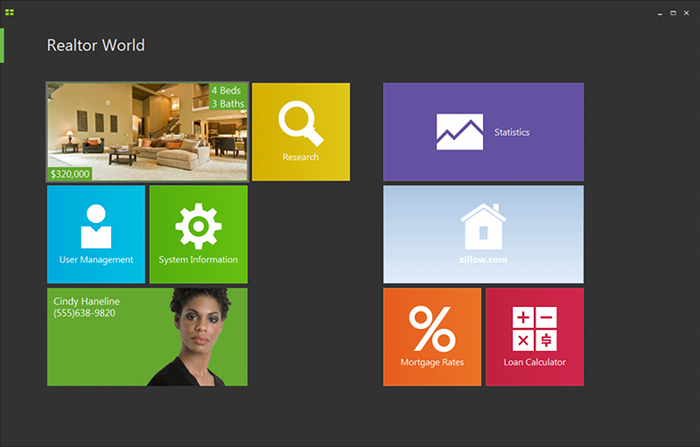
DevExpress has released an update to its VCL component suite, version 12.1, which includes a Metro-inspired tile control. That is, it looks like a Windows 8  Metro-style application, but in reality it runs as a desktop application. The VCL components support Embarcardero’s Delphi and C++ Builder, but not the FireMonkey library that runs cross-platform.

image

The new release also adds a “Server Mode” for  the ExpressQuantumGrid grid control, which retrieves only those rows needed to populate the current view.

DevExpress CTO Julian Bucknall has posted about the update. He says it is time to drop support for Delphi 7 (though this is supported in 12.1):

12.1 will be the last version to support Delphi and C++Builder 2010. I will sound a further note of caution: it’s likely that in 2013 we shall drop support for Delphi 7 and Delphi 2007 (what you might call the “ASCII IDEs”), so that we can concentrate on the latest run-times and environments.

Delphi 7 is significant because it was the last version to use its own dedicated IDE built with Delphi itself, and by today’s standards is delightfully small and fast.

Bucknall has reservations about Embarcadero’s move to Clang and LVVM for 64-bit C++ Builder and eventually for the other languages too:

I’m going to say we shall treat it with kid gloves. Re-engineering a compiler so fundamentally says “breaking changes” to me, especially given the necessary extensions that are present in the current C++Builder to interface with Delphi. So, fair warning: if the changes are too severe, we shall not support 64-bit C++Builder in 12.2. It took us long enough to support 64-bit Delphi across our entire product line, and this year we don’t have the resources. That doesn’t mean we won’t ever do this (after all, Embarcadero are saying that they’ll switch completely to Clang/LVVM at some point), just that we won’t this year.

Returning to the Tile Control: it will be fascinating to see if this sort of approach, mimicking Metro with a desktop app, becomes popular. Microsoft is promising some of the same with Office 15, though we have not seen much of this officially yet. The advantage is that you can make desktop apps just as touch-friendly as Metro apps. The disadvantage is that you do not get Windows Store support, Contracts, app isolation, or other benefits of the Windows Runtime which underlies the Metro side. Users may be confused.

I doubt Microsoft will mind though. It all helps to promote the Metro style which is the distinctive feature of Windows 8.

Microsoft announces launch dates for Windows 8: software will be done early August

Microsoft’s Tami Reller has announced the launch dates for Windows 8, the company’s controversial new operating system which combines the familiar desktop with a new touch-based user interface and associated runtime. She was speaking at the Worldwide Partner Conference under way in Toronto.

image

The team is on track to complete the software in early August, a milestone known as RTM (Release to Manufacturing).

This means that the final version of Windows 8 will be available for download by developers and enterprises from August – just a couple of months from now.

PCs and tablets preloaded with Windows 8 will be in the shops from late October.

The appearance of Windows 8 hardware is more significant this time round than is usually the case. One reason is that most PCs currently on sale do not have touch screens; and even those that do will lack the range of sensors expected in Windows 8 tablets.

Even more significant is that the ARM build of Windows 8, called Windows RT, is only available with new hardware. This means it will not be generally available at all until the hardware appears in October.