Tag Archives: microsoft

Another go at Windows 8 from Microsoft’s hardware partners but strategy puzzles remain

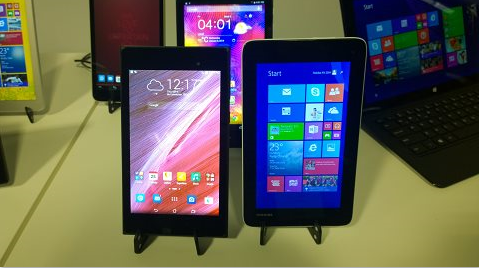
I am at the IFA consumer electronics event in Berlin, and have been struck by the number of new Windows 8 tablets on display. Some are hybrid laptop/tablet affairs, but there are also small tablets at keen prices (less than $199) which look superficially similar to Android tablets.

image

Under the covers though, they could not be more different. Android, like it or loath it, is well designed for tablets and low-maintenance for the user. Windows 8 on the other hand is a PC operating system with a split personality: apps that run in the don’t-call-it-Metro environment (Windows Store apps) and which work well with touch; and desktop applications most of which are hard to operate with touch.

Today’s PCs should also be low-maintenance; but they are vulnerable to badly behaved applications or even malware, applications that insist on installing themselves at start-up executables; applications that hijack file associations and cause confusion, and so on. Users have to understand the Windows Control Panel or burrow around in utilities like Task Manager and System Configuration (msconfig) to fix problems.

Microsoft foresaw this when Windows 8 was launched, and created a safer version of the operating system called Windows RT. It is perhaps not quite as low maintenance as Android, but since you cannot install desktop applications, all apps are sandboxed and can be easily installed or removed. Windows RT runs on ARM chipsets.

Unfortunately Windows RT was a flop, thanks to its confusing name and a lack of compelling apps in the Windows Store. Users seemed to be demanding “full Windows”, running on Intel chipsets, so that any Windows software can be installed.

There is no inherent reason, as far as I am aware, why x86 Windows cannot be locked down in the same way as Windows RT; this was a decision Microsoft made to differentiate the two. However they are not locked down, and therefore just as vulnerable and complex as any other PC.

The optimistic view is that the new wave of tablets will stimulate Windows Store app development and revive Windows 8. A Toshiba representative assured me that updates Microsoft made in Windows 8.1 had increased user acceptance of the new user interface.

I will not believe this though until we see Windows 8 tablets flying off the shelves in the same way as Android tablets or iPads; and further, I do not expect this to happen. Nor am I sure that they will be good for non-expert users; if they are like most PCs (and they are), they will get gradually slower and less usable as stuff (often unwanted) gets installed; Java, Ask Toolbar, Google Chrome and Toolbar, Silverlight, Flash, Adobe AIR and all the rest.

The current wave of tablets also makes me wonder what is the long-term thinking. With the near-demise of Windows RT, my expectation is that some future iteration of Windows Phone designed for larger displays will take its place, hopefully with full Windows Runtime compatibility or at least easy porting.

However, Windows 9 “Threshold” is also on the way. Are we going to end up with Windows 9 x86 tablets in form factors such as 7” and 8” tablets, as well as Windows Phone OS tablets in similar sizes? Or will Microsoft remove the desktop and lock down the OS in Windows 9 for phones and small tablets, to make it more like Windows RT, and call it Windows Phone 9?

CEO Satya Nadella speaks of “One Windows” but we are not close to it yet, and the developer story still seems uncertain to me. The one sure point is that Microsoft will use the Universal App concept to assist developers in targeting multiple Windows platforms (and perhaps even iOS and Android via Xamarin integration). The question though: what will those multiple Windows platforms look like a year or two from now?

The Microsoft Screen Sharing for Lumia Phones HD10: silly name, nice product

How many committees does it take to come up with a name like Microsoft Screen Sharing for Lumia Phones HD10? Who knows, but the product is a nice one. It lets you project from your phone to any TV with an HDMI input, using the Miracast standard.

image

Data is transferred to the device via Wi-Fi. You make the connection by tapping your phone on the separate coaster-like plate, which triggers the connection using NFC (Near Field Communication). The coaster talks to the device using Bluetooth.

The neat thing about this arrangement is that the main HD10 device will be close to your TV; it might even plug in at the back, out of sight. The coaster on the other hand can be on a table near your sitting position. You can come into the room, tap the coaster, and then view your photos and videos on the big screen in 1080p HD video quality.

At least, that is the idea as I understand it. Usability is key with this type of gadget, otherwise they do not get used, and this might just have it right.

The coaster thing can also be stacked on the main device as you can see from my blurry picture:

image

Concerning the name, all your worst fears about Microsoft taking over Nokia have been confirmed. Concerning the device though, all is well. I suppose that is the right way round, but it is really so hard?

Price is $79 / 79€ with availability promised for later this month.

Microsoft’s glowing Lumia wireless charge pad can show alerts, but we get too many

Today Microsoft/Nokia made a number of announcements alongside the IFA show in Berlin, including a new wireless charging pad for its Lumia phones. Here is the new Lumia 830 while wireless charging.

image

The new pad glows, with the cool feature being that the phone can send alerts to the pad which cause it to flash. This means that if your phone is charging on a table at home, you can see when there is an alert and pick up the phone to check it out.

What can send an alert? I was told that anything which can appear in the slide-down notification area in Windows Phone 8.1 can also send an alert to the pad, though the user can customise which ones are enabled.

The concept is good, but the difficulty is that we receive so many alerts (most of little real importance) that the pad will be constantly flashing, unless you manage to filter it down things that actually matter; maybe missed calls, voice messages and texts?

Microsoft’s broken Windows Store: an unconvincing official response and the wider questions

Microsoft’s Todd Brix has posted about misleading apps in Windows Store:

Every app store finds its own balance between app quality and choice, which in turn opens the door to people trying to game the system with misleading titles or descriptions. Our approach has long been to create and enforce strong but transparent policies to govern our certification and store experience. Earlier this year we heard loud and clear that people were finding it more difficult to find the apps they were searching for; often having to sort through lists of apps with confusing or misleading titles. We took the feedback seriously and modified the Windows Store app certification requirements as a first step toward better ensuring that apps are named and described in a way that doesn’t misrepresent their purpose.

Although it is not mentioned, the post is likely in response to this article which describes the Windows Store as “a cesspool of scams”:

Microsoft’s Windows Store is a mess. It’s full of apps that exist only to scam people and take their money. Why doesn’t Microsoft care that their flagship app store is such a cesspool?

That is a good question and one which Brix does not answer. Nor are the complaints new. I posted in November 2012 about Rubbish apps in Windows Store – encouraged by Microsoft? with the extraordinary rumour that Microsoft employees were encouraging trivial and broken apps to be uploaded multiple times under different names.

The facts in that case are somewhat obscure; but there was no obscurity about the idiotic (if your goal is to improve the availability of compelling Windows Store apps) Keep the Cash campaign in March 2013:

Publish your app(s) in the Windows Store and/or Windows Phone Store and fill out the form at http://aka.ms/CashForApps to participate. You can submit up to 10 apps per Store and get $100 for each qualified app up to $2000.

image

Microsoft decided to reward mediocrity – no, even that is not strong enough – rather, to reward the distribution of meaningless trivial apps in order to pad out its store with junk and make the actual high quality apps (yes there are some) harder to find.

I agree with the commenters to Brix’s post who call him out on his claim that “Our approach has long been to create and enforce strong but transparent policies to govern our certification and store experience”. How do you reconcile this claim with the torrent of rubbish that was allowed, and even encouraged, to appear in the store?

Every public app store is full of junk, of course, and it is hard to see how that can be completely avoided; if Apple, Google or Microsoft declined apps for subjective reasons there would be accusations of exerting too much control over these closed platforms.

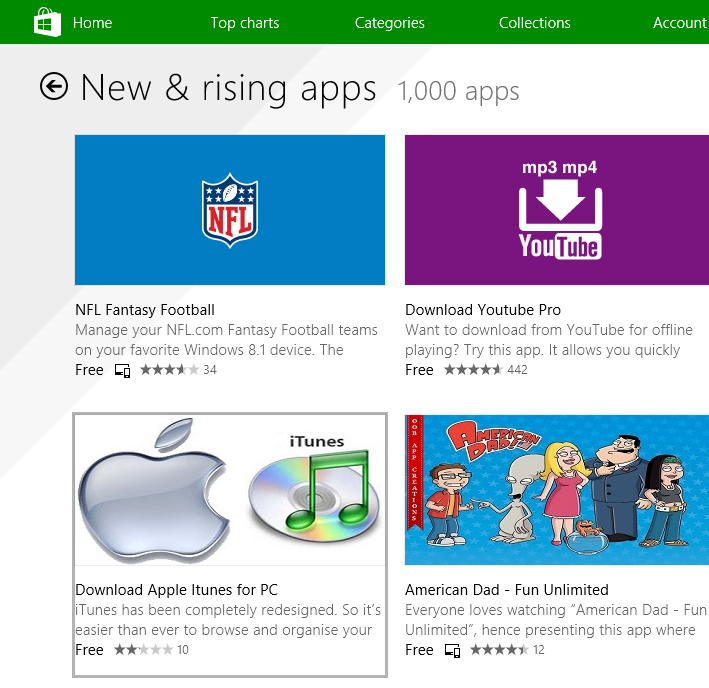
That does not excuse the appearance of apps like Download Apple Itunes (sic) for PC, listed today under New & rising apps:

image

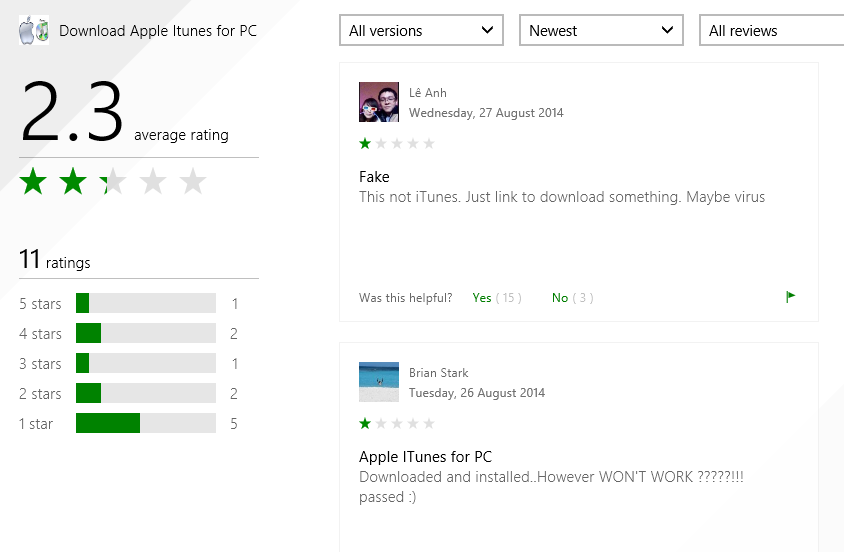
The app is nothing to do with Apple; it is a third-party downloader of the kind I analysed here. The idea is to persuade people to run an application that installs all sorts of adware or even malware before directing them to a download that is freely available.

It seems that users do not think much of this example, which apparently does not even do what it claims.

image

While apps like this are making in into the store, I do not see how Brix can justify his claim of enforcing “strong but transparent policies to govern our certification and store experience”.

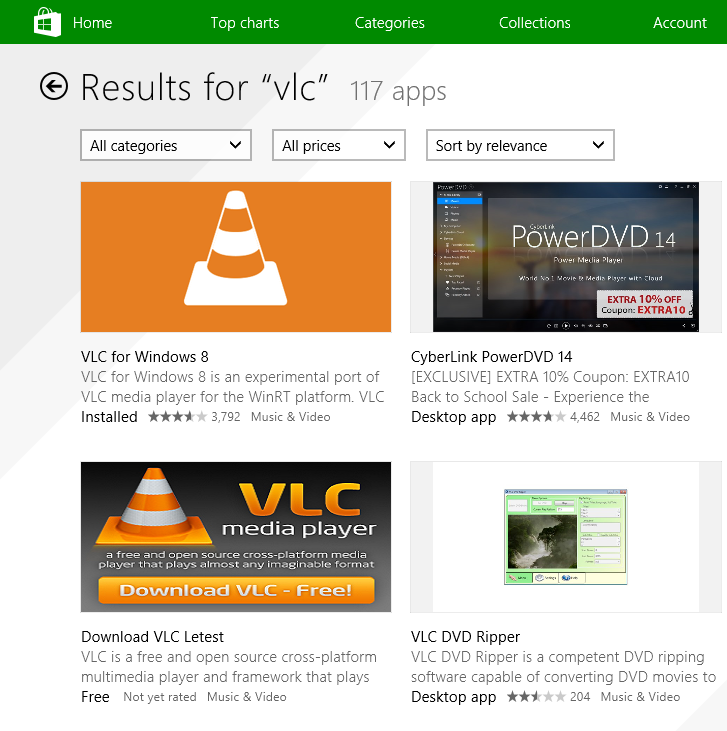
Even VLC, where scammy apps have been largely cleaned up following many complaints, is still being targeted. Apparently Microsoft’s store curators are happy to let through an app called “Download VLC Letest” (sic).

image

How much does this matter or has this mattered? Well, Microsoft launched Windows 8 at huge risk, trading the cost of unpopular and disruptive changes to the OS and user interface for the benefit of a new more secure and touch-friendly future. That benefit depended and depends completely on the availability of compelling apps which use the new model. The store, as the vehicle of distribution for those apps, is of critical importance.

Another benefit, that of protecting users from the kind of junk that has afflicted and diminished the Windows experience for many years, has been scandalously thrown away by Microsoft itself. It is a self-inflicted wound.

What could Microsoft do? It is too late for Windows 8 of course, but the correct approach to this problem, aside from not approving harmful and deceitful apps in the first place, is to take a strongly editorial approach. For less cost than was spend actually undermining the store by paying for rubbish, Microsoft could have appointed an editorial team to seek out strong apps and include within the store features that describe their benefits and tell their story, making the green store icon one that users would actually enjoy tapping or clicking. Currently there is too much reliance on automated rankings that are frequently gamed.

There are some excellent apps in the store, and teams that have worked hard to make them what they are. Apps to mention, for example, include Adobe’s Photoshop Express; Microsoft’s Fresh Paint; or Calculator Free. Those developers deserve better.

Hands on with Surface Pro 3

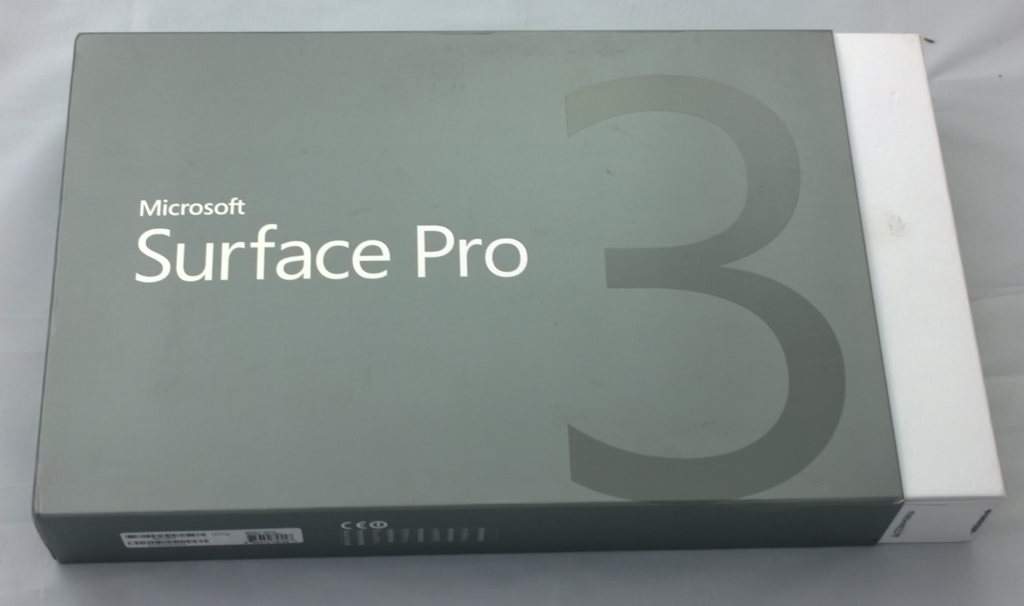
I am about to hand back my Surface Pro 3 after a week or so of use – how is it?

image

I reviewed the Surface on The Register, where I tried to bring out the changed focus of the device, compared to the first two iterations. Surface RT (the first to be released) was released simultaneously with Windows 8 and represented Microsoft’s best effort at creating a device that made Windows 8 work in both its roles, as a tablet controlled by touch and as a laptop replacement. Surface RT runs on ARM and does not allow installation of desktop applications, though with Office pre-installed the desktop is still useful. The first Surface Pro came later and uses the same 10.6" screen and form factor, though because of its more powerful x86 (Core i5) CPU it is thicker and more power-hungry (short battery life). I use both Surface 2 (the second iteration of Surface RT) and Surface Pro regularly so I know the products well.

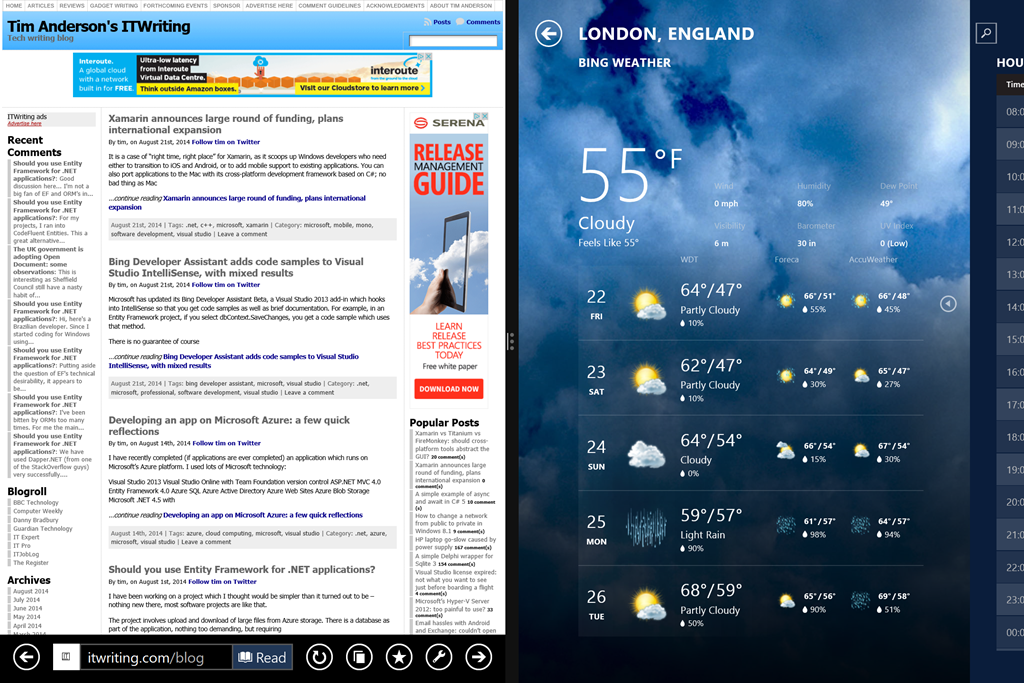
Surface Pro 3 was designed to be a better laptop replacement. It has a larger 12” display and a 3:2 screen ratio, in place of 16:9. The new size feels far more spacious and comfortable for applications like Word, Excel, Photoshop or Visual Studio. It is less obviously suited if you use a horizontally split view, part of the original Windows 8 design concept, but in practice it is such a high resolution screen (2160 x 1440) that it still works OK.

image

The new display is superb; the only two things I have against it are first, that it is glossy which is a slight annoyance in most environments and a disaster out of doors; and second, that it makes the device larger and therefore less convenient in space-constrained environments like crowded trains if you don’t have a table seat.

There is no one perfect size for a computing device, but Surface 3 is large enough that you will may want to have a smaller tablet with you, such as an iPad Mini or a Google Nexus 7. That said, phones are getting larger, so perhaps a phablet-sized phone and a Surface 3 is a good compromise.

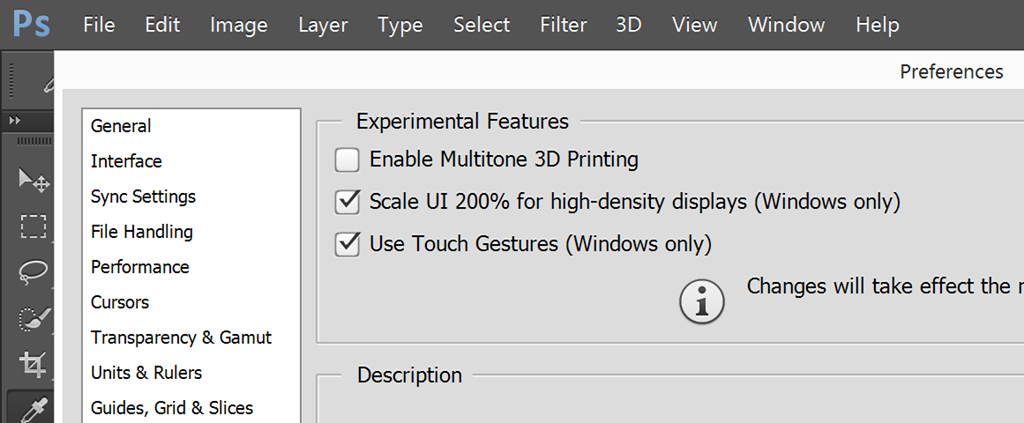
I had to turn on “Experimental features” in Adobe Photoshop to get high-density display scaling and full touch support:

image

Performance-wise, I have no complaints about Surface Pro 3; it exceeded my expectations. Although the review unit is only a Core i5, it is among the most responsive Windows PCs I have used; of course it helps that the OS is a fresh install. Considering that the Surface will in some circumstances throttle performance anyway, and that heat may be a problem with a higher spec CPU, it seems to me that there is no necessity to get the Core i7 variants for most purposes.

I have not done comprehensive performance tests but did run 3DMark RT on which the Surface Pro 3 scored about 9% better than my old Surface Pro, and the JavaScript SunSpider test on which it was 44% faster. Of course it is a faster Core i5 (1.9 GHz vs 1.7 GHz).

image

Thanks to Intel’s Haswell design, this performance comes alongside good battery life. The advertised 9 hours is optimistic, but 6 hours plus is realistic. I also noticed that Surface Pro 3 is much better at holding its charge on standby, a common annoyance with older models.

The power connector has been improved to make it both easier and firmer to connect.

image

The power supply still has that handy USB power supply built-in; I am often grateful for this.

image

What about the new fold-up keyboard, where the keyboard cover attaches across the bottom of the device to form a stronger hinge?

image

I am not sure about this one. The benefit is real; it is a firmer attachment and better when you use the Surface on your lap (though I have never really found this hard). It is a compromise though. Support for this feature has pushed the Windows key to the right hand of the screen, where you can easily hit it by accident if using Surface as a tablet in landscape mode. It also makes the taskbar hard to tap. A more subtle disadvantage is that the keyboard cover now has two hinges; you can think of it as a flap with two panels, a large one for the keyboard itself, and a thin one for the fold-up section. When you fold the keyboard to the back of the device for tablet use, this two-panel arrangement means it tends to move about more, it does not fit so snugly. I also prefer the keyboard to be flat on the desk when in tabletop mode, but find that it goes into the fold-up position by default and I have to unfold it.

The infinitely variable kickstand is also a mixed blessing. I like the flexibility it offers, but it means you now have to think about where to set it every time, it no longer clicks into place. Since I was happy with the choice of two in the 2nd edition models, the new hinge is little benefit to me, but I do appreciate that for some users it makes all the difference. The hinge does look strong, and hopefully will prove to be enduring.

image

These are fine details, and even the complaints do not detract from a positive experience overall. That said, whereas the old Surface is truly distinctive, with the new one I find myself asking whether a conventional Ultrabook with a better keyboard and more USB 3.0 ports is a more attractive purchase. It depends, I guess, how much you think you will use Surface Pro 3 in tablet mode.

Talking of tablet mode, the pen that comes with Surface Pro 3.0 is the best tablet pen I have used. It is capable of natural strokes and precise control. If you like inking word documents, for example, this is ideal.

image

I recognise this; but after years of experimentation have concluded that pen computing is not for me. I find them too easy to lose, and too awkward to use. Tablet in one hand, pen in the other: you are losing the freedom that tablet computing offers.

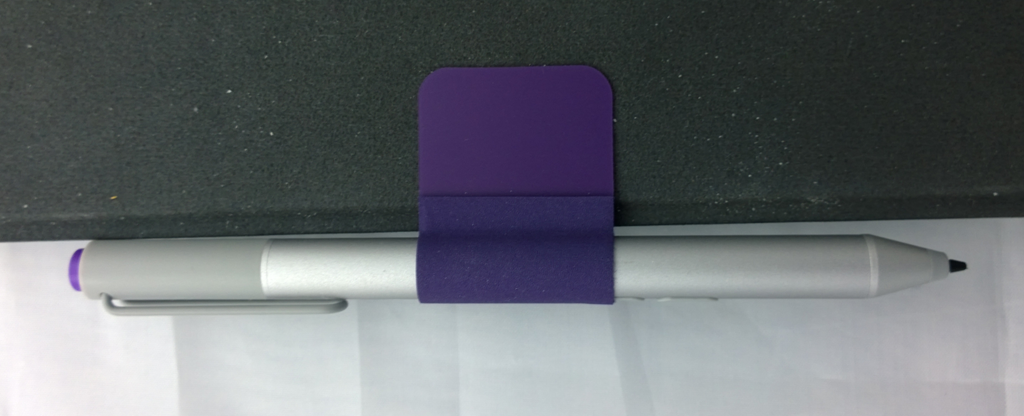
Note also the most clunky aspect of Surface Pro 3.0, which is how you park the pen. The magnetic attachment to the power connector port is hopeless; it falls off in no time. The keyboard loop is better, but my loop has already come off twice, and this will get worse. Time for some superglue? Microsoft should at a minimum make the loop sewn in to the keyboard. Everybody gets a pen, after all, though I also wish it were optional so I could save some money.

image

Another annoyance is only one USB 3.0 port; if Microsoft could squeeze another one in I would find that useful.

The camera is pretty good but no better than the one on Surface 2 (which is also pretty good); both are 5MP. However it easily beats the 720p camera on the Surface Pro 2. The Surface Pro 3 has a better front-facing camera than Surface 2.

The speakers are better than earlier models too. I am not sure how much this matters, since most of the time you will use a headset or external powered speakers, but sometimes the built-in ones are all you have to hand.

As a long-term Surface user I must not neglect to mention the best feature of the device, which is great portability combined with the ability (in the Pro versions) to run most PC applications. I travel enough to appreciate this greatly; it slips into a small bag and is far more convenient to carry than most laptops. I will never go back to a traditional laptop, though I might be tempted by a conventional Ultrabook; some of these are also relatively slim and light, though not so much as a Surface.

I like the Surface Pro 3 and regard it as decent value for money, given the all-round high quality. There are compromises though, and personally I would like to see Microsoft retain a smaller 10.6" screen model in the range as in some ways that works better for me.

Xamarin announces large round of funding, plans international expansion

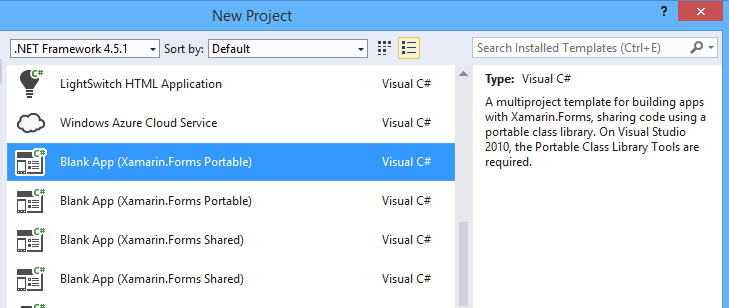
It is a case of “right time, right place” for Xamarin, as it scoops up Windows developers who need either to transition to iOS and Android, or to add mobile support to existing applications. You can also port applications to the Mac with its cross-platform development framework based on C#; no bad thing as Mac sales continue to boom.

image

Xamarin also fits with Microsoft’s new strategy, as I understand it, which is to provide strong support for iOS and Android for applications such as Microsoft Office, and services such as those hosted on Microsoft Azure.

Now the company has announced an additional $54 million of funding, which CEO Nat Friedman tells me is “the largest round of financing achieved by any mobile platform company ever”.

The financing comes from “new and existing investors, including Lead Edge Capital, Insight Venture Partners, Charles River Ventures, Ignition Partners, and Floodgate.”

What will the money be spent on? “Two things,” says Friedman. “We’re planning to expand our sales and marketing into Europe. We’re opening a sales office in London in the Fall. We did a roadshow with Microsoft in Europe and it was extremely successful. Second, we’re going to invest in improving the quality of our platforms.”

Friedman notes that mobile should not be considered a development niche. “Our view is that in the future all software will be mobile software in some way or another, when you build an application it will have to have some kind of mobile surface area.”

A few other points to note. One is that Xamarin Forms, recently introduced, has been a big hit with developers. “The Xamarin Forms forum has been our most popular forum,” says Friedman. “We’ve been really surprised.”

The company used to promote the idea of avoiding cross-platform code for the user interface, but then introduced Xamarin Forms as a cross-platform GUI framework, arguing that because it uses only native controls, it avoids the main drawbacks of the idea.

Some of the funding then will go into improving Xamarin Forms and tools to work with the framework.

Another key area is Visual Studio integration. The acquisition of the Visual Studio integration team from Clarius Consulting, in May 2014, is also significant here, since Clarius had strong expertise in this area.

Might Microsoft try to acquire Xamarin? Interesting question, and one which Friedman is not in a position to discuss; I am not a financial expert but would guess that Xamarin’s independent expansion increases its ability to be independent, though investors may be hoping to reap the rewards of an acquisition, who knows?

Bing Developer Assistant adds code samples to Visual Studio IntelliSense, with mixed results

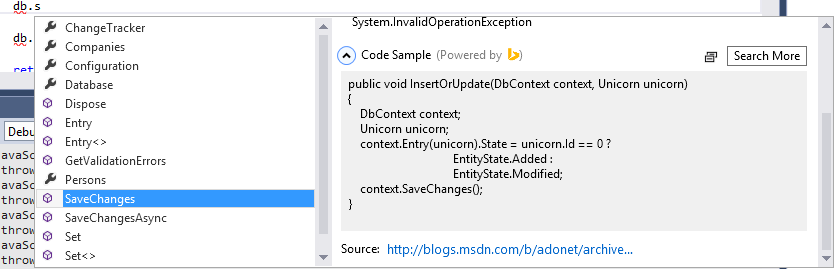
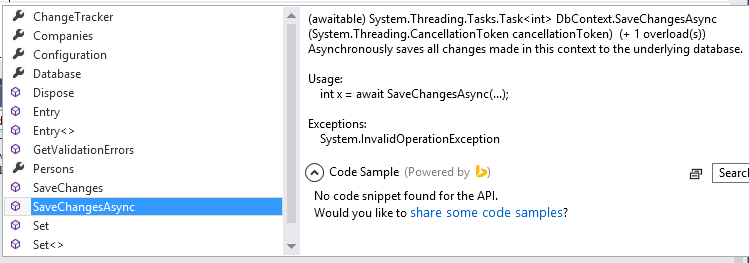
Microsoft has updated its Bing Developer Assistant Beta, a Visual Studio 2013 add-in which hooks into IntelliSense so that you get code samples as well as brief documentation. For example, in an Entity Framework project, if you select dbContext.SaveChanges, you get a code sample which uses that method.

image

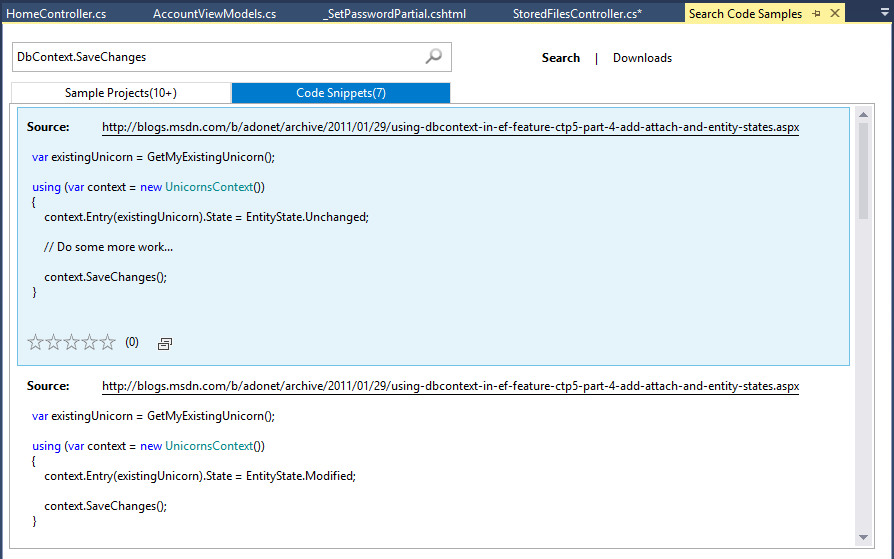
There is no guarantee of course that the sample is relevant to what you are trying to accomplish. You can hit Search More though and get a selection of code snippets and sample projects, drawn from sites including MSDN, StackOverflow and Codeproject.

image

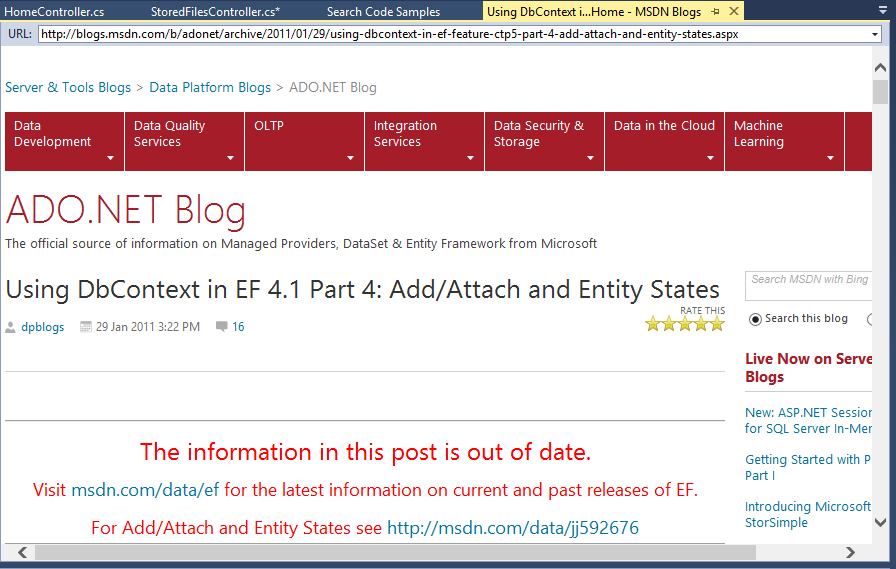
Developer beware though. Looking at the code samples, the top one is from a 2011 blog post relating to CTP (Community Tech Preview) 5 of Entity Framework 4.1. If you hit the link, you get this:

image

“The information in this post is out of date”, it says, followed by a link to what is in fairness a rather helpful article on using SaveChanges.

Hmm, maybe Bing Developer Assistant should try filtering the search to eliminate samples on preview or obsolete APIs? A snag here though is that on occasion the blogs and samples on preview frameworks are all you can get, because by the time the thing is actually released, the developer evangelists have move on to blog about the next up and coming cool thing.

If you choose an object member for which Bing finds no code sample, you are prompted to add one of your own:

image

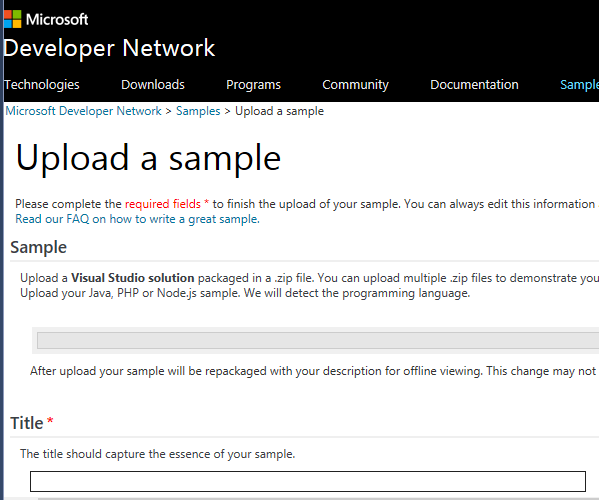
This takes to to the Developer Network sample upload page:

image

This form is quite a lot of work, but lets you add a code snippet or sample project together with title and comments explaining what it does.

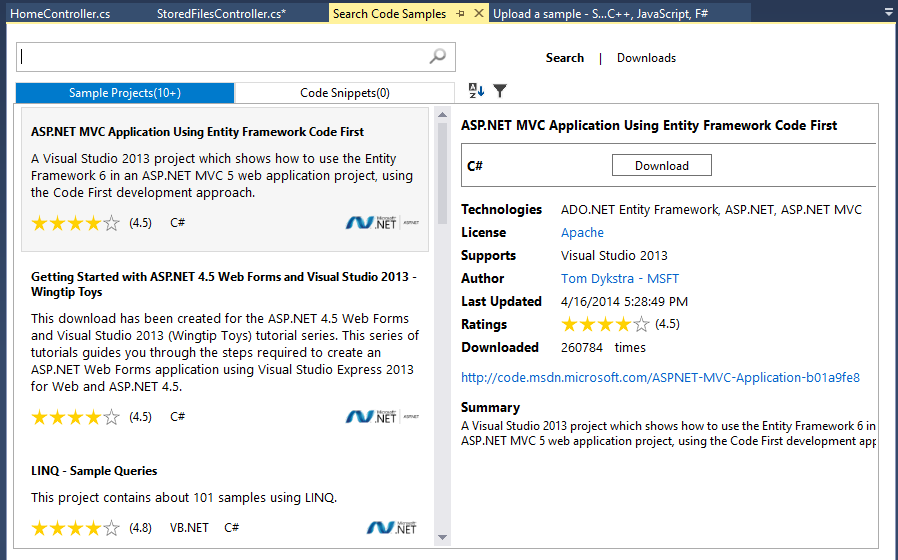
The Bing Developer Assistant also searches for sample projects:

image

Again it is a case of picking and choosing what is really relevant; but developers are experts and expected to use common sense.

A drawback with Bing Developer Assistant is that only one add-on can extend IntelliSense, so if you use Resharper or another tool which also does this, you have to choose which one to allow.

In the end, this is all about integrating web search into the IDE. Is that a good idea, or is it better simply to have your web browser open, perhaps on another display, and type “dbContext SaveChanges EF6” or some such into your favourite search engine?

There is some merit in a search engine that automatically filters to show only code samples – hey, that is what Google’s popular Code Search did, until it was mysteriously shut down – though I’m not sure how much I like the idea of possibly obsolete and deprecated samples showing up in Visual Studio as you are coding.

Still, the truth is that web search is critical to software development today and it is good to see that recognised.

When Windows 8 will not boot: the Automatic Repair disaster

“My PC won’t boot” – never good news, but even worse when there is no backup.

The system was Windows 8. One day, the user restarted his PC and instead of rebooting, it went into Automatic Repair.

Automatic Repair would chug for a bit and then say:

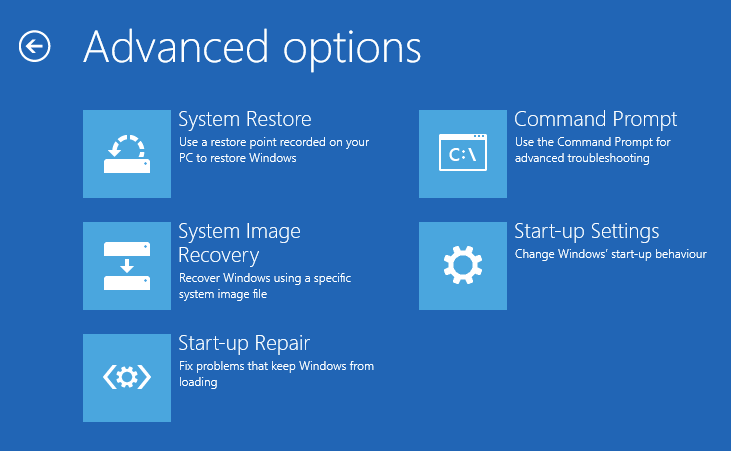
Automatic Repair couldn’t repair your PC. Press “Advanced options” to try other options to repair your PC, or “Shut down” to turn off your PC.

Log file: D:\Windows\System32\Logfiles\Srt\SrtTrail.txt

image

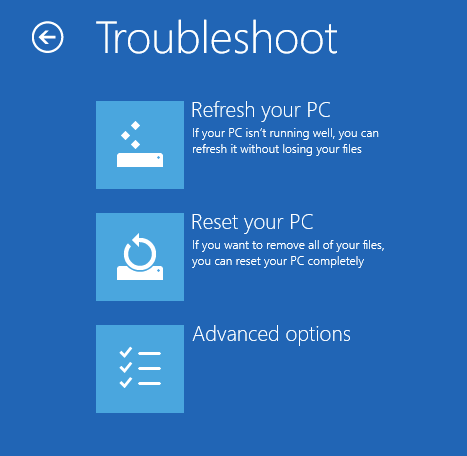
Advanced options includes the recovery console, a command-line for troubleshooting with a few useful commands and access to files. There is also an option to Refresh or reset your PC, and access to System Restore which lets you return to a configuration restore point.

System Restore can be a lifesaver but in this case had been mysteriously disabled. Advanced start-up options like Safe Mode simply triggered Automatic Repair again.

Choosing Exit and continue to Windows 8.1 triggers a reboot, and you can guess what happens next … Automatic Repair.

You also have options to Refresh or Reset your PC.

image

Refresh your PC is largely a disaster. It preserves data but zaps applications and other settings. You will have to spend ages updating Windows to get it current, including the update to Windows 8.1 if you originally had Windows 8. You may need to find your installation media if you have any, in cases where there is no recovery partition. You then have the task of trying to get your applications reinstalled, which means finding setup files, convincing vendors that you should be allowed to re-activate and so on. At best it is time-consuming, at worst you will never get all your applications back.

Reset your PC is worse. It aims to restore your PC to factory settings. Your data will be zapped as well as the applications.

You can also reinstall Windows from setup media. Unfortunately Windows can no longer do a repair install, preserving settings, unless you start it from within the operating system you are repairing. If Windows will not boot, that is impossible.

Summary: it is much better to persuade Windows to boot one more time. However if every reboot simply cycles back to Automatic Repair and another failure, it is frustrating. What next?

The answer, it turned out in this case, was to look at the logfile. There was only one problem listed in SrtTrail.txt:

Root cause found:
—————————
Boot critical file d:\windows\system32\drivers\vsock.sys is corrupt.

Repair action: File repair
Result: Failed. Error code =  0x2
Time taken = 12218 ms

I looked up vsock.sys. It is a VMware file, not even part of the operating system. How can this be so critical that Windows refuses to boot?

I deleted vsock.sys using the recovery console. Windows started perfectly, without even an error message, other than rolling back a failed Windows update.

Next, I uninstalled an old vmware player, using control panel. Everything was fine.

The Automatic Repair problem

If your PC is trapped in the Automatic Repair loop, and you have no working backup, you are in trouble. Why, then, is the wizard so limited? In this case, for example, the “boot critical file” was from a third-party; the wizard just needed to have some logic that says, maybe it is worth trying to boot without it, at least one time.

Finally, if this happens to you, I recommend looking at the logs. It is the only way to get real information about what it going wrong. In some cases you may need to boot into the recovery console from installation media, but if your hard drive is working at all, it should be possible to view those files.

Developing an app on Microsoft Azure: a few quick reflections

I have recently completed (if applications are ever completed) an application which runs on Microsoft’s Azure platform. I used lots of Microsoft technology:

  • Visual Studio 2013
  • Visual Studio Online with Team Foundation version control
  • ASP.NET MVC 4.0
  • Entity Framework 4.0
  • Azure SQL
  • Azure Active Directory
  • Azure Web Sites
  • Azure Blob Storage
  • Microsoft .NET 4.5 with C#

The good news: the app works well and performance is good. The application handles the upload and download of large files by authorised users, and replaces a previous solution using a public file sending service. We were pleased to find that the new application is a little faster for upload and download, as well as offering better control over user access and a more professional appearance.

There were some complications though. The requirement was for internal users to log in with their Office 365 (Azure Active Directory) credentials, but for external users (the company’s customers) to log in with credentials stored in a SQL Server database – in other words, hybrid authentication. It turns out you can do this reasonably seamlessly by implementing IPrincipal in a custom class to support the database login. This is largely uncharted territory though in terms of official documentation and took some effort.

Second, Microsoft’s Azure Active Directory support for custom applications is half-baked. You can create an application that supports Azure AD login in a few moments with Visual Studio, but it does not give you any access to metadata like to which security groups the user belongs. I have posted about this in more detail here. There is an API of course, but it is currently a moving target: be prepared for some hassle if you try this.

Third, while Azure Blob Storage itself seems to work well, most of the resources for developers seem to have little idea of what a large file is. Since a primary use case for cloud storage is to cover scenarios where email attachments are not good enough, it seems to me that handling large files (by which I mean multiple GB) should be considered normal rather than exceptional. By way of mitigation, the API itself has been written with large files in mind, so it all works fine once you figure it out. More on this here.

What about Visual Studio? The experience has been good overall. Once you have configured the project correctly, you can update the site on Azure simply by hitting Publish and clicking Next a few times. There is some awkwardness over configuration for local debugging versus deployment. You probably want to connect to a local SQL Server and the Azure storage emulator when debugging, and the Azure hosted versions after publishing. Visual Studio has a Web.Debug.Config and a Web.Release.Config which lets you apply a transformation to your main Web.Config when publishing – though note that these do not have any effect when you simply run your project in Release mode. The correct usage is to set Web.Config to what you want for debugging, and apply the deployment configuration in Web.Release.Config; then it all works.

The piece that caused me most grief was a setting for <wsFederation>. When a user logs in with Azure AD, they get redirected to a Microsoft site to log in, and then back to the application. Applications have to be registered in Azure AD for this to work. There is some uncertainty though about whether the reply attribute, which specifies the redirection back to the app, needs to be set explicitly or not. In practice I found that it does need to be explicit, otherwise you get redirected to the deployed site even when debugging locally – not good.

I have mixed feelings about Team Foundation version control. It works, and I like having a web-based repository for my code. On the other hand, it is slow, and Visual Studio sulks from time to time and requires you to re-enter credentials (Microsoft seems to love making you do that). If you have a less than stellar internet connection (or even a good one), Visual Studio freezes from time to time since the source control stuff is not good at working in the background. It usually unfreezes eventually.

As an experiment, I set the project to require a successful build before check-in. The idea is that you cannot check in a broken build. However, this build has to take place on the server, not locally. So you try to check in, Visual Studio says a build is required, and prompts you to initiate it. You do so, and a build is queued. Some time later (5-10 minutes) the build completes and a dialog appears behind the IDE saying that you need to reconcile changes – even if there are none. Confusing.

What about Entity Framework? I have mixed feelings here too, and have posted separately on the subject. I used code-first: just create your classes and add them to your DbContext and all the data access code is handled for you, kind-of. It makes sense to use EF in an ASP.NET MVC project since the framework expects it, though it is not compulsory. I do miss the control you get from writing your own SQL though; and found myself using the SqlQuery method on occasion to recover some of that control.

Finally, a few notes on ASP.NET MVC. I mostly like it; the separation between Razor views (essentially HTML templates into which you pour your data at runtime) and the code which implements your business logic and data access is excellent. The code can get convoluted though. Have a look at this useful piece on the ASP.NET MVC WebGrid and this remark:

grid.Column("Name",
  format: @<text>@Html.ActionLink((string)item.Name,
  "Details", "Product", new { id = item.ProductId }, null)</text>),

The format parameter is actually a Func, but the Razor view engine hides that from us. But you’re free to pass a Func—for example, you could use a lambda expression.

The code works fine but is it natural and intuitive? Why, for example, do you have to cast the first argument to ActionLink to a string for it to work (I can confirm that it is necessary), and would you have worked this out without help?

I also hit a problem restyling the pages generated by Visual Studio, which use the twitter Bootstrap framework. The problem is that bootstrap.css is a generated file and it does not make sense to edit it directly. Rather, you should edit some variables and use them as input to regenerate it. I came up with a solution which I posted on stackoverflow but no comments yet – perhaps this post will stimulate some, as I am not sure if I found the best approach.

My sense is that what ASP.NET MVC is largely a thing of beauty, it has left behind more casual developers who want a quick and easy way to write business applications. Put another way, the framework is somewhat challenging for newcomers and that in turn affects the breadth of its adoption.

Developing on Azure and using Azure AD makes perfect sense for businesses which are using the Microsoft platform, especially if they use Office 365, and the level of integration on offer, together with the convenience of cloud hosting and anywhere access, is outstanding. There remain some issues with the maturity of the frameworks, ever-changing libraries, and poor or confusing documentation.

Since this area is strategic for Microsoft, I suggest that it would benefit the company to work hard on pulling it all together more effectively.

Should you use Entity Framework for .NET applications?

I have been working on a project which I thought would be simpler than it turned out to be – nothing new there, most software projects are like that.

The project involves upload and download of large files from Azure storage. There is a database as part of the application, nothing too demanding, but requiring some typical CRUD (Create, Retrieve, Update, Delete) functionality. I had to decide how to implement this.

First, a confession. I am comfortable using SQL and my normal approach to a database application is to use ADO.NET DataReaders to read data. They are brilliant; you just send some SQL to the database and back comes the data in a format that is easy to read back in C# code.

When I need to update the data, I use SqlCommand.ExecuteNonQuery which executes arbitrary SQL. It is easy to use parameters and transactions, and I get full control over how many connections are open and so on.

This approach has always worked well for me and I get excellent performance and complete flexibility.

However, when coding in ASP.NET MVC and Visual Studio you are now steered firmly towards Entity Framework (EF), Microsoft’s object-relational mapping library. You can use a code-first approach. Simply create a C# class for the object you want to store, and EF handles all the drudgery of creating tables and building SQL queries, letting you concentrate on the unique features of your application.

In addition, you can right-click in the Solution Explorer, choose Add Controller, and a wizard will generate all the code for listing, creating, editing and deleting those objects.

image

Well, that is the idea, and it does work, but I soon ran into issues that made me wonder if I had made the right decision.

One of the issues is what happens when you change your mind. Maybe that field should be an Int rather than a String. Maybe you need a second phone number field. Maybe you need to create new tables. How do you keep the database in synch with your classes?

This is called Code First Migrations and involves running commands that work out how the database needs to change and generates code to update it. It’s clever stuff, but the downside is that I now have a bunch of generated classes and a generated _MigrationHistory table which I did not need before. In addition, something when slightly wrong in my case and I ended up having to comment out some of the generated code in order to make the migration work.

At this point EF is creating work for me, rather than saving it.

Another issue I encountered was puzzling out how to do stuff beyond the most trivial. How do you replace an HTML edit box with a dropdown list? How do you exclude fields from being saved when you call dbContext.SaveChanges? What is the correct way to retrieve and modify data in pure code, without data binding?

I am not the first to have questions. I came across this documentation: an article promisingly entitled How to: Add, Modify, and Delete Objects which tells you nothing of value. Spot how many found it helpful:

image

You should probably start here instead. Still, be aware that EF is by no means straightforward. Instead of having to know SQL and the basics of ADO.NET commands and DataReaders, you now have to know EF, and I am not sure it is any less intricate. You also need to be comfortable with data binding and LINQ (Language Integrated Query) to make sense of it all, though I will add that strong data binding support is one reason whey EF is a good fit for ASP.NET MVC.

Should you use Entity Framework? It remains, as far as I can tell, the strategic direction for data access on Microsoft’s platform, and once you have worked out the basics you should be able to put together simple database applications more quickly and more naturally than with manually coded SQL.

I am not sure it makes sense for heavy-duty data access, since it is harder to fine-tune performance and if you hit subtle bugs, you may end up in the depths of EF rather than debugging your own code.

I would be interested in hearing from other developers. Do you love EF, avoid it, or is it just about OK?