Category Archives: windows

Bing Maps app on Windows 8: rubbish compared to Bing Maps on the web

I have been looking at the Bing Maps app on Windows 8 and 8.1 (it is the same).

It is surprising how poor it is. The web version is better, which is odd because you would have thought they used the same data.

Here is what I get from the app if I search for public transport between Derby and Birmingham (on a direct rail route):

image

Bing Maps on the web has no problem with this:

image

Here is another random example. Bing maps app cannot find Dubrovnik airport. A search only finds Dubrovnik.

image

Oddly, if you know where the airport is, it is in fact marked on the map.

image

Web app: no problem:

image

If Microsoft wants Windows 8 tablets to succeed, glaring problems like this need fixing. Before the release of Windows 8.1 later this year.

Adobe Creative Cloud giveaway at Microsoft Build: sign of a new alliance?

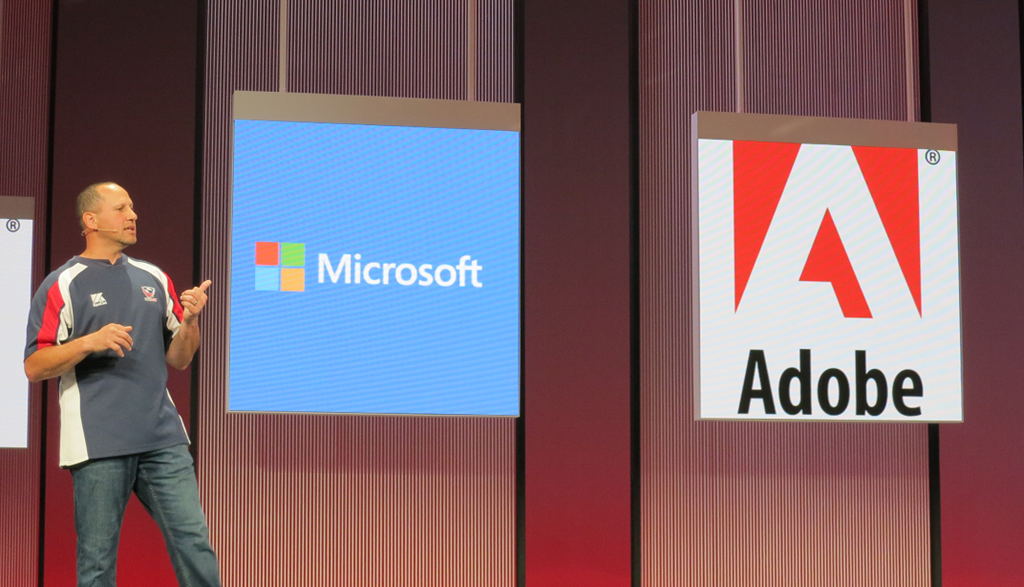
At Microsoft’s Build conference last week, one among a number of giveaways to all attendees was a year’s subscription to Adobe’s Creative Cloud. This was announced by Developer and Platform Evangelism VP Steven Guggenheimer during the day 2 keynote.

image

Creative Cloud costs $49.99 (or £39 + VAT) per month for an individual subscription.

Guggenheimer in effect said that the gift came from Adobe; he suggested that “you guys should send them a nice email”.

The stated purpose of the giveaway is to promote the Digital Publishing Suite (DPS). Creative Cloud comes with DPS Single Edition, which lets you create rich, interactive magazine content and publish it to the iPad and Android. Announced at Build was DPS support for Windows 8.1 in “late 2013”; a sign if nothing else that Adobe is taking Microsoft’s tablet platform seriously.

The odd aspect though is that Build is a developer conference and not quite the right target audience for DPS. On the other hand, there are numerous tools in Creative Cloud that are well suited to developers, including the Edge web content tools, PhoneGap Build, and of course the mighty Photoshop for image editing.

Adobe’s Adam Lehman was interviewed at Build about the Creative Cloud tools, especially Edge, here.

Microsoft is no longer trying to compete with Adobe on design tools. Expression Web and Expression Design have been discontinued. The Flash versus Silverlight wars are also consigned to history, making it easier for these two companies to work together.

Microsoft Build 2013: Love the platform?

The paradox of Microsoft: record revenue and profits, but yes, Windows 8 has been a disaster so far, and the company has lost developer and consumer mind share.

That might explain why there was no lack of availability for tickets to Build in San Francisco. With a smart PR move, Microsoft “sold out” of a limited first allocation, then made more available, and you could register right up to the day before. Attendance estimates are around 4,500.

image

The atmosphere was good though, and someone remarked to me that it felt a bit like an early Mix event, Microsoft’s web and design conference back in Silverlight days.

Blue was the colour; and for me Build 2013 was a Windows 8.1 event, though attention was also given to Windows Azure and Windows Phone.

Microsoft has two goals with Windows 8.1.

One is to placate users who essentially want Windows 7.1 and have been wary, confused, or worse, in their reaction to the Windows 8 Modern (or Metro, or Windows Store) user interface.

The other is to establish a new tablet platform, something which has yet to happen despite significant numbers of Windows 8 installations out there since the launch.

There was solid progress on both these fronts at Build, though whether it was enough is of course open to debate. Windows 8.1 is a nicer experience, especially for desktop users, and the user interface feels more elegant and refined than Windows 8.0.

No matter what you may have read elsewhere though, Microsoft is not backtracking. The focus at Build was on the new app platform and its improvements. Developers I spoke to were generally happy with these. “It’s caught up with Silverlight”, one told me.

At Build 2011 and 2012 there was some disappointment among developers, that Microsoft seemed to be pushing HTML and JavaScript above C# and .NET, for its new app platform. There was a perception at Build 2013 that this is no longer the case, though C# architect Anders Hejlsberg spoke on TypeScript (which compiles to JavaScript) rather than C# at his session; and a Microsoft engineer I spoke to denied that there had been any change of direction internally; the official line is that this is developer choice.

In practice, the developer choice tends to be C#, which dominated the session examples, and there was no more gossip about Microsoft abandoning .NET.

Windows seems to be on a one-year refresh cycle now. No date has been announced, but the signs are that Windows 8.1 will follow one year after Windows 8.0, which means RTM (the release build) no later than August and machines on sale in time for the winter season.

Much was already known about Windows 8.1, so were there any surprises? The main one was the evolution of Bing. The key phrase is “Bing as a platform”.

Bing is much more than just a search engine. We’re always a platform company. As we’ve been building this great search experience, we’ve actually been building this rich platform.

said Program Manager David Robinson in this session. Bing services are not just search, but also speech recognition (as seen on Xbox) so that developers can create “natural user interfaces” with voice control, text to speech, and 2D and 3D mapping with driving directions.

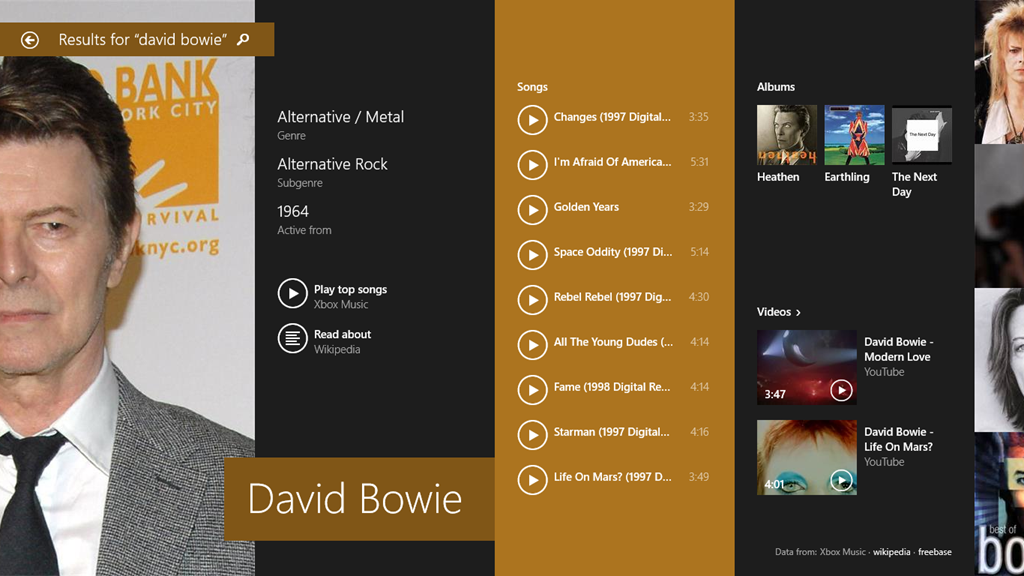
The other twist on this is the new search app in Windows 8.1. The way search works in Windows 8.1 has changed quite a bit. Search within an app should no longer rely on the Charms menu, and developers are expected to put a search box into their user interface. Search in the Charms menu is a system search, that integrates local and web results. Thus, if I search for Build, I get the Build apps, local documents mentioning Build, my own photos, web results relating to the building industry, word definitions, and so on. If I search for “Event viewer”, I get the control panel applet, a Wikipedia entry, a couple of Microsoft support articles, and then a general web search with infinite scrolling to the right. If I search for a celebrity, I get a rich multimedia view.

image

The search engine here is not pluggable; only Bing will work. This is smart strategic thinking, since it is at once a compelling app, an easy way to navigate Windows, and a way of building search share for Bing.

There are some details of search yet to be revealed. In particular, I asked how an app can integrate its own content into an “Everywhere” search, and was told it has yet to be announced (even though Windows 8.0 has a search contract that you would have thought would fit perfectly here).

My own experience of Windows 8.1 is positive, though since I have little difficulty with Windows 8.0 I am not a good test case as to whether it will win over those sticking with Windows 7. The Start button is mostly cosmetic, but I suspect I will find myself right-clicking it frequently to bring up the Win-X menu, now complete with Shutdown option.

Surface RT is greatly improved by the update. There is some performance gain, and the addition of Outlook to the RT desktop makes it twice as useful for businesses using Exchange or Office 365. Windows 8.1 also comes with Internet Explorer 11 with WebGL and some user interface improvements.

Microsoft does feel somewhat diminished these days, thanks to the decline of the PC and its smaller area of dominance, despite its continuing healthy financials. Can the company recover any of that ground? To do so it has to drive adoption of the tablet personality in Windows 8. Microsoft has made a poor start, but it may yet come together.

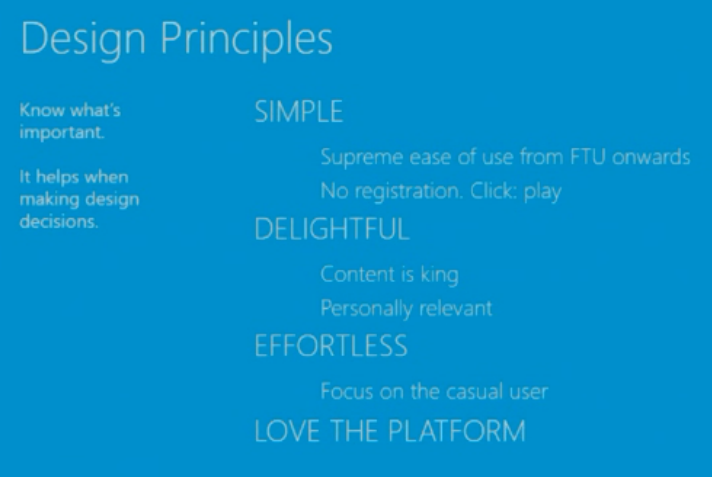
At a sparsely attended session on The Story of Bringing Nokia Music from Windows Phone to Windows 8 the Nokia Design Principles caught my attention:

image

The speakers conveyed real enthusiasm for the last of these, “Love the platform”, which is something I have not often encountered in the context of Windows 8.0, especially as the first release felt rough and not-quite-ready from a developer perspective. There is no doubting its potential though, and if Microsoft can win a bit more developer love with the 8.1 release, then we may see growth. 

A big ball of Bluetooth at Microsoft Build

At Microsoft’s Build developer conference in San Francisco the company is showing off new features of Windows 8.1, now in preview, a major update to Windows 8.0.

image

In a session on the Windows Runtime, the platform behind the tablet platform in Windows 8, there was a dramatic moment when a huge black ball rumbled onto the stage and threatened to destroy the “Lemonade stand” which the presenters were using to showcase how a very small business might use Windows 8.

The significance of the ball (a custom Sphero) is that Windows 8.1 has Bluetooth APIs built in, so that app developers can easily control a Bluetooth device from code.

Robotics is an obvious application, but with increasing numbers of Bluetooth devices out there, this is a smart move by Microsoft.

Not just Instagram: the Windows Phone (and BlackBerry, Firefox OS) app problem

I like the Windows Phone OS and use one day to day. However it has become impossible to do my job in technical journalism without either an Apple iOS or Android device alongside it. The reason is that I review gadgets and find increasingly that they come with app support – but only for iOS or Android.

The Fitbit exercise tracking gadget, for example.

image

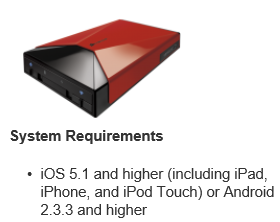
Or the Corsair Voyager Air wireless hard drive, almost inaccessible from Windows Phone (you can do it with a firmware update and DLNA).


image

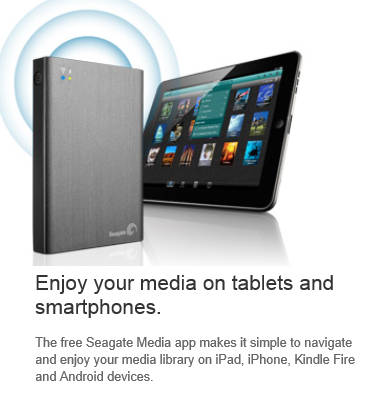
Or the Seagate Wireless Plus. Actually this one is better as it has a web UI, but no app.

image

My bank is Nationwide and has an app – uh oh.

image

It’s not just Instagram.

image

Where do Microsoft and Nokia go from here? Or other contenders like BlackBerry and Firefox OS? The answer of course is to sell lots of devices so that discontented users beat up the companies that do not support them. But selling lots of devices is difficult when the customer says, “it’s a nice phone, but it does not work with my portable hard drive. Or my bank. Or my Fitbit.”

The Mac survived versus the PC for many years with this kind of problem. It takes a loyal customer base and excellent 1st party and niche apps. There are still areas of strength which Microsoft and its phone partners could exploit (though they have been poor at this to date). Enterprise integration with Windows Server and System Center. Consumer integration with Xbox.

If the company can get it right with Windows tablets that would help too, especially combined with unification of the Windows 8 and Windows Phone app platforms.

Unfortunately for Microsoft though, the market has already decided that only two mobile platforms matter, and that will not be easy to change.

Windows XP Mode hassles for Windows 8 upgraders

One of the reasons for the success of Windows 7 was the provision Microsoft made for customers stuck with applications that only run on Windows XP. Windows XP Mode is a free add-on for Windows 7 Professional that runs Windows XP. It can also hide the XP desktop and run individual applications in their own window, though this is cosmetic and merely hides the desktop. Windows XP Mode uses Virtual PC as its virtualisation platform.

What would expect to happen if you upgraded Windows 7 with XP Mode to Windows 8? Without having researched it, my expectation was that Windows XP Mode would migrate smoothly to Hyper-V in Windows 8.

Not so. Here is the official word:

With the end of extended support for Windows XP in April 2014, Microsoft has decided not to develop Windows XP Mode for Windows 8.  If you’re a Windows 7 customer who uses Windows XP Mode and are planning a move to Windows 8, this article may be helpful to you.  
When you upgrade from Windows 7 to Windows 8, Windows XP Mode is installed on your machine, however Windows Virtual PC is not present anymore. This issue occurs because Windows Virtual PC is not supported on Windows 8. To retrieve data from the Windows XP Mode virtual machine, perform the steps listed in the More Information section.

If you were relying on XP Mode to run some old but essential application, this is definitely worth knowing. Microsoft’s guidance on retrieving the data is unlikely to be much use, since the reason you use XP Mode is to run applications rather than to store data. Some users are not impressed:

This is SHOCKING.  I was using Win 7 Pro and had a fully configured (hours of work) XP Virtual Machine with my complete web development environment in it.  It didn’t even occur to me that it wouldn’t work on Windows 8.  I’ve only just discovered now when I tried to access it to do some updates!

I MUST recover this virtual PC.

Why did the Upgrade Advisor not mention this!?!?  I carefully resolved all the issues highlighted there before moving on.

Of course it is desirable to move off Windows XP completely, even in XP Mode, but the rationale is that it is better to be on a recent and supported version of Windows and to run XP in a virtual environment, than to run Windows XP itself.

Another oddity is that you can run Windows XP on Hyper-V in Windows 8. However you cannot get XP Mode to work unless you perform a repair install that changes the way it is licensed. Yes, it is licensing rather than technical reasons that blocks the XP Mode upgrade:

Note: The Windows XP Mode virtual hard disk will not work on Windows 8 as Windows 8 does not provide the Windows XP Mode license. The Windows XP Mode license is a benefit provided on Windows 7 only.

Users have discovered workarounds. Aside from the repair install mentioned above, you can also use Oracle Virtual Box and trick XP Mode into thinking that it is running on Windows 7 and Virtual PC. You can also run a virtual instance of Windows 7 and run XP Mode within that.

Microsoft and mediocrity in programming

A post by Ahmet Alp Balkan on working as a developer at Microsoft has stimulated much discussion. Balkan says he joined Microsoft 8 months ago (or two years ago if you count when he started as an intern) and tells a depressing tale (couched in odd language) of poor programming practice. Specifically:

  • Lack of documentation and communication. “There are certain people, if they got hit by a bus, nobody can pick up their work or code.”
  • Inability to improve the codebase. “Nobody will appreciate you for fixing styling or architectural issues in their core, in fact they may get offended.”
  • Lack of enthusiasm. “Writing better code is not a priority for the most”
  • Lack of productivity. “I spend most of my time trying to figure out how others’ uncommented/undocumented code work, debugging strange things and attending daily meetings.”
  • Lack of contribution to the community. “Everybody loves finding Stack Overflow answers on search results, but nobody contributes those answers.”
  • Lack of awareness of the competition. “No one I met in Windows Azure team heard about Heroku or Rackspace.”
  • Working by the book. “Nobody cares what sort of mess you created. As long as that functionality is ready, it is okay and can always be fixed later.”
  • Clipboard inheritance. “I’ve seen source files copy pasted across projects. As long as it gets shit done (described above) no one cares if you produced unmaintainable code.”
  • Using old tools. “Almost 90% of my colleagues use older versions of Office, Windows, Visual Studio and .NET Framework.”
  • Crippling management hierarchy. “At the end, you are working for your manager’s and their managers’ paychecks.”

There are a couple of points to emphasize. This is one person in one team which is part of a very large corporation, and should not be taken as descriptive of Microsoft programming culture as a whole. Balkan’s team is in “the test org”, he says, and not making product decisions. Further, many commenters observe that they have seen similar at other organisations.

Nevertheless, some of the points chime with other things I have seen. Take this post by Ian Smith, formerly a Microsoft-platform developer, on trying to buy a Surface Pro at Microsoft’s online store. From what he describes, the software behind the store is of dreadful quality. Currently, there is a broken image link on the home page.

image

This is not how you beat the iPad.

Another piece of evidence is in the bundled apps for Windows 8. The more I have reflected on this, the more I feel that supplying poor apps with Windows 8 was one of the worst launch mistakes. Apps like Mail, Calendar and Contacts on the Metro-style side have the look of waterfall development (though I have no inside knowledge of this). They look like what you would get from having a series of meetings about what the apps should do, and handing the specification over to a development team. They just about do the job, but without flair, without the benefit of an iterative cycle of improvements based on real user experience.

When the Mail app was launched, it lacked the ability to see the URL behind a hyperlink before tapping it, making phishing attempts hard to spot. This has since been fixed in an update, but how did that slip through? Details matter.

A lot is known about how to deliver high quality, secure and robust applications. Microsoft itself has contributed excellent insights, in books like Steve McConnell’s Code Complete and Michael Howard’s Writing Secure Code. The Agile movement has shown the importance of iterative development, and strong communication between all project stakeholders. Departing from these principles is almost always a mistake.

The WinRT platform needed a start-up culture. “We’re up against iPad and Android, we have to do something special.” Microsoft can do this; in fact, Windows Phone 7 demonstrated some of that in its refreshing new user interface (though the 2010 launch was botched in other ways).

Another piece of evidence: when I open a Word document from the SkyDrive client and work on it for a while, typing starts to slow down and I have to save the document locally in order to continue. I am not alone in experiencing this bug. Something is broken in the way Office talks to SkyDrive. It has been that way for many months. This is not how you beat Dropbox.

In other words, I do think Microsoft has a problem, though equally I am sure it does not apply everywhere. Look, for example, at Hyper-V and how that team has gone all-out to compete with VMWare and delivered strong releases.

Unfortunately mediocrity, where it is does exist, is a typical side-effect of monopoly profits and complacency. Microsoft (if it ever could) cannot afford for it to continue.

Acer announces 8.1” Windows tablet – but will desktop Windows work in this format?

Acer has announced an 8.1″ Windows tablet, the Iconia W3:

  • Intel Atom 1.8Ghz dual-core Z2760 CPU
  • 8 hr battery life
  • 1280 x 800 screen
  • 2GB RAM
  • Front and rear 2 MP cameras
  • Micro HDMI
  • Bluetooth 4.0
  • GPS
  • 32 or 64GB storage
  • Micro SD
  • Bundles Office 2013 Home and Student
  • Optional keyboard $79.99
  • $379.99, available this month

image

Anything wrong with this picture? Certainly it could be handy for using Windows on the go, being more compact than a Surface (though how much more, if you include the keyboard?) and much cheaper than Surface Pro.

There are some snags though. This device runs full Windows 8 rather than Windows RT, the ARM version, so you can run all your desktop apps; but many will be no fun to use on an 8.0″ screen, or without keyboard and mouse. The Modern – that is, Metro-style – apps should be fine, but the Windows 8 app ecosystem is still weak so you may struggle to get by on those. There is Office – and it is smart of Acer to bundle Home and Student – but will you be squinting to use it on such a small screen?

My hunch is that Windows will not sing on small tablets until there is a version of Office for the Modern UI.

What’s coming in Windows 8.1?

Microsoft is now talking in detail about Windows 8.1, essentially a service pack for the original release.

Windows Vista SP1 used the same core OS as Windows Server 2008 R2, so you might reasonably expect a similar relationship between Windows 8.1 and an updated Windows Server 2012.

So what’s new? My quick summary, with importance rating from 1-10:

You can make your lock screen a slide show (1)

You can set new animated backgrounds for the Start screen (1)

Start button always visible on the desktop. (6) since many struggle with this.

You can choose your desktop background as your Start screen background. This gets a (4) since it reduces the dissonance between desktop and Metro a fraction.

New super large tiles and new super small tiles in the Start screen. Rated (6) since it will help make the all-import initial view more comprehensive on large displays.

image

The Start screen view is now a “favourites” view. Apps do not add themselves by default (I am not sure if this applies to desktop as well as Store apps, but I hope it does). The All Apps view by contrast has everything. And you can set Apps view as the default if you want. All good changes. (5).

Easier grouping and rearranging of tiles. Rated (5) since this important feature is hard to find in Windows 8.0.

New combined web and local search in the Search bar:

In Windows 8.1, the Search charm will provide global search results powered by Bing in a rich, simple-to-read, aggregated view of many content sources (the web, apps, files, SkyDrive, actions you can take) to provide the best “answer” for your query.

I like the idea but I’m not optimistic about how useful it will be. Hedging bets with (5).

Improved built-in apps. Detail not given. Rated (6) as this is badly needed but the extent of the improvements are unknown.

Variable and continuous sizing of snapped views and support for multi-tasking Store apps across snapped views, multiple displays, and multiple windows of the same app. Fascinating. Handy improvements, but is Metro now re-inventing the desktop but with non-overlapping Windows as in some early windowing systems? What challenges are posed for developers who now have to deal with resizable apps almost as on the desktop? (7).

Improved Windows Store with related apps, automatic background update, on-screen search (no need for Charms). (5) but what we really need is better apps.

SkyDrive app supports offline files and “Save to SkyDrive”. (5) but the desktop one already supports this.

PC Settings more comprehensive so less need for old Control Panel. I’m sceptical though when Microsoft’s Antoine Leblond says:

The updated PC Settings in Windows 8.1 gives you access to all your settings on your device without having to go to the Control Panel on the desktop.

Internet Explorer 11, the “only browser built for touch.” (5) as features unknown.

Hmm, I have got to the bottom of the list and rated nothing higher than 7/10 Then again, I have not had hands-on experience yet. If Windows 8.1 fixes my annoying Samsung Slate unresponsive screen, that will be (9) of course.

The total update may be more satisfying than the sum of its parts. For my general take though on why this will not “fix” Windows 8 see here.

Tip: finding Start menu groups in the Windows 8 Start screen

The Windows 8 Start screen, which occupies the full screen and uses large tiles instead of a hierarchical menu, is a contentious feature which many dislike (though there are ways to get the old Start menu back, or something very like it).

Personally I like the new Start screen, though it does require learning new habits.Instead of clicking a button and navigating a hierarchy of menus, you tap the windows key and type a letter or two matching the app you want to start. You can use the same technique with the Windows 7 Start menu, though not many do.

A complaint I have heard though is that the Start screen loses the group structure of the Start menu. What if you want “that Visual Studio tool that inspects window handles and messages” but cannot remember what it is called? In Windows 7, you go to the Microsoft Visual Studio group, then Visual Studio Tools, and there it is:

image

How would you find it in Windows 8? Here’s how:

1. Press the Windows key to open the Start screen

2. Right-click and click All apps in the menu

3. Scroll right. Once you get past the alphabetical listings, the group listings appear.

image

Somewhat long-winded, but I doubt it is worse than clicking down through the hierarchy in the Start menu, and it is not something you need to do often. Next time, just type “Spy”!