Category Archives: windows

Moving Windows with its applications: too difficult

I have just replaced my PC – well, if you count new motherboard, new CPU, new hard drive, new RAM as replacement, though it sits in the same case – and faced again the question of what to do with my Windows setup, complete with hundreds of applications.

A few years back, there was no question. You took every opportunity to do a clean install, because without it Windows gradually became unusable, as gloriously recounted by Verity Stob.

Stob’s analysis is not completely wrong today, but the matter has greatly improved. The Windows 7 64-bit installation that I use today was installed in August 2009 (run systeminfo if you want to check yours), and that was an in-place upgrade from Windows Vista 64-bit, as recorded here. That Vista install was done in January 2008, so I have preserved applications and settings for coming up to four years and two motherboard changes.

The trade-off is that in return for putting up with some cruft you get a big win in convenience. There is no need to dig out install media, downloads and licence codes, and migration to a new system is quicker.

So why complain? Well, although it can usually be done, moving Windows from one machine to another is not supported by Microsoft, unless the hardware is identical:

Microsoft does not support restoring a system state backup from one computer to a second computer of a different make, model, or hardware configuration. Microsoft will only provide commercially reasonable efforts to support this process. Even if the source and destination computers seem to be identical makes and models, there may be driver, hardware, or firmware differences between the source and destination computers.

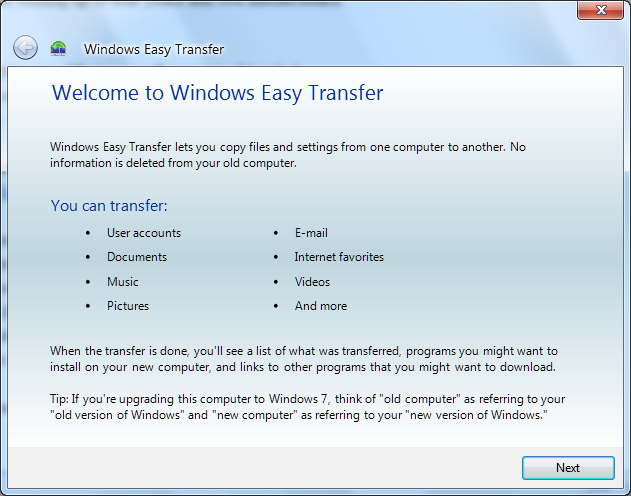
What this means is that users who get a new computer are directed instead towards the Windows Easy Transfer application:

image

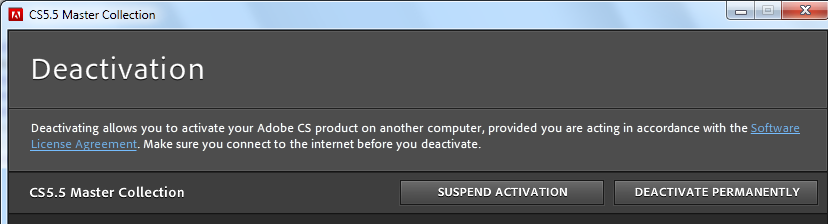
This is a handy tool, but it does not transfer applications. This last point can be particularly tiresome if you use software that requires activation on each machine on which it is installed, not least Microsoft’s own Windows and Office. Adobe’s Creative Suite, for example, allows installation on up to two machines, after which it will no longer install unless you specifically deactivate it:

image

If you trash your old PC, or it breaks, without deactivating first, then you have to call support and plead your case.

Apple’s Migration Assistant, by contrast, does move applications, making a better user experience.

If you can easily move applications, settings and data, of course, there is no need to move the entire operating system, since you have all that matters.

Why does Microsoft make this so hard? Two reasons I can think of.

One is that there are technical challenges in moving Windows to new hardware; though having said that, I suspect that Microsoft could easily have created a migration wizard that includes applications if it wished to do so.

The second, and more important, is licencing. Most consumer versions of Windows (and Office too) are OEM licences, which are not allowed to be transferred from the machine with which they are supplied. If Microsoft made it easier to move Windows or to migrate applications, less new software would be sold. Enterprises are expected to handle this in a different way, with centralised application management tools.

Virtualisation changes the game of course. The point of virtualisation is that you run the operating system on abstracted hardware that can easily be replicated on another machine. I really would like to run a virtual desktop, but I do not have a suitably high-powered server and there are niggles over fast graphics, USB devices, studio quality audio and so on. I expect all these to be solved and that a virtual desktop is in my future.

In the meantime, I have personally lost patience with the idea of reinstalling everything, and fortunately I do not use OEM Windows licences.

The wider question is interesting though. Although the desire of Microsoft and its partners to protect licence income is understandable, there are new models of application licencing that work better for users. In Google’s world you just sign on in your browser, and all your stuff is there. In Apple’s world, your iOS apps are licenced to you, not your device, and when you get a new device they all reappear. Even Microsoft’s Xbox works like this too, though that was not always the case.

This competition, in combination with virtualisation, means that Microsoft’s approach with Windows looks out of date as well as being unpleasant for users.

Windows 8 is on the horizon, and I would guess that the forthcoming Windows Store will be better in this respect, though note that at its Build conference in September Microsoft did not discuss the business aspects of the Store.

Nokia’s Windows Phone gamble

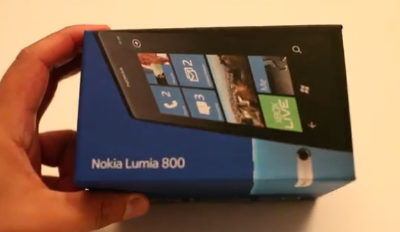
At Nokia World in London on Wednesday, CEO Stephen Elop presented the new Lumia range of Windows Phones. You can watch the keynote here – I was impressed by Elop’s clarity and conviction, and also by VP Blanca Juti who talked about the Asha range of nearly-smartphone feature phones.

image

The demonstration of the Windows Phone OS and apps seemed to me weaker and you could sense a struggle in energising the audience. I suspect this is because Windows Phone has already been out for a year and has failed to meet expectations; clearly it takes more than live tiles to make a success of a new Smartphone.

Elop is aware of this which is why he made the following widely quoted remark:

[Lumia is] the first ever instantiation of the windows phone platform that properly embodies, complements and amplifies the design sensibilities of windows phone … more simply stated, Lumia is the first real Windows Phone.

I have yet to handle a Lumia but I believe Elop, in that the other Windows Phone 7 devices are no more than ordinary in their design, whereas Nokia has done something distinctive.

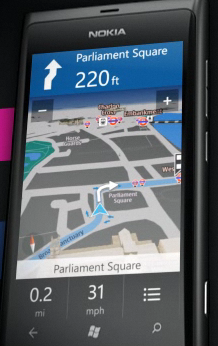
I was impressed by the demo of turn by turn navigation; this does look like an attractive and useful app.

image

I was also impressed when Elop talked about the marketing effort which Nokia and its retail partners are putting behind Lumia. He said that there are 31 operators and retailers in size countries which:

…have each committed to significant levels of marketing investment which includes unprecedented retail exposure and three times the level of total marketing investment compared to any other single Nokia launch.

He added that Nokia will be distributing seed devices widely among retailers so that they really know (and, Elop claims, love) the Lumia Windows Phones.

My immediate reflection is that Microsoft needed Nokia a year ago; Windows Phone has never before received this kind of backing. I am not sure that I have ever seen a Windows Phone for sale in my local small town centre, which has several mobile phone shops.

The tough question: is the OS good enough to compete with Apple and Android? I think it is a reasonable alternative, though I personally find the 20 beautifully designed icons I see on the first screen of the iPhone 4 more appealing than the seven chunky, flickering tiles I see on a Windows Phone. That said, I can see that the Windows Phone makes a good Facebook phone. I also like the Office apps and their read-write support for SharePoint, which is useful to me as a SharePoint user.

Where Windows Phone falls short is in the quality and availability of apps. There may be 30,000 in the Marketplace, but most of them are rubbish, and if you have a niche interest it is less likely to be represented than on an iPhone. I play Bridge, and on the iPhone I can enjoy FunBridge among others; on Windows Phone, nothing yet.

I have also found the data in Local Scout, a location-based index of places to see, shop or eat, too poor to be of much use where I am, though it may be better in London or other big cities.

If Nokia can win significant market share through its new range, problems like these will solve themselves as more people will care about them, and more apps will be developed.

It does need early success though, and this will not be easy bearing in mind that the general public are not really discontented with what is already on offer from others.

Nokia seems to have the right marketing ideas though, and the prices look reasonable. Watch this space.

Blue screen, Windows 8 style

This is what happens when Windows 8 crashes:

image

The restart message proved false, and I had to reset the virtual machine.

I did the search, which told me:

The CLOCK_WATCHDOG_TIMEOUT bug check has a value of 0x00000101. This indicates that an expected clock interrupt on a secondary processor, in a multi-processor system, was not received within the allocated interval.

This proves that you make give blue screens a prettier face, but that does not make the error messages any more helpful to a non-expert user. Or should I head for my nearest computer store and ask if they have a spare clock interrupt?

Microsoft financials: Server and Office business still growing

Microsoft has announced its quarterly figures for July-September 2011. Despite its problems in mobile and in search, and the declaration of a post-PC era by competitors, the company is still a huge money-making machine. Here is my at-a-glance summary of the segment breakdown:

Quarter ending September 30th 2011 vs quarter ending September 30th 2010, $millions

Segment Revenue Change Profit Change
Client (Windows + Live) 4868 +83 3251 -335
Server and Tools 4250 +386 1597 +57
Online 625 +98 -494 +64
Business (Office) 5622 +401 3661 +196
Entertainment and devices 1963 +168 352 -34

These look like decent figures to me, though Microsoft’s broad-brush breakdown disguises trouble spots like the poor sales of Windows Phone 7. The online business, which includes Bing and ad sales, continues to bleed money, though slightly less than for the same quarter last year.

Microsoft says Bing-powered US search share (which includes Yahoo!) is now 27%, which is impressive, though I look at stats for itwriting.com and see Bing and Yahoo! at 4.7% combined, even though it has more visits from the USA than from any other region. Bing must have some area of strength that does not include technology blogs.

Currently the stars of the show are Server and tools, where Microsoft reports a sixth consecutive quarter of double-digit growth, and the Business division, where Microsoft reports strong growth for SharePoint, Lync and Exchange.

Microsoft also says that Office 365 has “strong adoption from small businesses to large enterprises”, though there are no exact figures. It does not surprise me me as it is an excellent product, misreported by some media who exaggerated the importance of Office Web Apps. Forget Office Web Apps: this is hosted Exchange and SharePoint, with web conferencing thrown in.

Entertainment and devices is mainly Xbox. My observation here is first, to note how well Microsoft has done to take Xbox to the top spot in the US console market, overtaking both the previous generation champion Sony and the once-unstoppable Nintendo Wii; and second, to note how small the profits are relative to the rest of the business. This may be slightly unfair, as I imagine some of those Xbox profits have been poured into Windows Phone investment.

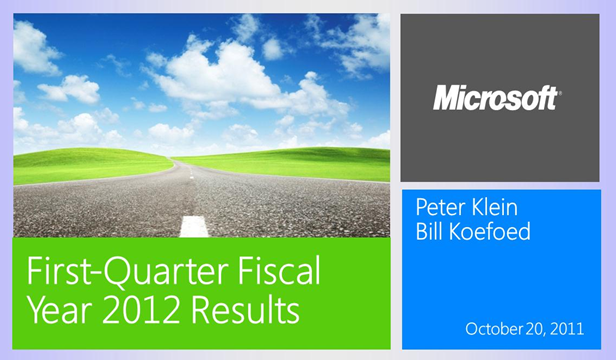
Finally, I was amused by the Metro-style design of the accompanying PowerPoint slides:

image

Hands On with Storage Spaces in Windows Server 8

Storage Spaces is a new virtual storage feature in Windows Server 8. I have the developer preview installed, but it took me a while to get Storage Spaces working – you need one or more unused hard drives. I finally managed to find a spare 150GB Sata drive and tried it out. Note that I am going to create a 1.5TB drive on this using the magic of thin provisioning, with data deduplication thrown in for good measure.

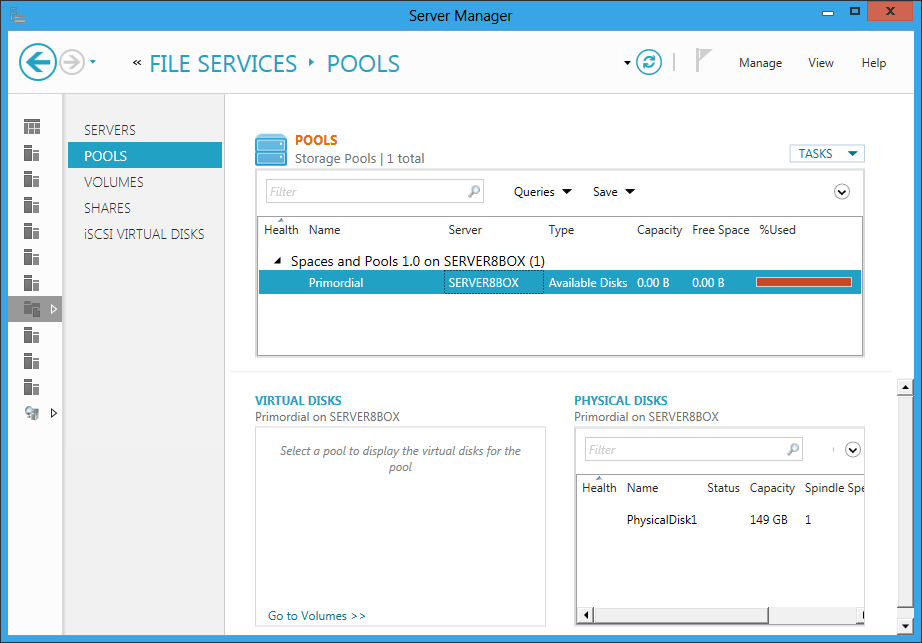
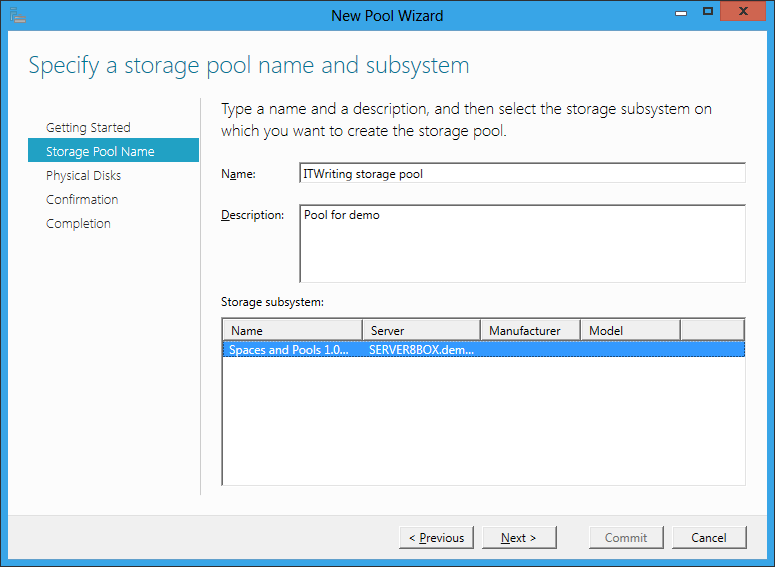
Step 1 is to go into the file services section of server manager and create a pool. A pool is a collection of one or more disks which you will use in aggregate.

image

Here I specify the pool name and the subsystem where it will find its disks. In my case it is the RAID controller built into the motherboard.

image

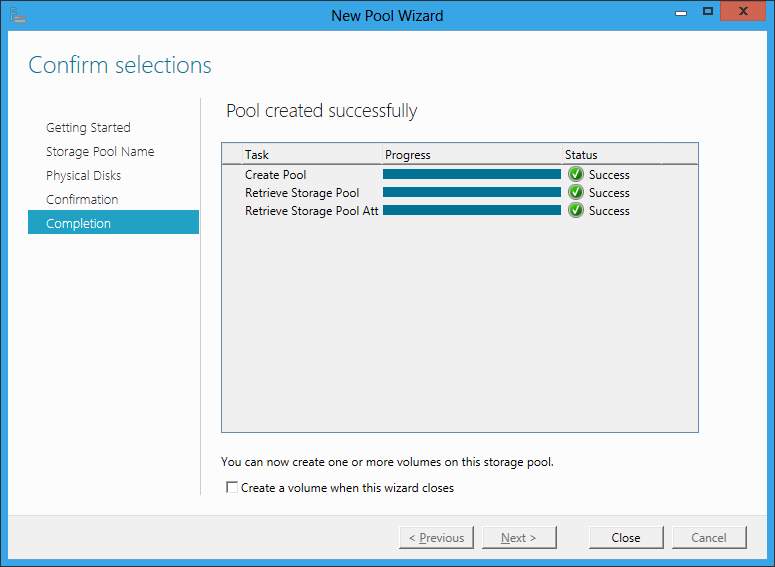
Success

image

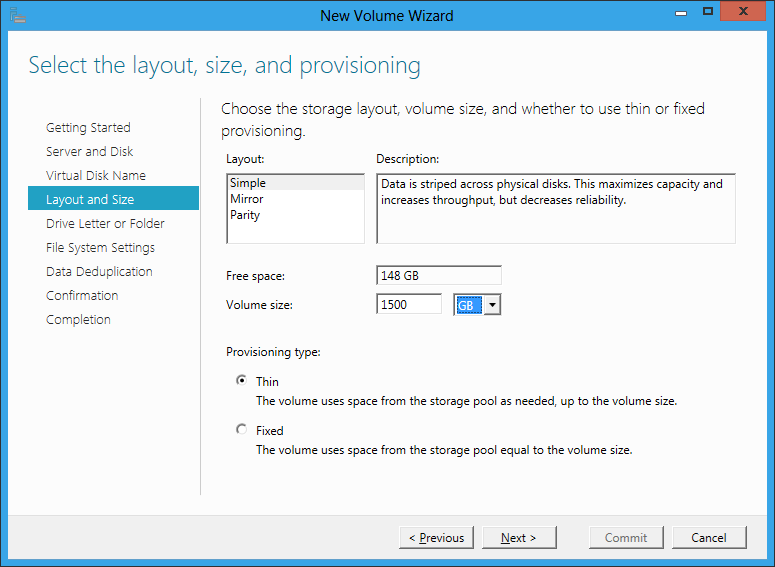
Next task is to create a new volume. I’ve selected thin provisioning as I want a drive larger than the available space. If it runs out of real space, I will have to add another drive to the pool. I have also selected Simple layout, which means no resiliency. I am doing this for the demo as I only have one drive, but in reality I would always use one of the resilient options. They are apparently not RAID, even though they are like RAID.

image

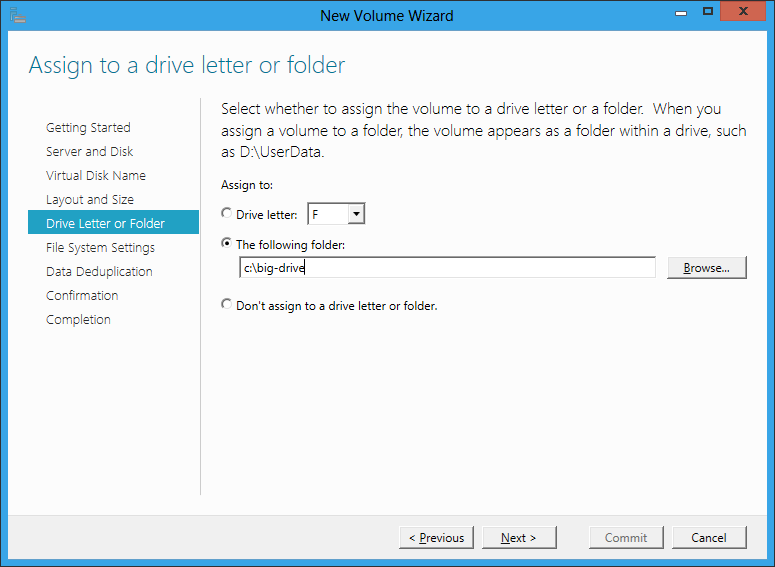
Next I assign the new drive to a virtual folder, as I am bored with Windows drive letters.

image

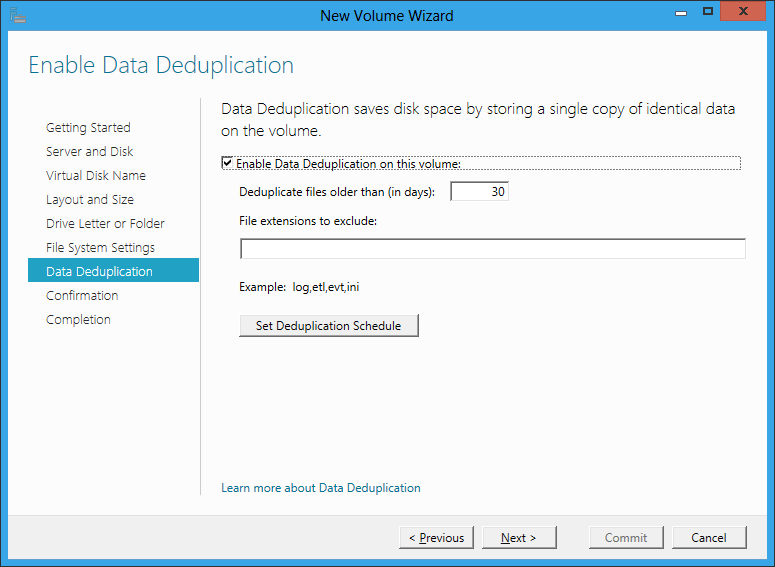
I turn on data deduplication. This means that I can have several copies of the same file, but it will only occupy the space of one. If a file is mostly the same as another file, I will also save space.

image

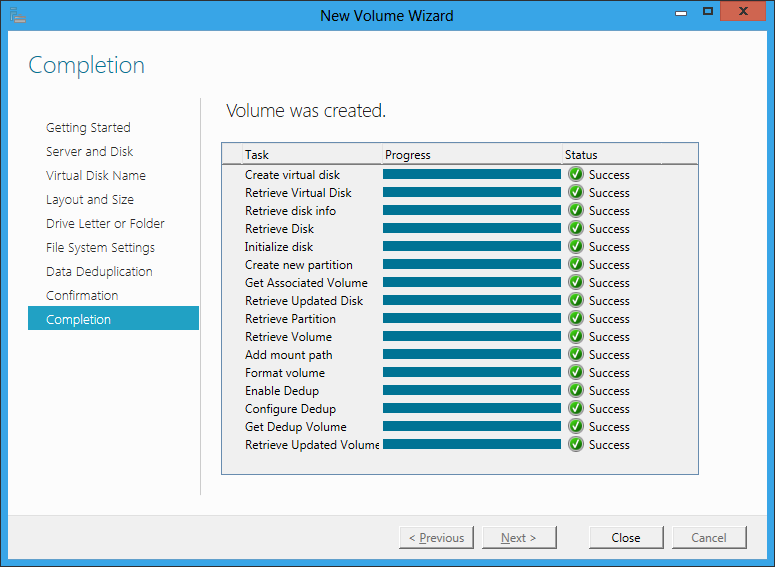
Success again. Note that Windows formatted the new drive for me in a matter of minutes. It may help that most of the space does not really exist.

image

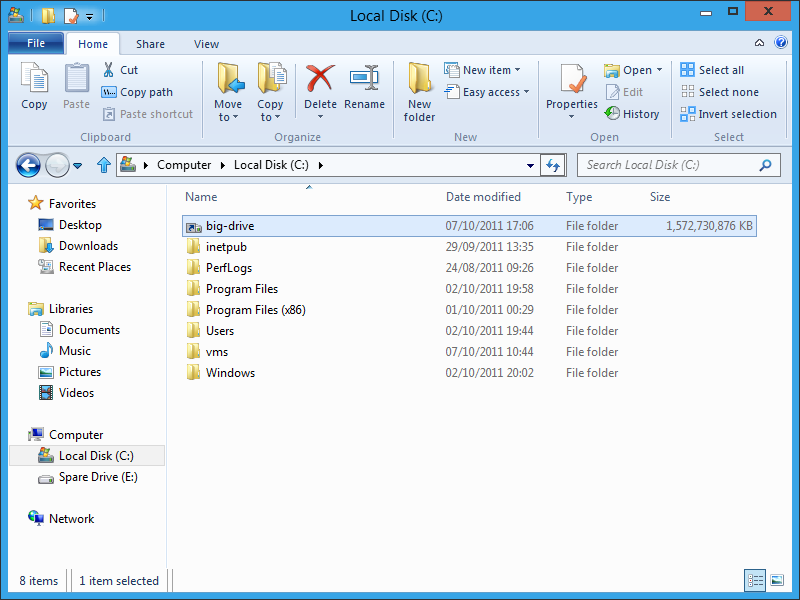
Here is my drive ready for use, with 1,572,730,876 KB free. Handy.

image

I am impressed with how easy Storage Spaces are to use, and that it works with cheap Sata drives.

Now, I remember that Windows Home Server had an easy to use storage system called Drive Extender. You could just add and remove drives. Is Storage Spaces a kind of grown up version of Drive Extender? I asked the Windows storage team and got a snooty reply. “We do not contrast our upcoming capabilities with those that might have been offered in the past as part of other Microsoft products.” However, the spokesperson did add:

Storage Spaces delivers a rich storage virtualization capability directly from within Windows. Two powerful new abstractions (Pools and Spaces) deliver multiple benefits including seamless and easy capacity aggregation and expansion ("just add drives to a pool"), optimal just-in-time allocation (via Thin Provisioning), resiliency to physical drive failures (via mirrored or parity spaces), continuous availability (via integration with failover clustering and cluster shared volumes), ease-of-management via integration with the rich new Windows Storage Management API (with WMI interfaces and associated PowerShell cmdlets), and "pay-for-play" via support for pools comprising heterogeneous media (e.g. SSDs and HDDs). Obviously, these are just a subset of features.

Obviously. I like Storage Spaces so far though, and the feature seems to bring some similar benefits to Windows Server users.

A few observations on Windows Phone 7.5 “Mango”

I received a Windows Phone running version 7.5 “Mango” for review yesterday. Here are some initial observations; I am not going to call it a review after such as short time.

image

There is still no screen capture utility – well, there is this one but it requires a developer accounts. So no screens, sorry. Microsoft should fix this – how difficult can it be?

Microsoft says there over 500 updates in Mango, and it does feel like a significant update, though retaining the look and feel of the first release. A half-version upgrade is about right.

Some things I noticed:

  • Task switching. Press and hold the back button, and swipe through running apps. This is excellent, better than iPhone or Android.
  • Voice control. This is expanded in Mango to include web search, text messaging and more. Tip: to see the commands, hold down the Windows key to go into speech mode, and click the help icon.

    It has great potential, especially with a bluetooth headset for true hands-free. I have a Plantronics Voyager Pro bluetooth headset, reviewed here. Using this guy, I can press and hold the call button on the headset, to put the phone into speech mode.

    I found this works well for calling people or simple searches, but general speech to text is not too good. I tried texting someone the message “Your parcels have arrived”. After several attempts, all of which were interpreted as various strings of garbage starting “George”, I gave up. I would still use it for making calls though; it seems that when the scope is narrowed to people in your contacts list, the interpretation is more reliable.

  • The search button is no longer contextual – it always takes you to Bing search. I think this is a retrograde step.
  • Local Scout is a feature that is meant to find restaurants, shops, things to do, and other handy information based on your location or the current map location. This is a neat idea, but when I tried it for my home town it did not work well. The first problem: I found that tapping the Local Scout tile is unreliable, and sometimes reports that Bing cannot find the location even when the location button in Bing Maps works fine.

    Fortunately you can also use Local Scout from Bing Maps. The Local Scout listing was not good though. Of the top 20 food and drink places, one had been closed for years, others were duplicated under old and new names, and there were hardly any ratings or reviews. Tap “Suggest changes” and you can submit changes to the address details or report closure, but you cannot add a review or rating, which seems a severe omission.

    I downloaded the TripAdvisor app which is a great deal more useful, mainly because of the amount of user-generated content.

    Maybe I’m missing something, but it seems to me that Microsoft needs to join a few dots here; Local Scout is only as good as its data.

  • Office and SharePoint integration. As soon as I gave Windows Phone my Live ID, it picked up my SkyDrive account and was able to open, edit and save documents there. I also hooked up Outlook to my own Exchange server, and added an Office 365 SharePoint account as well.

    SkyDrive support is new and a huge feature, especially considering that it is a free service. Editing features on the phone are limited, but you can include basic formatting.  More important, you can easily access what could be a large document repository.

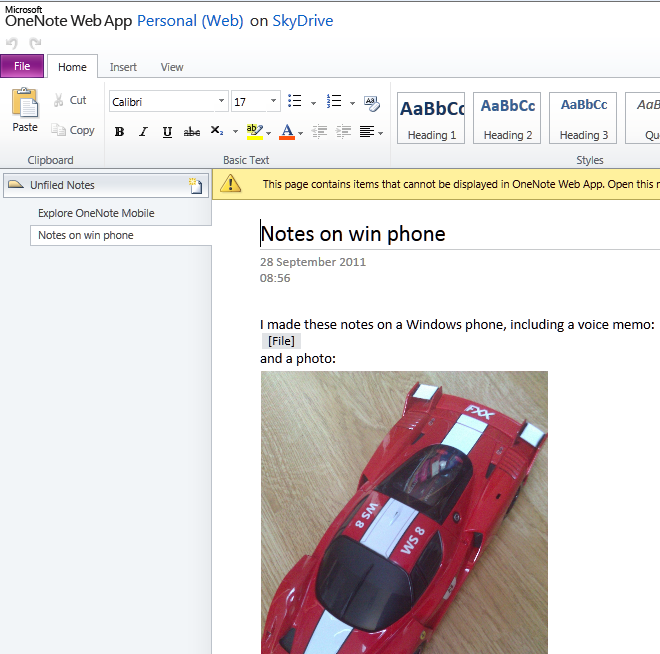
    OneNote support is good, and notes made on your phone sync automatically to SkyDrive, where you can further view and edit them in a browser, or in desktop OneNote. I guess I can show a grab of the browser, which shows that the voice memo is inaccessible:

    image

    I discovered a few oddities. I was unable to link Windows Phone to my own SharePoint 2010 test server, receiving a message “We don’t support this authentication scheme”. Later I found this information:

Unless your organization uses a Microsoft Forefront Unified Access Gateway (UAG) server, you can only access a SharePoint 2010 site if you’re in the office and connected to your organization’s Wi-Fi network.

That is a considerable limitation. It did work OK with SharePoint on Office 365, except that for some reason I can find no way to create new documents on Office 365 – well, maybe in the browser. The Office Hub can create new documents on SkyDrive, but not on SharePoint, which is odd as the two have a lot in common.

Despite these issues, you get a lot out of the box for using Office on the move, particularly if you use a supported SharePoint configuration or SkyDrive. The on-screen keyboard is good too.

  • Music search. This is a fun feature. Go to Bing search, click the music icon, and it will try to recognize what is playing. It had no problem finding Katy Perry’s Teenage Dream. It struggled a bit with the more obscure Strangely Strange but Oddly Normal by Dr. Strangely Strange; but on the second attempt it found that too.
  • The social media features seem strong to me, though you are limited to the baked-in services which are Twitter, LinkedIn, Facebook and Windows Live (no Google+). You do have to link each service to your Live ID for full features; for example, you give permission to Windows Live to post to your Twitter account. The integration is smooth and if you spend your time juggling with these four services then this may well the phone for you. For example, you can post a message to all of them at once. I found the People hub good enough as a Twitter client.
  • Apps are still lacking. The issue is not the quantity of apps available, but their quality, and the lack of certain key apps. There is no official Dropbox app, for example, so you will need to use the web or a third-party workaround. On the positive side, the free Guardian app is great, especially since you can pin a section to the Start screen – I did this for Technology – and there are apps for WordPress, Amazon Kindle, the ubiquitous Angry Birds and some other essentials.

    I noticed that TripAdvisor has 61 ratings on the Windows Phone Marketplace, whereas the Android version has 39,930. That illustrates the scale problem Microsoft is facing.

  • Still no Adobe Flash.
  • Microsoft’s new Windows Phone site is clean and informative. Not always the case with Microsoft’s sites. The My Windows Phone site lets you find your, lock or erase your phone, once configured.
  • Internet sharing, which makes your phone into a wireless hotspot, is coming but subject to operator support and approval. This means you will likely pay extra for “tethering”. I have a free app which does this on my Android phone and find it useful, though whether it is worth paying extra every month is another matter.
  • Microsoft has introduced some features aimed at enterprises. In particular, Information Rights Management is now supported for Outlook and Office mobile documents. Another important feature is the ability to deploy custom applications as hidden apps, which do not appear in Marketplace searches, but can be downloaded from a link circulated internally. There is now a Lync (business messaging and conferencing) client for both Office 365 and on-premise Lync servers.

Future of Windows Phone?

My guess is that Microsoft is badly disappointed by the sales performance of Windows Phone to date. The problem is not so much the phone itself, but that it has failed to convince either the operators, or the retailers, or the general public, that it is something special and worth choosing ahead of either an Apple iPhone or Google Android device. In fact, typically retailers have few if any Windows Phones on display, and even customers asking specifically for one may be redirected to something else. The truth is, there is a disadvantage in having a minority-choice device, most obviously in the selection of apps available, but also in features that rely on user-generated content.

I asked about this problem at the Mango press launch and was told that the Nokia partnership will be the solution.

My review device is a first-generation HTC Trophy, and while it is decent enough it is not outstanding. Give Windows Phone some truly desirable hardware and a few must-have apps, and its fortunes will change, but that is not an outcome that I take for granted.

I do like the SkyDrive and Office 365 integration though, with the caveats noted above, and if I were Microsoft I would be pushing the value of those features.

Miguel de Icaza talks about Windows 8 and the failure of Linux on the desktop

At Microsoft BUILD earlier this month I arrived early to hear Anders Hejlsberg talk about the future of C#, and found myself next to Miguel de Icaza, co-creator of the GNOME desktop and of Mono, the open source implementation of Microsoft .NET. I took the opportunity to ask a few questions, which I have his permission to post.

I recall that when .NET was first announced in 2000, it was not long before de Icaza announced Mono. I was interested therefore to know his reaction to Windows 8 and the new Window Runtime which powers “Metro-style” apps. Will we get an open source implementation of Metro-style on Linux?

I don’t think so. To be honest, with Linux on the desktop, the benefits of open source have really played against Linux on the desktop in that we keep breaking things. It is not only incompatibilities between Red Hat, Unbuntu, Suse, but even between the same distribution.  Ubuntu from this week is incompatible with the one nine months ago. And then there are multiple editions, the KDE version, the Gnome edition, the one that is the new launching system.

When you count how many great desktop apps there are on Linux, you can probably name 10. You work really hard, you can probably name 20. We’ve managed to piss off developers every step of the way, breaking APIs all the time.

I’m heartbroken, that’s the bottom line.

What about compiling your Metro app for iOS or Android?

I think that Linux has a tough time on the desktop. And the desktop is starting to not matter any more. On the other hand, building WinRT is going to be a significant amount of work. A large chunk probably could be reused from Moonlight. But it is a lot of work, to be able to reuse existing Windows apps, and in the case of iOS they already have their own stack, and Mac has its own, Cocoa is really nice and we have .NET bindings for it.

So I think we’ll learn interesting lessons from Metro. There is stuff that will be useful on other platforms like the JSON reader. But I’m not going to spend any time on WinRT for other systems.

And we can speculate about how well Metro will work in the market …

They are Microsoft, it’s going to succeed. In three years they are going to have this thing on half a billion computers, so it will be out there.

It seems like they are going to use their muscle for two things. It’s going to be a tempting space [for developers], but if you want to go into the right distribution channel for that half a billion computers, you need to abide by the Metro guidelines. They are not going to give you full API access, they are going to give you the sandboxed version. Which is good, because it can finally fix the security problems on Windows. They are going to use their muscle to reset the rules for Windows.

Especially on ARM

Right, and it is needed, they definitely need to fix this mess, a lot of malware, spyware, and the fact that everybody is sysadmin, and has to reinstall their machine every so often.

I’ve heard the word “safe” a number of times.

Right, and think of an iPad, you don’t need to be a sysadmin.

Now, you could argue that by WPF not being available to everybody and being bound to .NET they limited the effect WPF would have had, whereas Metro gives this to C++ developers, but they’re saying, hey, you can’t call Win32, there is all the Win32 stuff you can’t call. You have to use Metro. So they might be repeating that [mistake], but maybe it’s eclipsed by the fact that there’s going to be a rush to the app store. It seems like there is a big enough carrot now.

How are you getting on with the Windows 8 tablet?

I have to say, I actually like Windows 8. I am not a Windows user. It’s probably the first time that I would use a Windows machine.

Miguel de Icaza is now at Xamarin, providing cross-platform tools for using C# and .NET to build apps for Apple iOS and Google Android.

A simple example of async and await in C# 5

I have been playing with the Visual Studio 11 developer preview and exploring its asynchronous features, specifically the async and await keywords which are new to C# 5.0. These features have actually been available as a CTP (Community Tech Preview) since October 2010, but I had not found time to try it.

I like to keep examples as simple as possible. I have a Windows Forms application which has a long-running task to perform, and I do not want to lock the UI while it runs. Here is my long-running function:

 private int slowFunc(int a,int b)       
 {          
 System.Threading.Thread.Sleep(10000); 
 return a + b;
 }

Yes, it takes 10 seconds! I am going to click a button on a form, call the function, and show the result on a label control.

Now, here is how I might try to achieve the goal of not locking the UI using Visual Studio 2010 and C# 4.0:

 private void button1_Click(object sender, EventArgs e)
 {            
 this.button1.Enabled = false; //prevent re-entry 
 var someTask = Task<int>.Factory.StartNew(() => slowFunc(1, 2));
 this.label1.Text = "Result: " + someTask.Result.ToString(); //oops, blocks calling thread 
 this.button1.Enabled = true;       
 }

Oops, this did not work at all! The reason is that although I have gone to the trouble of creating a Task in order to run the slow function on a background thread, my work is undone when I call the Result property of the Task object – since this blocks the thread until the Task completes.

Here is how you can fix it in Visual Studio 2010 – remember, there is an easier way in C# 5.0 coming up soon:

 private void button1_Click(object sender, EventArgs e)        
 {
 this.button1.Enabled = false;          
 var uiScheduler = TaskScheduler.FromCurrentSynchronizationContext(); //get UI thread context 
 var someTask = Task<int>.Factory.StartNew(() => slowFunc(1, 2)); //create and start the Task 
 someTask.ContinueWith(x =>     
   {                                          
   this.label1.Text = "Result: " + someTask.Result.ToString();   
   this.button1.Enabled = true;   
   }, uiScheduler  
  );        
 }

This one works. I click the button and the UI does not lock up at all; I can minimize the form, move it around the screen, and so on.

However, I have had to do some extra work. The ContinueWith method tells the Task to run some other code after the background thread has completed. By default this code will not run on the UI thread, which means it will raise an exception when it updates the UI, but you can pass in a TaskScheduler object so that it continues on the UI thread.

Now here is a look at the same problem using C# 5.0. The slowFunc is the same, so I will not retype it. Here is the code for the button click:

 private async void button1_Click(object sender, EventArgs e)
 {
 this.button1.Enabled = false; 
 var someTask = Task<int>.Factory.StartNew(() => slowFunc(1, 2)); 
 await someTask;  
 this.label1.Text = "Result: " + someTask.Result.ToString(); 
 this.button1.Enabled = true;
 }

Less code, same result, which is usually a good thing.

What is going on here though? First, the async modifier is added to the click event handler. This does not mean that the method runs asynchronously. It means that it contains code that will run asynchronously using await. As Eric Lippert explains, it tells the compiler to rewrite the method for you.

Second, there is the await keyword. I cannot improve on Lippert’s explanation so here it is:

The “await” operator … does not mean “this method now blocks the current thread until the asynchronous operation returns”. That would be making the asynchronous operation back into a synchronous operation, which is precisely what we are attempting to avoid. Rather, it means the opposite of that; it means “if the task we are awaiting has not yet completed then sign up the rest of this method as the continuation of that task, and then return to your caller immediately; the task will invoke the continuation when it completes.

If you refer back to the Visual Studio 2010 examples, you will see that the code is very close to my first, non-working example. In other words,using await makes the code work in the way that intuitively I hoped that it might, without specifically called the ContinueWith method and messing around with the thread context as in the second example.

This is still concurrent programming though. One thing that C# 5.0 cannot prevent is an impatient user clicking several times on the button when the result does not appear immediately, so in all the examples I have disabled the button while the background thread runs.

Finding apps in Windows 8

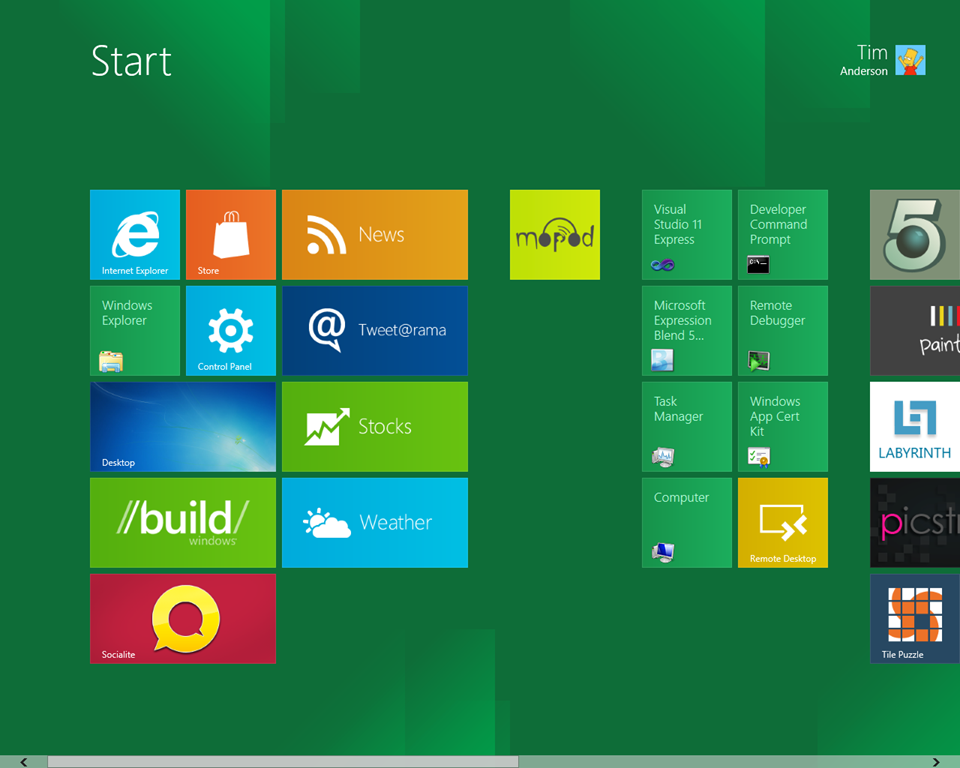
I’ve been spending some time in Windows 8, complete with the Metro-style Start menu. The new Start menu is not great in a virtual machine without touch. You have to navigate with the horizontal scroll bar at the bottom of the screen, which I find somewhat jerky. DirectX is not particularly fast on the VM, which I view using Remote Desktop. Another puzzle is that many apps are not represented by tiles on the big menu. How do you find them?

The answer is that the tiles are not exactly equivalent to the items on a Windows 7 Start menu. They are more equivalent to the items that you have pinned to the taskbar in Windows 7; and in fact, if you pin an app in Windows 8, it appears as a tile. To get the full list of Start menu items you are meant to start typing.

image image

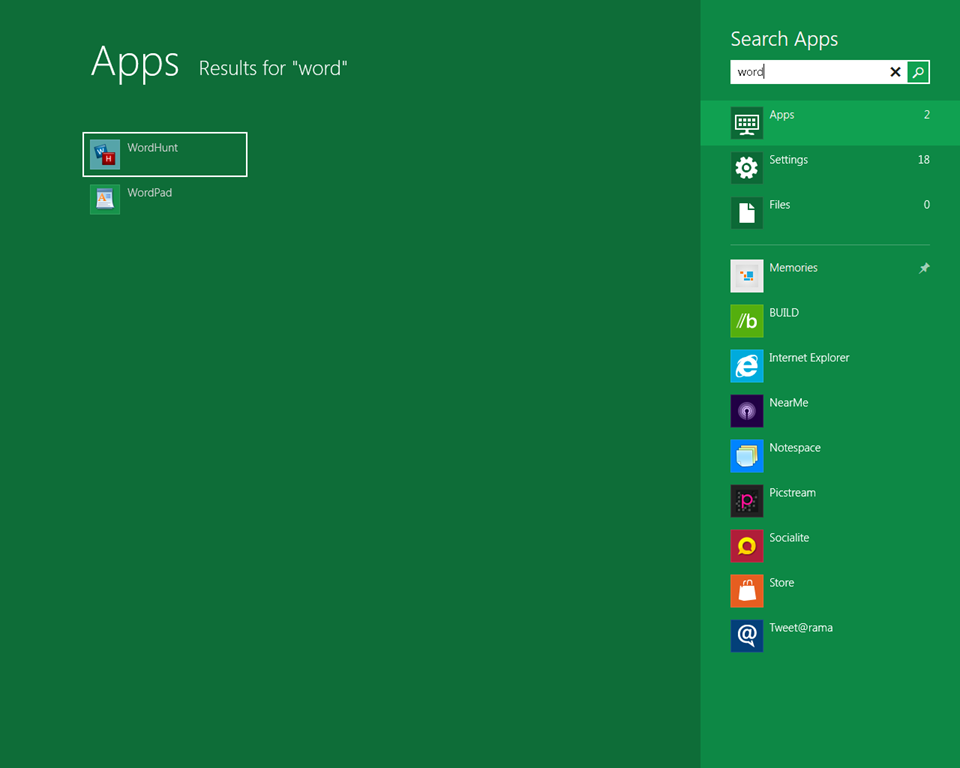
When you press a key in the Metro Start menu, the tiles disappear, and you get a list of all the apps that match what you have typed. The match seems to be based on words with initial letters that match your string. So if you type CL you match Disk Cleanup, but typing PAD does not find WordPad.

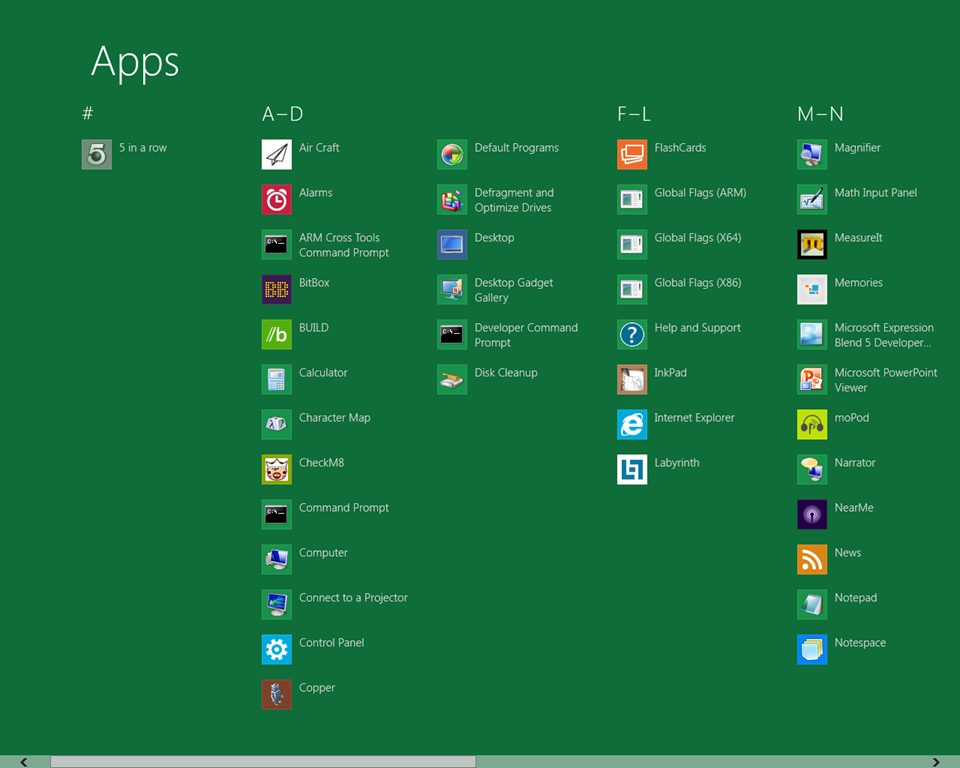
If you press Windows key – Q it brings up the Search Apps screen with an empty search box, and lists all your apps in a columnar A-Z view.

image

Now, the thing that gives me hope here is that the search is very fast, much faster than I am used to with search in the Windows 7 start menu. It could almost convert me.

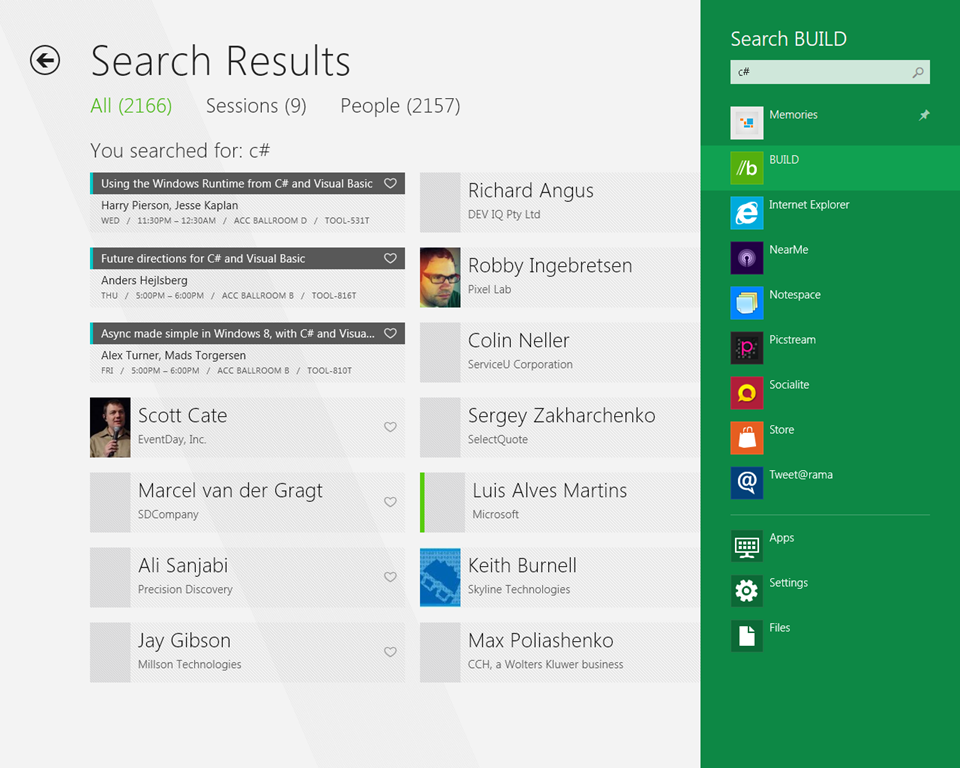
Search is baked into Metro, and searching apps is only one of the options. You can also search settings and files (though files seems to mean documents), and any applications that implement the search contract. For example, from the same search pane, you can search the custom BUILD app for c#:

image

One other thing: “All Apps” is not really all apps, of course; just the ones that would have been in the Windows 7 Start menu. If you want, say, Dxdiag, you will have to press Windows Key – R and type it in there. It would be nice if typing DX would find it, but it is not that smart unfortunately (update – but see comments below).

Delphi team focusing on FireMonkey, VCL winding down?

Julian Bucknall at componnent vendor DevExpress writes a thoughtful post arguing that Embarcadero will focus on Delphi’s new cross-platform FireMonkey framework in future, and that the VCL (Visual Component Library) which has been at the heart of Delphi since its first release will receive little future investment.

Bucknall notes that ex-Borland employee Danny Thorpe tweeted about 1/3 of the Delphi VCL and IDE team being laid off in Scotts Valley, USA; while Embarcadero’s Tony De La Lama blogs about new posts in Europe. FireMonkey was originally developed in Russia.

The VCL is a mature framework by any standards (Delphi was first released in 1995), and now that the 64-bit VCL has been released the most pressing demands of developers have been met.

Further, Microsoft itself is slowing development of the Win32 API on which VCL is based, in favour of the mobile and touch-friendly Metro user interface and the new Windows Runtime on which it is built. The VCL will never adapt to Metro, but FireMonkey might do so. The Windows Runtime has an API which is represented by metadata in same format used by .NET’s Ildasm. If Embarcadero can adapt Delphi to read this metadata so that you can easily call the API, then a Delphi for Metro seems plausible, but it would not use the VCL.

Delphi already works well for Windows applications, so from Embarcadero’s point of view, growth will come from cross-platform and mobile development using FireMonkey.

The main snag is that unlike the VCL, FireMonkey is far from mature, and developers are complaining about lack of documentation as well as limitations in the current implementation.

There is also a philosophical difference between VCL and FireMonkey. VCL is a “heavyweight” GUI framework in that it depends on native Windows controls, with the advantage that you get a truly native look and feel in your Delphi application. FireMonkey is a “lightweight” GUI framework which renders the UI entirely through custom drawing, which is great for cross-platform consistency, but poor if you want a native look and feel. Performance-wise, and despite the name, heavyweight frameworks often feel faster because native controls are optimised for the operating system.

The key question then: will FireMonkey be as good for cross-platform, as the VCL has been for Windows? Based on my first experiments I am not sure at the moment, though I expect it to improve. I would be interested in views from others who have worked with it.