Tag Archives: microsoft

Microsoft Build Sessions published: Windows Phone XAML and HTML/JS apps, new Azure APIs and more

Developing for Windows Phone is now closer to developing for the Windows 8 runtime, according to information from Microsoft’s Build sessions, just published.

Build is Microsoft’s developer conference which opens tomorrow in San Francisco.

image

Building a Converged Phone and PC App using HTML and JavaScript states that “An exciting part of Windows Phone 8.1 is that you can now start building applications natively in HTML and JavaScript.”

Other sessions refer to the Common XAML UI Framework, which seems to refer to a shared UI framework for Windows Phone and WIndows 8, but using XAML rather than HTML and JavaScript.

This is in addition to Silverlight, not instead, judging by this session:

We’ve been doing a lot of work with new converged XAML app support on Windows Phone 8.1, but what about legacy Windows Phone Silverlight XAML based apps?  Come learn about all the new features we’ve enabled with Silverlight 8.1.

Microsoft has also come up with new APIs for applications that integrate with its Azure cloud platform and with Office 365. The Authentication library for Azure Active Directory lets you build both Windows and mobile applications that authenticate against Azure Active Directory, used by every Office 365 deployment. There is also talk of using Azure for Connected Devices, meaning “Internet of Things” devices using Azure services.

Some other sessions which caught my eye:

Connected Productivity Apps: building apps for the SharePoint and Office 365 platform.

What’s new in WinJS: the road ahead. XAML vs HTML/JS is a big decision for Windows developers.

Anders Hejlsberg on TypeScript

Automating Azure: “The Azure Management Libraries and Azure PowerShell Cmdlets allow this type of automation by providing convenient client wrappers around the Azure management REST API”

Authentication library for Azure Active Directory: The Active Directory Authentication Library (ADAL)

Panel discussion on desktop development: is there a future for WPF? Maybe some clues here.

Miguel de Icaza gets a session on going mobile with C# and Xamarin. I recall when de Icaza ran sessions on Mono, the open source implementation of the .NET Framework which he initiated shortly after Microsoft announced .NET itself, in nearby hotels at Microsoft events; now he is inside.

Learning from the mistakes of Azure: Mark Russinovich on what can go wrong in the cloud.

Looks like both cloud and apps for Windows Phone/Windows 8 are big themes at Build this year.

A close look at Word for the iPad. What is included and what is missing?

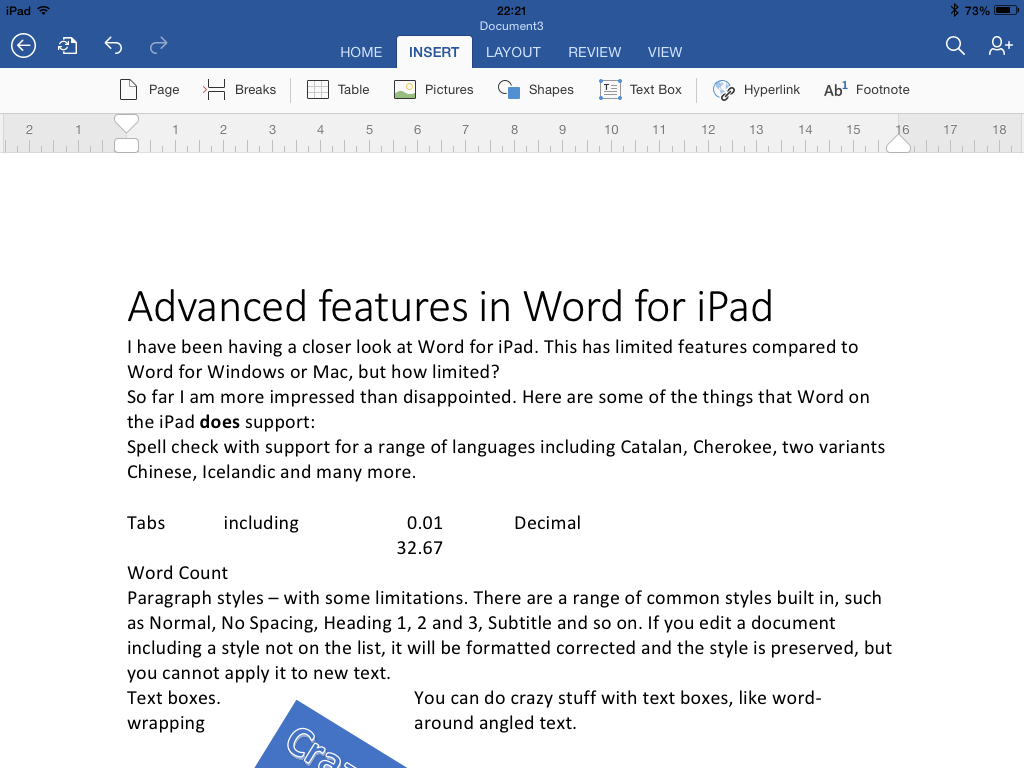
I have been having a closer look at Word for iPad. This has limited features compared to Word for Windows or Mac, but how limited?

image

So far I am more impressed than disappointed. Here are some of the things that Word on the iPad does support:

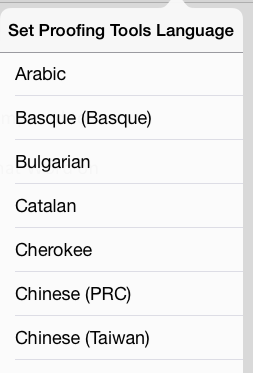
Spell check with support for a range of languages including Catalan, Cherokee, two variants Chinese, Icelandic and many more.

image

Tabs including left, center, right and Decimal

Paragraph styles – with some limitations. There are a range of common styles built in, such as Normal, No Spacing, Heading 1, 2 and 3, Subtitle and so on. If you edit a document including a style not on the list, it will be formatted corrected and the style is preserved, but you cannot apply it to new text.

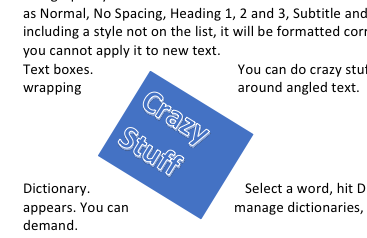
Text boxes. You can do crazy stuff with text boxes, like word-wrapping around angled text.

image

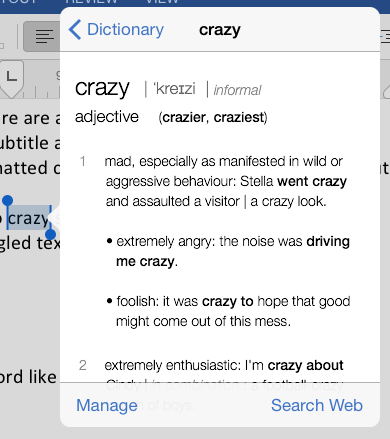
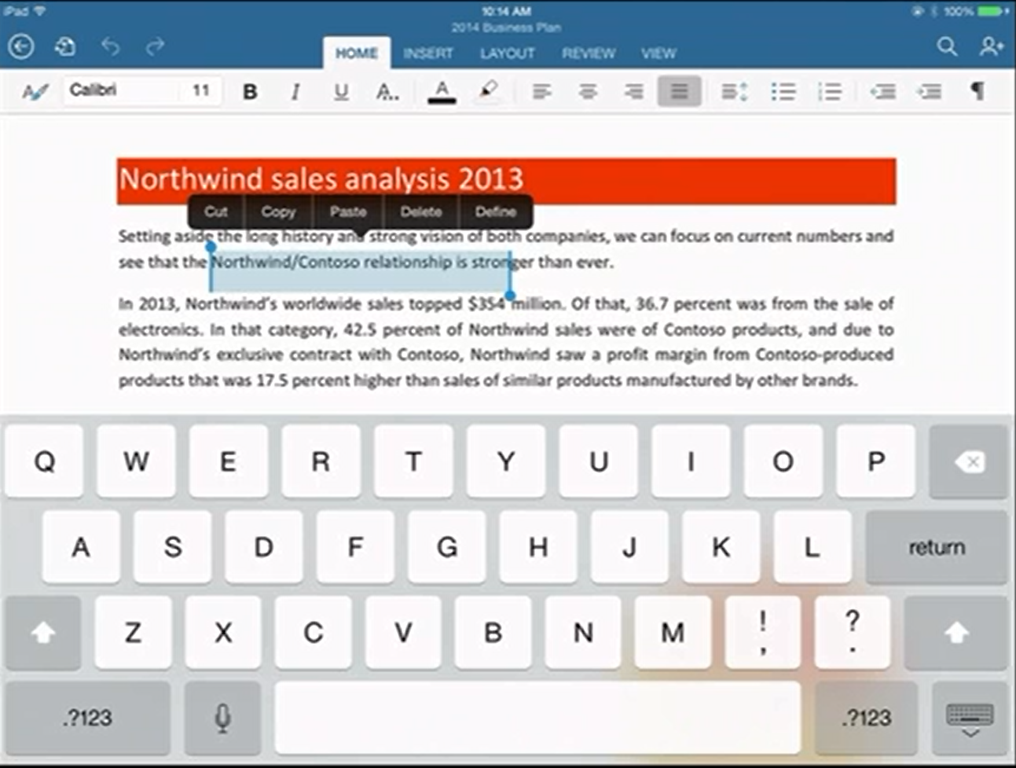
Dictionary. Select a word, hit Define, and a dictionary definition appears. You can manage dictionaries, which seem to be downloaded on demand.

image

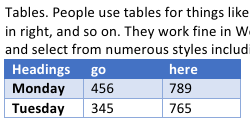
Tables. People use tables for things like formatting minutes: speaker in left column, actions in right, and so on. They work fine in Word on iPad. You can insert a table, type in the cells, and select from numerous styles including invisible gridlines.

image

Track changes. You can review changes, make comments,suggest new text, approve changes made by others, and so on.

image

You can change the direction of text by 90°.

You can edit headers and footers.

You can insert page numbers in a variety of formats.

You can use multiple columns. You can insert page breaks and column breaks.

You can change page orientation from portrait to landscape.

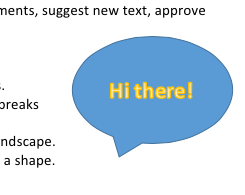
Shapes are supported, and you can type text within a shape.

image

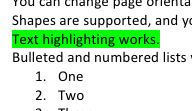
Text highlighting works.

image

Bulleted and numbered lists work as expected

Footnoting works.

Word count is available, with options like whether to include footnotes, plus character count with or without spaces.

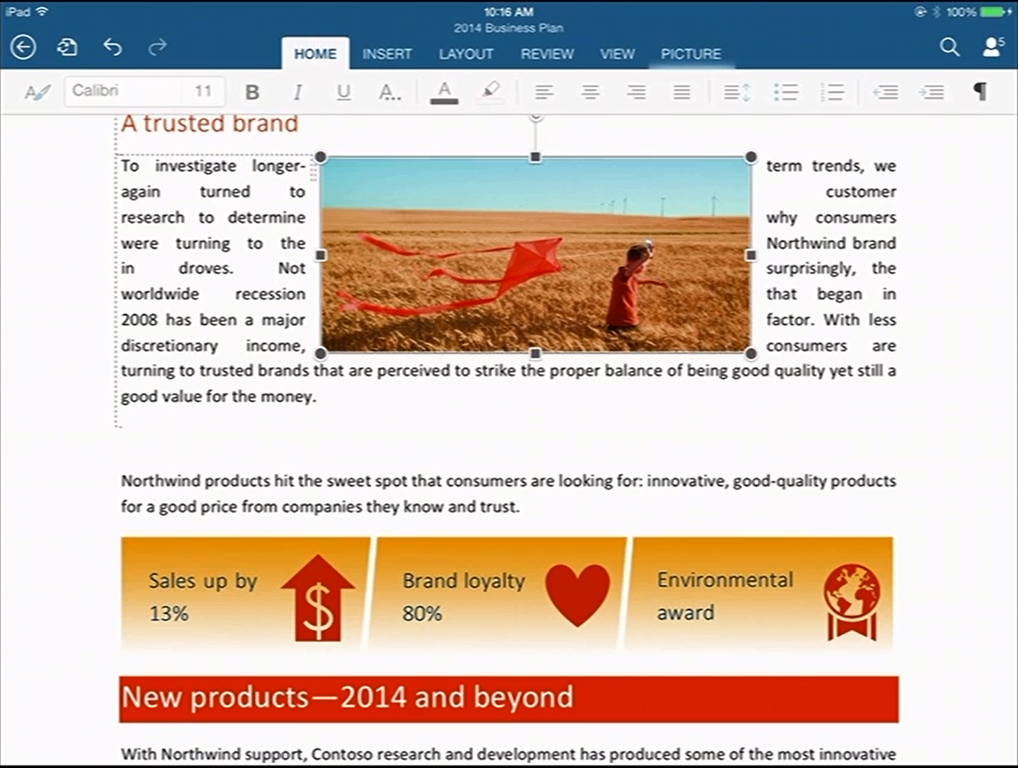
Pictures: you can insert images, resize, stretch and rotate them (though I have not found a crop function) and apply various effects.

Overall, it is impressive, more than just a lightweight word processor.

What’s missing?

So what features are missing, compared to the desktop version? I am sure the list is long, but they may be mostly things you do not use.

One notable missing feature is format support. Desktop Word supports OpenDocument (.odt) and can edit the old binary .doc format as well as the newer .docx (Office Open XML). Word for iPad can only edit .docx. It can view and convert .doc, but cannot even view .odt. Nor can you do clever stuff like importing and editing a PDF. Here are a few more omissions:

  • No thesaurus.
  • No equation editor.
  • No character map for inserting symbols – you have to know the keyboard shortcut.
  • Paragraph formatting is far richer in desktop Word, and you have the ability to create and modify paragraph styles. One thing I find annoying in Word for iPad is the inability to set space above or below a paragraph (let me know if I have missed a feature)
  • Academic features like endnotes, cross-references, index, contents, table of figures, citations.
  • Watermarks
  • Image editing – but you can do this in a separate app on the iPad
  • Captions
  • Macros and Visual Basic for Applications
  • SmartArt
  • WordArt
  • Templates
  • Special characters (you need to know where to find them on the keyboard)
  • Printing – I guess this is more of an iPad problem

Office for iPad versus Office for Surface RT

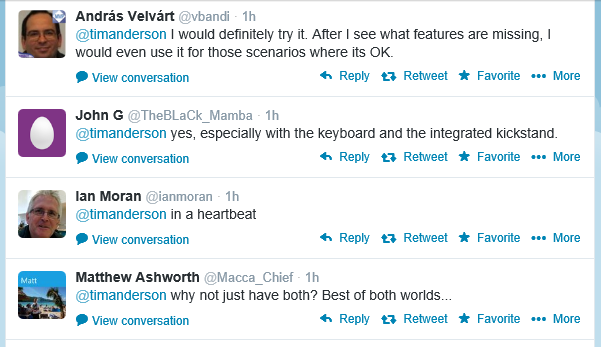
If you have Microsoft’s Surface tablet, would you rather have the equivalent of Office for iPad, touch-friendly but cut-down, or the existing Office for Surface RT? I took a sample of opinion on Twitter and most said they would rather have Office for iPad. This is Office reworked for tablet use, touch friendly in a way that desktop Office will never be.

image

Then again, Office on Surface RT (VBA aside) is more or less full desktop Office and can meet needs where Office for iPad falls short.

If Microsoft is still serious about the “Metro” environment, it will need to do something similar as a Windows Store app. Matching the elegance and functionality of the iPad version will be a challenge.

I typed this on the iPad of course, using a Logitech Bluetooth keyboard. I would not have wanted to do it with the on-screen keyboard alone. However for the final post, I moved it to Windows (via SkyDrive) in order to use Live Writer. Word on the Surface has a Blog template I could have used; another missing feature I guess.

Microsoft has exceeded expectations. This would sell well in the App Store, but you need an Office 365 subscription, making it either a significant annual cost, or a nice free bonus for those using Office 365 anyway, depending on how you look at it. The real target seems to be business users, for whom Office 365 plus Apple iPad (which they were using anyway) is now an attractive proposition.

Microsoft CEO Satya Nadella introduces Microsoft Office for iPad, talks up Azure Active Directory and Office 365 development

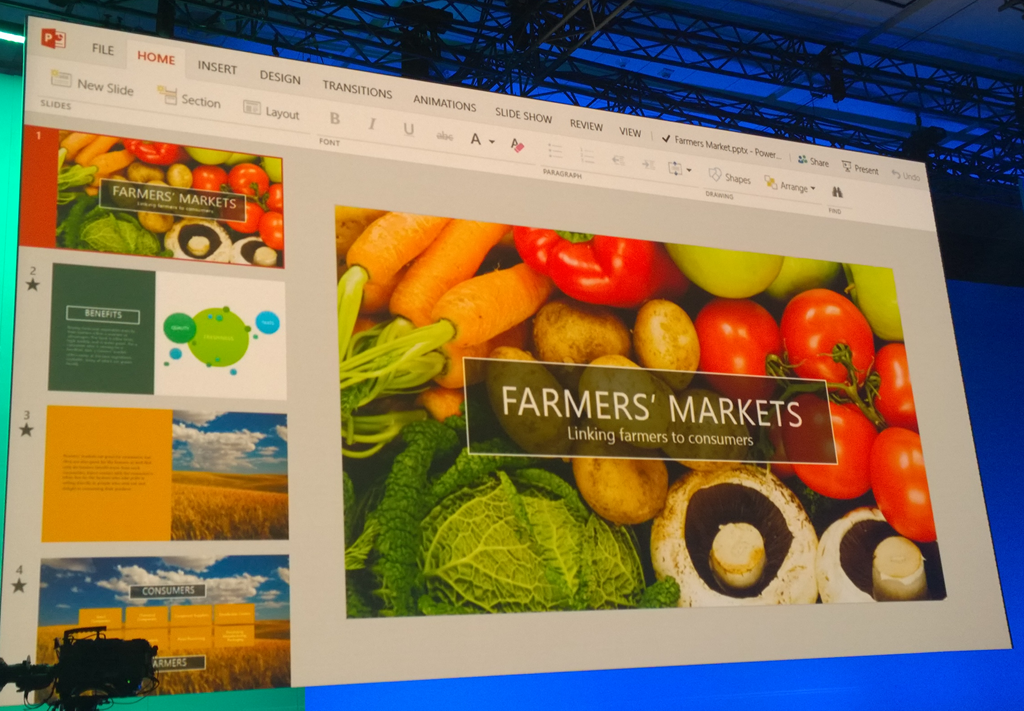
New Microsoft CEO Satya Nadella has announced Office for iPad at an event in San Francisco. Office General Manager Julie White gave a demo of Word, Excel and Powerpoint on Apple’s tablet.

image

White made a point of the fidelity of Office documents in Microsoft’s app, as opposed to third party viewers.

image

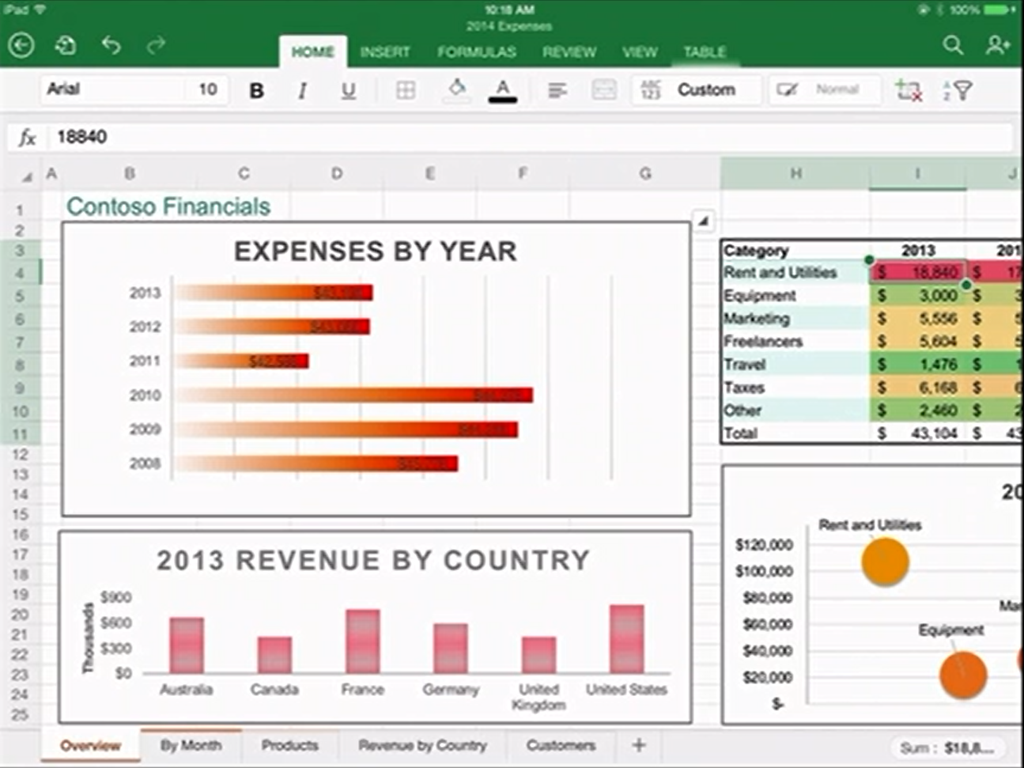
Excel looks good with a special numeric input tool.

image

Office will be available immediately – well, from 11.00 Pacific Time today – and will be free for viewing, but require an Office 365 subscription for editing. I am not clear yet how that works out for someone who wants full Office for iPad, but does not want to use Office 365; perhaps they will have to create an account just for that purpose.

There was also a focus on Office 365 single sign-on from any device. This is Azure Active Directory, which has several key characteristics:

1. It is used by every Office 365 account.

2. It can be synchronised and/or federated with Active Directory on-premise. Active Directory handles identity and authentication for a large proportion of businesses, small and large, so this is a big deal.

3. Developers can write apps that use Azure Active Directory for authentication. These can be integrated with SharePoint in Office 365, or hosted on Azure as a separate web destination.

While this is not new, it seems to me significant since new cloud applications can integrate seamlessly with the directory already used by the business.

Microsoft already has some support for this in Visual Studio and elsewhere – check out Cloud Business Apps, for example – but it could do more to surface this and make it easy for developers. Nadella talked about SDK support for iOS and other devices.

Microsoft hardly mentioned Android at the event, even though it has a larger market share than iOS. That may be because of the iPad’s popularity in the enterprise, or does it show reluctance to support the platform of a bitter competitor?

Microsoft is late with Office for iPad; it should perhaps have done this two years ago, but was held back by wanting to keep Office as an exclusive for Windows tablets like Surface, as well as arguments with Apple over whether it should share subscription income (I do not know how that has been resolved).

There was also a brief introduction to the Enterprise Mobility Suite, which builds on existing products including Azure Active Directory, InTune (for device management) and Azure Rights Management to form a complete mobility management suite.

Nadella made a confident performance, Office for iPad looks good.

What is coming up at Build, Microsoft’s developer conference next week? Nadella said that we will hear about innovations in Windows, among other things. Following the difficulties Microsoft has had in marketing Windows 8, this will be watched with interest.

Entering Microsoft’s XAML labyrinth: is it worth it?

I spent some time at the weekend working on a Bridge game for the Windows Store. I am writing it in XAML and C#. The UI is hardly demanding, given that Bridge is a card game, but it has made me take a fresh look at XAML, the markup language for a Windows Store App user interface (unless you use HTML and JavaScript). XAML is also used in Windows Presentation Foundation and in Silverlight/Windows Phone.

As part of the game, the user selects a “bid” which consists of a number from 1 to 7 and a suit of cards (or double, redouble or pass). Most bridge games show this as a grid though functionally it is like a combo-box (choosing from a pre-defined range of options).

Naturally I looked for the easiest way to accomplish this. The solution I came up with was to nest TextBlock controls in Border controls in Grid cells. Then I wrote C# code that detects which cell the user taps and updates the background of the selected Border accordingly.

image

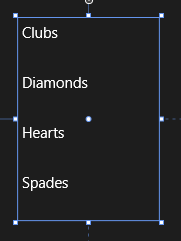
I have in mind to replace the text with graphics and make the numbers a bit smarter at some future date. My solution works fine; here it is at runtime:

image

At the weekend I happened to be chatting with a developer more expert in XAML than myself, who told me I had done it wrong. In XAML everything should be in Style definitions. I should use a ListView and design it in Blend.

Well, I knew that I had somewhat subverted how XAML is meant to work, so I sat down to investigate this different approach. A ListView looks nothing like what I want out of the box.

image

However, with the magic of XAML it can be transformed. I made the ListView horizontal by defining an ItemsPanelTemplate in Application.Resources:

<ItemsPanelTemplate x:Key="ItemsPanelTemplate1">
  <StackPanel Orientation="Horizontal"/>
</ItemsPanelTemplate>

and adding 

ItemsPanel="{StaticResource ItemsPanelTemplate1}

as an attribute of the ListView.

Then I added an ItemTemplate to draw the kind of block that I wanted:

<ListView.ItemTemplate>
    <DataTemplate>
        <Border BorderThickness="1" Height="130" Width="130" BorderBrush="Black">
            <TextBlock FontSize="24" FontWeight="Bold" HorizontalAlignment="Center" VerticalAlignment="Center"
                       Text="{Binding Name}" Foreground="Black" />
        </Border>
    </DataTemplate>
</ListView.ItemTemplate>

Note that I am using a DataTemplate because the ListView is bound to an ObservableCollection in the proper XAML way.

At this point I am close to what I want – never mind that the numbers are missing, they can easily be added with a second ListView:

image

However I do not want that little tick mark appearing, the selected background colour is not to my taste, and the spacing of the items is wrong. How do I fix that?

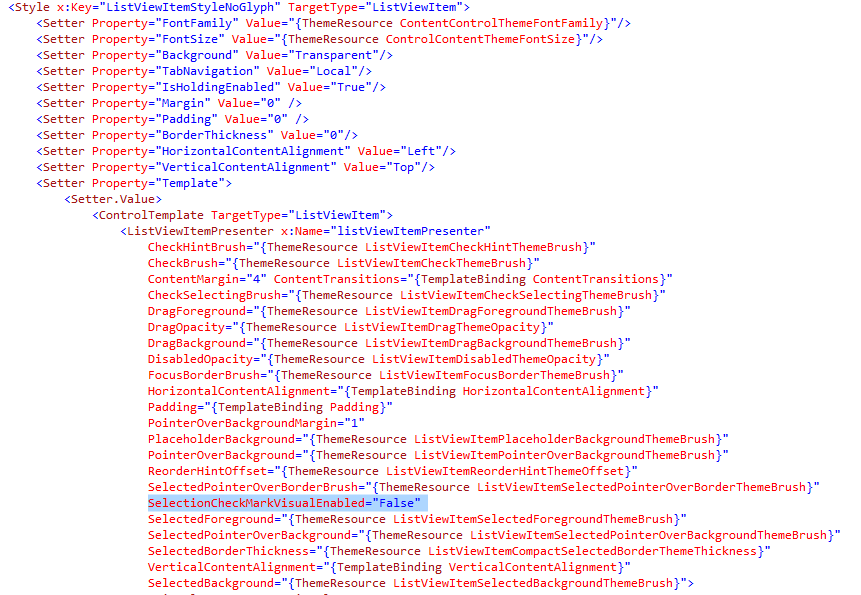
My search led me to this post which explains a far-from-obvious series of steps you can take in Blend. The steps did not quite work for me but got me on track to create a new Style resource which I called ListViewItemStyleNoGlyph and which lets me adjust the margin and also a previously hidden property called SelectionCheckMarkVisualEnabled. Blend generated a substantial block of code for this:

image

This has helped and now my ListView looks like this:

image

Well, it is nearly there and I can see that with a bit more effort I can get what I want. Even so, I am beginning to wonder whether my initial approach, in which I understood all the code, had advantages over this exploration into the labyrinth.

Is XAML well loved out there? I came across this post by Paul Stovell from a couple of years back which seems relevant. “I’ve lived and breathed the technology for the last six years”, he says, but writes:

What’s disappointing is that WPF started out quite positively during its time. Concepts like dependency properties, styles, templates, and the focus on data binding felt quite revolutionary when Avalon was announced.

Sadly, these good ideas, when put into practice, didn’t have great implementations. Dependency properties are terribly verbose, and could have done with some decent language support. Styles and templates were also verbose, and far more limited than CSS (when WPF shipped I imagined there would be a thousand websites offering high quality WPF themes, just like there are for HTML themes; but there aren’t, because it is hard).

Data binding in WPF generally Just Works, except when it doesn’t. Implementing INotifyPropertyChanged still takes way too much code. Data context is a great concept, except it totally breaks when dealing with items like ContextMenus. ICommand was built to serve two masters; the WPF team who favored routed commands, and the Blend team who favored the command pattern, and ended up being a bad implementation for both.

Stovell mentions the verbosity of XAML, and that it is hard, both of which sound right to me. He contrasts the way ASP.NET has evolved, with ASP.NET MVC a great improvement on web forms. Read the full post for more detail.

It seems to me that XAML does offer much that is wonderful: flexibility, capability, and the ability to separate presentation from data. At the same time, neither XAML nor Blend are intuitive tools for developers; they may make more sense to designers, but it seems to me that removing a tick mark from a ListViewItem should be more straightforward. Perhaps it is, in which case there is a failure of documentation or tooling rather than functionality, but it makes little difference to the developer.

How to crash your Windows Store XAML app

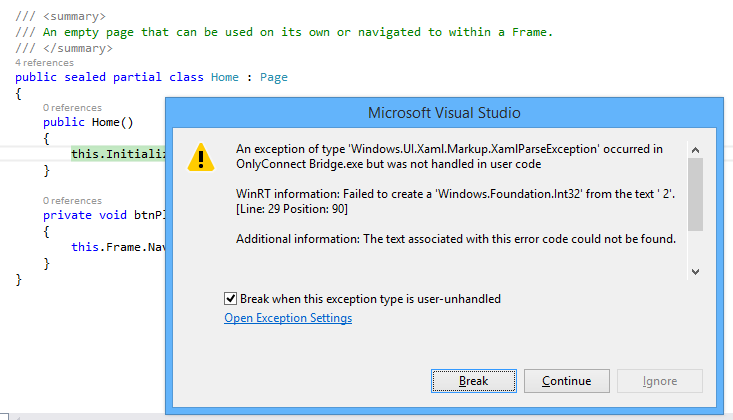
I am working on a Windows Store app, of which more soon. I am writing the app in XAML and C#. I was tweaking the page design when I hit a problem. Everything was fine in the designer in Visual Studio, but running the app raised an exception:

image

WinRT information: Failed to create a ‘Windows.Foundation.Int32’ from the text ‘ 2’.

along with the ever-helpful:

Additional information: The text associated with this error code could not be found.

The annoying this about this error is that debugging is not that easy. The exception is in Framework code, not your own code, and Microsoft does not supply the source. Once again, everything is fine in the designer and there are no compiler errors.

Puzzling. I resorted to undoing bits of my changes until I found what triggered the problem.

This was it. In the XAML, I had somehow typed a leading space before a number:

Grid.Row=" 2"

The designer parses this OK (it would be better if it did not) but the runtime does not like it.

Actually, I know why this happens. If you are typing in the XAML code editor (which I find myself doing a lot), then auto completion inserts the blank space for you:

image

I wish all bugs were this easy to solve, though I regard it as a bug in the Visual Studio editor. Posted here mainly in case others hit this problem; but I also observe that Windows Store development still seems less solid in Visual Studio than the tools for desktop or web apps.

Other problems I have hit include the visual designer changing to read-only of its own accord; and a highly irritating issue where the editor for a XAML code-behind class sometimes forgets the existence of all the controls you have declared in XAML, covering your valid code with red squiggly lines and reporting numerous errors, which disappear as soon as you compile. Once this starts happening, the problem persists for the rest of the editing session.

It is not all bad. I am pleased with the way I have been able to put together a touch-friendly game UI relatively easily. Now comes the fun part: writing the logic for the AI (Artificial Intelligence).

Amazon AWS and the continuing trend towards cloud services. Desktops next?

It was a lightbulb moment. The problem:  how to migrate a document store from one Office 365 (hosted SharePoint) instance to another. Copy it all out and copy it back in, obviously, but that is painful over ADSL (which is all I had at my disposal) since the “asynchronous” part of ADSL means slow uploads; and download from Office 365 was not that fast either.

Solution: use an Azure virtual machine. VM hosted by Microsoft, SharePoint hosted by Microsoft, result – a fast connection between the two. I ran up the VM in a few minutes using Microsoft’s nice Azure portal, used Remote Desktop to connect, and copied the documents out and back in no time.

There is a general point here. If you are contemplating cloud-hosted VDI (Virtual Desktop Infrastructure), there is huge advantage in having the server applications and data close to the VDI instances. All you then need is a connection good enough to work on that remote desktop, which is relatively lightweight. If the cloud vendor is doing its job, the internal connections in that cloud should be fast. In addition, from the client’s perspective, most of the data is download, transferring the screen image to the client, rather than upload, transmitting mouse and keyboard interactions, so that is a good use case for ADSL.

The further implication is that the more you use cloud services, the more attractive hosted desktops become. Desktops are expensive to manage, which is why I would expect a service like Amazon Workspaces, hosted Windows desktops as a service, to find a ready market – even at $600 per year for a desktop with Office Professional 2010 preinstalled, or $420 per year if you install and license Office yourself, or use Open Office or some other alternative.

Workspaces are currently in limited preview, which means a closed beta, but there are hints that a public beta is coming soon.

Adopting this kind of setup means a massive dependency on Amazon of course, which is a concern if you worry about that kind of thing (and I think you should); but how much business is now dependent on one of the major cloud providers (I tend to think of Amazon, Microsoft and Google as the top three) already?

Thinking back to my Office 365 example, it also seems to me that Microsoft will make a serious play for cloud VDI in the not too distant future, since it makes so much sense. The problem for Microsoft is further cannibalisation of its on-premise business, and further disruption for Microsoft partners, but if the alternative is giving away business to Amazon, it has little choice.

I was at an Amazon Web Services briefing today and asked whether we might see an Office 365-like package from AWS in future. Unlikely, I was told; but many customers do use AWS for hosting the likes of Exchange and SharePoint.

The really clever thing for Amazon would be a package that looked like Office 365, but using either open source or internally developed applications that removed the need to pay license fees to Microsoft.

What else is new from AWS? I have no exclusives to share, since Amazon has a policy of never pre-announcing new features or services. There were a few statistics, one of which is that Redshift, hosted data warehousing, is Amazon’s fastest-growing product.

Amazon also talked about Kinesis, which lets you analyse streams of data in a 24-hour window. For example, if you wanted to analyse the output from thousands of sensors (say,weather) but do not need to store the data, you can use Kinesis. If you do want to store the data, you can integrate with Redshift or DynamoDb, two of Amazon’s database services.

The company also talked up its Relational Database Service (RDS), where you purchase a managed database service which can currently be MySQL, PostgreSQL, Oracle or Microsoft SQL Server. Amazon handles all the infrastructure management so you only need worry about your data and applications.

RSD pricing ranges start from $25 a month for MySQL, to $514 a month for SQL Server Standard (which is actually more expensive than Oracle at $223 per month for the same instance size). Higher capacity instances cost more of course. SQL Server Web edition comes down below Oracle at $194 per month, but I was surprised to see how high the SQL Server costs are. Note that these prices include all the CALs (Client Access Licenses). The prices are actually per hour, eg $0.715 for SQL Server Standard, so you could save money if your business can turn off or reduce the service out of working hours, for example.

How much premium does Amazon charge for its managed RDS versus what you would pay for equivalent capacity in a VM that you manage yourself? I asked this question but did not receive a meaningful reply; you need to do your own homework.

My reflection on this is that just as supermarkets make more money from pre-packaged ready meals than from basic groceries, so too the cloud providers can profit by bundling management and applications into their products rather than offering only basic infrastructure services. You still have the choice; but database admin costs money too.

Finally, we took a quick look at AppStream, which is a proprietary protocol, SDK and service for multimedia applications. You write applications such as games that render video on the server and stream it efficiently to the client, which could be a smartphone or low-power tablet. In this case again, you are taking a total dependency on Amazon to enable your application to run.

If you are interested in AWS, look out for a summit near you. There is one in London on 30th April. Or go to the Reinvent conference in Las Vegas in November.

My overall reflection is that the momentum behind AWS and its pace of innovation is impressive; yet it also seems to me that rivals like Microsoft and Google are becoming more effective. The cloud computing market is such that there is room for all to grow.

SQL Server 2014 is done: Hekaton, Azure integration

Microsoft has released SQL Server 2014 to manufacturing (an odd phrase in these diskless days) but which signifies that it is code complete for the initial release. General availability is April 1st.

What do you do if hardware trends enable you to stuff vast amounts of RAM into your server, along with many CPU cores? The answer is that you optimize applications to work mostly in RAM, with disk important as a persistence layer. This contrasts to the approach when you have large amounts of disk space and little RAM, when you focus on loading only as much data into memory as you absolutely need.

The implications for a database server are profound. Instead of a logic that goes something like “read from disk, do something, write to disk” you can address the data directly; it is just a memory pointer.

Now combine that with stored procedures compiled to native code. Performance leaps up, and by much more than you get simply by caching data in RAM, or using fast SSD storage, but still using the old disk-based approach in the database engine.

This is the reasoning behind “Hekaton”, properly known as In-Memory OLTP (online transaction processing), which is a new in-memory database engine that comes with SQL Server 2014.

It is fully integrated. You just have to add a filegroup to a a SQL Server database with the keyword CONTAINS MEMORY_OPTIMIZED_DATA and then create a table with the keyword WITH (MEMORY_OPTIMIZED=ON). And for the stored procedures, use WITH NATIVE_COMPILATION.

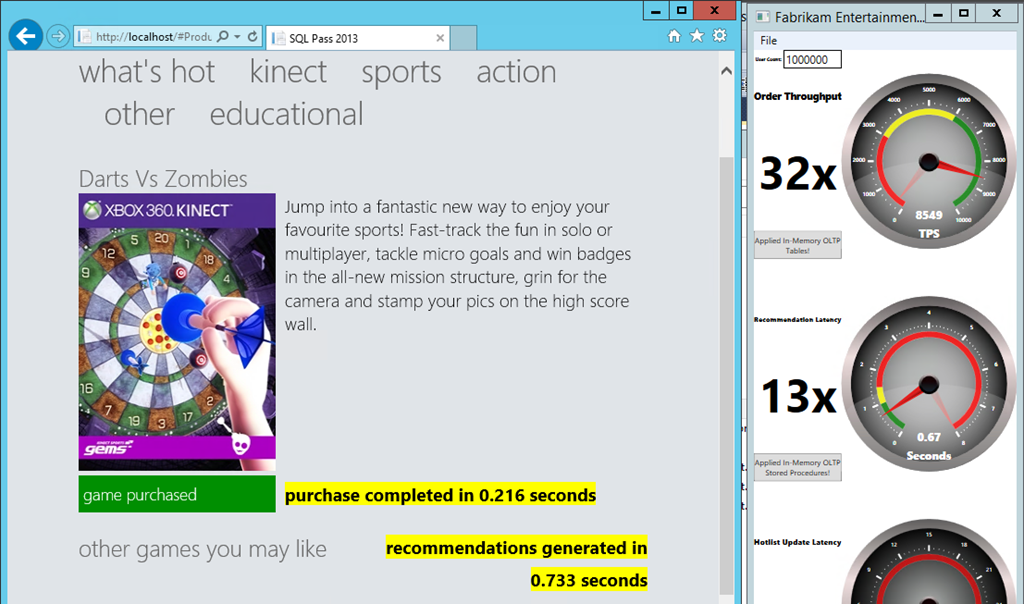
The speed-up is as great as you would expect. I have seen demonstrations of 30x or more performance increases, like this one in a demo based on one from the SQL Pass conference, but which I did for myself in one of Microsoft’s “Hands On Labs”:

image

In another demo, on an Azure VM, I got a speed up of 7x. Only seven times faster! Still, hard to complain about those sorts of numbers.

Unfortunately, in-memory OLTP is spoilt by some rather severe limitations in this release. The first problem is that a combination of the need to support native compilation of stored procedures, and other limitations, means that only a subset of T-SQL (the query and management language of SQL Server) is supported. You can see the list of what is not supported here; and it is depressing reading, with lots of keywords that you likely do use at the moment; even IDENTITY is on the list of what does not work.

Another issue is that the ability of In-Memory OLTP to take advantage of hardware is not as extensive as you might hope. Lead program manager Kevin Liu told me at a recent press workshop that the team recommends restricting total data size to 256GB, and that the recommended number of CPU sockets is two. You can get servers today with much more memory and more sockets. It gets complicated though: in a multi-socket server memory has processor affinity and there is a thing called NUMA (Non-Uniform Nemory Access) that describes the way memory is shared between processors.

According to Liu, Microsoft expects to lift these limitations in future releases, as well as improving T-SQL support, but things like this remind you that it is a version one release.

What else is in SQL Server 2014? There is some neat Azure integration, including a managed backup tool that is almost one click to have your data backed up to Azure storage; a brilliant facility for small businesses. You can also use Azure for high availability, creating always-on replicas in Azure VMs.

Data warehouse users will like the new clustered columnstore indexes, which allow you do use a column-oriented table structure for much faster processing of typical report and analysis queries. Columnstore indexes first appeared in SQL Server 2012 but were not updateable. Now they are.

SQL Server is well liked, licensing hassles aside; and even on licensing, Microsoft can always point at Oracle and claim, rightly, to be cheaper and less complex. It has earned a reputation for solid performance. SQL Server 2014 looks as good as ever, even if the management tools now look rather dated – the shell for SQL Server Management Studio uses an old version of Visual Studio, which is one of the reasons. I also suspect the SQL Server team lacks a dialog designer, but doubt that the average database admin cares one jot.

That said, it is difficult to describe this as a must-have upgrade, unless you can make good use of “Hekaton” in-memory OLTP. The porting effort will be worth it presuming you can get it to work. One of the good fits for the technology is managing web app session data, or, as in the example above, rapid processing to display recommendations or customisations on a web site.

I can imaging though that many users will look at Hekaton and decide that it is too much work or too immature for immediate use. What is left for them, apart from some nice Azure integration?

Not a huge amount, it seems to me, making this to my mind a transitional release.

Are you planning to upgrade? I would be interested to know your reasons why or why not.

Running WordPress on Windows Azure

I am investigating hosting this site on Windows Azure, partly as a learning exercise, and possibly to enable easier scaling.

I discovered that any web site short of Standard is worthless other than for experimentation and prototyping. I set up a Small Standard Web Site (£48 per month). But what database? I recalled that you can run WordPress with SQL Server and tried using a 1GB SQL Server Web Edition hosted on Azure (£6.35 per month).

In order to use this, I used the Brandoo WordPress configuration which is set up for SQL Server. I later discovered that it uses the WP Db Abstraction plug-in which according to its home page has not been updated for two years. The installation worked, but some plug-ins reported database errors. I imported some posts and found that search was not working; all searches failed with nothing found.

My conclusion is that running WordPress with SQL Server is unwise unless you have no choice. I looked for another solution.

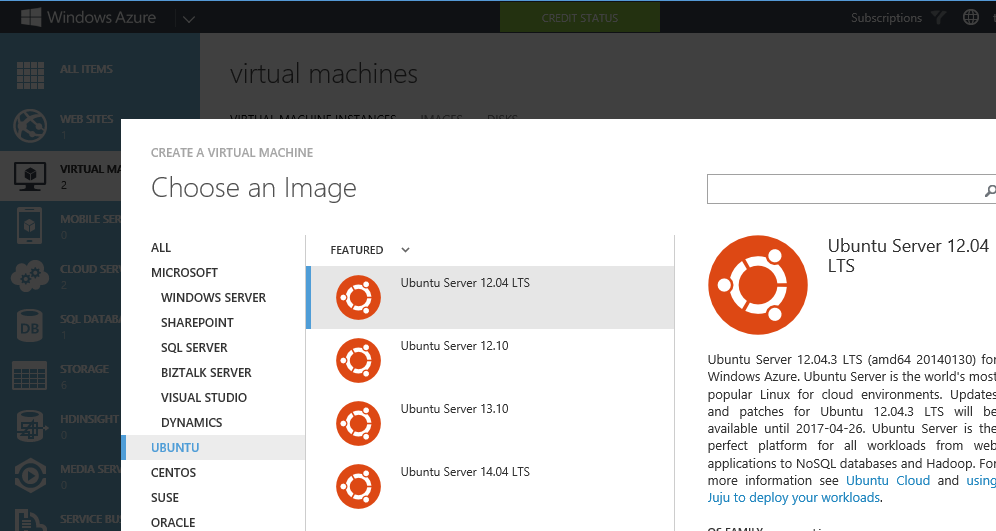
Azure has a Web Site template which uses WordPress and a MySQL database hosted by ClearDB. I would rather not involve another hosting company, so considered other options. One is to run a VM on Azure and to install MySQL on it. If you are doing that, you might as well put WordPress on the same VM at least until the traffic justifies scaling out. So I have created a new Medium Linux VM – two virtual cores, 3.5GB RAM – at £57 per month, with Ubuntu, and installed the LAMP stack and WordPress on that. The cost is similar to the Windows/SQL Server setup, but the VM is a higher specification, since a Small Web Site is 1 virtual core and 1.75GB RAM. You also get full access to the VM, as opposed to the limited access that a Web Site offers. The installation is a bit more effort but performance is better and it looks like this might work.

image

The problem with backpedalling on Windows 8: it is the wrong direction

Lukas Mathis has a detailed post on Windows 8, including its advantages over the Apple iPad as a productivity tablet. Mathis switched from the iPad to a Surface Pro:

In general, I really love the Surface, and I use it much more, and for many more things, than I ever used any iPad I ever owned. But it’s not perfect.

Mathis likes the Metro (Windows Runtime) UI:

Almost everything that happens inside the Metro environment is fantastic. It’s clean, fast, and powerful. The apps are easy to use, but still offer a lot. The gesture-based user interface requires you to learn a few new things, but takes very little time to get used to.

This makes interesting reading for Windows users (and there seem to be many) who have convinced themselves that Metro is difficult, pointless or obstructive, though of course it may be those things to them. It is also true that you cannot easily get your work done in Metro alone. Office, Visual Studio, Windows Live Writer are three quick examples of applications which do not have any good substitute, not to mention countless custom line of business applications, so you still need the desktop whether you like it or not.

Mathis is also scathing about various aspects of Windows:

The problems with Windows 8 don’t end with the integration between desktop and Metro. There’s also the problem that good old Windows seems to be a pretty terrible operating system.

He relates encounters with DLL errors, inconsistent visual design, old stuff left in for legacy reasons, and a culture of adware, spyware and malware.

Personally I have learned how to navigate the Windows software world and have fewer problems than Mathis but that said, his complaints are justified.

These problems are hard to fix which is why Microsoft made such radical changes in Windows 8, making a new, secure and touch-friendly personality the centre and (conceptually at least) isolating the old desktop into a legacy area for running your existing apps. Although there are many flaws in the way this change has been executed, it seems to me a reasonable approach if Windows is to have a future beyond business desktops.

What was and is wrong with Windows 8? My own list of flaws includes:

  • Poor selection and quality of apps, even the built-in ones that had no reason not to be great
  • A design that lacks visual appeal
  • An immature development platform, too difficult, buggy and incomplete
  • Lack of a status bar in Metro so you cannot see at a glance essentials like time, date and battery life
  • Widescreen design that does not work well in portrait
  • Confusions like two versions of Internet Explorer, Metro PC settings vs Control panel and so on

I could go on; but there are also plenty of things to like, and I disagree with commonly expressed views like “it is no good without touch” (I use it constantly with only keyboard and mouse and it is fine) or “bring back the Start menu” (I like the new Start menu which improves in several ways over its predecessor).

It does not matter what I think though; the truth is that the business world in particular has largely rejected Windows 8, and the consumer world is hardly in love with it either. I look at lists of PCs and laptops for sale to businesses and the majority state something like “Windows 8 downgraded to Windows 7” or “Windows 7 with option to upgrade to Windows 8”. This tells the whole story.

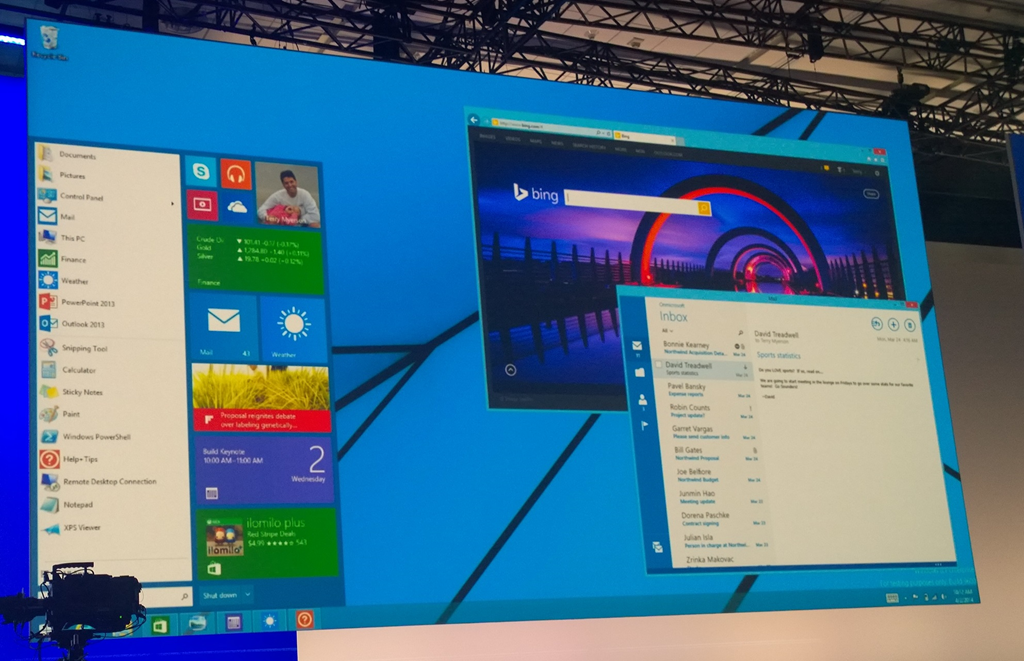
It seems to me that the Windows 8 team has been largely disbanded, following Stephen Sinofsky’s resignation and Julie Larson-Green’s sideways moves; she is now “Chief Experience Officer in the Applications and Services Group”; and whatever that means, she is no longer driving the Windows team. Microsoft has to come to terms with the failure of Windows 8 to meet its initial objectives and to make peace with the user base that has rejected it. There are signs of this happening, with coming updates that improve integration between Metro and Desktop and ease the learning path for keyboard and mouse users:

Most of the changes in the update are designed to appease keyboard and mouse users, with options to show Windows 8 apps on the desktop taskbar, the ability to see show the desktop taskbar above Windows 8-style apps, and a new title bar at the top of Windows 8 apps with options to minimize, close, or snap apps.

The big question though is what happens to Metro in the next major release of Windows, bearing in mind that its chief advocates are no longer running the show. Should and will Microsoft stop trying to push the unwanted Metro environment on users and go back to improving the desktop, as it did when moving from Windows Vista to Windows 7?

My guess is that we will see some renewed focus on the desktop; but Microsoft will also be aware that the problems that gave rise to Metro still exist. The Windows desktop is useless on tablets, the Windows culture foists numerous applications with evil intent on users, and the whole design of traditional Windows is out of step with modern moves towards simpler, safer and easier to manage computing devices.

Therefore the correct direction for Microsoft is to improve Metro, rather than to abandon it. If we see a renewed focus on the desktop to the extent that energetic Metro development ceases, Microsoft will be marching backwards (and perhaps it will).

The only plausible “Plan B” is to do what some thought Microsoft should have done in the first place, which is to evolve Windows Phone to work on tablets and to replace Metro with a future generation of the Windows Phone OS, perhaps running alongside the desktop in a similar manner. Since Microsoft has stated its aim of a unified development platform for Windows Phone and Windows Runtime, Plan B might turn out the same as Plan A.

All this is late in the day, maybe too late, but the point is this: a revitalised desktop in Windows 9 will do little to arrest its decline.