Tag Archives: microsoft

Licensing Azure Stack: it’s complicated (and why Azure Stack is the iPad of servers)

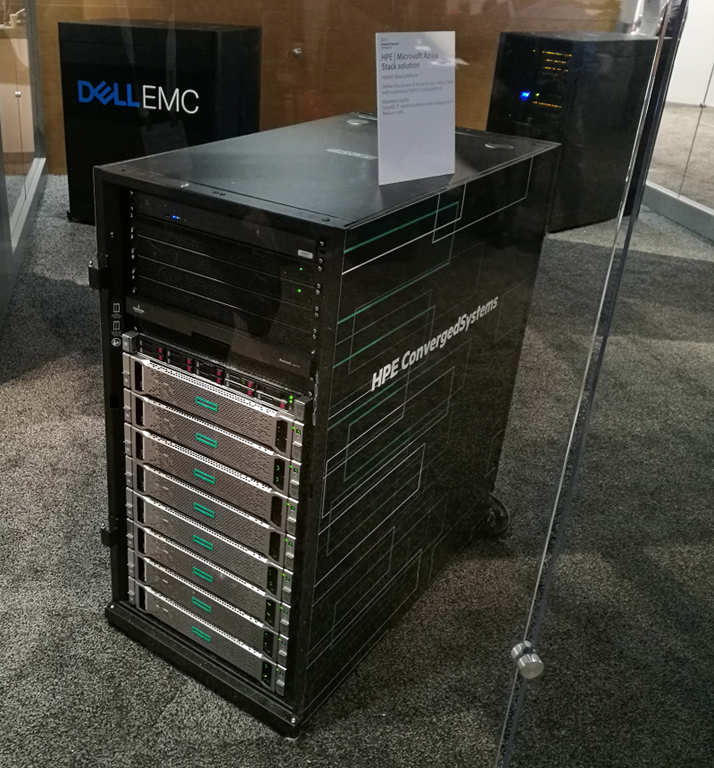
Microsoft’s Azure Stack is a pre-configured, cut-down version of Microsoft’s mighty cloud platform, condensed into an appliance-like box that you can install on your own premises.

Azure Stack is not just a a new way to buy a bunch of Windows servers. Both the technical and the business model are different to anything you have seen before from Microsoft. On the technical side, your interaction with Azure Stack is similar to your interaction with Azure. On the business side, you are buying the hardware, but renting the software. There is no way, according to the latest pricing and licensing guide, to purchase a perpetual license for the software, as you can for Windows Server. Instead, there are two broad options:

Pay-as-you-use

In this model, you buy software services on Azure Stack in exactly the same way as you do on Azure. The fact that you have bought your own hardware gets you a discount (probably). The paper says “Azure Stack service fees are typically lower than Azure prices”.

Service
Base virtual machine $0.008/vCPU/hour ($6/vCPU/month)
Windows Server virtual machine $0.046/vCPU/hour ($34/vCPU/month)
Azure Blob Storage $0.006/GB/month (no transaction fee)
Azure Table and Queue $0.018/GB/month (no transaction fee)
Azure App Service (Web Apps, Mobile Apps, API Apps, Functions) $0.056/vCPU/hour ($42/vCPU/month)

This has the merit of being easy to understand. It gets more complex if you take the additional option of using existing licenses with Azure Stack. “You may use licenses from any channel (EA, SPLA, Open, and others),” says the guide, “as long as you comply with all software licensing and product terms.” That qualification is key; those documents are not simple. Let’s briefly consider Windows Server 2016 Standard, for example. Licensing is per core. To install Windows Server 2016 Standard on a VM, you have to license all the cores in the physical server, even if your VM only has one virtual CPU. The servers in Azure Stack, I presume, have lots of cores. Even when you have done this, you are only allowed to install it on up to two VMs. If you need it on a third VM, you have to license all the cores again. Here are the relevant words:

Standard Edition provides rights for up to 2 Operating System Environments or Hyper-V containers when all physical cores in the server are licensed. For each additional 1 or 2 VMs, all the physical cores in the server must be licensed again.

Oh yes, and once you have done that, you need to purchase CALs as well, for every user or device accessing a server. Note too that on Azure Stack you always have to pay the “base virtual machine” cost in addition to any licenses you supply.

This is why the only sane way to license Windows Server 2016 in a virtualized environment is to use the expensive Datacenter edition. Microsoft’s pay-as-you-use pricing will be better for most users.

Capacity model

This is your other option. It is a fixed annual subscription with two variants:

App Service, base virtual machines and Azure Storage $400 per core per year
Base virtual machines and Azure Storage only $144 per core per year

The Capacity Model is only available via an Enterprise Agreement (500 or more users or devices required); and you still have to bring your own licenses for Windows Server, SQL Server and any other licensed software required. Microsoft says it expects the capacity model to be more expensive for most users.

SQL Server

There are two ways to use SQL Server on Azure. You can use a SQL database as a service, or you can deploy your own SQL Server in a VM.

The same is true on Azure Stack; but I am not clear about how the licensing options if you offer SQL databases as a service. In the absence of any other guidance, it looks as if you will have to bring your own SQL Server license, which will make this expensive. However it would not surprise me if this ends up as an option in the pay-as-you-use model.

Using free software

It is worth noting that costs for both Azure and Azure Stack come way down if you use free software, such as Linux rather than Windows Server, and MySQL rather than SQL Server. Since Microsoft is making strenuous efforts to make its .NET application development framework cross-platform, that option is worth watching.

Support

You will have to get support for Azure Stack, since it is not meant to be user-serviceable. And you will need two support contracts, one with Microsoft, and one with your hardware provider. The hardware support is whatever you can negotiate with the hardware vendor. Microsoft support will be part of your Premier, Azure or Partner support in most cases.

Implications of Azure Stack

When Microsoft embarked on its Azure project, it made the decision not to use System Center, its suite of tools for managing servers and “private cloud”, but to create a new way to manage servers that is better automated, more scalable, and easier for end-users. Why would you use System Center if you can use Azure Stack? Well, one obvious reason is that with Azure Stack you are ceding a lot of control to Microsoft (and to your hardware supplier), as well as getting pushed down a subscription path for your software licensing. If you can handle that though, it does seem to me that running Azure Stack is going to be a lot easier and more productive than building your own private cloud, for most organizations.

This presumes of course that it works. The big risk with Azure Stack is that it breaks; and your IT administrators will not know how to fix it, because that responsibility has been outsourced to your hardware vendor and to Microsoft. It is possible, therefore, than an Azure Stack problem will be harder to solve than other typical Windows platform failures. A lot will depend on the quality control achieved both by Microsoft, for the software, and its hardware partners.

Bottom line: this is the iPad of servers. You buy it but don’t really control it, and it is a delight to use provided it works.

No more infrastructure roles for Windows Nano Server, and why I still like Server Core

Microsoft’s General Manager for Windows Server Erin Chapple posted last week about Nano Server (under a meaningless PR-speak headline) to explain that Nano Server, the most stripped-down edition of Windows Server, is being repositioned. When it was introduced, it was presented not only as a lightweight operating system for running within containers, but also for infrastructure roles such as hosting Hyper-V virtual machines, hosting containers, file server, web server and DNS Server (but without AD integration).

In future, Nano Server will be solely for the container role, enabling it to shrink in size (for the base image) by over 50%, according to Chapple. It will no longer be possible to install Nano Server as a standalone operating system on a server or VM. 

This change prompted Microsoft MVP and Hyper-V enthusiast Aidan Finn to declare Nano Server all but dead (which I suppose it is from a Hyper-V perspective) and to repeat his belief that GUI installs of Windows Server are best, even on a server used only for Hyper-V hosting.

Prepare for a return to an old message from Microsoft, “We recommend Server Core for physical infrastructure roles.” See my counter to Nano Server. PowerShell gurus will repeat their cry that the GUI prevents scripting. Would you like some baloney for your sandwich? I will continue to recommend a full GUI installation. Hopefully, the efforts by Microsoft to diminish the full installation will end with this rollback on Nano Server.

Finn’s main argument is that the full GUI makes troubleshooting easier. Server Core also introduces a certain amount of friction as most documentation relating to Windows Server (especially from third parties) presumes you have a GUI and you have to do some work to figure out how to do the same thing on Core.

Nevertheless I like Server Core and use it where possible. The performance overhead of the GUI is small, but running Core does significantly reduce the number of security patches and therefore required reboots. Note that you can run GUI applications on Server Core, if they are written to a subset of the Windows API, so vendors that have taken the trouble to fix their GUI setup applications can support it nicely.

Another advantage of Server Core, in the SMB world where IT policies can be harder to enforce, is that users are not tempted to install other stuff on their Server Core Domain Controllers or Hyper-V hosts. I guess this is also an advantage of VMWare. Users log in once, see the command-line UI, and do not try installing file shares, print managers, accounting software, web browsers (I often see Google Chrome on servers because users cannot cope with IE Enhanced Security Configuration), remote access software and so on.

Only developers now need to pay attention to Nano Server, but that is no reason to give up on Server Core.

PowerShell documentation stubs: frustrating for users

I’ve been writing a piece on PowerShell, Microsoft’s generally excellent scripting and automation platform. PowerShell is also largely open source, in its cross-platform, PowerShell Core guise.

Of course I went straight to the official documentation as part of my research. Looks good; but I was puzzled. I would find a promising topic like Object Pipeline, which says:

In this chapter, we will describe how the Windows PowerShell pipeline differs from the pipelines of most popular shells, and then demonstrate some basic tools that you can use to help control pipeline output and also to see how the pipeline operates.

Then I clicked around to read the chapter, and struggled to find the content.

Eventually I figured out the problem, by going to the GitHub repository for the documentation. This content is not yet written. Microsoft’s JuanPablo Jofre has written stubs, either with the intention of completing them later, or perhaps in the hope that the community will step up and help.

Open Source is great, but the user experience of finding stub documents in official documentation, that is not clearly marked as such, is frustrating.

I do not recall this kind of issue in Microsoft documentation written in the old closed-source world, which makes me wonder if the documentation team is under resourced – though the most important part of the documentation, the cmdlet reference, is pretty good in my experience.

My view of PowerShell is that it is now a critically important part of the Microsoft platform. It is not only a tool for managing Windows Server, but also for Microsoft’s online services such as Office 365, Azure Active Directory and other Azure services.

It is worth getting the documentation right.

Windows S: another go at locking down Windows, but the Store is not ready and making it ready is a challenge

There were two big ideas behind Surface RT and Windows RT, the 2012 Windows 8 project which left Microsoft (and some OEM partners) with a mountain of unsold hardware. One was to compete with iPads and Android tablets by making Windows a touch-friendly operating system. The second was that Windows had to move on from being vulnerable to being damaged or completely broken by applications. Traditional Windows applications have installers that run with full admin rights and there is nothing much to stop them installing files in the wrong places, setting themselves to start up automatically, or bloating the Registry (the central configuration database in Windows). “My PC is so slow” is a common complaint, and the cumulative effect of successive application installs is one of the key reasons. Vulnerability to malware is another problem, and one which anti-virus software can never solve completely.

Windows RT solved these problems by disallowing application installs other than via the Windows Store. At that time, Windows Store apps were also locked down, so that a malware infection was only possible if there were a bug in the operating system.

Why did Surface RT and Windows RT fail? The ARM-based hardware was rather slow, which was one of the issues, but a more serious flaw was the lack of compelling applications in the Store. Why was that? Complex reasons, but the chief one is that Windows RT was caught in a cycle of failure. Developers want to make money, and the Windows 8 Store was not sufficiently popular with users to give them a big market. At the same time, users who tried the Store found few applications worth their time, and therefore rarely used it.

The problem was compounded by the unpopularity of Windows 8, which was an unfamiliar environment for the existing Windows users who formed the primary market.

Nevertheless, the thinking behind Windows 8 and Windows RT was not completely off the mark. If only it could get over the hump of unpopularity and lack of apps, it could usher in a new era of Windows devices that were secure, touch-friendly, and resistant to performance decay.

It never did, and with Windows 10 Microsoft appeared to give up. The desktop was back, mouse and keyboard was again primary, and Store apps now ran in windows on the desktop. A special Tablet Mode attempted to make Windows 10 equally as touch-friendly as Windows 8, but did not succeed.

Windows still has those problems though, the ones which Windows RT was intended to solve. Could there be another approach which would fix those issues but in a manner more acceptable to users?
image

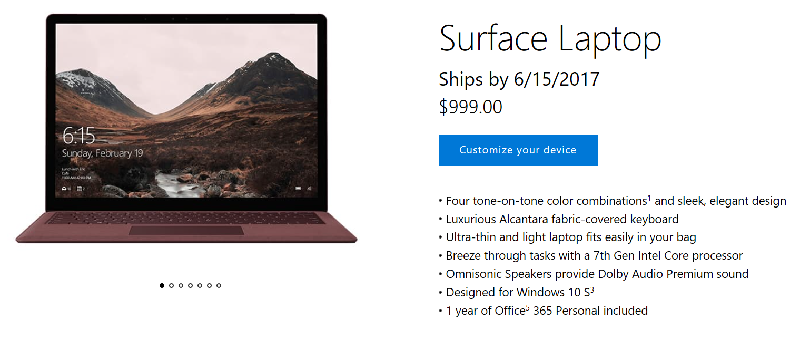
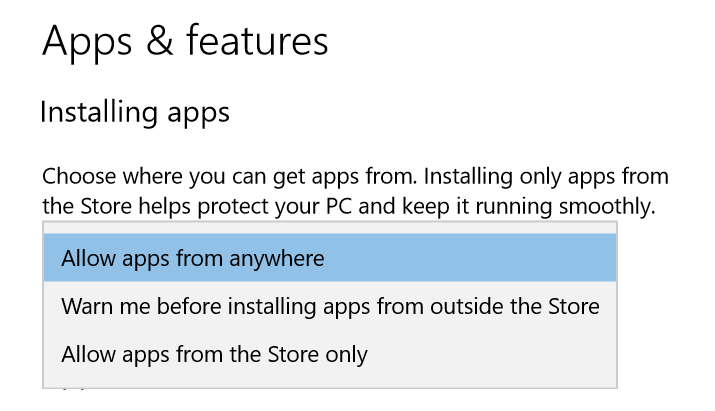
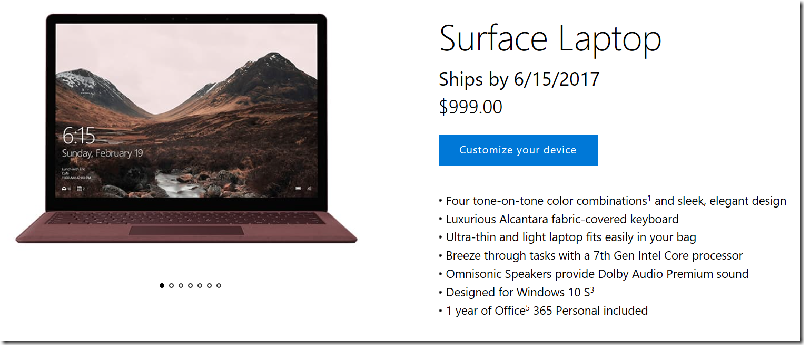
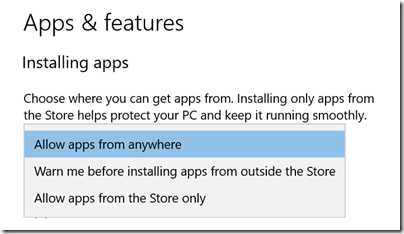
Windows S and the Surface Laptop, announced today in New York, is the outcome. It is still Windows 10, but Microsoft has flipped a switch that enforces all apps to be installed from the Windows Store. This switch is already in the latest version of Windows 10, the Creators Update, but off by default:
image

Microsoft has also taken steps to make the Store more attractive for developers. It is no longer necessary to develop apps on a new platform within Windows, as it was for the Windows 8 Store. Now you can simply take your existing desktop application and wrap it to enable Store download. This feature is called the Desktop Bridge, or Project Centennial. Applications so wrapped are not as secure as Windows 8 Store apps were; they can write to files anywhere that the user has permission. At the same time, Microsoft has taken steps to make Desktop Bridge apps better isolated than normal desktop applications. You can read the details of how this works here. It is arranged that applications install all files to a private location, instead of system locations, and that Windows hides this fact from the application code by using redirection. The same is true of the registry. This approach means that file version problems and registry bloat are much less likely. Such issues are still possible because the Desktop Bridge does not redirect file or registry calls outside the application package; these are allowed if the user has permission, for compatibility reasons. Nevertheless, it is a big advance on old-style Windows desktop application installs.

When the user removes a Desktop Bridge application, in most cases all its files and registry entries are cleanly removed.

An important additional protection is that applications submitted to the Store are vetted by Microsoft, so malicious or badly behaved instances should not get through.

Windows S will be installed by default both on Surface Laptop and on a new generation of low-end laptops aimed mainly at the education market.

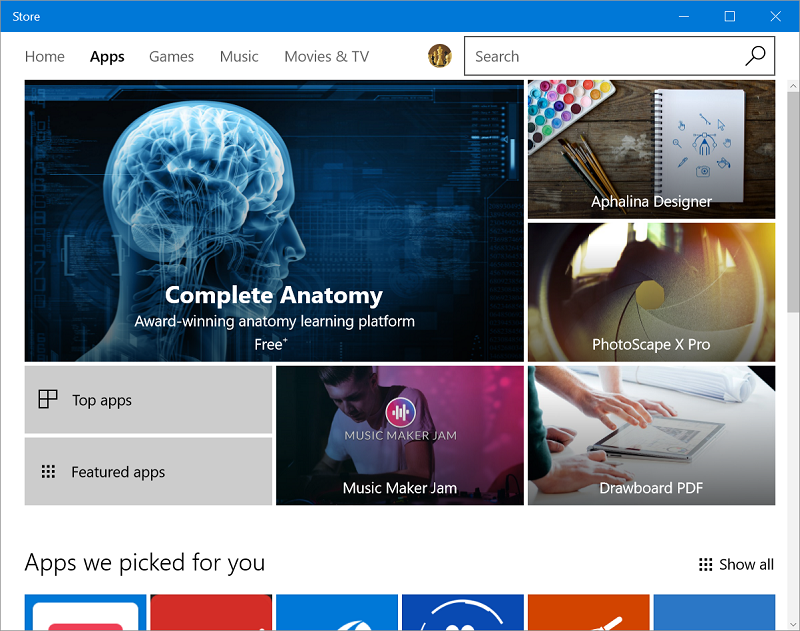
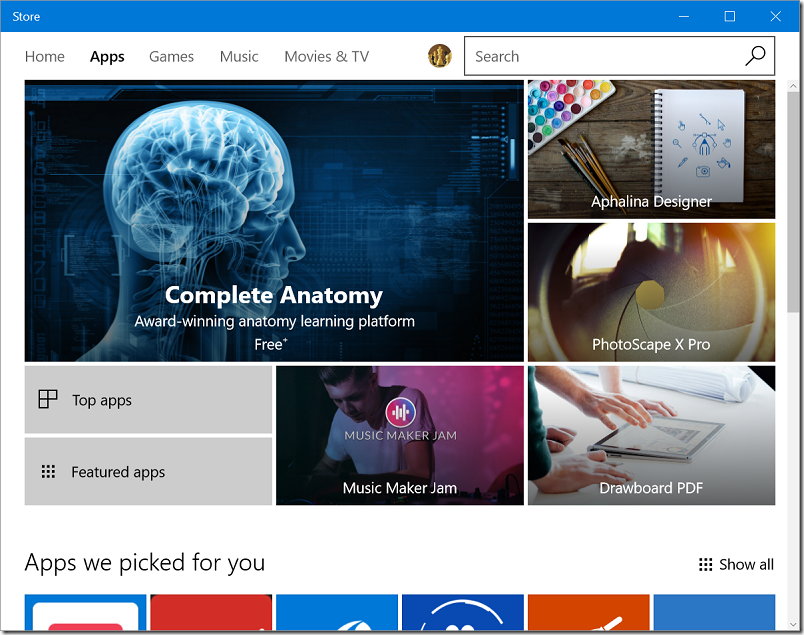
The benefits of Windows S are real; but unfortunately Microsoft still has not solved the Store problem. Currently, your favourite Windows applications are not in the Store. Microsoft Office will be there, thanks to the Desktop Bridge, but many others are not.
image

Microsoft’s big bet is that thanks to Windows S and other initiatives, the Store will be sufficiently attractive to developers, and sufficiently easy to target, that it will soon offer a full range of applications including all your favourites.

Right now though, if you get a Windows S laptop, you will probably end up buying the upgrade to Windows 10 Pro, for $49.00 or equivalent. Then you can install any Windows desktop application. However, by doing so you make it unnecessary for developers to bother using Desktop Bridge to wrap their applications – so they might never do so.

Windows S has a few other limitations:

Microsoft Edge is the default web browser on Microsoft 10 S. You are able to download another browser that might be available from the Windows Store, but Microsoft Edge will remain the default if, for example, you open an .htm file. Additionally, the default search provider in Microsoft Edge and Internet Explorer cannot be changed.

In addition, it cannot join a local Windows domain (a problem for many businesses), though it can join Azure AD, the Office 365 directory.

Microsoft’s goal here is worthwhile: to move Windows into a new place in terms of security and resilience. Getting it there though will not be easy.
Xamarin Challenge shows bumps in Microsoft’s path to cross-platform mobile

Microsoft ran a Xamarin Challenge over on Paul Thurrott’s site. The idea was to demo how to build a cross-platform mobile app with Microsoft’s cross-platform mobile toolkit.

The challenge was in three steps. You build a weather app, complete with crash analytics on the Visual Studio Mobile Center.

image

Someone did a lot of work on this, and the app looks pretty and works nicely once you get it running.

Despite this, I am not sure that the challenge was altogether successful. It is a step-by-step which in theory involves no developer expertise as you simply copy and paste code into your project. I am not sure that is the best way to learn, but that is by the by. I doubt that learning how to code for Xamarin was the primary goal of the challenge. I’d guess it was more about showing how easily you can build a cross-platform app (Android, iOS and Windows UWP) using Xamarin, C# and Visual Studio 2017.

Well, in fact a little bit of developer expertise was required to complete the challenge, because the step by step instructions did not quite work (in my experience). I did not make a note of all the times I had to do something not in the given steps, but there were many occasions, the main issues being around using the Visual Studio Android emulator, NuGet package management, and a few small tweaks to the code itself. The code as given made no allowance for the cloud services it called being offline, or the connection to the internet not being available, but would simply crash in this case.

The challenge could be an excellent resource for Microsoft and Xamarin if the company drills down into the problems developers experienced trying to complete the challenge, recorded in this forum thread. Here are a few examples:

Myself and 5 other developers in our office attempted the challenge and none of us have been able to get past the first challenge. We are not Microsoft Visual Studio experts so we had hoped following the provided instructions would be sufficient.

The upload was failing on a discrepancy between 2 different versions of the Json package, which somehow had crept into the project. Installing over 40 updates in Nuget resolved this.

Many thanks for running this challenge –this was very useful and worthwhile. I just wish modern development did not feel like trying to dance on a mile high stack of chairs with a leg missing on the bottommost one!

I got a late start on the challenge and was able to complete part 1 pretty quickly but was only able to run the UWP locally. I cannot seem to get either the Windows mobile emulator or Android emulators to run successfully. I can’t deploy to the Window Mobile emulator, it returns an error indicating the emulator failed to start. As for the Android emulator, it launches, but the emulator does not have a connection to the network, so the application encounters an exception.

Note that those posting to the forum were more likely to be the ones with problems; there could in theory be many others who breezed through without any issues. But as one participant writes, “I’d be interested in what percentage of participants actually got to the end of the challenge with no problems.”

I like Xamarin; it does an amazing job in enabling cross-platform development with C# and it would be my tool of choice for cross-platform mobile development. It is not always straightforward though, and the kinds of issues experienced by the challenge participants illustrate what can go wrong.

If you just use the native toolkits, such as Android Studio and Xcode, you will have a smoother experience, but of course miss out on the productivity benefit of cross-platform code. That is the trade-off you make.

Microsoft financials: cloud good, Surface down, and “We had no material phone revenue this quarter”

Microsoft has released its financial results for the third quarter of its financial year. Revenue was up 8% year on year, and operating income up 6%. I’m always interested in the segmentation of the figures so here is a quick table:

Quarter ending  March 31st 2017 vs quarter ending March 31st 2016, $millions

Segment Revenue Change Operating income Change
Productivity and Business Processes 7958 +1437 2783 -198
Intelligent Cloud 6763 +667 2181 +5
More Personal Computing 8836 -703 2097 +346
Corporate and Other -1467 +158 -1467 +158

There is a bit more detail in the earnings slide:

image

A few points of note:

Cloud growth remains on track. Office 365 business revenue is up 45% year on year, according to Microsoft. Dynamics 365 revenue is up 81%. Azure revenue is up 93%. Of course these figures are offset by static or declining sales of on-premises licenses, though Microsoft does not spell this out precisely.

Windows is not doing too badly, despite continuing weakness in the PC market. OEM revenue up 5%, which the company attributes to “a higher mix of premium SKUs”. Surface is weak. Revenue is down 26%. Microsoft blames “heightened price competition and product end of lifecycle dynamics.” The truth is that the Surface range is not good value versus the competition. There should be a perfect marriage of hardware and software, given that it is all Microsoft, but instead there have been too many little issues. The likes of HP and Dell do a better job at lower price and with easier upgradeability.

“We had no material phone revenue this quarter” says Microsoft. I remain sad about the killing of Windows Phone, and regard it as a mistake, but that is a done deal.

Xbox is doing OK. Xbox live revenue growth has offset declining hardware sales.

Search revenue is up 8%. Nobody pays for search, so this is about advertising. Windows 10 drives users to “Cortana” search, and Edge defaults to Bing. Users can easily find defaults changed inadvertently, which is annoying, but Microsoft has a touch competitor (Google).


A reminder of Microsoft’s segments:

Productivity and Business Processes: Office, both commercial and consumer, including retail sales, volume licenses, Office 365, Exchange, SharePoint, Skype for Business, Skype consumer, OneDrive, Outlook.com. Microsoft Dynamics including Dynamics CRM, Dynamics ERP, both online and on-premises sales.

Intelligent Cloud: Server products not mentioned above, including Windows server, SQL Server, Visual Studio, System Center, as well as Microsoft Azure.

More Personal Computing: What a daft name, more than what? Still, this includes Windows in all its non-server forms, Windows Phone both hardware and licenses, Surface hardware, gaming including Xbox, Xbox Live, and search advertising.

Microsoft needs to fix its Android emulator

Microsoft wants Windows 10 to be an ideal developer operating system, with its Linux subsystem, and Visual Studio 2017 is notable for its strong cross-platform development tools.

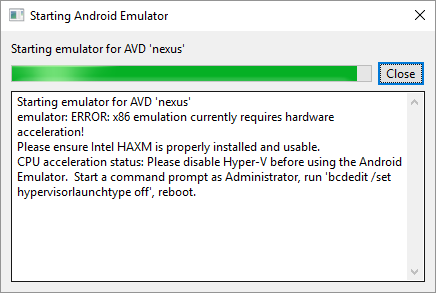
There is an annoyance though. Google’s Android SDK includes an emulator for debugging mobile applications, but it requires hardware acceleration in the form of Intel’s HAXM (Hardware Accelerated Execution Manager). Otherwise you get an error as below:

image

Unfortunately this is incompatible with Hyper-V, the hypervisor built into Windows. You cannot fix this by stopping Hyper-V services; it is set when Windows boots.

Hyper-V is increasingly important for general Windows developers. It is not only useful for running up VMs on which to test stuff, but also for the official Docker tools and testing Windows containers.

The solution should be to use the Visual Studio Emulator for Android. This is based on Hyper-V so no problem.

Unfortunately it does not currently work very well. On one of my PCs it starts, but without internet connectivity, rendering it useless for many apps. On another PC it does not start at all.

image

I spent a bit of time trying to get it to work. The networking problem seems to be related to conflicts with other applications using Hyper-V. Specifically, the Visual Studio Emulator for Android uses two Hyper-V virtual network adapters, one connected to the Windows Phone Emulator Internal Switch, and the other connected to an external virtual switch. This second adapter gets its network settings using DHCP (there is no way to change this). The emulator app proxies internet connections from the internal to the external network.

The reference to Windows Phone comes about because this is essentially the Windows Phone emulator adapted to run Android.

In my Hyper-V setup I have another internal switch, called DockerNAT, used by the Docker tools, as well as a third internal switch which I’ve used for other things. In the emulator’s network settings I can actually see four Desktop Adapters (in addition to the primary “Emulator adapter”, of which only one has internet connectivity via my business network. I theorised that the emulator is attempting to proxy via the wrong adapter, and disabled the others in Control Panel – Network Connections. However it still does not connect.

Judging by posts like this and this, there may be some cocktail of settings in Hyper-V and in Control Panel that gets this working. Bear in mind though that I want everything else to work too.

I also note that Windows developer evangelist Scott Hanselman suggests setting up a dual boot arrangement so that you can boot with HAXM enabled when you want to develop on Android, and with Hyper-V otherwise – implying that there is no other easy fix.

This works, though it is a dreadful solution. Rebooting is not only time-consuming, but disruptive to the flow of your work, and having to reboot with special settings just to work on Android is painful.

It strikes me that this could be fixed with a bit of effort. If Microsoft is serious about persuading developers to use Windows 10, Visual Studio and Xamarin for cross-platform mobile apps, that would be a good idea.

New Office 365 OneDrive for Business sync client now supports team sites

Microsoft has announced new capabilities for its next-generation OneDrive for Business sync client – the software that lets users access OneDrive documents through Windows Explorer rather than having to go via a web browser.

Technically, there are two ways to access OneDrive with Windows Explorer. One uses WebDAV and only works online, the other makes a local copy of the documents and synchronises them when it can. Microsoft pushes users towards the second option. If you use WebDAV, repeated authentication prompts and lack of offline capabilities are annoyances that many find it hard to cope with.

Problem is that the old OneDrive for Business sync client, called Groove, is just not reliable. Every so often it stops syncing and there is often no solution other than to delete all the local copies and start again.

Microsoft is therefore replacing it with a new OneDrive for Business sync client, which has been in preview since September 2015. “The preview client adds OneDrive for Business connectivity to our proven OneDrive consumer client,” explained Microsoft, abandoning the problematic Groove.

There was a snag though. The new client did not support Team Sites, also known as SharePoint Online, but only personal OneDrive for Business cloud storage. Many businesses make more use of Team Sites than they do of the personal storage. Users with both had to run both the old and new sync clients side by side.

I was among those complaining so it is pleasing to see that Microsoft, a mere 15 months later, has met my request, by adding support for Team Sites to its new client.

image

(I had no idea until I looked today how much support the feedback had received).

Today’s announcement also includes a new standalone Mac client, which can be deployed centrally, and an enhancd UI with an Activity Center.

There are also new admin features in the Office 365 dashboard, like blocking syncing of specified file types, control over device access, and usage reporting.

There may still be some snags – and note that the new client is still a preview.

Competitors like DropBox and Box have some technical advantages, but Microsoft’s key benefit is integration with Office 365, and the fact that it comes as part of the bundle in most plans. If it can iron out the technical issues, of which sync has to date been the most annoying, it will significantly strengthen its cloud platform.

Microsoft Office 365 Activation Hassles

Imagine you are a customer of Microsoft’s Office 365 service, including a subscription to the Office desktop applications like Word, Excel and Outlook.

One day you click on the shortcut for Word, but instead of opening, it just shows a “Starting” splash screen which never progresses.

Being smart, you try to start Word in safe mode by holding down the Ctrl key, but the exact same thing happens.

Annoying, when you want to do your work. What is going on?

I took a look at a case like this. Two things you should do (after the usual reboot):

1. Look in the event viewer. Here, I found a clue that the issue is related to software activation, specifically Event 2011 “Office Subscription Licensing exception”:

image

2. For all things related to Office licensing, open a command prompt, go to (for example) C:\Program Files (x86)\Microsoft Office\Office16, and type:

cscript ospp.vbs /dstatus

In this case I got the following:

image

This told me that Windows thinks TWO product keys for Office are installed. One has expired, the other is fine.

The guilty party may (or may not) be the trial version of Office typically pre-installed with a new PC. Or it could be a consequence of changing your Office 365 subscription. Neither would be the fault of the user, who is fully licensed and has done nothing other than follow Microsoft’s normal procedures for installing Office 365.

Solution: we reinstalled Office from the Office 365 portal, and attempted to remove the dud product key with:

cscript ospp.vbs /unpkey:<Last five characters of product key>

as explained here. All is well for the moment.

This kind of thing drives me nuts though. Activation and subscription license checking is for the benefit of the vendor, not the user, and should never get in the way like this.

Further, cannot Microsoft find some way of informing the user when this happens, and not have Word simply hang on starting? How difficult is it to check for licensing and activation issues, and throw up a message?