Category Archives: microsoft

No more infrastructure roles for Windows Nano Server, and why I still like Server Core

Microsoft’s General Manager for Windows Server Erin Chapple posted last week about Nano Server (under a meaningless PR-speak headline) to explain that Nano Server, the most stripped-down edition of Windows Server, is being repositioned. When it was introduced, it was presented not only as a lightweight operating system for running within containers, but also for infrastructure roles such as hosting Hyper-V virtual machines, hosting containers, file server, web server and DNS Server (but without AD integration).

In future, Nano Server will be solely for the container role, enabling it to shrink in size (for the base image) by over 50%, according to Chapple. It will no longer be possible to install Nano Server as a standalone operating system on a server or VM. 

This change prompted Microsoft MVP and Hyper-V enthusiast Aidan Finn to declare Nano Server all but dead (which I suppose it is from a Hyper-V perspective) and to repeat his belief that GUI installs of Windows Server are best, even on a server used only for Hyper-V hosting.

Prepare for a return to an old message from Microsoft, “We recommend Server Core for physical infrastructure roles.” See my counter to Nano Server. PowerShell gurus will repeat their cry that the GUI prevents scripting. Would you like some baloney for your sandwich? I will continue to recommend a full GUI installation. Hopefully, the efforts by Microsoft to diminish the full installation will end with this rollback on Nano Server.

Finn’s main argument is that the full GUI makes troubleshooting easier. Server Core also introduces a certain amount of friction as most documentation relating to Windows Server (especially from third parties) presumes you have a GUI and you have to do some work to figure out how to do the same thing on Core.

Nevertheless I like Server Core and use it where possible. The performance overhead of the GUI is small, but running Core does significantly reduce the number of security patches and therefore required reboots. Note that you can run GUI applications on Server Core, if they are written to a subset of the Windows API, so vendors that have taken the trouble to fix their GUI setup applications can support it nicely.

Another advantage of Server Core, in the SMB world where IT policies can be harder to enforce, is that users are not tempted to install other stuff on their Server Core Domain Controllers or Hyper-V hosts. I guess this is also an advantage of VMWare. Users log in once, see the command-line UI, and do not try installing file shares, print managers, accounting software, web browsers (I often see Google Chrome on servers because users cannot cope with IE Enhanced Security Configuration), remote access software and so on.

Only developers now need to pay attention to Nano Server, but that is no reason to give up on Server Core.

OneDrive Files on Demand is back – will users get confused? And how does it look to applications?

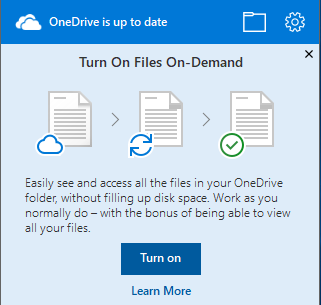
Microsoft is restoring a much-requested feature to its OneDrive cloud storage: placeholders, or what is now called Files on Demand.

The issue is that when users have files in cloud storage, they want easy access to them at any time, but downloading everything to local storage may use too much disk space. There are also scenarios where you do not want a local copy, for example for confidential documents, especially if you do not enable Bitlocker encryption.

You can use OneDrive through the web browser, but Windows users expect File Explorer integration, the most natural way of working.

Windows 8.1 introduced placeholders, where OneDrive (then SkyDrive) files appeared in File Explorer but were not actually downloaded until you opened them. It was a popular feature, but Microsoft removed it in Windows 10, saying that users found it confusing. I suppose they might have thought a file was on their PC, boarded a plane, and then discovered they could not work on the document because they it was not actually there.

This was a user interface issue, but apparently there were other technical issues, particularly for applications using the Windows file APIs. Perhaps the problems were so intricate that the team did not think it could be fixed in the first releases of Windows 10.

Now the feature is back, and I have installed it on the latest Windows Insider build:

image

But could users still be confused? Files in OneDrive now have four possible states:

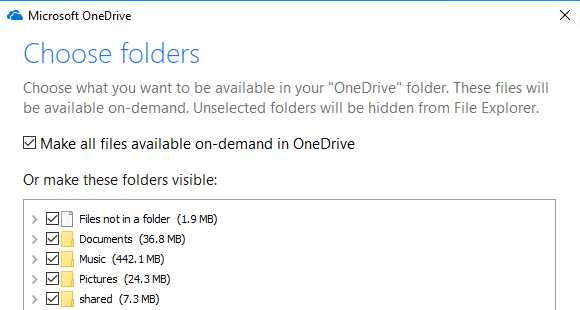
Hidden. You can still choose not to make all folders visible in File Explorer. In fact, hidden seems to be the default for folders previously not synced to the PC, though you can easily check an option to show them all:

image

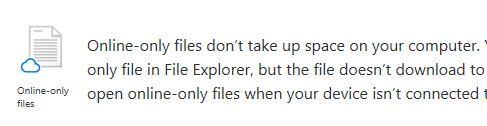
Online-only: Files have a cloud icon and are offline until you open them:

image

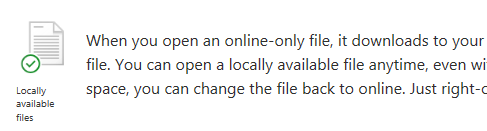
Locally available:

image

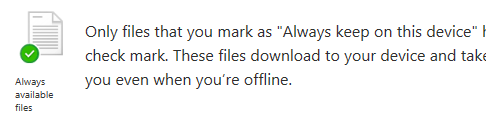
Always available:

image

So what is the difference between “Locally available” and “Always available”? It really is not explained here but my assumption is that locally available files could automatically revert to online-only if there is pressure on disk space. It could catch you out, if you saw that a file was locally available and relied on that, only to find that Windows automatically reverted it without you realising.

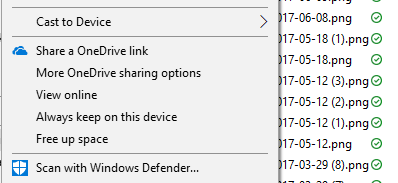
If you right-click a file in OneDrive you can change its status or share a link. If you want to make a file online-only, you choose Free up space (I think it would be clearer if this option were called Online-only, but this is a preview so it might change).

image

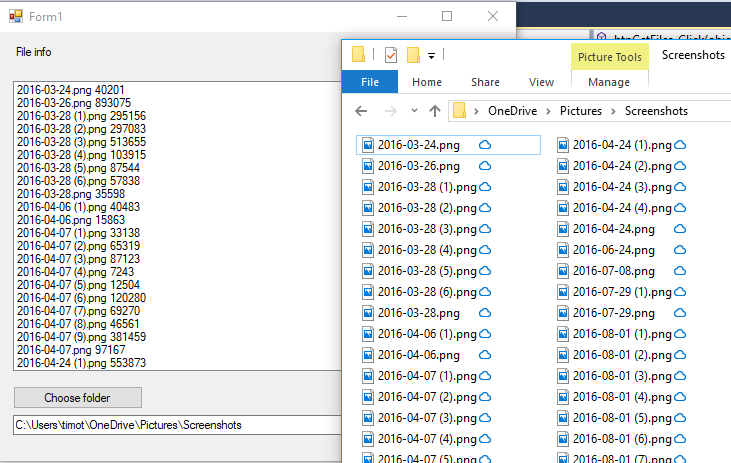
How do online-only files look to applications? I ran up Visual Studio and wrote a utility that iterates through a folder and shows the file name and length:

image

You will note that the API reported the size of the file online, not on disk. This is the kind of thing that can cause issues, though if the file size were reported as zero bytes – well, that could cause issues too.

Incidentally, you can also now sort files in File Explorer by Status. I imagine the latest Windows 10 SDK will also have a way to report status so that applications can catch up.

Server shipments decline as customers float towards cloud

Gartner reports that worldwide server shipments have declined by 4.2% in the first quarter of 2017.

Not a surprise considering the growth in cloud adoption but there are several points of interest.

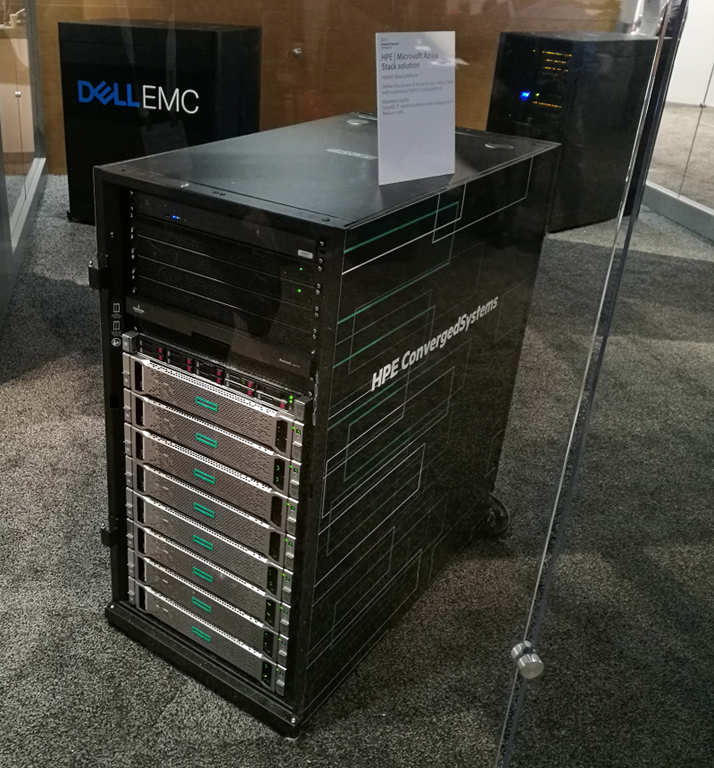
One is that although Hewlett Packard Enterprise (HPE) is still ahead in revenue (over $3 billion revenue and 24% market share), Dell EMC is catching up, still number two with 19% share but posting growth of 4.5% versus 8.7% decline for HPE.

In unit shipments, Dell EMC is now fractionally ahead, with 17.9% market share and growth of 0.5% versus HPE at 16.8% and decline of 16.7%.

Clearly Dell is doing something right where HPE is not, possibly through synergy with its acquisition of storage vendor EMC (announced October 2015, completed September 2016).

The larger picture though is not great for server vendors. Businesses are buying fewer servers since cloud-hosted servers or services are a good alternative. For example, SMBs who in the past might run Exchange are tending to migrate to Office 365 or perhaps G Suite (Google apps). Maybe there is still a local server for Active Directory and file server duties, or maybe just a NAS (Networked Attached Storage).

It follows that the big cloud providers are buying more servers but such is their size that they do not need to buy from Dell or HPE, they can go directly to ODMs (Original Design Manufacturers) and tailor the hardware to their exact needs.

Does that mean you should think twice before buying new servers? Well, it is always a good idea to think twice, but it is worth noting that going cloud is not always the best option. Local servers can be much cheaper than cloud VMs as well as giving you complete control over your environment. Doing the sums is not easy and there are plenty of “it depends”, but it is wrong to assume that cloud is always the right answer.

PowerShell documentation stubs: frustrating for users

I’ve been writing a piece on PowerShell, Microsoft’s generally excellent scripting and automation platform. PowerShell is also largely open source, in its cross-platform, PowerShell Core guise.

Of course I went straight to the official documentation as part of my research. Looks good; but I was puzzled. I would find a promising topic like Object Pipeline, which says:

In this chapter, we will describe how the Windows PowerShell pipeline differs from the pipelines of most popular shells, and then demonstrate some basic tools that you can use to help control pipeline output and also to see how the pipeline operates.

Then I clicked around to read the chapter, and struggled to find the content.

Eventually I figured out the problem, by going to the GitHub repository for the documentation. This content is not yet written. Microsoft’s JuanPablo Jofre has written stubs, either with the intention of completing them later, or perhaps in the hope that the community will step up and help.

Open Source is great, but the user experience of finding stub documents in official documentation, that is not clearly marked as such, is frustrating.

I do not recall this kind of issue in Microsoft documentation written in the old closed-source world, which makes me wonder if the documentation team is under resourced – though the most important part of the documentation, the cmdlet reference, is pretty good in my experience.

My view of PowerShell is that it is now a critically important part of the Microsoft platform. It is not only a tool for managing Windows Server, but also for Microsoft’s online services such as Office 365, Azure Active Directory and other Azure services.

It is worth getting the documentation right.

Windows S: another go at locking down Windows, but the Store is not ready and making it ready is a challenge

There were two big ideas behind Surface RT and Windows RT, the 2012 Windows 8 project which left Microsoft (and some OEM partners) with a mountain of unsold hardware. One was to compete with iPads and Android tablets by making Windows a touch-friendly operating system. The second was that Windows had to move on from being vulnerable to being damaged or completely broken by applications. Traditional Windows applications have installers that run with full admin rights and there is nothing much to stop them installing files in the wrong places, setting themselves to start up automatically, or bloating the Registry (the central configuration database in Windows). “My PC is so slow” is a common complaint, and the cumulative effect of successive application installs is one of the key reasons. Vulnerability to malware is another problem, and one which anti-virus software can never solve completely.

Windows RT solved these problems by disallowing application installs other than via the Windows Store. At that time, Windows Store apps were also locked down, so that a malware infection was only possible if there were a bug in the operating system.

Why did Surface RT and Windows RT fail? The ARM-based hardware was rather slow, which was one of the issues, but a more serious flaw was the lack of compelling applications in the Store. Why was that? Complex reasons, but the chief one is that Windows RT was caught in a cycle of failure. Developers want to make money, and the Windows 8 Store was not sufficiently popular with users to give them a big market. At the same time, users who tried the Store found few applications worth their time, and therefore rarely used it.

The problem was compounded by the unpopularity of Windows 8, which was an unfamiliar environment for the existing Windows users who formed the primary market.

Nevertheless, the thinking behind Windows 8 and Windows RT was not completely off the mark. If only it could get over the hump of unpopularity and lack of apps, it could usher in a new era of Windows devices that were secure, touch-friendly, and resistant to performance decay.

It never did, and with Windows 10 Microsoft appeared to give up. The desktop was back, mouse and keyboard was again primary, and Store apps now ran in windows on the desktop. A special Tablet Mode attempted to make Windows 10 equally as touch-friendly as Windows 8, but did not succeed.

Windows still has those problems though, the ones which Windows RT was intended to solve. Could there be another approach which would fix those issues but in a manner more acceptable to users?

image

Windows S and the Surface Laptop, announced today in New York, is the outcome. It is still Windows 10, but Microsoft has flipped a switch that enforces all apps to be installed from the Windows Store. This switch is already in the latest version of Windows 10, the Creators Update, but off by default:

image

Microsoft has also taken steps to make the Store more attractive for developers. It is no longer necessary to develop apps on a new platform within Windows, as it was for the Windows 8 Store. Now you can simply take your existing desktop application and wrap it to enable Store download. This feature is called the Desktop Bridge, or Project Centennial. Applications so wrapped are not as secure as Windows 8 Store apps were; they can write to files anywhere that the user has permission. At the same time, Microsoft has taken steps to make Desktop Bridge apps better isolated than normal desktop applications. You can read the details of how this works here. It is arranged that applications install all files to a private location, instead of system locations, and that Windows hides this fact from the application code by using redirection. The same is true of the registry. This approach means that file version problems and registry bloat are much less likely. Such issues are still possible because the Desktop Bridge does not redirect file or registry calls outside the application package; these are allowed if the user has permission, for compatibility reasons. Nevertheless, it is a big advance on old-style Windows desktop application installs.

When the user removes a Desktop Bridge application, in most cases all its files and registry entries are cleanly removed.

An important additional protection is that applications submitted to the Store are vetted by Microsoft, so malicious or badly behaved instances should not get through.

Windows S will be installed by default both on Surface Laptop and on a new generation of low-end laptops aimed mainly at the education market.

The benefits of Windows S are real; but unfortunately Microsoft still has not solved the Store problem. Currently, your favourite Windows applications are not in the Store. Microsoft Office will be there, thanks to the Desktop Bridge, but many others are not.

image

Microsoft’s big bet is that thanks to Windows S and other initiatives, the Store will be sufficiently attractive to developers, and sufficiently easy to target, that it will soon offer a full range of applications including all your favourites.

Right now though, if you get a Windows S laptop, you will probably end up buying the upgrade to Windows 10 Pro, for $49.00 or equivalent. Then you can install any Windows desktop application. However, by doing so you make it unnecessary for developers to bother using Desktop Bridge to wrap their applications – so they might never do so.

Windows S has a few other limitations:

Microsoft Edge is the default web browser on Microsoft 10 S. You are able to download another browser that might be available from the Windows Store, but Microsoft Edge will remain the default if, for example, you open an .htm file. Additionally, the default search provider in Microsoft Edge and Internet Explorer cannot be changed.

In addition, it cannot join a local Windows domain (a problem for many businesses), though it can join Azure AD, the Office 365 directory.

Microsoft’s goal here is worthwhile: to move Windows into a new place in terms of security and resilience. Getting it there though will not be easy.

Xamarin Challenge shows bumps in Microsoft’s path to cross-platform mobile

Microsoft ran a Xamarin Challenge over on Paul Thurrott’s site. The idea was to demo how to build a cross-platform mobile app with Microsoft’s cross-platform mobile toolkit.

The challenge was in three steps. You build a weather app, complete with crash analytics on the Visual Studio Mobile Center.

image

Someone did a lot of work on this, and the app looks pretty and works nicely once you get it running.

Despite this, I am not sure that the challenge was altogether successful. It is a step-by-step which in theory involves no developer expertise as you simply copy and paste code into your project. I am not sure that is the best way to learn, but that is by the by. I doubt that learning how to code for Xamarin was the primary goal of the challenge. I’d guess it was more about showing how easily you can build a cross-platform app (Android, iOS and Windows UWP) using Xamarin, C# and Visual Studio 2017.

Well, in fact a little bit of developer expertise was required to complete the challenge, because the step by step instructions did not quite work (in my experience). I did not make a note of all the times I had to do something not in the given steps, but there were many occasions, the main issues being around using the Visual Studio Android emulator, NuGet package management, and a few small tweaks to the code itself. The code as given made no allowance for the cloud services it called being offline, or the connection to the internet not being available, but would simply crash in this case.

The challenge could be an excellent resource for Microsoft and Xamarin if the company drills down into the problems developers experienced trying to complete the challenge, recorded in this forum thread. Here are a few examples:

Myself and 5 other developers in our office attempted the challenge and none of us have been able to get past the first challenge. We are not Microsoft Visual Studio experts so we had hoped following the provided instructions would be sufficient.

The upload was failing on a discrepancy between 2 different versions of the Json package, which somehow had crept into the project. Installing over 40 updates in Nuget resolved this.

Many thanks for running this challenge –this was very useful and worthwhile. I just wish modern development did not feel like trying to dance on a mile high stack of chairs with a leg missing on the bottommost one!

I got a late start on the challenge and was able to complete part 1 pretty quickly but was only able to run the UWP locally. I cannot seem to get either the Windows mobile emulator or Android emulators to run successfully. I can’t deploy to the Window Mobile emulator, it returns an error indicating the emulator failed to start. As for the Android emulator, it launches, but the emulator does not have a connection to the network, so the application encounters an exception.

Note that those posting to the forum were more likely to be the ones with problems; there could in theory be many others who breezed through without any issues. But as one participant writes, “I’d be interested in what percentage of participants actually got to the end of the challenge with no problems.”

I like Xamarin; it does an amazing job in enabling cross-platform development with C# and it would be my tool of choice for cross-platform mobile development. It is not always straightforward though, and the kinds of issues experienced by the challenge participants illustrate what can go wrong.

If you just use the native toolkits, such as Android Studio and Xcode, you will have a smoother experience, but of course miss out on the productivity benefit of cross-platform code. That is the trade-off you make.

Microsoft financials: cloud good, Surface down, and “We had no material phone revenue this quarter”

Microsoft has released its financial results for the third quarter of its financial year. Revenue was up 8% year on year, and operating income up 6%. I’m always interested in the segmentation of the figures so here is a quick table:

Quarter ending  March 31st 2017 vs quarter ending March 31st 2016, $millions

Segment Revenue Change Operating income Change
Productivity and Business Processes 7958 +1437 2783 -198
Intelligent Cloud 6763 +667 2181 +5
More Personal Computing 8836 -703 2097 +346
Corporate and Other -1467 +158 -1467 +158

There is a bit more detail in the earnings slide:

image

A few points of note:

Cloud growth remains on track. Office 365 business revenue is up 45% year on year, according to Microsoft. Dynamics 365 revenue is up 81%. Azure revenue is up 93%. Of course these figures are offset by static or declining sales of on-premises licenses, though Microsoft does not spell this out precisely.

Windows is not doing too badly, despite continuing weakness in the PC market. OEM revenue up 5%, which the company attributes to “a higher mix of premium SKUs”. Surface is weak. Revenue is down 26%. Microsoft blames “heightened price competition and product end of lifecycle dynamics.” The truth is that the Surface range is not good value versus the competition. There should be a perfect marriage of hardware and software, given that it is all Microsoft, but instead there have been too many little issues. The likes of HP and Dell do a better job at lower price and with easier upgradeability.

“We had no material phone revenue this quarter” says Microsoft. I remain sad about the killing of Windows Phone, and regard it as a mistake, but that is a done deal.

Xbox is doing OK. Xbox live revenue growth has offset declining hardware sales.

Search revenue is up 8%. Nobody pays for search, so this is about advertising. Windows 10 drives users to “Cortana” search, and Edge defaults to Bing. Users can easily find defaults changed inadvertently, which is annoying, but Microsoft has a touch competitor (Google).


A reminder of Microsoft’s segments:

Productivity and Business Processes: Office, both commercial and consumer, including retail sales, volume licenses, Office 365, Exchange, SharePoint, Skype for Business, Skype consumer, OneDrive, Outlook.com. Microsoft Dynamics including Dynamics CRM, Dynamics ERP, both online and on-premises sales.

Intelligent Cloud: Server products not mentioned above, including Windows server, SQL Server, Visual Studio, System Center, as well as Microsoft Azure.

More Personal Computing: What a daft name, more than what? Still, this includes Windows in all its non-server forms, Windows Phone both hardware and licenses, Surface hardware, gaming including Xbox, Xbox Live, and search advertising.

Microsoft needs to fix its Android emulator

Microsoft wants Windows 10 to be an ideal developer operating system, with its Linux subsystem, and Visual Studio 2017 is notable for its strong cross-platform development tools.

There is an annoyance though. Google’s Android SDK includes an emulator for debugging mobile applications, but it requires hardware acceleration in the form of Intel’s HAXM (Hardware Accelerated Execution Manager). Otherwise you get an error as below:

image

Unfortunately this is incompatible with Hyper-V, the hypervisor built into Windows. You cannot fix this by stopping Hyper-V services; it is set when Windows boots.

Hyper-V is increasingly important for general Windows developers. It is not only useful for running up VMs on which to test stuff, but also for the official Docker tools and testing Windows containers.

The solution should be to use the Visual Studio Emulator for Android. This is based on Hyper-V so no problem.

Unfortunately it does not currently work very well. On one of my PCs it starts, but without internet connectivity, rendering it useless for many apps. On another PC it does not start at all.

image

I spent a bit of time trying to get it to work. The networking problem seems to be related to conflicts with other applications using Hyper-V. Specifically, the Visual Studio Emulator for Android uses two Hyper-V virtual network adapters, one connected to the Windows Phone Emulator Internal Switch, and the other connected to an external virtual switch. This second adapter gets its network settings using DHCP (there is no way to change this). The emulator app proxies internet connections from the internal to the external network.

The reference to Windows Phone comes about because this is essentially the Windows Phone emulator adapted to run Android.

In my Hyper-V setup I have another internal switch, called DockerNAT, used by the Docker tools, as well as a third internal switch which I’ve used for other things. In the emulator’s network settings I can actually see four Desktop Adapters (in addition to the primary “Emulator adapter”, of which only one has internet connectivity via my business network. I theorised that the emulator is attempting to proxy via the wrong adapter, and disabled the others in Control Panel – Network Connections. However it still does not connect.

Judging by posts like this and this, there may be some cocktail of settings in Hyper-V and in Control Panel that gets this working. Bear in mind though that I want everything else to work too.

I also note that Windows developer evangelist Scott Hanselman suggests setting up a dual boot arrangement so that you can boot with HAXM enabled when you want to develop on Android, and with Hyper-V otherwise – implying that there is no other easy fix.

This works, though it is a dreadful solution. Rebooting is not only time-consuming, but disruptive to the flow of your work, and having to reboot with special settings just to work on Android is painful.

It strikes me that this could be fixed with a bit of effort. If Microsoft is serious about persuading developers to use Windows 10, Visual Studio and Xamarin for cross-platform mobile apps, that would be a good idea.

Email hassles with migration to Windows 10 – if you use Windows Live Mail

Scenario: you are using Windows 7 and for email, Windows Live Mail, Microsoft’s free email application. You PC is getting old though, so you buy a new PC running Windows 10, and want to transfer your email account, contacts and old messages to the new PC.

Operating systems generally come with a built-in mail client, and Windows Live Mail is in effect the official free email client for Windows 7. It was first released in 2007, replacing Windows Mail which was released with Vista in 2006. This replaced Outlook Express, and that evolved from Microsoft Mail and News, which was bundled with Internet Explorer 3 in 1996. Although the underlying code has changed over the years, the user interface of all these products has a family resemblance. It is not perfect, but quite usable.

Windows 8 introduced a new built-in email client called Mail. Unlike Windows Live Mail, this is a “Modern” app with a chunky touch-friendly user interface. Microsoft declared it the successor to Windows Live Mail. However it lacks any import or export facility.

The Mail app in Windows 10 is (by the looks of it) evolved from the Windows 8 app. It is more intuitive for new users because it no longer relies on a “Charms bar” to modify accounts or other settings. It still has no import or export feature.

The Mail app is also not very good. I use it regularly now myself, because there is an account I use which works in Mail but not in Outlook. I don’t like it. It is hard to articulate exactly what is wrong with it, but it is not a pleasure to use. One of the annoyances, for example, is that the folders I want to see are always buried under a More button. More fundamentally, it is a UWP (Universal Windows Platform) app and doesn’t quite integrate with the Windows desktop as it should. For example, pasting text from the clipboard is hilariously slow and flashes up a “Pasting” message in an attempt to disguise this fact. Sometimes it behaves oddly, an open message closes unexpectedly. It is like the UWP Calculator app, another pet hate of mine – I press the Calculator key on my Windows keyboard, up comes the Calculator, then I type a number and it doesn’t work, I have to click on it with the mouse before it accepts input. Just not quite right.

I am getting a little-off topic. Back to my scenario: how are you meant to transition from Windows Live Mail, the official mail client for Windows 7, to the Mail app in Windows 10, if there is no import feature?

In one way I can explain this. First, Microsoft does not really care about the Mail app. Everyone at Microsoft uses Outlook for email, which is a desktop application. This is important, because it means there is no internal pressure to make the Mail app better.

Second, Microsoft figures that most people now have a cloud-centric approach to email. Your email archive is in the cloud, so why worry about old emails in your Mail client?

This isn’t always the case though. A contact of mine has just been through this exact scenario. He has happily used Windows Live Mail (and before that Outlook Express) for many years. He has an archive of old messages which are valuable to him, and they are only in Windows Live Mail.

Unfortunately Microsoft does not currently have any solution for this. The answer used to be that Windows Live Mail actually works fine on Windows 10, so you can just install it. However Microsoft has declared Windows Live Essentials, of which Live Mail is a component, out of support and it is no longer available for download.

image

Incidentally I am writing this post in Windows Live Writer, another component of Essentials, but which fortunately has been published as open source.

If you can find the Windows Live installation files though, it still runs fine on Windows 10. You do need the full setup, called wlsetup-all.exe, rather than the web version which downloads components on demand. Here it is, installed and connected on Windows 10:

image

This application is no longer being maintained though, and there are some compatibility issues with some email services. This will get worse. The better answer then is to migrate to full Outlook. However, Microsoft makes Outlook expensive for home users, presumably to protect its business sales. Office Home and Student does not include Outlook, and to buy it separately costs more, currently £109 in the UK. Another option is to subscribe to Office 365 and pay a monthly fee.

Even if you intend to migrate to Outlook eventually, it may make sense to use Live Mail for a while on Windows 10. There is an export option to “Exchange” format which means you can migrate messages from Live Mail to Outlook.

This is all more work than it should be, for what must be a common scenario. You would think that migrating from the official mail client for Windows 7, to the official mail client for Windows 10, would not be so difficult.