Category Archives: microsoft

QCon London 2017: IoT insecurity, serverless computing, predicting technical debt, and why .NET Core depends on a 36,000 line C++ file

I’m at the QCon event in London, a multi-vendor conference aimed primarily at enterprise developers and architects.

image
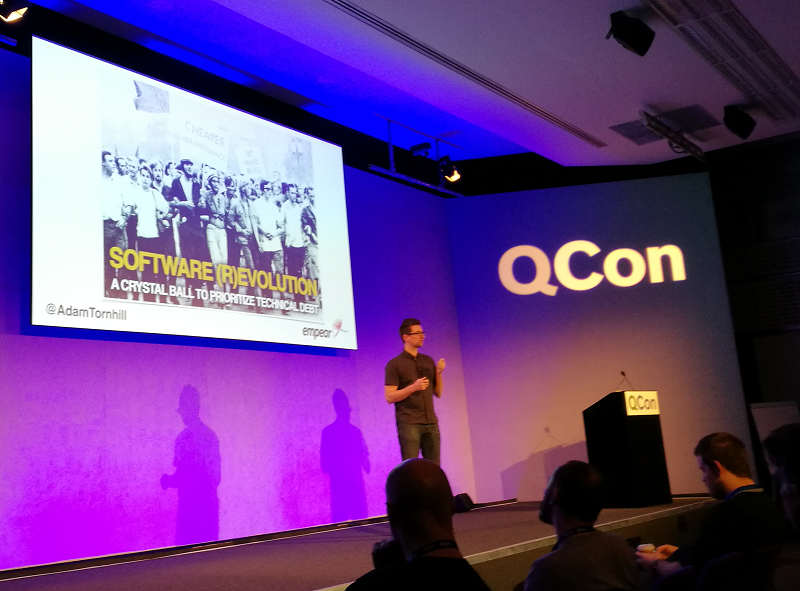
Adam Tornhill speaks at QCon London 2017

A few notes on day one. Alasdair Allan gave a keynote on security and the internet of things; it was an entertaining and disturbing résumé of all that is wrong with the mad rush to connect everything to the internet though short on answers; our culture has to change so that organisations such as hotels, toy manufacturers, appliance vendors and even makers of medical equipment take security seriously but it is not clear how this will come about unless so many bad things happen that customers start to insist on it.

Michael Feathers spoke on strategic code deletion, part of a track on “Dark code: the legacy/tech debt dilemma.” This was an excellent session; code is added to projects more often than it is removed, and lack of hygiene in this regard has risks including security, reliability and performance. But discovering which code is safe to remove is not always trivial, and Feathers explored some of the nuances and suggested some techniques.

Steve Faulkner gave a session on serverless JavaScript, or more specifically, using Amazon Web Services (AWS) Lambda and API Gateway. Faulkner said that the API Gateway was the piece that made Lambda viable for them; he is Director of Platform Engineering at Bustle, a busy content site based in the USA. In a nutshell, moving from EC2 VMs to Lambda has yielded both financial savings and easier management. The only downside is performance; each call to a Lambda function takes a minimum of 100ms whereas the same function on a WM might take 20ms. In the end it is not critical as performance remains satisfactory.

Faulkner said that AWS is ahead of its competitors (Microsoft, Google and IBM were mentioned) but when pressed said that both Microsoft and Google offered strong alternatives. Microsoft’s Azure Functions are spoilt by the need to specify a maximum scale, rather than scaling automatically, but its routing solution is in some ways ahead of AWS, he said. Google’s Functions will be great when out of beta.

Adam Tornhill spoke on A Crystal Ball to prioritise Technical Debt, another session in the dark code track. This was my favourite of the day. Tornhill presented a relatively simple way to discover what code you should refactor now in order to avoid future issues. His method is based on looking for files with many lines of code (a way of measuring complexity) and many commits (suggesting high importance and activity), the “hotspots” in your projects. For more detail and some utilities see Tornhill’s blog.

Why do we end up with bad or risky code in our software? Tornhill said that developers often mistake organisational problems for technical problems and try unsuccessfully to fix them with tools.

He also mentioned an example of high-risk code, the file gc.cpp which performs garbage collection in .NET Core, the next generation of Microsoft’s .NET Framework. This file is over 36,000 lines and should be refactored. There is a discussion on the subject here. It exactly bears out Tornhill’s point. A developer proposes to refactor the file, back in March 2015. Microsoft’s Karel Zikmund defends the status quo:

Why it is this way? … Partly historical reasons (it is this way since the start). Partly because devs working on it didn’t feel the urge to refactor it. Partly because splitting of gc.cpp is non-trivial and risky and because it does not bring too big value (ramp up in the code base can be gained also in the combination of reading BOTR and debugging the code). Why it is staying this way? … Cost/benefit/risk ratio is IMO not in favor of a change here.

Few additional thoughts:
Am I happy that there is only 1 large file? No, but it doesn’t hurt me much either.
Do I see the disadvantages of large file? Yes, but I don’t think they are huge. More like minor annoyances with easy workarounds.
And to turn it around: Do you see the risk of any changes here? Do you see the cost of extra careful code reviews to mitigate the risk?

Strictly technically, we truly believe this is a formatting change. If it was simple to split it up and if it would be low risk and if it would be very easy to review, it might be worth the ‘minor’ improvements mentioned above … but I don’t see that combo happening (not on a noticeable scale in gc.cpp).
On a personal note: I also trust CLR team that if all these three things were true, the refactoring would have happened long time ago.

Note that some of this code goes back beyond .NET Core to the .NET Framework, the “historical reasons” that Zikmund mentions. We can see that the factors preventing change are as much organisational as technical.

Finally I attended a session on Microsoft’s Cognitive Services. Note this was in the “Sponsored solution track”. Microsoft also has a stand here focused on its Cognitive Services.

There is not much Microsoft Platform content at QCon and it seems under-represented, though many of the sessions are applicable to developers on any platform. I am not sure of all the reasons for this; there used to be an Advanced .NET track at QCon. It does reflect some overall development trends as well as the history and evolution of QCon itself. That said, there is a session on SQL Server on Linux so the company is not completely invisible here.

As for the session, it was a reasonable overview of Microsoft’s expanding Cognitive Services APIs, which covers things like image recognition, speech recognition and more. I would have liked more depth and would have preferred to hear from a practitioner, in other words, “we built an application on Cognitive Services and this is what we learned.” I am not altogether clear why the company is pushing this so hard, except that it is a driver for developers to use Azure. I asked about how developers should deal with the problem of uncertainty*, in other words, that Cognitive Services does not deliver absolute results but rather draws conclusions with a confidence score – eg it might be pretty sure that an image contains a human face, fairly sure that it is male, and somewhat confident that the age of the person is mid forties. When the speaker demoed speech recognition it went pretty well except that “Start” was transcribed as “Stop.” This stuff is difficult.

Looking forward now to Day Two: Containers, Machine Learning, and more.

*More concisely expressed as “Systems are moving from the deterministic to the probabilistic” by Stephen Whitworth, who is now speaking on Machine Learning.

New Office 365 OneDrive for Business sync client now supports team sites

Microsoft has announced new capabilities for its next-generation OneDrive for Business sync client – the software that lets users access OneDrive documents through Windows Explorer rather than having to go via a web browser.

Technically, there are two ways to access OneDrive with Windows Explorer. One uses WebDAV and only works online, the other makes a local copy of the documents and synchronises them when it can. Microsoft pushes users towards the second option. If you use WebDAV, repeated authentication prompts and lack of offline capabilities are annoyances that many find it hard to cope with.

Problem is that the old OneDrive for Business sync client, called Groove, is just not reliable. Every so often it stops syncing and there is often no solution other than to delete all the local copies and start again.

Microsoft is therefore replacing it with a new OneDrive for Business sync client, which has been in preview since September 2015. “The preview client adds OneDrive for Business connectivity to our proven OneDrive consumer client,” explained Microsoft, abandoning the problematic Groove.

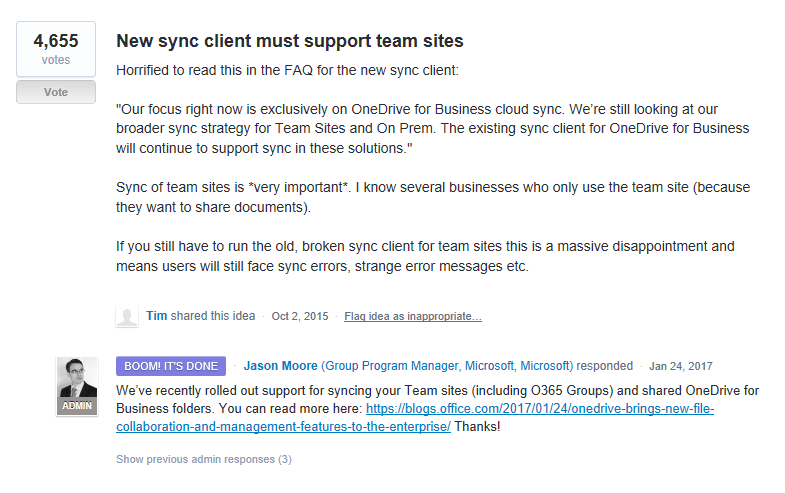
There was a snag though. The new client did not support Team Sites, also known as SharePoint Online, but only personal OneDrive for Business cloud storage. Many businesses make more use of Team Sites than they do of the personal storage. Users with both had to run both the old and new sync clients side by side.

I was among those complaining so it is pleasing to see that Microsoft, a mere 15 months later, has met my request, by adding support for Team Sites to its new client.

image

(I had no idea until I looked today how much support the feedback had received).

Today’s announcement also includes a new standalone Mac client, which can be deployed centrally, and an enhancd UI with an Activity Center.

There are also new admin features in the Office 365 dashboard, like blocking syncing of specified file types, control over device access, and usage reporting.

There may still be some snags – and note that the new client is still a preview.

Competitors like DropBox and Box have some technical advantages, but Microsoft’s key benefit is integration with Office 365, and the fact that it comes as part of the bundle in most plans. If it can iron out the technical issues, of which sync has to date been the most annoying, it will significantly strengthen its cloud platform.

Microsoft Office 365 Activation Hassles

Imagine you are a customer of Microsoft’s Office 365 service, including a subscription to the Office desktop applications like Word, Excel and Outlook.

One day you click on the shortcut for Word, but instead of opening, it just shows a “Starting” splash screen which never progresses.

Being smart, you try to start Word in safe mode by holding down the Ctrl key, but the exact same thing happens.

Annoying, when you want to do your work. What is going on?

I took a look at a case like this. Two things you should do (after the usual reboot):

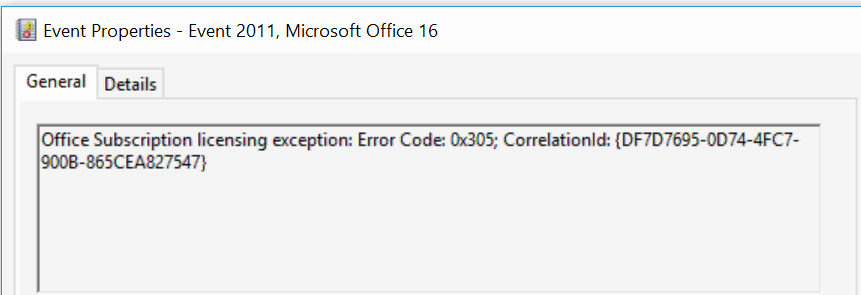
1. Look in the event viewer. Here, I found a clue that the issue is related to software activation, specifically Event 2011 “Office Subscription Licensing exception”:

image

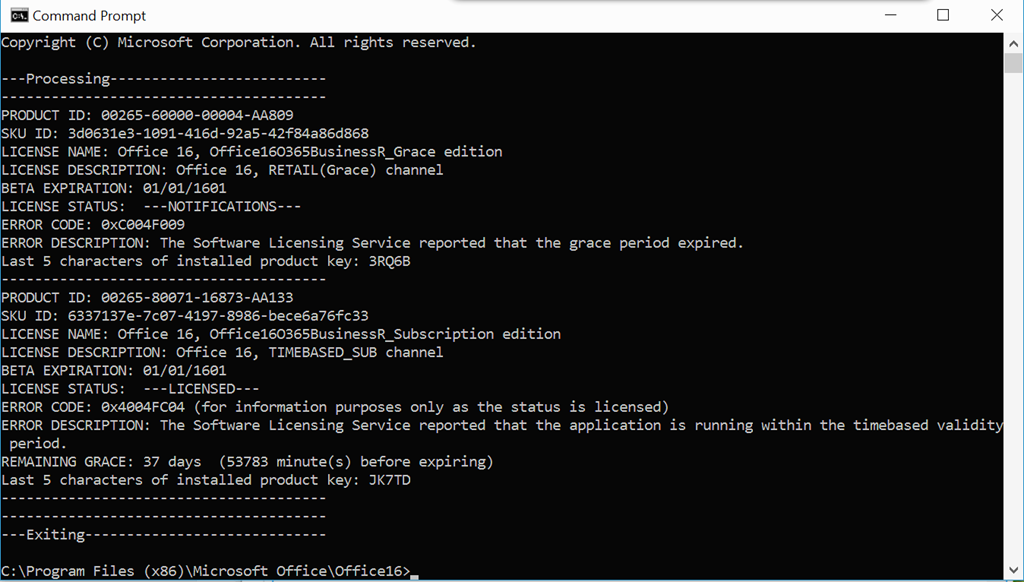
2. For all things related to Office licensing, open a command prompt, go to (for example) C:\Program Files (x86)\Microsoft Office\Office16, and type:

cscript ospp.vbs /dstatus

In this case I got the following:

image

This told me that Windows thinks TWO product keys for Office are installed. One has expired, the other is fine.

The guilty party may (or may not) be the trial version of Office typically pre-installed with a new PC. Or it could be a consequence of changing your Office 365 subscription. Neither would be the fault of the user, who is fully licensed and has done nothing other than follow Microsoft’s normal procedures for installing Office 365.

Solution: we reinstalled Office from the Office 365 portal, and attempted to remove the dud product key with:

cscript ospp.vbs /unpkey:<Last five characters of product key>

as explained here. All is well for the moment.

This kind of thing drives me nuts though. Activation and subscription license checking is for the benefit of the vendor, not the user, and should never get in the way like this.

Further, cannot Microsoft find some way of informing the user when this happens, and not have Word simply hang on starting? How difficult is it to check for licensing and activation issues, and throw up a message?

From Windows Embedded to cloud: Microsoft announces the Connected Vehicle Platform

Microsoft has announced the Connected Vehicle Platform, at the CES event under way in Las Vegas.

image

The company is not new to in-car systems, but its track record is disappointing. It used to be all about Windows Embedded, using Windows CE to make a vehicle into a smart device.

Ford was Microsoft’s biggest partner. It built Ford SYNC on the platform and in 2012 announced five years of partnership and 5 million SYNC-enabled vehicles.

However in 2014 Ford announced SYNC 3 with no mention of Microsoft – because SYNC 3 uses Blackberry’s QNX.

What went wrong? There’s a 2014 analysis from Bill Howard that offers a few clues. The bit that chimes with me is that Microsoft was too slow in updating the system. The overall Windows story over the last 10 years is convoluted to say the least, with many changes to the platform and disruptive (in a bad way) strategy shifts. The same factor is a large part of why Windows Phone failed.

It is not clear at this stage whether or not Microsoft’s Connected Vehicle Platform partners (which include Renault-Nissan and BMW) will use Windows Embedded in their solutions; but what is notable is that Microsoft’s release makes no mention of it. The company has shifted to a cloud strategy, and is primarily offering Azure services rather than mandating how manufacturers choose to consume them. The detail of the announcement identifies five key areas:

  • Telematics and Predictive services
  • Marketing (“Customer insights and engagement”)
  • Productivity (Office 365, Skype)
  • Connected ADAS (Advanced Driver Assistance Systems), ie. the car helping you to drive
  • Advanced Navigation

Cortana also gets a mention. We may think of Cortana as a virtual assistant, but what this means is a user interface to intelligent services.

There is big competition for all this of course, with Google, Amazon and Apple also in this space. There is also politics involved. If you read Howard’s analysis linked above, note that he mentions how the auto companies dislike restrictions such as Google insisting that you can’t have Google Search unless you also use Google Maps (I have no idea if this is still the case). There is a tension here. In-car systems are an important value-add for customers and critical to marketing vehicles, but the auto companies do not want their vehicles to become just another channel for big data-gathering companies like Google and Amazon.

Another point of interest is how smartphones interact with your car. If you want a simple and integrated experience, you can just dock your phone and use it for navigation, communication and entertainment – three key areas for in-car systems. On the other hand, a docked phone will not have the built-in screen and control of vehicle features that an embedded system can offer.

Microsoft to release Visual Studio for the Mac – except it is not

Microsoft’s Mikayla Hutchinson (ex Xamarin) has announced Visual Studio for the Mac:

This is an exciting development, evolving the mobile-centric Xamarin Studio IDE into a true mobile-first, cloud-first development tool for .NET and C#, and bringing the Visual Studio development experience to the Mac.

I tend to agree that it is a significant piece of news. It signals Microsoft’s intent to offer first-class support for Mac developers. Other than at Microsoft events, the majority of the developers I see at conferences carry Macs rather than Windows laptops, and if the company is to have any hope of winning them over to its cross-platform ASP.NET web application framework, getting excellent development support on Macs is a critical step.

Naming things is not Microsoft’s greatest strength though. Sometimes it gives different things the same name, such as with OneDrive and OneDrive for Business, or Outlook for Windows and Outlook for iOS and Android. It makes sense from a marketing perspective, but it is also confusing.

This is another example. No, Microsoft has not ported Visual Studio to the Mac. This is a rebrand of Xamarin Studio, originally a cross-platform IDE for its C# mobile app framework, but more recently Mac-only.

Hutchinson makes the best of it:

Its UX is inspired by Visual Studio, yet designed to look and feel like a native citizen of macOS …. Below the surface, Visual Studio for Mac also has a lot in common with its siblings in the Visual Studio family. Its IntelliSense and refactoring use the Roslyn Compiler Platform; its project system and build engine use MSBuild; and its source editor supports TextMate bundles. It uses the same debugger engines for Xamarin and .NET Core apps, and the same designers for Xamarin.iOS and Xamarin.Android.

The common use of MSBuild is a key point. “Although it’s a new product and doesn’t support all of the Visual Studio project types, for those it does have in common it uses the same MSBuild solution and project format. If you have team members on macOS and Windows, or switch between the two OSes yourself, you can seamlessly share your projects across platforms,” says Hutchinson.

image

The origins of what will now be Visual Studio for the Mac actually go back to the early days of the .NET Framework. Developer Mike Kruger decided to write an IDE in C# in order to work more easily with a pre-release of .NET Framework 1.0. His IDE was called SharpDevelop. Here is an early version, from 2001:

image

Of course by then most developers used Visual Studio to work with C#, but there were several reasons why SharpDevelop continued to have a following. Unlike Visual Studio, it was built in C# and you could get all the code. It was free. It was also of interest to Mono users, Mono being the open source implementation of the .NET Framework originated by Miguel de Icaza (also now at Microsoft). In 2003, Mono developers started work on porting SharpDevelop to run on Linux using the GNOME toolkit (Gtk#). This forked project became MonoDevelop.

Xamarin (the framework) of course has its roots in Mono and when Xamarin (the company) decided to create its own IDE it based it on MonoDevelop. So MonoDevelop evolved into Xamarin Studio.

Incidentally, SharpDevelop is still available and you can get it here.  MonoDevelop is still available and you can get it here.

So now some sort of circle is complete and what began as SharpDevelop, a rebel imitation of Visual Studio, will now be an official Microsoft product called Visual Studio for the Mac – though how much SharpDevelop code remains (if any) is another matter.

Historical digression aside, the differences between Visual Studio and Visual Studio for the Mac are not the only point of confusion. There is also Visual Studio Code, an editor with some IDE features, which is cross-platform on Windows, Mac and Linux. This one is based on the Google-sponsored Chromium project and has won quite a few friends.

Should Mac users now use Visual Studio Code, or Visual Studio for the Mac, for their .NET Core or ASP.NET Core development? Microsoft will say “your choice” but it is a good question. The key here is which project will now get more attention from both Microsoft and other open source contributors.

Still, we should not complain. Two rival Microsoft IDEs for the Mac are a considerable advance on none, which was the answer until Visual Studio Code went into preview in April 2015.

Hands on with Microsoft’s ADConnect

I’ve been trying Microsoft’s ADConnect tool, the replacement for the utility called DirSync, which synchronises on-premises Active Directory with Azure AD, the directory used by Office 365.

It is therefore a key piece in Microsoft’s hybrid cloud story.

In my case I have a small office set-up with Active Directory running on Server 2012 R2 VMs. I also have an Office 365 tenant that I use for testing Microsoft’s latest cloud stuff. I have long had a few basic questions about how the sync works so I created a small Server 2012 R2 VM on which to install it.

ADConnect can be installed on a Domain Controller, though this used to be unsupported for DirSync. However it seems to be tidier to give ADConnect its own server, and less likely to cause problems.

There are a number of pre-requisites but for me the only one that mattered was that your domain must be set up on the Office 365 tenant before you configure ADConnect. You cannot configure it using the default *.onmicrosoft.com domain.

Adding a domain to Office 365 is straightforward, provided you have access to the DNS records for the domain, and provided that the domain is not already linked to another Office 365 tenant. This last point can be problematic. For example, BT uses Office 365 to provide business email services to its customers. If you want to migrate from BT to your own Office 365, detaching the domain from BT’s tenant, to which you do not have admin access, is a hassle.

When I tried to set up my domain, I found another problem. At some point I must have signed up for a trial of Power BI, and without my realising it, this created an Office 365 tenant. I could not progress until I worked out how to get admin access to this Power BI tenant and assign my user account a different primary email address. The best way to discover such problems is to attempt to add the domain and note any error messages. And to resist the wizard’s efforts to get you to set up your domain in a different tenant to the one that you want.

That done, I ran the setup for ADConnect. If you use the Express settings, it is straightforward. It requires SQL Server, but installs its own instance of SQL Server Express LocalDB by default.

image

You enter credentials for your Office 365 tenant and for your on-premises AD, then the wizard tells you what it will do.

image

I was interested in the link on the next screen, which describes how to get all your Windows 10 domain-joined computers automatically “registered” to Azure AD, enabling smoother integration.

image

If you follow the link, and read the comments, you may be put off; I was. It involves configuring Active Directory Federation Services as well as Group Policy and looks fiddly. I suspect this is worth doing though, and hope that configuration will be more automated in due course.

The next step was to look at the outcome. One thing that is important to understand is that synced users are distinct from other Office 365 users. Imagine then that you have existing users in Office 365 and you want to match them with existing on-premises users, rather than creating new ones. This should work if ADConnect can match the primary email address. It will convert the matching Azure AD user into a synced user. Otherwise, it will just create new users, even if there are existing Azure AD users with the same names. If it goes wrong, there are ways to recover. Note that the users are not actually linked via the email address, they are linked by an attribute called an ImmutableID.

The Office 365 admin portal is fully aware of synced users and the user list shows the distinction. Users are designated as “In Cloud” or “Synced with Active Directory”.

image

Synced users cannot be deleted from the Office 365 portal. You delete them in on-premises AD and they disappear.

The next obvious issue is that if you dive in like me and just install ADConnect with Express Settings, you will get all your on-premises users and groups in Azure AD. In my case I have things like “ASP.NET Machine Account”, various IUSR* accounts, users created by various applications, and groups like “DHCP Administrators” and “Exchange Trusted Subsystem” that do not belong in Office 365.

These accounts do not do much harm; they do not consume licenses or mess up Office 365. On the other hand, they are annoying and confusing. You may also have business reasons to exclude some users from synchronization.

Fortunately, there are various ways to fine-tune, both before and after initial synchronization. You can read about it here. This document also states:

With filtering, you can control which objects should appear in Azure AD from your on-premises directory. The default configuration takes all objects in all domains in the configured forests. In general, this is the recommended configuration.

I find this puzzling, in that I cannot see the benefit in having irrelevant service accounts and groups synced to Office 365 – though it is not entirely obvious what is safe to exclude.

I went back to the ADConnect tool and reconfigured, using the Domain and OU filtering option. This time, I selected what seems to be a minimal configuration.

image

The excluded objects are meant to be deleted from Office 365, but so far they have not. I am not sure if this will fix itself. (Update: it did, though I also re-ran a full initial sync to help it along). If not, you can temporarily disable sync, manually delete them in the Office 365 portal, then re-enable sync.

What if you want to exclude a specific user? I used the steps described to create a DoNotSync filter based on setting extensionAttribute15. You use the ADConnect Synchrhonization Rules Editor to create the rule, then set the attribute using ADSIEdit or your favourite tool. This worked, and the user I marked disappeared from Office 365 on the next sync.

image

Incidentally, you can trigger an immediate sync using this PowerShell command:

Start-ADSyncSyncCycle -PolicyType Delta

Complications

Setting up ADConnect does introduce complexity into Office 365. You can no longer do everything through the portal. It is not only deletion that does not work. When I tried to set up a mailbox in Office 365 I hit this message:

image

“This user’s on-premises mailbox hasn’t been migrated to Exchange Online. The Exchange Online mailbox will be available after migration is completed.”

I can see the logic behind this, but there might be cases where you want a new empty mailbox; I am sure there is a way around it, but now there is more to go wrong.

Update: there is a rather important lesson hiding here. If you have are running Exchange on-premises and want to end up on Office 365 with ADConnect, you must take care about the order of events. Once ADConnect is running, you cannot do a cutover migration of Exchange, only a hybrid migration. If you don’t want hybrid (which adds complexity), then do the cutover migration first. Convert the on-premise mailboxes to mail-enabled users. Then run ADConnect, which will match the users based on the primary email address.

It is also obvious that ADConnect is designed for large organisations and for administrators who know their way around Active Directory. There is a simplified sync tool in Windows Server Essentials, though I have not used it. It would be good though to see something between Essentials and the complexity of ADConnect. For example, I had imagined that there might be a mapping tool that would let you see how ADConnect intends to match on-premises users with Office 365 users and let you amend and exclude users with a few clicks.

Microsoft has been working on this stuff for some time and is not done yet. In preview for example is Group Writeback, which lets you sync Office 365 groups back to on-premises AD.

image

Maybe Microsoft might also consider using different icons for the various ADConnect utilities as they do look a bit silly if you pin them to the taskbar:

image

The tools are:

  • Azure ADConnect (Wizard)
  • Synchronization Rules Editor (advanced filtering)
  • Synchronization Service WebService Connector Config (SOAP stuff)
  • Synchronization Service Key Management (what it says)

On the plus side, I have not hit any mysterious Active Directory errors and it has all worked without having to set up certificates, reverse proxies, special DNS entries (other than the standard ones for Office 365), or anything too fiddly, though note that I avoided ADFS and automatic Windows 10 registration.

Final thoughts

If you need to implement this, you will find doing what I did and trying it out on a test domain is worth it. There seem to be quite a few pitfalls, and as ever, it is easier to get it right at the start rather than trying to fix things up afterwards.

Microsoft improves Windows Subsystem for Linux: launch Windows apps from Linux and vice versa

The Windows 10 anniversary update introduced a major new feature: a subsystem for Linux. Microsoft marketing execs call this Bash on Windows; Ubuntu calls it Ubuntu on Windows; but Windows Subsystem for Linux is the most accurate description. You run a Linux binary and the subsystem redirects system calls so that it behaves like Linux.

image

The first implementation (which is designated Beta) has an obvious limitation. Linux works great, and Windows works great, but they do not interoperate, other than via the file system or networking. This means you cannot do what I used to do in the days of Services for Unix: type ls at the command prompt to get a directory listing.

That is now changing. Version 14951 introduces interop so that you can launch Windows executables from the Bash shell and vice versa. This is particularly helpful since the subsystem does not support GUI applications. One of the obvious use cases is launching a GUI editor from Bash, such as Visual Studio Code or Notepad++.

The nitty-gritty on how it works is here.

image

Limitations? A few. Environment variables are not shared so an executable that is on the Windows PATH may not be on the Linux PATH. The executable also needs to be on a filesystem compatible with DrvFs, which means NTFS or ReFS, not FAT32 or exFAT.

This is good stuff though. If you work on Windows, but love Linux utilities like grep, now you can use them seamlessly from Windows. And if you are developing Linux applications with say PHP or Node.js, now you can develop in the Linux environment but use Windows editors.

Note that this is all still in preview and I am not aware of an announced date for the first non-beta release.

Microsoft sets Visual Studio LightSwitch to off

Microsoft has officially announced the end of development of LightSwitch, a rapid application builder for desktop and mobile applications.

LightSwitch was introduced in July 2011 as a tool to build multi-tier applications using a data-first approach. You can design you database using an excellent visual designer, design screens for viewing and editing the data using a non-visual designer, and generate applications with the server-side code hosted either on your own server or on Microsoft Azure. The client application in the original LightSwitch was based on Silverlight, but this was later extended with an option for HTML. You can get a feel for the general approach from my early hands-on here.

As I noted at the time, LightSwitch abstracts a number of difficult tasks. This is a good thing, though as with any application generated you had to take time to learn its quirks. That said, it is more usable than most model-driven development tools, in my experience.

LightSwitch had some bad luck. It was conceived at a time when Silverlight looked like the future of Microsoft’s client development platform, but by the time it launched Silverlight was heading for obsolescence. It also fell victim to ideologies within Microsoft (which persist today) that chase the dream of code-free application development that anyone can do. The documentation for LightSwitch on launch was dreadful, a series of how-tos that neglected to explain how the tool worked. You had to get the software development kit, aimed at those building LightSwitch components, to have any hope of understanding the tool.

image

The abandonment of LightSwitch is not a surprise. Microsoft had stopped talking about it and adoption was poor. There will be no tooling for it in the next Visual Studio, though you can keep using it for a while if you want.

I think it is a shame since it is a promising tool and I cannot help thinking that with more intelligent positioning and a few tweaks to the product and its documentation it could have been a success. Those who did get to grips with it found it very good.

What is unfortunate is that Microsoft has lost the faith of many developers thanks to the many shifts in its development strategy. I know component vendors have also been caught out by the Silverlight and then LightSwitch debacle. Here is one of the comments on the announcement:

Microsoft keeps doing this over and over, we invest months even years to master a technology, just to find out it’s being phased out prematurely. Perfectly good, one-of-a-kind niche tools too. So much investment on both sides (both MS and customers) down the drain. What’s worse, it is done is a non-transparent, dishonest manner, letting things dry up over a couple years so that when the announcement comes, no-one really cares any more, no more noise – just look at this blog.

This makes it hard for the company to convince developers that its new strategies de jour have a longer life ahead of them. I am thinking of the UWP (Universal Windows Platform), which has already changed substantially since its first conception, and of PowerApps, the supposed replacement for LightSwitch, and yet another attempt to promote code-free development.

Developers do not want code-free development. They like tools that do stuff for them, if they are intuitive and transparent, but they also like an easy route to adding and modifying code in order to have the application work the way they want.

Notes from the field: Office 365 Cutover Migration for a small business and the mysteries of mail-enabled users

I assisted a small company in migrating from Small Business Server 2011 to Office 365.

SBS 2011 was the last full edition of Small Business Server, with Exchange included. It still works fine but is getting out of date, and Microsoft has no replacement other than full Exchange and multiple servers at far greater cost, or Office 365.

There must be hundreds of thousands of businesses who have done this or will do it, and you would expect Microsoft’s procedures to be pretty smooth by now. I have done this before, but not for a couple of years, so was interested to see how it now looks.

The goal here is to migrate email (I am not going to cover SharePoint or other aspects of migration here) in such a way that no email or other Oulook data in lost, and that users have a smooth transition from using an internal mail server to using Office 365.

What you do first is to set up the Office 365 tenant and add the email domain, for example yourbusiness.co.uk. You do not complete the DNS changes immediately, in particular the MX record that determines where incoming mail is sent.

Now you have a few choices. In the new Office 365 Admin center, in the Users section, there is a section called Data Migration, which has an option for Exchange. “We will … guide you through the rest of the migration experience,” it says.

If you select Exchange you are offered the Office 365 Hybrid Configuration Wizard. You do not want to use this for Small Business Server. It sets up a hybrid configuration with Exchange Federation Trust, for a setup where Office 365 and on-premises Exchange co-exist. Click on this image if you want to know more. I have no idea if it would work but it is unnecessarily complicated.

image

No, what you should do is go down the page and click “Exchange Online migration and deployment guidance for your organisation”. Now we have a few options, the main relevant ones being Cutover and Hybrid 2010. Except you cannot use Hybrid 2010 if you have a single-server setup, because this requires directory synchronization. And you cannot install DirSync, nor its successor Azure AD Connect, on a server that is a Domain Controller.

So in most SBS cases you are going to do a Cutover migration, suitable for “fewer than 2000 mailboxes” according to Microsoft. The SBS maximum is 75 so you should be fine.

Click Cutover Migration and you get to a nice migration assistant with 15 steps. Let’s get started.

image

So I did, and while it mostly works there are some gotchas and I am not impressed with the documentation. It has a combination of patronising “this is going to be easy” instructions with links that dump you into other documents that are more general, or do not cover your exact situation, particularly in the case of the mysterious “Create mail-enabled users” of which more below.

Steps 1-5 went fine and than I was on step 6, Migrate your mailboxes. This guides you to the Migration Batch tool. This tool connects to your SBS Exchange, creates Office 365 users for each Exchange mailbox if they do not already exist, and then copies all the contents of those mailboxes to the new mailboxes in Office 365.

image

While this tool is useful, I found I had what seemed to me obvious questions that the documentation, such as it is, does not address. One is, what do you do if one or more mailboxes fail to sync, or sync with errors reported, which is common. The document just advises you to look at the log files. What if you stop and then resume a migration batch, what actually happens? What if you delete and recreate a migration batch (as support sometimes advises), do you get duplicate items? Do you need to delete the existing users? How do you get to the Finalized state for a mailbox? It would be most helpful if Microsoft would provide detailed documentation for this too, but if it does, I have not found it.

The migration can take a long time, depending of course on the size of your mailboxes and the speed of your connection. I was lucky, with just 11 users it tool less than a day. I have known this tool to run for several days; it could take weeks over an ADSL connection.

Note that even when all mailboxes are synced, mail is still flowing to on-premises Exchange, so the sync is immediately out of date. You are not done yet.

The mysteries of converting to Mail-Enabled Users

I got to Synced after only a few hiccups. Now comes the strange bit. Step 7 is called Create mail-enabled users.


image

There are numerous problems with this step. It does not fully explain the implications of what it describes. It does not actually work without tweaking. The documentation is sloppy.

Do you need to do this step at all? No, but it does have some advantages. What it does is to remove (actually disconnect rather than delete) the on-premises mailbox from each user, and set the TargetAddress attribute in Active Directory, which tells Exchange to route mail to the TargetAddress rather than trying to deliver it locally. The TargetAddress, which is only viewable through ADSI Edit or command-line tools, should be set to the unique Office 365 email address for each users, typically username@yourbusiness.onmicrosoft.com, rather than the main email address. If I have this right (and it is not clearly explained), this means that any email that happens to arrive at on-premises Exchange, either because of old MX records, or because the on-premises Exchange is hard-coded as the target server, then it gets sent to Office 365.

Update: there is one scenario where you absolutely DO need this step. This is if you want to use ADConnect to synch on premise AD with Office 365, after doing the mail migration. See this thread and the comment:

“To covert on-premises mailboxes to mail-enabled users is required. When you convert on-premises mailboxes to mail-enabled users (MEUs), the proxy addresses and other information from the Office 365 mailboxes are copied to the MEUs, which reside in Active Directory in your on-premises organization. These MEU properties enable the Directory Synchronization tool, which you activate and install in step 3, to match each MEU with its corresponding cloud mailbox.”

The documentation for this step explains how to create a CSV file with the primary email addresses of the users to convert (this works), and then refers you to this document for the PowerShell scripts to complete the step. You will note that this document refers to Exchange 2007, though the steps also apply to Exchange 2010, and to a Staged Exchange migration, when you are doing a Cutover. Further, the scripts are embedded in the text, so you have to copy and paste. Further, the scripts do not work if you try to follow the instructions exactly. There are several issues.

First, this step seems to be in the wrong place. You should change the MX records to route mail to Office 365, and then leave an interval of at least a few hours, before doing this step. The reason is that once you convert SBS users to mail-enabled users, the Migration tool will not be able to re-sync their mailbox. You must complete a sync immediately before doing the conversion. The only way I know to force a sync is to stop and then resume the Migration Batch. Check that all mailboxes are synced, which only takes a few minutes, before doing the conversion. You may still lose an email if it arrives in the window between the last sync and the conversion, which is why you should change the MX records first.

Second, if you run ExportO365UserInfo.ps1 in the Small Business Server Exchange Shell, it will not work, since “By default, Import-PSSession does not import commands that have the same name as commands in the current session.” This means that when the script runs mailbox commands they run against the local Exchange server rather than Office 365, unless you use the –AllowClobber parameter. I found the solution was to run this script on another machine.

Third, the script still does not work, since, in my case at least, the Migration Batch did not populate the onmicrosoft.com email address for imported users. I fixed this with a handy script.

Note that the second script, Exchange2007MBtoMEU.ps1, must be run in the SBS server Exchange Shell, otherwise it will not work.

Bearing in mind all these hazards, you might think that the whole, not strictly necessary, step of converting to mail-enabled users is not worth it. That is perfectly reasonable.

Finishing the job

Bearing in mind the above, the next steps do not altogether make sense. In particular, step 11, which says to make sure that:

“Office 365 mailboxes were synchronized at least once after mail began being sent directly to them. To do this, make sure that the value in the Last Synced Time box for the migration batch is more recent than when mail started being routed directly to Office 365 mailboxes.”

In fact, you will get errors here if you followed Step 7 to create mail-enabled users. Did anyone at Microsoft try to follow these steps?

Still, I have to say that the outcome in our case was excellent. Everything was copied correctly, and the Migration Batch tool even successfully replicated fiddly things like calendar permissions. The transition was smooth.

Note that you should not attempt to point an existing Outlook profile at the Office 365 Exchange. Instead, create a new profile. Otherwise I am not sure what happens; you probably get thousands of duplicate items.

One puzzle. I did not spot any duplicates in the synced mailboxes, but the item count increased by around 20% compared to the old mailboxes, as reported by PowerShell. Currently a mystery.

Closing words

I am puzzled that Microsoft does not have any guidance specifically for Small Business Server migrations, given how common these are, as well as by the poor and inaccurate documentation as noted above.

There are perhaps two factors at play. One is that Microsoft expects businesses of any size to use partners for this kind of work, who specialise in knowing the pitfalls. Second, the company seems so focused on enterprises that the needs of small businesses are neglected. Note, for example, the strong push for businesses to use the Azure AD Connect tool even though this requires a multi-server setup. There is a special tool in Windows Server Essentials, but this does not apply for businesses using a Standard edition of Small Business Server.

Finally, note that there are third-party tools you can use for this kind of migration, in particular BitTitan’s MigrationWiz, which may well be easier though a small cost is involved.

Microsoft at Ignite: Building on Office 365, getting more like Google, Adobe mysteries and FPGA magic

I’m just back from Microsoft’s Ignite event in Atlanta, Georgia, where around 23,000 attendees mostly in IT admin roles assembled to learn about the company’s platform.

There are always many different aspects to this type of event. The keynotes (there were two) are for news and marketing hype, while there is lots of solid technical content in the sessions, of which of course you can only attend a small fraction. There was also an impressive Expo at Ignite, well supported both by third parties and by Microsoft, though getting to it was a long walk and I fear some will never find it. If you go to one of these events, I recommend the Microsoft stands because there are normally some core team members hanging around each one and you can get excellent answers to questions as well as a chance to give them some feedback.

The high level story from Ignite is that the company is doing OK. The event was sold out and Corporate VP Brad Anderson assured me that many more tickets could have been sold, had the venue been bigger. The vibe was positive and it looks like Microsoft’s cloud transition is working, despite having to compete with Amazon on IaaS (Infrastructure as a service) and with Google on productivity and collaboration.

My theory here is that Microsoft’s cloud advantage is based on Office 365, of which the core product is hosted Exchange and the Office suite of applications licensed by subscription. The dominance of Exchange in business made the switch to Office 365 the obvious solution for many companies; as I noted in 2011, the reality is that many organisations are not ready to give up Word and Excel, Outlook and Active Directory. The move away from on-premises Exchange is also compelling, since running your own mail server is no fun, and at the small business end Microsoft has made it an expensive option following the demise of Small Business Server. Microsoft has also made Office 365 the best value option for businesses licensing desktop Office; in fact, I spoke to one attendee who is purchasing a large volume of Office 365 licenses purely for this reason, while still running Exchange on-premises. Office 365 lets users install Office on up to 5 PCs, Macs and mobile devices.

Office 365 is only the starting point of course. Once users are on Office 365 they are also on Azure Active Directory, which becomes a hugely useful single sign-on for cloud applications. Microsoft is now building a sophisticated security story around Azure AD. The company can also take advantage of the Office 365 customer base to sell related cloud services such as Dynamics CRM online. Integrating with Office 365 and/or Azure AD has also become a great opportunity for developers. If I had any kind of cloud-delivered business application, I would be working hard to get it into the Office Store and try to win a place on the newly refreshed Office App Launcher.

image

Office 365 users have had to put up with a certain amount of pain, mainly around the interaction between SharePoint online/OneDrive for Business and their local PC. There are signs that this is improving, and a key announcement made at Ignite by Jeff Teper is that SharePoint (which includes Team Sites) will be supported by the new generation sync client, which I hope means goodbye to the ever-problematic Groove client and a bit less confusion over competing OneDrive icons in the notification area.

A quick shout-out too for SharePoint Groups, despite its confusing name (how many different kinds of groups are there in Office 365?). Groups are ad-hoc collections of users which you set up for a project, department or role. Groups then have an automatic email distribution list, shared inbox, calendar, file library, OneNote notebook (a kind of Wiki) and a planning tool. Nothing you could not set up before, but packaged in a way that is easy to grasp. I was told that usage is soaring which does not surprise me.

I do not mean to diminish the importance of Azure, the cloud platform. Despite a few embarrassing outages, Microsoft has evolved the features of the service rapidly as well as building the necessary global infrastructure to support it. At Ignite, there were several announcements including new, more powerful virtual machines, IPv6 support, general availability of Azure DNS, faster networking up to an amazing 25 Gbps powered by FPGAs, and the public preview of a Web Application Firewall; the details are here:

My overall take on Azure? Microsoft has the physical infrastructure to compete with AWS though Amazon’s service is amazing, reliable and I suspect can be cheaper bearing in mind Amazon’s clever pricing options and lower price for application services like database management, message queuing, and so on. If you want to run Windows server and SQL server in the cloud Azure will likely be better value. Value is not everything though, and Microsoft has done a great job on making Azure accessible; with a developer hat on I love how easy it is to fire up VMs or deploy web applications via Visual Studio. Microsoft of course is busy building hooks to Azure into its products so that if you have System Center on-premises, for example, you will be constantly pushed towards Azure services (though note that the company has also added support for other public clouds in places).

There are some distinctive features in Microsoft’s cloud platform, not least the forthcoming Azure Stack, private cloud as an appliance.

I put “getting more like Google” in my headline, why is that? A couple of reasons. One is that CEO Satya Nadella focused his keynote on artificial intelligence (AI), which he described as “the ability to reason over large amounts of data and convert that into intelligence,” and then, “How we infuse every application, Cortana, Office 365, Dynamics 365 with intelligence.” He went on to describe Cortana (that personal agent that gets a bit in the way in Windows 10) as “the third run time … it’s what helps mediate the human computer interaction.” Cortana, he added, “knows you deeply. It knows your context, your family, your work. It knows the world. It is unbounded. In other words, it’s about you, it’s not about any one device. It goes wherever you go.”

I have heard this kind of speech before, but from Google’s Eric Schmidt rather than from Microsoft. While on the consumer side Google is better at making this work, there is an opportunity in a business context for Microsoft based on Office 365 and perhaps the forthcoming LinkedIn acquisition; but clearly both companies are going down the track of mining data in order to deliver more helpful and customized experiences.

It is also noticeable that Office 365 is now delivering increasing numbers of features that cannot be replicated on-premises, or that may come to on-premises one day but Office 365 users get them first. Further, Microsoft is putting significant effort into improving the in-browser experience, rather than pushing users towards Windows applications as you might have expected a few years back. It is cloud customers who are now getting the best from Microsoft.

While Microsoft is getting more like Google, I do not mean to say that it is like Google. The business model is different, with Microsoft’s based on paid licenses versus Google’s primarily advertising model. Microsoft straddles cloud and on-premises whereas Google has something close to a pure cloud play – there is Android, but that drives advertising and cloud services rather than being a profit centre in itself. And so on.

There were a couple more notable events during Nadella’s keynote.

image
Distinguished Engineer Doug Burger and one of Microsoft’s custom FPGA boards.

One was Distinguished Engineer Doug Burger’s demonstration of the power of FPGA boards which have been added to Azure servers, sitting between the servers and the network so they can operate in part independently from their hosts (see my short interview with Burger here).

During the keynote, he gave what he called a “visual demo” of the impact of these FPGA accelerators on Azure’s processing power. First we saw accelerated image recognition. Then a translation example, using Tolstoy’s War and Peace as a demo:

image

The FPGA-enabled server consumed less power but performed the translation 8 times faster. The best was to come though. What about translating the whole of English Wikipedia? “I’ll show you what would happen if we were to throw most of our existing global deployment at it,” said Burger.

image

“Less than a tenth of a second” was the answer. Looking at that screen showing 1 Exa-op felt like being present at the beginning of a computing revolution. As the Top500 supercomputing site observes, “the fact the Microsoft has essentially built the world’s first exascale computer is quite an achievement.” Exascale is a billion billion operations per second.

However, did we see Wikipedia translated, or just an animation? Bearing in mind first, that Burger spoke of “what would happen”, and second, that the screen says “Estimated time”, and third, that the design of Azure’s FPGA network (as I understand it) means that utilising it could impact other users of the service (since all network traffic to the hosts goes through these boards), it seems that we saw a projected result and not an actual result – which means we should be sceptical about whether this would actually work as advertised, though it remains amazing.

One more puzzle before I wrap up. Adobe CEO Shantanu Narayen appeared on stage with Nadella, in the morning keynote, to announce that Adobe will make Azure its “preferred cloud.” This appears to include moving Adobe’s core cloud services from Amazon Web Services, where they currently run, to Azure. Narayen:

“we’re thrilled and excited to be announcing that we are going to be delivering all of our clouds, the Adobe Document Cloud, the Marketing Cloud and the Creative Cloud, on Azure, and it’s going to be our preferred way of bringing all of this innovation to market.”

Narayen said that Adobe’s decision was based on Microsoft’s work in machine learning and intelligence. He also looked forward to integrating with Dynamics CRM for “one unified and integrated sales and marketing service.”

This seems to me interesting in all sorts of ways, not only as a coup for Microsoft’s cloud platform versus AWS, but also as a case study in migrating cloud services from one public cloud to another. But what exactly is Adobe doing? I received the following statement from an AWS spokesperson:

“We have a significant, long-term relationship and agreement with Adobe that hasn’t changed. Their customers will want to use AWS, and they’re committed to continuing to make that easy.”

It does seem strange to me that Adobe would want to move such a significant cloud deployment, that as far as I know works well. I am trying to find out more.