Category Archives: microsoft

Notes on styling a Windows Store app ListView to vary item appearance according to the data

Problem: You have a ListView containing data. You want to vary the appearance of items in the ListView according to the value of the data.

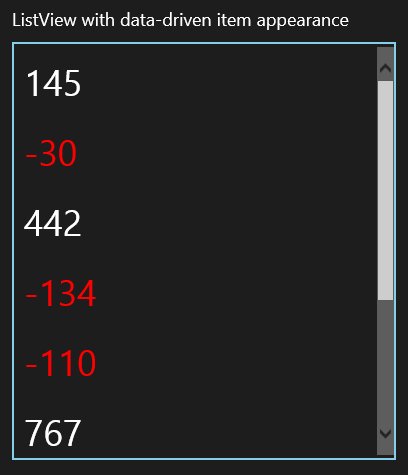
I spent some time on this in relation to a panel for a game I am writing. For example, you have a ListView containing numbers. How can you have negative numbers appear in red?

image

In desktop WPF (Windows Presentation Foundation) you could do this with Property Triggers but these are not supported in Store apps.

One way to do this is with a value converter. Add a class to your project called MyValueConverter. Make the class public, and inherit from Windows.UI.Xaml.Data.IValueConverter.

Right-click IValueConverter and choose Implement Interface to have Visual Studio create two stub methods, Convert and ConvertBack.

This class is going to return an object which will be applied to the Foreground property of a ListViewItem. The Convert method looks like this:

public object Convert(object value, Type targetType, object parameter, string language)

At runtime, the value argument will contain the item displayed in this row of the ListView. The targetType will match the type of the property we are setting, which in this case is a Brush object.

Now add an instance of MyValueConverter to MainPage.xaml (or App.xaml) as a resource. If there is no Page.Resources element, create it, and add an instance of MyValueConverter with the Key “NumberForegroundConverter”:

<Page.Resources>
<local:MyValueConverter x:Key="NumberForegroundConverter" />
</Page.Resources>

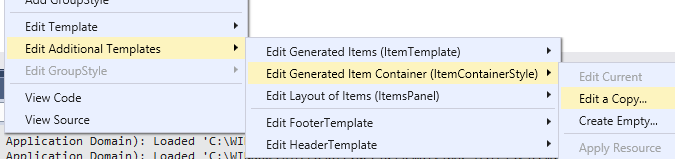
Next, select the ListView element in the XAML editor or designer. Right-click the selected element in the designer, and choose Edit Additional Templates – Edit Generated Item Container (ItemContainerStyle) – Edit a Copy …

image

Accept the default name of ListViewItemStyle1 and click OK.

This generates an element that defines the layout and appearance of items in the ListView. Currently it does not appear to do anything, since it is a copy of the default settings.

Find the element called <ListViewItemPresenter> which is nested within <ControlTemplate TargetType=”ListViewItem”>. No Foreground attribute for ListViewItemPresenter is generated, but we can add one:

Foreground="{Binding Converter={StaticResource NumberForegroundConverter}}"

If you now run the project, you will get an exception, because the methods in MyValueConverter do not yet have any code. Now we have to think about the type of the items in the ListView. In this example, I just typed some strings into the XML editor:

<ListView ItemContainerStyle="{StaticResource ListViewItemStyle1}">
<x:String>145</x:String>
<x:String>-30</x:String>
<x:String>442</x:String>
</ListView>

All the items are strings, so the Convert method can look like this:

String s = (String)value; //note this ONLY works if the item is always a string

if (float.Parse(s) < 0)
{
return new SolidColorBrush(Windows.UI.Colors.Red);
}
else
{
return new SolidColorBrush(Windows.UI.Colors.White);
}

We don’t care about the ConvertBack method so can use this code:

return Windows.UI.Xaml.DependencyProperty.UnsetValue;

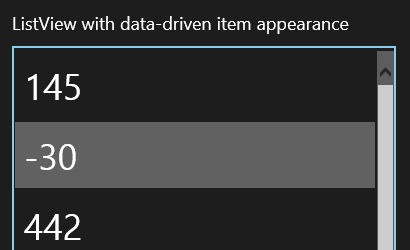
It works but there are some issues. One oddity is that when you roll the mouse over a negative number, it looks the same as a positive number.

image

This is because we did a converter for the Foreground property but not for the SelectedForeground property. XAML in Store apps makes extensive use of themes, and themes include a lot of brushes.

Another issue, which may or may not impact your application, is that the converter code does not run again if you change the displayed item dynamically. That is, if you replace the item it updates OK, but if you update the existing item it does not.

A slightly more complex example will demonstrate this. Let’s say that rather than displaying strings, the ListView is displaying Widget quantities, where a negative number indicates backorders. The ListView is bound to an ObservableCollection<Widget>, and the Widget class implements INotifyPropertyChanged so that the ListView will update automatically when a Widget property changes. Note that the NumberForegroundConverter must be updated to accept a Widget value rather than a string.

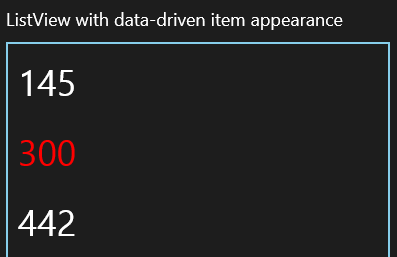
Here is what happens if a Widget had a negative quantity when the ListView was first populated, but got dynamically updated to a positive value (some stock arrived):

image

Oops! Now the positive quantity is in red.

We can fix this by abandoning the converter, and instead giving the Widget class a Foreground property of its own, calculated to return Red for negative quantities and White for positive. Make sure it fires a NotifyPropertyChanged event when updated. Now the Foreground property in <ListViewItemPresenter> looks like this:

Foreground="{Binding Foreground}"

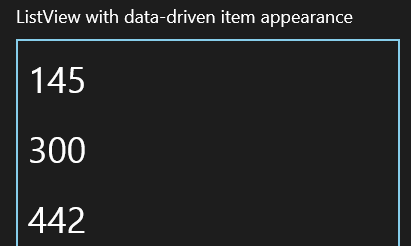
It works:

image

I used this approach in my game in order to implement an Enabled property that indicates items which are unselectable. This changes dynamically according to the state of the play.

Note that you are unlikely to want a Foreground property in your business objects, but could create a DisplayWidget class for the purpose.

I realise that these are not the only ways to create a ListView which styles items differently according to their values, but they may be the simplest. Other suggestions and comments are welcome.

Update: Mike Taulty has some comments and suggestions here.

Hands on: SQL Server 2014 with data files in Azure Blob Storage

One intriguing new feature in Micrsosoft’s SQL Server 2014 is the ability to create or attach databases whose files are in Azure blog storage. This sounds like something that would not work at all well: why would you want a database engine to mount files located hundreds or thousands of miles away? However, the feature is apparently baked deeply into SQL Server, according to this white paper (which is essential reading if you want to know more):

SQL Server 2014 integration with Windows Azure blob storage occurs at a deep level, directly into the SQL Server Storage Engine; SQL Server Data Files in Windows Azure is more than a simple adapter mechanism built on top of an existing software layer.

· The Manager Layer includes a new component called XFCB Credential Manager, which manages the security credentials necessary to access the Windows Azure blob containers and provides the necessary security interface; secrets are maintained encrypted and secured in the SQL Server built-in security repository in the master system database.

· The File Control Layer contains a new object called XFCB, which is the Windows Azure extension to the file control block (FCB) used to manage I/O against each single SQL Server data or log file on the NTFS file system; it implements all the APIs that are required for I/O against Windows Azure blob storage.

· At the Storage Layer, the SQL Server I/O Manager is now able to natively generate REST API calls to Windows Azure blob storage with minimal overhead and great efficiency; in addition, this component can generate information about performance counters and extended events (xEvents).

It also seems that the main target usage is SQL Server running on Azure VMs in the same region as the blog storage, removing latency concerns, though the wording of the explanation is curious, implying almost that on-premise connection is supported but should not be:

Although it is theoretically possible and officially supported, using an on-premises SQL Server 2014 installation and database files in Windows Azure blob storage is not recommended due to high network latency, which would hurt performance; for this reason, the main target scenario for this white paper is SQL Server 2014 installed in Windows Azure Virtual Machines (IaaS). This scenario provides immediate benefits for performance, data movement and portability, data virtualization, high availability and disaster recovery, and scalability limits.

If you use blob storage in this way on an Azure VM, then I/O goes through the Virtual Network Driver, whereas an Azure data disk uses the Virtual Disk Driver. This nicety may be the main reason to consider the feature.

I tried both scenarios: on-premise and from an Azure VM. I had some difficulty getting started, despite this seemingly exhaustive tutorial. I followed it, I thought, to the letter, but got either the error:

Unable to open the physical file "https://myaccount.blob.core.windows.net/sqldata/azuredb.mdf". Operating system error 86: "86(The specified network password is not correct.)".

or else

CREATE FILE encountered operating system error 1117(The request could not be performed because of an I/O device error.) while attempting to open or create the physical file https://myaccount.blob.core.windows.net/sqldata/azuredb.mdf

The problem turned out to relate to the Shared Access Signature required. The supposedly exhaustive tutorial merely refers you to the CloudBlobContainer.GetSharedAccessSignature method in the Azure SDK and offers an incomplete code snippet. I wrote C# code for this and was able to generate a Shared Access Signature but it did not work (see above). I found myself in the depths of the Azure SDK, wondering if I should use version 2.1 or 3.0, and whether I should use Microsoft.WindowsAzure.StorageClient.CloudBlobClient or Microsoft.WindowsAzure.Storage.Blob.CloudBlobClient. The tutorial is also not clear about exactly which part of the Shared Access Signature you should store in the SQL Server Credential Manager; it is a multipart string separated by ampersands.

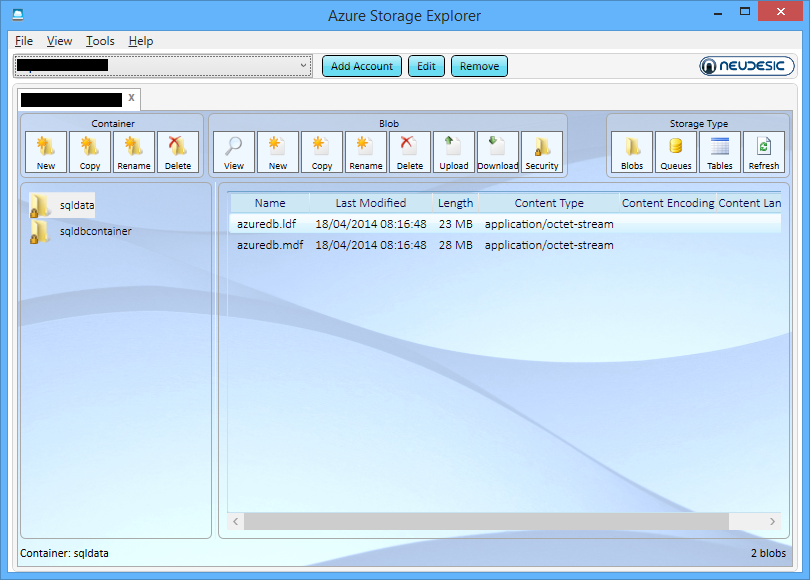
I have still not fully worked it out, but discovered the very helpful Azure Storage Explorer on CodePlex. If you follow the instructions in the white paper referenced above, and use the Azure Storage Explorer to generate the Shared Access Signature, then it works. The project is open source, so with a little effort it should be possible to find and document the exact requirements.

image

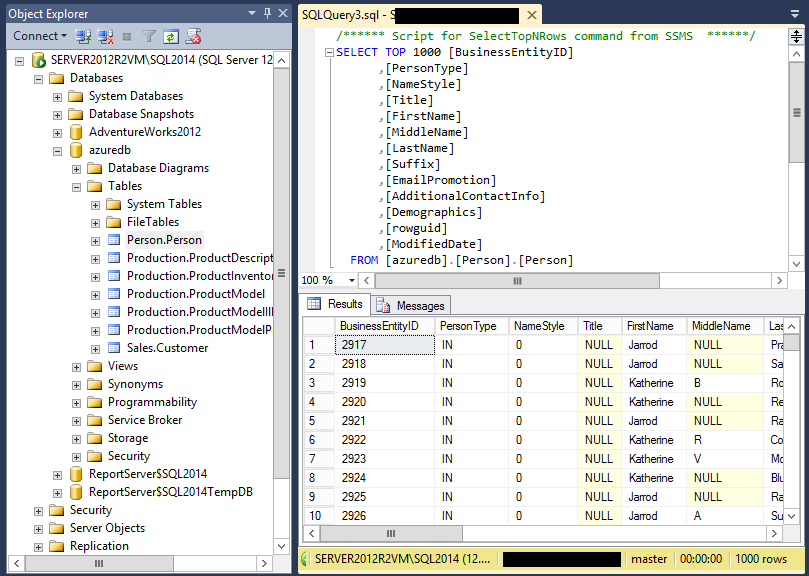
I tried creating and using a database from my on-premise SQL Server 2014 and I find the performance remarkably good, considering. There is no doubt some smart caching going on under the covers. Selecting 1000 rows from a table took 11 seconds the first time, and was instant the second time. It seems to me viable, on my brief look, though I am not sure why you would want to do this. However it is a good demonstration of how cloud and on-premise are coming ever-closer.

image

Running from an Azure VM in the same region is a different case, though I would suggest detailed and intensive testing before going into production.

A quick hands-on with native code compilation for .NET

I had a quick look at the .NET Native Preview. I am interested to see what the benefits might be. Note that currently the preview only supports 64-bit Windows Store apps.

Here is what is promised:

For users of your apps, .NET Native offers these advantages:

  • Fast execution times
  • Consistently speedy startup times
  • Low deployment and update costs
  • Optimized app memory usage

I created a small C# app that counts prime numbers using a simple approach. I created it first as a Universal App that does not use .NET Native, and then as a second app that does use .NET Native.

image

My initial results are disappointing. The time taken to count prime numbers is similar in both apps.

image

As a further test, I added code that adds the prime numbers found to a ListView control using an async task. The idea was to see if GUI interaction and multi-threading would be more revealing than simply crunching numbers in a tight loop. The apps takes much longer with this enabled, but again, there is nothing to choose between the two.

Did I really succeed in compiling the app to native code? I think so. Here are the contents of the AppX folder for the standard .NET executable:

image

and here for the native compiled executable – note the additional DLLs:

image

I am not actually surprised that there is no performance benefit in my example. JIT (just-in-time) compilation means that any .NET application is native code at runtime, though optimization might be different.

I have ended up with a much larger app to deploy, though the relative difference would be less, I imagine, with an app that contains more code.

I can also readily believe that start-up time will be better for a native compiled app, since there is no need for the JIT compiler. However my app is so small that this is not significant.

My question though is what kind of app will benefit most from native compilation? I would be interested to see guidance on this.

Of course it is also possible that later iterations of the technology will yield different results.

Microsoft Build 2014: what happened

It’s curious. Microsoft’s new CEO Satya Nadella has been in place for only a month which means that almost everything announced at Build, Microsoft’s developer conference which took place last week in San Francisco, must have been set before he was appointed; yet there was a sense of “all things new” at the event, as if he had overseen a wave of changes.

The wave began the previous week, with the simultaneous announcement and delivery of Office for iPad. The significance of this is threefold:

  • It demonstrated Microsoft’s decision to give first-class support to mobile platforms other than Windows
  • It demonstrated that Office can be redesigned to work nicely on a tablet
  • The quality of the product exceeded expectations, showing that in the right circumstances Microsoft can do excellent non-Windows software

image

Next came Build itself. It was a tale of two keynotes. The first was all about Windows client – both Phone and PC. The core news is the arrival of the Windows Runtime  (WinRT, the engine behind Metro/Store Apps) on Windows Phone 8.1. This means that WinRT is now the runtime that developers should target for apps that run across phone and desktop – and even, we were shown, Xbox One, which will support WinRT apps written in HTML and WinJS (Microsoft’s JavaScript library for Windows apps).

In support of this, Microsoft announced a new Universal App project for Visual Studio, which lets you share both visual and non-visual code across multiple targets. How much is shared is a developer choice.

There is more. A Universal App is now (kind-of) a desktop app as well as a Store app, since in a future free update to Windows 8, it will run on the desktop within a window, as well as appearing in the Start menu on the desktop. We were even shown this; apparently it is a mock-up. This was the biggest surprise at Build.

image

What did Executive VP Terry Myerson say about this? Here is the exact quote:

We are going all in with this desktop experience, to make sure your applications can be accessed and loved by people that love the Windows desktop. We’re going to enable your Universal Windows applications to run in a window. We’re going to enable your users to find, discover and run your Windows applications with the new Start menu. We have Live Tiles coming together with the familiar experience customers are looking for to start and run their applications and we’ll be making this available to all Windows 8.1 users as an update. I think there will be a lot of happy people out there.

This is significant. When Myerson says, “we are going all in with this desktop experience”, he does not mean backtracking on Windows Store apps, to return to desktop windows apps (Win32 or WPF) as the future of Windows development. Rather, he means Windows Store apps integrated into the desktop.

There is a further twist to this. Windows Store apps are sandboxed and cannot communicate with each other or with the operating system other than via carefully designed and secured paths. This is in general a good thing, but restrictive for businesses designing line of business apps. It also means that legacy code cannot be carried over into a Store app, other than by full porting.

In the just-released Windows 8.1 Update this has changed. Side-loaded apps (in other words, not deployed from the Windows Store) can now escape the sandbox thanks to Brokered Windows Runtime Components. There are some limitations (32-bit only on the desktop side, for example) but this will make it possible to implement business applications as Store apps even if they need to interact with existing desktop applications or services.

There is still a huge blocker to Store apps from a business perspective, which is that you need Windows 8. Still, my guess is that once the update with the restored Start menu appears, most of the objections to Windows 8 will melt away.

We also saw Office for the Windows Runtime, which will run on both Phone and PC. It is written, I discovered later, in XAML, DirectX and C++ (“Blazingly fast”, we were told). Corporate VP Kirk Koenigsbauer introduced a preview of this, or at least PowerPoint.

image

No detail yet, and several references to “early code” suggest to me that this is a year or more away from full release (giving Office on iPad a big head start); but it will come. Koenigsbauer did not call it cut-down; in fact, it was instanced as proof that WinRT is suitable for large-scale apps, so I would expect something more complete than Office on iPad; yet it is hard to imagine things like the VBA macro language appearing here in its current form (VBA is based on the ancient Visual Basic 6.0 runtime), so there will be some major differences.

We also saw Windows Phone 8.1, including the Cortana virtual personal assistant who responds to voice input. For me other things in Windows Phone 8.1 are more significant, including new swipe-style keyboard for fast text input, VPN, S/MIME secure email, and a new notification centre. Unlike touch Office, Windows Phone 8.1 is coming soon; Nokia’s Stephen Elop (soon to be in charge of Windows Phone at Microsoft) said that the first 8.1 Lumia devices could be out from May, depending on territory, and that all Lumia Windows Phone 8 devices will get the update in the summer.

On to day two, which was Cloud day, though we also got significant .NET developer news.

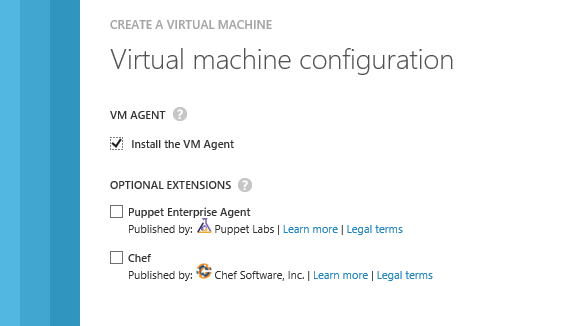
Executive VP Scott Guthrie introduced a new portal for Microsoft Azure, the cloud platform. This is not just a new look, but integrates with Visual Studio online so you can easily view and edit the code and track team projects. There are also new monitoring and analytics features so you can check page views, page load time, browser usage and more. Guthrie also announced integration with Puppet and Chef for deployment automation.

image

Language designer Anders Hejsberg also came on stage. He announced the release version of TypeScript, a “typed superset of JavaScript” which is suitable for large applications. He also announced a new preview release of the compiler project code-named Roslyn, and on stage pushed the button that published it as open source. What is Roslyn? It is the next generation compiler for C# and VB, and is itself written in C#. This enables compiler and workspace APIs, which in turn enable rich editor features:

The transition to compilers as platforms dramatically lowers the barrier to entry for creating code focused tools and applications. It creates many opportunities for innovation in areas such as meta-programming, code generation and transformation, interactive use of the C# and VB languages, and embedding of C# and VB in domain specific languages.

Roslyn will be fully released in the next version of Visual Studio, for which we do not yet have a date. Roslyn will be delivered alongside C# 6.0.

There is also a new .NET Foundation which will oversee open source projects for .NET, with backing from folk including Xamarin’s Miguel de Icaza and Umbraco’s Niels Hartvig. It is all a bit vague at the moment:

In the upcoming months, the .NET Foundation will be inviting many companies and community leaders to join the foundation, including its Board of Directors and will then finalize its operational details, including governance models for its open source initiatives, membership structure and industry and community engagement.

Another significant event in the .NET story is the arrival of true native code compilation for .NET, although currently only for 64-bit Store apps. More on this soon.

A couple of events during Build caught my eye. One was de Icaza’s session on using C# to build for iOS and Android, not so much for the content itself (though there was nothing wrong with it), but rather for the huge attendance it drew.

image

The session was moved to the Build keynote room, and while there were spare seats, the room felt well filled. This speaks loudly about the importance of those platforms even to Microsoft platform developers, as well as of Microsoft’s support of Xamarin’s work.

Another was the appearance of John Gruber, author of the Daring Fireball blog and an Apple enthusiast. He appeared in a video during the keynote, explaining how a project in which he is involved uses Azure for back-end services, and then in person at another session, interviewing journalist Ed Bott about what is changing at Microsoft.

image

Gruber seems to me representative of a group of smart observers who have not in general been impressed with Microsoft’s endeavours over the past few years; but he for one is now more positive on the subject. Windows Phone is much better than its market share suggests, he said. This alongside Azure and a new openness to supporting third-party clients has made him look more favourably on the company.

My summary is this. On the Windows client side, Microsoft is taking its unpopular Windows release and its minority Phone platform and making them better and more compatible with each other, making sense of the client platform in a way that should result in growth of the app ecosystem both on Phone and PC/Tablet. On the cloud side, the company is building Azure and Office 365 (two platforms united by Azure Active Directory) into a one-stop platform that is increasingly compelling. The result was a conference and a direction that was largely welcomed by those in attendance, as far as I could tell.

That does not mean that the PC will stop declining, or that iOS and Android will become less dominant in mobile. There is progress though, and more clarity about the direction of Microsoft’s platform than we have seen for some years.

For the official news from Build, see the Build Newsroom.

Microsoft Build goes nuts over Xamarin’s C# and .NET for iOS and Android

Xamarin’s Miguel de Icaza was booked for a standard session room at Build, Microsoft’s developer conference in San Francisco, but the session was moved to the keynote room because of demand. I am not sure how the likely demand was calculated, but it was possibly something to do with the event app that lets attendees plan their agenda.

It was just as well that the session got moved.

image

The attendance at the session mirrored my observation that Xamarin’s stand in the third-party partner exhibition was drawing more attention than any other. Xamarin’s tools let developers port applications to iOS and Android while still using C# and the .NET Framework.

image

I am not sure what to conclude from the obvious high level of interest in compiling apps for iOS and Android. You can interpret this as good news for Microsoft, in that it keeps developers working in .NET and with easy access to the libraries that support Microsoft services; or as bad news, in that it shows how many developers are moving towards non-Microsoft platforms in their app deployments.

It was the second time today that de Icaza appeared on the keynote stage. Earlier he stood there with Anders Hejlsberg, the author of C#.

image

It has been a long journey, from the time when Mono (the open source implementation of .NET founded by de Icaza) was viewed with distrust by Microsoft (as far as I could tell), as an open source competitor to the official version.

Now there is talk of whether Microsoft might acquire Xamarin – of which there is no news here at Build, I should emphasise.

What is a Universal Windows App?

At its Build developer conference in San Francisco, Microsoft has announced a new kind of Windows app: a Universal App. In fact, you can download the latest Visual Studio 2013 update (Update 2 RC) and

image

A Universal App runs on both Windows Phone 8.1 and Windows 8.1. But what is it really?

The place to start is with the runtime. In Windows Phone 8, Microsoft migrated the kernel in Windows Phone from the cut-down CE version of Windows, to the same kernel used by desktop Windows. However the app runtime in Windows Phone 8 remained Silverlight, Microsoft’s Flash competitor which was originally designed as a browser plug-in.

In Windows Phone 8.1 Microsoft has taken the next logical step, and ported the Windows Runtime (WinRT) to the phone. WinRT is the runtime behind the Metro/Modern/Store App environment introduced in Windows 8.

A Universal App runs on WinRT. This means that Windows Phone 8.1 supports the same variety of development options as Windows 8: XAML and C#, XAML and C++, HTML and the WinJS Javascript library (now open source), and DirectX for games.

The port is not 100%; there are some platform-specific APIs. Apparently compatibility is about 90% in terms of APIs available.

That said, a Universal App is not a universal binary. Apparently you can have a universal binary, but it is not the approach Microsoft is taking. A Universal App is a project type in Visual Studio.

image

When you create a Universal App you get a project with multiple targets.

image

By default you get two targets, but we have also seen Xbox One as a target, and conceptually we could see more: maybe Xamarin might extend it to support iOS and Android, for example.

The way this works is that at compile-time any code (which can include XAML and project assets such as images as well as C# code) that is in the Shared project gets merged into the target-specific project.

This means that a Universal App could contain very little shared code, or be almost entirely shared code. This is a developer choice.

Separately, Microsoft has now enabled an app identity to run across multiple Windows platforms in the Store. This means a user can purchase an app once for multiple platforms. However, this is more a business than a technical feature. It would be possible for the developer to offer a multi-platform app in the Store, but keep the development for each platform entirely separate.

That said, the shared WinRT aspect means that code sharing in a Universal App is very feasible. Most if not all non-visual code should work fine, and XAML experts will be able to share most of the UI code as well, thanks to the flexibility built into the XAML UI language.

That is the good bit. There is a problem though. Neither the Windows Phone app platform, nor the Windows 8 app platform have been hugely successful to date, but of the two, Windows Phone has fared better. There are now 500 new apps per day for Windows Phone, we were told here at Build.

Unfortunately, porting those Windows Phone apps to become Universal apps is not easy. Developers have to port their app from Silverlight to WinRT, before they can add a target for Windows 8. They will also need to maintain the old Silverlight app for users with versions of Windows Phone earlier than 8.1. Nokia has promised to offer upgrades for all Windows Phone 8 Lumia models, but that will not the base for all Windows 8 phones out there, and as ever operators have a role here.

Life is easier for Windows 8 app developers who now want to support Windows Phone 8.1; but there are not so many great Windows 8 apps for which Windows Phone users are anxiously awaiting.

Still, the Universal App approach makes perfect sense for the future, once Windows Phone 8.1 is established in the market. It also makes sense for enterprises with internal apps to deploy for mobile and tablet users.  

Saving Windows the sequel: the Return of the Start

Day one at Microsoft’s Build conference in San Francisco was Windows client day – including Windows Phone as well as full Windows. Two slides made the biggest impression on me. One was this one, the return of the Start menu to the desktop, and a Store app (the Mail client) running in a desktop window:

image

The other was this: Office redone for the Metro, sorry Modern user interface:

image

Note that Touch Office will run on Windows Phone as well as on full Windows. Microsoft has ported most of the Windows Runtime (WinRT), the software engine that runs the Modern UI, to Windows Phone. The new Office is written in XAML and C++ so will run on both platforms.

Has Microsoft backtracked on the Windows 8 concept championed by former Windows VP Steven Sinofsky?

To some extent it has. Sinofsky’s Windows 8 was a purer conception, in which the whole focus is on the Modern environment and the desktop is presented like a legacy component, an app within the environment that happens to run all your old stuff.

Users rebelled, businesses swore to stick with Windows 7, and Microsoft has been gradually unpicking bits of it to make it more palatable to existing users. In Windows 8.1 we saw the return of the Start button and an option to boot directly to the desktop. In Windows 8.1 Update 1 we see a window bar appear across the top of Store apps, when the mouse is at the top of the screen, Store apps on the desktop taskbar, and the taskbar running at times across the Modern UI.

The security boundaries are getting slightly eroded, with an option for side-loaded apps (mostly the realm of enterprise deployments) now able to escape the sandbox and run legacy code.

Windows 8 vNext goes further. Store apps in windows: is there anything left of Microsoft’s tablet platform?

Well yes, there is. Store apps will still run primarily full-screen, and more important, will still use the new controls – menus, buttons, lists – that can be operated easily with touch. They still use the blocky “Metro” design concept, which for all its faults (it is not the most beautiful of UI concepts) is easy to operate without mouse or keyboard.

The other perspective on Microsoft’s shifting approach to the Windows client is that it is putting all its energy into promoting these modern apps.

Sinofsky’s idea was to push users into the Modern environment by making it the heart of Windows 8 – the Start screen. That did not work, so now Microsoft is taking a gentler approach but with the same goal in mind. If users are working mainly on the desktop, the argument goes, we will bring the apps to them there.

Windows 8.1 Update 1 discreetly plants a link to the Windows Store on the desktop taskbar, making this point perfectly.

For users who work on the desktop, Store apps will now be more visible, and more appealing again once they run in a desktop window.

For developers, there is another big change. They  can now target both Windows and Phone with a single app project, called a Universal App, so the effective size of the target market, though still small compared to Android and iOS, has significantly increased. Users can buy an app once in the Store and run it on both platforms.

The Universal App can be further extended to Xbox One, which also includes WinRT.

It is all about the apps – as it always was. If developers support Microsoft’s app ecosystem with renewed vigour following these changes, the future of Windows in the new mobile world does look brighter.

The forthcoming Office, you will recall, is also a Store app. You will finally be able to get real work done in the tablet environment.

Microsoft has not backtracked, in the sense that we are not hearing at Build about a renewed focus on the desktop. Rather, we are hearing about a more integrated approach to supporting both desktop and Store apps in Windows, but with the same goal as before, to make Windows an operating system fit for purpose on tablets.

It is worth recalling that Windows 8 was not only about supporting touch. The WinRT environment is also about security, where apps are sandboxed, and easy deployment via the Windows Store. This way Microsoft can prevent Windows from being wrecked by malware and other unwanted software.

What of Windows RT, the ARM version? With Office coming to the phone, I am more or less convinced that the next tablet-only Windows devices will be based on Windows Phone rather than Windows RT. You will have Office, but not the desktop, for better or worse. But no such announcement has yet been made.

Microsoft Build Sessions published: Windows Phone XAML and HTML/JS apps, new Azure APIs and more

Developing for Windows Phone is now closer to developing for the Windows 8 runtime, according to information from Microsoft’s Build sessions, just published.

Build is Microsoft’s developer conference which opens tomorrow in San Francisco.

image

Building a Converged Phone and PC App using HTML and JavaScript states that “An exciting part of Windows Phone 8.1 is that you can now start building applications natively in HTML and JavaScript.”

Other sessions refer to the Common XAML UI Framework, which seems to refer to a shared UI framework for Windows Phone and WIndows 8, but using XAML rather than HTML and JavaScript.

This is in addition to Silverlight, not instead, judging by this session:

We’ve been doing a lot of work with new converged XAML app support on Windows Phone 8.1, but what about legacy Windows Phone Silverlight XAML based apps?  Come learn about all the new features we’ve enabled with Silverlight 8.1.

Microsoft has also come up with new APIs for applications that integrate with its Azure cloud platform and with Office 365. The Authentication library for Azure Active Directory lets you build both Windows and mobile applications that authenticate against Azure Active Directory, used by every Office 365 deployment. There is also talk of using Azure for Connected Devices, meaning “Internet of Things” devices using Azure services.

Some other sessions which caught my eye:

Connected Productivity Apps: building apps for the SharePoint and Office 365 platform.

What’s new in WinJS: the road ahead. XAML vs HTML/JS is a big decision for Windows developers.

Anders Hejlsberg on TypeScript

Automating Azure: “The Azure Management Libraries and Azure PowerShell Cmdlets allow this type of automation by providing convenient client wrappers around the Azure management REST API”

Authentication library for Azure Active Directory: The Active Directory Authentication Library (ADAL)

Panel discussion on desktop development: is there a future for WPF? Maybe some clues here.

Miguel de Icaza gets a session on going mobile with C# and Xamarin. I recall when de Icaza ran sessions on Mono, the open source implementation of the .NET Framework which he initiated shortly after Microsoft announced .NET itself, in nearby hotels at Microsoft events; now he is inside.

Learning from the mistakes of Azure: Mark Russinovich on what can go wrong in the cloud.

Looks like both cloud and apps for Windows Phone/Windows 8 are big themes at Build this year.

A close look at Word for the iPad. What is included and what is missing?

I have been having a closer look at Word for iPad. This has limited features compared to Word for Windows or Mac, but how limited?

image

So far I am more impressed than disappointed. Here are some of the things that Word on the iPad does support:

Spell check with support for a range of languages including Catalan, Cherokee, two variants Chinese, Icelandic and many more.

image

Tabs including left, center, right and Decimal

Paragraph styles – with some limitations. There are a range of common styles built in, such as Normal, No Spacing, Heading 1, 2 and 3, Subtitle and so on. If you edit a document including a style not on the list, it will be formatted corrected and the style is preserved, but you cannot apply it to new text.

Text boxes. You can do crazy stuff with text boxes, like word-wrapping around angled text.

image

Dictionary. Select a word, hit Define, and a dictionary definition appears. You can manage dictionaries, which seem to be downloaded on demand.

image

Tables. People use tables for things like formatting minutes: speaker in left column, actions in right, and so on. They work fine in Word on iPad. You can insert a table, type in the cells, and select from numerous styles including invisible gridlines.

image

Track changes. You can review changes, make comments,suggest new text, approve changes made by others, and so on.

image

You can change the direction of text by 90°.

You can edit headers and footers.

You can insert page numbers in a variety of formats.

You can use multiple columns. You can insert page breaks and column breaks.

You can change page orientation from portrait to landscape.

Shapes are supported, and you can type text within a shape.

image

Text highlighting works.

image

Bulleted and numbered lists work as expected

Footnoting works.

Word count is available, with options like whether to include footnotes, plus character count with or without spaces.

Pictures: you can insert images, resize, stretch and rotate them (though I have not found a crop function) and apply various effects.

Overall, it is impressive, more than just a lightweight word processor.

What’s missing?

So what features are missing, compared to the desktop version? I am sure the list is long, but they may be mostly things you do not use.

One notable missing feature is format support. Desktop Word supports OpenDocument (.odt) and can edit the old binary .doc format as well as the newer .docx (Office Open XML). Word for iPad can only edit .docx. It can view and convert .doc, but cannot even view .odt. Nor can you do clever stuff like importing and editing a PDF. Here are a few more omissions:

  • No thesaurus.
  • No equation editor.
  • No character map for inserting symbols – you have to know the keyboard shortcut.
  • Paragraph formatting is far richer in desktop Word, and you have the ability to create and modify paragraph styles. One thing I find annoying in Word for iPad is the inability to set space above or below a paragraph (let me know if I have missed a feature)
  • Academic features like endnotes, cross-references, index, contents, table of figures, citations.
  • Watermarks
  • Image editing – but you can do this in a separate app on the iPad
  • Captions
  • Macros and Visual Basic for Applications
  • SmartArt
  • WordArt
  • Templates
  • Special characters (you need to know where to find them on the keyboard)
  • Printing – I guess this is more of an iPad problem

Office for iPad versus Office for Surface RT

If you have Microsoft’s Surface tablet, would you rather have the equivalent of Office for iPad, touch-friendly but cut-down, or the existing Office for Surface RT? I took a sample of opinion on Twitter and most said they would rather have Office for iPad. This is Office reworked for tablet use, touch friendly in a way that desktop Office will never be.

image

Then again, Office on Surface RT (VBA aside) is more or less full desktop Office and can meet needs where Office for iPad falls short.

If Microsoft is still serious about the “Metro” environment, it will need to do something similar as a Windows Store app. Matching the elegance and functionality of the iPad version will be a challenge.

I typed this on the iPad of course, using a Logitech Bluetooth keyboard. I would not have wanted to do it with the on-screen keyboard alone. However for the final post, I moved it to Windows (via SkyDrive) in order to use Live Writer. Word on the Surface has a Blog template I could have used; another missing feature I guess.

Microsoft has exceeded expectations. This would sell well in the App Store, but you need an Office 365 subscription, making it either a significant annual cost, or a nice free bonus for those using Office 365 anyway, depending on how you look at it. The real target seems to be business users, for whom Office 365 plus Apple iPad (which they were using anyway) is now an attractive proposition.