Category Archives: microsoft

Upgrading Hyper-V Server 2012 to 2012 R2: minor hassles

I have a couple of servers running Hyper-V Server, the free version of Microsoft’s hypervisor.

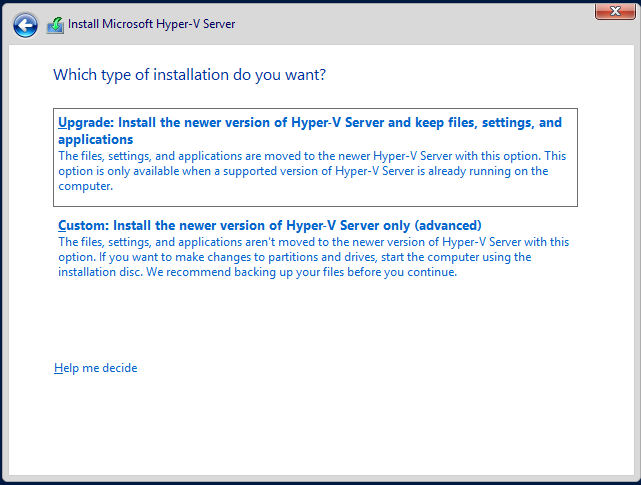
Hyper-V Server R2 is now available with some nice improvements. I tried an in-place upgrade. You do this by running setup from within a running instance of the server. This did not work when going from 2008 to 2012, but I am glad to report that it does work for 2012 to 2012 R2:

image

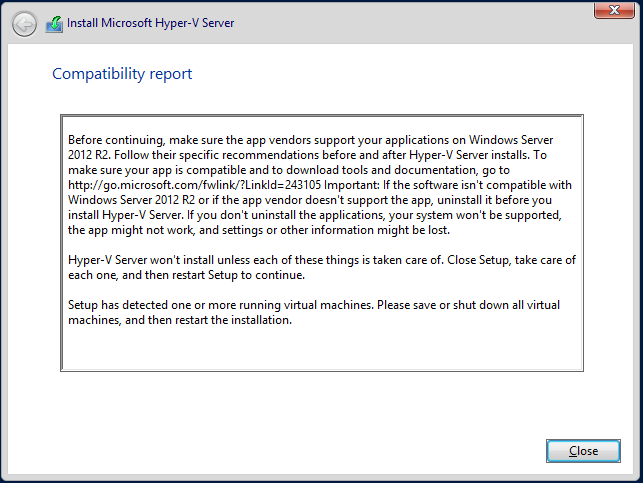
You will need to make sure that all the VMs are shut down before you run the upgrade. Otherwise you get a message and the upgrade fails:

image

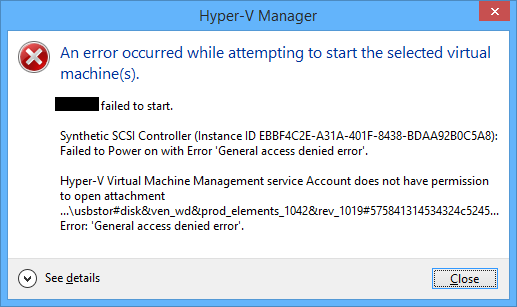
In my case the upgrade was smooth and not too lengthy. However I was warned that because I use a pass-through drive in one VM, that this might cause a problem. It did, and the VM failed to start after the upgrade:

image

The fix was trivial: remove the pass-through drive and then add it back. After that the VM started.

Then I hit another problem. Although my VMs had started, they had no network connectivity, even after I upgraded the integration components. These VMs run Server 2008 R2, in case that makes a difference (I doubt it). The virtual switch still showed in Hyper-V settings but no traffic passed through to the VMs.

I tried two solutions. Removing the NIC from the VM and re-adding it made no difference (and this is also a poor solution since you then have to reconfigure the NIC in the VM). However deleting the virtual switch and replacing it with a new one of the same name and configuration was successful. The virtual NICs then have to be reconnected to the new virtual switch, but this is painless.

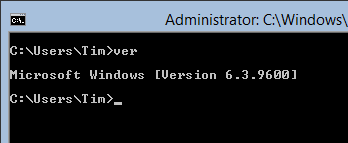
The UI for the new version looks exactly the same as before. However the Windows version number has changed from 6.2.9200 to 6.3.9600, so you can verify that the OS really was upgraded:

image

Is it better to avoid in-place upgrades? A clean upgrade is safer, if you do not mind exporting and re-importing the VMs, or moving them all to another host, before the upgrade. On the other hand, with the upgrade cycle now faster than before, in-place upgrade makes sense as a way of keeping pace with little pain.

Visual Studio 2013 is released. What’s new?

Microsoft released Visual Studio 2013 yesterday:

VS 2013 can be installed side by side with previous versions of Visual Studio or, if you have a VS 2013 pre-release, it can be installed straight over  top of the pre-release.

I installed over the top of the pre-release and I’m happy to say that this worked without incident. This is how it should be.

image

Oddly, the launch of Visual Studio 2013 is not until November 13th, proving that in Microsoft’s world products can “launch” before, at or after general release.

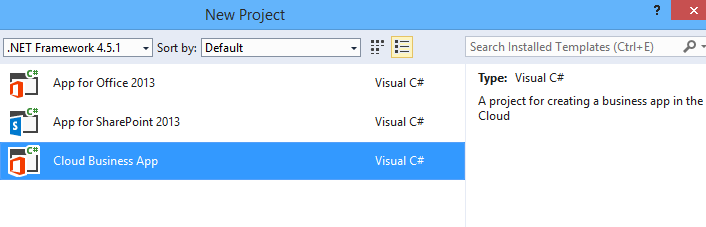
So what’s new in Visual Studio 2013? Tracking Visual Studio is difficult, because many important features show up as updates and add-ons. After all, at heart Visual Studio is just a shell or platform in which development sit. The Visual Studio LightSwitch HTML client, for example, which made LightSwitch into a strong tool for rapid application development of mobile web apps, appeared as part of Visual Studio 2012 Update 2. Now in Visual Studio 2013 we have LightSwitch support for Cloud Business Apps, though the new project type is shown under Office/SharePoint rather than under LightSwitch:

image

A Cloud Business App is an add-on for SharePoint typically running on Office 365. In the new model SharePoint apps do not really run on SharePoint, but are web apps that integrate with SharePoint. This is great in an Office 365 context, since you can write a web app that is accessible through the Office 365 site and which is aware of the logged-on user; in other words, it uses Azure Active Directory automatically. There’s more on the subject here.

What else is new? Here are some highlights:

  • Better ISO C/C++ compliance in Visual C++
  • Upgraded F# with language tweaks and improved performance
  • .NET Framework 4.5.1 with minor enhancements
  • Support for new Windows 8.1 controls and APIs in Windows Store apps – these are extensive.
  • “Just my code” debugging for C++ and JavaScript, and Edit and Continue for 64-bit .NET apps
  • Graphics diagnostics for apps running remotely
  • Sign into Visual Studio with a Microsoft account. Microsoft pulls developers further into its cloud platform.
  • Windows Azure Mobile Services – build a back end for an app running on Windows, Windows Phone, iOS, Android or web

Does that amount to much? Compared to the changes between Visual Studio 2010 and 2012, no. That is a good thing, since what we have is a refinement of what was already a capable tool, rather than something which gives developers a headache learning new ways to work.

Windows 8.1: now good enough that it is ready for general use

Windows 8.1 is now released and you can upgrade for free from Windows 8.0.

image

What is significant about Windows 8.1? This is something I have thought long and hard about. The problem with reviewing Windows 8/8.1 is all to do with its dual personality. You can review the details of the tablet or Metro or Windows Store side, but while these are interesting in their own way, the fact is that most users are in the desktop most of the time, so how much does it matter? Alternatively, you can review the desktop experience but frankly it’s hardly any different in Windows 8.1 than in Windows 8, and not that different in Windows 8 than in Windows 7 if you overcome the hump of “hey, where is my Start menu?”

image

Let’s divide this then into two strands. One is the progress of Windows towards being a tablet OS, a Bring Your Own Device, a cloud-centric operating system, secure, apps installed from a curated store or corporate portal. This is the future Microsoft has in mind, and there is some progress. You can see this in refinements to the new UI, the Start menu/screen becoming more like Windows Phone where you pin your favourites to the main part and find the rest in an “all apps” view, and new business-oriented management features which work in concert with Server 2012 R2 and System Center R2, including Workplace Join, Work Folders, InTune device management, Information Rights Management, and the ability to set up a company portal.

Windows 8.1, together with the server updates, adds a lot in this area; and while in my opinion it is not yet fully baked, you can see the pieces coming together and I think it will get there.

The second strand though is about the general user? This is where all the noise is. Microsoft managed to alienate a large part of its core user base with Windows 8.0, accelerating (ironically) the decline of PC sales (though they would have declined to some degree anyway).

I cannot in honesty say that Windows 8.1 is usable for, say, a desktop keyboard and mouse user where Windows 8.0 is not, because even Windows 8.0 works fine with keyboard and mouse if you take the trouble to learn how to use it (and it is not that much trouble).

I can say though that Windows 8.1 does much more to help users over that hump. The restored Start button is the thing that represents that shift, returned by user demand, even if it is not the Start menu of old. I use it all the time, though mostly with right-click for quick access to the admin menu and shutdown option.

Things like the new Help and Tips app also make life better for new users.

My view is that Windows 8.1 is easy enough for Windows 7 users that you could reasonably upgrade one of those “just let me get on with my work (or play)” users without too much stress. This was not the case with Windows 8.0.

I think those users should upgrade too, where possible. Windows 8 and 8.1 are real upgrades, even for desktop users. Things I would miss if I had to go back to 7 include faster boot, improved file copy dialog, improved task manager, and slightly better performance overall.

The two strands begin to come together if you go out and get a tablet. Even if you use the desktop most of the time, with keyboard and touch control or mouse, you find yourself dipping into the Modern UI some of the time, for web browsing or mail or Twitter at the times when you are using your tablet as a tablet and a keyboard would get in the way.

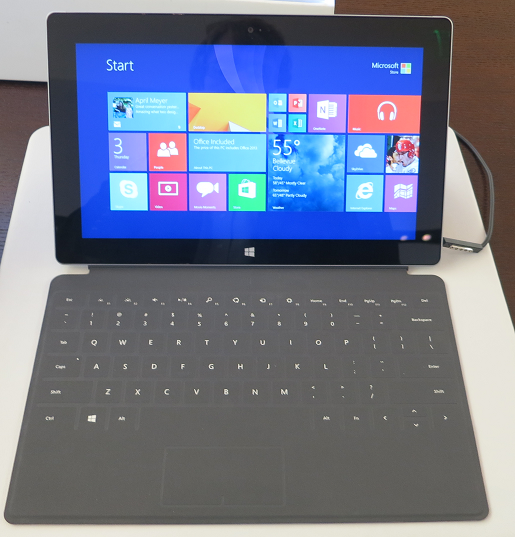
It is worth mentioning that most of the new wave of Windows 8 tablets are not hybrids with twist keyboards. Some are conventional laptops or ultrabooks of course, but there are also tablets with removable or optional keyboards, a better approach that lets you use Windows 8.1 as designed.

Does that make Windows 8.1 a huge success for Microsoft? It’s doubtful. I took a light-hearted look at attitudes to Windows 8 here and it was a way of explaining that for a lot of users Windows 8 just is not on their wish-list, no matter how good it may be.

The best outcome now is that Windows 8.1 starts to gain traction in business and among consumers, driving a stronger app ecosystem, and gradually greater use of the tablet side. Then the point comes where Windows and Windows Phone merge to the point where there is a single development platform, and the third ecosystem that former Nokia CEO Stephen Elop used to talk about becomes a reality.

I can see this happening, particularly in business where Office 365 is taking off, presuming Microsoft manages to makes Windows devices the best partners for its cloud services while still supporting others.

On the other hand, the idea that a resurgent Windows will beat off iPads and Androids and become a mainstream tablet for consumers is fanciful. Microsoft is too late, the usability still is not there, the app ecosystem is too far behind, and prices versus Android are too high.

All speculation; but if you are a Windows user, you should not hesitate to upgrade to Windows 8.1.

Usability: Microsoft’s big weakness

The iPhone, or maybe the iPod, was the beginning of the era of usability. Make something nice to use, reasoned Apple, and users will come flocking.

After the iPhone came the iPad; and then Android which while lacking the polish of iOS, mostly has the same characteristics of appliance rather than computer in its user interface.

What about Microsoft? It has learned to some extent. Windows Phone is a user-friendly operating system. The touch interface in Windows 8, although a shock to existing Windows users, shows obvious effort towards usability and sometimes succeeds. Navigating the weather app, for example, is a pleasure.

There are times though when Microsoft seems to have learned nothing. Take the new SkyDrive integration in Windows 8.1 for example. It is foundational in Microsoft’s effort to wrest Windows into being a cloud-centric operating system, where you could lose your device, buy a new one, log in, and find all your stuff. I’ve posted about its progress here.

But then you are on a train, say, with a poor internet connection, and you double-click a file in SkyDrive that has not been downloaded to your PC. This is the dialog you see (at least, it is the one I just saw):

image

There is so much wrong with this dialog that I don’t know where to start. But I will have a go.

First, I doubt the error is really unexpected. If my internet connection is poor, problems downloading stuff from SkyDrive are expected, not unexpected. You would think that the client could figure out, “It looks like I have a poor connection to SkyDrive” and inform the user accordingly.

Second, the error number. The dialog invites me to search for help using this number; however to do so I would have to copy it manually as it is unselectable. The number of course is in hexadecimal, so there is a high chance of copying an O instead of a zero as the difference is not obvious other than to programmers. Nor is it clear where I should search. Should I bang the number into Bing and hope for the best? Such searches can be fruitful, but they can also go badly wrong when you hit sites that tell you to download their utility to clean your registry, or some such nonsense.

Third, there is space for a human-understandable description of the error, but it is says “No error description available”. Lazy programming somewhere. Maybe in a code base the size of Windows it is too much to expect helpful messages for every error but this is not something users should normally see.

Fourth, there are three choices: Try Again, Skip and Cancel. Bearing in mind that I double-clicked only one document, what is the difference between Skip and Cancel?

Fifth, there is a More details button but it is disabled. Why, if no more details are available, does this More details button appear at all? Though I’d suggest that Error 0x80040A41 is a great candidate for “More details” rather than being something non-technical users are expected to make sense of.

What should happen? First, SkyDrive and/or its client should work better. This is a critical feature; but users are complaining (yes, I found this by searching for the error code) and it seems that problems persist in Windows 8.1 RTM. Microsoft has been working on file sync for decades, yet upstarts like Dropbox work more smoothly.

Second, when bad things happen, I am all in favour of plain English. I don’t see any reason ever to confront users with error numbers in hex. Put it in a technical details option by all means. In this particular case, why not something like, “Windows is having problems downloading from SkyDrive. You may have a poor internet connection; please try again later, and if the problem persists, contact support.”

Getting this right is not easy; but for as long as ordinary users see this kind of dialog in day to day use of Windows, the flight to iPad and Android will continue.

Update: the error fixed itself when I found a better connection

Getting up and running with Workplace Join

A key part of Microsoft’s strategy for supporting tablets and smartphones in the enterprise is Workplace Join, which lets devices register with Active Directory:

When you join your personal device to your workplace, it becomes a known device and will provide seamless second factor authentication and single-sign-on to workplace resources and applications. When a device is Workplace-Joined, attributes of the device can be retrieved from the directory to drive conditional access for the purposes of authorizing issuance of security tokens for applications.

Devices currently supported are Windows 8.1 (RT or x86) and Apple iOS, with Android in preparation. It is a kind of lite version of domain join, enabling single sign-on but not group policy (centralised control of device settings). In order to control device settings, you can use ActiveSync (limited but includes password requirements and remote wipe) or device management through the cloud-based InTune.

I set myself the task of implementing Workplace Join on my test network, mainly using the guide here. It was somewhat arduous. Here are a few points to note.

Workplace Join is also called Device Registration and is a feature of Active Directory in Windows Server 2012 R2. It depends on Active Directory Federation Services (ADFS).

I wasted some time juggling with certificates and Service Principal Names (SPNs). On my test network I have Active Directory, Certificate Server and ADFS on the same virtual machine, which is not recommended. Here are some things to note.

You need a Server Authentication certificate which includes a Subject Name and two Subject Alternative Names, one of which is enterpriseregistration.yourdomain.com In order to get this out of Certificate Server I ended up copying and modifying a template to allow this additional data to be entered when the certificate is requested. I did not need to purchase any certificates; it all works as long as the Enterprise CA (Certification Authority) certificate is trusted by the device.

IIS will need this certificate as the default web site must accept secure connections to enterpriseregistration.yourdomain.com.

I got into difficulty when configuring ADFS. Initially I used the same name for the Federation Service Name as the computer name. This in turn caused a conflict with the registration of an SPN for the ADFS service account, probably because I have too much installed on one box. SPNs are used by Kerberos for secure communications and each SPN must be unique. The solution was to remove ADFS and re-install, using a different Federation Service Name. Then I modified DNS so that all three names – computer name, Federation Service Name, and enterpriseregistration – resolve to the same box.

I have not published my ADFS to the internet so mine is only an intranet solution for now.

Once all this was resolved I was able to run the PowerShell scripts to enable the Device Registration Service, and to check Enable device authentication in ADFS:

image

Of course my first efforts at actually using Workplace Join on a device (I used Surface RT and Surface Pro) failed with a generic error.

image

Confirm you are using the correct sign-in info, and that your workplace uses this feature. Also, the connection to your workplace might not be working right now. Please wait and try again.

The first thing to check is that your device can access the device registration service over HTTPs. Open a browser and go to this URL:

https://enterpriseregistration.[yourdomain.com]/EnrollmentServer/Contract?api-version=1.0

If this does not resolve, or returns a certificate error, you need to fix this before registration will work. Possible reasons:

  • Your device does not trust the certificate
  • IIS has the wrong certificate
  • A necessary service is not running on the server (check ADFS and the Device Registration Service as well as IIS)
  • The device cannot access the Certificate Revocation List for your domain

There is also an event log for workplace join, buried in the Applications and Services section, even on Windows RT.

Once fixed, I was successful and saw my devices show up in Active Directory under Registered Devices.

image

Windows 8.1 and cloud-centric computing

If your iPad breaks or gets stolen, it’s bad but not that bad. The chances are that there is no data on the iPad that is not copied elsewhere, especially if you let Apple’s iCloud do its default thing and copy everything you create. Get a new iPad, sign in, and you can carry on where you left off; the apps are there, the data is there too, even if you do not actually have a backup of the device itself.

Google’s Chromebook goes even further in this direction. When you sign into the device you sign into Google and all your data is there.

This kind of freedom from worry about losing apps or data stored on the device seems to be Microsoft’s goal with Windows as well, though it is more difficult because historically applications have complex local installs, sometimes protected by activation tied to the PC itself, and data is stored locally in your user folders – Documents, Pictures, Music and so on – or in some cases elsewhere, depending on how well behaved the application is. In order to defend against data loss if the PC is lost or damaged, you have to keep regular backups, or make a conscious effort not to store data locally.

Windows 8.1 includes a significant change. It is optional, but the default is that documents save to SkyDrive (note that the name will change soon) by default.

image

This is in addition to synchronisation of settings, passwords and application data. Again, SkyDrive is where this data gets stored. You can see and control what is synchronised in Charms – PC Settings – SkyDrive -  Sync Settings:

image

The list is extensive and includes web browser favourites (provided you use Internet Explorer) and “settings and purchases” within apps. Note that apps in this context means new-style Windows Store apps, not desktop applications. Separately, there is a Camera Roll setting that syncs images and optionally videos from the Camera Roll folder in your  Pictures folder.

How close then is Window 8.1 to a cloud-centric experience, where you could thrown your machine in the bin, buy another one, sign in and carry on where you left off?

It is getting there, but in practice there are plenty of snags and oddities. The big one is desktop apps, of course, which do not participate in this synchronisation other than via SkyDrive if you save documents there. You will have to reinstall the applications as well as reconfigure them. That said, certain desktop applications now have a subscription model. Two big examples are Microsoft Office, if you buy via an Office 365 subscription, and Adobe’s Creative Cloud which includes Photoshop, Dreamweaver, Audition and so on. Using cloud-aware applications such as these helps, but it is not seamless. For example, in Office 2013 I have to reconfigure the Quick Access Toolbar and copy my custom templates manually to a new machine.

New-style apps do roam to a new machine and you can now use them on up to 81 different machines, which should be enough for anyone. Note though that your apps, which are listed when you sign into a new machine with a Microsoft account , are not actually installed until you run them for the first time. Not a problem is you are on the internet, but worth knowing before you catch that flight. In the following example, only two of the apps are actually installed:

image

Microsoft takes a similar approach with SkyDrive documents. The feature called SkyDrive “smart files”, described here, means that documents are by default only available online. I can see this catching people out, especially with pictures, for which a thumbnail shows even when the actual picture has not yet been downloaded. Here are some pictures I took at Microsoft Build in June; they are on SkyDrive but although they look as if they are on my PC a message in the status bar says “Available online only.”

image

A nice feature in terms of seamlessly connecting to cloud storage without filling your local hard drive (or often, small SSD drive), provided you understand it. Of course, you can mark a file or folder to be available offline if you choose, in which case it is downloaded.

Some things are confusing. If you have a domain-joined machine then passwords do not sync, which makes sense for security, but also raises the question of what all this consumer SkyDrive stuff is doing on a domain-joined machine anyway? Of course there are other ways of doing something similar in domain environments:

  • Settings determined by Group Policy
  • Default document location set to corporate shared folder
  • Roaming profiles

The odd thing though is that you can link a Microsoft account (SkyDrive, App Store account) to a domain account and you then end up with a mixture of consumer and corporate features which work in different ways. It would be tempting simply to block the use of Microsoft accounts completely – which you can do with group policy – especially if you are concerned about sensitive corporate documents arriving on consumer cloud services and mobile devices through the magic of sync.

It is also confusing that Office 365 users cannot use SharePoint in Office 365 to sync settings.

I also feel that the user interface in Windows 8.1 needs some work in this area. Here are some things I find odd:

Applications like Paint and Notepad use a principle of “default to where you last saved.” This means that even if you set SkyDrive as the default document location, if you save once to the documents or pictures folder on the PC, it will default to that local destination next time you use it.

Since both SkyDrive and the local PC have a folder called Documents, it would be easy not to notice.

Office 2013 is even more confusing. I have Office 365, so when I hit save in Word I get offered Office 365 SharePoint, SkyDrive, “Other web locations” which includes an on-premise SharePoint, and Computer. Oddly, if I hit Computer, the default location is SkyDrive:

image 

Much of this confusion is a legacy problem as Microsoft attempts to transition Windows to become a cloud-centric OS, but it could be better done. I would suggest clear naming to help users know whether a save location is local or cloud. Most of all, I would like to see consistency between consumer and corporate deployments so that a domain-joined PC can have the same options that work in the same way, except that data is stored to a corporate location.

How to change a network from public to private in Windows 8.1

So I arrive at a hotel and turn on wi-fi and connect. That little dialog comes up, Do you want to find PCs devices and content on this network? The correct answer in a hotel is No, but in my jet-lagged stupor I click Yes. Oops.

image

No problem, just change it, right? Hmm. Go to the Network and Sharing center and it is not obvious how to change the profile of a network. It tells me that the network is Private, but the setting seems to be read-only:

image

Not much of a Network and Sharing Center if you cannot change this setting; but never mind. How about just “forgetting” the network so that the dialog reappears?

I took a look here. Press and hold a network in the list to forget it. Unfortunately this does not work in Windows 8.1, and apparently that is by design.

OK, so try the command line:

netsh wlan delete profile name="ProfileName"

The profile name in this context is the wi-fi SSID. Seems to work; but when I reconnect the profile dialog does not appear. Apparently the network is not fully “forgotten”.

There is a way. Regedit, and go to:

HKLM\Software\Microsoft\Windows NT\CurrentVersion\NetworkList\Profiles

and find the GUID that matches your network, in my case Network 11.

image

Delete this profile. Do the command line thing as well to delete the profile. Now the network really is forgotten. Reconnect, the profile dialog comes up again, and now you can choose Public.

There must be an easier way though. Anyone know the user-friendly way to fix things when you accidentally select the wrong profile for a connection?

Update

It seems that this is meant to be set in Charms – PC Settings – Network. In fact, you can do it for wired connections. Here is what I get if I tap a wired connection, which I presume changes the profile:

image

However, if I tap a wireless connection I get this:

image

This looks like a bug to me, either with my 8.1 install or more generally.

Preventing auto-archive of Tasks in Office 365 with Retention Tags

I helped a contact set up Office 365 and encountered a curious problem.

He is a financial adviser and as part of his workflow, he uses tasks with a due date set far into the future. For example, “Call this client in two years time”.

He has an Office 365 E3 plan, which gives him enterprise-quality retention and archiving features.

We enabled archiving which by default means that messages over two years old are moved to an online archive mailbox.

He then noticed that tasks were disappearing. Then he found them in the archive mailbox. Some of the tasks that were being archived were the ones for action right now.

Why does Exchange archive tasks that are just on or even before their due date? It seems odd; but read this post carefully:

  1. A non-recurring task expires (or moves to the archive) according to its message-received date, if one exists.
  2. If a non-recurring task does not have a message-received date, it expires (or moves to the archive) according to its message-creation date.

You might not think that tasks are messages; but in Exchange everything is a message, kind-of. Nowhere does this post by Ross Smith at Microsoft refer to the task’s due date. That seems curious; but the evidence from both this post and our experience is that Exchange will indeed archive a task, regardless of its due date, if it is older than the archive period.

No problem, I thought, we’ll just set the Tasks folder not to auto-archive. Forget the folder properties though; this is Enterprise stuff set by policy and there is no auto-archive tab:

image

OK, so we have to look at the policies. This gets a little complex. If you right-click a folder in Outlook Web App, after enabling online archiving, you will notice an Assign Policy option which refers to both Archive Policy and Retention Policy:

image

However, you cannot right-click Tasks and choose “Personal never move to archive”. Nor can you use Policy tab that appears in Outlook (provided you have the right version) for most folders:

image

The Tasks folder is special. It inherits the default archiving policy for the mailbox, which cannot be overridden.

Here is how we have (I hope) fixed this. What you have to do is to set a default archiving policy of “Never archive” and then override this for the folders that you do want to archive. A bit backwards, but there it is.

You can do this either through the Office 365 Exchange admin screens, or with PowerShell. First, go to Compliance Management and select Retention tags.

Why are we looking at Retention tags and not Archive tags? The reason, as far as I can make out, is that what Microsoft calls in some places the Archive policy is implemented as a Retention policy with Action “Move to Archive”. Therefore, we have to create a new Default Retention Tag which specifies Never archive:

image

Now go to the Retention Policies tab. By default there is a single Default MRM policy. You can either amend this, or create a new policy. A policy is defined by a collection of Retention tags. The key tag in this instance is “Default 2 year move to archive”. You can either remove this and replace it with “Default never archive”, or create a new policy including “Default never archive”. It seems that Retention policies work better if they have a Default tag of some sort, so I suggest not omitting a Default tag altogether.

An Archive policy that never archives anything is not much use, so you should also include some Personal Retention tags. These let you override the default policy for specific folders, such as Inbox. You can also add Retention tags that apply automatically to specific folders (the Default MRM policy has examples for Junk Email and Deleted Items) but note that these cannot affect the Archive policy, as they cannot contain the action “Move to Archive”. Only Default and Personal tags can include Archive policy.

Finally, if you created a new policy rather than amending Default MRM Policy, you have to apply it to the mailbox. Go to Recipients, select the mailbox and click Edit, select Mailbox features, and change the Retention Policy.

image

Note that the archive policy doesn’t seem to be applied until the archiving process next runs, which by default is every seven days. You can kick it off in PowerShell like this:

Start-ManagedFolderAssistant -Identity <name of the mailbox>

My opinion: that is a lot of work simply to have Tasks not auto-archive. But on the plus side, it gives you a good understanding of how archiving and retention policies work in Office 365.

If you know an easier way, please let me know!

Further reading:

Set Up and Manage Retention Policies in Exchange Online with Windows PowerShell

Apply Retention Policies and Archive Policies to Your Messages

Changing the Organization’s Default MRM Policy (Default Retention Policy)?

ComponentOne’s TouchToolkit for Windows Forms: another approach to the Windows tablet problem

Software component vendor ComponentOne has released Studio Enterprise 2013 v2.5, the latest in its suite of components, with support for Windows 8.1 and Visual Studio 2013.

The piece that caught my eye is the TouchToolkit for Windows Forms.

image

Here’s the problem. The Windows desktop is poor with touch control, which is why Microsoft created Windows 8 with its alternate, touch-friendly Windows Runtime platform. However users are resistant to the changed user interface, and it does not help with existing desktop apps.

Developers are also faced with a question of simple mathematics. Develop a Windows 8 Store app, get a market of x. Develop a Windows desktop app, get a market of many times x, since Windows 8 can run desktop apps, but Windows 7 cannot run Store apps.

Embarcadero approached this problem with a framework called Metropolis, for Delphi and RAD Studio. It builds apps that mimic the Windows Runtime look and feel, but which are actually desktop apps. Of course they do not run on Windows RT, the ARM version. It is a confusing solution in my opinion, leading users into what Martin Fowler calls the Uncanny Valley, where stuff works almost but not quite how you expect.

I prefer the thinking behind the TouchToolkit. Take your existing Windows Forms apps, or write a new one, using these controls to make them more touch-friendly. They will never be as well suited to touch control as a Store app, but they might be good enough, and of course will run on Windows 7 and earlier versions.

The controls include a magnifier, support for zoom gestures, and a touch event provider that adds gesture support to any control.

Windows Forms, we all know, is not as good as WPF if you want an application that scales nicely and supports modern design. On the other hand, Windows Forms is pragmatic and easy to use framework that remains popular for line of business apps.

Microsoft acquires Nokia’s device business: a risky move for Windows Phone

Microsoft is to acquire Nokia’s device business:

Microsoft Corporation and Nokia Corporation today announced that the Boards of Directors for both companies have decided to enter into a transaction whereby Microsoft will purchase substantially all of Nokia’s Devices & Services business, license Nokia’s patents, and license and use Nokia’s mapping services.

Nokia’s Stephen Elop is no longer CEO:

Stephen Elop, who following today’s announcement is stepping aside as Nokia President and CEO to become Nokia Executive Vice President of Devices & Services

The plan is that Elop, together with other executives from his team, will move to Microsoft. This is a circle completed for Elop, who was formerly in charge of Microsoft Office.

Nokia is retaining its patent portfolio, but licensing its patents to Microsoft for a 10 year term. 

Microsoft is acquiring approximately half of Nokia’s business overall, but all of its phones including the low end Asha range.

What are the implications for Windows Phone? One the face of it, the deal makes some sense. Nokia was the only Windows Phone OEM making real efforts to support and establish the platform, and has a large market share within the Windows Phone market. Although Windows Phone is struggling versus the iOS and Android giants, to Nokia’s credit it has established itself as a firm number three, ahead of Blackberry, and done some impressive work especially with the camera element.

Nokia has also managed to push out low-end but still capable Windows Phones at keen prices, and it is this more than anything else that has won it increasing market share. Recently, Kantar published a report showing solid gains for the platform:

Windows Phone, driven largely by lower priced Nokia smartphones such as the Lumia 520, now represents around one in 10 smartphone sales in Britain, France, Germany and Mexico. For the first time the platform has claimed the number two spot in a major world market, taking 11.6% of sales in Mexico.

What will be the effect of the acquisition on the Windows Phone platform and ecosystem? On the plus side, it gives Elop’s team access to more funds and removes any uncertainty surrounding Nokia’s future. If Microsoft keeps the proven team and its design and manufacturing expertise together, this could work.

There are obvious risks though. Without Nokia, Microsoft did a poor job of marketing Windows Phone, and while some of that is down to half-hearted hardware partners, Microsoft was also to blame for poor execution. Now that Nokia is Microsoft, there is a danger that its effectiveness will slip back.

Another question is how this will impact the other Windows Phone vendors, such at HTC and Samsung. Nokia already seemed to be a favoured partner, so perhaps little will change, but it seems unlikely that this will energise the other partners and it may have the opposite effect. The Windows OEMs hate Microsoft’s efforts with Surface (even though it was their own failings that forced Microsoft into the venture) and the phone vendors may well feel the same about Micro-Nok.

There is now no non-Microsoft smartphone vendor for whom Windows Phone is anything but a small sideshow. That could change, but it is not a sign of health.

Whether Nokia was right to embrace Windows Phone rather than Android is an open question; and perhaps it should not have abandoned its Meego (Linux) efforts, but given that it did both, it seems to me that Elop has performed well and was successfully growing the platform, albeit from a small base. Will he be allowed to continue that work at Microsoft, as well as gaining greater control over the software side of Windows Phone whose slow pace of development, it is rumoured, was a source of frustration to Nokia?

Alternatively, history tells that Microsoft can suffocate its acquisitions (remember Danger?).

Personally I like Windows Phone. When I looked at a Samsung Android recently, I was struck by how disorganised and confusing an Android smartphone can be, though impressed by its capability. Windows Phone is decent and I hope it carves out a reasonable market share.

The risks, though, are obvious.