Category Archives: .net

Using Windows Runtime (WinRT) APIs from desktop applications

After trying out Windows 8 notifications from a Windows Forms application, I did a bit of research into using the Windows Runtime (WinRT) API from desktop applications.

It turns out that this is something Microsoft planned for:

Desktop apps should for the most part be able to use WinRT. This is an area where we should have more information moving forward.

says Microsoft’s David Lamb, in Developer Support. He was answering a question about the Proximity APIs.

How do you do it? In C/C++, according to Steve Harne:

For this to build, you’ll need to set the following compiler switches in the the C++ Win32 Console wizard generated project:

C/C++ / General Settings
    Enable Windows Runtime Extensions (/ZX)
    Additional #Using Directories (/AI) -> set this to "C:\Program Files (x86)\Windows Kits\8.0\Windows Metadata" (modify as per your installation)

C/C++ / Code Generation
    Disable Minimal Rebuild (/Gm-)  -> this is not compatible with /ZX

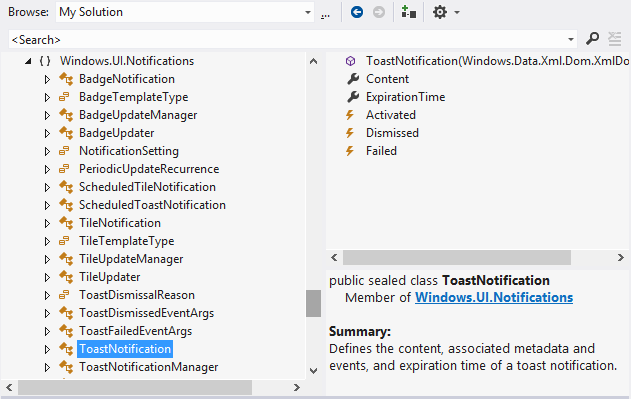
In .NET applications you can set a reference to Windows.winmd. This is a WinRT metadata file, which you can browse in the Visual Studio object browser.

image

You even get a short summary describing each class and class member.

Note that as Microsoft’s Larry Osterman explains here:

there is absolutely no (zero) il in the windows.winmd file – it’s a metadata-only assembly. This is important because winmd files only describe structure, they don’t contain code (note that the C# compiler can produce hybrid winmd files that also contain some code, this was to support certain C# scenarios)

While a lot of stuff works, there will be WinRT API calls that make no sense other than for real WinRT apps. It is also worth noting that all of this is specific to Windows 8 (and higher, I presume). Since most desktop apps will need to be compatible at least with Windows 7, this requires some care. Lamb also says:

WinRT APIs may be tied to Metro style apps, Desktop apps or potentially available to both. The documentation will list which environments (Desktop, Metro style or both) a given API works in.

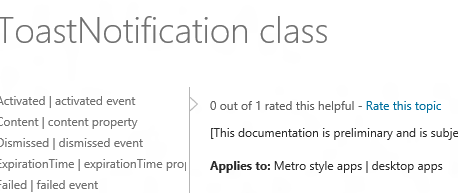
and in fact you can see this in the documentation. For example, the docs for the ToastNotification class states:

Applies to: Metro style apps | desktop apps

image

whereas if you look at the ContactPickerUI class, it says:

Applies to: Metro style apps only

For those APIs where desktop use is supported, you can go right ahead.

Notifications in Windows 8: how to display new-style toast from a desktop app

This post was prompted by the discussion over the fact that Windows 8 boots into the Start screen, and cannot apparently be modified to boot into the Desktop (though no doubt someone will find a way).

What if, I wondered, you put a desktop app into your startup folder so it runs automatically on boot? The answer: it runs on the desktop, but you will not see it until you click or tap into the desktop from the start screen. This is different behaviour from actually starting a desktop app from the start screen, which switches you to the desktop.

So what if that desktop app has something important to tell you? The answer: you will not see it until you switch to the desktop.

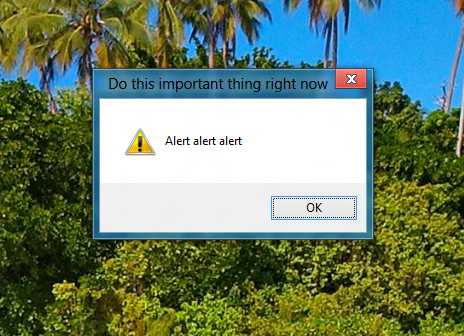
To demonstrate this, I wrote a Windows Forms app that displays a MessageBox alert after a 5 second delay. I ran the app, activated the alert, and switched to a Windows Runtime Metro app. When the alert fired, I heard a little ding, but saw no message. Only after switching to the desktop did I see the message.

image

To be fair, you might not see this even if you were working in the desktop, since Windows has complex (and sometimes unpredictable) rules about when apps are allowed to come to the foreground. Even calling the Activate method, which gives your window the focus, may do no more than flash the icon on the taskbar.

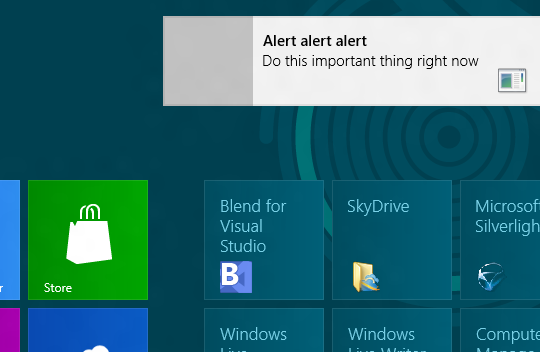
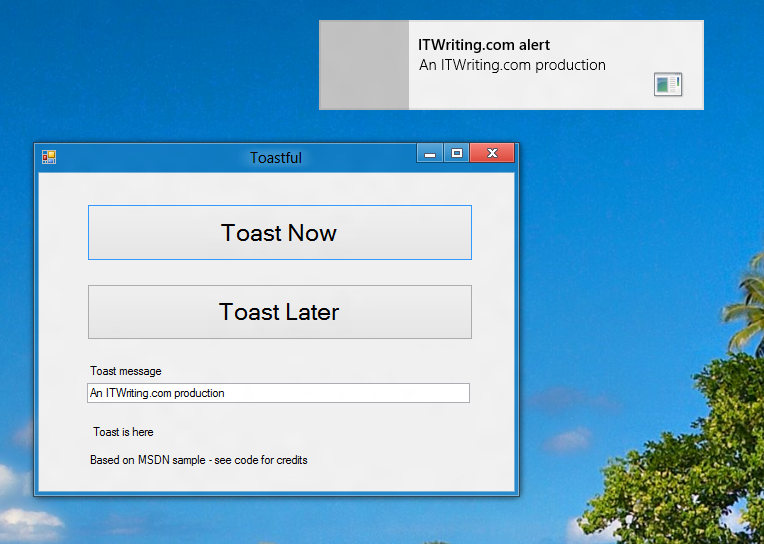
Windows 8 has a new-style “toast” notification mechanism that works across both desktop and Windows runtime. I got this working in my Windows Forms app.

image

So how do you do this? For some background, see Jim O’Neil’s series of posts which start here. However, I mostly used code from the sample Sending toast notifications from desktop apps. This is a WPF application, but I got the code to work in my Windows Forms application. Note that to reference Windows.UI.Notifications you have to add a reference to:

C:\Program Files (x86)\Windows Kits\8.0\References\CommonConfiguration\Neutral\Windows.winmd

Update: in the release version of Visual Studio 2012 the way you reference winmd has changed. See this MSDN article and the section called Core Subgroup; however at the time of writing the method described there does not quite work. Instead, proceed as follows. First right-click the project in the Solution Explorer and choose Unload Project. Then right-click the project again and choose Edit [project].csproj. Add the following to the project file after the other Reference elements:

<Reference Include="Windows" />

then save and close the editor. Finally, right-click the project name again and choose Reload project. Do not add the suggested TargetPlatformVersion element, since if you do the project will not compile.

You also need the Windows 7 API code pack which is here.

Here is a quick summary though. In order to display a toast notification, you first need a shortcut to your app on the Start menu. In addition, the shortcut has to have an AppUserModeId, which you can set in code.

Once that is sorted, you can use the ToastNotificationManager class – for which you need that reference to Windows.UI.Notifications – and retrieve a standard XML template for the notification. You can add event handlers to the notification, so you can respond if the user clicks it. Then call:

ToastNotificationManager.CreateToastNotifier(APP_ID).Show(toast);

to actually show the notification.

Note that your event handlers will not fire on the UI thread, so you need to use thread-safe methods if you want to interact with controls on your form.

It is all somewhat laborious, but on the plus side you get notifications which are better than the old notification area toast, and much better than MessageBox.

Note that this is one bit of code applications will only have if they are modified to work on Windows 8. That is worth noting if you have an application in which notifications play an important role.

image

Office 365 for developers: Getting started with Microsoft Napa

One key aspect of Microsoft’s forthcoming Office 2013 is its support for a new app model. The idea is that rather than building local add-ins for desktop Office, you will build web applications that live in one of four places:

  • In SharePoint
  • Within an Excel document
  • Within a Task pane in Excel or Word
  • Adjacent to an email in Outlook
Advertisement

If you have been following Office development for a while, it is hard to supress an initial reaction of “oh no, not another development model for Office.” After all, we have had Basic macros, Visual Basic for Applications, COM Add-ins, Visual Studio Tools for Office, and in the case of Exchange, other APIs such as MAPI and Exchange Client Extensions. Further, most of this stuff still works, which is a mixed blessing as the the whole thing gets more bloated and confusing.

Even so, I can see the sense of the new Apps for Office. One key advantage is that they work in Office Web Apps as well as in the desktop applications. They are also easier to deploy and secure, since they require no executable files on the client, are sandboxed, and only interact with the local document via a JavaScript library. That may not always be sufficient of course, in which case you can stick with one of the older extension models (personally I still find VBA useful), but where it is sufficient, this strikes me as a good approach.

That said, there are plenty of gaps in the list of supported app types:

Application Supported types
Excel 2013 Preview Task pane, Content
Excel Web App Preview Content
Word 2013 Preview Task Pane
Outlook 2013 Preview Mail
Outlook Web App Preview Mail
Project Professional 2013 Preview Task Pane

It would be good to see content apps supported more widely. Still, it is a start.

Office program manager Brian Jones has an excellent post on the background to apps for Office and SharePoint, which inspired me to sign up for a developer preview. Microsoft had already created an Office 365 preview account for me, but this other one is the real deal: you get to administer an entire test organization, complete with SharePoint, Exchange 2013, and all the Office 2013 preview apps.

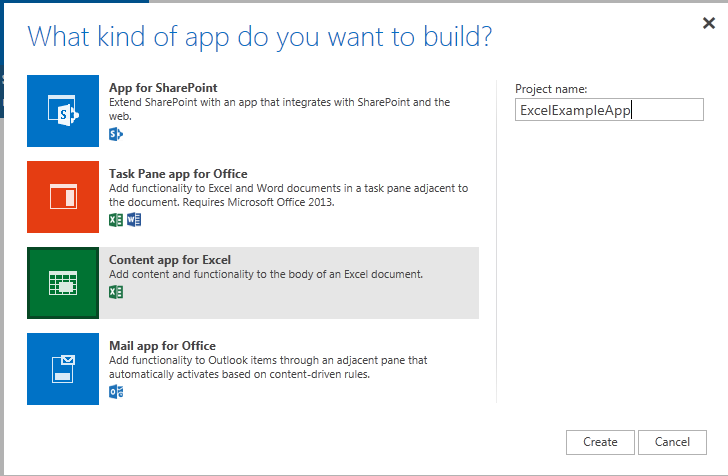
After sign-up, it took a few minutes to provision, and then I was able to add the Napa development tools to the site. This is itself a cloud app. It is easy to get started: choose the type of app you want and you are in.

image

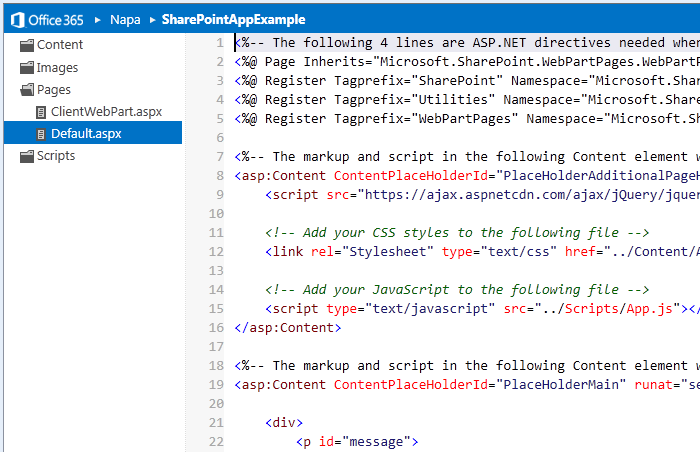
Napa is a cloud IDE, essentially a code editor with some syntax highlighting and code completion.

image

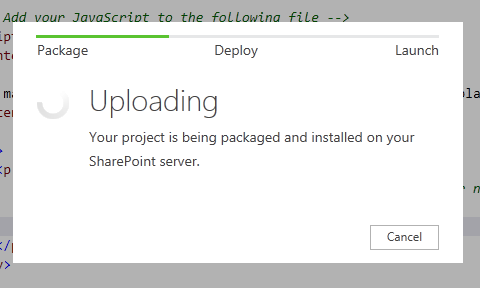
The real joy, if you have ever done SharePoint development, is how easy it is to deploy. Just click the Run button.

image

Once installed, you can launch the app with a click, provided you have enabled pop-ups on the site. An Excel content app works in the same way, but opens up the app running in an Excel Web App spreadsheet.

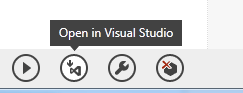
I am sure seasoned Microsoft platform developers will find Napa rather limiting, but there is also an Open in Visual Studio button, and all going well you should be able to do most of your coding in Visual Studio, upload back to Napa, and still get the benefit of easy test and deploy.

image

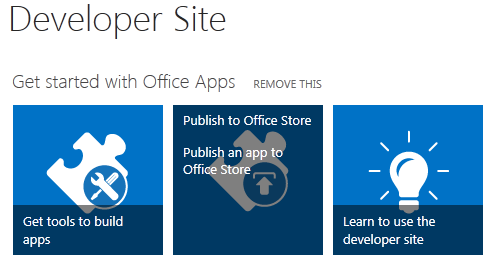
If you are pleased with your app you can easily offer it for sale by publishing to the Office store:

image

The implications for Office 365 are rather profound. It is evolving into a true extensible cloud platform, where businesses can add apps and deploy to their users using an app store model.

That said, you can argue that Microsoft is playing catch-up here. For example, Salesforce.com has had Force.com for years, and I know from visiting the huge vendor exhibitions at events like Dreamforce how strong that marketplace has turned out to be. Salesforce has also enabled its users to build apps in the cloud for many years now.

All true; but Microsoft’s approach does have the advantage of continuity. As I mentioned above, the old stuff still works, so customers can move at their own pace towards a cloud-based platform.

For more information, I recommend this overview.

Microsoft opens up Office 365 and Azure single sign-on for developers

Remember Passport and Hailstorm? Well here it comes again, kind-of, but in corporate-friendly form. It is called Windows Azure Active Directory, and is currently in Developer Preview:

Windows Azure AD provides software developers with a user centric cloud service for storing and managing user identities, coupled with a world class, secure & standards based authorization and authentication system. With support for .Net, Java, & PHP it can be used on all the major devices and platforms software developers use today.

The clearest explanation I can find is in John Shewchuk’s post on Reimagining Active Directory for the Social Enterprise. He makes the point that every Office 365 user is signing on to Microsoft’s cloud-hosted Active Directory. And here is the big deal:

The Windows Azure Active Directory SSO capability can be used by any application, from Microsoft or a third party running on any technology base. So if a user is signed in to one application and moves to another, the user doesn’t have to sign in again.

Organisations with on-premise Active Directory can use federation and synchronisation (Shewchuk fudges the distinction) so that you can get a single point of management as well as single sign-on between cloud and internal network.

Is this really new? I posted about Single sign-on from Active Directory to Windows Azure back in December 2010, and in fact I even got this working using my own on-premise AD to sign into an Azure app.

It seems though that Microsoft is working on both simplifying the programming, and adding integration with social networks. Here is where it gets to sound even more Hailstorm-like:

… we will look at enhancements to Windows Azure Active Directory and the programming model that enable developers to more easily create applications that work with consumer-oriented identities, integrate with social networks, and incorporate information in the directory into new application experiences.

Hailstorm failed because few trusted Microsoft to be the identity provider for the Internet. It is curious though: I am not sure that Facebook or Google are more well-trusted today, yet they are both used as identity providers by many third parties, especially Facebook. Spotify, for example, requires Facebook sign-in to create an account (an ugly feature).

Perhaps the key lesson is this. Once people are already hooked into a service, it is relatively easy to get them to extend it to third-parties. It is harder to get people to sign up for an all-encompassing internet identity service from scratch.

This is why Azure Active Directory will work where Hailstorm failed, though within a more limited context since nobody expects Microsoft to dominate today in the way it might have done back in 2001.

Microsoft’s Scott Guthrie on what has happened to Silverlight

I spoke to Microsoft’s Scott Guthrie last week, during his trip to the UK for a couple of Windows Azure events in Cambridge and London.

Guthrie is now Corporate VP Windows Azure Application Platform, a job he took up in May 2011. Before that he worked on .NET technologies including Silverlight, and I asked if he had any reflections on the subject. He was scrupulously tactful.

“In terms of looking at our XAML stack right now, if you look at some of the announcements we’ve made in terms of Windows 8, Metro, Surface, tablets and desktops, and Windows Phone, XAML is alive and well and being used for more things than ever.

“Silverlight 5 shipped after I moved on to Azure. We did an update to Silverlight 5 about a month ago. For XAML developers, and developers using Silverlight or WPF XAML technologies, there is a long roadmap ahead.”

He seemed to me to be saying that even if Silverlight is dead (nobody expects a Silverlight 6), XAML lives on.

I observed that in the new (and much improved) Windows Azure admin portal, the Silverlight UI has gone, replaced by an HTML 5 user interface.

“It’s actually HTML, it’s not HTML 5. It works with non HTML 5 browsers as well.“ he said. “That was less of a technology statement, it was more that, historically Azure had 5 or 6 admin tools that were fairly disjoint. One of the decisions we made as part of the new Azure that we’re building was, let’s have a single admin tool framework that connected everything. We decided to do it with HTML, partly because we did want to get reach on tablets like iPads and Android devices.

“It was less a technology statement, it was more that we wanted a single admin tool, and we decided to go with an HTML-based approach. We still use Silverlight for some of our admin experiences like database management tools, and for streaming and other capabilities.”

It is true that Silverlight remains in the Azure database design tool, if you use the portal. It is also used extensively in System Center 2012 – yes, I have actually installed it – and in Windows InTune.

It is as if, back in 2009 and early 2010, the memo went out: use Silverlight for everything. Then, later in 2010, the memo went out: use HTML for everything; but too late for the current generation of server admin products.

Microsoft has announced that Visual Studio LightSwitch, which generates Silverlight applications, is being revised to offer HTML applications as well. I expect this process of Silverlight removal and de-emphasis to continue over the next couple of years. Note that Microsoft’s own Windows RT does not support Silverlight (as far as I am aware), nor does Windows 8 on the Metro side.

Windows Phone 8 and Windows 8: nearly converged

Microsoft has shared details of the forthcoming Windows Phone 8 operating system, which is set to be available on devices before the end of 2012.

The improvements are fundamental, and it seems that Microsoft has finally created a mobile platform that has what it takes, technically, to compete in the modern smartphone market. Winning share from competitors is another thing of course; Nokia’s hoped-for third ecosystem is still tiny relative to Apple iOS or Google Android.

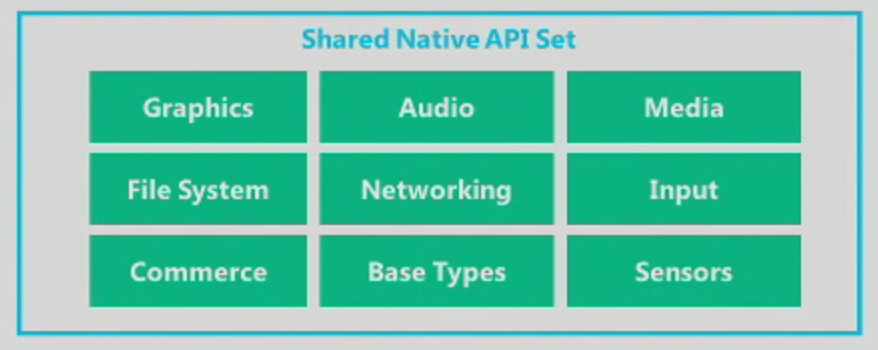
It starts with a change in the core operating system, from Windows CE to Windows 8. The two now share the same kernel, and APIs including Graphics, Audio, Media, File System, Networking, Input, Commerce, Base Types and Sensors. The .NET Framework is also the same. The browser will be Internet Explorer 10.

image

Silverlight was not mentioned, nor was XNA, though we were told that Windows Phone 7.x apps will run on Windows Phone 8.

The change does enable multi-core support at last. Screen resolution can now go up to 1280 x 768, ready for high-definition displays. There is also support for MicroSD storage, a feature which should have been in the first release.

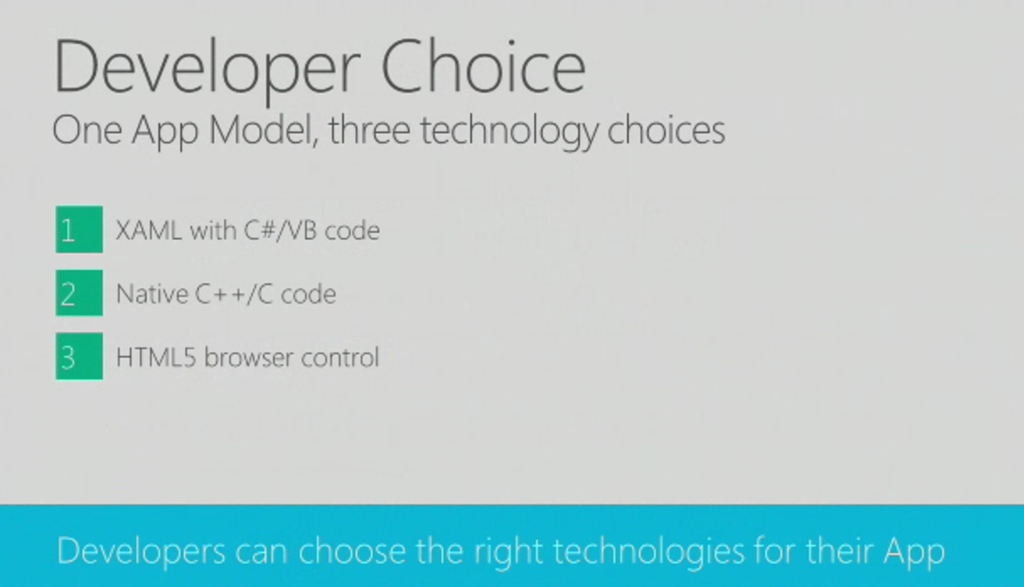
What about Windows RT, the runtime for Metro-style apps in Windows 8? Here is the significant slide from yesterday’s presentation:

devchoices

This looks similar to Windows RT, which also supports three development models: XAML and .NET, native C/C++ code, and HTML5. It is not quite the same though. One thing I did not hear mentioned was contracts, the communication and file sharing system built into Windows 8, though we were promised “sharing under user control”. Nor did we hear about language “projections”, the layer that lets different languages in Windows 8 call the same Windows Runtime APIs. My guess at the moment is that Windows Phone 8 does not include the Windows Runtime, though it does have much in common with it. The further guess is that the full Windows Runtime will come in Windows Phone 9.

In other words, it seems that Windows Phone 8 will not run apps coded for Windows 8, though we were told that if you code to the XAML and .NET model for apps, and the native code model for games, few changes will be needed. XNA developers should consider a change of direction.

Support for C/C++ is a key feature and one that in my view should have been in the first Windows Phone release. One of the things it enables is official support for SQLite, the cross-platform database engine also found in Mac OS X and numerous other platforms. A good day for SQLite, which pleases me as I am a fan.

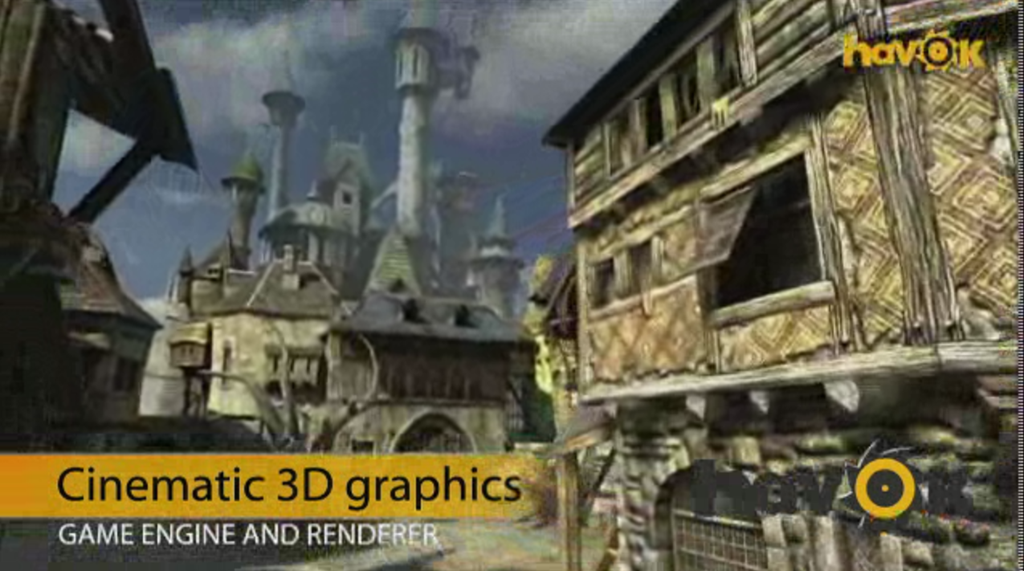
There will also be C/C++ gaming libraries coming to Windows Phone 8, including Havoc:

havoc

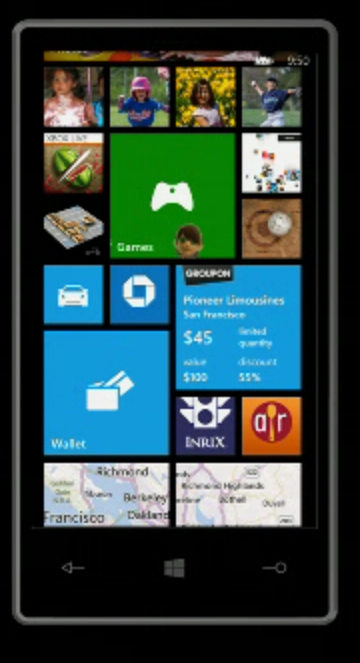
What else is new? Users will like the new Start screen, which unlike the whole of Windows Phone 8 is also coming to existing devices, which will get a half-way upgrade called Windows Phone 7.8 (7 and 8, geddit?). The innovation in the new Start screen is that any tile can be sized by the user to any of the supported sizes. The smallest size allows four tiles across, so you can make your Windows Phone look more like Android or iOS if you so choose.

newstart2

What else? Microsoft is not announcing “end-user features” yet, but did promise Nokia offline maps plus turn by turn directions; digital wallet which can be paired with a secure SIM for NFC (near field communications) payment, and deep support for Skype and VOIP so they “feel like any other call”. Apparently operators will love the way the wallet is implemented, because unlike Android it is hooked to the SIM, but I doubt they will be so keen on Skype.

There is an improved speech engine which duly failed to recognise speech input correctly in the first demo, though it worked after that.

Finally, Microsoft is now talking Enterprise for Windows Phone. There will be bitlocker encryption and enterprise app deployment without Windows store, as well as device management. Think full System Center 2012 integration.

Conclusion? There is disappointment that existing Windows Phone 7 devices are not fully upgradeable, but this is hardly surprising given the changed core. As a platform it is greatly improved, though I would like to see full WinRT included. Despite its poor start, you cannot dismiss this mobile OS as Microsoft continues to use its financial muscle to try and try again.

If it succeeds, will it be too late for Nokia? Maybe, though my hunch is that Microsoft will do what it takes to keep its key mobile partner alive.

Three reasons why Microsoft should make its own Windows RT (ARM) Tablet

Rumours are flying that Microsoft will announce an own-brand Windows RT tablet on Monday.

No comment on the truth of these, but it would be a smart move.

Here are three reasons.

First, the OEM foistware problem. This has got a little better in recent years, but not enough to compete with Apple and its clean machines. The problem is so bad that Microsoft set up its own retail stores to sell  cleaned-up Windows PCs:

Many new PCs come filled with lots of trialware and sample software that slows your computer down—removing all that is a pain, so we do it for you! Every PC the Microsoft Store sells is put on a software diet and performance is tuned to run the best it can.

Microsoft addressed this in Windows Phone by imposing conditions on the extent to which OEMs can customise the user interface or embed their own software. It cannot do this  though with Windows 8 on x86. Manufacturing its own model is one of the few ways Microsoft can get Windows PCs that work as designed into the hands of consumers.

Second, the design problem. Few Windows PCs (if any) are as well designed as Macs or iPads. Manufacturers are geared towards low prices and frequent model changes rather than intensive work on every detail of the design.

Third, Microsoft wants to make a splash with Windows RT, the ARM version, and there is evidence that it is having difficulty communicating its benefits or convincing its OEM partners to get fully behind it.

This third is the biggest issue, which might drive Microsoft to compete with its third-party partners, and requires some explanation. Many people I speak to cannot see the point of Windows RT. This version of Windows 8 will not run x86 applications, so you cannot install any of your old software. Further, there is no way to install desktop applications, so software vendors cannot port their existing applications. They must create new Metro-style apps instead. So why bother with Windows RT?

This reaction is understandable, but unfortunately for Microsoft Windows 8 on x86 has no chance of competing with Apple’s iPad.

Yesterday I attended an Asus event in London where the company was showing its new range of Android tablets and Windows ultrabooks. It was not showing its prototype Windows 8 machines, but I was able to discuss the likely Windows 8 products, All but one is x86, and they will have Wacom digitizers,  which means they will work with a stylus like an old-style Tablet PC, as well as with touch. That will push up the price.

Worse still, these x86 devices, like the Samsung Slate on which I run WIndows 8 Release Preview, will not be enjoyable to use with touch alone. Users will find themselves running applications designed for keyboard and mouse: you can get them to work, but it is frustrating. These devices are not Windows reimagined, they are the old Windows plus a few new tricks.

Too expensive, too hard to use: Windows 8 on x86 is not an iPad-beater.

Windows RT on the other hand is more promising. This does have a desktop, but it will only run Office, Windows Explorer, and whatever other desktop utilities Microsoft chooses to provide. Office aside, you will be forced to use touch-friendly Metro apps most of the time. Microsoft can tune Windows RT by removing legacy components that are no longer needed, because applications which rely on them cannot be installed. You also get the power efficiency of ARM, so a long battery life. Finally, if Microsoft has done it right Windows RT should be more secure, since the entire operating system is locked down.

Windows RT is critical to Microsoft and if it has to make its own hardware in order to market it properly, then it should do so.

New Windows 8, new Visual Studio 2012

Microsoft has released the Release Candidate of Visual Studio 2012 (now the official name), which you can download here, to coincide with the release of Windows 8 Release Preview and Windows Server 2012 Release Preview.

Visual Studio also has a new logo, as you can see from the setup window below.

image

Microsoft’s Jason Zander has posted about the new release here. Some of the main areas of difference between the RC and the Beta are:

  • Better performance
  • User interface tweaks including the return of a little more colour to the product
  • Solution Explorer filtering
  • New Metro style app templates
  • Improved XAML and Blend designers
  • Updated ASP.NET 4.5 web forms to support the await keyword
  • Tweaks to LightSwitch, Team Foundation Server, Architectural Tools

There is also a more detailed post by Scott Hanselman on what’s new in web development here.

Convert .NET Intermediate Language to JavaScript

Whomever called JavaScript the assembly language of the web was a true prophet.

Compiling .Net code to JavaScript is not new. I have heard that Microsoft’s Office Web Apps, browser-hosted editing of Office documents, are built with Script#.

The difference with JSIL is that it compiles .NET Intermediate Language (IL), and therefore works with any .NET language – though note that:

JSIL is still in development. You will hit bugs

The screenshot says it all

image

Hands on: building an app for Windows 8 Metro

How difficult is it to build an app for the Windows Runtime (WinRT), which powers Metro-style apps in Windows 8?

Here is how I created a simple calculator app (this is one in an occasional series) using Visual Studio 11 beta. I started with a new Visual C# Windows Metro Style project, choosing a blank template.

image

A slight complication is that you are prompted to install a Developer License, which means logging into your Windows Live account.

image

Next, I had to layout the controls. Visual Studio creates a single-page app with a main page called BlankPage.xaml. I renamed this to Calc.xaml. I also used Visual Studio’s refactor menu to rename the page class from BlankPage to Calc.

image

The default application has a black background, which seems gloomy. I changed the Background of the container grid to white.

My basic calculator design is based on six rows and four columns, so I added 6 RowDefinitions and 4 ColumnDefinition to the XAML grid. The units for RowDefinitions and ColumnDefinitions can be set to Auto, Pixel or Star. Star means the unit is a weight which is calculated at runtime. For example, if you set the value of one RowDefinition.Height to 2 and the others to 1, the first one would be twice as high as the others. Here is my basic grid:

image

Next, I placed controls in the grid. The easiest way to get them to fill the space neatly is to set their HorizontalAlignment and VerticalAlignment properties to Stretch. Then you control the margin round the control with the Margin property. You can have a control fill more than one cell by using the Grid.ColumnSpan and Grid.RowSpan properties.

I found it easier to add the controls in code using copy and paste.

image

A Grid has no FontSize property, and although the Page has a FontSize property it does not seem to be inherited by the controls. I therefore set the FontSize individually for each control but there must be a better way of doing this.

I then wrote minimal code that performs calculations without always crashing, and tested the app.  When you debug, you can choose Local Machine, Simulator, or Remote Machine. I found it easier to debug using the simulator, since if you use Local Machine and Visual Studio is running on the main display, then the app you are debugging becomes invisible if you hit a breakpoint or exception. The simulator seems really good (it is actually a remote session into your own machine) and I would like some way of running all Metro apps in a window like this, not just for debugging!

image

A few reflections

A developer with experience of C# and XAML (which is also used by Windows Presentation Foundation and by Silverlight) will not have much trouble getting started with WinRT, though I noticed that XAML is substantially cut-down, as Patrick Klug observes here.

Visual Studio 2011 is an excellent IDE although I do not much like the new property editor; a minor point, but I find the latest go at prettification detrimental to usability; it is too busy. This may be a matter of familiarity and it is a minor point.

image

The XAML visual designer is slow to refresh even with my simple app, so this could be annoying with a more complex layout.

Layout with XAML works well, though it is more difficult than say Windows Forms for a new developer. It is easy to get peculiar results unless you do everything with pixel layout, which is not the best approach.

What about Metro itself? Apps always run full screen, and I had a problem with this in that my little calculator does not need all that space.

image

I am not a designer; and I suppose with a bit of effort you could add some decoration or effects to use the space, or add extra features. But why?

I was thinking about the Atari ST the other day, following the death of Jack Tramiel. The ST did not really multitask, but to get around the problem of needing to run a second app without closing the first, it had the concept of desktop accessories, available from a pull-down menu. My calculator would work well as a desktop accessory in Metro, except there is no such concept – unless you count the “Snap” split view. I wonder if Microsoft is too religious about its “Immersive UI” concept.

A few reservations then; but that does not take away from the overall impression of a strong integrated development experience for building Metro-style apps.