Category Archives: software development

VLC is coming to Windows Phone

The popular media playback app VLC is coming to Windows Phone as well as Windows tablets, according to an email sent to supporters of its Kickstarter project for VLC for WinRT (Windows Runtime).

A new preview release has been made available on the Windows Store, with the following changes:

  • using libVLC 2.2.0 core,
  • redesign of the interface,
  • huge performance improvements,
  • use of Winsock for networking instead of WinRTsock,
  • use of Windows 8.1 widgets,
  • move the interface code to Universal to prepare Windows Phone 8.1 port.

The app is currently x86 only, and this will have to change before a Windows Phone version is possible, since Windows Phone currently runs only on ARM chipsets. The VLC developers say:

While this release is still x86-only, we’ve made great advances on the ARM port. More news soon.

The progress of apps like VLC will be interesting to watch following the release of Windows 10 next year, which (from the user’s perspective) blurs the distinction between desktop apps (like the old version of VLC) and Store apps (like this new one). Can the Store app be good enough that users will not feel the need to have the desktop version installed? Even if it is, of course, the desktop version will remain the only choice for those on Windows 7 and earlier. In fact, make that Windows 8.0 and earlier, since the new version requires Windows 8.1.

image

Is this why it is Windows 10 (not 9): avoiding Windows 95 detection?

Why did Microsoft call the Windows release after 8 version 10 rather than 9?

Windows boss Terry Myerson said it was because it was such a huge release – but then he would say that.

A more prosaic reason could be the old software problem of false version detection. After all, we have had Windows 9x before – that is, Windows 95 and Windows 98.

Former Windows chief Steven Sinofsky tweeted this a few hours ago:

image

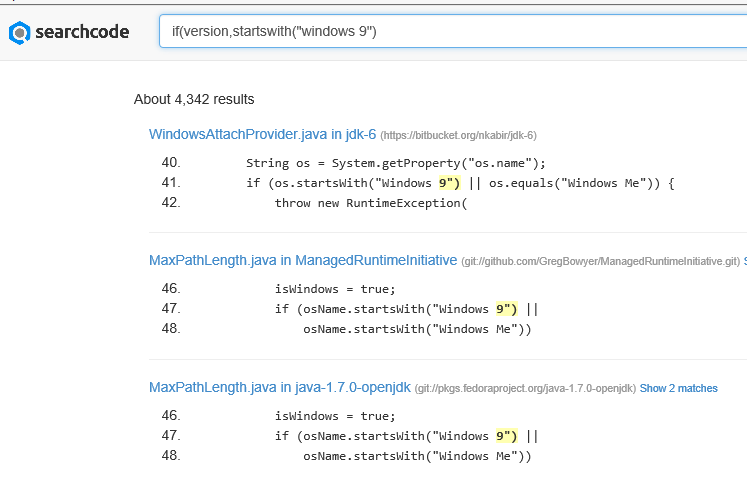
which if you follow the link gets this:

image

The first of these throws an exception if the name of the OS starts with “Windows 9”; and there are plenty of others like it.

Now, Windows version numbers are complex (Windows 95 actually reported itself as version 4.0) and well-written applications would get this right. There is also a year or so before Windows 10 is released, which gives time for developers, and the suppliers of runtimes like Java, to fix their code if necessary.

Still, it seems to me plausible that avoiding a version headache was a factor behind the naming of Windows 10.

Testing mobile apps: Xamarin goes live with Test Cloud for iOS and Android (but no Windows Phone)

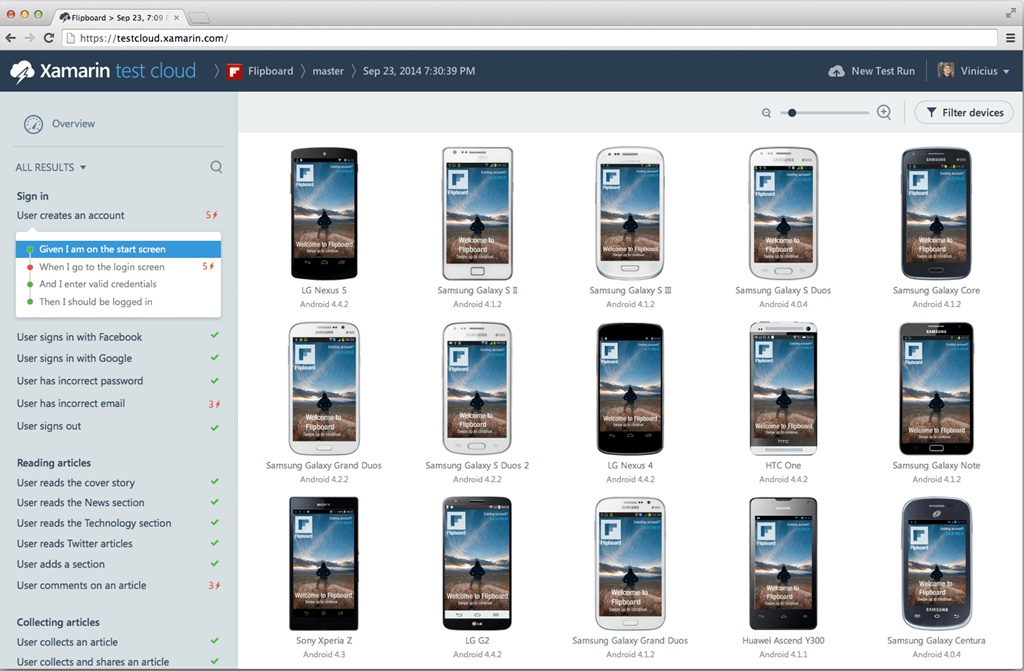
Testing a mobile app is challenging, thanks to operating system fragmentation combined with diversity of hardware. In April 2013 Xamarin acquired a company called LessPainful, specialists in functional testing for mobile apps, which had created a mobile app testing tool called Calabash. Calabash is based on Cucumber, and lets you define test steps and then combine them into natural language tests. LessPainful also had a cloud testing service which let you run tests on remote physical devices and see visual test reports.

Eighteen months on, Xamarin has now gone live with Test Cloud, and has announced some big names which it says are using the service, including Dropbox, Flipboard and eBay.

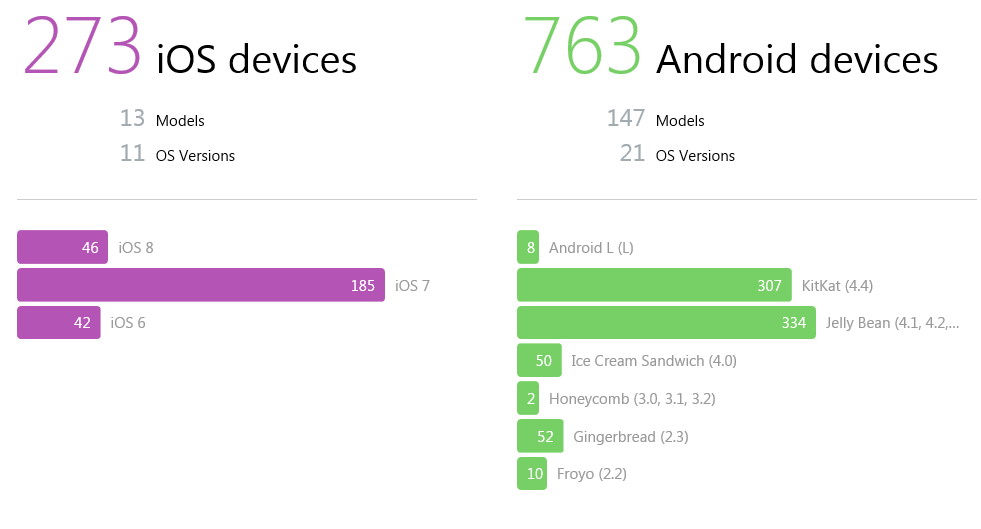
There are currently 1036 devices (the number changes regularly) in the Test Cloud, including 273 iOS and 763 Android (Windows Phone is not supported, but Amazon’s Fire Phone and Kindle Fire does appear in the list).

image

You write your tests either in Calabash or in C#, upload your app and the tests to Test Cloud, wait a while, and then get notification that the tests are done and a report ready to view.

image

You can simulate events such as changes in location, device rotation, network dropouts, and of course user interactions like taps and gestures. You get screenshots and performance data (memory and CPU usage) for each test step.

You can also integrate with CI (Continuous Integration) systems like TFS, Jenkins and TeamCity to automate testing.

Writing and maintaining tests is hard work, of course, but for businesses that can afford the investment in both time and money, Test Cloud is likely to be a great improvement on manually gathering up as many devices as you can find and installing your app on all of them.

The cost is significant though, starting at $1000 per month for up to 2 apps and 200 device hours. You have to pay annually too, so it looks like a strategy of just buying one month towards the end of your development cycle will not work.

That said, I have been told that Xamarin will be coming out with an Indie version in the future that has a lower price.

Android apps on Chrome: how it works and what it may become

Google announced at its I/O conference in June 2014 that Android apps are coming to its Chrome OS. Earlier this month product managers Ken Mixter and Josh Woodward announced that the first four Android apps are available in the Chromebook app store: Duolingo, Evernote, Sight Words and Vine.

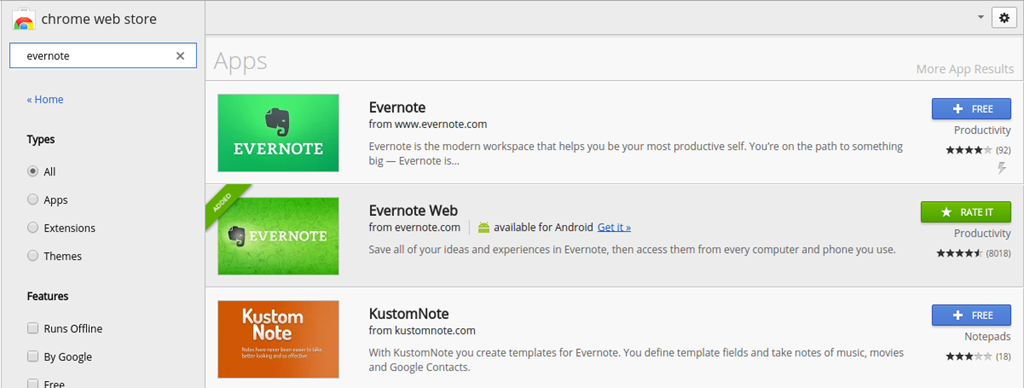
I delayed posting about this until I found the time to investigate a little into how it works. I fired up an Acer C720 and installed Evernote from the Chrome web store (in addition to Evernote Web which was already installed).

image

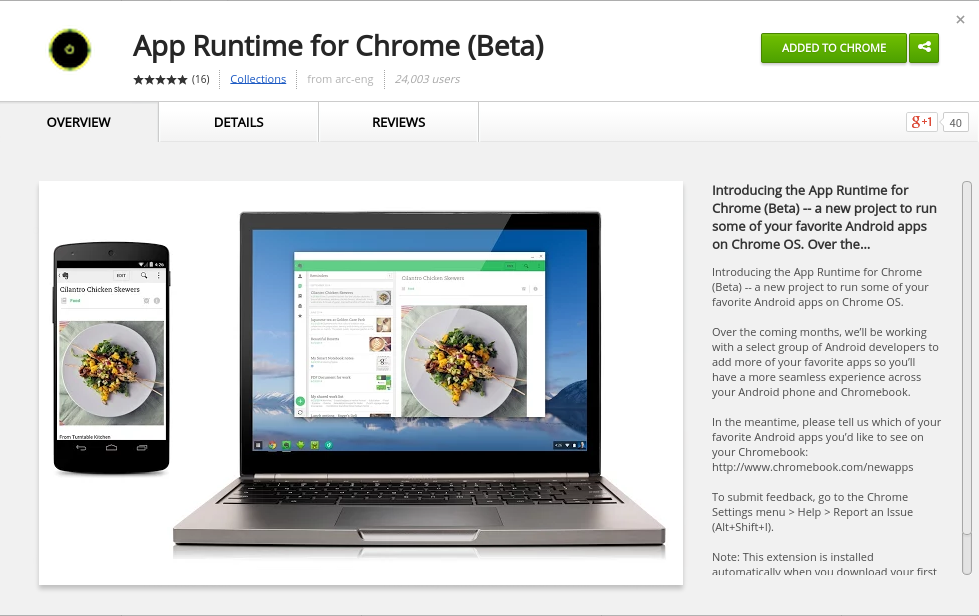
When you install your first Android app, Chrome installs the App Runtime for Chrome (Beta) (ARC) automatically.

image

Incidentally, I found Evernote slightly odd on Chromebook since it is runs in a window although the app is designed to run full screen, as it would on a phone or tablet. This caught me out when I went to settings, which looks like a dialog, and closed it with the x at the top right of the window. Of course that closes the app entirely. If you want to navigate the app, you have to click the back arrow at top left of the window instead.

But what is the App Runtime for Chrome? This seems to be an implementation of the Android runtime for NaCl (Native Client), which lets you run compiled C and C++ code in the browser. If you browse the parts of ARC which are open source, you can see how it implements the Android Open Source Project (AOSP) for arch-nacl: a virtual processor running as a browser extension.

Not all of ARC is open source. The docs say:

Getting Started with ARC Open Source on Linux

=============================================

A small set of shared objects can be built which are part of ARC currently.

A fully running system cannot currently be built.

It is early days, with just four apps available, ARC in beta, and developers asked to contact Google if they are interested in having their Android apps run on Chrome OS. However, an independent developer has already ported ARC to desktop Chrome:

ARChon runtime lets you run unlimited number of Android APKs created with chromeos-apk on Chrome OS and across any desktop platform that supports Chrome.

The desktop version is unstable, and apps that need Google Play services run into problems. Still, think of it as a proof of concept.

In particular, note that this is Android Runtime for Chrome, not Android Runtime for Chrome OS. Google is targeting the browser, not the operating system. This means that ARC can, if Google chooses, become an Android runtime for every operating system where Chrome runs – with the exception, I imagine, of Chrome for iOS, which is really a wrapper for Apple’s web browser engine and cannot support NaCl, and Chrome for Android which does not need it.

Imagine that Google gets ARC running well on Windows and Mac. What are the implications?

The answer is that Android will become a cross-platform runtime, alongside others such as Flash (the engine in Adobe AIR) and Java. There has to be some performance penalty for apps written in Java for Android running in an Android VM in the browser; but NaCl runs native code and I would expect performance to be good enough.

This would make Android an even more attractive target for developers, since apps will run on desktop computers as well as on Android itself.

Might this get to the point where developers drop dedicated Windows or Mac versions of their apps, arguing that users can just run the Android version? An ARC app will be compromised not only in performance, but also in the way it integrates with the OS, so you would not expect this to happen with major apps. However, it could happen with some apps, since it greatly simplifies development.

Microsoft Azure: new preview portal is “designed like an operating system” but is it better?

How important is the Azure portal, the web-based user interface for managing Microsoft’s cloud computing platform? You can argue that it is not all that important. Developers and users care more about the performance and reliability of the services themselves. You can also control Azure services through PowerShell scripts.

My view is the opposite though. The portal is the entry point for Azure and a good experience makes developers more likely to continue. It is also a dashboard, with an overview of everything you have running (or not running) on Azure, the health of your services, and how much they are costing you. I also think of the portal as an index of resources. Can you do this on Azure? Browsing through the portal gives you a quick answer.

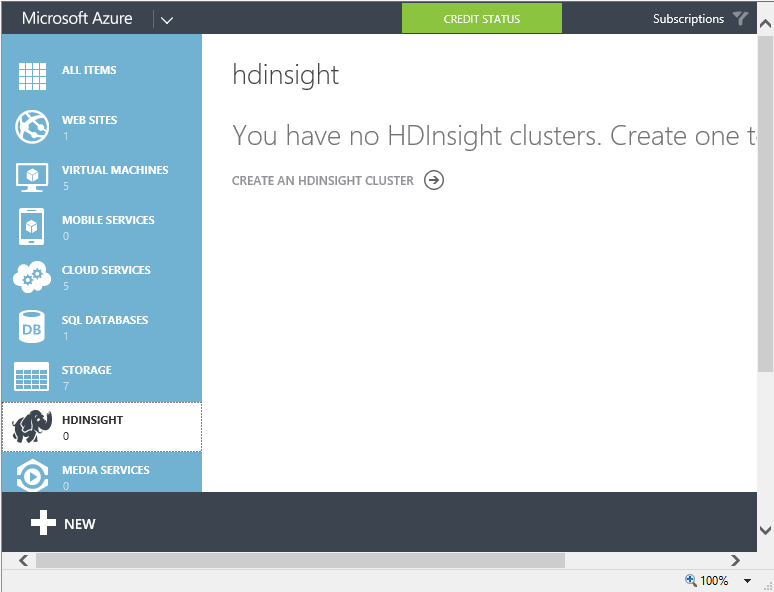
The original Azure portal was pretty bad. I wish I had more screenshots; this 2009 post comparing getting started on Google App Engine with Azure may bring back some memories. In 2011 there were some big management changes at Microsoft, and Scott Guthrie moved over to Azure along with various other executives. Usability and capability improved fast, and one of the notable changes was the appearance of a new portal. Written in HTML 5, it was excellent, showing all the service categories in a left-hand column. Select a category, and all your services in that category are listed. Select a service and you get a detailed dashboard. This portal has evolved somewhat since it was introduced, notably through the addition of many more services, but the design is essentially the same.

image

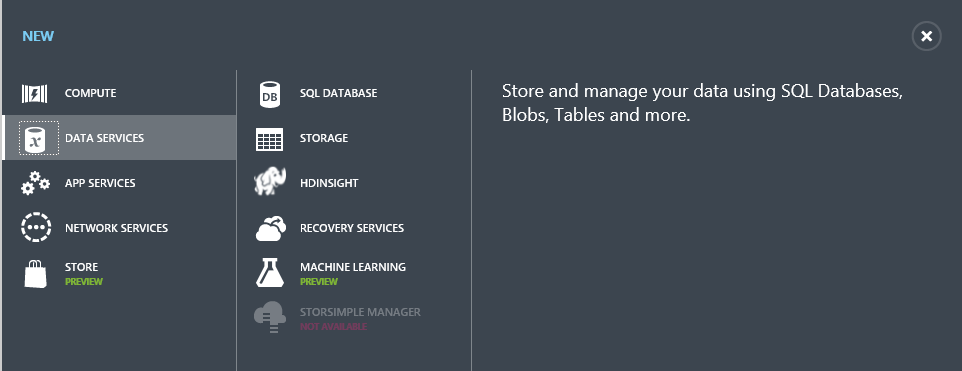
The New button lets you create a new service:

image

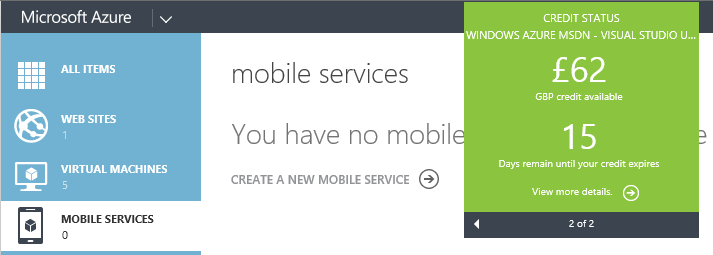
The portal also shows credit status right there – no need to hunt through links to account management pages:

image

It is an excellent portal, in other words, logically laid out, easy to use, and effective.

That is the old portal though. Microsoft has introduced a new portal, first demonstrated at the Build conference in April. The new portal is at http://portal.azure.com, versus http://manage.windowsazure.com for the old one.

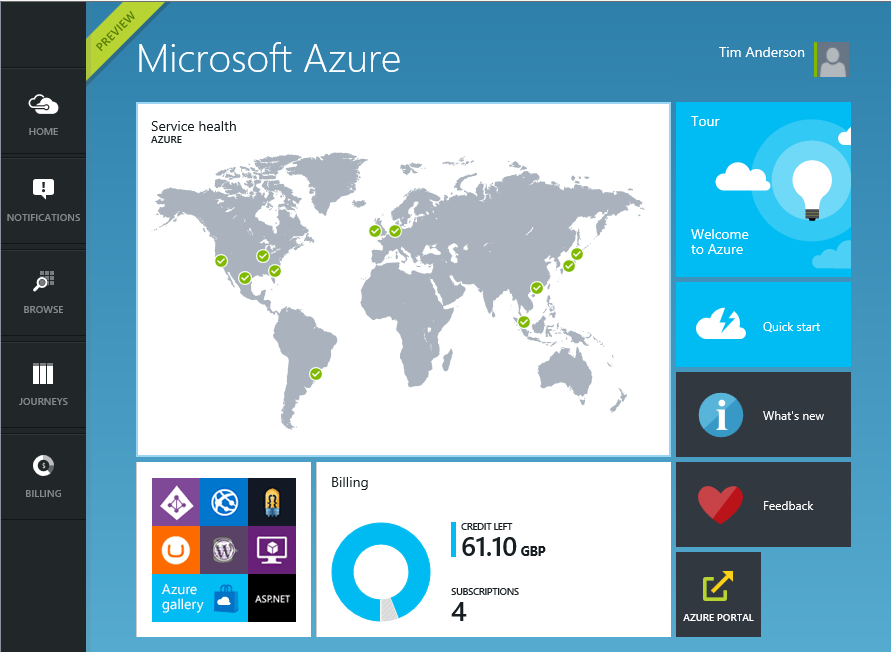
The new portal is different in look and feel:

image

Why a new portal and how does it work? Microsoft’s Justin Beckwith, a program manager, has a detailed explanatory post. He says that the old portal worked well at first but became difficult to manage:

As we started ramping up the number of services in Azure, it became infeasible for one team to write all of the UI. The teams which owned the service were now responsible (mostly) for writing their own UI, inside of the portal source repository. This had the benefit of allowing individual teams to control their own destiny. However – it now mean that we had hundreds of developers all writing code in the same repository. A change made to the SQL Server management experience could break the Azure Web Sites experience. A change to a CSS file by a developer working on virtual machines could break the experience in storage. Coordinating the 3 week ship schedule became really hard. The team was tracking dependencies across multiple organizations, the underlying REST APIs that powered the experiences, and the release cadence of ~40 teams across the company that were delivering cloud services.

The new portal is the outcome of some deep thinking about the future. It is architected, according to Beckwith, more like an operating system than like a web application.

The new portal is designed like an operating system. It provides a set of UI widgets, a navigation framework, data management APIs, and other various services one would expect to find with any UI framework. The portal team is responsible for building the operating system (or the shell, as we like to call it), and for the overall health of the portal.

Each service has its own extension, or “application”, which runs in an iframe (inline frame) and is isolated from other extensions. Unusually, the iframes are not used to render content, but only to run scripts. These scripts communicate with the main frame using the window.postMessage API call – familiar territory for Windows developers, since messages also drive the Windows desktop operating system.

Microsoft is also using TypeScript, a high-level language that compiles to JavaScript, and open source resources including Less and Knockout.

Beckwith’s post is good reading, but the crunch question is this: how does the new portal compare to the old one?

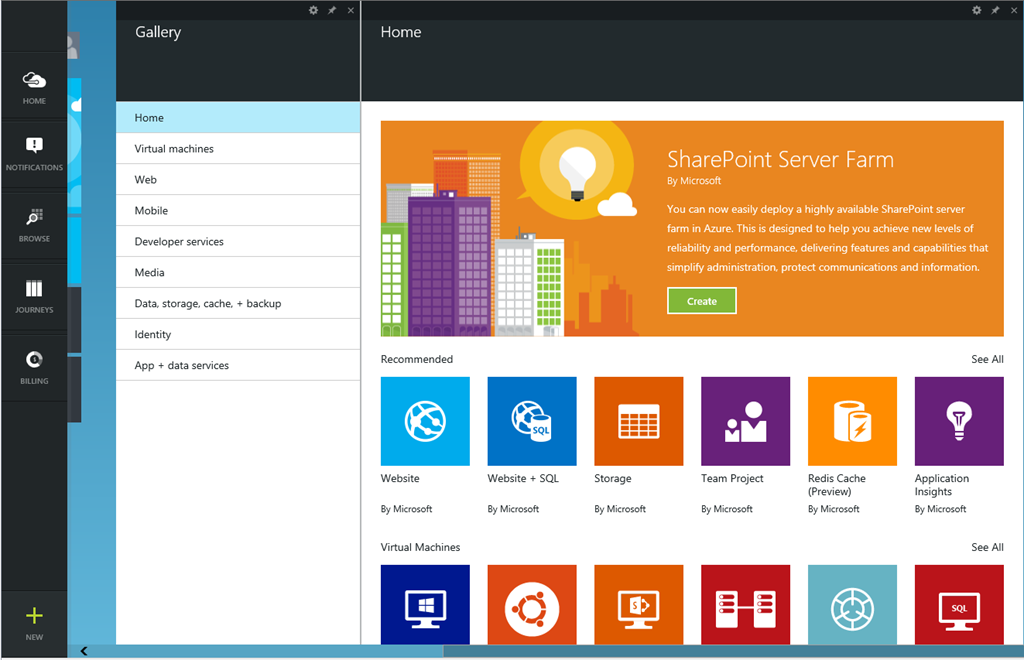
I get the sense that Microsoft has put a lot of effort into the new portal (which is still in preview) and that it is responsive to feedback. I expect that the new portal will in time be excellent. Currently though I have mixed feeling about it, and often prefer to use the old portal. The new portal is busier, slower and more confusing. Here is the equivalent to the previous New screen shown above:

image

The icons are prettier, but there is something suspiciously like an ad at top right; I would rather see more services, with bigger text and smaller icons; the text conveys more information.

Let’s look at scaling a website. In the old portal, you select a website, then click Scale in the top menu to get to a nice scaling screen where you can set up autoscaling, define the number of instances and so on.

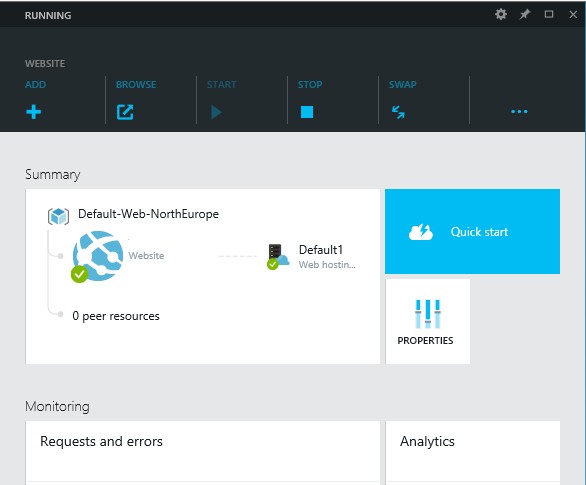
How do you find this in the new portal? You get this screen when you select a website (I have blanked out the name of the site).

image

This screen scrolls vertically and if you scroll down you can find a small Scale panel. Click it and you get to the scaling panel, which has a nicely done UI though the way panels constantly appear and disappear is something you have to get used to.

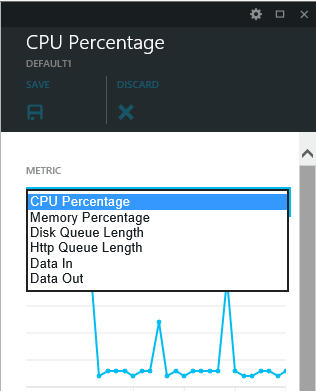
There are also additional scaling options in the preview portal (the old one only offers scaling based on CPU usage):

image

The preview portal also integrates with Visual Studio online for cloud-based devops.

The challenge for Microsoft is that the old portal set a high bar for clarity and usability. The preview portal does more than the old, and is more fit for purpose as the number and capability of Azure services increases, but its designers need to resist the temptation to let prettiness obstruct performance and efficiency.

Developers can give feedback on the portal here.

Microsoft releases WinJS cross-browser JavaScript library but why?

Microsoft has announced WinJS 3.0:

The Windows Library for JavaScript (WinJS) project is pleased to announce the general availability of its first release – WinJS 3.0 – since the open source project began at //BUILD 2014.

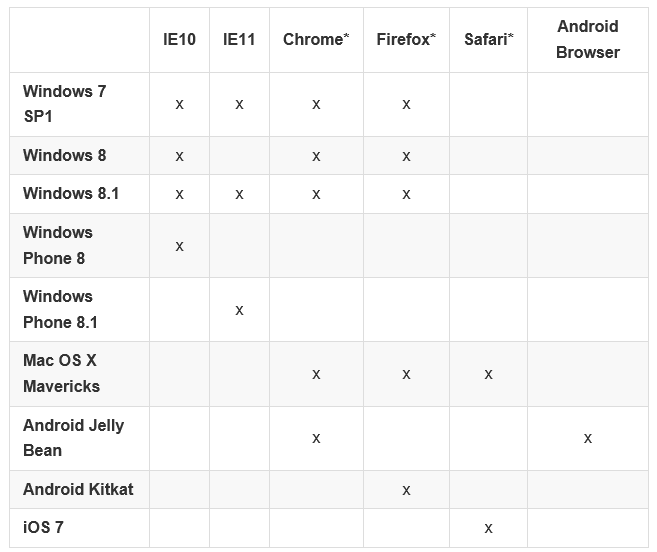
Much of WinJS will run on any modern browser but the browser support matrix has a number of gaps:

image

You can also see what runs where from this status table.

But what is WinJS? Note that it comes from the Windows apps team, not the web development team at Microsoft. WinJS was designed to enable app development for Windows 8 “Metro” (also known as the Windows Runtime) using JavaScript, CSS and HTML. Back in 2010, when Microsoft signalled the end of Silverlight and the rise of HTML 5 for browser-based applications, early versions of WinJS would already have been in preparation. Using WinJS you can share code across a Windows 8 app, web apps, and via an app packager like Apache Cordova, in apps for Android and iOS as well.

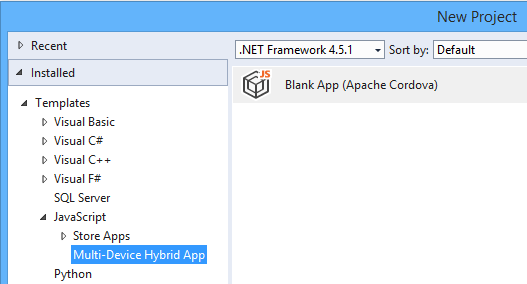
Note that Cordova is now integrated into Visual Studio, using the catchy name Multi-Device Hybrid App:

image

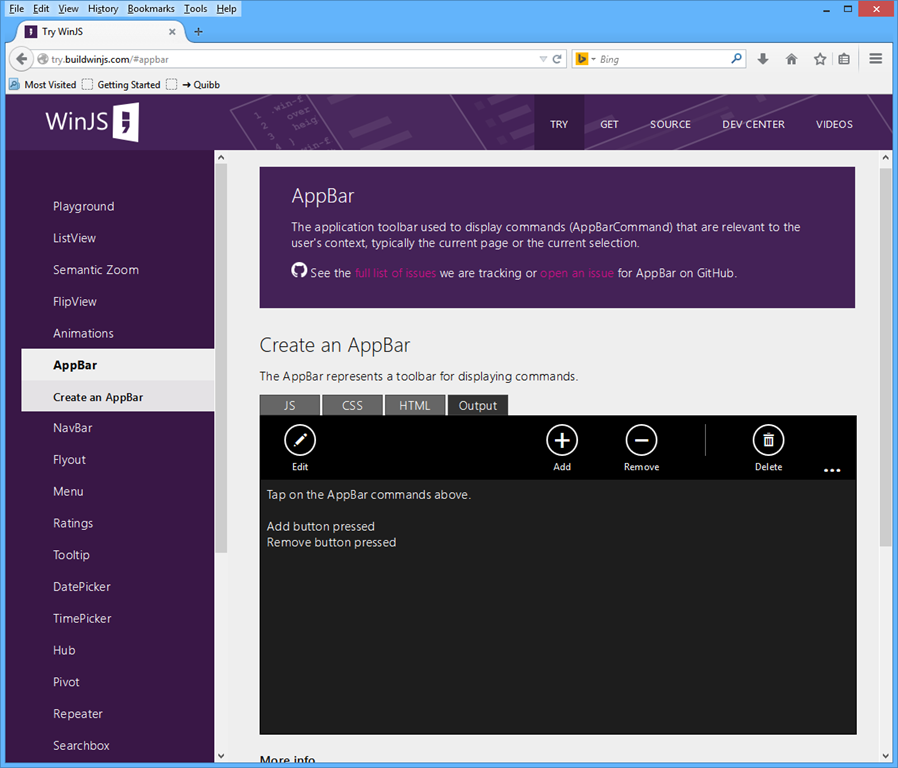
If you want to know what kind of controls and components are on offer in WinJS, you can find out using the excellent demo site here. This is Firefox:

image

Quick summary then: WinJS lets you build apps that look like Windows 8 Store apps, but which run cross-browser and cross-platform. But who wants to do that?

Maybe Microsoft does. The messaging from the company, especially since CEO Satya Nadella took over from Windows guy Steve Ballmer, is “any device”, provided of course that they hook up to Microsoft’s services. That messaging is intended for developers outside the company too. Check out the current campaign for Microsoft Azure, which says “consume on any device”.

image

This could be a web application, or it could be a client app using Azure Mobile Services or an ASP.NET Web API application to connect to cloud data.

You do not have to use WinJS to consume Microsoft’s services of course. Why would developers want to use the look and feel of a rather unloved app platform, rather than the native look and feel of Android or iOS? That is an excellent question, and in most cases they will not. There could be cases though, for example for internal business apps where users care most about functionality. What is the current stock? What is the lead time? Show me this customer’s order history. A WinJS app might not look right for the platform, but the UI will be touch-friendly, and ease of rollout across the major mobile platforms could trump Apple’s design guidelines.

If you are writing a pure web application, users expectations concerning native look and feel are not so high. The touch-oriented design of WinJS is its main appeal, though other web frameworks like JQuery Mobile also offer this. The “Metro” design language is distinctive, and Microsoft will be making a renewed push for Windows Store apps, or Universal Apps, as part of the new wave of Windows called Windows 9 or “Threshold”. WinJS is the way to build apps for that platform using JavaScript and HTML, with the added bonus of easy porting to a broad range of devices.

This is a hard sell though. I am impressed by the effort Microsoft has put into making WinJS work cross-platform, but will be surprised to see much usage outside Windows Store apps (including Windows Phone). On the other hand, it does help to keep the code honest: this really is HTML and JavaScript, not just a wrapper for Windows Runtime APIs.

Lifetime registration as a Windows Store developer, now from £12

Microsoft has removed some friction from developing for the Windows Store (whether phone or Windows 8) by removing the requirement to pay an annual subscription:

As we continue to execute on the vision to integrate the Windows and Windows Phone developer experiences, we have taken another step by moving to a one-time lifelong Dev Center registration fee.

says Microsoft’s Todd Brix in a post today. He adds that the 600,000 developers already registered are covered, with no additional fee required.

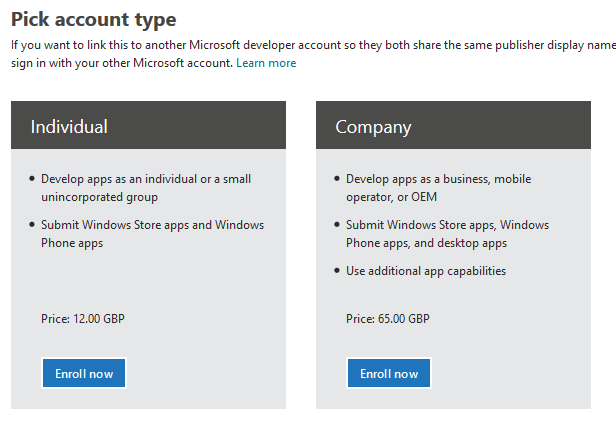
How much is the fee? Brix does not say, and I could not find it quickly, so I started the signup process. I was offered individual registration for just £12.00. A company registration is £65.00.

image

Both fees are of course negligible for a developer, compared to the cost of developing an app that is worth installing. Considering that Microsoft has had problems with junk apps filling its store, you could argue that fees are justifiable as a means of restraining the flow of meaningless or malicious apps.

The counter-argument is that fees deter developers from getting started, and that today’s hobbyist may come up with the next Minecraft. It is better to control quality with a robust checking process before apps are admitted into the store.

I had a quick glance today, and have the impression that Microsoft has made progress in removing the worst offenders, following some agitation at the end of last month.

Microsoft is laying the foundation for another go at its app platform with the launch of Windows 9, about which we will hear more in a couple of weeks time.

Windows “9”: forget the Start menu, consider the apps

This week has seen multiple leaks of early builds of the next version of Windows – sometimes called Windows 9 or “Threshold” – showing Microsoft’s continuing inability to persuade all of its partners to keep secrets.

It seems to me that the leaks are likely to be genuine, though the usual health warnings apply. I also expect that Microsoft is deliberately holding back from releasing final UI designs, in part because they are likely to leak, so you should not read too much into the appearance.

The headline new features are a revamped Start menu which appears in the old position on the desktop, rather than on a separate screen; and the ability to run several desktops at once, as a way of organising your work.

No doubt the new Start menu will feel more comfortable for Windows 7 users, though for myself I am now used to the full-screen version and it is no big deal.

I am more interested in what is happening with Windows Store apps (also known as Metro or Windows Runtime apps). These are significant because it is this kind of app that you can easily port to Windows Phone using a Visual Studio Universal App project.

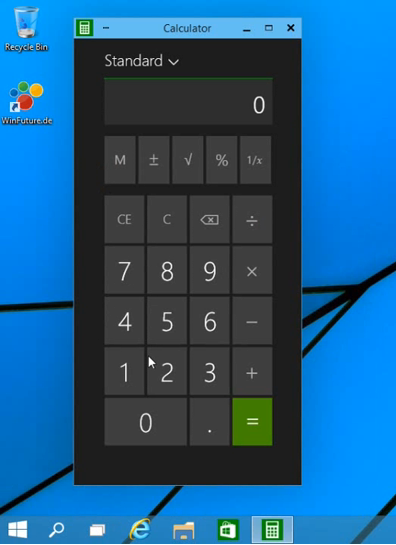
We saw these apps running in desktop windows, in a preview at the Build developer conference earlier this year. The leaked build seems also to have this feature. Check out the video here. Here is Calculator running on the desktop:

image

This is the Metro app, not the old desktop calculator. Here it is in Windows 8.1:

image

Note a big difference though: in Windows 8.1 you can get a window bar to appear along the top, but in Windows 9 there is also a maximize widget at top right of the window (in Windows, this doubles as a “restore down” button when the windows is already maximized).

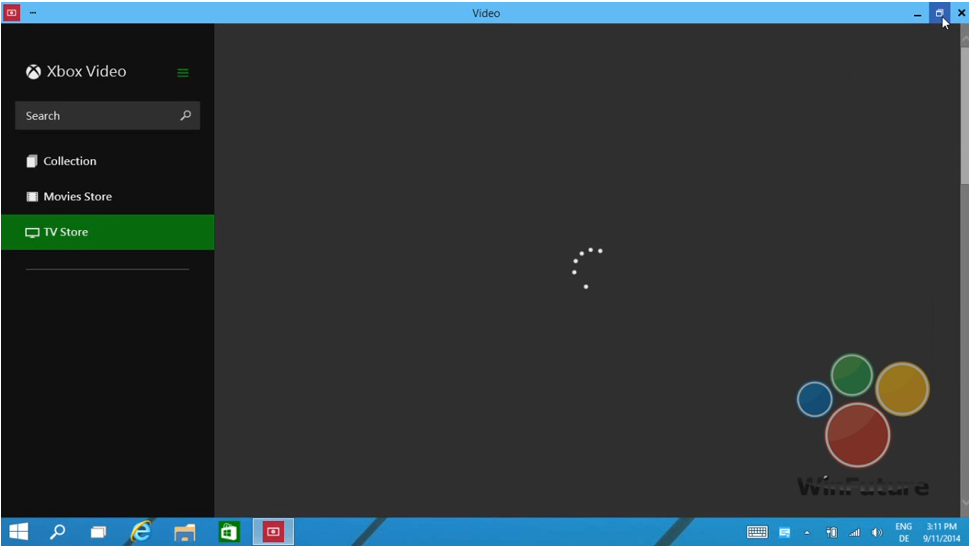
Later in the video, we see this in operation. The user starts the Xbox Video app full screen:

image

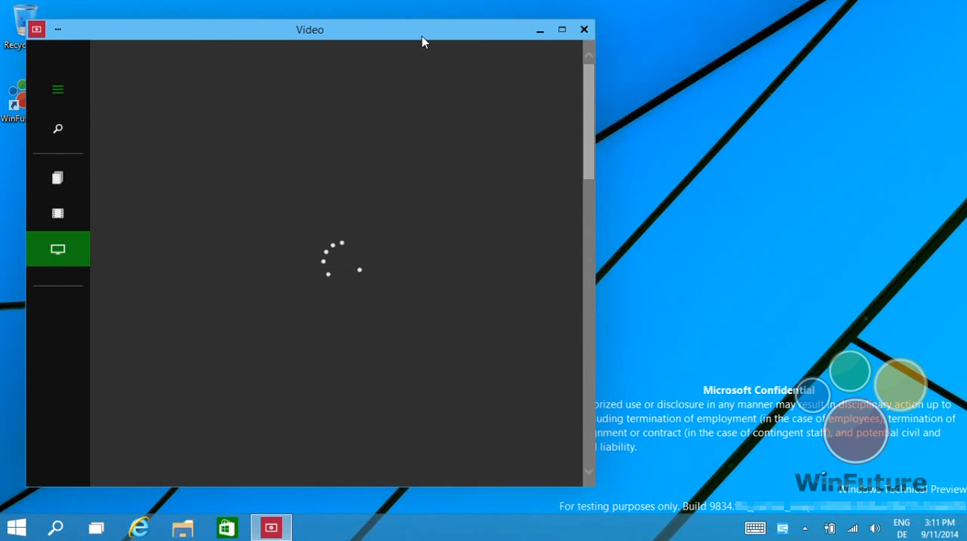
and then hits the “restore down” button:

image

This is therefore the bridge between the “Metro” and desktop environments. Hit that button, and the full-screen experience becomes a windowed app on the desktop.

In another leaked image, the Charms menu options (a right-edge menu in Windows 8.x) becomes a drop-down window menu, summoned by clicking in the right-hand upper corner. Users often find the Charms menu awkward with mouse and keyboard (I still do) so this will be a more convenient alternative.

Now, although Windows experts can easily see the difference between a Metro app and a desktop app, I doubt that the average user will care. All they will note is that this kind of app requires Windows 8 or 9 to run.

Although this is a diminished target for developers, who may still prefer to write desktop apps that target Windows 7 (or XP) and higher, my guess is that this new UI will make Windows Runtime apps more visible and acceptable for users who live primarily in the desktop – which is most Windows users.

If Microsoft can increase the momentum behind this style of apps, then their benefits will be more apparent too: easy install and uninstall via the Store, low malware risk, and a UI that works well on tablets as well as with mouse and keyboard. This in turn would make more sense of the small Windows tablets from the likes of Toshiba, HP and Lenovo which we recently saw at IFA in Berlin.

There would be a knock-on benefit for Windows Phone, too, thanks to relatively easy porting between the two platforms.

What do you think – is desktop integration enough to rescue the Windows 8 app platform?

Book review: Professional ASP.NET MVC 5. Is this the way to learn ASP.NET MVC?

This book caught my eye because while I like ASP.NET MVC, Microsoft’s modern web application framework, it seems to be badly documented. Even the word “badly” is not quite right; there is lots of documentation, some of high quality, but finding your way around it is challenging, thanks to the many different pieces involved. When I completed an ASP.NET MVC project recently, I found it frustrating thanks to over-reliance on sample projects (hey, here is a an application we did that works, see if you can figure out how we did it), many out of date articles relating to old versions; and the opposite, posts and samples which include preview software that does not seem wise to use in production.

image

In my experience ASP.NET MVC is both cleaner and faster than ASP.NET Web Forms, the older .NET web framework, but there is more to learn before you can go ahead and write an application.

Professional ASP.NET MVC 5 gives you nearly 600 pages on the subject. It is aimed at a broad readership: the introduction states:

Professional ASP.NET MVC 5 is designed to teach ASP.NET MVC, from a beginner level through advanced topics.

Perhaps that is too broad, though the idea is that the first six chapters (about 150 pages) cover the basics, and that the later chapters are more advanced, so if you are not a beginner you can start at chapter 7.

The main author is Jon Galloway who is a Technical Evangelist at Microsoft. The other authors are Brad Wilson, formerly at Microsoft and now at CenturyLink Cloud; K Scott Allen at OdeToCode, David Matson who is on the ASP.NET MVC team at Microsoft, and Phil Haack formerly at Microsoft and now at GitHub. I get the impression that Haack wrote several chapters in an earlier edition of the book, but did not work directly on this one; Galloway brought his chapters up to date.

Be in no doubt: there are plenty of well-informed ASP.NET MVC people on this team.

The earlier part of the book uses a sample Music Store application, a version of which is publicly available here. You can also download a tutorial, based on the sample, written by Galloway. The public tutorial however dates from 2011 and is based on ASP.NET MVC 3 and Visual Studio 2010. The book uses Visual Studio 2013.

Chapters 1 to 6, the beginner section, do a decent job of talking you through how to build a first application. There are chapters on Controllers, Views, Models, Forms and HTML Helpers, and finally Data Annotations and Validation. It’s a good basic introduction but if you are like me you will come out with many questions, like what is an ActionResult (the type of most Controller methods)? You have to wait until chapter 16 for a full description.

Chapter 7 is on Membership, Authorization and Security. That is too much for one chapter. It is mostly on security, and inadequate on membership. One of my disappointments with this book is that Azure Active Directory hardly gets a mention; yet to my mind integration of web applications with Office 365 (which uses Azure AD) is a huge feature for Microsoft.

On security though, this is a useful chapter, with handy coverage of Cross-Site Request Forgery and other common vulnerabilities.

Next comes a chapter on AJAX with a little bit on JQuery, client-side validation, and Ajax ActionLinks. Here is the dilemma though. Does it make sense to cover JQuery in detail, when this very popular open source library is widely documented elsewhere? On the other hand, does it make sense not to cover JQuery in detail, when it is usually a vital part of your ASP.NET MVC application?

I would add that this title is poor on design aspects of a web application. That said, I was not expecting much on the design side; but what would help would be coverage of how to work with designers: what is safe to hand over to designers, and how does a typical designer/developer workflow play out with ASP.NET MVC?

I would also like to see more coverage of how to work with Bootstrap, the CSS framework which is integrated with ASP.NET MVC 5 in Visual Studio. I found it a challenge, for example, to discover the best way to change the default fonts and colours used, which is rather basic.

Chapter 9 is on routing, dry but essential background. Chapter 10 on NuGet, the Visual Studio package manager, and a good chapter given how important NuGet now is for most Visual Studio work.

Incidentally, many of the samples for the book can be installed via NuGet. It’s not completely obvious how to do this. I found the best way is to go to http://www.nuget.org and search for Wrox.ProMvc5 – here is the link to the search results. This lists all the packages available; note the package names. Then open the Nuget package manager console and type:

install-package [packagename]

to get the sample.

Chapter 11 is a too-brief chapter on the Web API. I would like to see more on this, maybe even walking through a complete application with clients for say, Windows Phone and a web application – though the following chapter does present a client example using AngularJS.

Chapter 13 is a somewhat theoretical look at dependency injection and inversion of control; handy as Microsoft developers talk a lot about this.

Next comes a very brief introduction to unit testing, intended I think only as a starting point.

For me, the the next two chapters are the most valuable. Chapter 15 concerns extending MVC: you learn about extending models with value providers and model binders; validating models; writing HTML helpers and Razor (the view engine in ASP.NET MVC) helpers; authentication filters and authorization filters. Chapter 16 on advanced topics looks in more detail at Razor, routing, templates, ActionResult and a few other things.

Finally, we get a look at how the Nuget.org application was put together, and an appendix covering some miscellaneous details like what is new in ASP.NET MVC 5.1.

Conclusions

I find this one hard to summarise. There is too much missing to give this an unreserved recommendation. I would like more on topics including ASP.NET Identity, Azure AD integration, Entity Framework, Bootstrap, and more. Trying to cover every developer from beginner to advanced is too much; removing some of the introductory material would have left more room for the more interesting sections. The book is also rather weighted towards theory rather than hands-on coding. At some points it felt more like an explanation from the ASP.NET MVC team on “why we did it this way”, than a developer tutorial.

That said, having those insights from the team is valuable in itself. As someone who has only recently engaged with ASP.NET MVC in a real application, I did find the book useful and will come back to some of those explanations in future.

Looking at what else is available, it seems to me that there is a shortage of books on this subject and that a “what you need to know” title aimed at professional developers would be widely welcomed. It would pay Microsoft to sponsor it, since my sense is that some developers stick with ASP.NET Web Forms not because it is better, but because it is more approachable.

 

Microsoft introduces a new 2D graphics API for the Windows Runtime

Microsoft has announced Win2D, a Windows Runtime API that wraps Direct2D (part of DirectX), for accelerated graphics in Windows Store apps.

The new API is described here and you can download the current binary here. It is in its early stages, but already supports basic drawing, bitmap loading, some image effects, and a vector and matrix math library. Here is some sample code:

void canvasControl_Draw(CanvasControl sender, CanvasDrawEventArgs args)
{
args.DrawingSession.Clear(Colors.CornflowerBlue);
args.DrawingSession.DrawEllipse(190, 125, 140, 40, Colors.Black, 6);
args.DrawingSession.DrawText("Hello, world!", 100, 100, Colors.Yellow);
}

Although this hardly looks exciting, it is important because it enables accelerated custom drawing from languages other than C++, and without needing to learn Direct2D itself. It will be easier to make rich custom controls, or casual 2D games.

That said, there are already alternative C# wrappers for DirectX in Windows Runtime apps, such as SharpDX.

Some of the comments on the MSDN post are sceptical:

Managed DirectX and XNA were however cancelled despite the frustration from the community which in response created open source alternatives to save the projects and customers that had invested in technology Microsoft introduced.

I understand that the future is "uncertain", but is this technology something that we should dare invest in or will it see the same fate as it’s earlier incarnations?

Microsoft’s Shawn Hargreaves assures:

Win2D is absolutely not a side project or some kind of stop gap that will later be replaced by anything different.

The target here is universal apps, so not just Windows Store apps but also Windows Phone. Despite the hesitant reception for the Windows Runtime in Windows 8, it looks as if Microsoft is still committed to the platform and that it will remain centre stage in Windows vNext.