Tag Archives: azure

An Azure Web Site is a VM which supports multiple applications

This will be unnecessary for Azure experts, but I have seen some misunderstanding on this point, hence this post.

A “web site” is a unit of service on the Azure cloud platform which represents a web application hosted on IIS, Microsoft’s web server (but see below). You write a standard ASP.NET application and deploy it. Azure takes care of configuring the host VM, the server operating system, and IIS.

Using a web site is preferable to creating your own VM and installing IIS on it, for several reasons. One is that you do not have to worry about patching and maintaining the operating system. Another is that web sites can be scaled, manually or automatically, with an option for scheduling so that you can scale down the site for periods of low demand.
image

The main reason for using a VM rather than a web site is if the app has dependencies that fall outside what a web site can handle.

Another thing to know about Azure web sites is that they have four “plan modes,” but only two are worth considering for production. The Free and Shared modes host your application on a shared VM, and quotas are applied. If Azure decides your site is out of quota, it will stop responding. Fine for a prototype, but not something you want customers or users to see. This feature is not shown clearly on the table of features but it is in note 2:

Shared Instance: Free and Shared (Preview) tiers include 60 minutes and 240 minutes of CPU capacity per day, respectively. The Shared (Preview) Website rates are applied per website instance.

The Basic tier on the other hand is decent. It is a dedicated VM, and you can scale it (manually) to 3 instances. It costs around 25% less than a Standard tier site.

Why go Standard? You get 50B storage thrown in (a Basic tier site has 10GB), auto-backup, auto-scale up to 10 instances, and a fixed IP address for SSL. If you have to buy a fixed IP address for a single instance Basic tier site, the price goes above a Standard tier site, except for a Large instance.

Currently a Basic tier web site costs from £35.64 to £141.92 per month, and a Standard tier from £47.10 to £189.65, depending on the size of the VM.

It is a significant cost, but what may not be obvious is that you can deploy multiple applications to a single web site, which makes my statement above, “A ‘web site’ is a unit of service on the Azure cloud platform which represents a web application hosted on IIS”, not quite correct.

When you create a new web site, if you have one already, you can choose a “web hosting plan”. Here is an example:

image

In this case, there are two pre-existing web site VMs, one in East Asia and one in Europe. If you choose one of these two, the new web site will be added to that VM. If you choose “Create new web hosting plan”, you will create a new dedicated instance (or free, or Shared). Adding to an existing VM means no extra cost.

If you are a developer, it may well be better to run a single Basic VM for prototyping, and add multiple sites, rather than risking a free or shared instance which might be out of quota when you demonstrate it to your customer.

What is the limit to the number of web sites you can add? There is none, other than the overloading the VM and getting unresponsive applications.

Postscript: the Web Site service is interesting as an example which blurs the boundaries between IaaS (Infrastructure as a service) and PaaS (Platform as a service). It is more PaaS than IaaS, in that you do not have to worry about maintaining the OS, but more IaaS than PaaS, in that you are still having to think about individual VMs. It would be more purist if Microsoft abstracted away the VMs and simply guaranteed a certain level of service, or scaled up automatically and billed for what you use. On the other hand, the Web Site concept puts a lot of control in the hands of the developer/admin and help them to make best use of the resources, while still removing most of the maintenance burden. I think it is a good compromise.

Microsoft financials show robust performance, Office in transition to subscription, both cloud and server growth

Microsoft released its financial results yesterday, for the quarter ending September 30th 2014. It was a good quarter in most respects, though consumer Windows and Windows Phone licensing are weak.

Good news outweighs bad though, particularly the company’s success in transitioning Office customers from perpetual licences to subscription, even in the consumer market. It also seems to be performing some magic in the server segment, growing both cloud and on-premises revenue, a trick CEO Satya Nadella attributes to the “unique hybrid and private cloud capabilities that are built into our Servers”.

Here is the segment breakdown, if you can make sense of Microsoft’s segments:

Quarter ending June 30th 2014 vs quarter ending June 30th 2013, $millions

Segment Revenue Change Gross margin Change
Devices and Consumer Licensing 4093 -391 3818 -102
Computing and Gaming Hardware 2453 +1044 479 +274
Phone Hardware 2609 N/A 478 N/A
Devices and Consumer Other 1809 +255 312 -12
Commercial Licensing 9873 +262 9100 +295
Commercial Other 2407 +805 805 +531

A few notable stats.

Devices and Consumer licensing is weak, in line with the PC market, a decline in Office consumer review (these figures exclude Office 365), and a 46% decline in Windows Phone revenue – the non-Nokia licensees.

Surface Pro 3 is a hit and brought in revenue of $908 million, “twice the [sales] rate of Surface Pro 2”, according to CFO Amy Hood. The gross margin on Surface is “positive this quarter”, said Microsoft, though it is undoubtedly negative over the lifetime of Surface.

2.4 million Xbox consoles were sold (including 360 as well as Xbox One), and overall revenue is up 58%; a decent performance considering that Sony’s PlayStation 4 is generally outselling Xbox One.

Windows Phone: Nadella reported “modest growth driven by sales in Europe, where we gained share with lower priced devices”. 9.3 million Lumias were sold overall. Non-Lumia devices are expected to decline; Microsoft is not interested in this business, though it said sales were “in line with the market for feature phones.” No mention of the mis-conceived Nokia X.

Devices and Consumer Other is where Office 365 consumer revenue lives. There are now over 7 million consumer subscribers and it grew 25% over the previous quarter (most comparisons are year on year). Microsoft’s ability to shift customers to a cloud-based subscription model is key, especially as more of them run Office on an iPad or Android tablet.

Windows Server, System Center and SQL Server grew revenue again; revenue from server products overall is up 13%

Cloud – Office 365, Azure and Dynamics – delivered revenue up by 128%. Nadella added in the webcast that a “major Azure service or feature” is added every three days.

From a financial perspective, Microsoft has an advantage over cloud rivals Amazon and Google, in that its customers are more likely to purchase licenses for products like SQL Server along with the commodity-priced cloud infrastructure.

A key comment from Nadella: “Our premium services on Azure create new monetization opportunities in media, data, machine learning, advanced analytics and enterprise mobility.”

Aside: Microsoft created its online slide deck using a beta PowerPoint add-in called Office Mix, which I had not seen before. It creates a video from a powerpoint deck, with the ability to insert audio, video and interactive content like quizzes, as well as screen capture. Then you can upload it to the cloud. It is mainly aimed at education, but might also be useful for, say, journalists doing product review.

How is Microsoft Azure doing? Some stats from Satya Nadella and Scott Guthrie

Microsoft financials are hard to parse these days, with figures broken down into broad categories that reveal little about what is succeeding and what is not.

image
CEO Satya Nadella speaks in San Francisco

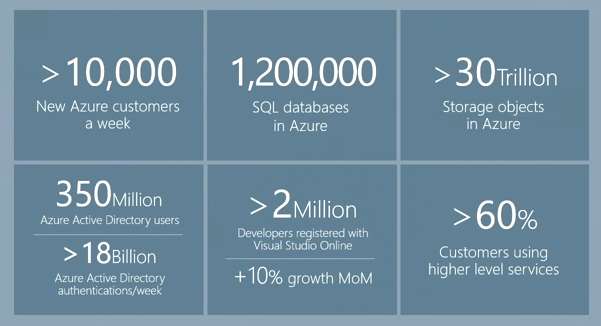
At a cloud platform event yesterday in San Francisco, CEO Satya Nadella and VP of cloud and enterprise Scott Guthrie offered some figures. Here is what I gleaned:

  • Projected revenue of $4.4Bn if current trends continue (“run rate”)
  • Annual investment of $4.5Bn
  • Over 10,000 new customers per week
  • 1,200,000 SQL databases
  • Over 30 trillion storage objects
  • 350 million users in Azure Active Directory
  • 19 Azure datacentre regions, up to 600,000 servers in each region

image

Now, one observation from the above is that Microsoft says it is spending more on Azure than it is earning – not unreasonable at a time of fast growth.

However, I do not know how complete the figures are. Nadella said Office 365 runs on Azure (though this may be only partially true; that certainly used to be the case); but I doubt that all Office 365 revenue is included in the above.

What about SQL Server licensing, for example, does Microsoft count it under SQL Server, or Azure, or both depending which marketing event it is?

If you know the answer to this, I would love to hear.

At the event, Guthrie (I think) made a bold statement. He said that there would only be three vendors in hyper-scale cloud computing, being Microsoft, Amazon and Google.

IBM for one would disagree; but there are huge barriers to entry even for industry giants.

I consider Microsoft’s progress extraordinary. Guthrie said that it was just two years ago that he announced the remaking of Azure – this is when things like Azure stateful VMs and the new portal arrived. Prior to that date, Azure stuttered.

Now, here is journalist and open source advocate Matt Asay:

Microsoft used to be evil. Then it was irrelevant. Now it looks like a winner.

He quotes Bill Bennett

Microsoft has created a cloud computing service that makes creating a server as simple as setting up a Word document

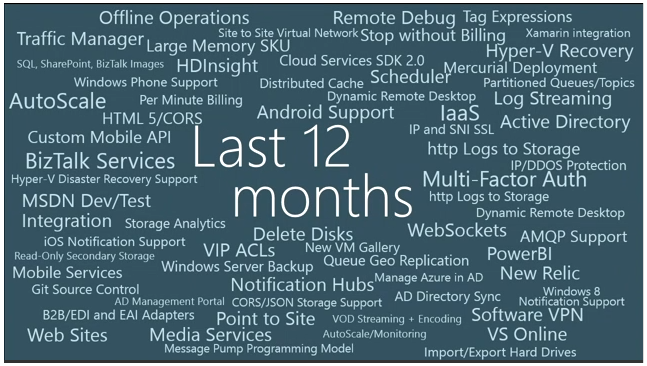
New features are coming apace to Azure, and Guthrie showed this slide of what has been added in the last 12 months:

image

The synergy of Azure with Visual Studio, Windows Server and IIS is such that it is a natural choice for Microsoft-platform developers hosting web applications, and Azure VMs are useful for experimentation.

Does anything spoil this picture? Well, when I sat down to write what I thought would be a simple application, I ran into familiar problems. Half-baked samples, ever changing APIs and libraries, beta code evangelised by Microsoft folk with little indication of what to do if you would rather not use this in production, and so on.

There is also a risk that as Azure services multiply, working out what to use and when becomes harder, and complexity increases.

Azure also largely means Windows – and yes, I heard yesterday that 20% of Azure VMs run Linux – but if you have standardised on Linux servers and use a Mac or Linux for development, Azure looks to me less attractive than AWS which has more synergy with that approach.

Still, it is a bright spot in Microsoft’s product line and right now I expect its growth to continue.

Xamarin Evolve: developers enjoy the buzz around cross-platform coding with C#

“It’s like a Microsoft developer event back when they were good,” one exhibitor here at Xamarin Evolve in Atlanta told me, and I do see what he means. There is plenty of buzz, since Xamarin is just three years old as a company and growing fast; there is the sense of an emerging technology, and that developers are actually enjoying their exploration of what they can do on today’s mobile devices.

Microsoft is an engineering-led company and was more so in its early days. The same is true of Xamarin. It also also still small enough that everyone is approachable, including co-founders Miguel de Icaza and Nat Friedman. The session on what’s new in Xamarin.Mac and Xamarin.iOS was presented by de Icaza, and it is obvious that he is still hands-on with the technology and knows it inside out. Developers warm to this because they feel that the company will be responsive to their needs.

image

Approachability is important, because this is a company that is delivering code at breakneck speed and bugs or known issues are not uncommon. A typical conversation with an attendee here goes like this:

“How do you find the tools?” “Oh, we like them, they are working well for us. Well, we did find some bugs, but we talked to Xamarin about them and they were fixed quickly.”

Xamarin’s tools let you write C# code and compile it for iOS, Android and Mac. If you are building for Windows Phone or Windows, you will probably use Microsoft’s tools and share non-visual C# code, though the recently introduced Xamarin Forms, a cross-platform XML language for defining a user interface, builds for Windows Phone as well as iOS and Android.

The relationship with Microsoft runs deep. The main appeal of the tools is to Microsoft platform developers who either want to use their existing C# (or now F#) skills to respond to the inevitable demand for iOS and Android clients, or to port existing C# code, or to make use of existing C# libraries to integrate with Windows applications on the server.

That said, Xamarin is beginning to appeal to developers from outside the Microsoft ecosystem and I was told that there is now demand for Xamarin to run introductory C# classes. Key to its appeal is that you get deep native integration on each platform. The word “native” is abused by cross-platform tool vendors, all of whom claim to have it. In Xamarin’s case what it means is that the user interface is rendered using native controls on each platform. There are also extensive language bindings so that, for example, you can call the iOS API seamlessly from C# code. Of course this code is not cross-platform, so developers need to work out how to structure their solutions to isolate the platform-specific code so that the app builds correctly for each target. The developers of Wordament, a casual game which started out as a Windows Phone app, gave a nice session on this here at Evolve.

Wordament has an interesting history. It started out using Silverlight for Windows Phone and Google App Engine on the server. Following outages with Google App Engine, the server parts were moved to Azure. Then for Windows 8 the team ported the app to HTML and JavaScript. Then they did a port to Objective C for iOS and Java for Android. Then they found that managing all these codebases made it near-impossible to add features. Wordament is a network game where you compete simultaneously with players on all platforms, so all versions need to keep tightly in step. So they ported to Xamarin and now it is C# on all platforms.. 

I digress. The attendees here are mostly from a Microsoft platform background, and they like the fact that Xamarin works with Visual Studio. This also means that there are plenty of Microsoft partner companies here, such as the component vendors DevExpress, Syncfusion, Infragistics and ComponentOne. It is curious: according to one of the component companies I spoke to, Microsoft platform developers get the value of this approach where others do not. They have had only limited success with products for native iOS or Android development, but now that Xamarin Forms has come along, interest is high.

Another Microsoft connection is Charles Petzold – yes, the guy who wrote Programming Windows – who is here presenting on Xamarin Forms and signing preview copies of his book on the subject. Petzold now works for Xamarin; I interviewed him here and hope to post this soon. Microsoft itself is here as well; it is the biggest sponsor and promoting Microsoft Azure along with Visual Studio.

Xamarin is not Microsoft though, and that is also important. IBM is also a big sponsor, and announced a partnership with Xamarin, offering libraries and IDE add-ins to integrate with its Worklight mobile-oriented middleware. Amazon is here, promoting both its app platform and its cloud services. Google is a sponsor though not all that visible here; Peter Friese from the company gave a session on using Google Play Services, and Jon Skeet also from Google presented a session, but it was pure C# and not Google-specific. Salesforce is a sponsor because it wants developers to hook into its cloud services no matter what tool they use; so too is Dropbox.

  image

Most of the Xamarin folk use Macs, and either use Xamarin Studio (a customised version of the open source MonoDevelop IDE), or Visual Studio running in a virtual machine (given that the team mostly use Macs, this seems to me the preferred platform for Xamarin development, though Visual Studio is a more advanced IDE so you will probably end up dipping in and out of Windows/Mac however you approach it).

Xamarin announced several new products here at Evolve; I gave a quick summary in a Register post. To be specific:

  • A new fast Android emulator based on Virtual Box
  • Xamarin Sketches for trying out code with immediate analysis and execution
  • Xamarin Profiler
  • Xamarin Insights: analytics and troubleshooting for deployed apps

Of these, Sketches is the most interesting. You write snippets of code and the tool not only executes it but does magic like generating a graph from sequences of data. You can use it for UI code too, trying out different fonts, colours and shapes until you get something you like. It is great fun and would be good for teaching as well; maybe Xamarin could do a version for education at a modest price (or free)?

image

I am looking forward to trying out Sketches though I have heard grumbles about the preview being hard to get working so it may have to wait until next week.

image

Microsoft Azure: new preview portal is “designed like an operating system” but is it better?

How important is the Azure portal, the web-based user interface for managing Microsoft’s cloud computing platform? You can argue that it is not all that important. Developers and users care more about the performance and reliability of the services themselves. You can also control Azure services through PowerShell scripts.

My view is the opposite though. The portal is the entry point for Azure and a good experience makes developers more likely to continue. It is also a dashboard, with an overview of everything you have running (or not running) on Azure, the health of your services, and how much they are costing you. I also think of the portal as an index of resources. Can you do this on Azure? Browsing through the portal gives you a quick answer.

The original Azure portal was pretty bad. I wish I had more screenshots; this 2009 post comparing getting started on Google App Engine with Azure may bring back some memories. In 2011 there were some big management changes at Microsoft, and Scott Guthrie moved over to Azure along with various other executives. Usability and capability improved fast, and one of the notable changes was the appearance of a new portal. Written in HTML 5, it was excellent, showing all the service categories in a left-hand column. Select a category, and all your services in that category are listed. Select a service and you get a detailed dashboard. This portal has evolved somewhat since it was introduced, notably through the addition of many more services, but the design is essentially the same.

image

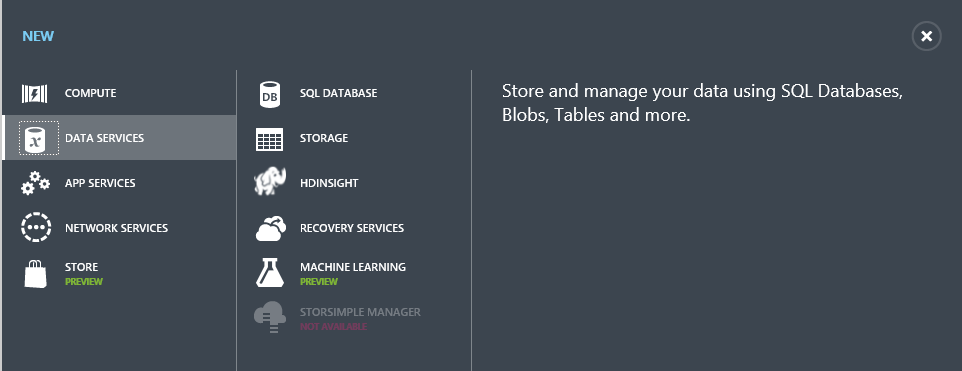
The New button lets you create a new service:

image

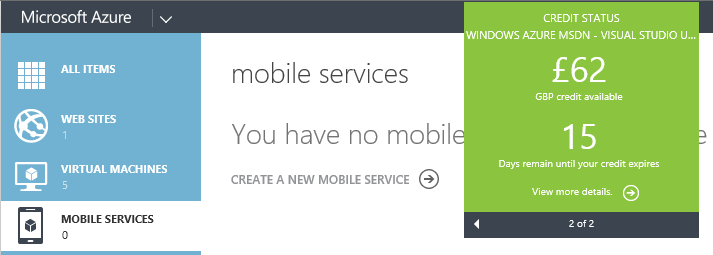
The portal also shows credit status right there – no need to hunt through links to account management pages:

image

It is an excellent portal, in other words, logically laid out, easy to use, and effective.

That is the old portal though. Microsoft has introduced a new portal, first demonstrated at the Build conference in April. The new portal is at http://portal.azure.com, versus http://manage.windowsazure.com for the old one.

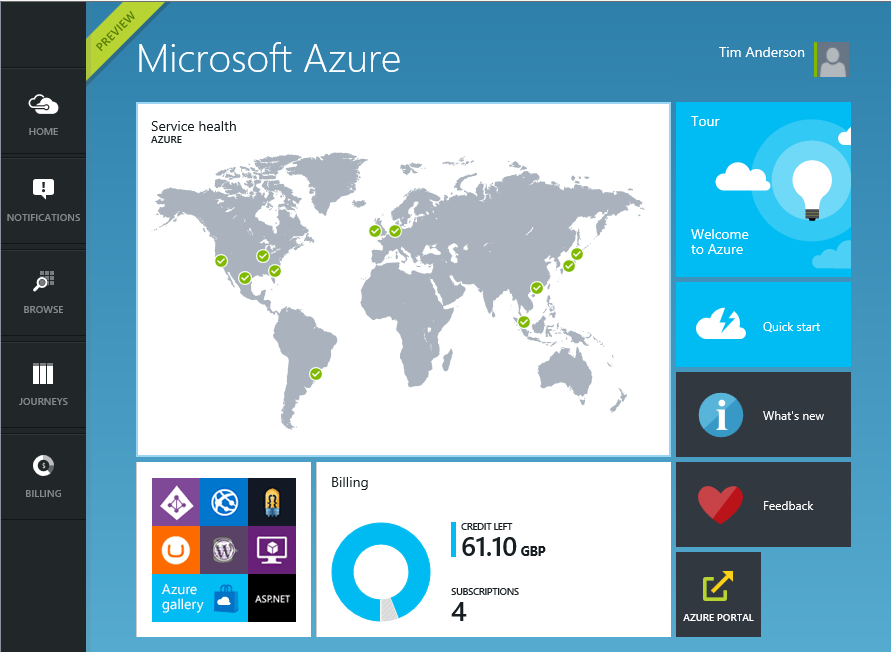
The new portal is different in look and feel:

image

Why a new portal and how does it work? Microsoft’s Justin Beckwith, a program manager, has a detailed explanatory post. He says that the old portal worked well at first but became difficult to manage:

As we started ramping up the number of services in Azure, it became infeasible for one team to write all of the UI. The teams which owned the service were now responsible (mostly) for writing their own UI, inside of the portal source repository. This had the benefit of allowing individual teams to control their own destiny. However – it now mean that we had hundreds of developers all writing code in the same repository. A change made to the SQL Server management experience could break the Azure Web Sites experience. A change to a CSS file by a developer working on virtual machines could break the experience in storage. Coordinating the 3 week ship schedule became really hard. The team was tracking dependencies across multiple organizations, the underlying REST APIs that powered the experiences, and the release cadence of ~40 teams across the company that were delivering cloud services.

The new portal is the outcome of some deep thinking about the future. It is architected, according to Beckwith, more like an operating system than like a web application.

The new portal is designed like an operating system. It provides a set of UI widgets, a navigation framework, data management APIs, and other various services one would expect to find with any UI framework. The portal team is responsible for building the operating system (or the shell, as we like to call it), and for the overall health of the portal.

Each service has its own extension, or “application”, which runs in an iframe (inline frame) and is isolated from other extensions. Unusually, the iframes are not used to render content, but only to run scripts. These scripts communicate with the main frame using the window.postMessage API call – familiar territory for Windows developers, since messages also drive the Windows desktop operating system.

Microsoft is also using TypeScript, a high-level language that compiles to JavaScript, and open source resources including Less and Knockout.

Beckwith’s post is good reading, but the crunch question is this: how does the new portal compare to the old one?

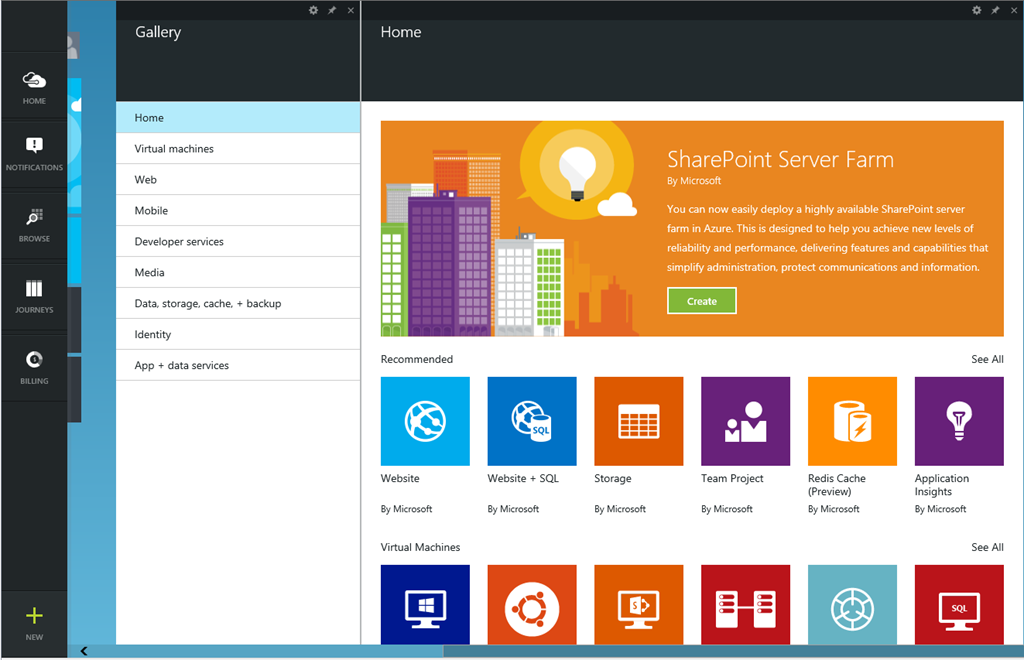
I get the sense that Microsoft has put a lot of effort into the new portal (which is still in preview) and that it is responsive to feedback. I expect that the new portal will in time be excellent. Currently though I have mixed feeling about it, and often prefer to use the old portal. The new portal is busier, slower and more confusing. Here is the equivalent to the previous New screen shown above:

image

The icons are prettier, but there is something suspiciously like an ad at top right; I would rather see more services, with bigger text and smaller icons; the text conveys more information.

Let’s look at scaling a website. In the old portal, you select a website, then click Scale in the top menu to get to a nice scaling screen where you can set up autoscaling, define the number of instances and so on.

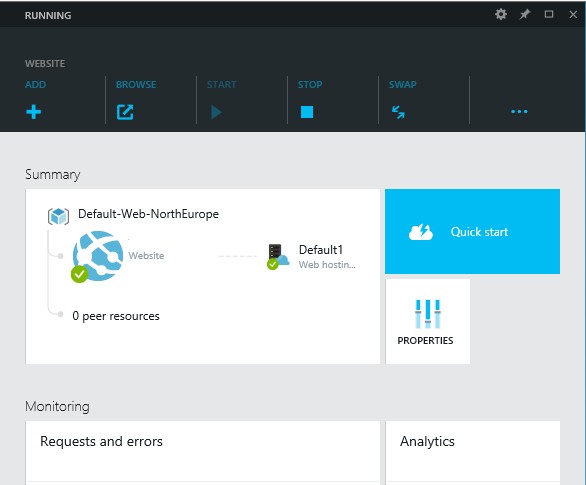
How do you find this in the new portal? You get this screen when you select a website (I have blanked out the name of the site).

image

This screen scrolls vertically and if you scroll down you can find a small Scale panel. Click it and you get to the scaling panel, which has a nicely done UI though the way panels constantly appear and disappear is something you have to get used to.

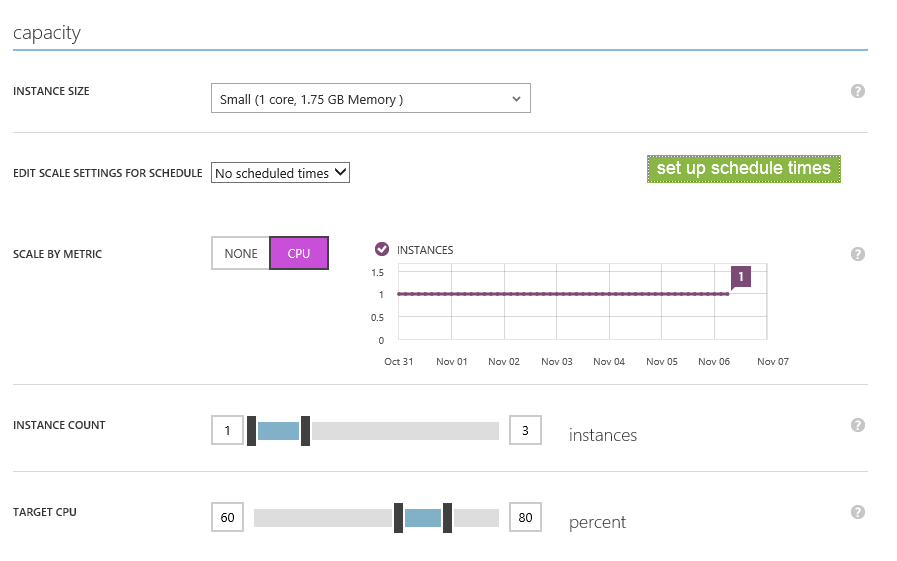
There are also additional scaling options in the preview portal (the old one only offers scaling based on CPU usage):

image

The preview portal also integrates with Visual Studio online for cloud-based devops.

The challenge for Microsoft is that the old portal set a high bar for clarity and usability. The preview portal does more than the old, and is more fit for purpose as the number and capability of Azure services increases, but its designers need to resist the temptation to let prettiness obstruct performance and efficiency.

Developers can give feedback on the portal here.

Microsoft integrates Azure websites with hybrid cloud

Microsoft has announced the integration of Azure websites with Azure virtual networks, including access to on-premise resources if you have a site-to-site VPN.

The Virtual Network feature grants your website access to resources running your VNET that includes being able to access web services or databases running on your Azure Virtual Machines. If your VNET is connected to your on premise network with Site to Site VPN, then your Azure Website will now be able to access on premise systems through the Azure Websites Virtual Network feature.

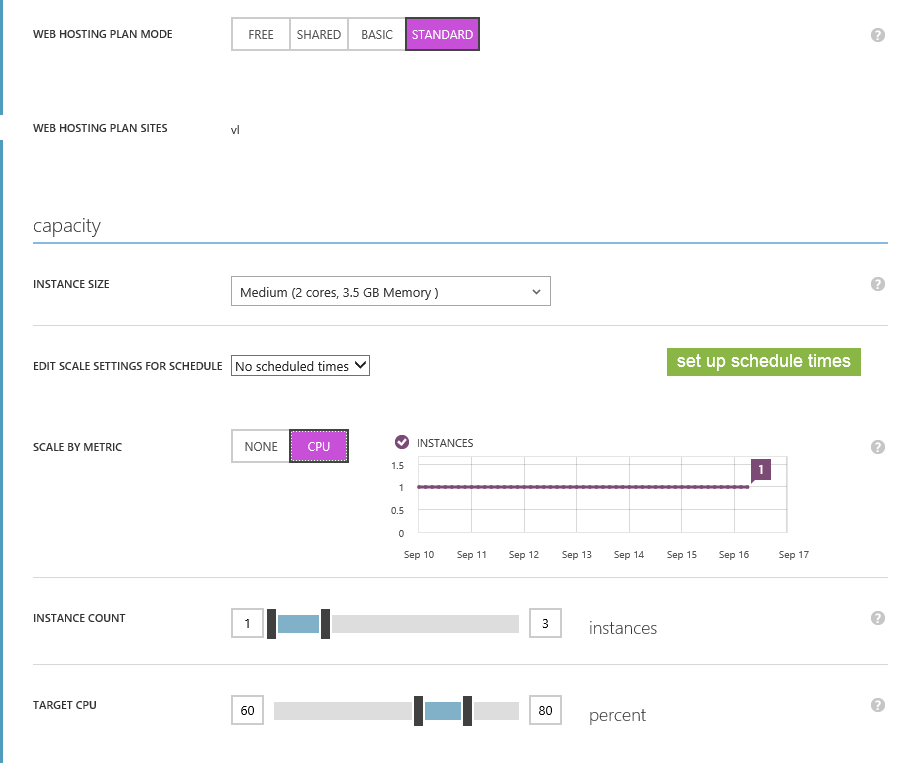
Azure websites let you deploy web applications running on IIS (Microsoft’s web server) hosted in Microsoft’s cloud. The application platform can be framework can be ASP.NET, Java, PHP, Node.js or Python. There are Free, Shared and Basic tiers which are mainly for prototyping, and a Standard tier which has auto-scaling features, managed through Microsoft’s web portal:

image

The development tool is Visual Studio, which now has strong integration with Azure.

Integration with virtual networks is a significant feature. You could now host what is in effect an intranet application on Azure if it is convenient. If it is only used in working hours, say, or mainly used in the first couple of hours in the morning, you could scale it accordingly.

Have a look at that web configuration page above, and compare it with the intricacies of System Center. It is a huge difference and shows that some parts of Microsoft have learned that usability matters, even for systems aimed at IT professionals.

Developing an app on Microsoft Azure: a few quick reflections

I have recently completed (if applications are ever completed) an application which runs on Microsoft’s Azure platform. I used lots of Microsoft technology:

  • Visual Studio 2013
  • Visual Studio Online with Team Foundation version control
  • ASP.NET MVC 4.0
  • Entity Framework 4.0
  • Azure SQL
  • Azure Active Directory
  • Azure Web Sites
  • Azure Blob Storage
  • Microsoft .NET 4.5 with C#

The good news: the app works well and performance is good. The application handles the upload and download of large files by authorised users, and replaces a previous solution using a public file sending service. We were pleased to find that the new application is a little faster for upload and download, as well as offering better control over user access and a more professional appearance.

There were some complications though. The requirement was for internal users to log in with their Office 365 (Azure Active Directory) credentials, but for external users (the company’s customers) to log in with credentials stored in a SQL Server database – in other words, hybrid authentication. It turns out you can do this reasonably seamlessly by implementing IPrincipal in a custom class to support the database login. This is largely uncharted territory though in terms of official documentation and took some effort.

Second, Microsoft’s Azure Active Directory support for custom applications is half-baked. You can create an application that supports Azure AD login in a few moments with Visual Studio, but it does not give you any access to metadata like to which security groups the user belongs. I have posted about this in more detail here. There is an API of course, but it is currently a moving target: be prepared for some hassle if you try this.

Third, while Azure Blob Storage itself seems to work well, most of the resources for developers seem to have little idea of what a large file is. Since a primary use case for cloud storage is to cover scenarios where email attachments are not good enough, it seems to me that handling large files (by which I mean multiple GB) should be considered normal rather than exceptional. By way of mitigation, the API itself has been written with large files in mind, so it all works fine once you figure it out. More on this here.

What about Visual Studio? The experience has been good overall. Once you have configured the project correctly, you can update the site on Azure simply by hitting Publish and clicking Next a few times. There is some awkwardness over configuration for local debugging versus deployment. You probably want to connect to a local SQL Server and the Azure storage emulator when debugging, and the Azure hosted versions after publishing. Visual Studio has a Web.Debug.Config and a Web.Release.Config which lets you apply a transformation to your main Web.Config when publishing – though note that these do not have any effect when you simply run your project in Release mode. The correct usage is to set Web.Config to what you want for debugging, and apply the deployment configuration in Web.Release.Config; then it all works.

The piece that caused me most grief was a setting for <wsFederation>. When a user logs in with Azure AD, they get redirected to a Microsoft site to log in, and then back to the application. Applications have to be registered in Azure AD for this to work. There is some uncertainty though about whether the reply attribute, which specifies the redirection back to the app, needs to be set explicitly or not. In practice I found that it does need to be explicit, otherwise you get redirected to the deployed site even when debugging locally – not good.

I have mixed feelings about Team Foundation version control. It works, and I like having a web-based repository for my code. On the other hand, it is slow, and Visual Studio sulks from time to time and requires you to re-enter credentials (Microsoft seems to love making you do that). If you have a less than stellar internet connection (or even a good one), Visual Studio freezes from time to time since the source control stuff is not good at working in the background. It usually unfreezes eventually.

As an experiment, I set the project to require a successful build before check-in. The idea is that you cannot check in a broken build. However, this build has to take place on the server, not locally. So you try to check in, Visual Studio says a build is required, and prompts you to initiate it. You do so, and a build is queued. Some time later (5-10 minutes) the build completes and a dialog appears behind the IDE saying that you need to reconcile changes – even if there are none. Confusing.

What about Entity Framework? I have mixed feelings here too, and have posted separately on the subject. I used code-first: just create your classes and add them to your DbContext and all the data access code is handled for you, kind-of. It makes sense to use EF in an ASP.NET MVC project since the framework expects it, though it is not compulsory. I do miss the control you get from writing your own SQL though; and found myself using the SqlQuery method on occasion to recover some of that control.

Finally, a few notes on ASP.NET MVC. I mostly like it; the separation between Razor views (essentially HTML templates into which you pour your data at runtime) and the code which implements your business logic and data access is excellent. The code can get convoluted though. Have a look at this useful piece on the ASP.NET MVC WebGrid and this remark:

grid.Column("Name",
  format: @<text>@Html.ActionLink((string)item.Name,
  "Details", "Product", new { id = item.ProductId }, null)</text>),

The format parameter is actually a Func, but the Razor view engine hides that from us. But you’re free to pass a Func—for example, you could use a lambda expression.

The code works fine but is it natural and intuitive? Why, for example, do you have to cast the first argument to ActionLink to a string for it to work (I can confirm that it is necessary), and would you have worked this out without help?

I also hit a problem restyling the pages generated by Visual Studio, which use the twitter Bootstrap framework. The problem is that bootstrap.css is a generated file and it does not make sense to edit it directly. Rather, you should edit some variables and use them as input to regenerate it. I came up with a solution which I posted on stackoverflow but no comments yet – perhaps this post will stimulate some, as I am not sure if I found the best approach.

My sense is that what ASP.NET MVC is largely a thing of beauty, it has left behind more casual developers who want a quick and easy way to write business applications. Put another way, the framework is somewhat challenging for newcomers and that in turn affects the breadth of its adoption.

Developing on Azure and using Azure AD makes perfect sense for businesses which are using the Microsoft platform, especially if they use Office 365, and the level of integration on offer, together with the convenience of cloud hosting and anywhere access, is outstanding. There remain some issues with the maturity of the frameworks, ever-changing libraries, and poor or confusing documentation.

Since this area is strategic for Microsoft, I suggest that it would benefit the company to work hard on pulling it all together more effectively.

A note on Azure storage and downloading large files

I have written a simple ASP.NET MVC application for upload and download of files to/from Azure storage.

Getting large file upload to work was the first exercise, described here. That is working well; but what about download?

If your files in Azure storage are public, you can simply serve an URL to the file. If it is not public though, you have a couple of choices:

1. Download the file under application control, by writing to Response.OutputStream or using a FileResult action.

2. Issue a Shared Access Signature (SAS) to the client which enables it to retrieve the file directly from Azure storage. The SAS is sent as an URL argument which tells Azure storage that the request is authorised. The browser downloads the file directly, so it makes no difference to your web application if the file is large.

Note that if you use the first option, it will not work with large files if you simply call DownloadToStream or similar:

container.GetBlockBlobReference(FileName).DownloadToStream(Response.OutputStream);

Why not? Well, the way this code works is that it downloads the large file to the web server, then sends it to the browser. What if your large file is 5GB? The browser will wait a long time for the first byte to be served (giving the user an unresponsive page); but before that happens, the web application will probably throw an exception because it does not like downloading such a large file.

This means the SAS option is a good one, though note that you have to specify an expiry time which could cause problems for users on a slow connection.

Another option is to serve the file in chunks. Use CloudBlockBlob.DownloadRangeToStream to write to Response.OutputStream in a loop until the download is complete. Call Response.Flush() after each chunk to send the chunk to the browser immediately.

This gives the user a nice responsive download experience complete with a cancel option as provided by the browser, and does not crash the application on the server. It seems to me a reasonable approach if the web application is also hosted on Azure and therefore has a fast connection to Azure storage.

What about resuming a failed download? The SAS approach should work as Azure supports it. You could also support this in your app with some additional work since Resume means reading the Range header in a GET request. I have not tried doing this but you might find some clues here.

Microsoft StorSimple brings hybrid cloud storage to the enterprise, but what about the rest of us?

Microsoft has released details of its StorSimple 8000 Series, the first major new release since it acquired the hybrid cloud storage appliance business back in late 2012.

I first came across StorSimple at what proved to be the last MMS (Microsoft Management Summit) event last year. The concept is brilliant: present the network with infinitely expandable storage (in reality limited to 100TB – 500TB depending on model), storing the new and hot data locally for fast performance, and seamlessly migrating cold (ie rarely used) data to cloud storage. The appliance includes SSD as well as hard drive storage so you get a magical combination of low latency and huge capacity. Storage is presented using iSCSI. Data deduplication and compression increases effective capacity, and cloud connectivity also enables value-add services including cloud snaphots and disaster recovery.

image

The two new models are the 8100 and the 8600:

  8100 8600
Usable local capacity 15TB 40TB
Usable SSD capacity 800GB 2TB
Effective local capacity 15-75TB 40-200TB
Maxiumum capacity
including cloud storage
200TB 500TB
Price $100,000 $170,000

Of course there is more to the new models than bumped-up specs. The earlier StorSimple models supported both Amazon S3 (Simple Storage Service) and Microsoft Azure; the new models only Azure blob storage. VMWare VAAPI (VMware API for Array Integration) is still supported.

On the positive site, StorSimple is now backed by additional Azure services – note that these only work with the new 8000 series models, not with existing appliances.

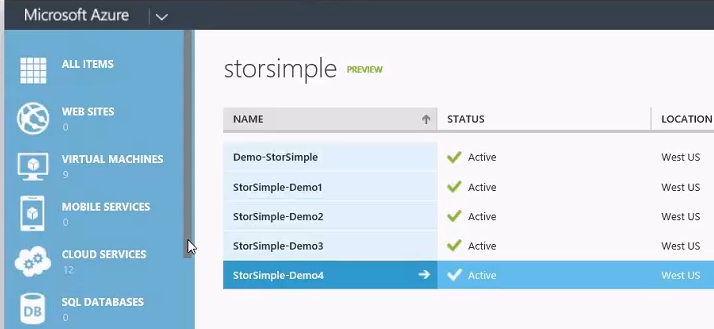
The Azure StoreSimple Manager lets you manage any number of StorSimple appliances from the Azure portal – note this is in the old Azure portal, not the new preview portal, which intrigues me.

image

Backup snapshots mean you can go back in time in the event of corrupted or mistakenly deleted data.

image

The Azure StorSimple Virtual Appliance has several roles. You can use it as a kind of reverse StorSimple; the virtual device is created in Azure at which point you can use it on-premise in the same way as other StorSimple-backed storage. Data is uploaded to Azure automatically. An advantage of this approach is if the on-premise StorSimple becomes unavailable, you can recreate the disk volume based on the same virtual device and point an application at it for near-instant recovery. Only a 5MB file needs to be downloaded to make all the data available; the actual data is then downloaded on demand. This is faster than other forms of recovery which rely on recovering all the data before applications can resume.

image

The alarming check box “I understand that Microsoft can access the data stored on my virtual device” was explained by Microsoft technical product manager Megan Liese as meaning simply that data is in Azure rather than on-premise but I have not seen similar warnings for other Azure data services, which is odd. Further to this topic, another journalist asked Marc Farley, also on the StorSimple team, whether you can mark data in standard StorSimple volumes not to be copied to Azure, for compliance or security reasons. “Not right now” was the answer, though it sounds as if this is under consideration. I am not sure how this would work within a volume, since it would break backup and data recovery, but it would make sense to be able to specify volumes that must remain always on-premise.

All data transfer between Azure and on-premise is encrypted, and the data is also encrypted at rest, using a service data encryption key which according to Farley is not stored or accessible by Microsoft.

image

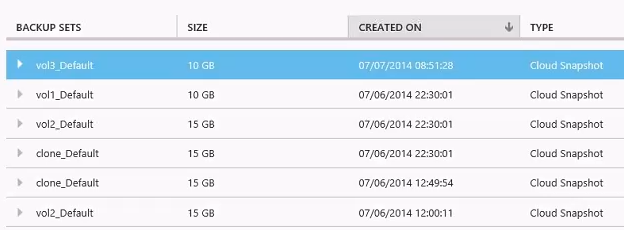
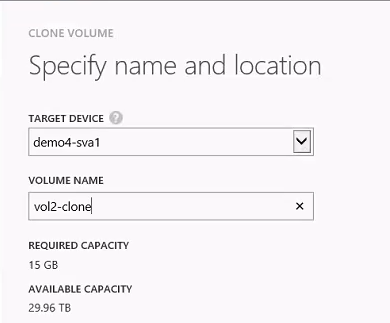
Another way to use a virtual appliance is to make a clone of on-premise data available, for tasks such as analysing historical data. The clone volume is based on the backup snapshot you select, and is disconnected from the live volume on which it is based.

image

StorSimple uses Azure blob storage but the pricing structure is different than standard blob storage; unfortunately I do not have details of this. You can access the data only through StorSimple volumes, since the data is stored using internal data objects that are StorSimple-specific. Data stored in Azure is redundant using the usual Azure “three copies” principal; I believe this includes geo-redundancy though this may be a customer option.

StorSimple appliances are made by Xyratex (which is being acquired by Seagate) and you can find specifications and price details on the Seagate StorSimple site, though we were also told that customers should contact their Microsoft account manager for details of complete packages. I also recommend the semi-official blog by a Microsoft technical solutions professional based in Sydney which has a ton of detailed information here.

StorSimple makes huge sense, but with 6 figure pricing this is an enterprise-only solution. How would it be, I muse, if the StorSimple software were adapted to run as a Windows service rather than only in an appliance, so that you could create volumes in Windows Server that use similar techniques to offer local storage that expands seamlessly into Azure? That also makes sense to me, though when I asked at a Microsoft Azure workshop about the possibility I was rewarded with blank looks; but who knows, they may know more than is currently being revealed.

Notes from the field: putting Azure Blob storage into practice

I rashly agreed to create a small web application that uploads files into Azure storage. Azure Blob storage is Microsoft’s equivalent to Amazon’s S3 (Simple Storage Service), a cloud service for storing files of up to 200GB.

File upload performance can be an issue, though if you want to test how fast your application can go, try it from an Azure VM: performance is fantastic, as you would expect from an Azure to Azure connection in the same region.

I am using ASP.NET MVC and thought a sample like this official one, Uploading large files using ASP.NET Web API and Azure Blob Storage, would be all I needed. It is a start, but the method used only works for small files. What it does is:

1. Receive a file via HTTP Post.

2. Once the file has been received by the web server, calls CloudBlob.UploadFile to upload the file to Azure blob storage.

What’s the problem? Leaving aside the fact that CloudBlob is deprecated (you are meant to use CloudBlockBlob), there are obvious problems with files that are more than a few MB in size. The expectation today is that users see some sort of progress bar when uploading, and a well-written application will be resistant to brief connection breaks. Many users have asynchronous internet connections (such as ADSL) with slow upload; large files will take a long time and something can easily go wrong. The sample is not resilient at all.

Another issue is that web servers do not appreciate receiving huge files in one operation. Imagine you are uploading the ISO for a DVD, perhaps a 3GB file. The simple approach of posting the file and having the web server upload it to Azure blob storage introduces obvious strain and probably will not work, even if you do mess around with maxRequestLength and maxAllowedContentLength in ASP.NET and IIS. I would not mind so much if the sample were not called “Uploading large files”; the author perhaps has a different idea of what is a large file.

Worth noting too that one developer hit a bug with blobs greater than 5.5MB when uploaded over HTTPS, which most real-world businesses will require.

What then are you meant to do? The correct approach, as far as I can tell, is to send your large files in small chunks called blocks. These are uploaded to Azure using CloudBlockBlob.PutBlock. You identify each block with an ID string, and when all the blocks are uploaded, called CloudBlockBlob.PutBlockList with a list of IDs in the correct order.

This is the approach taken by Suprotim Agarwal in his example of uploading big files, which works and is a great deal better than the Microsoft sample. It even has a progress bar and some retry logic. I tried this approach, with a few tweaks. Using a 35MB file, I got about 80 KB/s with my ADSL broadband, a bit worse than the performance I usually get with FTP.

Can performance be improved? I wondered what benefit you get from uploading blocks in parallel. Azure Storage does not mind what order the blocks are uploaded. I adapted Agarwal’s sample to use multiple AJAX calls each uploading a block, experimenting with up to 8 simultaneous uploads from the browser.

The initial results were disappointing. Eventually I figured out that I was not actually achieving parallel uploads at all. The reason is that the application uses ASP.NET session state, and IIS will block multiple connections in the same session unless you mark your ASP.NET MVC controller class  with the SessionStateBehavior.ReadOnly attribute.

I fixed that, and now I do get multiple parallel uploads. Performance improved to around 105 KB/s, worthwhile though not dramatic.

What about using a Windows desktop application to upload large files? I was surprised to find little improvement. But can parallel uploading help here too? The answer is that it should happen anyway, handled by the .NET client library, according to this document:

If you are writing a block blob that is no more than 64 MB in size, you can upload it in its entirety with a single write operation. Storage clients default to a 32 MB maximum single block upload, settable using the SingleBlobUploadThresholdInBytes property. When a block blob upload is larger than the value in this property, storage clients break the file into blocks. You can set the number of threads used to upload the blocks in parallel using the ParallelOperationThreadCount property.

It sounds as if there is little advantage in writing your own chunking code, except that if you just call the UploadFromFile or UploadFromStream methods of CloudBlockBlob, you do not get any progress notification event (though you can get a retry notification from an OperationContext object passed to the method). Therefore I looked around for a sample using parallel uploads, and found this one from Microsoft MVP Tyler Doerksen, using C#’s Parallel.For.

Be warned: it does not work! Doerksen’s approach is to upload the entire file into memory (not great, but not as bad as on a web server), send it in chunks using CloudBlockBlob.PutBlock, adding the block ID to a collection at the same time, and then to call CloudBlockBlob.PutBlockList. The reason it does not work is that the order of the loops in Parallel.For is indeterminate, so the block IDs are unlikely to be in the right order.

I fixed this, it tested OK, and then I decided to further improve it by reading each chunk from the file within the loop, rather than loading the entire file into memory. I then puzzled over why my code was broken. The files uploaded, but they were corrupt. I worked it out. In the following code, fs is a FileStream object:

fs.Position = x * blockLength;
bytesread = fs.Read(chunk, 0, currentLength);

Spot the problem? Since fs is a variable declared outside the loop, other threads were setting its position during the read operation, with random results. I fixed it like this:

lock (fs)
{
fs.Position = x * blockLength;
bytesread = fs.Read(chunk, 0, currentLength);
}

and the file corruption disappeared.

I am not sure why, but the manually coded parallel uploads seem to slightly but not dramatically improve performance, to around 100-105 KB/s, almost exactly what my ASP.NET MVC application achieves over my broadband connection.

image

There is another approach worth mentioning. It is possible to bypass the web server and upload directly from the browser to Azure storage. To do this, you need to allow cross-origin resource sharing (CORS) as explained here. You also need to issue a Shared Access Signature, a temporary key that allows read-write access to Azure storage. A guy called Blair Chen seems to have this all figured out, as you can see from his Azure speed test and jazure JavaScript library, which makes it easy to upload a blob from the browser.

I was contemplating going that route, but it seems that performance is no better (judging by the Test Upload Big Files section of Chen’s speed test), so I should probably be content with the parallel JavaScript upload solution, which avoids fiddling with CORS.

Overall, has my experience with the Blob storage API been good? I have not found any issues with the service itself so far, but the documentation and samples could be better. This page should be the jumping off point for all you need to know for a basic application like mine, but I did not find it easy to find good samples or documentation for what I thought would be a common scenario, uploading large files with ASP.NET MVC.

Update: since writing this post I have come across this post by Rob Gillen which addresses the performance issue in detail (and links to working Parallel.For code); however I suspect that since the post is four years old the conclusions are no longer valid, because of improvements to the Azure storage client library.