Tag Archives: microsoft

No in-place upgrade for Hyper-V Server 2012

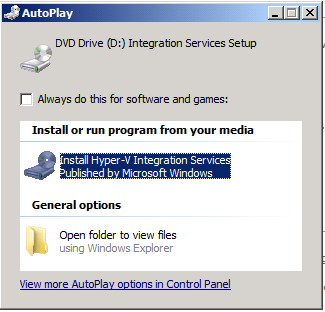
Microsoft’s free Hyper-V Server is a great bargain though I am beginning to think the company is pulling back on the idea. It is there for download; but the home page makes no mention of the fact that it is free, and the download page calls it trial software:

image

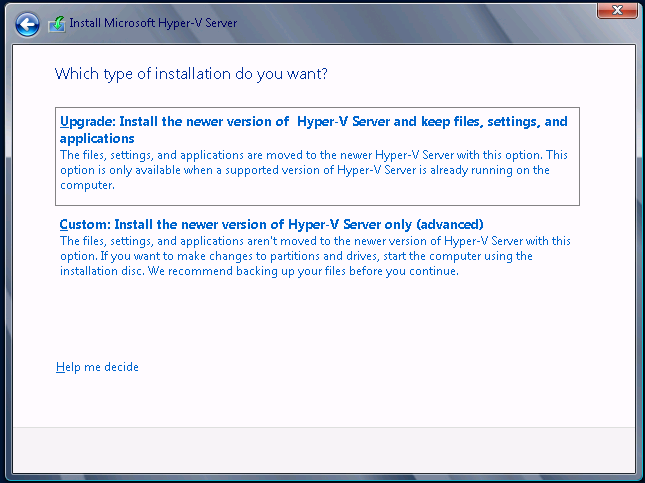
Further, support information for this specific edition is hard to come by. Here is one thing I discovered though: there is no in-place upgrade from Hyper-V Server 2008 R2, though the setup teases. This is what you get. First, an offer to upgrade in-place:

image

with the text, “This option is only available when a supported version of Hyper-V Server is already running on this computer”.

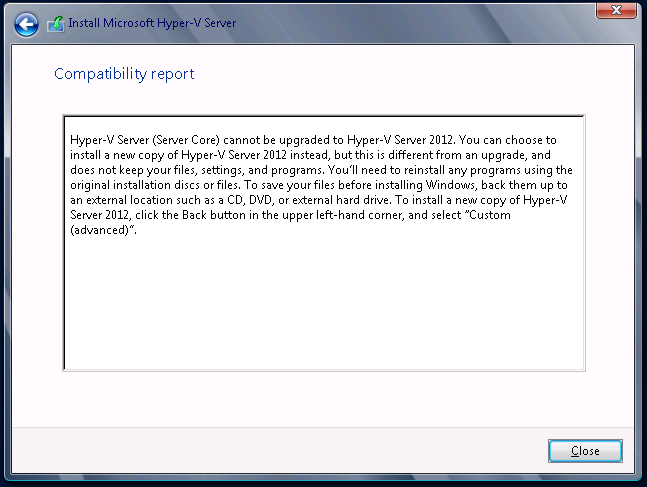
and then the bad news:

image

which in case you cannot read it says,  “Hyper-V Server (Server Core) cannot be upgraded to Hyper-V Server 2012”.

This document, which covers in-place upgrade options for Server 2012, does not even mention Hyper-V Server. It does say this about Server Core, on which Hyper-V Server is based:

Upgrades that switch from a Server Core installation to the Server with a GUI mode of Windows Server 2012 in one step (and vice versa) are not supported. However, after upgrade is complete, Windows Server 2012 allows you to switch freely between Server Core and Server with a GUI modes.

Note that it says “in one step”, suggesting that an upgrade from Server Core to Sever Core should work; then you can add the GUI later if you want. In the case of Hyper-V Server, there is no GUI option anyway; so you would have thought it should be OK. Given the lack of attention to this edition generally though, I wonder if it is a victim of “it’s the free version, let’s not bother".

Incidentally, in-place upgrade from Hyper-V Server 2008 to Hyper-V Server 2008 R2 worked fine.

Nokia and Windows Phone 8: more questions than answers

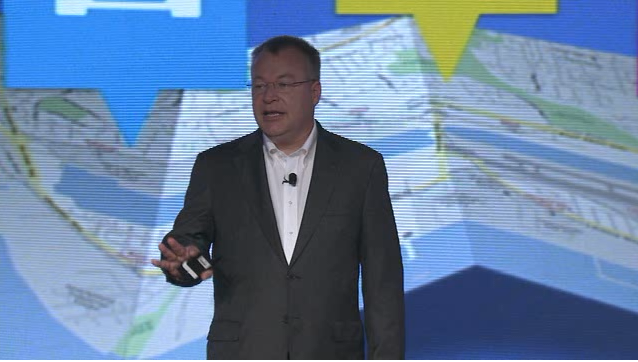
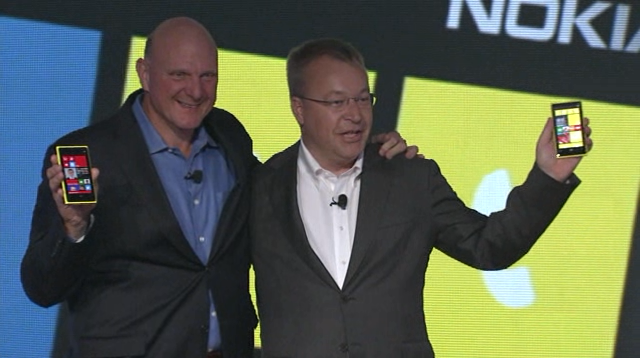
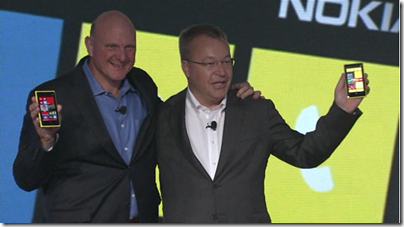
Nokia’s CEO Stephen Elop announced the Lumia 820 and 920 yesterday in New York; new versions of its high-end Windows smartphones and the first to run the forthcoming Windows Phone 8 operating system. Windows Phone 8 runs the same kernel as Windows 8 on PCs and is a significant step towards unification of Microsoft’s development platform.

image

Among the key features announced yesterday:

Wireless charging with the Qi standard and a couple of deals to place charging points in public places. The London Heathrow Virgin Atlantic lounge and the Coffee Bean & Tea Leaf chain will have charging points; not much, but a start. Wireless charging accessories include the JBL PowerUP which combines wireless charging and an audio dock.

PureView imaging technology. This is Nokia’s brand name for a bunch of photo features. Most significant is “floating lens technology” on the larger 920 which, Nokia claims, overcomes camera shake to enable the camera to take in “five times more light”; think of it as a virtual tripod that allows longer exposure without motion blur. If it works it is a huge feature for photo enthusiasts.

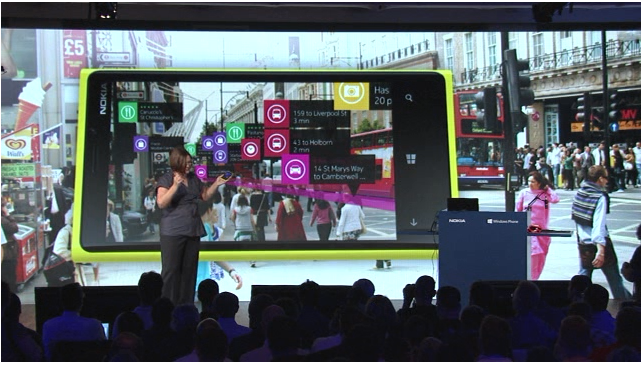
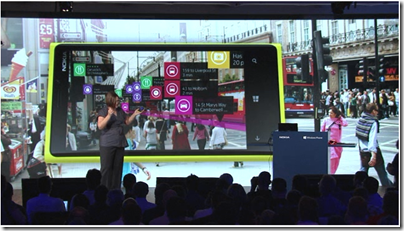
City Lens augmented reality which overlays the view through the phone’s camera with data about what to do and where to go; apparently there is data for indoor as well as outdoor locations.
image

Synaptics ClearPad touch which enables gloved finger support. Since Synaptics is a third-party I guess this feature is unlikely to be exclusive to Nokia for long.

Windows Phone 8 operating system shown off by Microsoft’s Joe Belfiore, including more customizable Live Tiles and a “Blink” feature from Microsoft Research which takes multiple shots in quick succession to enable interesting features like avoiding closed eyes and allowing after-the-event editing using alternate shots.

Screenshots are now a built-in feature. Who cares? Journalists of course; non-availability of this trivial feature meant fewer screenshots of Windows Phone 7 on the web.

Lumia 920 has a 4.5 inch screen, 1.5Ghz dual core Snapdragon S4, front and rear cameras, 1GB RAM, 32GB storage.

Lumia 820 has a 4.3 inch screen,  1.5 Ghz dual core Snapdragon S4, front and rear cameras, 1GB RAM, 8GB storage, microSD slot.

The big disappointment yesterday: no announcement concerning price or availability. Here is what the press release says:

Both phones will be available in pentaband LTE and HSPA+ variants and are expected to start shipping in select markets later in the year. Nokia will announce pricing and specific roll-out dates country by country when sales are due to begin.

Worries about a delay were not relieved by Microsoft’s announcement that the Windows Phone SDK preview will be available to select developers from September 12. “Next Wednesday I’ll share detailed instructions on how current Windows Phone developers with published apps can apply. But I do want to set your expectations that program access will be limited,” says Microsoft’s Todd Bix. He adds that, “The full Windows Phone 8 SDK will be made publically available later this year when we unveil Windows Phone 8.”

That suggests a considerable wait before availability. Even if the Lumias go on sale the same day that the SDK is final, it sounds like November at best; and that gives developers no time at all to work with the new SDK before launch. Key developers have early access of course.
image

Overall the event was less than it should have been, at a time when Android looks vulnerable thanks to Apple’s patent win over Samsung last month.

In some ways though, Nokia’s announcements have little to do with the key questions over Nokia’s Lumia range and Windows Phone 8. Quality is one issue; the launch of the Lumia 800 was damaged by the device’s poor battery life and tendency to sulk and become unchargeable; the rumour is that return rates were unusually high. The knock-on effect is to make it hard for retailers to recommend it to their customers, though firmware updates eventually improved matters. How is battery life on the 820 and 920? What has been done to address quality issues?

Another question, and to me the biggest one, is how Windows 8 for PCs will fare in the market and the impact it will have on Windows Phone. The more time I spend with Windows 8 the more I like it, especially on a tablet, but also on the desktop. There is a barrier to adoption though as the new user interface is a demanding transition for some users. If Windows 8 tablets succeed, there will be instant recognition for the phone user interface and users will have a reason to demand it over iPhone or Android, something that has been lacking up to now.

On the other hand, if appreciation for the nice features of Windows 8 is drowned out by a chorus of “give us back the Start menu”, while vendors focus on expensive fiddly hybrids rather than simple, lightweight tablets, then I doubt Windows Phone 8 will take off either.

Currently I use a Lumia as my main smartphone and (battery life aside) get on well with it. Nokia’s experience with the operating system should mean that this new generation is better, and the phones look good. As Elop himself said though, this is all about ecosystems, and the viability of his third ecosystem is still in the balance.
Colligo Briefcase: offline SharePoint for iPad and iPhone

I took a quick look at Colligo Briefcase, an offline SharePoint 2007 and 2010 client for the Apple iPad and iPhone. There is a free Lite version, limited to 50Mb and with cut-down features; Briefcase Pro which costs a modest $2.99; and Enterprise which adds centralized management.

SharePoint is a powerful collaboration platform, but Microsoft’s client support if you would rather not use a web browser is surprisingly poor. You are really meant to use Office, which of course does not exist on iOS, and even then the offline support is poor.

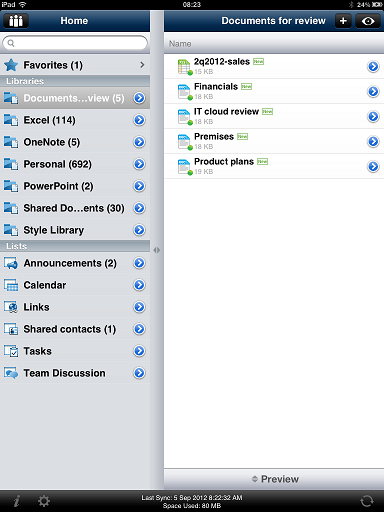
I used Briefcase Pro, which connected first time to my on-premise SharePoint server. I selected which lists and libraries to sync, and a few minutes later everything was available. Impressive. Better, in fact, than Microsoft’s own SharePoint Workspace on a PC; but that is not saying much.

image

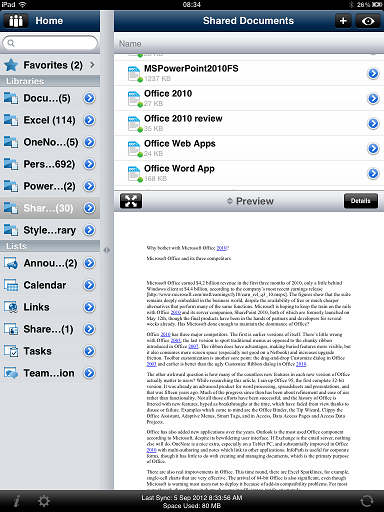
Briefcase lets you easily preview Office documents. I am sure there are certain formatting or content types that do not work, but I found this effective for Word and Excel. OneNote is not supported for preview; a shame. I could not even get OneNote documents to open in OneNote on the iPad.

image

I confirmed that Briefcase works fine offline. In Airplane mode, I could still browse and preview documents.

I tried but was unable to connect to Microsoft’s SkyDrive. There may be a way. This would be useful, since Microsoft’s own SkyDrive app does not work offline.

My biggest concern with Briefcase is security. What if confidential documents are in SharePoint and the iPad or iPhone is stolen? Briefcase Enterprise has a remote wipe capability, but it is still a concern. You can set an additional PIN on the app:

image

More worrying though is how data can leak out of Briefcase into other locations. Imagine a user has an iPad and has agreed to Apple’s default settings for iCloud and Pages, the iPad word processor. In this mode, documents in Pages are automatically synched with iCloud.

Now the user wants to edit a Word document that is in Briefcase. She hits Open in … and selects Pages. Pages does not just open the document, it imports it. The user views or edits it in Pages. Now that document is sent to iCloud, and in due course will turn up on other iOS or Mac computers belonging to that user.

Another issue with Pages is that there is no easy way to get it back into SharePoint. Pages can use WebDAV, which should work, but must be configured separately. This may be why Colligo suggests Documents to Go. Supported apps have an Open in Briefcase option that enables upload.

The Enterprise edition of Briefcase lets administrators disable the Open in command to improve security. This is unfortunately necessary if you require any sort of security for SharePoint data accessed through Briefcase.

It is a shame there is no quick way to open a Briefcase document in the web browser. There is a Copy Link option, which you can paste into Safari, but you have to re-authenticate and it is not seamless.

A few niggles then; but given that most users will do more viewing than editing while on the go, Briefcase is an excellent and, for the Pro edition, low-cost way to use SharePoint offline.

Windows Server 2012: a great upgrade

Remember how everyone hated Windows Vista but admins loved Server 2008? The awkward truth: they were built on the same core code. History may be about to repeat with Windows 8 and Server 2012, which also share code.

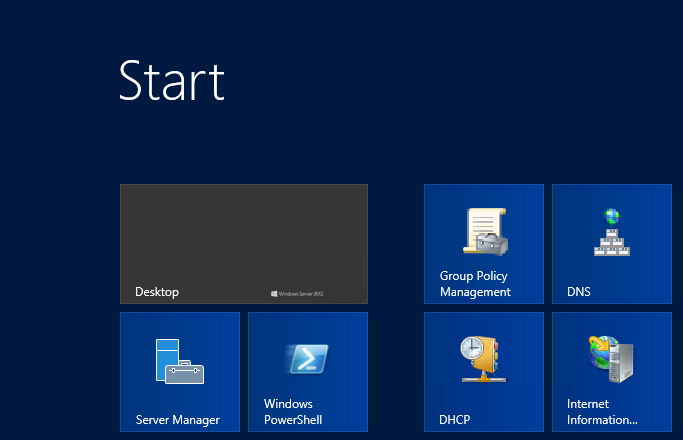
That said, I actually like Windows 8; but it is controversial because of its dual personality and the demands it places on existing Windows users to learn new ways to navigate the user interface. Server 8 has the Start screen too, but it boots to the desktop and most tools are available through the new Server Manager in any case, so I doubt it will cause much concern.

image

That is, if you install the GUI at all. Microsoft is a convert to the “No GUI on a server” idea and you are meant to install Server Core, which has no GUI, where possible, and run Server Manager on a Windows 8 client. There is also an intriguing intermediate option called the Minimal Server Interface, which has the GUI infrastructure but no Explorer shell or Internet Explorer. It sounds odd, but I quite like it; it is a bit like one of those stripped down Linux desktops where nothing gets in the way of the apps.

The Windows Server Evaluation Guide [pdf] does a good job of covering what’s new but runs to 177 pages, posing a challenge for those of us asked to review the new operating system in the usual 1500 words or fewer. I have had a go at this elsewhere. I will say though that from my first encounter with Server 2012, then called Server 8, at a press workshop in September 2011, I was impressed with the extent and significance of the new features. It does seem to me a breakthrough on several levels.

Virtualisation is one of course, with features like Hyper-V Replica doing what Microsoft should be doing: bringing features you would expect in large-scale enterprise setups within reach of small organisations. If you are not ready for public cloud, a couple of substantial servers running Hyper-V VMs with failover via Hyper-V Replica is an excellent setup.

Another is the effort Microsoft has put into modularisation and automation.

For modularity, Server 2012 is not quite at the level of the Debian server which hosts this web site, where I can add and remove packages with a simple apt-get command, but it is getting closer. You can now move between Server Core and full GUI simply by adding and removing features; it sounds easy, but represents an enormous untangling effort from the Windows team.

On the automation side, PowerShell has matured into a comprehensive scriptable, remoteable platform for managing Windows Server. I love the PowerShell History feature in the Active Directory Administration Center, which shows you the script generated by your actions in the GUI.

Storage is a big feature too. The new Storage Spaces are not aimed at Enterprises, but at the rest of us. We are beginning to see an end to the “help, we are running out of space on the C drive” problem which can cause considerable problems. You can even mount virtual disks as folders rather than drive letters, another sign that Windows is finally escaping its DOS (or CP/M?) heritage.

Annoyances? Lack of tool compatibility is one, specifically that you the new Hyper-V manager will not manage 2008 R2 VMs, and the new RSAT (Remote Server Administration Tools) require Windows 8.

More seriously, there are times when the beautiful new Server Manager UI gives mysterious errors, and as you drill down, you are back in the world of DCOM activation or some such nightmare from the past; which makes you realise that under the surface there is a ton of legacy still there and that Windows admins are not yet free from the burden of trawling the web for someone else with the same troubling error in Event Viewer. Maybe this is common to all operating systems; but Windows seems to have more than its share.

Never mind; this is a great upgrade and shows that Microsoft, for all its frustrations, is still capable of turning out strong products.

Gadget Writing: some posts you may have missed

There are two sites at ITWriting.com and if you follow the RSS feed for this one you may have missed the posts at the other. This site covers software development and IT admin topics, while Gadget Writing covers mobile devices, audio, general software tips and reviews, and in general has a more consumer flavour.

Among the popular posts is the Desktop Windows 8 survival guide which is a guide to those awkward issues you will encounter when using Windows 8 on a traditional keyboard and mouse PC rather than a tablet. This has been considerably updated and expanded from its first version.

Gadget Writing has its own RSS feed which is here.

Here are some other recent posts:

This may be why your computer is crashing

I was asked to look at a PC which was misbehaving. Sometimes it worked, but increasingly it was freezing or crashing. Sometimes the hard drive would corrupt and needed Windows repair before it would boot. I took a look. I … Continue reading →

Review: Audyssey Lower East Side Audio Dock Air for Apple AirPlay

Based in Los Angeles, Audyssey specialises in audio processing software. This is used in home theatre equipment such as multi-channel receivers, and also finds its way into TVs, mobile devices and cars. In 2010 Audyssey started making its own audio … Continue reading →

Farewell to the Squeezebox

It looks as if Logitech has discontinued the Squeezebox, a range of devices for playing music streamed from the free Logitech Media Server. Logitech also runs a streaming service on the internet, Mysqueezebox.com, which supports internet radio, Spotify integration and … Continue reading →

The one thing missing from Windows 8 tablets announced so far: simplicity

This week at IFA in Berlin PC manufacturers have been showing off their shiny new Windows 8 tablets. Vendors are competing for who has the cleverest way of combining touch-screen, tablet, trackpad and keyboard into a single portable device. Here … Continue reading →

Free competition: Win a Kingston DataTraveler Locker+ secure USB Flash Drive

Ever worry about exposing confidential data by losing a USB Flash drive? Easy to do; but worry no more. A DataTraveler Locker+ secure drive is password protected, and after 10 failed attempts the data is wiped. Read our full review … Continue reading →

Understanding Windows 8 Storage Spaces: confusing but powerful

Early users have been running into trouble with Windows 8 Storage Spaces. The same technology is used in Server 2012. I posted about the issues here. Storage Spaces is a way of virtualising disk drives. You manage physical drives in … Continue reading →

Review: Kingston DataTraveler Locker+G2 secure USB Flash drive

Ever lost a USB Flash drive? Do you even know? There are so many around now that it would be easy to drop one and not to notice. Most of the time that does not matter; but what if there … Continue reading →

Review: Dragon NaturallySpeaking 12. Stunning accuracy, a few annoyances

I am writing this review, or should I say dictating, in Nuance’s Dragon NaturallySpeaking 12, the latest version of what is in my experience the most accurate speech recognition system out there. Accuracy has got to the point where the … Continue reading →

The one thing missing from Windows 8 tablets announced so far: simplicity

This week at IFA in Berlin PC manufacturers have been showing off their shiny new Windows 8 tablets. Vendors are competing for who has the cleverest way of combining touch-screen, tablet, trackpad and keyboard into a single portable device. Here is the HP Envy:

image

or take a look at this PC Pro preview of the Toshiba Satellite U920T:

Ratchets stretch up and down the panel’s rear, with a central puck keeping the action light and smooth, and the screen flips up and back with a fluid action.

Sony has a Surf Slider, Dell XPS Duo slots into a keyboard dock.

I do understand the reason for all these gimmicks. Sometimes you want a tablet, sometimes you want a laptop, and the idea is to combine them into a hybrid device, just as Windows 8 itself lets you flip between Modern UI (formerly known as Metro) and Desktop.

At the same time though, there is a risk that these vendors are not learning from the past. Two things in particular:

  • The failure of Microsoft’s first Tablet PC. Most models had twist screens and keyboards and styluses. The styluses were prone to getting lost, the twist screens and keyboards were expensive, and tablets became premium-priced devices that were inconvenient to use. Faced with the choice between Tablet PCs and cheaper, simpler laptops, most customers chose laptops.
  • The success of Apple’s iPad. A keyboard is an optional extra, but most manage without it. The screen has a single button, there are a couple of switches and a volume control on the side, it has a dock connector, and that is it. Nor is it premium-priced, at least, not in the context of Apple’s range.

Looking at the effort Microsoft has put into the touch-friendly Modern UI it is obvious that Microsoft has made provision for tablet-only users. Start screen, big icons, easy install and removal of apps, most of the frequently used settings available without going to the Desktop. It is also obvious that Microsoft intends Windows to go further in this direction. Office 2013 just has OneNote MX in the Modern UI, but more is coming.

Where then are the devices that focus on the simplicity of a single slate, with a wireless keyboard on offer if needed, priced to compete sensibly with Apple and Android tablets?

Maybe there will be some of these; but the messaging coming out of IFA is all wrong and I predict that once again many customers will opt for “just a laptop” once again and for the same reasons as before.

This of course will do nothing to disrupt the tablet/iPad market.

One other thing. The IFA unveilings make Microsoft’s forthcoming Surface look better than ever. This does have an optional keyboard, but it is built into a touch cover, and from what I can tell Microsoft has successfully avoided rachets and gears.

If Surface succeeds and flipping hybrids fail, you can be sure there will be a ton of Surface-a-likes at the 2013 IFA.

The Windows Runtime App Certification Kit: not too good detecting crashes and hangs

Now that I have a lovely ITWriting.com App I thought I should check out whether it is ready to fly.

I therefore ran the App Certification Kit that installs with Visual Studio 2012.

image

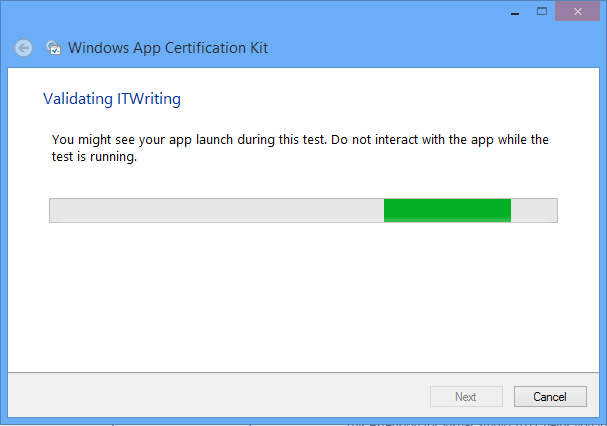
The tool asks you to select an installed app and then exercises it. I saw my app open, though I did not see it get beyond the first screen.

image

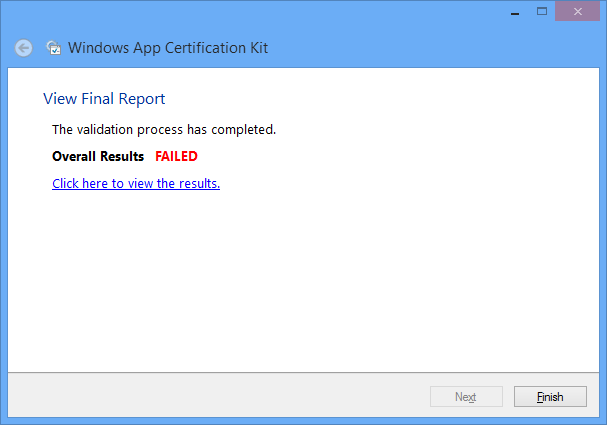
Eventually – bad news:

image

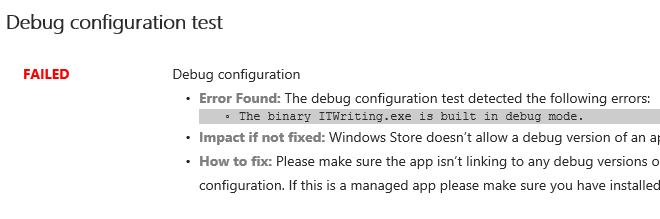
However, there is only one thing wrong with it:

image

Yes, the version installed is the debug build. I can fix this simply by rebuilding in release configuration.

What does the Kit test? Here is the list:

  • Crashes and hangs test
  • App manifest compliance test
  • Windows security features test
  • Supported API test
  • Performance test
  • App manifest resources test
  • Debug configuration test
  • File encoding
  • Direct3D feature level support
  • App Capabilities test
  • Windows Runtime metadata validation

That sounds most impressive and makes a great list for you to show to your customer.

I am sceptical though. If the app was not exercised beyond the opening screen, might it not be a bit buggy after all?

I inserted the following line of code into the the Click event handler for reading a blog:

int iCrash = 1 / string.Empty.Length;

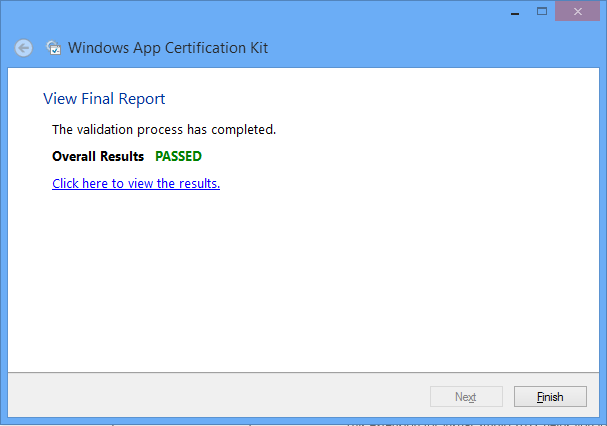
I then rebuilt the app in release mode and ran the App Certification Test. Great news!

image

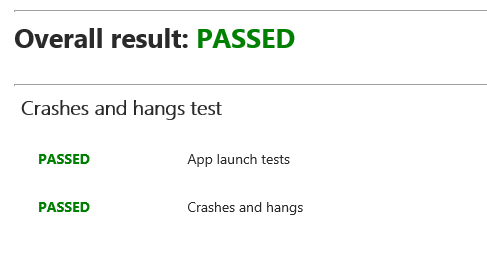
and specifically:

image

Thanks though to my umm, bug-unfix, the app crashes whenever I click to read a blog.

I mention this not to poke fun at the App Certification Kit, but to observe that it does not do a good job of automatically detecting crashes and hangs.

The implication is that the human testers are the ones who will do this before an app is admitted to the store. I think they would find my obvious bug; but how much time will they have to test every feature of an app?

Reactions to Windows 8

However this thing turns out, the reactions as Windows 8 rolls out are a great sideshow. The first steps with Windows 8 are demanding for users familiar with older versions as some things are different and some things worse than before. Some things are better, too, but getting over that initial hump can be a problem. I am starting to collect some of the reactions that caught my interest, and will update this post with further links as I find them.

image

This distinctly non-PC blast from Igor Ljubuncic is based on the Consumer Preview but I quote it because it does a good job of presenting the “no way never” perspective:

Would you sacrifice your entire user base in a rich and profitable tier for the sake of a feeble chance that you might hold a small share of a new market segment that has significantly lower profit margins? Sounds like stupidity to me. … Windows 8 Consumer Preview is a technological, ideological and functional failure. It’s hard to see how no one lost their job over this.

Here is Tim Edwards in a piece with a number of inaccuracies – but remember, first impressions are still first impressions, even if some of the assumptions one makes turn out to be wrong:

Windows 8 is the worst computing experience I’ve ever had. As a desktop operating system, it’s annoying, frustrating, irritating, and baffling to use.

First impressions from Krishnan Subramanian

This is a great user interface and the underlying platform changes are pretty good. However, this interface is not suitable for desktop (Laptop) experience. … with all the “steep learning curve” factor and the fact that many enterprises just upgraded to Windows 7 makes me wonder if Windows 8 will be a flop show in the enterprise space even with their $40 pricing strategy

Windows 8 a Cognitive burden says a usability expert

Windows 8 is optimized for content consumption rather than content production and multitasking. Whereas content consumption can easily be done on other media (tablets and phones), production and multitasking are still best suited for PCs. Windows 8 appears to ignore that.

Mary Branscombe who knows Windows 8 as well as anyone outside Microsoft has a thorough review concluding:

Keep an open mind, spend some time getting used to the charm bar and the Start screen. Once you do, we defy you not to be impressed by Windows 8.

Another from the long-time-watcher Windows camp (but not always pro-Microsoft; he was the one who proclaimed Longhorn “a train wreck”) is Paul Thurrott who says:

For all the whining, hand-wringing, and ivory tower opining over Microsoft’s decision to wed an awesome new mobile platform with its superior desktop OS, few of these critics ever paused for a moment to consider an awesome possibility: This time, more really is more.

Balanced read but not convinced by the system: Preston Gralla on Computerworld:

With Windows 8, Microsoft is making a bet that it can please both tablet users and traditional computer users with a single OS. That bet didn’t pay off for me. On a tablet I find it an excellent operating system. On a traditional computer, it doesn’t work nearly so well.

Yes, it’s that bad says Woody Leonhard in a curious piece which exaggerates the difficulty of using Windows 8:

While Windows 8 inherits many of the advantages of Windows 7 — the manageability, the security (plus integrated antivirus), and the broad compatibility with existing hardware and software — it takes an axe to usability. The lagging, limited, often hamstrung Metro apps don’t help.

Nik Rawlinson on CNET UK says Windows 8 is worth the upgrade but …

The OS represents a serious attempt to unify computing across PCs and tablets in a cohesive way. It’s impressively quick, apps are presented in an original manner that avoids the repetitiveness of Android and iOS, and it hooks in well to your life on the Internet.

While the learning curve may be steep, there are more than enough similarities between Windows 7 and 8 to ease the transition. It’s well worth the upgrade, but it’s not yet the ultimate operating system Microsoft wants it to be.

A balanced piece from Avram Pltch at laptopmag.com:

If you’re a Windows 7 user and you don’t have a touch-screen device, you can safely skip this upgrade for now and wait to see how this new ecosystem of apps matures. However, if you’re buying a new laptop or tablet, Windows 8 provides a compelling experience that’s worth the learning curve.

PC Pro has divided its conclusions into Windows 8 for desktops and laptops, and Windows 8 for touchscreens and tablets. As you might expect, it is more favourable towards the latter. On desktops:

Windows 8 has relatively little to offer those who do their computing on a desktop or laptop PC. This isn’t a terrible thing – Windows 7 wasn’t exactly broken to begin with – but it means that upgrading to Windows 8 is far from essential.

but on tablets:

Microsoft has delivered a compelling – and in many ways, much more powerful – alternative to iOS and Android. It’s not perfect, and much depends on the quality of forthcoming apps and hardware, but if the goal of Windows 8 is to rejuvenate its appeal across the whole spectrum of touch-enabled devices, then we believe it’s succeeded.

My comment: the point of Windows 8 is to bring desktop and tablet OS together so is this the right way to appraise it?

Jon Honeyball lost patience with Windows 8 which he says is a car crash (one up from a train wreck?):

Any existing user will be tearing their hair out at this nonsense: the flipping backwards and forwards between Metro and the desktop, the lack of a Start button, the way all that history has been hidden away. Ask a user to find Control Panel and see the laptop being thrown into a nearby bin.

Windows 8 RTM: it’s better than you may have heard

Poor old Microsoft. Windows 8, the reimagining of Windows, is getting a mixed reception. There is a kind of alliance, with those who you would expect to oppose Microsoft (open source advocates, Apple enthusiasts and so on) lining up with Windows diehards who dislike too much change. Like Windows stalwart Woody Leonhard (remember those endless Office tips?) who says, under the headline Windows 8 review: Yes it’s that bad:

From the user’s standpoint, Windows 8 is a failure — an awkward mishmash that pulls the user in two directions at once. Users attracted to the new touch-friendly Metro GUI will dislike the old touch-hostile desktop underneath. By the same token, users who rely on the traditional Windows desktop will dislike having to navigate Metro to find settings and apps they intuitively locate in Windows 7.

He adds:

I can confirm after months in the trenches and talking with many hundreds of testers that anyone who defines "real work" as typing and mousing won’t like Windows 8 one little bit.

I disagree. In fact, I had the opposite experience. I installed Windows 8 Release Preview for a non-technical friend, on an old laptop with no touch capability, and was so sure that she would dislike it that I kept the backup image of her Windows 7 install ready to zap it back on.

It did not happen. She was flummoxed at first of course, but after pinning a few applications to the taskbar and learning how to navigate Start, she was fine. All her old desktop apps still work and she cannot see what the fuss is about. Now and again she pops into Modern UI land and plays a game or uses the Facebook/Twitter integration in the People app and it is not a problem.

This has made more impression on me that my own experience, which I tend to discount being used to the bleeding edge. I should mention though that I have no desire to go back to Windows 7, even on my desktop. I like the speed of Windows 8; I like having Hyper-V; I like having the taskbar on both my displays, and it works fine.

I also have Windows 8 on the Samsung Slate which I bought last year, and words cannot describe how much better it is than Windows 7 on the same device. That said, I cannot really recommend the Samsung; its battery life is too short, its design falls short in several places, and it is too expensive to be a mainstream hit. However, it has given me a feel for how well the Windows 8 UI works on a tablet.

My view is this. Windows 8 has plenty of failings, but they are the failings of transition to a better place, not the failings of something that will never work properly. Most of the problems which rile people so much can be fixed with a small amount of effort and perhaps a read of a survival guide. I did one, and there are others just as good or better.

It seems to me to be simply dishonest to portray Windows 8 as this horrible thing that is a nightmare to use. I do not have any evidence for that, beyond the initial painful moments that I have seen at first hand. I do realise that someone might be so much put off by those initial moments that they never want to touch it again, and will declare the same to anyone who will listen, but regard it as my job, as a technical communicator, to help users get past that towards a fairer judgment.

image

Windows 8 is ready, but many of its users are not.

Why I want a Windows RT (ARM) tablet

Microsoft has now announced that the first Windows RT tablets will come from Asus, Dell, Lenovo, Samsung, and from Microsoft itself with Surface.

image

Windows 8 on ARM is a different thing to Windows 8 on Intel. On Intel, most Windows applications will run. On Windows RT, the ARM version, only Windows Runtime apps (also known at Metro-style, Modern and Windows Store) will run. There is still a desktop mode, but it is reserved for a special version of Office along with a few utilities like Explorer.

On the face of it, the Intel version is a better deal, because “you get it all.” However, there are times when less is more; in fact, that phrase practically defines the success of Apple’s iOS, which does not run applications coded for Mac OS X.

The problem is this. On a tablet, the Windows desktop is a horrid experience, unless you get out not only your tablet, but also your keyboard and your mouse or stylus. Even the stylus can be a problem, and having lived with Windows 8 on a Samsung Slate tablet for some months, I find a mouse works best.

We have seen this before, with the old Windows tablets starting with Windows XP. OEMs came up with clever designs with twist screens and styluses which clip into the side. These machines certainly have their uses, but they were not mainstream and they were not cheap. Intel Windows 8 tablets will have all the same problems. The poor experience offered by the Windows desktop user interface with touch was a key reason why Microsoft came up with the radical WinRT alternative.

Windows RT on the other hand promises a better tablet experience. with the additional bonus of longer battery life and a lighter, more efficient device. You cannot install desktop apps, but if the Windows 8 ecosystem fails to come up with WinRT apps to cover the essential computing activities, then the Windows 8 project will have failed in its goals.

There is also Microsoft Office of course, which makes some effort to support touch control though it could be better. Still, I would rather have Office which at least has been designed with the knowledge that some users will be controlling it with touch, than all those other desktop applications which presume keyboard and mouse.

The importance of having Office there is that it makes the difference between having to have a laptop with you as well while on the road, and being able to get all your work done on the tablet alone.

This issue does not seem to be well understood either by Microsoft’s OEM partners nor by the general public. I do not blame the latter. On the high street or at the airport, there will be rows of Windows 8 tablets with similar Start screens, and the difference between Windows RT and Windows Intel will be hard to convey. I can imagine salespeople saying, “You should get this one, it is the full Windows,” and steering customers towards the awkward, confusing experience that is Windows 8 on an Intel tablet.

One disappointing remark buried in the announcement:

Over 90% of the RTM applications in the Windows Store support Windows RT

That means 10% of WinRT apps currently do not support ARM, presumably because there is some native x86 code in there.