Category Archives: microsoft

An Azure Web Site is a VM which supports multiple applications

This will be unnecessary for Azure experts, but I have seen some misunderstanding on this point, hence this post.

A “web site” is a unit of service on the Azure cloud platform which represents a web application hosted on IIS, Microsoft’s web server (but see below). You write a standard ASP.NET application and deploy it. Azure takes care of configuring the host VM, the server operating system, and IIS.

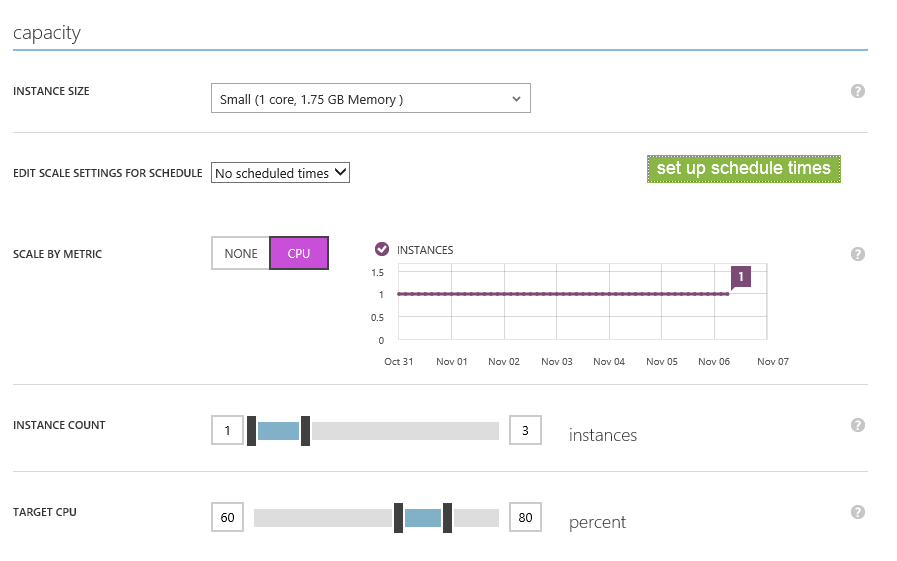
Using a web site is preferable to creating your own VM and installing IIS on it, for several reasons. One is that you do not have to worry about patching and maintaining the operating system. Another is that web sites can be scaled, manually or automatically, with an option for scheduling so that you can scale down the site for periods of low demand.

image

The main reason for using a VM rather than a web site is if the app has dependencies that fall outside what a web site can handle.

Another thing to know about Azure web sites is that they have four “plan modes,” but only two are worth considering for production. The Free and Shared modes host your application on a shared VM, and quotas are applied. If Azure decides your site is out of quota, it will stop responding. Fine for a prototype, but not something you want customers or users to see. This feature is not shown clearly on the table of features but it is in note 2:

Shared Instance: Free and Shared (Preview) tiers include 60 minutes and 240 minutes of CPU capacity per day, respectively. The Shared (Preview) Website rates are applied per website instance.

The Basic tier on the other hand is decent. It is a dedicated VM, and you can scale it (manually) to 3 instances. It costs around 25% less than a Standard tier site.

Why go Standard? You get 50B storage thrown in (a Basic tier site has 10GB), auto-backup, auto-scale up to 10 instances, and a fixed IP address for SSL. If you have to buy a fixed IP address for a single instance Basic tier site, the price goes above a Standard tier site, except for a Large instance.

Currently a Basic tier web site costs from £35.64 to £141.92 per month, and a Standard tier from £47.10 to £189.65, depending on the size of the VM.

It is a significant cost, but what may not be obvious is that you can deploy multiple applications to a single web site, which makes my statement above, “A ‘web site’ is a unit of service on the Azure cloud platform which represents a web application hosted on IIS”, not quite correct.

When you create a new web site, if you have one already, you can choose a “web hosting plan”. Here is an example:

image

In this case, there are two pre-existing web site VMs, one in East Asia and one in Europe. If you choose one of these two, the new web site will be added to that VM. If you choose “Create new web hosting plan”, you will create a new dedicated instance (or free, or Shared). Adding to an existing VM means no extra cost.

If you are a developer, it may well be better to run a single Basic VM for prototyping, and add multiple sites, rather than risking a free or shared instance which might be out of quota when you demonstrate it to your customer.

What is the limit to the number of web sites you can add? There is none, other than the overloading the VM and getting unresponsive applications.

Postscript: the Web Site service is interesting as an example which blurs the boundaries between IaaS (Infrastructure as a service) and PaaS (Platform as a service). It is more PaaS than IaaS, in that you do not have to worry about maintaining the OS, but more IaaS than PaaS, in that you are still having to think about individual VMs. It would be more purist if Microsoft abstracted away the VMs and simply guaranteed a certain level of service, or scaled up automatically and billed for what you use. On the other hand, the Web Site concept puts a lot of control in the hands of the developer/admin and help them to make best use of the resources, while still removing most of the maintenance burden. I think it is a good compromise.

Microsoft Band: do you want to track your health? and with a Microsoft device?

Data on human health has immense value. At an individual level, use of that data has the potential to enhance well-being and productivity, to extend life, and in some cases to avert disaster – such as prompting early investigation into a heart condition. In aggregate, more data on human health enables deeper medical research, especially when combined with other data about lifestyle, profession, location, diet and so on. Medicine is big business, so this is a business opportunity as well as (one hopes) a benefit to humanity.

There is also a dark side to this data. The more data an insurance company has on our health, the more likely they are to exclude the conditions we are most likely to suffer (defeating the purpose of insurance) or to ratchet up premiums for worse risks. Do we trust the industry, whether that is the IT industry or the insurance industry, to safeguard our personal data from being used against us?

The value of this data goes some way to explaining the IT industry’s obsession with fitness gadgets, an obsession that seems to go beyond the demand. I tried a Fitbit for several months, a wristband version. It is a great device, and I found the data interesting, but not enough to motivate me to keep the thing charged up and on my wrist, after the novelty wore off.

The reality is that most of us strike a balance between keeping vaguely fit while not allowing health concerns to dominate our lives. Coffee may be bad for you, but it is also a lovely drink; there is no point in extending life if you cannot also enjoy it.

How much health data, then, is too much?

These questions are likely to come to the fore as increasing numbers of health-monitoring devices come our way, especially multi-purpose devices that do health monitoring as one of several useful functions.

image

Enter Microsoft Band, which the company successfully kept under wraps until a couple of days ago. It’s $199, works with Windows Phone, Android and iOS, and packs in a lot of features, though its 48 hours battery life is too short for my liking (I am hard to please; my plain old watch has a 10-year battery life).

Band hooks into the Microsoft Health platform. There are apps for all three supported phones, and data goes into a cloud service which delivers “intelligent insights” for you. “The more you share with Microsoft Health, the more accurate and helpful your insights will become,” says the blurb. There seems to be a link with Health Vault, a service which provides for sharing of health information with health professionals; of course the company says privacy and security are highly protected.

If I buy one (only available in the US currently) it will be more for its non-health features. Microsoft Band (by linking to your mobile over low-energy Bluetooth) will do calendar alerts, email previews, plain old watch mode (so it is actually a smartwatch), facebook posts, Twitter messages, weather, and (on Windows Phone only), Cortana, Microsoft’s digital assistant.

There is a built-in microphone and you can speak to Cortana on the go. I’ve been trying Cortana since it was was announced at Microsoft’s Build conference earlier this year, and she/it is pretty good. Cortana is not just voice activated search; it is also an example of voice UI, so you can make appointments, take notes, or ask for directions. Its voice recognition and question parsing is impressive, in my experience, though of course not perfect.

As ever I have a developer’s eye on this and I think it is interesting. Voice recognition, touch screen, and semi-permanent link with a smartphone is a powerful combination, if Microsoft opens this up to developers; and I will find it surprising if it does not.

In fact, there are already third-party apps, if you count the Starbucks partnership. You can pair a Starbucks card with Microsoft Band, and pay for coffee with it. The method is rather low-tech: the Band will display a barcode which the Starbucks scanner can read, but still, it beats searching for your card or even pulling out your mobile.

And there is of course the health tracking aspect. There are a ton of sensors here:

  • GPS
  • UV monitor (detect when sunscreen is required)
  • Optical heart rate sensor
  • Gyrometer
  • 3-axis accelerometer
  • “Galvanic skin response”: probably measures electrical conductivity of the skin to assess moisture level
  • Skin temperature
  • Microphone and touch screen

Haptic vibration is used for alerts.

image

Can Microsoft make a success of the Band and steal a march from Apple, whose Watch (which also does fitness tracking) is coming early next year? Apple’s device will be more beautiful, more expensive, and has more functions; but it will not work so well with Android or Windows Phone.

The big downer with Microsoft Band is that it is US only for the moment. Health Vault is already in the UK so we may see a UK release; the possibilities for global rollout are uncertain.


Microsoft financials show robust performance, Office in transition to subscription, both cloud and server growth

Microsoft released its financial results yesterday, for the quarter ending September 30th 2014. It was a good quarter in most respects, though consumer Windows and Windows Phone licensing are weak.

Good news outweighs bad though, particularly the company’s success in transitioning Office customers from perpetual licences to subscription, even in the consumer market. It also seems to be performing some magic in the server segment, growing both cloud and on-premises revenue, a trick CEO Satya Nadella attributes to the “unique hybrid and private cloud capabilities that are built into our Servers”.

Here is the segment breakdown, if you can make sense of Microsoft’s segments:

Quarter ending June 30th 2014 vs quarter ending June 30th 2013, $millions

Segment Revenue Change Gross margin Change
Devices and Consumer Licensing 4093 -391 3818 -102
Computing and Gaming Hardware 2453 +1044 479 +274
Phone Hardware 2609 N/A 478 N/A
Devices and Consumer Other 1809 +255 312 -12
Commercial Licensing 9873 +262 9100 +295
Commercial Other 2407 +805 805 +531

A few notable stats.

Devices and Consumer licensing is weak, in line with the PC market, a decline in Office consumer review (these figures exclude Office 365), and a 46% decline in Windows Phone revenue – the non-Nokia licensees.

Surface Pro 3 is a hit and brought in revenue of $908 million, “twice the [sales] rate of Surface Pro 2”, according to CFO Amy Hood. The gross margin on Surface is “positive this quarter”, said Microsoft, though it is undoubtedly negative over the lifetime of Surface.

2.4 million Xbox consoles were sold (including 360 as well as Xbox One), and overall revenue is up 58%; a decent performance considering that Sony’s PlayStation 4 is generally outselling Xbox One.

Windows Phone: Nadella reported “modest growth driven by sales in Europe, where we gained share with lower priced devices”. 9.3 million Lumias were sold overall. Non-Lumia devices are expected to decline; Microsoft is not interested in this business, though it said sales were “in line with the market for feature phones.” No mention of the mis-conceived Nokia X.

Devices and Consumer Other is where Office 365 consumer revenue lives. There are now over 7 million consumer subscribers and it grew 25% over the previous quarter (most comparisons are year on year). Microsoft’s ability to shift customers to a cloud-based subscription model is key, especially as more of them run Office on an iPad or Android tablet.

Windows Server, System Center and SQL Server grew revenue again; revenue from server products overall is up 13%

Cloud – Office 365, Azure and Dynamics – delivered revenue up by 128%. Nadella added in the webcast that a “major Azure service or feature” is added every three days.

From a financial perspective, Microsoft has an advantage over cloud rivals Amazon and Google, in that its customers are more likely to purchase licenses for products like SQL Server along with the commodity-priced cloud infrastructure.

A key comment from Nadella: “Our premium services on Azure create new monetization opportunities in media, data, machine learning, advanced analytics and enterprise mobility.”

Aside: Microsoft created its online slide deck using a beta PowerPoint add-in called Office Mix, which I had not seen before. It creates a video from a powerpoint deck, with the ability to insert audio, video and interactive content like quizzes, as well as screen capture. Then you can upload it to the cloud. It is mainly aimed at education, but might also be useful for, say, journalists doing product review.

How is Microsoft Azure doing? Some stats from Satya Nadella and Scott Guthrie

Microsoft financials are hard to parse these days, with figures broken down into broad categories that reveal little about what is succeeding and what is not.

image
CEO Satya Nadella speaks in San Francisco

At a cloud platform event yesterday in San Francisco, CEO Satya Nadella and VP of cloud and enterprise Scott Guthrie offered some figures. Here is what I gleaned:

  • Projected revenue of $4.4Bn if current trends continue (“run rate”)
  • Annual investment of $4.5Bn
  • Over 10,000 new customers per week
  • 1,200,000 SQL databases
  • Over 30 trillion storage objects
  • 350 million users in Azure Active Directory
  • 19 Azure datacentre regions, up to 600,000 servers in each region

image

Now, one observation from the above is that Microsoft says it is spending more on Azure than it is earning – not unreasonable at a time of fast growth.

However, I do not know how complete the figures are. Nadella said Office 365 runs on Azure (though this may be only partially true; that certainly used to be the case); but I doubt that all Office 365 revenue is included in the above.

What about SQL Server licensing, for example, does Microsoft count it under SQL Server, or Azure, or both depending which marketing event it is?

If you know the answer to this, I would love to hear.

At the event, Guthrie (I think) made a bold statement. He said that there would only be three vendors in hyper-scale cloud computing, being Microsoft, Amazon and Google.

IBM for one would disagree; but there are huge barriers to entry even for industry giants.

I consider Microsoft’s progress extraordinary. Guthrie said that it was just two years ago that he announced the remaking of Azure – this is when things like Azure stateful VMs and the new portal arrived. Prior to that date, Azure stuttered.

Now, here is journalist and open source advocate Matt Asay:

Microsoft used to be evil. Then it was irrelevant. Now it looks like a winner.

He quotes Bill Bennett

Microsoft has created a cloud computing service that makes creating a server as simple as setting up a Word document

New features are coming apace to Azure, and Guthrie showed this slide of what has been added in the last 12 months:

image

The synergy of Azure with Visual Studio, Windows Server and IIS is such that it is a natural choice for Microsoft-platform developers hosting web applications, and Azure VMs are useful for experimentation.

Does anything spoil this picture? Well, when I sat down to write what I thought would be a simple application, I ran into familiar problems. Half-baked samples, ever changing APIs and libraries, beta code evangelised by Microsoft folk with little indication of what to do if you would rather not use this in production, and so on.

There is also a risk that as Azure services multiply, working out what to use and when becomes harder, and complexity increases.

Azure also largely means Windows – and yes, I heard yesterday that 20% of Azure VMs run Linux – but if you have standardised on Linux servers and use a Mac or Linux for development, Azure looks to me less attractive than AWS which has more synergy with that approach.

Still, it is a bright spot in Microsoft’s product line and right now I expect its growth to continue.

Coding Office for cross platform: Microsoft explains its approach

At last month’s @Scale conference in San Francisco, developers from a number of well-known companies (Google, Facebook, Twitter, Dropbox and others) spoke about the challenge of scaling applications and services to millions or even billions of users.

Among the speakers was Igor Zaika, Distinguished Engineer in the Microsoft Office team, and the video (embedded below) is illuminating not only as an example of how to code across multiple platforms, but also as an insight into where the company is taking Office.

Zaika gives a brief résumé of the history of Office, mentioning how the team has experienced the highs and lows of cross-platform code. Word 6.0 (1993) was great on Windows but a disaster on the Mac. The team built an entire Win32 emulation layer for the Mac, enabling a high level of code reuse, but resulting in a poor user experience and lots of platform-specific bugs and performance issues in the Mac version.

Next came Word 98 for the Mac, which took the opposite approach, forking the code to create an optimized Mac-specific version. It was well received and great for user experience, but “it was only fun for the first couple of years,” says Zaika. As the Windows version evolved, merging code from the main trunk into the Mac version became increasingly difficult.

Today Microsoft is committed not only to Mac and Windows versions of Word, but to all the major platforms, by which Zaika means Apple (including iOS), Android, Windows (desktop and WinRT) and Web. “If we don’t, we are not going to have a sustainable business,” he says.

WinRT is short for the Windows Runtime, also known as Metro, or as the Store App platform. Zaika says that the relationship between WinRT and Win32 (desktop Windows) is similar to that between Apple’s OS X and iOS.

Time for a brief digression of my own: some observers have said that Microsoft should have made a dedicated version of Windows for touch/mobile rather than attempting to do both at once in Windows 8. The truth is that it did, but Microsoft chose to bundle both into one operating system in Windows 8. Windows RT (the ARM version used in Surface RT) is a close parallel to the iPad, since only WinRT apps can be installed. What seems to be happening now is that Windows Phone and Windows RT will be merged, so that the equivalence of WinRT and iOS will be closer and more obvious.

Microsoft’s goal with Office is to achieve high content fidelity and consistency of functionality across all platforms, but to use native UX/UI frameworks so that each version integrates properly with the operating system on which it runs. The company also wants to achieve a faster shipping cycle; the traditional two-year cycle is not fast enough, says Zaika.

What then is Microsoft’s technical strategy for cross-platform Office now? The starting point, Zaika explains, is a shared core of C++ code. Office has always been written in C/C++, and “that has worked out well for us,” he says, since it is the only language that compiles to native code across all the platforms (web is an exception, and one that Zaika did not talk much about, except to note the importance of “shared service code,” cloud-based code that is used for features that do not need to work offline).

In order for the shared non-visual code to work correctly cross-platform, Microsoft has a number of platform abstraction layers (PALs). No #ifdefs (to handle platform differences) are allowed in the shared code itself. However, rather than a monolithic Win32 emulation as used in Word 6.0 for the Mac, Microsoft now has numerous mini-PALs. There is also a willingness to compromise, abandoning shared code if it is necessary for a good platform experience.

image

How do you ensure cross-platform fidelity in places where you cannot share code? The alternative is unit testing, says Zaika, and there is a strong reliance on this in Office development.

There is also an abstraction layer for document rendering. Office requires composition, animation and touch APIs on each platform. Microsoft uses DirectX on Win32, a thin layer over Apple’s CoreAnimation API on Mac and iOS, a thin layer over XAML on WinRT, and a thinnish layer over Java on Android.

The outcome of Microsoft’s architectural work is a high level of code sharing, despite the commitment to native frameworks for UX. Zaika showed a slide revealing code sharing of over 95% for PowerPoint on WinRT and Android.

image

What can Microsoft-watchers infer from this about the future of Office? While there are no revelations here, it does seem that work on Office for WinRT and for Android is well advanced.

Office for WinRT has implications for future Windows tablets. If a version of Office with at least the functionality of Office for iPad runs on WinRT, there is no longer any need to include the Windows desktop on future Windows tablets – by which I mean not laptop replacements like Surface 3.0, but smaller tablets. That will make such devices less perplexing for users than Surface RT, though with equivalent versions of Office on both Android and iOS tablets, the unique advantages of Windows tablets will be harder to identify.

Thanks to WalkingCat on Twitter for alerting me to this video.

Xamarin Evolve: developers enjoy the buzz around cross-platform coding with C#

“It’s like a Microsoft developer event back when they were good,” one exhibitor here at Xamarin Evolve in Atlanta told me, and I do see what he means. There is plenty of buzz, since Xamarin is just three years old as a company and growing fast; there is the sense of an emerging technology, and that developers are actually enjoying their exploration of what they can do on today’s mobile devices.

Microsoft is an engineering-led company and was more so in its early days. The same is true of Xamarin. It also also still small enough that everyone is approachable, including co-founders Miguel de Icaza and Nat Friedman. The session on what’s new in Xamarin.Mac and Xamarin.iOS was presented by de Icaza, and it is obvious that he is still hands-on with the technology and knows it inside out. Developers warm to this because they feel that the company will be responsive to their needs.

image

Approachability is important, because this is a company that is delivering code at breakneck speed and bugs or known issues are not uncommon. A typical conversation with an attendee here goes like this:

“How do you find the tools?” “Oh, we like them, they are working well for us. Well, we did find some bugs, but we talked to Xamarin about them and they were fixed quickly.”

Xamarin’s tools let you write C# code and compile it for iOS, Android and Mac. If you are building for Windows Phone or Windows, you will probably use Microsoft’s tools and share non-visual C# code, though the recently introduced Xamarin Forms, a cross-platform XML language for defining a user interface, builds for Windows Phone as well as iOS and Android.

The relationship with Microsoft runs deep. The main appeal of the tools is to Microsoft platform developers who either want to use their existing C# (or now F#) skills to respond to the inevitable demand for iOS and Android clients, or to port existing C# code, or to make use of existing C# libraries to integrate with Windows applications on the server.

That said, Xamarin is beginning to appeal to developers from outside the Microsoft ecosystem and I was told that there is now demand for Xamarin to run introductory C# classes. Key to its appeal is that you get deep native integration on each platform. The word “native” is abused by cross-platform tool vendors, all of whom claim to have it. In Xamarin’s case what it means is that the user interface is rendered using native controls on each platform. There are also extensive language bindings so that, for example, you can call the iOS API seamlessly from C# code. Of course this code is not cross-platform, so developers need to work out how to structure their solutions to isolate the platform-specific code so that the app builds correctly for each target. The developers of Wordament, a casual game which started out as a Windows Phone app, gave a nice session on this here at Evolve.

Wordament has an interesting history. It started out using Silverlight for Windows Phone and Google App Engine on the server. Following outages with Google App Engine, the server parts were moved to Azure. Then for Windows 8 the team ported the app to HTML and JavaScript. Then they did a port to Objective C for iOS and Java for Android. Then they found that managing all these codebases made it near-impossible to add features. Wordament is a network game where you compete simultaneously with players on all platforms, so all versions need to keep tightly in step. So they ported to Xamarin and now it is C# on all platforms.. 

I digress. The attendees here are mostly from a Microsoft platform background, and they like the fact that Xamarin works with Visual Studio. This also means that there are plenty of Microsoft partner companies here, such as the component vendors DevExpress, Syncfusion, Infragistics and ComponentOne. It is curious: according to one of the component companies I spoke to, Microsoft platform developers get the value of this approach where others do not. They have had only limited success with products for native iOS or Android development, but now that Xamarin Forms has come along, interest is high.

Another Microsoft connection is Charles Petzold – yes, the guy who wrote Programming Windows – who is here presenting on Xamarin Forms and signing preview copies of his book on the subject. Petzold now works for Xamarin; I interviewed him here and hope to post this soon. Microsoft itself is here as well; it is the biggest sponsor and promoting Microsoft Azure along with Visual Studio.

Xamarin is not Microsoft though, and that is also important. IBM is also a big sponsor, and announced a partnership with Xamarin, offering libraries and IDE add-ins to integrate with its Worklight mobile-oriented middleware. Amazon is here, promoting both its app platform and its cloud services. Google is a sponsor though not all that visible here; Peter Friese from the company gave a session on using Google Play Services, and Jon Skeet also from Google presented a session, but it was pure C# and not Google-specific. Salesforce is a sponsor because it wants developers to hook into its cloud services no matter what tool they use; so too is Dropbox.

  image

Most of the Xamarin folk use Macs, and either use Xamarin Studio (a customised version of the open source MonoDevelop IDE), or Visual Studio running in a virtual machine (given that the team mostly use Macs, this seems to me the preferred platform for Xamarin development, though Visual Studio is a more advanced IDE so you will probably end up dipping in and out of Windows/Mac however you approach it).

Xamarin announced several new products here at Evolve; I gave a quick summary in a Register post. To be specific:

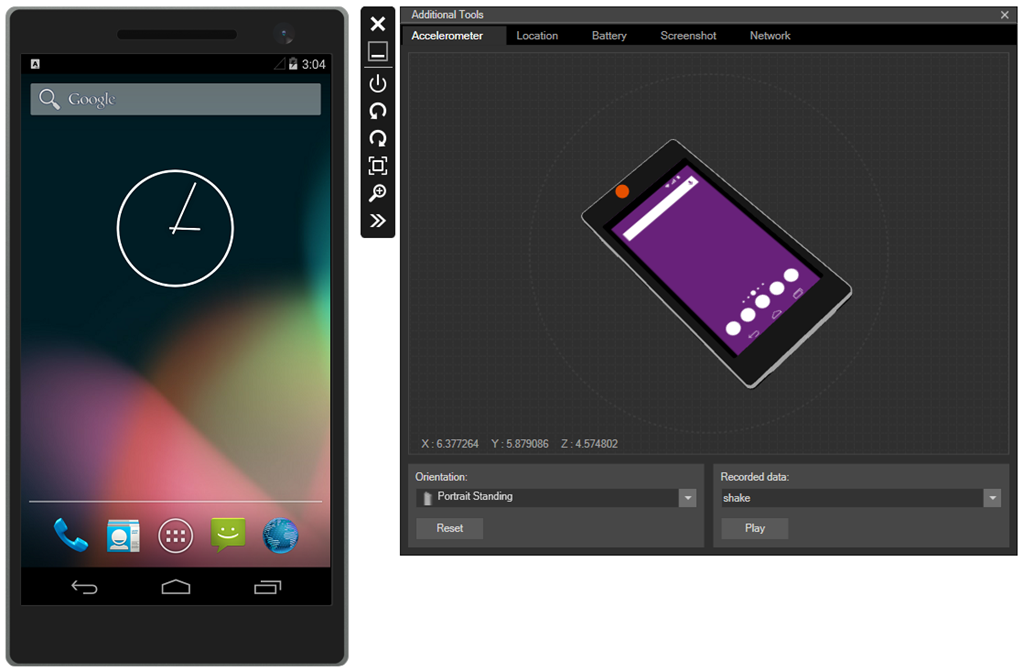
  • A new fast Android emulator based on Virtual Box
  • Xamarin Sketches for trying out code with immediate analysis and execution
  • Xamarin Profiler
  • Xamarin Insights: analytics and troubleshooting for deployed apps

Of these, Sketches is the most interesting. You write snippets of code and the tool not only executes it but does magic like generating a graph from sequences of data. You can use it for UI code too, trying out different fonts, colours and shapes until you get something you like. It is great fun and would be good for teaching as well; maybe Xamarin could do a version for education at a modest price (or free)?

image

I am looking forward to trying out Sketches though I have heard grumbles about the preview being hard to get working so it may have to wait until next week.

image

Is this why it is Windows 10 (not 9): avoiding Windows 95 detection?

Why did Microsoft call the Windows release after 8 version 10 rather than 9?

Windows boss Terry Myerson said it was because it was such a huge release – but then he would say that.

A more prosaic reason could be the old software problem of false version detection. After all, we have had Windows 9x before – that is, Windows 95 and Windows 98.

Former Windows chief Steven Sinofsky tweeted this a few hours ago:

image

which if you follow the link gets this:

image

The first of these throws an exception if the name of the OS starts with “Windows 9”; and there are plenty of others like it.

Now, Windows version numbers are complex (Windows 95 actually reported itself as version 4.0) and well-written applications would get this right. There is also a year or so before Windows 10 is released, which gives time for developers, and the suppliers of runtimes like Java, to fix their code if necessary.

Still, it seems to me plausible that avoiding a version headache was a factor behind the naming of Windows 10.

Microsoft Azure: new preview portal is “designed like an operating system” but is it better?

How important is the Azure portal, the web-based user interface for managing Microsoft’s cloud computing platform? You can argue that it is not all that important. Developers and users care more about the performance and reliability of the services themselves. You can also control Azure services through PowerShell scripts.

My view is the opposite though. The portal is the entry point for Azure and a good experience makes developers more likely to continue. It is also a dashboard, with an overview of everything you have running (or not running) on Azure, the health of your services, and how much they are costing you. I also think of the portal as an index of resources. Can you do this on Azure? Browsing through the portal gives you a quick answer.

The original Azure portal was pretty bad. I wish I had more screenshots; this 2009 post comparing getting started on Google App Engine with Azure may bring back some memories. In 2011 there were some big management changes at Microsoft, and Scott Guthrie moved over to Azure along with various other executives. Usability and capability improved fast, and one of the notable changes was the appearance of a new portal. Written in HTML 5, it was excellent, showing all the service categories in a left-hand column. Select a category, and all your services in that category are listed. Select a service and you get a detailed dashboard. This portal has evolved somewhat since it was introduced, notably through the addition of many more services, but the design is essentially the same.

image

The New button lets you create a new service:

image

The portal also shows credit status right there – no need to hunt through links to account management pages:

image

It is an excellent portal, in other words, logically laid out, easy to use, and effective.

That is the old portal though. Microsoft has introduced a new portal, first demonstrated at the Build conference in April. The new portal is at http://portal.azure.com, versus http://manage.windowsazure.com for the old one.

The new portal is different in look and feel:

image

Why a new portal and how does it work? Microsoft’s Justin Beckwith, a program manager, has a detailed explanatory post. He says that the old portal worked well at first but became difficult to manage:

As we started ramping up the number of services in Azure, it became infeasible for one team to write all of the UI. The teams which owned the service were now responsible (mostly) for writing their own UI, inside of the portal source repository. This had the benefit of allowing individual teams to control their own destiny. However – it now mean that we had hundreds of developers all writing code in the same repository. A change made to the SQL Server management experience could break the Azure Web Sites experience. A change to a CSS file by a developer working on virtual machines could break the experience in storage. Coordinating the 3 week ship schedule became really hard. The team was tracking dependencies across multiple organizations, the underlying REST APIs that powered the experiences, and the release cadence of ~40 teams across the company that were delivering cloud services.

The new portal is the outcome of some deep thinking about the future. It is architected, according to Beckwith, more like an operating system than like a web application.

The new portal is designed like an operating system. It provides a set of UI widgets, a navigation framework, data management APIs, and other various services one would expect to find with any UI framework. The portal team is responsible for building the operating system (or the shell, as we like to call it), and for the overall health of the portal.

Each service has its own extension, or “application”, which runs in an iframe (inline frame) and is isolated from other extensions. Unusually, the iframes are not used to render content, but only to run scripts. These scripts communicate with the main frame using the window.postMessage API call – familiar territory for Windows developers, since messages also drive the Windows desktop operating system.

Microsoft is also using TypeScript, a high-level language that compiles to JavaScript, and open source resources including Less and Knockout.

Beckwith’s post is good reading, but the crunch question is this: how does the new portal compare to the old one?

I get the sense that Microsoft has put a lot of effort into the new portal (which is still in preview) and that it is responsive to feedback. I expect that the new portal will in time be excellent. Currently though I have mixed feeling about it, and often prefer to use the old portal. The new portal is busier, slower and more confusing. Here is the equivalent to the previous New screen shown above:

image

The icons are prettier, but there is something suspiciously like an ad at top right; I would rather see more services, with bigger text and smaller icons; the text conveys more information.

Let’s look at scaling a website. In the old portal, you select a website, then click Scale in the top menu to get to a nice scaling screen where you can set up autoscaling, define the number of instances and so on.

How do you find this in the new portal? You get this screen when you select a website (I have blanked out the name of the site).

image

This screen scrolls vertically and if you scroll down you can find a small Scale panel. Click it and you get to the scaling panel, which has a nicely done UI though the way panels constantly appear and disappear is something you have to get used to.

There are also additional scaling options in the preview portal (the old one only offers scaling based on CPU usage):

image

The preview portal also integrates with Visual Studio online for cloud-based devops.

The challenge for Microsoft is that the old portal set a high bar for clarity and usability. The preview portal does more than the old, and is more fit for purpose as the number and capability of Azure services increases, but its designers need to resist the temptation to let prettiness obstruct performance and efficiency.

Developers can give feedback on the portal here.

Microsoft OneDrive and OneDrive for Business: a guide for the perplexed

Microsoft’s price plans for additional cloud storage are odd:

image

Hmm, £1.60 per month for 1TB or £3.99 for 200GB. Difficult decision? Especially as OneDrive for Business appears to be a superset of OneDrive:

image

It is not that simple of course (and see below for how you can get 1TB OneDrive for less). The two products have different ancestries. OneDrive was once SkyDrive and before that Windows Live Folders and before that Windows Live Drive. It was designed from the beginning as a cloud storage and client sync service.

OneDrive for Business on the other hand is essentially SharePoint: team portal including online document storage and collaboration. The original design goal of SharePoint (a feature of Windows Server 2003) was to enable businesses to share Office documents with document history, comments, secure access and so on, and to provide a workplace for teams. See the history here. SharePoint supported a technology called WebDAV (Web Distributed Authoring and Versioning) to allow clients to access content programmatically, and this could be used in Windows to make online documents appear in Windows Explorer (the file utility), but there was no synchronization client. SharePoint was not intended for storage of arbitrary file types; the system allowed it, but full features only light up with Office documents. In other words, not shared storage so much as content management system. Documents are stored in Microsoft SQL Server database.

SharePoint was bolted into Microsoft BPOS (Business Productivity Online Suite) which later became Office 365. In response to demand for document synchronization between client and cloud, Microsoft came up with SharePoint Workspace, based on Groove, a synchronization technology acquired along with Groove Networks in 2005.

I have no idea how much original Groove code remains in the the OneDrive for Business client, nor the extent to which SharePoint Online really runs the same code as the SharePoint you get in Windows Server; but that is the history and explains a bit about why the products are as they are. The OneDrive for Business client for Windows is an application called Groove.exe.

OneDrive and OneDrive for Business are different products, despite the misleading impression given by the name and the little feature table above. This is why the Windows, Mac and Mobile clients are all different and do different things.

OneDrive for Business is reasonable as an online document collaboration tool, but the sync client has always been poor and I prefer not to use it (do not click that Sync button in Office 365). You may find that it syncs a large number of documents, then starts giving puzzling errors for which there is no obvious fix. Finally Microsoft will recommend that you zap your local cache and start again, with some uncertainty about whether you might have lost some work. Microsoft has been working hard to improve it but I do not know if it is yet reliable; personally I think there are intractable problems with Groove and it should be replaced.

The mobile clients for OneDrive for Business are hopeless as DropBox replacements. The iOS client app is particularly odd: you can view files but not upload them. Photo sync, a feature highly valued by users, is not supported. However you can create new folders through the app – but not put anything in them.

Office on iOS on the other hand is a lovely set of applications which use OneDrive for Business for online storage, which actually makes sense in this context. It can also be used with consumer OneDrive or SharePoint, once it is activated.

The consumer version of OneDrive is mostly better than OneDrive for Business for online storage. It is less good for document collaboration and security (the original design goals of SharePoint) but more suitable for arbitrary file types and with a nice UI for things like picture sharing. The Windows and mobile clients are not perfect, but work well enough. The iOS OneDrive client supports automatic sync of photos and you can upload items as you would expect, subject to the design limitations of Apple’s operating system.

Even for document collaboration, consumer OneDrive is not that bad. It supports Office Web Apps, for creating and editing documents in the browser, and you can share documents with others with various levels of permission. 

What this means for you:

  • Do not trust the OneDrive for Business sync client
  • Do not even think about migrating from OneDrive to OneDrive for Business to get cheap cloud storage
  • No, you mostly cannot use the same software to access OneDrive and OneDrive for Business
  • Despite what you are paying for your Office 365 subscription, consumer OneDrive is a better cloud storage service
  • SharePoint online also known as OneDrive for Business has merit for document collaboration and team portal services, beyond the scope of consumer OneDrive

Finally, what Microsoft should do:

  • Create a new sync client for OneDrive for Business that works reliably and fast, with mobile apps that do what users expect
  • Either unify the technology in OneDrive and OneDrive for Business, or stop calling them by the same name

I do understand Microsoft’s problem. SharePoint has a huge and complex API, and Microsoft’s business users like the cloud-hosted versions of major server applications to work the same way as those that are on premise. However SharePoint will never be a optimal technology for generic cloud storage.

If I were running Office 365, I think I would bring consumer OneDrive into Office 365 for general cloud storage, and I would retain SharePoint online for what it is good at, which is the portal, application platform, and document collaboration aspect. This would be similar to how many businesses use their Windows servers: simple file shares for most shared files, and SharePoint for documents where advanced collaboration features are needed.

In the meantime, it is a mess, and with the explosive growth of Office 365, a tricky one to resolve without pain.

Microsoft has a relatively frank FAQ here.

Postscript: here is a tip if you need large amounts of OneDrive storage. If you buy Office 365 Home for £7.99 per month or £79.99 per year (which works out at £6.66 per month) you get 1TB additional storage for consumer OneDrive for up to 4 users, as well as the main Office applications:

image

The way this works is that each user activates Office using a Microsoft account. The OneDrive storage linked to that account gets the 1TB extra storage while the subscription is active.

Another option is Office 365 Personal – same deal but for one user at £5.99 per month, or £59.99 per year (£4.99 per month).

Even for one user, it is cheaper to subscribe to Office 365 Home or Personal than to buy 1TB storage at £3.99 per month per 200GB. When you add the benefit of Office applications, it is a great deal.

Despite the name, these products have little to do with Office 365, Microsoft’s cloud-hosted Exchange, SharePoint and more. These are desktop applications plus consumer OneDrive.

Microsoft releases WinJS cross-browser JavaScript library but why?

Microsoft has announced WinJS 3.0:

The Windows Library for JavaScript (WinJS) project is pleased to announce the general availability of its first release – WinJS 3.0 – since the open source project began at //BUILD 2014.

Much of WinJS will run on any modern browser but the browser support matrix has a number of gaps:

image

You can also see what runs where from this status table.

But what is WinJS? Note that it comes from the Windows apps team, not the web development team at Microsoft. WinJS was designed to enable app development for Windows 8 “Metro” (also known as the Windows Runtime) using JavaScript, CSS and HTML. Back in 2010, when Microsoft signalled the end of Silverlight and the rise of HTML 5 for browser-based applications, early versions of WinJS would already have been in preparation. Using WinJS you can share code across a Windows 8 app, web apps, and via an app packager like Apache Cordova, in apps for Android and iOS as well.

Note that Cordova is now integrated into Visual Studio, using the catchy name Multi-Device Hybrid App:

image

If you want to know what kind of controls and components are on offer in WinJS, you can find out using the excellent demo site here. This is Firefox:

image

Quick summary then: WinJS lets you build apps that look like Windows 8 Store apps, but which run cross-browser and cross-platform. But who wants to do that?

Maybe Microsoft does. The messaging from the company, especially since CEO Satya Nadella took over from Windows guy Steve Ballmer, is “any device”, provided of course that they hook up to Microsoft’s services. That messaging is intended for developers outside the company too. Check out the current campaign for Microsoft Azure, which says “consume on any device”.

image

This could be a web application, or it could be a client app using Azure Mobile Services or an ASP.NET Web API application to connect to cloud data.

You do not have to use WinJS to consume Microsoft’s services of course. Why would developers want to use the look and feel of a rather unloved app platform, rather than the native look and feel of Android or iOS? That is an excellent question, and in most cases they will not. There could be cases though, for example for internal business apps where users care most about functionality. What is the current stock? What is the lead time? Show me this customer’s order history. A WinJS app might not look right for the platform, but the UI will be touch-friendly, and ease of rollout across the major mobile platforms could trump Apple’s design guidelines.

If you are writing a pure web application, users expectations concerning native look and feel are not so high. The touch-oriented design of WinJS is its main appeal, though other web frameworks like JQuery Mobile also offer this. The “Metro” design language is distinctive, and Microsoft will be making a renewed push for Windows Store apps, or Universal Apps, as part of the new wave of Windows called Windows 9 or “Threshold”. WinJS is the way to build apps for that platform using JavaScript and HTML, with the added bonus of easy porting to a broad range of devices.

This is a hard sell though. I am impressed by the effort Microsoft has put into making WinJS work cross-platform, but will be surprised to see much usage outside Windows Store apps (including Windows Phone). On the other hand, it does help to keep the code honest: this really is HTML and JavaScript, not just a wrapper for Windows Runtime APIs.