Category Archives: .net

The UK government is adopting Open Document: some observations

The UK government is adopting the Open Document Format for Office Applications, for documents that are editable (read-only documents will be PDF or HTML). You can read Mike Bracken’s (Government Digital Service) blog on the subject here, and the details of the new requirements here. If you want to see the actual standards, they are on the OASIS site here.

I followed the XML document standards wars in some details back in 2006-2008. The origins of ODF go back to Sun Microsystems (a staunch opponent of Microsoft) which acquired an Office suite called Star Office, made it open source, and supported OpenOffice.org. My impression was that Sun’s intentions were in part to disrupt the market for Microsoft Office, and in part to promote a useful open standard out of conviction. OpenOffice eventually found its way to the Apache Foundation after Oracle’s acquisition of Sun. You can find it here.

During the time, Microsoft responded by shifting Office to use XML formats by default – these are the formats we know as .docx, .xlsx etc. It also made the formats an open standard via ECMA and ISO, to the indignation of ODF advocates who found every possible fault in the standards and the process. There were and are faults; but it has always seemed to me that an open XML standard for Microsoft Office documents was a real step forward from the wholly proprietary (but reverse engineered) binary formats.

The standards wars are to some extent a proxy for the effort to shift Microsoft from its dominance of business document authoring. Microsoft charges a lot for Office, particularly for businesses, and arguably this is an unnecessary burden. On the other hand, it is a good product which I personally prefer to the alternatives on Windows (on the Mac I am not so sure), and considering the amount of use Office gets during the working day even a small improvement in productivity is worth paying for.

As a further precaution, Microsoft added ODF support into its own Office suite. This was poor at first, though it has no doubt improved since 2007. However I would not advise anyone to set Microsoft Office to use ODF by default, unless mandated by some requirement such as government regulation. It is not the native format and I would expect a greater likelihood that something could go slightly wrong in formatting or metadata.

Bracken does not mention Microsoft Office in his blog; but as ever, the interesting part of this decision is how it will impact Office users in government, or working with government. If it is a matter of switching defaults in Office, that is no big deal, but if it means replacing Microsoft Office with Open Office or its fork, Libre Office, that will have more impact.

The problem with abandoning Microsoft Office is not only that that the alternatives may fall short, but also that the ecosystem around Microsoft Office and is document formats is richer – in other words, tools that consume or generate Office documents, add-ins for Office, and so on.

This also means that Microsoft Office documents are, in my experience, more interoperable (not less) than ODF documents.

That does not in itself make the UK government’s decision a bad one, because in making the decision it is helping to promote an alternative ecosystem. On the other hand, it does mean that the decision could be costly in constraining the choice of tools while the ODF ecosystem catches up (if it does).

How does the move towards cloud services like Office 365 and Google Docs impact on all this? Microsoft says it supports ODF in SharePoint; but for sure it is better to use Microsoft’s own formats there. For example, check the specifications for Office Online. You can edit docx in the browser, but not odt (Open Document Text); it is the same story with spreadsheets and presentations.

Google has recently added native support for the Microsoft formats to Google Docs.

Amazon’s Zocalo service, which I have just reviewed for the Register, can preview Microsoft’s formats in the browser, but while it also supports odt for preview, it does not support ods (Open Document Spreadsheet).

A good decision then by the UK government? Your answer may be partly ideological, but as a UK taxpayer, my feelings are mixed.

For more information on this and other government IT matters, I recommend Bryan Glick’s pieces over on Computer Weekly, like this one.

RemObjects previews native Apple Mac IDE for C#, .NET, Oxygene

RemObjects is previewing a new native Mac IDE for its Oxygene and C# compilers. Oxygene is a Delphi-like language (in other words, a variant of Object Pascal) which targets iOS, Mac, Android, Windows Phone and Windows. RemObjects C# shares the same targets. Both can compile to .NET assemblies for Windows, or to Mono for cross-platform .NET, or to a Mac or iOS executable (using the LLVM compiler), or to Java bytecode for the Android Dalvik runtime. You can get both Oxygene and RemObjects  C# bundled in a product called Elements.

In the past, RemObjects has used Visual Studio as its IDE. While this is a natural choice for Windows users, much development today is done on the Mac. Requiring Mac users to develop in a Windows Virtual Machine adds friction, so RemObjects is now working on a native IDE for the Mac codenamed Fire.

image

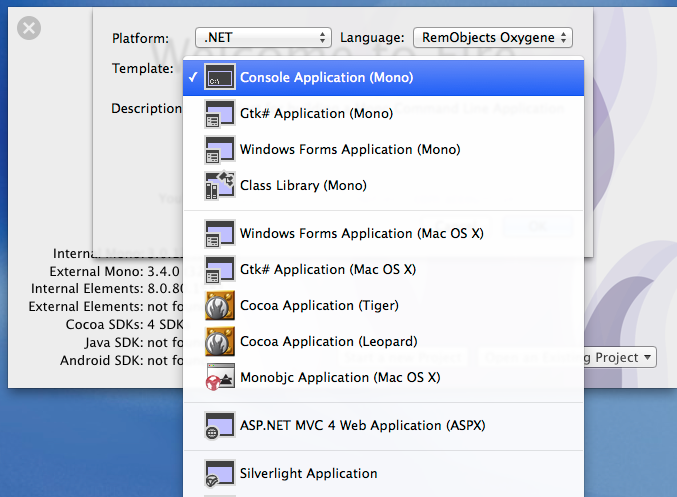
I gave Fire the briefest of looks. Here are some of the options for a new .NET application:

image

Note the appearance of ASP.NET MVC 4, and even Silverlight.

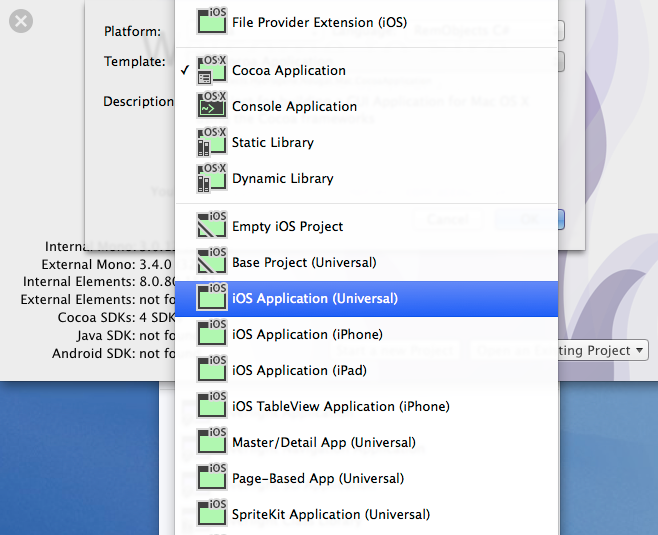
Here are the options for a new Cocoa application:

image

If you are developing for Cocoa, you can edit the resource file in Apple’s Xcode and use it in your application. I started a new C# Cocoa app, made a few changes and and then ran it from the IDE:

image

I imagine Microsoft will be keeping an eye on tools like this – if it is not, it should – since they fit with the strategy of supporting Microsoft services on multiple devices. Visual Studio is a fine tool but if Microsoft is serious about cross-platform, it needs strong Mac-native development tools. Xamarin came up with Xamarin Studio, which is cross-platform for Windows and Mac, but the RemObjects approach also looks worth investigating.

PS The first release of RemObjects C# lacked full generic support, for which failing Xamarin and Mono founder Miguel de Icaza took RemObjects to task on Twitter. I was amused to see this in the changelog for April 2014:

 image

65764 Full support for Generics on Cocoa, as requested by Miguel

For more details on Fire, see here.

Farewell Nokia X? Not quite, but the signs are clear as Microsoft bets on Universal Apps

I could never make sense of Nokia X, the Android-with-Microsoft-services device which Nokia announced less than a year ago at Mobile World Congress in Barcelona:

If Nokia X is a worse Android than Android, and a worse Windows Phone than Windows Phone, what is the point of it and why will anyone buy?

Nokia X is Android without Google’s Play Store; if Amazon struggles to persuade developers to port apps to Kindle Fire (another non-Google Android) then the task for Nokia, lacking Amazon’s ecosystem, is even harder. Now, following Microsoft’s acquisition, it makes even less sense: how can Microsoft simultaneously evangelise both Windows Phone and an Android fork with its own incompatible platform and store?

Nokia X was meant to be a smartphone at feature phone prices, or something like that, but since Windows phone runs well on low-end hardware, that argument does not stand up either.

Now Nokia X is all but dead. Microsoft CEO Satya Nadella:

image

Second, we are working to integrate the Nokia Devices and Services teams into Microsoft. We will realize the synergies to which we committed when we announced the acquisition last September. The first-party phone portfolio will align to Microsoft’s strategic direction. To win in the higher price tiers, we will focus on breakthrough innovation that expresses and enlivens Microsoft’s digital work and digital life experiences. In addition, we plan to shift select Nokia X product designs to become Lumia products running Windows. This builds on our success in the affordable smartphone space and aligns with our focus on Windows Universal Apps.

and former Nokia CEO Stephen Elop, now in charge of Microsoft devices:

In addition to the portfolio already planned, we plan to deliver additional lower-cost Lumia devices by shifting select future Nokia X designs and products to Windows Phone devices. We expect to make this shift immediately while continuing to sell and support existing Nokia X products.

Nadella has also announced a huge round of job cuts, mainly of former Nokia employees, around 12,500 which is roughly 50% of those who came over. Nokia’s mobile phone business is no all Windows Phone (Lumia) and Nokia X. In addition, it sells really low-end phones, the kind you can pick up for £10 at a supermarket, and the Asha range which are budget smartphones. Does Microsoft have any interest in Asha? Elop does not even mention it.

It seems then that Microsoft is focusing on what it considers strategic: Windows Phone at every price point, and Universal Apps which let developers create apps for both Windows Phone and full Windows (8 and higher) from a single code base.

Microsoft does also intend to support Android and iOS with apps, but has no need to make its own Android phones in order to do so.

My view is that Nokia did an good job with Windows Phone within the constraints of a difficult market; not perfect (the early Lumia 800 devices were buggy, for example), but better by far than Microsoft managed with any other OEM partner. I currently use a Lumia 1020 which I regard as something of a classic, with its excellent camera and general high quality.

It seems to me reassuring (from a Windows Phone perspective) that Microsoft is keeping Windows Phone engineering in Finland:

Our phone engineering efforts are expected to be concentrated in Salo, Finland (for future, high-end Lumia products) and Tampere, Finland (for more affordable devices). We plan to develop the supporting technologies in both locations.

says Elop, who also notes that Surface and Xbox teams will be little touched by today’s announcements.

Incidentally, I wrote recently about Universal Apps here (free registration required) and expressed the view that Microsoft cannot afford yet another abrupt shift in its developer platform; the continuing support for Universal Apps in the Nadella era makes that less likely.

Speculating a little, it also would not surprise me if Universal Apps were extended via Xamarin support to include Android and iOS – now that is really a universal app.

Will Microsoft add some kind of Android support to Windows Phone itself? This is rumoured, though it could be counter-productive in terms of winning over developers: why bother to create a Windows Phone app if your Android app will kind-of run?

Further clarification of Microsoft’s strategy is promised in the public earnings call on July 22nd.

A note on Azure storage and downloading large files

I have written a simple ASP.NET MVC application for upload and download of files to/from Azure storage.

Getting large file upload to work was the first exercise, described here. That is working well; but what about download?

If your files in Azure storage are public, you can simply serve an URL to the file. If it is not public though, you have a couple of choices:

1. Download the file under application control, by writing to Response.OutputStream or using a FileResult action.

2. Issue a Shared Access Signature (SAS) to the client which enables it to retrieve the file directly from Azure storage. The SAS is sent as an URL argument which tells Azure storage that the request is authorised. The browser downloads the file directly, so it makes no difference to your web application if the file is large.

Note that if you use the first option, it will not work with large files if you simply call DownloadToStream or similar:

container.GetBlockBlobReference(FileName).DownloadToStream(Response.OutputStream);

Why not? Well, the way this code works is that it downloads the large file to the web server, then sends it to the browser. What if your large file is 5GB? The browser will wait a long time for the first byte to be served (giving the user an unresponsive page); but before that happens, the web application will probably throw an exception because it does not like downloading such a large file.

This means the SAS option is a good one, though note that you have to specify an expiry time which could cause problems for users on a slow connection.

Another option is to serve the file in chunks. Use CloudBlockBlob.DownloadRangeToStream to write to Response.OutputStream in a loop until the download is complete. Call Response.Flush() after each chunk to send the chunk to the browser immediately.

This gives the user a nice responsive download experience complete with a cancel option as provided by the browser, and does not crash the application on the server. It seems to me a reasonable approach if the web application is also hosted on Azure and therefore has a fast connection to Azure storage.

What about resuming a failed download? The SAS approach should work as Azure supports it. You could also support this in your app with some additional work since Resume means reading the Range header in a GET request. I have not tried doing this but you might find some clues here.

Supporting developers: how could Microsoft improve?

Microsoft invests substantial resources in supporting developers; yet the last two topics I have explored in earnest – the Azure blob storage service, and ASP.NET MVC with Azure Active Directory integration – have been frustrating and difficult. Admittedly I am only an occasional developer, but I suspect my experience is common. What is going wrong, and how could Microsoft improve?

Among the problems I have encountered:

  • Abundant documentation of simple first steps with a vacuum for anything more advanced
  • Samples that do not run without tweaking
  • Samples designed for old versions of Visual Studio
  • Samples which use obsolete or deprecated libraries
  • Samples which are poor solutions for the problem they are supposed to address
  • Documentation or samples which use preview, beta or even alpha libraries. Microsoft sometimes seems to make more effort documenting what is in preview than what is fully released.
  • Posts on a topic which are out of date, but for which it is hard to find something current
  • Circular links – click here for more information – you get another article which links back to the first one, perhaps with an intermediate step
  • Poor quality responses to questions on official Microsoft forums

On the positive side, the reference documentation is not too bad. StackOverflow is a great resource and seems to attract higher quality responses (even sometimes from Microsoft staff) than the company’s own forums.

Here then are some of the improvements I would like to see:

1. A sharper distinction between what is in preview and what is production-ready. For any given problem, it would be great to find a clear statement of how you should address it for production now, with fully released and supported libraries, and another statement showing how you will be able to address it with the latest and greatest (but perhaps less stable) technology which is in preview.

2. For key teams in Microsoft to maintain sites which offer clearly delineated production and preview sections and which are kept rigorously up to date.

3. More short samples and fewer “this demonstrates everything” samples. Large samples are more difficult to install and study and have more complex dependencies.

4. Posts and their accompanying code inevitably go out of date and I do not favour removing them, which causes more difficulties than it solves (broken links). However it seems to me reasonable for teams to maintain a number of key samples for their product area and keep them up to date.

What am I missing – or am I complaining too much about what is normal in software development? As ever, I welcome your views.

Developing an ASP.NET MVC app with Azure Active Directory: an ordeal

Regular readers will know that I am working on a simple (I thought) ASP.NET MVC application which is hosted on Azure and uses Azure Blob Storage.

So far so good; but since this business uses Office 365 it seemed to me logical to have users log in using Azure Active Directory (AD). Visual Studio 2013, with the latest update, has a nice wizard to set this up. Just complete the following dialog when starting your new project:

image

This worked fairly well, and users can log in successfully using Azure AD and their normal Office 365 credentials.

I love this level of integration and it seems to me key and strategic for the Microsoft platform. If an employee leaves, or changes role, just update Active Directory and all application access comes into line automatically, whether on premise or in the cloud.

The next stage though was to define some user types; to keep things simple, let us say we have an AppAdmin role for users with full access to the application, and an AppUser role for users with limited access. Other users in the organisation do not need access at all and should not be able to log in.

The obvious way to do this is with AD groups, but I was surprised to discover that there is no easy way to discover to which groups an AD user belongs. The Azure AD integration which the wizard generates is only half done. Users can log in, and you can programmatically retrieve basic information including the firstname, lastname, User Principal Name and object ID, but nothing further.

Fair enough, I thought, there will be some libraries out there that fill the gap; and this is how the nightmare begins. The problem is that this is the cutting edge of .NET cloud development and is an area of rapid change. Yes there are samples out there, but each one (including the official ones on MSDN) seems to be written at a different time, with a different approach, with different .NET assembly dependencies, and varying levels of alpha/beta/experimental status.

The one common thread is that to get the AD group information you need to use the Graph API, a REST API for querying and even writing to Azure Active Directory. In January 2013, Microsoft identity expert Vittorio Bertocci (Principal Program Manager in the Windows Azure Active Directory team at Microsoft) wrote a helpful post about how to restore IsInRole() and [Authorize] in ASP.NET apps using Azure AD – exactly what I wanted to do. He describes essentially a manual approach, though he does make use of a library called Azure Authentication Library (AAL) which you can find on Nuget (the package manager for .NET libraries used by Visual Studio) described as a Beta.

That would probably work, but AAL is last year’s thing and you are meant to use ADAL (Active Directory Authentication Library) instead. ADAL is available in various versions ranging from 1.0.3 which is a finished release, to 2.6.2 which is an alpha release. Of course Bertocci has not updated his post so you can use the obsolete AAL beta if you dare, or use ADAL if you can figure out how to amend the code and which version is the best/safest to employ. Or you can write your own wrapper for the Graph API and bypass all the Nuget packages.

I searched for a better sample, but it gets worse. If you browse around MSDN you will probably come across this article along with this sample which is a Task Tracker application using Azure AD, though note the warnings:

NOTE: This sample is outdated. Its technology, methods, and/or user interface instructions have been replaced by newer features. To see an updated sample that builds a similar application, see WebApp-GraphAPI-DotNet.

Despite the warnings, the older sample is widely referenced in Microsoft posts like this one by Rick Anderson.

OK then, let’s look at at the shiny new sample, even though it is less well documented. It is called WebApp-GraphAPI-DotNet and includes code to get the user profile, roles, contacts and groups from Azure AD using the latest Graph API client: Microsoft.Azure.ActiveDirectory.GraphClient. This replaces an older effort called the GraphHelper which you will find widely used elsewhere.

If you dig into this new sample though, you will find a ton of dependencies on pre-release assemblies. You are not just dealing the Graph API, but also with OWIN (Open Web Interface for .NET), which seems to be Microsoft’s current direction for communication between web applications.

After messing around with Nuget packages and trying to get WebApp-GraphAPI-DotNet working I realised that I was not happy with all this preview code which is likely to break as further updates come along. Further, it does far more than I want. All I need is actually contained in Bertocci’s January 2013 post about getting back IsInRole.

I ended up patching together some code using the older GraphHelper (as found in the obsolete Task Tracker application) and it is working. I can now use IsInRole based on AD groups.

This is a mess. It is a simple requirement and it should not be necessary to plough through all these complicated and conflicting documents and samples to achieve it.

Notes from the field: putting Azure Blob storage into practice

I rashly agreed to create a small web application that uploads files into Azure storage. Azure Blob storage is Microsoft’s equivalent to Amazon’s S3 (Simple Storage Service), a cloud service for storing files of up to 200GB.

File upload performance can be an issue, though if you want to test how fast your application can go, try it from an Azure VM: performance is fantastic, as you would expect from an Azure to Azure connection in the same region.

I am using ASP.NET MVC and thought a sample like this official one, Uploading large files using ASP.NET Web API and Azure Blob Storage, would be all I needed. It is a start, but the method used only works for small files. What it does is:

1. Receive a file via HTTP Post.

2. Once the file has been received by the web server, calls CloudBlob.UploadFile to upload the file to Azure blob storage.

What’s the problem? Leaving aside the fact that CloudBlob is deprecated (you are meant to use CloudBlockBlob), there are obvious problems with files that are more than a few MB in size. The expectation today is that users see some sort of progress bar when uploading, and a well-written application will be resistant to brief connection breaks. Many users have asynchronous internet connections (such as ADSL) with slow upload; large files will take a long time and something can easily go wrong. The sample is not resilient at all.

Another issue is that web servers do not appreciate receiving huge files in one operation. Imagine you are uploading the ISO for a DVD, perhaps a 3GB file. The simple approach of posting the file and having the web server upload it to Azure blob storage introduces obvious strain and probably will not work, even if you do mess around with maxRequestLength and maxAllowedContentLength in ASP.NET and IIS. I would not mind so much if the sample were not called “Uploading large files”; the author perhaps has a different idea of what is a large file.

Worth noting too that one developer hit a bug with blobs greater than 5.5MB when uploaded over HTTPS, which most real-world businesses will require.

What then are you meant to do? The correct approach, as far as I can tell, is to send your large files in small chunks called blocks. These are uploaded to Azure using CloudBlockBlob.PutBlock. You identify each block with an ID string, and when all the blocks are uploaded, called CloudBlockBlob.PutBlockList with a list of IDs in the correct order.

This is the approach taken by Suprotim Agarwal in his example of uploading big files, which works and is a great deal better than the Microsoft sample. It even has a progress bar and some retry logic. I tried this approach, with a few tweaks. Using a 35MB file, I got about 80 KB/s with my ADSL broadband, a bit worse than the performance I usually get with FTP.

Can performance be improved? I wondered what benefit you get from uploading blocks in parallel. Azure Storage does not mind what order the blocks are uploaded. I adapted Agarwal’s sample to use multiple AJAX calls each uploading a block, experimenting with up to 8 simultaneous uploads from the browser.

The initial results were disappointing. Eventually I figured out that I was not actually achieving parallel uploads at all. The reason is that the application uses ASP.NET session state, and IIS will block multiple connections in the same session unless you mark your ASP.NET MVC controller class  with the SessionStateBehavior.ReadOnly attribute.

I fixed that, and now I do get multiple parallel uploads. Performance improved to around 105 KB/s, worthwhile though not dramatic.

What about using a Windows desktop application to upload large files? I was surprised to find little improvement. But can parallel uploading help here too? The answer is that it should happen anyway, handled by the .NET client library, according to this document:

If you are writing a block blob that is no more than 64 MB in size, you can upload it in its entirety with a single write operation. Storage clients default to a 32 MB maximum single block upload, settable using the SingleBlobUploadThresholdInBytes property. When a block blob upload is larger than the value in this property, storage clients break the file into blocks. You can set the number of threads used to upload the blocks in parallel using the ParallelOperationThreadCount property.

It sounds as if there is little advantage in writing your own chunking code, except that if you just call the UploadFromFile or UploadFromStream methods of CloudBlockBlob, you do not get any progress notification event (though you can get a retry notification from an OperationContext object passed to the method). Therefore I looked around for a sample using parallel uploads, and found this one from Microsoft MVP Tyler Doerksen, using C#’s Parallel.For.

Be warned: it does not work! Doerksen’s approach is to upload the entire file into memory (not great, but not as bad as on a web server), send it in chunks using CloudBlockBlob.PutBlock, adding the block ID to a collection at the same time, and then to call CloudBlockBlob.PutBlockList. The reason it does not work is that the order of the loops in Parallel.For is indeterminate, so the block IDs are unlikely to be in the right order.

I fixed this, it tested OK, and then I decided to further improve it by reading each chunk from the file within the loop, rather than loading the entire file into memory. I then puzzled over why my code was broken. The files uploaded, but they were corrupt. I worked it out. In the following code, fs is a FileStream object:

fs.Position = x * blockLength;
bytesread = fs.Read(chunk, 0, currentLength);

Spot the problem? Since fs is a variable declared outside the loop, other threads were setting its position during the read operation, with random results. I fixed it like this:

lock (fs)
{
fs.Position = x * blockLength;
bytesread = fs.Read(chunk, 0, currentLength);
}

and the file corruption disappeared.

I am not sure why, but the manually coded parallel uploads seem to slightly but not dramatically improve performance, to around 100-105 KB/s, almost exactly what my ASP.NET MVC application achieves over my broadband connection.

image

There is another approach worth mentioning. It is possible to bypass the web server and upload directly from the browser to Azure storage. To do this, you need to allow cross-origin resource sharing (CORS) as explained here. You also need to issue a Shared Access Signature, a temporary key that allows read-write access to Azure storage. A guy called Blair Chen seems to have this all figured out, as you can see from his Azure speed test and jazure JavaScript library, which makes it easy to upload a blob from the browser.

I was contemplating going that route, but it seems that performance is no better (judging by the Test Upload Big Files section of Chen’s speed test), so I should probably be content with the parallel JavaScript upload solution, which avoids fiddling with CORS.

Overall, has my experience with the Blob storage API been good? I have not found any issues with the service itself so far, but the documentation and samples could be better. This page should be the jumping off point for all you need to know for a basic application like mine, but I did not find it easy to find good samples or documentation for what I thought would be a common scenario, uploading large files with ASP.NET MVC.

Update: since writing this post I have come across this post by Rob Gillen which addresses the performance issue in detail (and links to working Parallel.For code); however I suspect that since the post is four years old the conclusions are no longer valid, because of improvements to the Azure storage client library.

Visual Studio “14” announced, preview available with “Roslyn” open source compiler

Microsoft’s Soma Somasegar has announced the next version of Visual Studio, currently known as Visual Studio 14, but likely to be fully released in 2015 (and, I am guessing, likely to be called Visual Studio 2015).

This is a major release. It includes a new VB and C# compiler which is itself written in managed code, codenamed Roslyn. The open source Roslyn project provides new APIs that enable more powerful IDE features. Visual Basic is getting refactoring support for the first time.

The preview also includes a major update to ASP.NET that unifies ASP.NET MVC and the ASP.NET Web API, and has a new deployment model and developer experience:

Thanks to the Rosyln compiler, if you change ".cs” files or project.json file and want to see the change in the browser, you don’t need to build the project any more. Just refresh the browser.

There is no IIS express, nor IIS involved when you run from the command line. It means that you can publish your website to a USB drive, and run it by double clicking the web.cmd file!

On the C++ side, there is improved C++ 11 support and more features from C++ 14:

The Visual Studio "14" CTP includes support for user-defined literals, noexcept, alignof and alignas, and inheriting constructors from C++11, generalized lambda capture, auto function return type deduction, and generic lambdas from C++14, as well as many more new C++ features.

says Somasegar. There is also a refactored C Runtime (CRT):

msvcr140.dll no longer exists. It is replaced by a trio of DLLs: vcruntime140.dll, appcrt140.dll, and desktopcrt140.dll.

If you install the CTP (mine is downloading) use a spare machine or VM; it is an early preview that does not work side-by-side with other versions and the only uninstall may be to flatten the machine:

Installing a CTP release will place a computer in an unsupported state. For that reason, we recommend only installing CTP releases in a virtual machine, or on a computer that is available for reformatting.

Xamarin 3.0 brings iOS visual design to Visual Studio, cross-platform XAML, F#, NuGet and more

Xamarin has announced the third version of its cross-platform tools, which use C# and .NET to target multiple platforms, including iOS, Android and Mac OS X.

Xamarin 3.0 is a big release. In summary:

Xamarin Designer for iOS

Using a visual designer for iOS Storyboard projects, you can create and modify a GUI in both Visual Studio and Xamarin Studio (Xamarin’s own IDE). The designer uses the native Storyboard format, so you can open and modify existing files created in Xcode on the Mac. The technology here is amazing, since you iOS controls are rendered remotely on a Mac, and transmitted to the designer on Windows. See here for a quick hands-on.

Xamarin Forms

Xamarin has created the cross-platform GUI framework that it said it did not believe in. It is based on XAML though not compatible with Microsoft’s existing XAML implementations. There is no visual designer yet.

Why has Xamarin changed its mind? It was pressure from enterprise customers, from what I heard from CEO Nat Friedman. They want to make internal mobile apps with many forms, and do not want to rewrite the GUI code for every mobile platform they support.

Friedman made the point that Xamarin Forms still render as native controls. There is no drawing code in Xamarin Forms.

“The challenge for us in  building Xamarin forms was to give people enhanced productivity without compromising the native approach. The mix and match approach, where you can mix in native code at any point, you can get a handle for the native control, we’re think we’ve got the right compromise. And we’re not forcing Xamarin forms on you, this is just an option,”

he told me.

Again, there is a quick hands-on here.

F# support

F# is now officially supported in Xamarin projects. This brings functional programming to Xamarin, and will be warmly welcomed by the small but enthusiastic F# community (including, as I understand it, key .NET users in the financial world).

Portable Class Libraries

Xamarin now supports Microsoft’s Portable Class Libraries, which let you state what targets you want to support, and have Visual Studio ensure that you write compatible code. This also means that library vendors can easily support Xamarin if they choose to do so.

NuGet Packages

The NuGet package manager has transformed the business of getting hold of new libraries for use in Visual Studio. Now you can use it with Xamarin in both Visual Studio and Xamarin Studio.

Microsoft partnership

Perhaps the most interesting part of my interview with Nat Friedman was what he said about the company’s partnership with Microsoft. Apparently this is now close both from a technical perspective, and for business, with Microsoft inviting Xamarin for briefings with key customers.

Hands on with Xamarin 3.0: a cross-platform breakthrough for Visual Studio

Today Xamarin announced version 3.0 of its cross-platform mobile development tools, which let you target Android and iOS with C# and .NET. I have been trying a late beta preview.

In order to use Xamarin 3.0 with iOS support you do need a Mac. However, you can do essentially all of your development in Visual Studio, and just use the Mac for debugging.

To get started, I installed Xamarin 3.0 on both Windows (with Visual Studio 2013 installed) and on a Mac Mini on the same network.

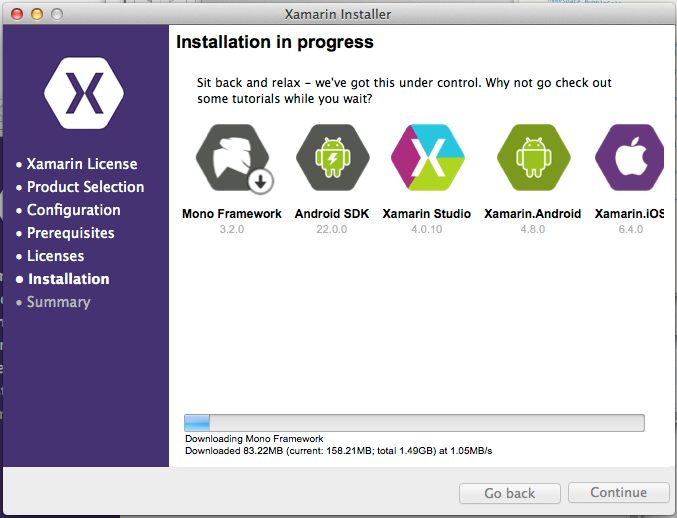
image

Unfortunately I was not able to sit back and relax. I got an error installing Xamarin Studio, following which the installer would not proceed further. My solution was to download the full DMG (Mac virtual disk image) for Xamarin Studio and run that separately. This worked, and I was able to complete the install with the combined installer.

When you start a Visual Studio iOS project, you are prompted to pair with a Mac. To do this, you run a utility on the Mac called Xamarin.IOS Build Host, which generates a PIN. You enter the PIN in Visual Studio and then pairing is active.

image

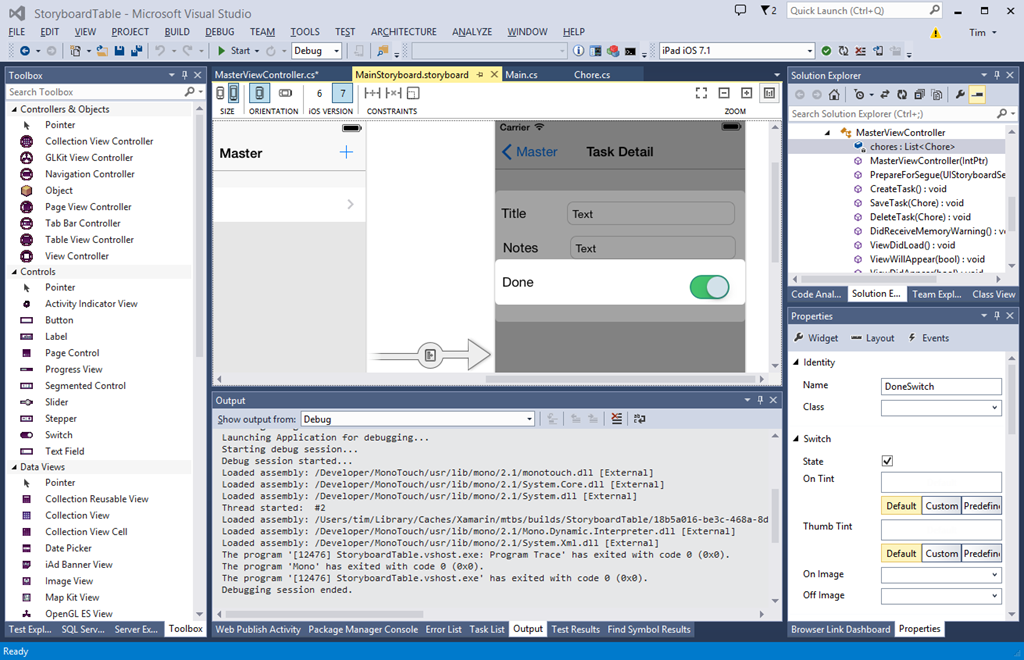
Once paired, you can create or open iOS Storyboard projects in Visual Studio, and use Xamarin’s amazing visual designer.

image

Please click this image to open it full-size. What you are seeing is a native iOS Storyboard file open in Visual Studio 2013 and rendering the iOS controls. On the left is a palette of visual components I can add to the Storyboard. On the right is the normal Visual Studio solution explorer and property inspector.

The way this works, according to what Xamarin CEO Nat Friedman told me, is that the controls are rendered using the iOS simulator on the Mac, and then transmitted to the Windows designer. Thus, what you see is exactly what the simulator will render at runtime. Friedman says it is better than the Xcode designer.

“The way we do event handling is far more intuitive than Xcode. It supports the new iOS 7 auto-layout feature. It allows you to live preview custom controls. Instead of getting a grey rectangle you can see it live rendered inside the canvas. We use the iOS native format for Storyboard files so you can open existing Storyboard files and edit them.”

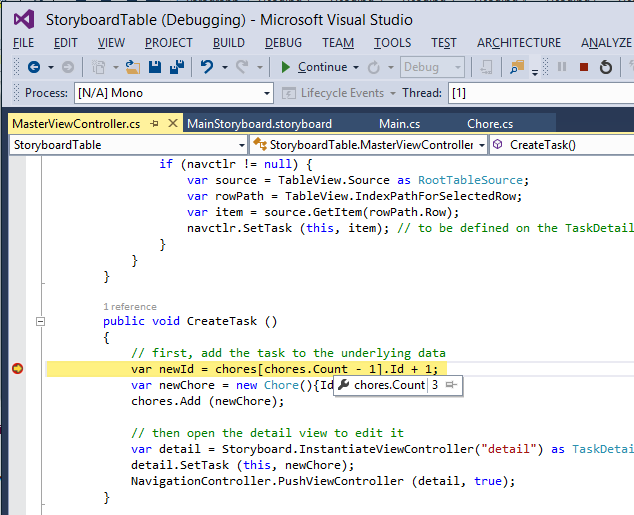
I made a trivial change to the project, configured the project to debug on the iOS simulator, and hit Start. On the Mac side, the app opened in the simulator. On the Windows side, I have breakpoint debugging.

image

Now, I will not pretend that everything ran smoothly in the short time I have had the preview. I have had problems with the pairing after switching projects in Visual Studio. I also had to quit and restart the iOS Simulator in order to get rendering working again. This is an amazing experience though, combining remote debugging with a visual designer on Visual Studio in Windows that remote-renders design-time controls.

Still, time to look at another key new feature in Xamarin 3: Xamarin Forms. This is none other than our old friend XAML, implemented for iOS and Android. The Mono team has some experience implementing XAML on Linux, thanks to the Moonlight project which did Silverlight on Linux, but this is rather different. Xamarin forms does not do any custom drawing, but wraps native controls. In other words, it like is the Eclipse SWT approach for Java, and not like the Swing approach which does its own drawing. This is keeping with Xamarin’s philosophy of keeping apps as native as possible, even though the very existence of a cross-platform GUI framework is something of a compromise.

I have not had long to play with this. I did create a new Xamarin Forms project, and copy a few lines of XAML from a sample into a shared XAML file. Note that Xamarin Forms uses Shared Projects in Visual Studio, the same approach used by Microsoft’s Universal Apps. However, Xamarin Forms apps are NOT Universal Apps, since they do not support Windows 8 (yet).

image 

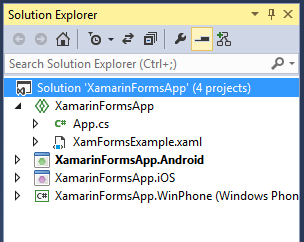
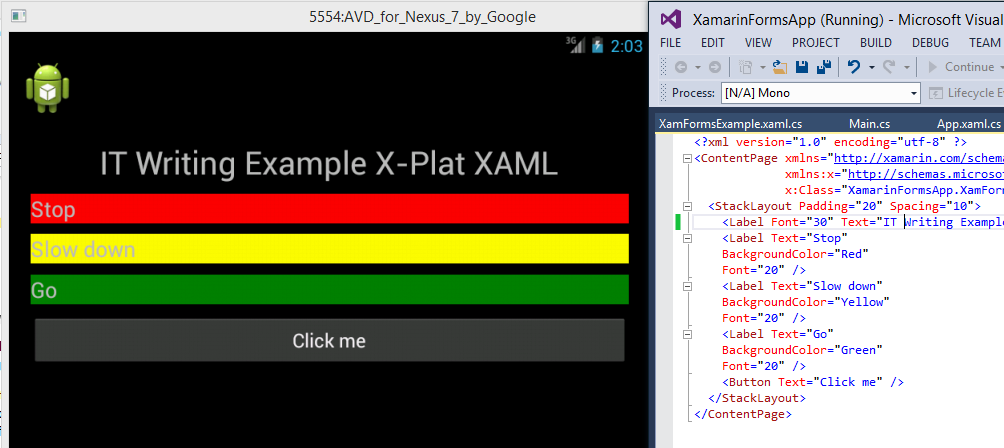
In a Shared Project, you have some code that is shared, and other code that is target-specific. By default hardly any code is shared, but you can move code to the shared node, or create new items there. I created XamFormsExample.xaml in the shared node, and amended App.cs so that it loads automatically. Then I ran the project in the Android emulator.

image

I was also able to run this on iOS using the remote connection.

I noticed a few things about the XAML. The namespace is:

xmlns="http://xamarin.com/schemas/2014/forms"
xmlns:x="http://schemas.microsoft.com/winfx/2009/xaml"

I have not seen this before. Microsoft’s XAML always seems to have a “2006” namespace. For example, this is for a Universal App:

xmlns="http://schemas.microsoft.com/winfx/2006/xaml/presentation"
xmlns:x=http://schemas.microsoft.com/winfx/2006/xaml

However, XAML 2009 does exist and apparently can be used in limited circumstances:

In WPF, you can use XAML 2009 features, but only for XAML that is not WPF markup-compiled. Markup-compiled XAML and the BAML form of XAML do not currently support the XAML 2009 language keywords and features.

It’s odd, because of course Xamarin’s XAML is cut-down compared to Microsoft’s XAML. That said, I am not sure of the exact specification of XAML in Xamarin Forms. I have a draft reference but it is incomplete. I am not sure that styles are supported, which would be a major omission. However you do get layout managers including AbsoluteLayout, Grid, RelativeLayout and StackLayout. You also get controls (called Views) including Button, DatePicker, Editor, Entry (single line editor), Image, Label, ListView, OpenGLView, ProgressBar, SearchBar, Slider, TableView and WebView.

Xamarin is not making any claims for compatibility in its XAML implementation. There is no visual designer, and you cannot port from existing XAML code. The commitment to wrapping native controls may limit prospects for compatibility. However, Friedman did say that Xamarin hopes to support Universal Apps, ie. to run on Windows 8 as well as Windows Phone, iOS and Android. He said:

I think it is the right strategy, and if it does take off, which I think it will, we will support it.

Friedman says the partnership with Microsoft (which begin in November 2013) is now close, and it would be reasonable to assume that greater compatibility with Microsoft XAML is a future goal. Note that Xamarin 3 also supports Portable Class Libraries, so on the non-visual side sharing code with Microsoft projects should be straightforward.

Personally I think both the Xamarin forms and the iOS visual designer (which, note, does NOT support Xamarin Forms) are significant features. The iOS designer matters because you can now do almost all of your cross-platform mobile development within Visual Studio, even if you want to follow the old Xamarin model of a different, native user interface for each platform; and Xamarin Forms because it enables a new level of code sharing for Xamarin projects, as well as making XAML into a GUI language that you can use across all the most popular platforms. Note that I do have reservations about XAML; but it does tick the boxes for scaling to multiple form factors and for enormous flexibility.